The mobile phone, practically inseparable from us, has made us improve (or worsen, depending on how you look at it) our quality of life. Besides serving as a link to the world, the smartphone has also become our always reliable camera.

However, its immediate availability also has its downsides. It’s not uncommon to wake up one day and see that our gallery is full of thousands of photos, many of which are similar to each other or even duplicated. The good news is that with Adobe Lightroom 2025 you can regain control of your photo library without going crazy.
Next, we will see how to organize our photos with the help of Adobe Lightroom. Don’t worry if you are using a camera, as the following steps will also be useful for you.
What is Adobe Lightroom and what is it used for?
Adobe Lightroom is an Adobe program for professionals and photography enthusiasts who want to organize, edit, and share their captures quickly and efficiently. Unlike Photoshop, which focuses on detailed and layered editing, Lightroom is designed to work with large volumes of images. Additionally, it offers tools intended to manage your photographic archive from start to finish.
With Lightroom, you can import and organize your photos, edit non-destructively, and even apply adjustments to many images at once to save time. With Lightroom, it will be easier for you to keep all your photos organized and edit them without too many technical complications.

Organize your photos in Lightroom 2025
Having your photos well organized in Lightroom not only saves you time, it also improves your workflow. Adobe Lightroom 2025 incorporates several easy-to-use features that will allow you to keep your library under control, no matter how large it is.
From the All Photos panel, for example, you can quickly select the photos you want to view in the grid: Recently Added, By Date, Connections, Deleted, etc. If we get more specific, we have several ways to organize the photographs. One of them is the creation of albums:
- Open Lightroom and select the + button you will see next to Albums. Then, select Create Album. Type the name you want and finally, click on Create.
- Select the photos you want and drag them to the album you created.
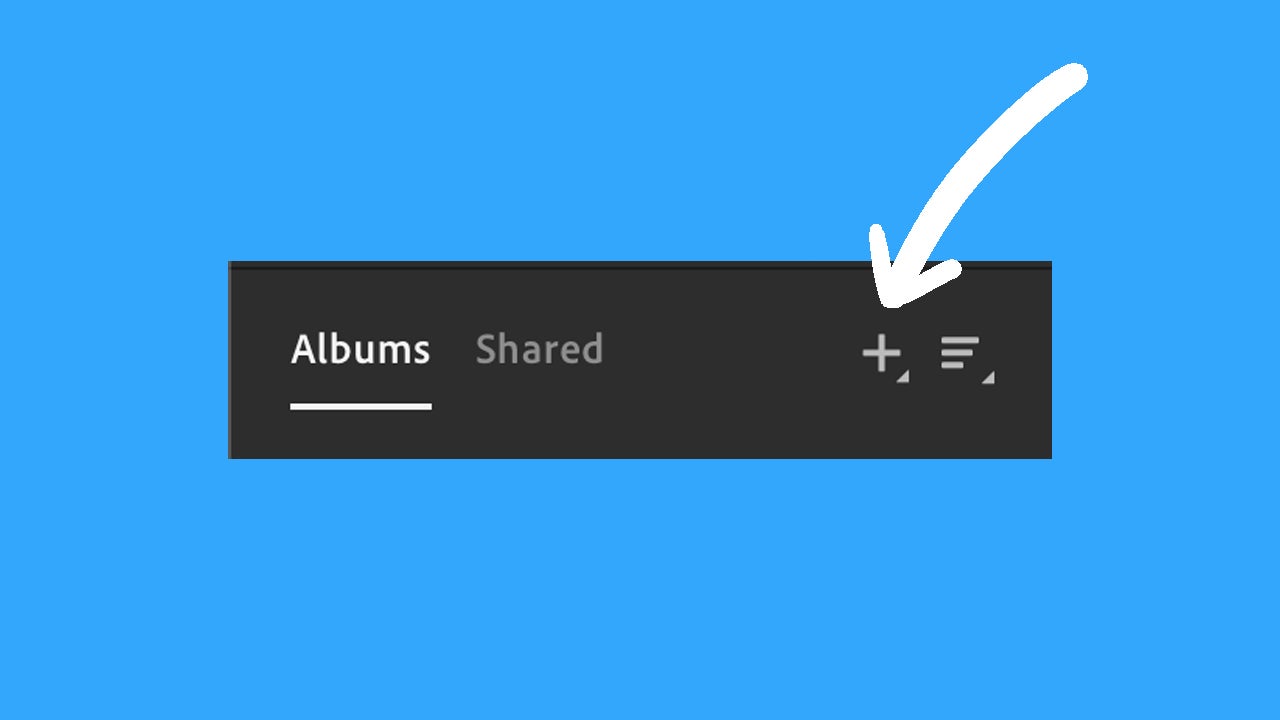
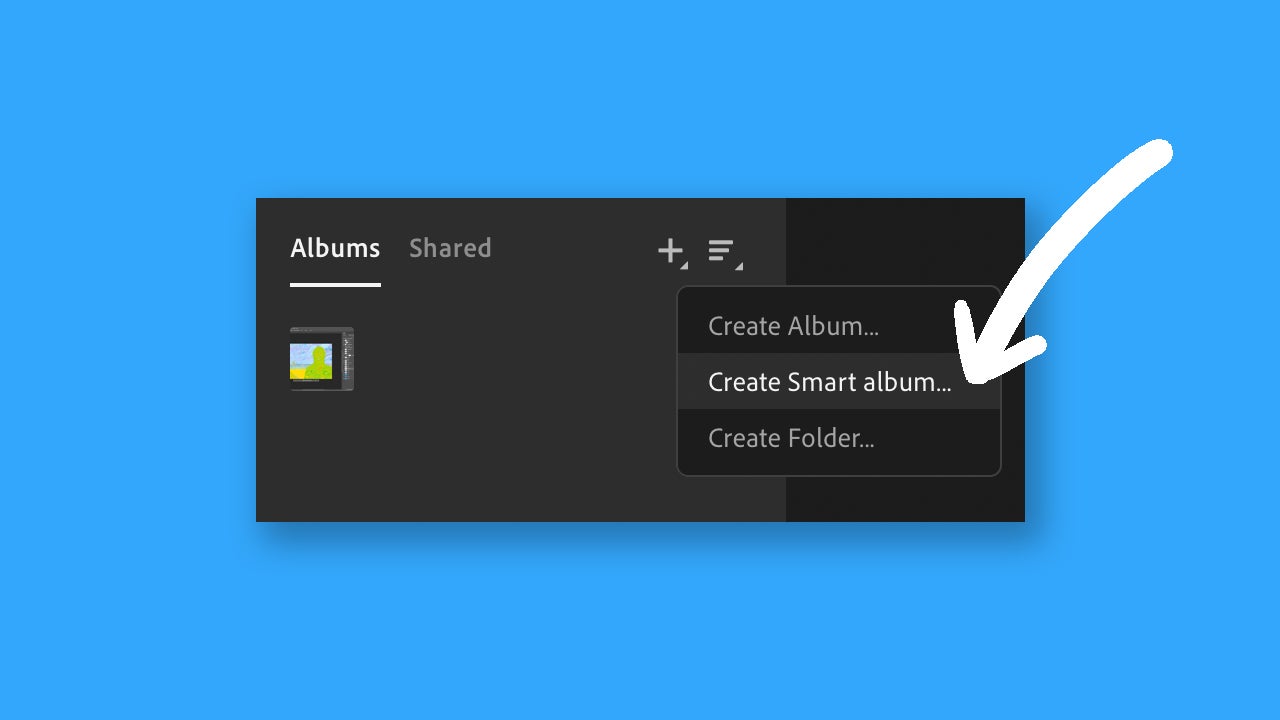
You can also create smart albums:
- Inside Lightroom, select the + button next to Albums.
- Choose the Create Smart Album. option.
- Next, write a title, choose a folder, and add the rules in Add New Rule to finish creating the smart album. These rules will help Lightroom classify the images according to your guidelines.
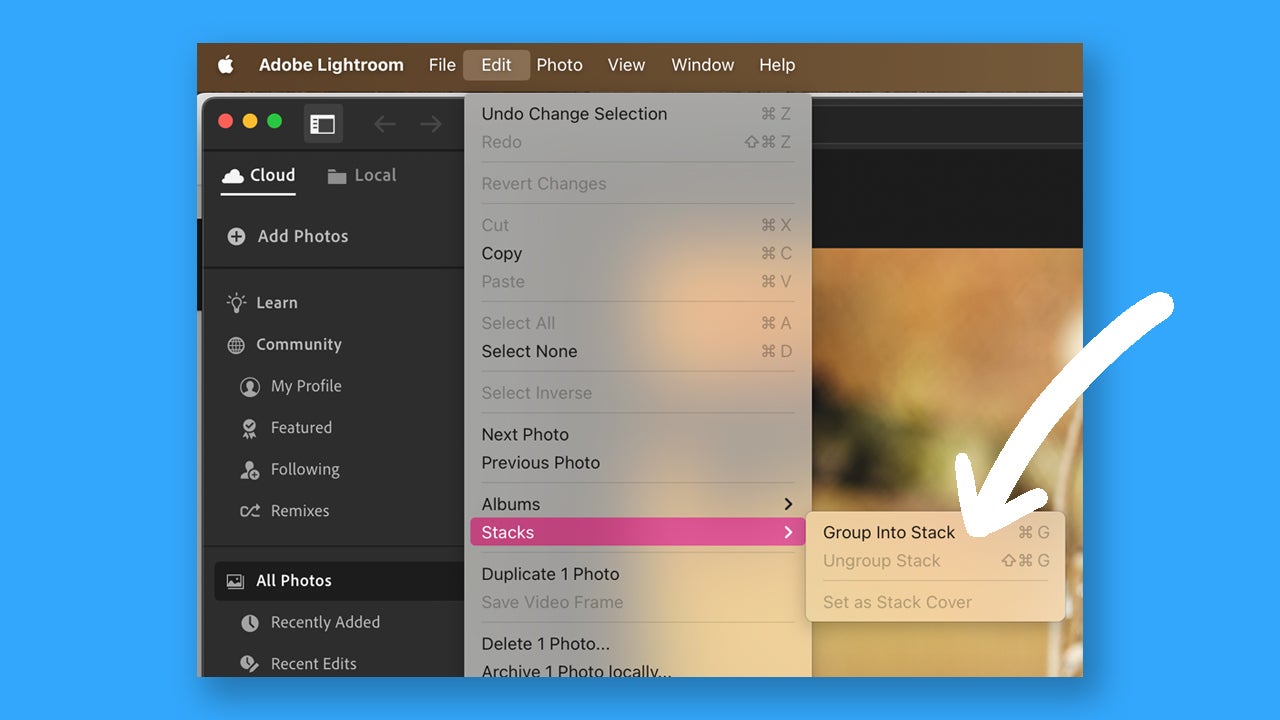
Other organization methods within Lightroom include the option to stack photos or add keywords:
- To stack photos, select the ones you want to stack and right-click on them. Choose the option Group into Stack. Another way to do this is to go to the Edit menu and select Stacks > Group Into Stacks. To dissolve it, right-click on the stack and select Ungroup Stack.
- To use keywords, select the photos you want to organize and then click on View > Keywords. Assign the keywords you want and click on Enter.
How to Find Duplicate Photos in Lightroom 2025
Lightroom can become the best ally for those who have to deal with duplicate photos. We now have a new feature, Duplicate Detection, but it can currently only be used if you access the Early Access of Lightroom.
- Open the web version of Lightroom and select All Photos.
- Click on Clean Up > Duplicates. Within the Duplicates tab, you will see all the images that are duplicated.
- If you want to keep any of those photos, use the Mark as Reviewed function. Finally, select Delete to remove all the duplicated photos.
At the moment, Lightroom does not automatically detect duplicates. However, you can follow these practices if you want to avoid encountering a large number of repeated photos:
- Create smart collections with filters like date, file name, or similar metadata.
- Use keywords to group related images and see if there are unnecessary duplicates.
- Sort photos by file name or capture date to visually detect duplicates.
- You can enable grid view for quick comparison.
You can also install plugins created by third parties that can help you detect duplicates. You can access them from the Creative Cloud app through Stock & Marketplace. When you find one you want to try, click on Get and follow the on-screen instructions to complete the installation.
