
If you are one of those who spends hours trying to integrate elements into a photograph, we have good news for you. Recently, Adobe held the Adobe MAX 2025, the annual conference where the company presents the latest advancements in its programs.
In this edition, the main protagonist was once again artificial intelligence. One of the tools that were presented was Harmonize, a feature that we will find within Photoshop. If you want to know how it works, we explain it to you step by step.

This is how Harmonize works, Adobe Photoshop’s new tool
Knowing how to integrate an element into a photograph or composition is not an easy task. Many factors come into play here: lighting, placement, perspective, colors, etc. These are just some of the pieces that, if you know how to handle them, will make an entire image work together.
Fortunately, Photoshop can take all this work off your hands with Harmonize. This feature will help you merge objects, people, or animals into any background you choose.
The first time this feature was mentioned was during Adobe MAX 2024, under the name of Project Perfect Blend. Name changes aside, its functionality remains the same: Harmonize will help you combine different elements into a single image with very realistic results.
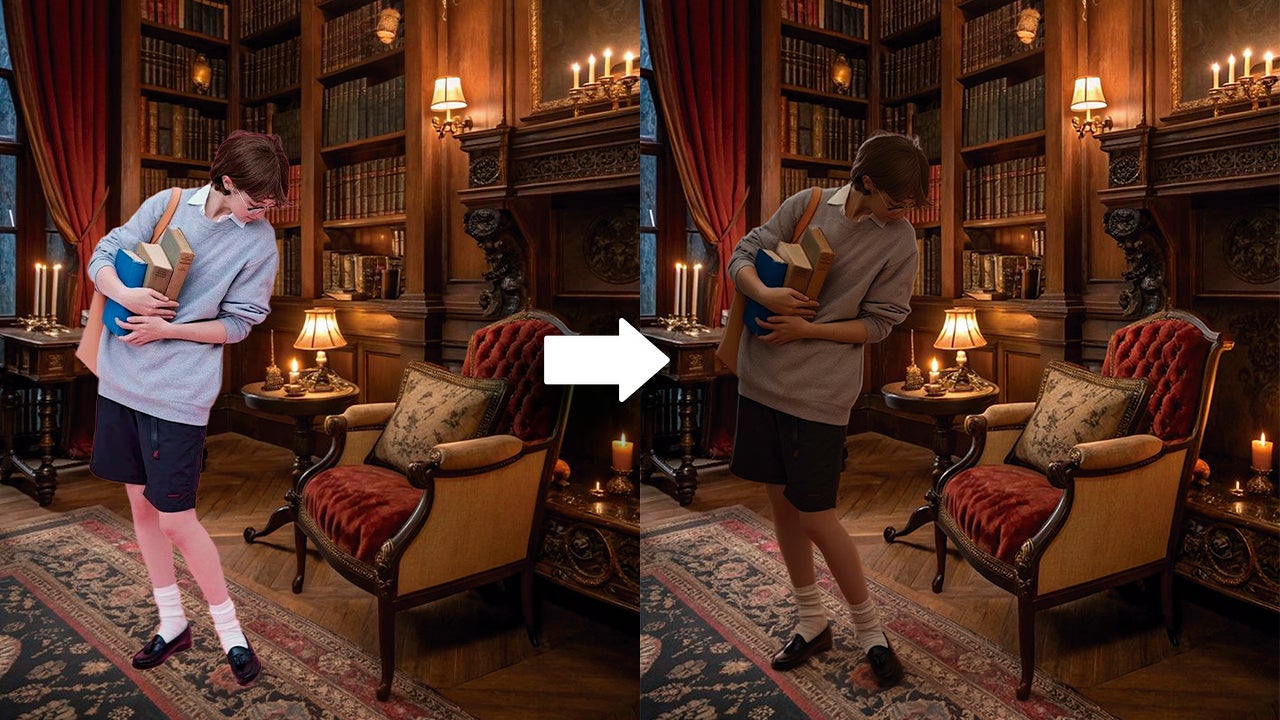
Here we explain step by step how to use Harmonize in Photoshop:
- Inside Photoshop, select File > Open to open the image you want to be your background.
- Then, click on File > Place Embedded to insert a subject of your choice on a new layer over the background. If this subject has a background, you can remove it beforehand using the Remove Background tool.
- A very simple way to quickly remove a background is by clicking on the magic wand tool and then going to the top and selecting Select Subject.
- You can also drag the image directly with the mouse into Photoshop.
- From the Layers panel, right-click on the layer you want to integrate with the background. Then, select the Harmonize option. You can also go to the canvas and click on Harmonize from the contextual bar.
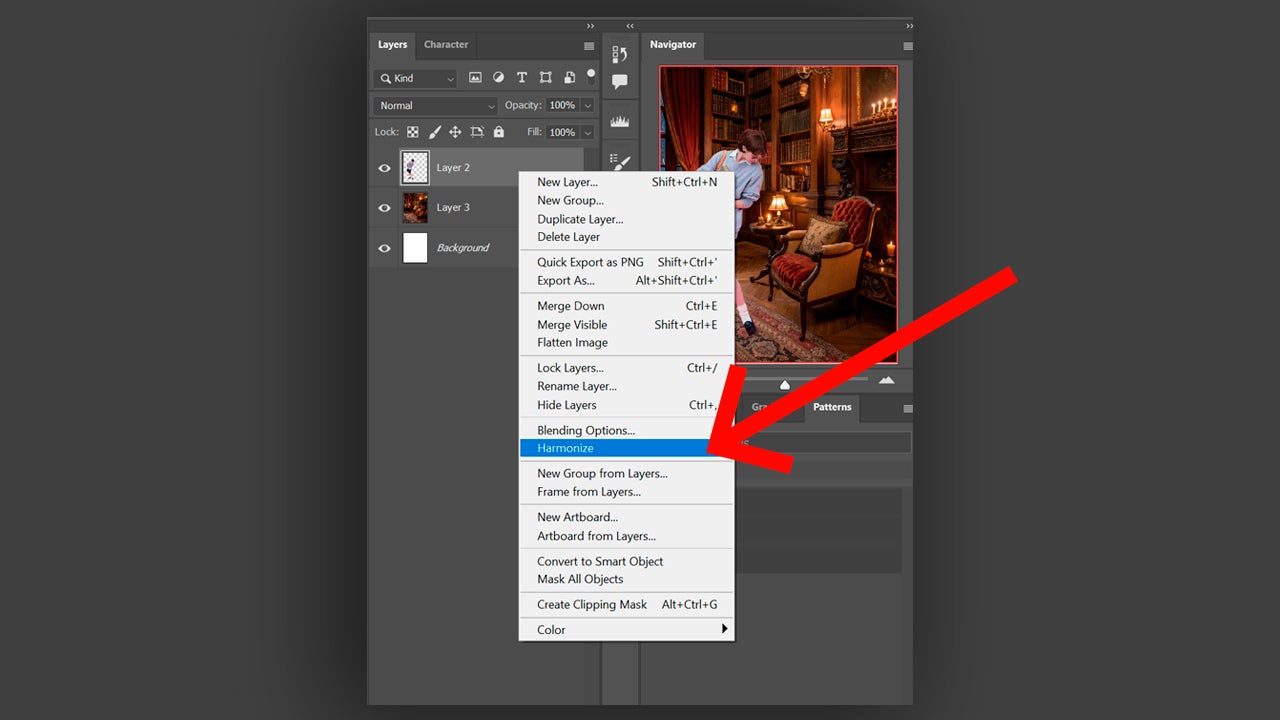
The Harmonize function has some limitations and only works on pixel layers. Any other layer style, such as smart objects or adjustment layers, is not supported. Additionally, you should keep in mind that Harmonize consumes 5 generative credits.
As you can see, Harmonize will help you significantly reduce the manual adjustments you need to make to create realistic compositions. It is a fantastic tool for any professional in the design world who needs to achieve results in a very short time.
You can also combine Harmonize with other tools from Photoshop, such as Remove. The latter has been significantly improved thanks to the new Adobe Firefly model and will help you remove any annoying object from your photos. In addition to removing, it is also capable of generating realistic content to fill any gap with meaning and precision.

Learn to use and manage your generative credits
If you just asked yourself what generative credits are, here is the answer: they are a kind of currency used by Adobe to regulate the use of AI-powered features. Generating images, sounds, and video incurs an additional cost that Adobe reflects on users.
Each Adobe subscription plan includes a number of credits that you can use to generate AI content. The company also distinguishes between two types of generations: standard and premium.
- Standard generations: This includes the features that use Adobe Firefly models in Photoshop, such as Generative Fill. The cost is one credit per generation.
- Premium generations: These are used in more advanced tools such as video generation. Features that use third-party models (Google, OpenAI, etc.) are also considered premium. The credit expenditure here will depend on the model used and the file size, among other factors.
Once you reach your monthly limit, you can wait until the next month for your credits to renew or purchase more with Adobe Firefly plans.
Not all Adobe plans include access to premium generation features. You can check the difference between the available plans on Adobe’s official website.
