
turn an idea in your head into something other people can actually react to In your head, it seems clear. Then you try to sketch it, mock it up, or explain it out loud, and suddenly it starts to wobble. Adobe Firefly, Adobe’s generative AI tool, makes that jump easier. It helps you turn a rough thought into something visible, and sometimes that’s all it takes to tell if the idea has legs. This guide walks through how agencies use Adobe Firefly to turn rough concepts into early drafts faster and get client buy-in sooner.

How to get client buy-in for creative ideas before the first design round
Ask anyone who’s worked on a project with both creatives and agencies, and they’ll usually tell you the first problem is usually quite simple: people aren’t imagining the same thing. A concept, a reference, even a single word can click one way for one person and mean something else entirely to another. Most of the time, you only realize that when it’s time to present the work.
If those early ideas don’t show up soon enough, or if too many hours have already gone into them, every change gets expensive. Revisions start dragging. Production slips. Then the next deliverable slips too, and the one after that. Adobe Firefly can help much earlier in the process, right where these issues usually begin, and save your time for the parts of the work that really need careful thinking.
How Adobe Firefly helps agencies get client buy-in
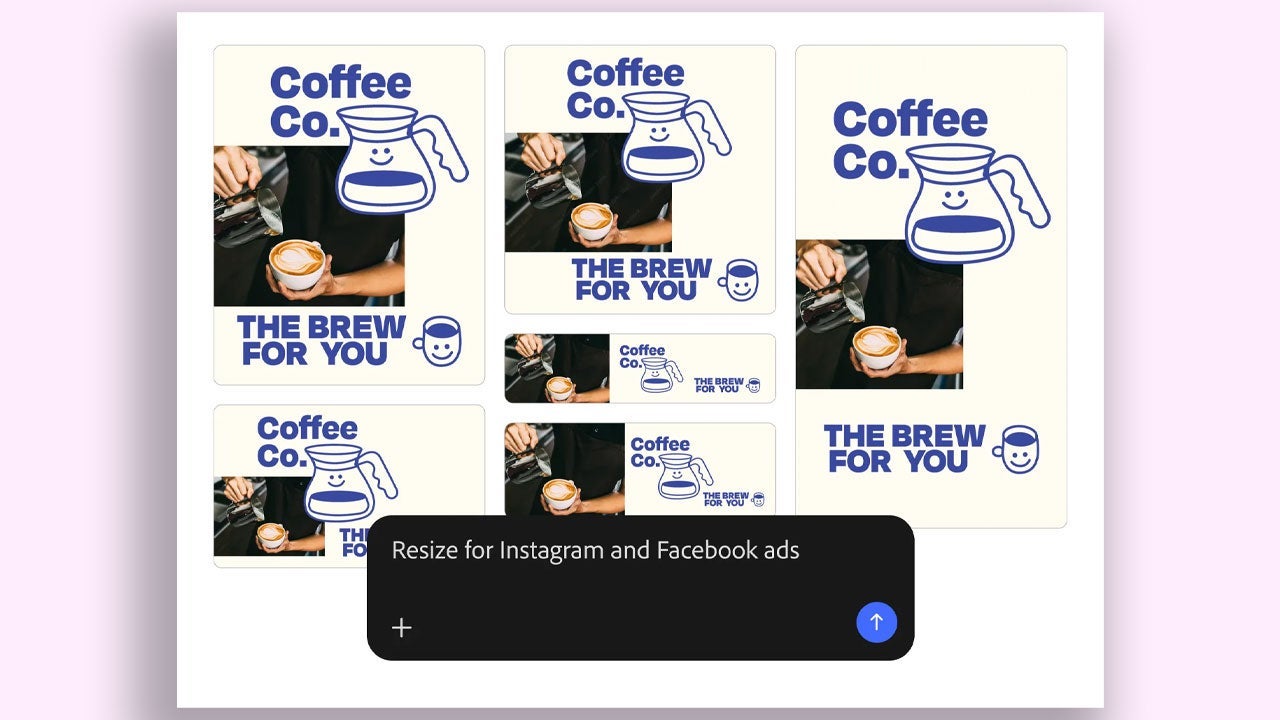
What makes Adobe Firefly useful is simple: speed. You can turn an idea into something visible much faster, and you can rule out the weak ones just as quickly. Say you want to push a concept a little further. You might begin by generating a main image, then build that out into social posts, a website, and whatever else the project calls for. The idea is to quickly create different versions of a concept and see what happens once it starts to look real.
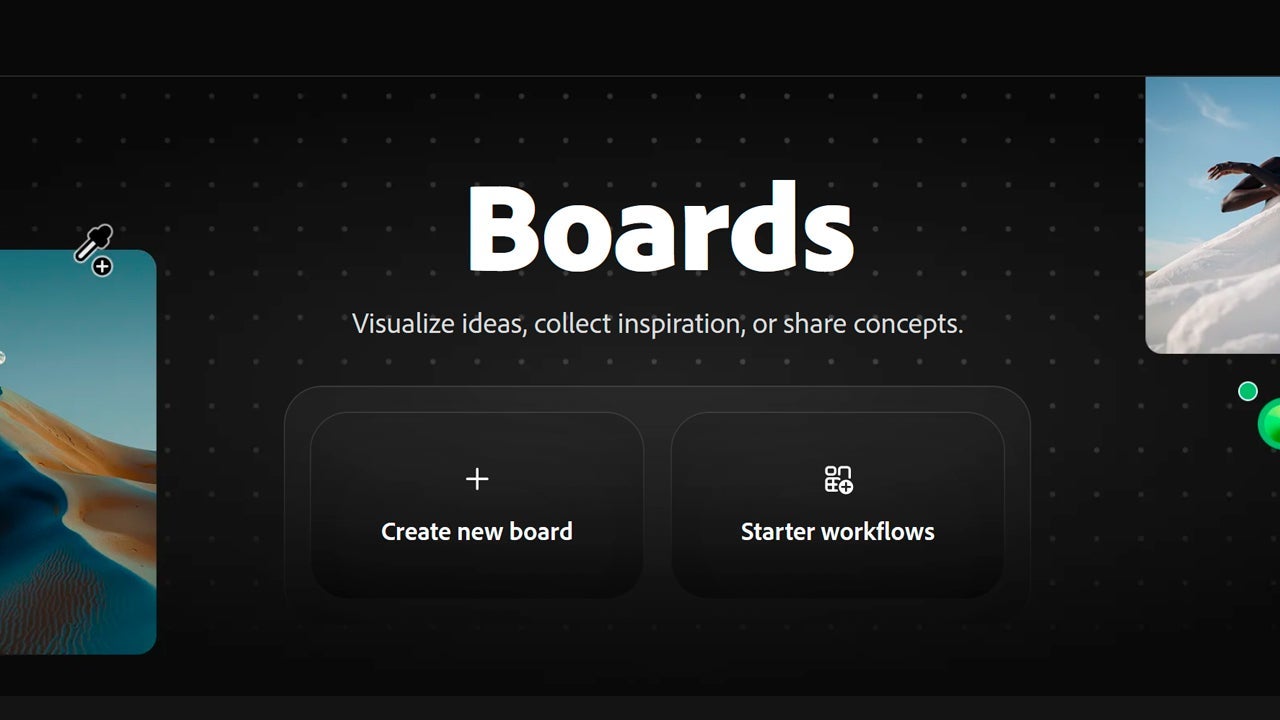
You can pull all of that into Adobe Firefly Boards, a large canvas where you can upload your own images and sketches, search Adobe Stock assets, generate new images, and put together moodboards. You can also share the board with the rest of the team, leave comments, and work on it together in real time.
Firefly Boards also gives you room to combine images and test how two ideas actually sit next to each other. You can take elements from one image, like the lighting or the color treatment, and apply them to another. So if a client asks you to combine seemingly unrelated references, you can mock it up quickly and see whether it works.
Which Adobe Firefly features are the most useful?
Adobe highlights a few features that tend to be especially useful inside Firefly:
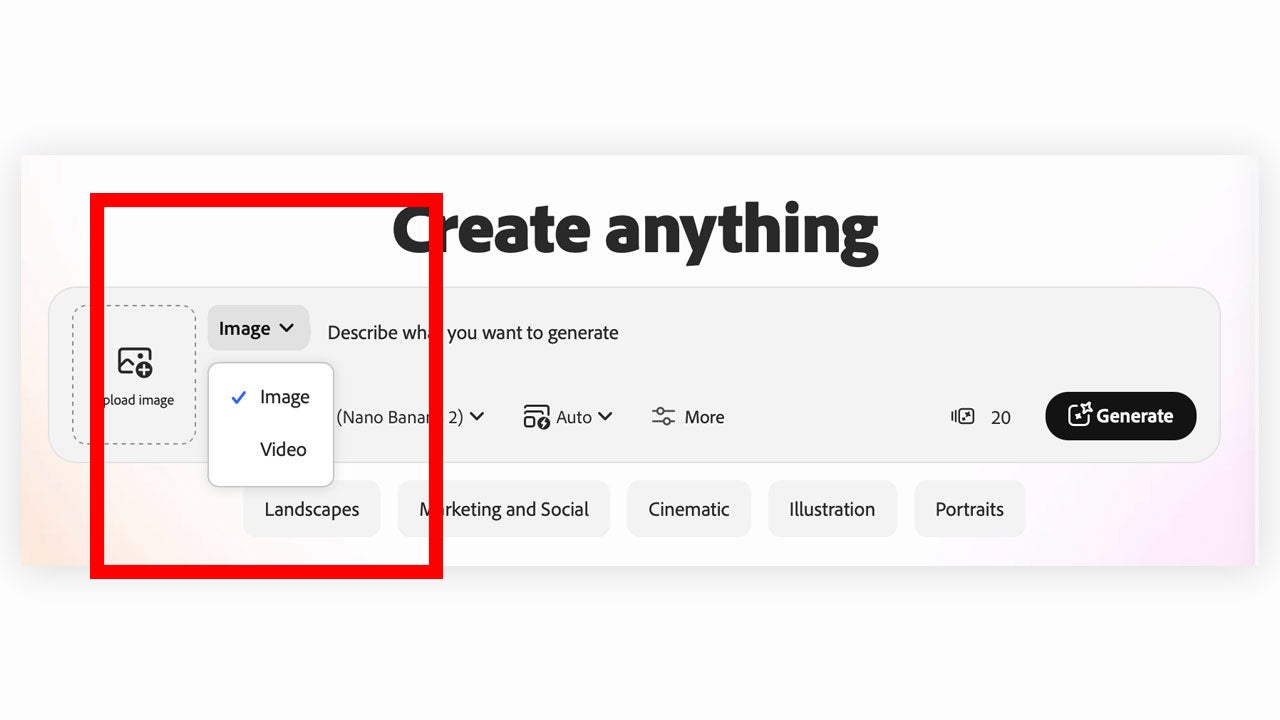
- Generate Image: Type in a description and Firefly creates images from it. It’s useful for comparing styles, testing concepts for a main image, putting together social media ads, or creating material for a campaign. After just a few rounds, you’ll usually have a much clearer sense of what’s landing and what isn’t.
- Generate Video: This feature creates video clips from either a text description or an image, with different resolutions and formats available. If you’re preparing a campaign that includes video, it gives you a way to preview shots, transitions, and other ideas before anything gets filmed.
- Generate Music: Here you can create instrumental audio by choosing the mood, style, purpose, energy, and tempo. You can also upload videos to Adobe Firefly so the AI can suggest a starting point that fits them. That’s especially useful when you're adding sound to a storyboard or an early cut.
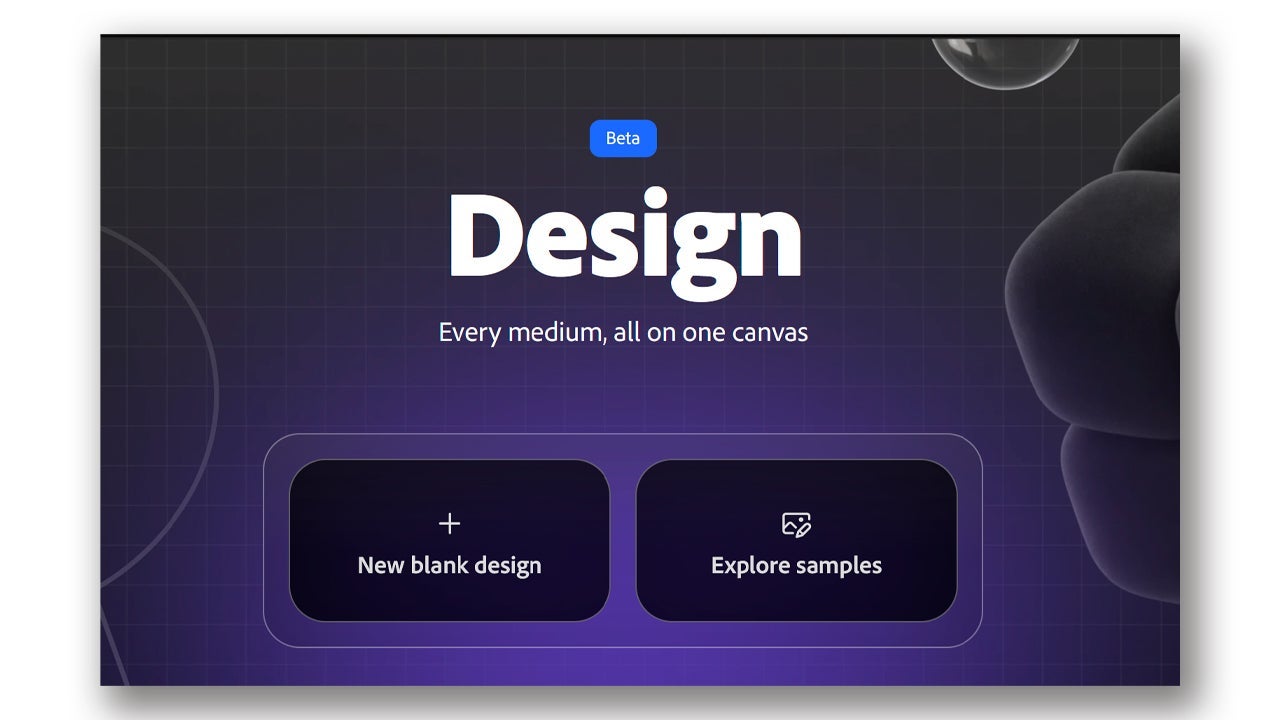
- Design: Firefly Design, in public beta since its presentation at Adobe MAX 2026, lets you create vectors, 3D elements, and images in one place. It can apply brand styles across all the artboards you have in Firefly Design, and it also includes a review space for clients.
- Editing with references: Adobe Firefly doesn’t only generate images. You can edit them too. In the editor, you can add references that work alongside your description, or prompt, to keep the results more consistent from one generation to the next. You can also add or remove elements with Generative Fill, and change image formats with Expand image.
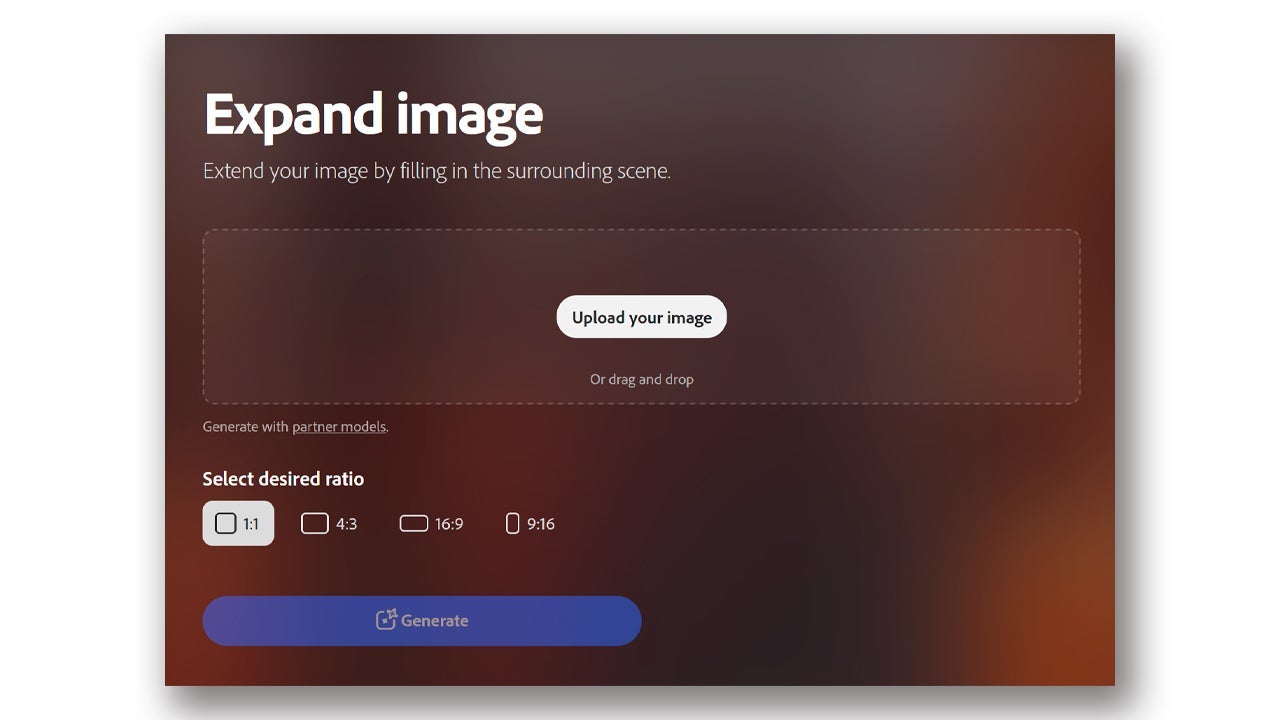
Adobe's own Firefly models are designed to be commercially safe, and Firefly Boards uses Content Credentials to show how content was created. Adobe Firefly also integrates third-party AI models, including Nano Banana, GPT Image, and HUMAIN Image 1. However, content generated with these third-party models isn't covered by the same commercial safety guarantee.
How to use Adobe Firefly in your workflow
If you’re still figuring out where Adobe Firefly fits into your routine, here’s one simple way to use it:
- Start with the brief: Read it carefully, then come up with two or three concepts. Each one should have its own keywords, plus a small set of reference images.
- Generate the key content: Use some of the features mentioned above, like Generate Image, to create several proposals. You’re not trying to make the finished piece yet. At this stage, you’re trying to find a path that leads to the project’s final idea.
- Refine and polish: Adjust details with Generative Fill, and adapt formats with Expand image wherever it makes sense.
- Build the presentation: Organize the ideas in Firefly Boards and share the board with your clients so they can review everything and leave comments.
That’s just one way to do it. These steps are meant as a starting point, because you can use Adobe Firefly’s features however you want, depending on what the project needs.
Where Adobe Firefly fits before Adobe Photoshop and Adobe Premiere Pro
Adobe Firefly works best before production starts. It helps you figure out where the project should go. After that, the idea still has to be developed in the programs you already know and trust.
Once a client approves an idea, the team can move it into Adobe Photoshop, finish developing the concept there, and take it into production. The handoff is pretty straightforward. From Firefly Boards, you can send the work to Adobe Photoshop and keep refining it without starting from scratch.
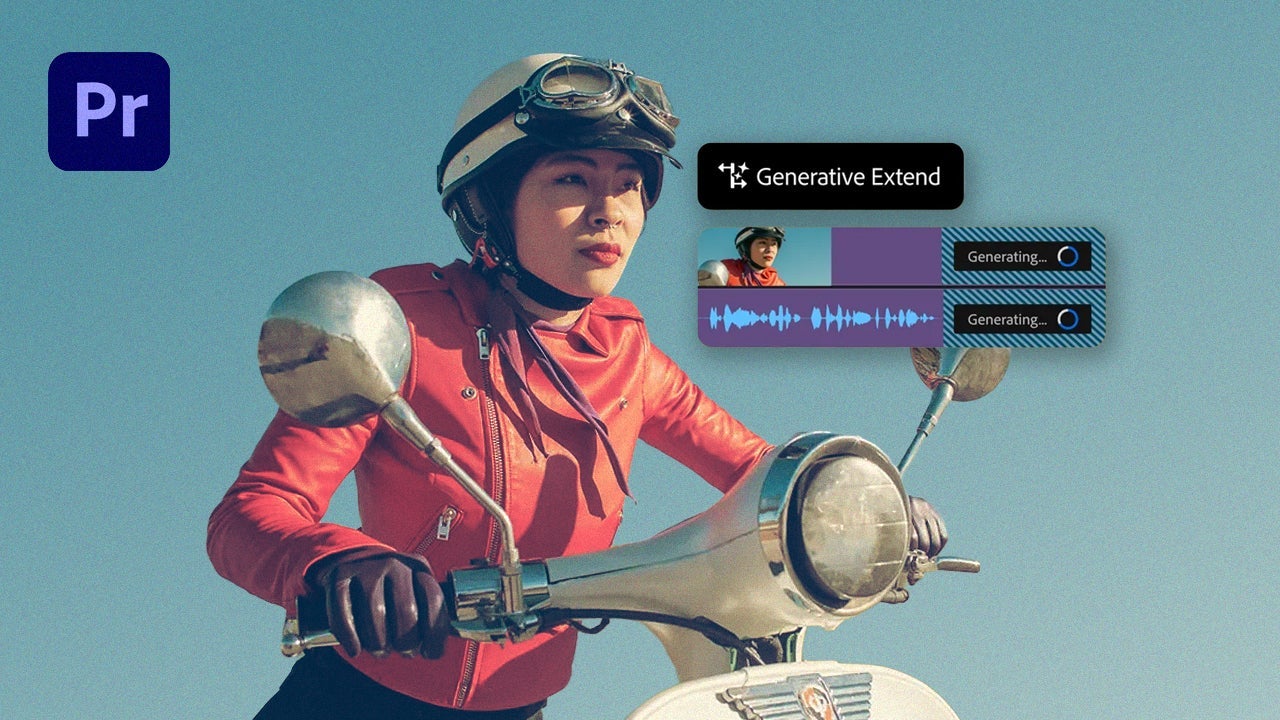
If the campaign includes video, Adobe Firefly can also help you visualize storyboards and early motion ideas. Those references can then guide the editing and planning work inside Adobe Premiere Pro.
Why use Adobe Firefly for first sketches and client presentations?
Adobe Firefly can be a really useful tool to have if you use it well. It helps your first sketches and ideas take shape fast, and that matters when you need to present concepts to clients and everyone else involved.
Use Adobe Firefly freely, and don’t be shy about experimenting with it. It may speed up your workflow, and your team’s output, more than you expect.
