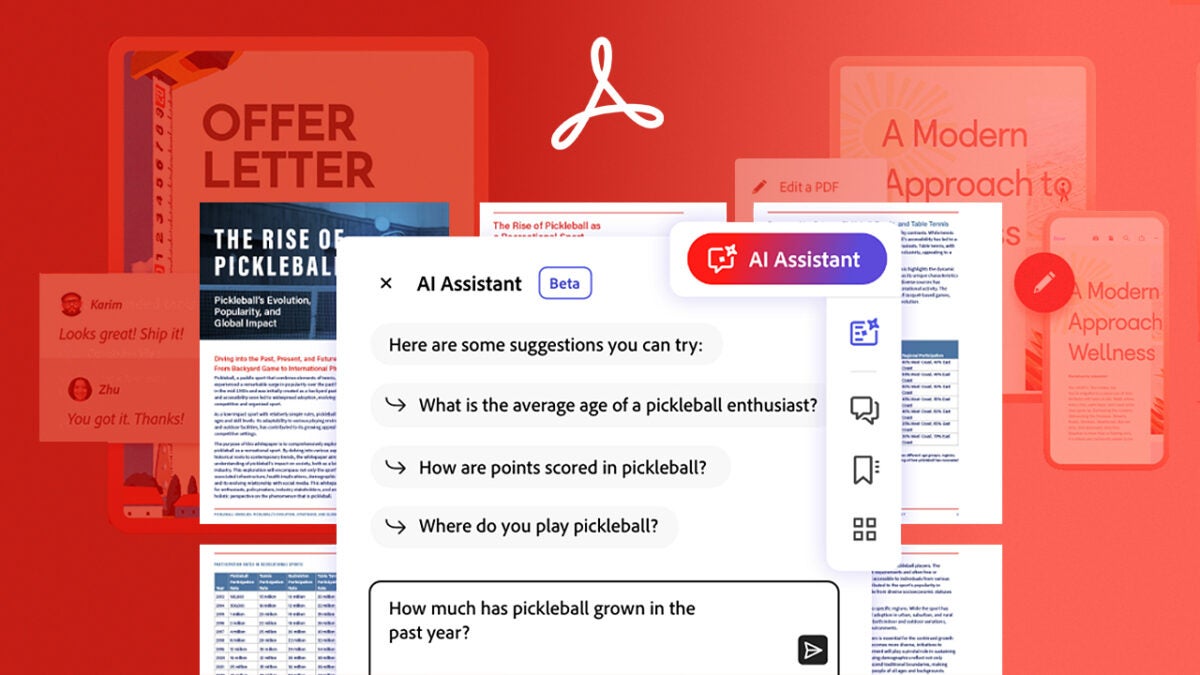
Adobe is one of the companies that has best known how to take advantage of the benefits of generative artificial intelligence for its users. Whether it’s with the creation of templates in Adobe Express or with generative filling in Photoshop, everything pursues the same goal: to make content creation easier and faster, as well as allowing us to be more creative.
This time, Adobe Acrobat reinvents itself with new AI-based functionalities that will change the way we interact with our electronic documents. For example, imagine being able to summarize long documents in a matter of seconds or having an assistant that can answer your questions instantly. This is now possible thanks to the new features of Generative Summary and AI Assistant.
Next, we will show you how you can access these incredible features and use them in your daily life, without complications and through simple steps. It’s time to take your productivity to the next level.

Artificial intelligence comes to Acrobat Reader
If you are subscribed to Acrobat Reader, you will be able to access the artificial intelligence features from the Home itself. Simply go to the Recommended tools for you section and you will find them all there.
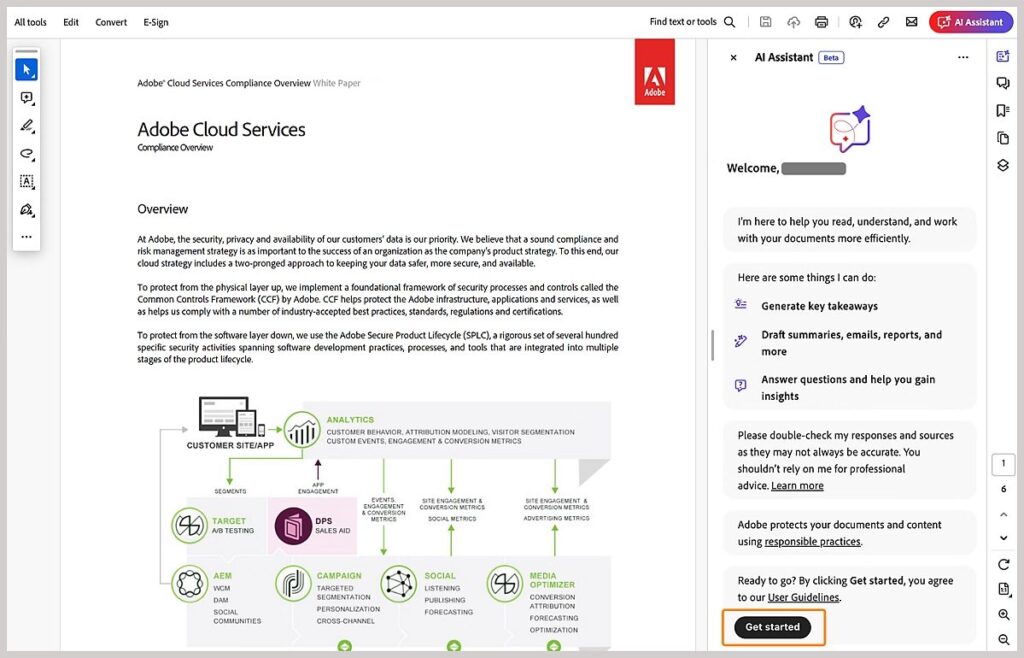
You can also use these functions with an already open document. The tools will be found in the All tools section, in the left panel. In the upper right corner, you’ll also find access to the AI Assistant, a highly intriguing feature that we’ll delve into further in a few paragraphs below.
Instant and effortless summaries: that’s Generative summary
Adobe Acrobat is a significantly more robust program than it might appear initially. One of its most innovative features, Generative summary, demonstrates this. Thanks to this feature, Acrobat facilitates the summarization of document content with just a couple of clicks. Furthermore, it offers a concise summary at the beginning to elucidate the topic of the text you’re working with.
This function is exceptionally valuable for researchers, students, and analysts alike. Leveraging artificial intelligence, it swiftly scans documents and extracts key points in a remarkably short time. If you’re keen to learn how to utilize it, we’ve outlined the process here:
- First, open a PDF file by selecting File in the top bar and then Open. Then, click on Generative Summary through the navigation panel. You can also select All tools and then Generative Summary.

- Now, click on Get started. The button will appear on a panel located to the right of the document. Then, a preview of the summary created by Adobe Acrobat will be generated. In addition, selecting a part of the summary will take you to the corresponding section of the document to get more information.
- You can copy the entire summary and save it by simply selecting Copy or Copy full summary.
The Generative summary can be quite useful on more occasions than you think. A clear example would be when signing a contract or a policy. Thanks to the Generative summary, you will be able to understand the key points of the document without having to read dozens of pages with legal jargon.
You don’t have to worry about the length of the documents to process; Adobe Acrobat can handle that and much more. To start, the program divides the content into chunks so you can review it on the go and continue with your work uninterrupted. The segmented view also allows you to maintain order and better organize the parts that Acrobat has summarized. However, keep in mind that the generative summary is in beta, so its performance may not always be perfect.
An AI-powered assistant available for you at all times
Adobe is committed to harnessing the power of artificial intelligence to enhance the user experience. In addition to summaries, we also have the AI Assistant feature at our disposal. This feature provides answers to your queries and questions generated by artificial intelligence, based on the content of the PDF.
For instance, consider a scenario where you’re about to sign a contract but harbor doubts regarding a particular condition. Ask the AI Assistant about that specific doubt and it will respond based on the information in the contract. It will also highlight the part of the document from where it obtained the answer. The AI Assistant will then suggest other questions similar to your main query.
Please attempt with any document following these steps:
- Open a PDF file in Adobe Acrobat using the same method described earlier.
- Next, locate the AI Assistant option, which will become visible after clicking on All Tools. Then, proceed by clicking on the Get Started button.
- Write your question inside the text box that appears or select some of the suggestions proposed by the AI Assistant. Your answer will appear on the screen.
- The most pertinent points of the response are indicated by small numbers. Simply select any of these numbers to navigate directly to the corresponding section of the document from which the AI Assistant retrieves the answer.
- At this point, you have several options to follow: you can hide the attributed sources of the summary, copy a specific answer, and even stop the processing of the response. You can also alter the size of the AI Assistant panel for greater readability if you wish.
Use Adobe Acrobat from the browser with Acrobat Desktop
One thing is clear: Adobe aims to leverage artificial intelligence to its fullest potential. Within the Acrobat desktop, you can readily access generative AI-based tools, which are featured alongside the Recommended Tools for You section. To utilize any of them, simply select the action and let it work its magic.
In addition, you won’t need to install Adobe Acrobat on your computer to enjoy the benefits of artificial intelligence. Through Acrobat Online, you can use all the generative AI tools in the Explore What’s New section.
How can I use Adobe Acrobat?
There are several versions of Adobe Acrobat, each with different but similar functions. To begin with, we have Acrobat Reader, which is free. It is the standard program for viewing PDF files without limits. Then, there are two paid versions, much more complete than the previous one. These are Acrobat Standard and Acrobat Pro.
With Acrobat Standard, you can create and edit text and images, convert PDF files, and export them to other programs such as Microsoft Word. Additionally, you can sign documents and protect them with passwords. This version is particularly appealing for individuals who frequently handle numerous documents and require a more comprehensive program than Acrobat Reader. Currently, it is accessible through a monthly subscription priced at $12.99.
On the other hand, with Acrobat Pro, you receive all the features mentioned above and several additional ones. The Pro version enables you to convert scanned files to PDF, remove confidential information, compare two versions of the same file, add logos, and automatically optimize files to reduce their size. And this is just a fraction of what Acrobat Pro offers. To access Acrobat Pro, you’ll need to subscribe monthly, with a subscription fee of $19.99.
Students and companies have special offers that are also worth checking out. Either way, you also have a 7-day free trial that you can cancel at any time and at no additional cost.
Some of the links included in the article are part of affiliate campaigns and may represent benefits for Softonic.
