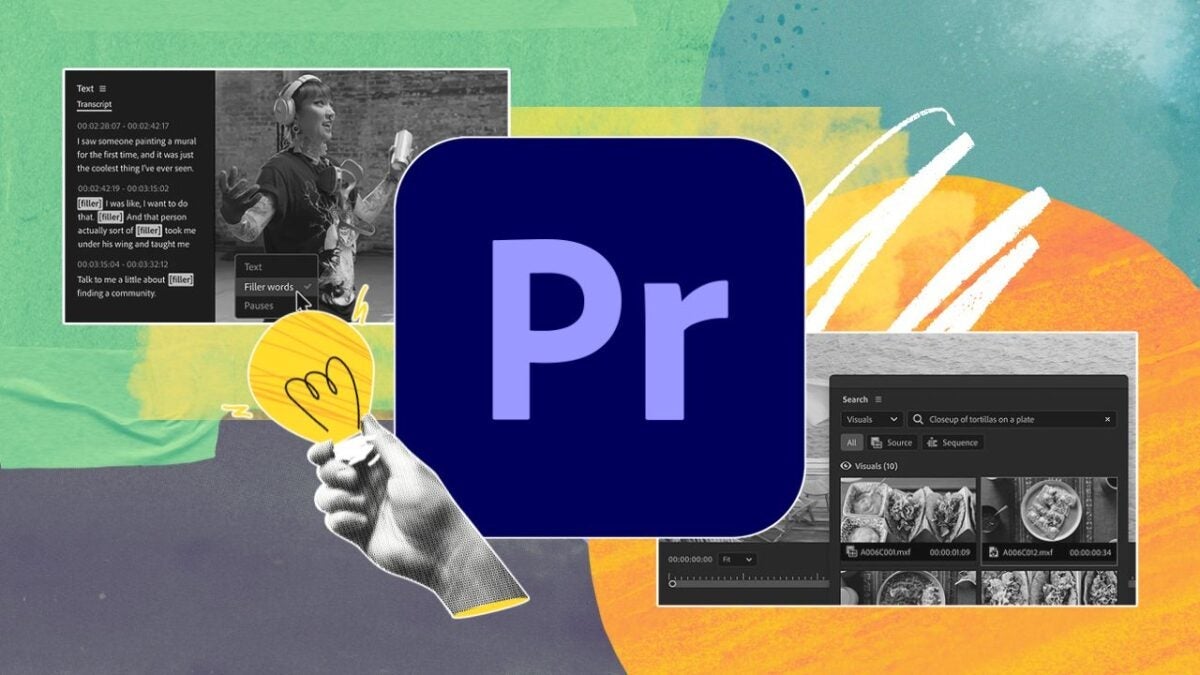
AI auto-cut in Adobe Premiere Pro blends advanced tools to fast-track editing long, talk-heavy content into sharp, engaging clips. This workflow tackles dense footage like interviews or podcasts and applies a suite of features to rapidly carve out highlights.
Core tools included are:
- Text-Based Editing with pause and filler-word deletion: This produces a clean first cut by removing lulls and filler words, leaving just the core message.
- Media Intelligence: Lets you pinpoint the relevant content fast from visuals or transcript.
- Scene Edit Detection: Find original edit points from a pre-flattened master
- Enhance Speech
- Morph Cut for softening jump cuts
- Generative Extend for smoothening out jumpiness with more frames or ambient audio to bridge cuts. Can be effectively combined with Morph cut.
- Auto Reframe to consolidate video formats
An AI auto-cut workflow uses Premiere’s AI to speed up routine edits and prepare your videos for today’s short-form-first feeds, not by rebooting post-production.

Why Long Form Gets Stuck in Your Drafts
Ever captured a powerful 45-minute podcast, webinar, or founder’s breakdown and left it unpublished because cutting and reframing it to shorts, reels, or TikToks takes forever? Manual cutting eats up too much time, especially when channels like YouTube Shorts, Instagram Reels, and TikTok come with built-in constraints:
- YouTube Shorts recently extended to a 3-minute max for some creators (but not all).
- Reels allow up to 20 minutes, but average watch times collapsed before one. Stretched ratios (1.91:1 to 9:16) make them harder yet to fill.
- TikTok allows uploads up to 60 minutes, although in-app recording is limited to 10 minutes.
What’s common to all these scenarios? You need to locate hooks in lengthy footage, always keep subjects at the center for 9:16, and push “publish” fast, or these content ideas become backlogged. AI auto-cut helps with this challenge by letting you find the highlights and adjust framing fast.
Typical Real-World Scenarios Where an Auto-Cut Flow Shines
Auto-cut features bring value to anyone who works with long-form content. Think of the solo creator with a one-hour podcast episode just waiting to be turned into shorts on YouTube and TikTok. Or the marketing team painstakingly trimming a product masterclass into that perfect 60-second hook for LinkedIn Reels.
No matter which you fall into, you’ll run into the same bottleneck: You need to dig deep through the footage to locate its golden moment. Then there’s dead air cleanup, you need to smooth jump cuts so they aren’t obvious… And finally reframe wide shots to something that doesn’t look awkward in 9:16 and do some quick captioning.
Upon closer look, each bottleneck is mapped out and addresses a powerhouse auto-cut tool in Premiere Pro, which is optimized for tackling monotonous edits and prepping projects for high-speed social-first posts.
Why Long Videos Are Hard to Convert Into Shorts
It might look simple to outsiders, but it’s almost never a case of simply trimming your full content into short clips.
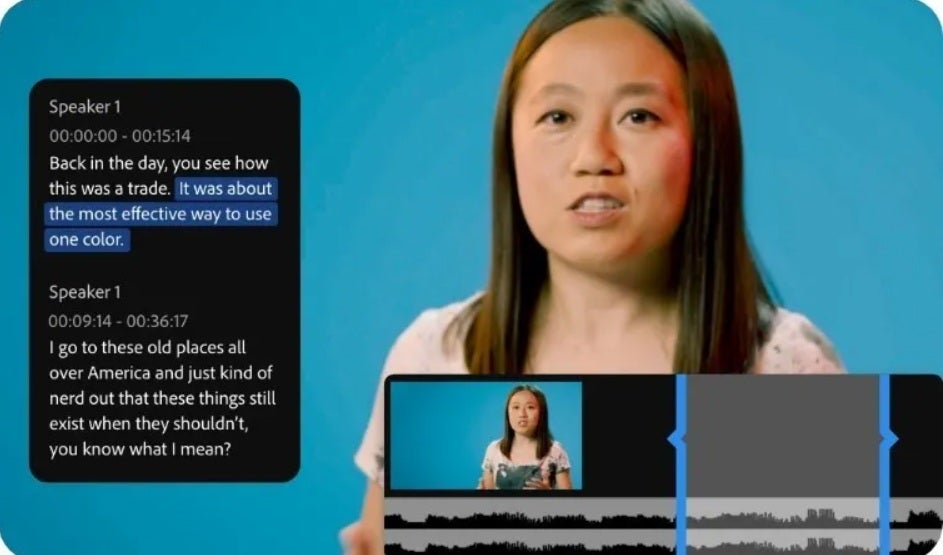
One of the biggest issues is that spoken content meanders. People pause, fill time with “um”, and go off on tangents that stretch out the pacing. Premiere Pro’s Text-Based Editing is perfect for quickly finding the unnecessary gaps and quickly tidying up the timeline.
Other times, your source isn’t a timeline; it is a single, flattened master. That’s especially true for post-event edits. The cuts are baked in but will now need to be re-cut to be used. That’s best left to Scene Edit Detection.
If you can’t control the audio, regular spoken dialogue from roomy or echoey spaces can become unwatchable. Enhance Speech cuts echo and noise down for clarity.
But most importantly, aggressive auto-cutting makes shorts feel jumpy, when they’re supposed to be slick. Morph Cut and Generative Extend bridge those gaps with smart transitions or by generating fractional seconds of missing footage.
Finally, throw in the latest and most modern issue: Long form is usually filmed horizontally, and short form is typically vertical. Horizontal masters do not reframe well for 9:16 reels. Premiere Pro’s Auto Reframe helps address that.
All of these make it hard to get long projects into short formats quickly without using Premiere’s AI features to smooth these issues.
The Step-by-Step Auto-Cut Workflow in Premiere Pro
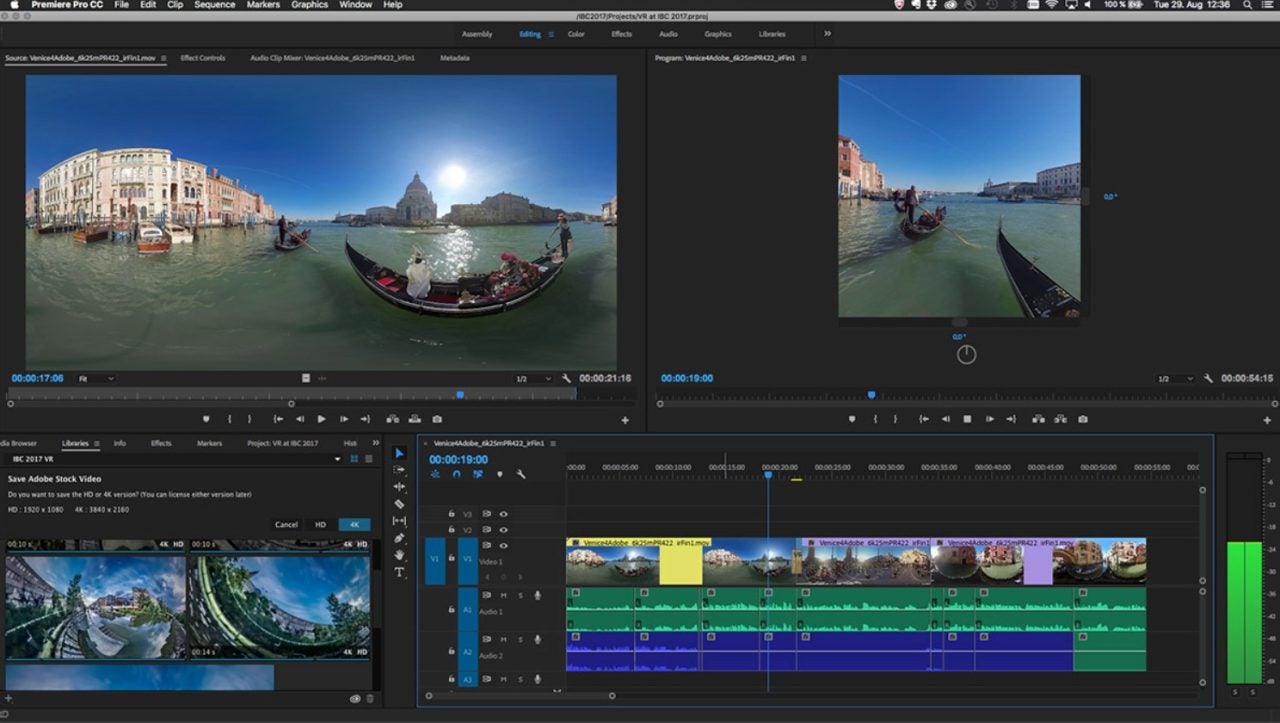
AI auto-cut shines in Premiere Pro due to the tooling built into the platform to transform long-form content into snappy, vertical highlights for platforms such as TikTok, YouTube Shorts, and Instagram Reels.
Here’s how the basic process breaks down Auto Reframe for softening jump cuts in vertical formats or quick and good edits without the slog:
1. Transcribe and remove dead air fast
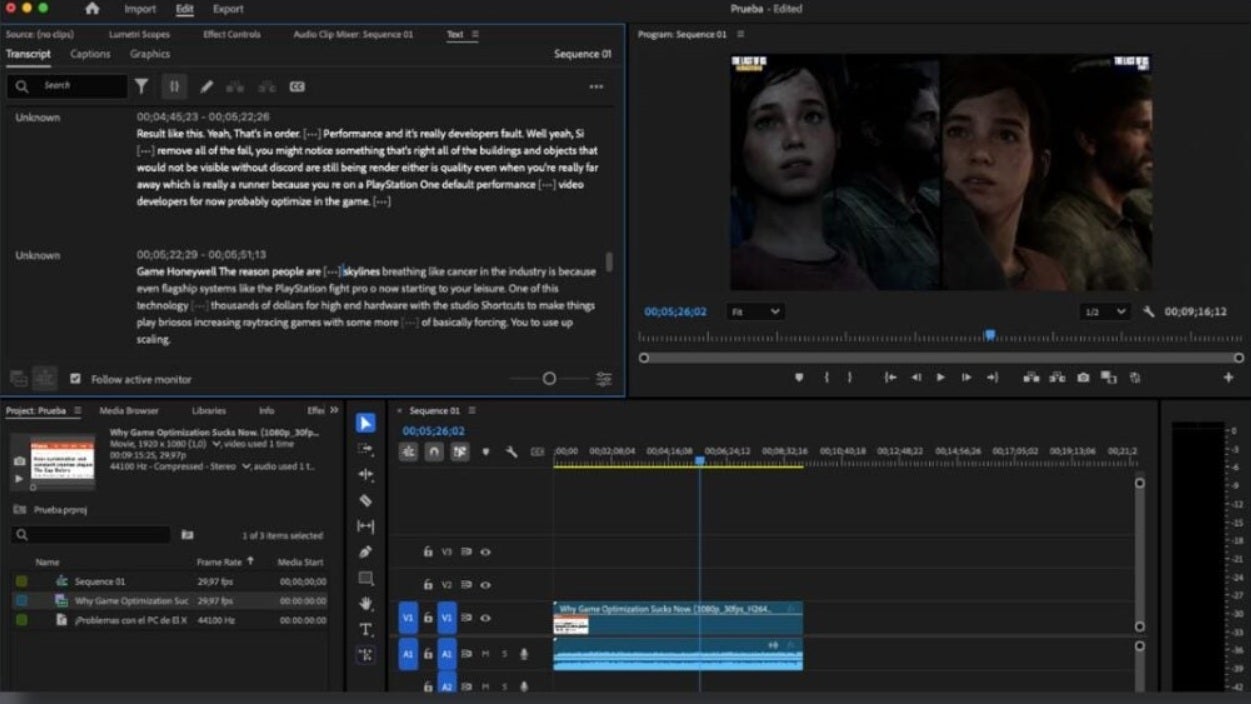
Open the Text panel and select ‘Transcribe sequence’. Filter by Pauses or Filler words, then bulk delete with a minimum pause threshold. This ripples changes across cuts in the timeline. Start with a higher minimum before tightening up by review.
2. Find the best moments instantly
Is your source a flat, multi-edit master? Use Scene Edit Detection to break it down so you can precisely target the highlights.
Use Media Intelligence and the new Search panel to search keywords out of the transcript or describe visuals. Ideal for scanning a very long recording, fast. It runs on your local device and doesn’t upload footage so there’s no risk to privacy.
3. Smooth Jump Cuts Where the Eye Lands
Morph Cut bridges talking-head edit jumps by analyzing video frames before and after and synthesizing an in-between. Apply it cautiously to avoid showing artifacts in a scene with high movement or cluttered backgrounds.
4. Use Generative Extend to fill awkward gaps
Generative Extend adds a few frames visually or ambient audio to bridge a cut. Use it when you need just a second more for a smoother transition, and when morph cut isn’t appropriate.
5. Make It Vertical Without Keyframing by Hand
The process is very straightforward. Simply Select Sequence > Auto Reframe Sequence, choose 9:16, and pick a motion tracking preset-Slower Motion for interviews or Default for others. This builds a tracked, duplicate vertical sequence.
6. Sweeten the Dialogue Quickly
Enhance Speech filters room noise and resonance in dialogue. Run it on dialogue clips, not on music beds.
7. Caption and Translate for Reach
Generate captions with Speech to Text, then use Translate captions to create localized language tracks out of one source short.
8. Batch Out Multiple Clips
Create one short per sequence or use In-Out points. Then queue to Adobe Media Encoder for batch exporting together.
9. Publish Directly from Inside Premiere
Use Export mode’s Publish section to post directly to YouTube, TikTok, and more after export.
Each feature in Premiere’s AI toolkit is optimized to save time in post-production, so you can get your timeline moving faster from draft to publish.
Platform Specs and Export Checklist You Can Trust
Succeeding in producing short-form content means hitting key platform specs to match audience expectations. Here are the key details to ensure that your work clicks for Shorts, Reels, and TikTok:
- Aspect Ratio: Aim straight for 9:16 for all Shorts, Reels, and TikTok. Premiere’s Auto Reframe creates tracked duplicates of these sequences.
- Length: This is complicated by the different platform rules, but in general
- YouTube Shorts: Generally, three minutes is now in effect on some channels, but one minute is standard practice.
- Instagram Reels: Recent increases in upload limits, but best practice is much shorter. (Around 3 mins)
- TikTok: Uploads up to 60 minutes, but shorter is preferred.
Export with the built-in H.264 presets, then use the Export panel’s Publish toggles to send directly to platforms.
Quality Guardrails So Your Shorts Feel Premium
Sharp shorts depend upon leveraging AI to get the job done quickly with just enough time to season by hand for quality. Here are some key guardrails for maintaining quality:
- Keep the pauses that sell the point: Don’t remove every pause. Keep rhetorical beats and meaningful pauses so speech doesn’t lose character or seem rushed. Start with a higher threshold for pauses, tightening as needed until it just feels right.
- Use Morph Cut sparingly: Morph Cut adores clean, steady, talk-to-camera footage. Use it selectively at 100% preview to pick up any visual artifacts. If it falls down, edit away to B-roll or static graphics.
- Pick the right Auto Reframe preset: For interviews or talking heads, select Slower Motion or your keyframes will jitter with the movement.
- Add captions and translate when needed: Default to adding captions, especially for non-native audio. Translate only when you get traction on a clip, so teams don’t over invest early.
- Check your draming for safe areas: Double-check titles and graphics, as sometimes titles might leave safe areas or the headroom in a 9:16 sequence looks awkward.
By combining Premiere’s AI-powered tools with a human eye for pacing, tightness, and layout, your shorts will come out fast and polished.
Troubleshooting common snags
A few minor hurdles in Premiere’s auto-cut workflow might slow you down instead of speeding through the process. Here’s how to fix the most common issues:
- Delete Pauses Button Greyed Out: If the Delete Pauses button is greyed out, click the timeline in Premiere to change focus. Head back to the Text panel, and it should activate.
- Text-Based Editing Left One-Frame Fragments Prematurely: This can happen after heavy auto deletions. Clean up by trimming these fragments manually or re-running with a longer pause threshold.
- Media Intelligence Search Not Working: Double check your software version and make sure media was indexed for search features.
- Morph Cut Artifacts or Crashing: Morph Cut can have trouble during high motion, hands in the frame, or complex backgrounds. Break off to B-roll or static graphics in those places where artifacts crop up and then reintegrate into the primary reel.
If you have some simple workarounds, you can keep from getting stuck even on these lower-level errors.

Quick Wins Checklist to Ship Your First Batch Today
Adobe Premiere Pro turns long videos into quick wins using AI Auto-Cut. Shortening the journey between draft and publish, at speed. Transcribe, cut, reframe, batch, export, and publish.
Premiere Pro’s auto-cut functionality is not just about speeding up the process. It’s almost like an assistant in your post-production workflow, so you’re always adapting to new video publishing norms.
The Adobe’s Premiere Pro auto-cut suite is not about speeding up cutting chores but more like a creative assistant for editors. Because Premiere’s capability is so modular, it will help you jump post-production bottlenecks and get content out quickly for all types of creators needing high impact shorts at speed.
