
If you are in charge of a physical magazine or are used to printing books, you are likely familiar with this problem. You have a series of images that, at first glance, seem to look great on screen. However, this does not translate when it comes to printing them physically. It may be because the image does not have the correct resolution or the necessary size. In any case, the new tools in Photoshop can help you solve this problem quickly.

This is how Generative Upscale works in Photoshop
Generative Upscale in Photoshop is an AI-powered feature that increases the resolution of an image and enhances its sharpness without being limited to classic interpolation rescaling. The generative AI “reconstructs” the image and makes it look more detailed at the size you need.
Photoshop has the technology of the models from Topaz Labs and its own, Firefly, so you can choose which one to use in different situations. Just keep in mind that Topaz Gigapixel and Topaz Bloom can only be used if you have a premium subscription.
Currently, the only way to use Photoshop for free is by accessing the 7-day trial offered by Adobe itself. During this period, you can use Photoshop in full with all its features and without restrictions. Thereafter, you will have to pay the corresponding subscription.
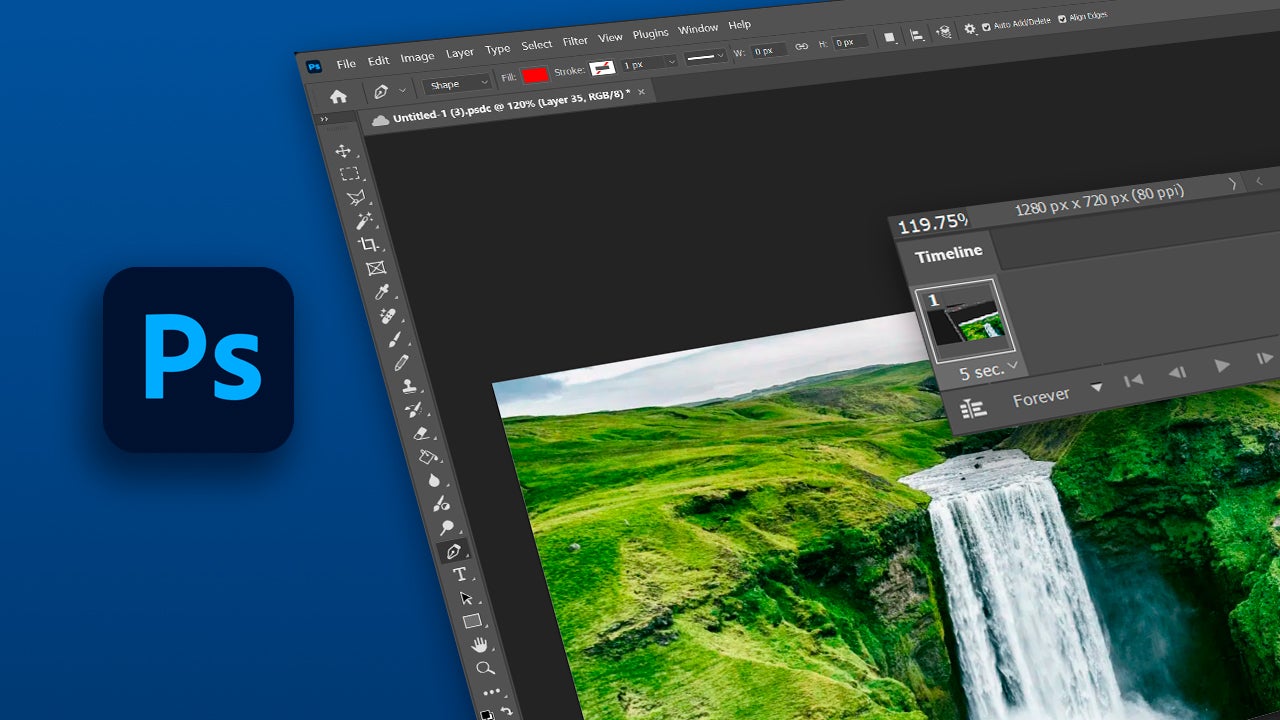
Say goodbye to traditional resizing
For years, enlarging an image meant interpolating pixels. This is a process that adds pixels to change the resolution or size. That method can work for more basic adjustments, but it falls short if you want more professional results.
The difference with Generative Upscale in Photoshop is that it is not limited to “stretching” the image. Adobe presents it as a quality enhancement tool that allows for increasing resolution and clarity using AI models, with output options of 2x and 4x, and even with different enhancement models depending on the desired result.
How to use Generative Upscale
By following these steps, you can quickly transform any low-resolution image and upscale it effortlessly. To get started, open Photoshop and make sure you have the latest version to access the newest AI features.
Then, open the image you want to increase the resolution of. You can do this from File > Open (Ctrl + O). Next, find the image on your computer to open it in Photoshop.
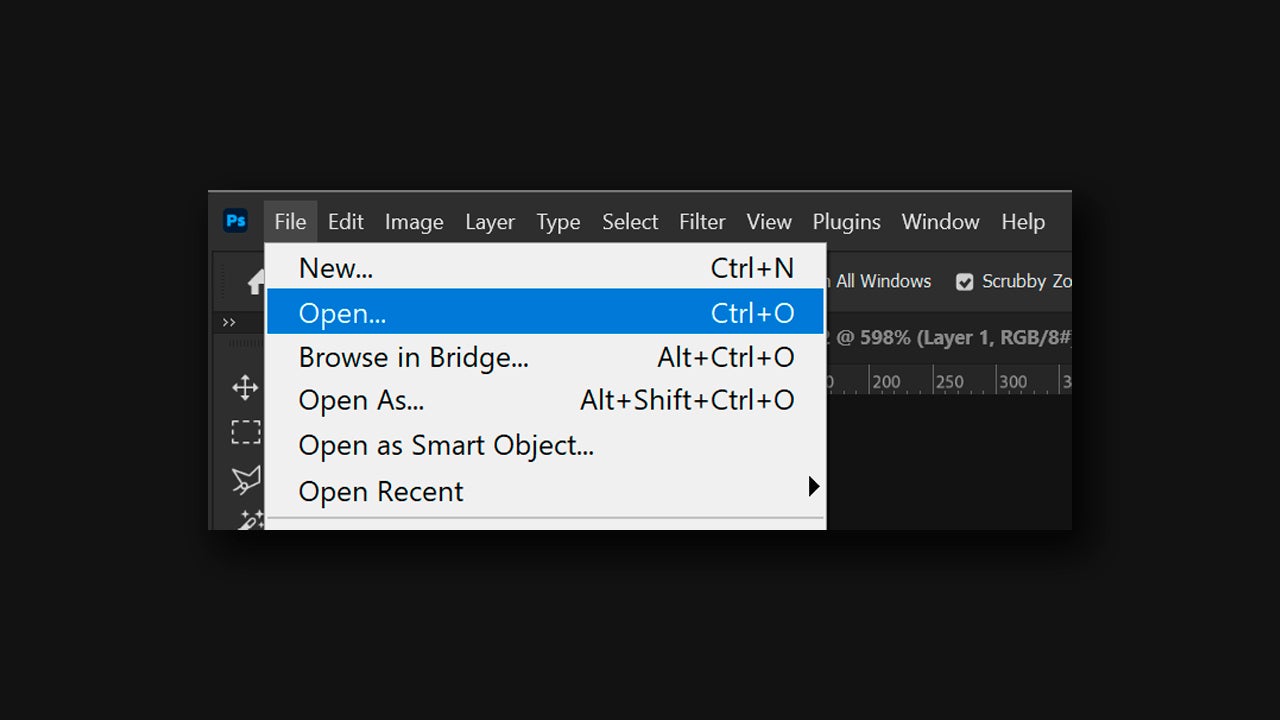
Go to the options bar and click on Image > Generative Upscale. If you are on PC, you can use the keyboard shortcut Alt + Shift + Ctrl + U. Select the model you want to use from the available options (Firefly Upscaler, Topaz Gigapixel, and Topaz Bloom). Depending on the model you choose, you will see some changes in the menu, from where you can select the scale (2x, 4x) along with the resulting size. Finally, pick Upscale.
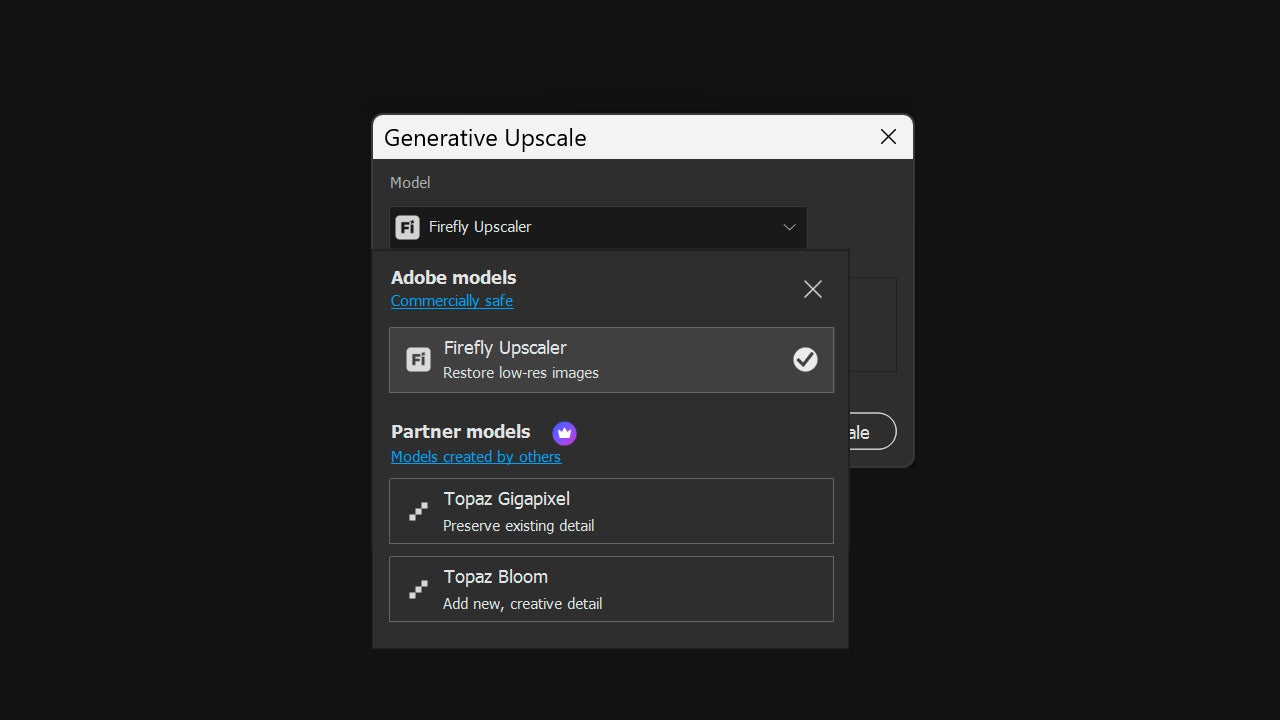
Wait for the model to do its job and in a short time, you will see the result on the screen. Not all models work the same way; Firefly Upscaler is a great option for restoring low-resolution images and is especially good at enhancing landscapes. Topaz Gigapixel will help your images look very natural and sharp. Topaz Bloom improves quality but takes certain “creative liberties” along the way, as it adds details and textures that may not have been there initially.
Other methods to enhance your image
In addition to Generative Upscale, Photoshop integrates numerous features to further enhance your image. One of them is Neural Filters. To access the Neural Filters, you will need to go to Filter > Neural Filters. By doing so, you will see a list of filters that you can use to smooth skin in a photo, retouch makeup, remove artifacts from an image, or restore them.
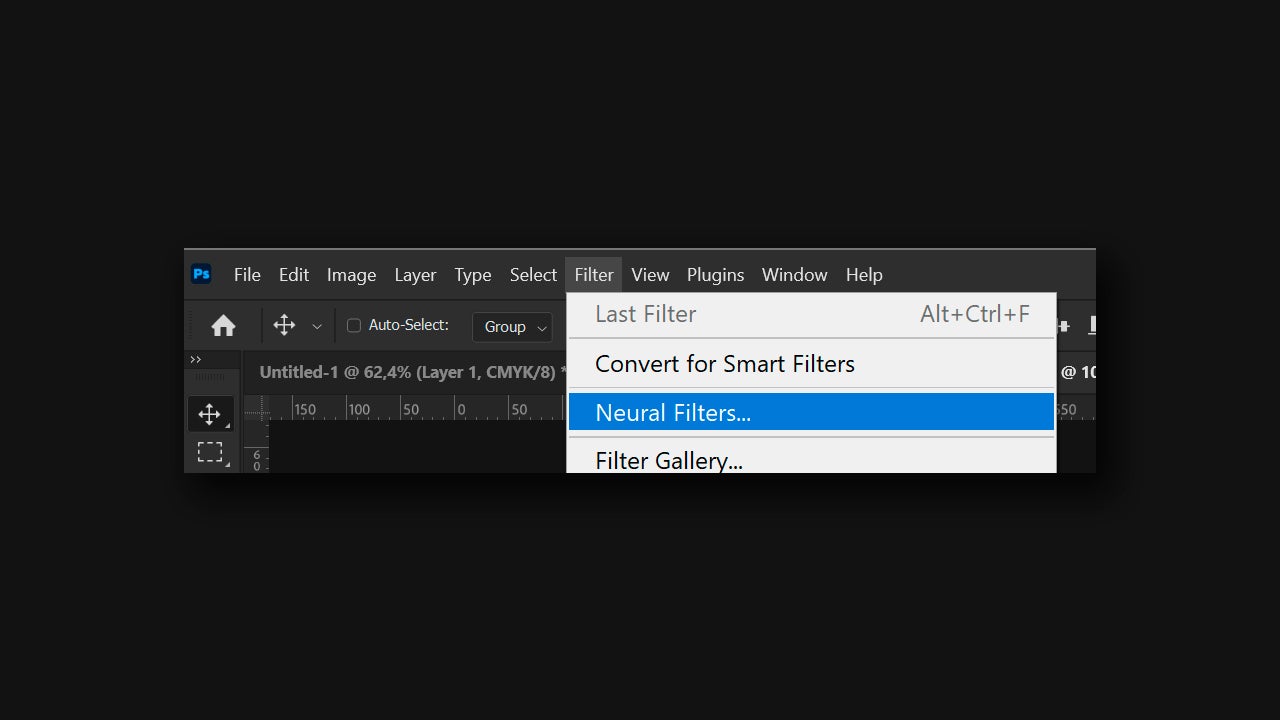
To access them, you will have to download them to your computer one by one, as they are not saved by default. The most powerful ones for restoring images are found in the Restoration section, called JPEG Artefacts Removal and Photo Restoration.
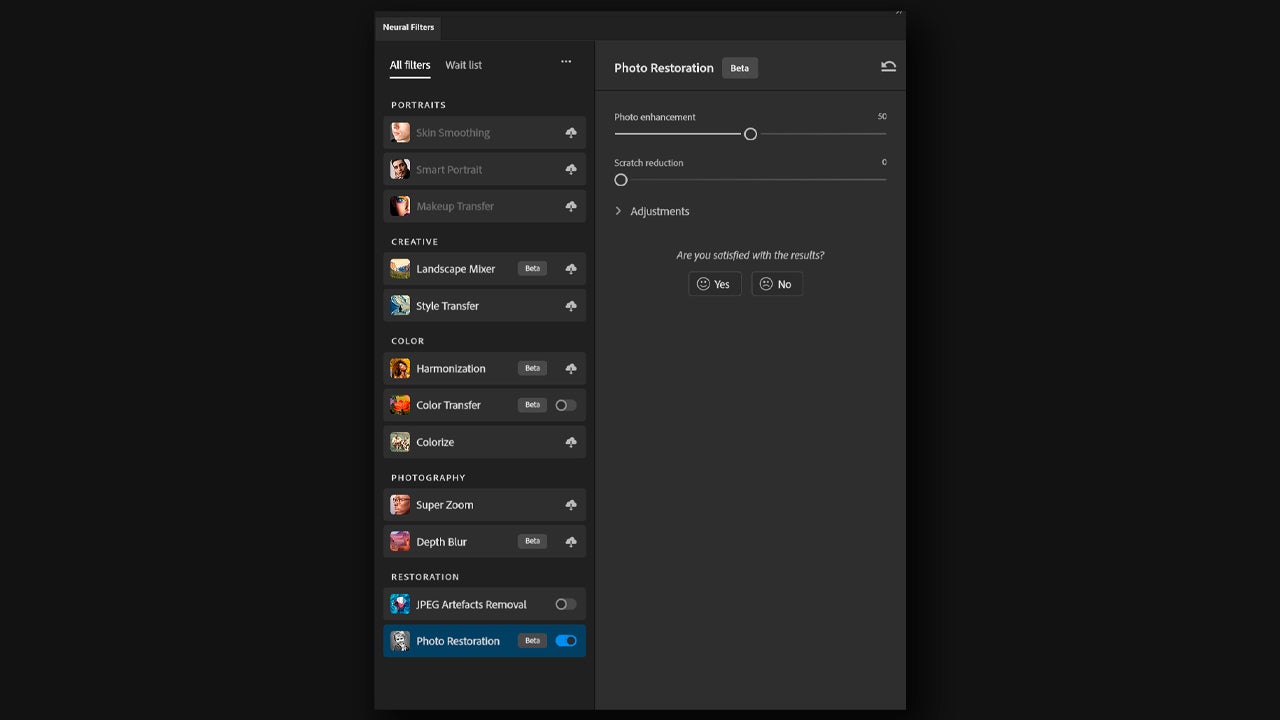
To apply them, simply download the filters and click on them. In Photo Restoration, for example, you will find several sliders where you can adjust the level of detail of the face (if there is a face), noise reduction, or overall image enhancement.
Time-saving and professional results
There’s no need for me to tell you the great time savings that these Photoshop functions can mean for your day-to-day life. Until not long ago, the fact that an image didn’t meet the standards for printing meant more hours of redesign, searching for other images, and more and more revisions.
Thanks to Generative Upscale and the restoration features offered by Photoshop, we have the opportunity to rescue those images that were not valuable at the time and give them another “life”.
