
When embarking on an artistic project, our mind doesn’t stop creating. Before reaching the final concept, it is common to start with tests of composition, shapes, and colors. This is an essential process that will later serve to bring our idea to life.
Thanks to Adobe Illustrator, we can get creative and change our designs without putting in too much effort. Today we will talk about one of the features that will help us the most: Generative Recolor.

Generative Recolor: what it is and what it is used for
Generative Recolor is one of the latest features powered by Adobe Firefly (Adobe’s artificial intelligence) that we will find within Adobe Illustrator.
This means that, instead of recoloring each element manually, we can simply tell the AI the type of colors we want to use. Immediately after, it will apply them directly. This is an ideal option if you want to experiment with new styles without sacrificing too much time.
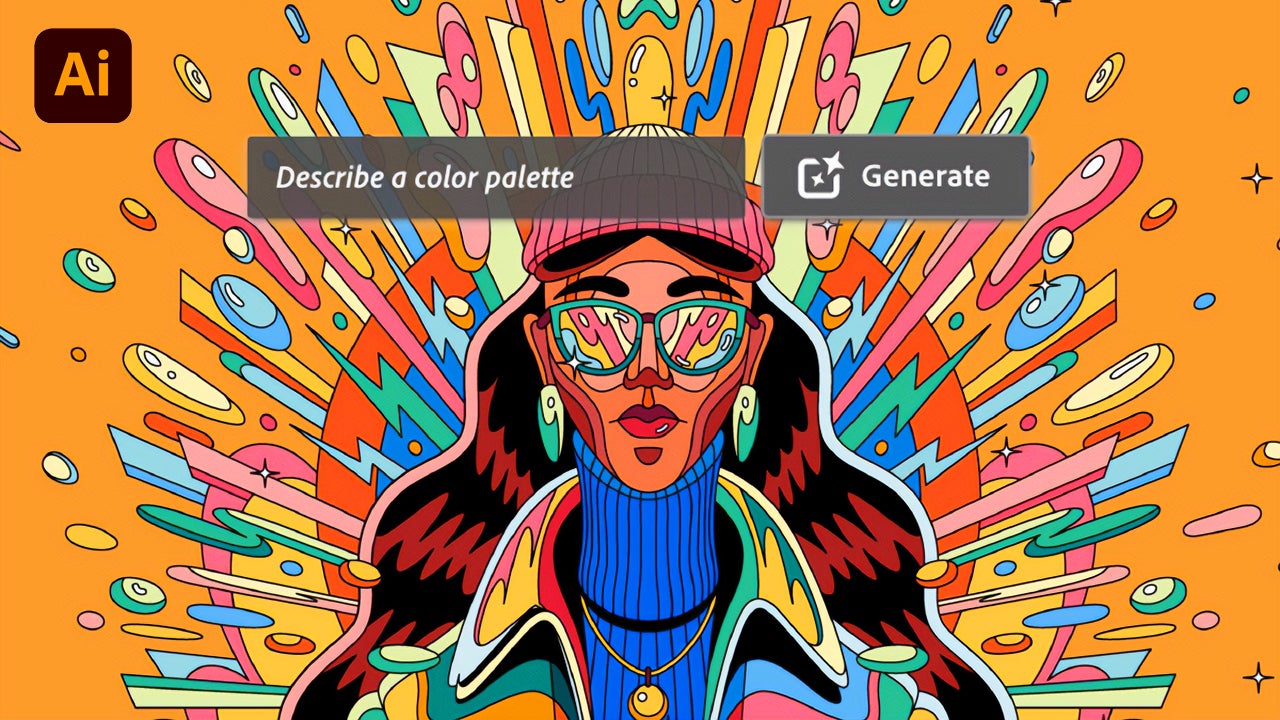
How to use Generative Recolor
Another advantage of Generative Recolor is its ease of use. You will see for yourself when you see how it is applied:
- The first step is very simple: open your project in Adobe Illustrator.
- Once you have done that, select what you want to change the color of. Use the Selection (V) tool to do it individually or use the shortcut Ctrl/command + A to select everything.
- Once you have everything selected, go to Edit > Edit Colors > Generative Recolor.
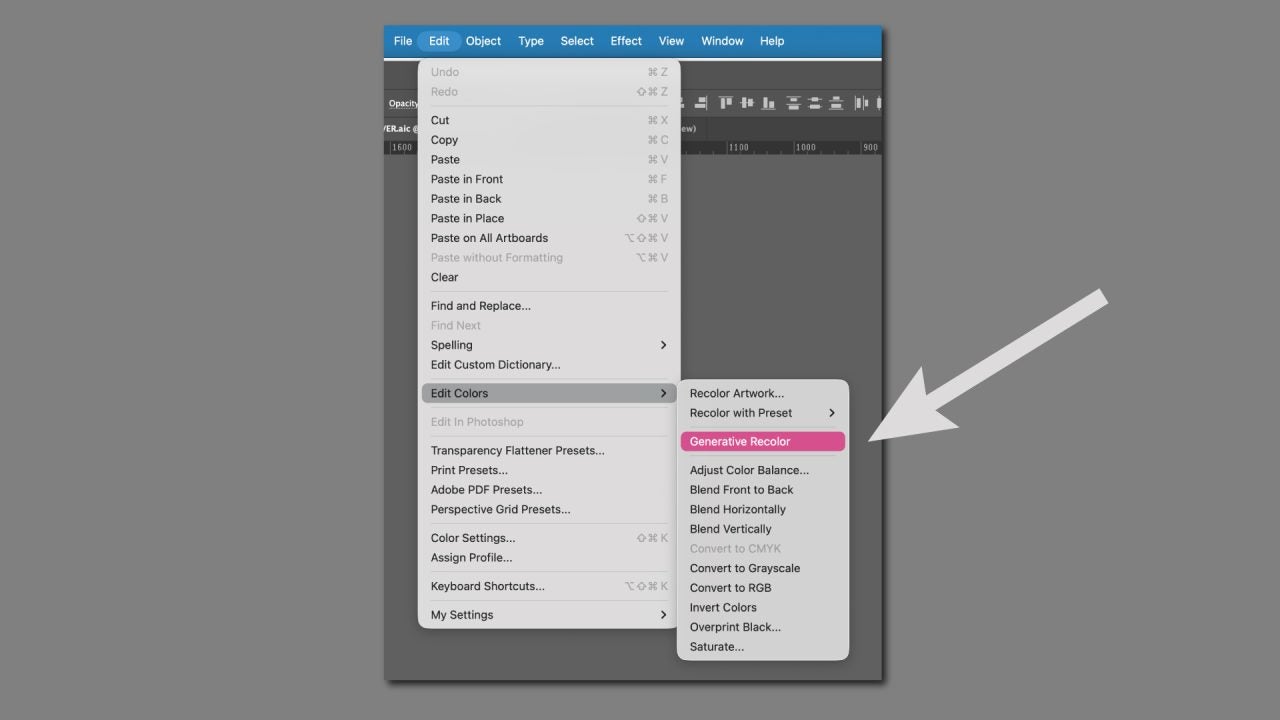
- By clicking there, you will see a new panel. Inside that same panel, go to Prompt and write what kind of colors you want to try. Finally, click on Generate.
- Illustrator will offer you a series of variations with the colors you have described so you can choose the one that best fits your ideas.
Optionally, you can select Add colors to guide the prompt to add up to five additional colors to accompany your description.
Improve your results with Recolor
In addition to Generative Recolor, we can also use the Recolor function to refine the results we have obtained. While Recolor does not use artificial intelligence, it does allow us to significantly speed up manual color changes.
If you want to start using it, do the following:
- Just like before, select what you want to change the color of. If you tried before with Generative Recolor, you will see the Recolor panel just to the left. To access Recolor directly, go to Edit > Edit Colors > Recolor Artwork.
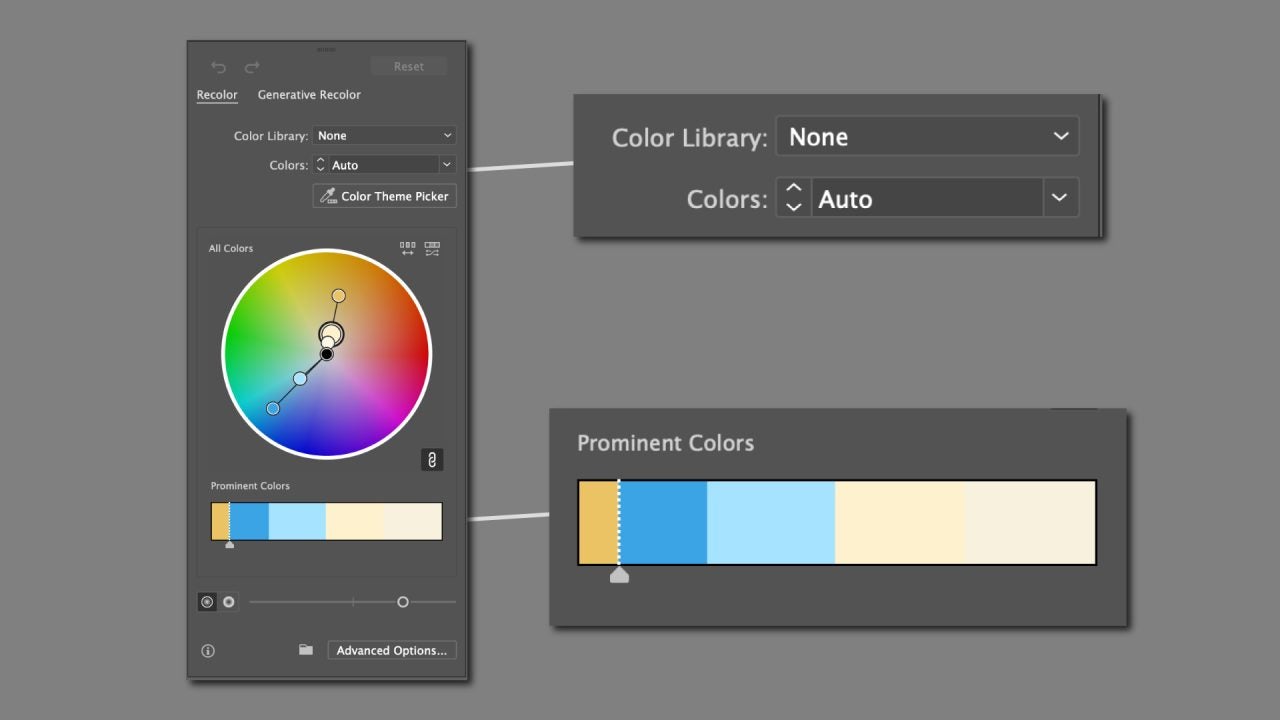
- Here you will see a large number of options:
- Color Library: This will help us choose a color from a predefined color library.
- Colors: Here you can choose the number of colors that can appear.
- The color wheel: This will help you choose colors freely.
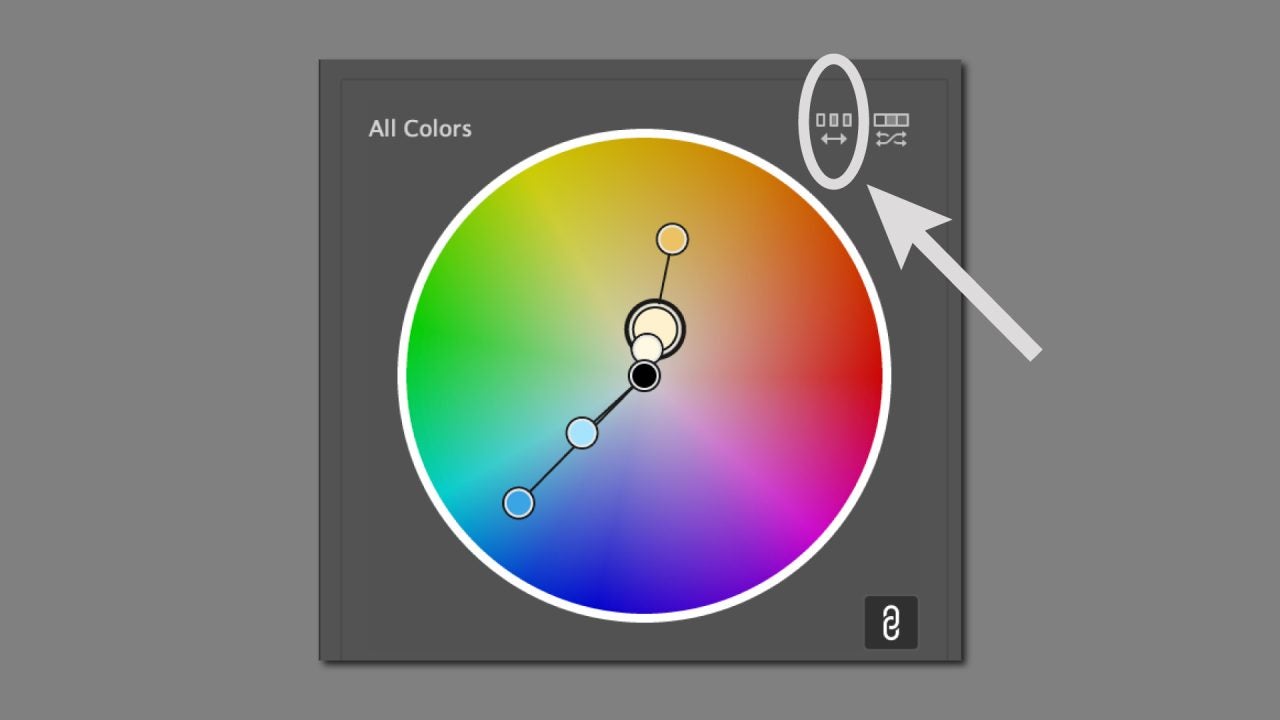
- Prominent Colors: Here you will see the colors that dominate your illustration. You can adjust the amount by clicking on the colors and dragging them on the slider. If you want to try changing the order of the colors randomly, click on Change color randomly. The icon is located just above to the right of the wheel.
If you want to apply a color palette that has caught your attention from an illustration or any type of image, you can also do it with Color Theme Picker.
With Color Theme Picker you can extract colors from one or more images and apply them to your project. It doesn’t matter if it’s a vector object or a raster image: it works in both cases.
- Along with your project, keep open on the same canvas the image from which you want to extract the colors.
- Access the Recolor panel again and click on Color Theme Picker.
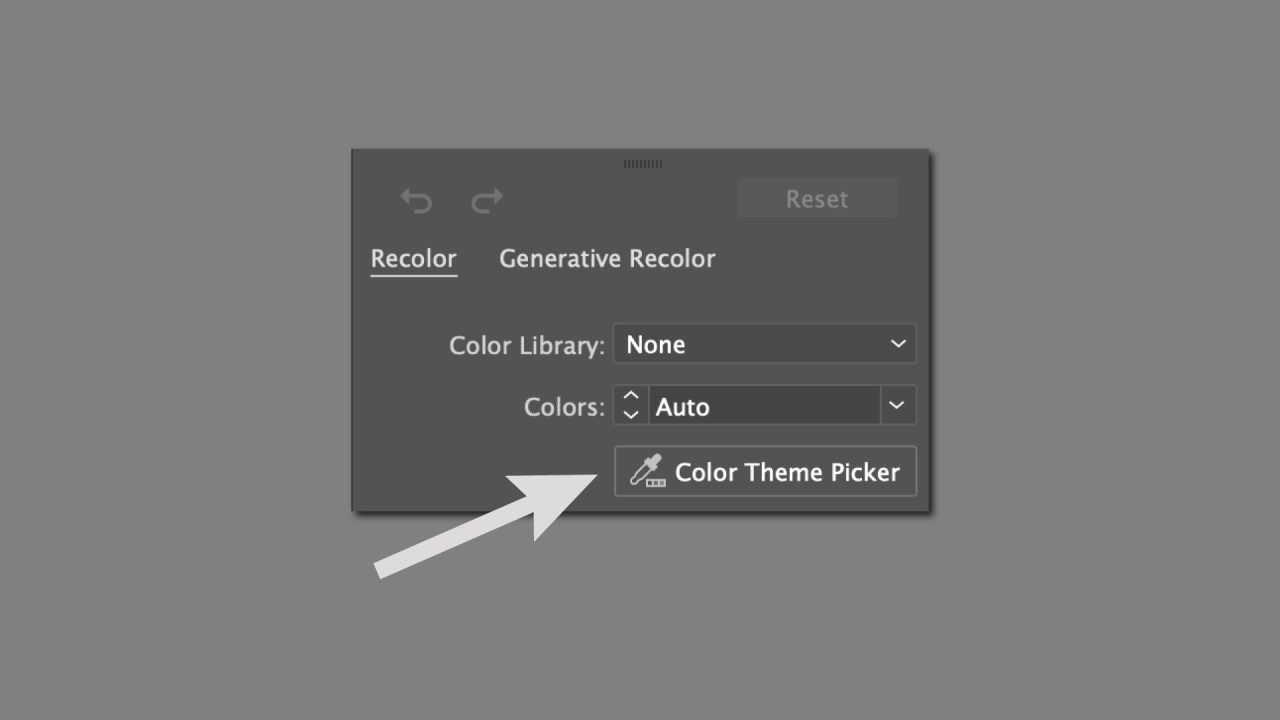
- Next, click on the image that contains the colors to extract them. To do this with multiple images, hold down the Shift key while clicking on them.
- Your project will automatically change color instantly.
If after all you don’t know which colors to try exactly, you can always try the predefined libraries that you will find in Adobe Illustrator. Any of the libraries you choose will be added to the Swatches panel so you can refer to those colors later if needed.
Ultimately, Generative Recolor is much more than a tool for changing colors: it can also become your ally to experiment and, in the process, save time at work. If you want your designs to look different and step out of your comfort zone, Generative Recolor is a good starting point.
