Avoid attacks from behind in Dark Souls II

Backstabbing is a big risk for any character in Dark Souls II because it almost instantly results in death. Here, we’ll give you a few tips on how you can protect yourself, turn the tables, and become the assassin, without leaving your back vulnerable to attack.

Dark Souls 2 - How to backstab

Avoid attacks from behind

Out of nowhere, a sword can fly into your back, sending your life bar plummeting to zero. It’s not uncommon to find yourself in this situation at one time or another in Dark Souls II; even a seemingly harmless opponent can master the technique if you turn your back on them.

If you don’t want them to come in for the kill, you need to move cautiously without turning a blind eye to any enemies. A lifeless skeleton, for example, can quickly get up, track you, and hit you with a deadly blow–usually from behind–as soon as you pass it.

Dark Souls 2 - Mark Target

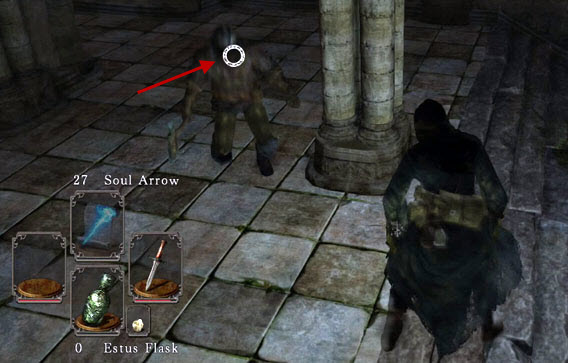
Mark your enemies, so that the camera automatically focuses on them.

If you see a potential enemy, mark them by clicking the right analog stick of your controller. A small circle will appear on the center of your enemy. The advantage is that the camera automatically aligns itself with the selected enemy. As a result, they can’t get behind you, but that doesn’t mean that the enemy is alone, and you still need to be careful.

Inflicting a deathblow

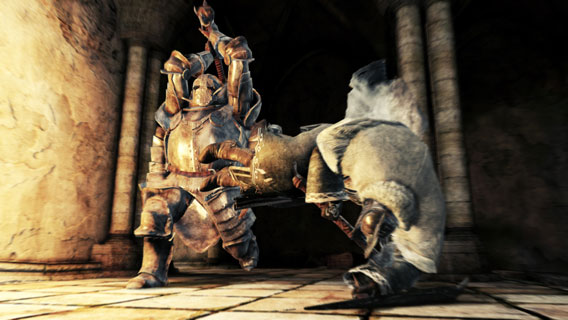
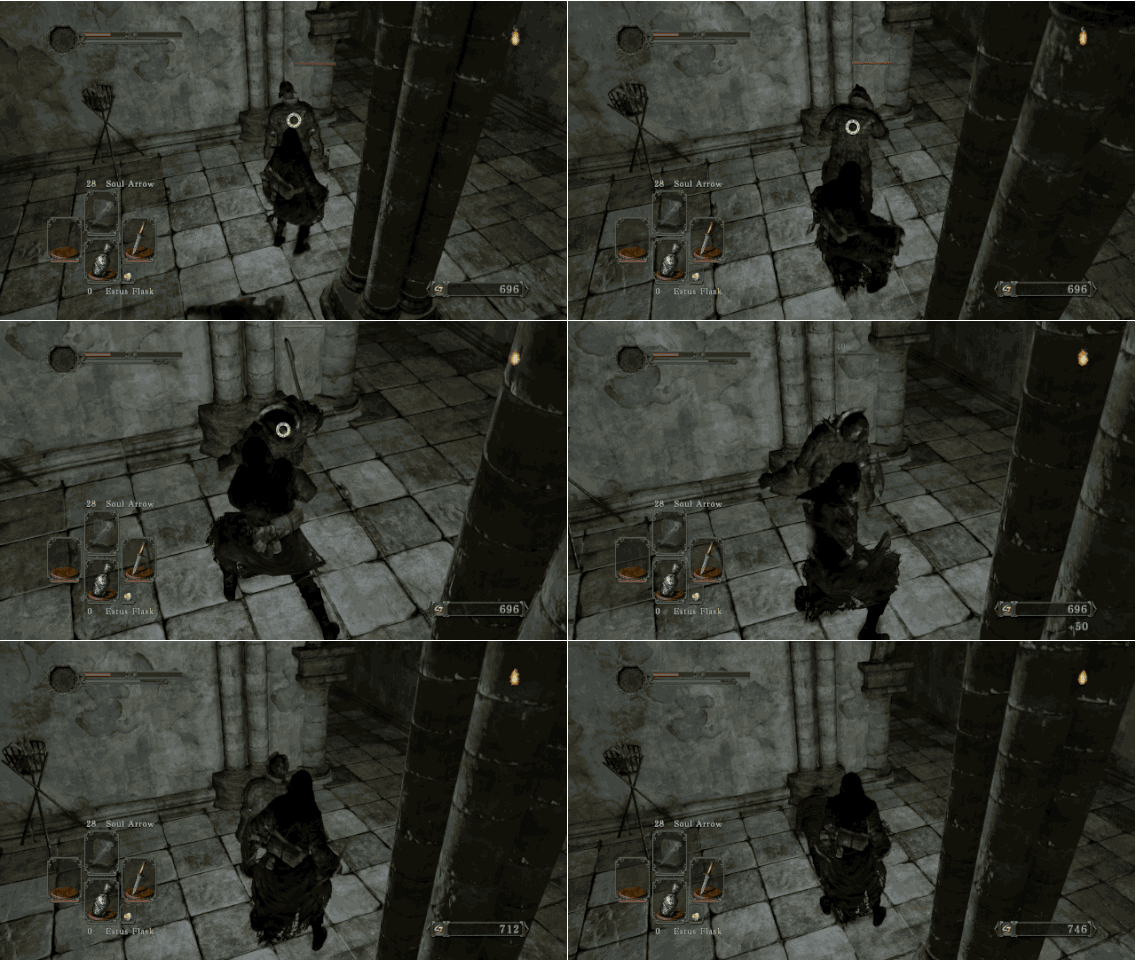
To perform a backstabbing attack yourself, mark your enemies (as described above). Observe their movements. If the enemy attempts a heavy blow, roll under the attack; this quickly puts you behind them.

Unlike in Demon’s Souls and Dark Souls, this immediately sets you up in the right position to launch a backstab attack. First, start with a normal blow. This gives the opponent a fraction of a second to escape the mortal blow. From there, you can inflict a subsequent blow which will literally impale your enemy and cause considerable damage.

Backstabs work with most simple enemies, as well as with most weapons, particularly handy, fast weapons like daggers. Large enemies or bosses, however, are usually unimpressed by these sorts of attacks. Against these enemies, you have to find other methods, and we’ve attempted to do just that with our 8 tips for surviving Dark Souls II.

Dark Souls II backstabs can easily make or break you

Backstabs are a basic element of Dark Souls II. Whoever can master them has a great advantage. Those who neglect this serious danger will die more often than not. This applies not only against computer-operated enemies, but also in the PvP (player-versus-player) battles. Be on guard and faster than your opponent if you want to survive these deadly blows.

RELATED ARTICLES:

8 survival tips for Dark Souls II

Dark Souls 2 is currently one of the most difficult games on the market. To spare you a little heartache, we’ve put together a few survival tips to help you make it through, but remember, dying over and over again are part of the normal learning process in this relentless action role-player.

Tip 1: In calmness lies strength

The nasty part of Dark Souls 2 is that around every corner, a monster might be lurking, and that’s often exactly what happens. Make sure not to run blindly into a trap and remember that your character takes a great deal of damage if attacked from behind. If you get off on the wrong foot with a particular creature, don’t retaliate straight away–instead, take a break and try again.

Tip 2: Dodge properly

Only those who learn to dodge correctly will do well in Dark Souls 2. It doesn’t matter which class you’re in. In the beginning, without any training, no one is strong enough to defeat enemies in a frontal fight with shield and armor alone. The pike roll is an important alternative; the advantage of rolling at the right moment means that you can avoid attacks. For a split second, you’re not as vulnerable.

Start to dodge as soon as the opponent starts to draw their weapon. At the right moment, roll under the arc of their strike. A disadvantage of the roll? Every roll consumes stamina, which you need for attacking. It makes sense to combine rolling and normal evasive moves as much as possible. This requires a lot of practice, but the earlier you start practicing this move, the easier Dark Souls 2 is later.

Dark Souls 2 - Evade

Rolling allows you to dodge enemy blows

Tip 3: Know your opponent

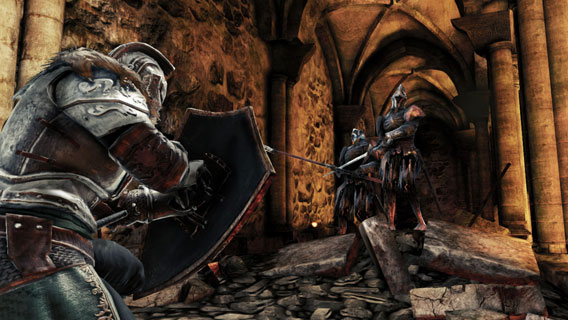
In order to dodge properly, it’s vital that you know your enemy. Each has its own attack pattern; if an opponent raises his shield and then always goes for a shock attack with its spear, that’s valuable information. Use it to dodge and launch a clever counterattack.

Tip 4: The right equipment

Don’t overload yourself. If you’re too heavy, you can’t roll and it’s difficult to dodge. Balance your equipment and stamina value so that your mobility isn’t impaired. Also, make use of equipment availability and assign different weapons– this means that you can quickly switch weapons if (and when) an ax or dagger breaks in combat. If your only sword is broken, it loses much of its attack power and weakens you in battles to come.

You need to be equipped with a shield to defend against blows, which can’t be avoided any other way, but it’s important to lower the shield as soon as it’s no longer needed. If you don’t, your stamina will recover slowly. If you let this happen, you don’t have strength for blocking the next blow, attacking or to rolling.

Tip 5: Keep your distance

The enemies in Dark Souls 2 have limited sight. Leverage this to your advantage by singling out opponents and avoiding group combat. Fire an arrow at an individual and lure them out into an open area so that you have as much freedom of movement as possible. Fighting enemies individually is much easier than being surrounded.

Dark Souls 2 - Combat

Keep your distance: Lure enemies away individually to make fights easier

Tip 6: Use your surroundings

Have you ever thrown a ferocious beast off a cliff? It’s a perfect example of turning the tables and using the environment to your advantage. Often, you can lure an enemy to the top of a cliff and watch as they slip into the abyss. A proven strategy is also to attract large enemies into bottlenecks where they can’t get through. From there, you can fight them safely from a distance. Access them with your bow or magic.

Tip 7: Use your souls

Souls are a volatile commodity that you shouldn’t carry around with you, and it’s even worse when you lose  them unnecessarily. Use the souls you gain as quickly as you can to advance to the next level or buy items that benefit you on your travels.

Tip 8: Use the campfire tactically

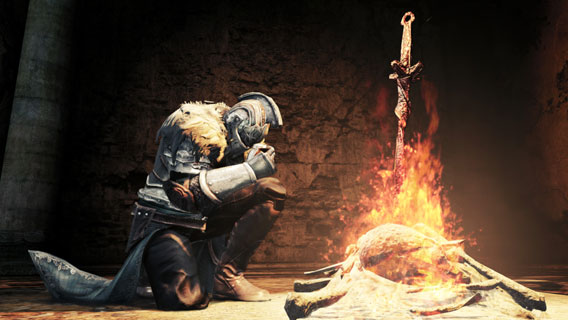
Campfires are all-in-one tools in Dark Souls 2. You can use them to heal you, do simple repairs to armor and weapons, replenish spells, and travel the world. On top of that, they are spawn points. By building a campfire near a tough spot, you can save yourself unnecessary trips and running around.

Dark Souls 2 - Bonfire

Campfires provide health, repair armor and restore spells

Conclusion: Patience brings success

Following these tips should help you get to grips with Dark Souls 2 pretty quickly, where every death is a lesson from which you can learn and improve. You may gain some experience only to reach the boss again and die, but you’ll have learned something too. In this eternal cycle, you’ll evolve into a skillful player who the demons fear, not vice versa.

Read our review of Dark Souls 2.

You might also be interested in:

Stay on track with these Formula 1 apps

Formula 1 fans can’t always follow the racing action live on TV, but with the right app, you can still have the live experience in your phone or laptop by follow the races around the track, browsing the  F1 news, setting reminders for the next race, or getting more insight into Formula 1 stars like Sebastian Vettel, Fernando Alonso, Nico Rosberg or any of your personal favorites. Here are 5 apps that’ll help you keep up date with Formula 1 this year.

The Official F1 App

Official F1 AppThe Official F1 App for iOS, and Android is one of the best applications for driver positions, lap times and much more – all live to your phone.

By registering free you’ll get live data on the move on your device. Be careful though: the website uses Java for live stats, which doesn’t run on all mobile devices.

Unofficial Formula 1 Apps

Formula Sport 2014 CalendarWith Formula Sport – 2014 Calendar, Android users can check race data for the Formula 1 2014 season at a glance. In addition, you can access information about details of the racetracks in a simple overview.

In addition to the track layout, the app gives you other race information, including the number of laps or race length.

Race Calendar 2014

Race Calendar 2014 is another Formula 1 calendar for iPhone and iPad.

In addition to start times and route information, this paid app brings you rankings, team profiles, training, qualification and race results as well as a live display and flash table with race statistics.

Team Φ1Under the somewhat strange name of Team Φ1 hides a new app for Android which centers around the Formula 1 racing circuit.

The app keeps Formula 1 fans up to date about news, brings the racing weather to your phone, and adjusts the start time of the race to your own time zone.

MMs - F1 2014 News And Info Lite

MMs – F1 2014 News and Info Lite brings the latest Formula 1 news to iPhone and iPad.

As well as the latest news, the app brings you a race schedule and route information. Although it’s a free app, in-app purchases allow you access to live blogs for training, qualification and races.

Which app will keep you on the race track this F1 season?

The 4 worst movie to game adaptations

Blockbuster movies draw people in, and game developers are the first ones to capitalize. Unfortunately, by the time the developers have had their way with the raw material, what’s left over isn’t always something to get excited about. Here are, in my opinion, some of the biggest movie to game adaptation fails.

Fail no. 1: Rambo: The Video Game (2014)

Rambo - The Video GameRambo is the ultimate 80s action hero. On the big screen, he’s unstoppable, dodging bullets and surviving in the wild as others try hunting him down. Some might say he’s the action hero that others strive to emulate.

Unfortunately, Rambo: The Video Game does nothing to help his image. Published 3 decades after the original, the remake does no justice to the movie franchise. It looks terrible, the controls suck, and it’s left just about every Rambo fan who’s ever played the game completely disappointed. My only comfort is that the game covers all 3 Rambo movies, so at least we know we won’t be subjected to any sequels.

[youtube]http://www.youtube.com/watch?v=31xjts9RbIs[/youtube]

Fail no. 2: Lord of the Rings: War in the North (Windows 2011, Mac 2013)

Lord of the Rings - War in the NorthPeter Jackson brought Tolkein’s masterpiece to life on the big screen, where millions of viewers gazed in awe at the epic story of Frodo, his friends, and the seductive power of the ring. The combination of staged fight scenes and the ever-popular fantasy setting made a game version seem like a sure bet.

As it turns out, the action RPG Lord of the Rings – War in the North uses the movie more or less as a template. To be honest, it takes the name, a few well-known characters and not much more. The connection to the novel is loose, at best. The controls are hit and miss, its glitchy, and for such a long movie and book, the game is really short. The (only?) highlight is the outstanding musical score.

[youtube]http://www.youtube.com/watch?v=_rseSHIZXoU#t=47[/youtube]

Fail no. 3: James Cameron’s Avatar: The Game (2009)

AvatarAvatar is an undisputed king of the box office; with sales of $2.8 billion, it’s the highest grossing film of all time. The action-packed ecodrama set on the Earth-like planet of Pandora mixed special effects with real footage to excellent effect, creating new standards for 3D films. All this technical wizardry seemed to be begging for a video game adaptation.

James Cameron’s Avatar: The Game started strong, but ended up plain boring, with gameplay that involves running one mindless errand after another. The confusing camera work doesn’t help, and neither does the erratic distribution of action. The biggest downside, however, is that if you’ve never seen the movie, you’ll have absolutely no idea what’s going on.

[youtube]http://www.youtube.com/watch?v=_LstNbhOIqQ[/youtube]

Fail no. 4: Terminator: Salvation (2009)

Terminator SalvationTerminator: Salvation isn’t exactly a cinematic classic: in the 4th Terminator installment, our iconic hero, John Connor, struggles for survival against unstoppable machines and the Skynet. Even though the story’s pretty poor,  it’s a solid action movie, which is a great starting point for any action game.

Or so I thought. The video game takes the “Terminator” part pretty literally. It’s far too short to do justice to the movie, taking an average film and making it into a below-average game. Players shoot away at the same opponents in an attempt to get more trophies, and that’s pretty much all there is to it. Disappointing.

[youtube]http://www.youtube.com/watch?v=ThuU3C9pYbQ[/youtube]

Download Terminator: Salvation

Conclusion: treat game adaptations with suspicion!

A good movie doesn’t always make a good game. Even though the films above hold their own in theaters, when it comes to the small screen, they bomb. It’s a pity, because these games all had one thing in common – plenty of potential. It’s a shame it wasn’t better used.

If you’re interested in better games, check out some under-the-radar indie games set to be released this year.

How to upload gameplay videos to YouTube

If you’ve recorded or edited gameplay videos and want to share them, there’s no easier way to do it than posting it on YouTube. Here, we’ll give you a few tips so that you know what to keep in mind to appeal to viewers when uploading videos on YouTube.

Preparation: setting up your YouTube account and channel

YouTube Channel Settings

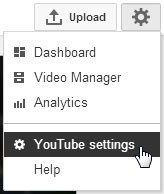
To make your YouTube video public, you have to set up a YouTube account by creating a Google account (you’ll already have an account if you use Gmail). Once you’ve done this, access YouTube and log in with your Google Account, if it doesn’t do so automatically. Click on the cog icon in the top right corner of the screen and select YouTube settings.

You should now be on the overview page of your YouTube profile. Click on Create a Channel. Make sure to create a channel with a relevant name so that your videos will be well-organized in YouTube.

Now comes the exciting part: uploading your videos.

Uploading videos

To upload a video, click Upload and select your file. Alternatively, drag the file to the upload button in your browser.Select files to upload

While the video’s uploading, you can fill in the title, description and tags, select your privacy settings, and choose an appropriate category.

The title and description fields will help attract viewers to your video. Our video editor Toni has some important tips about this:

  • Choose a title that’s attractive, but accurate. Don’t lie, and don’t just think about search engines or keywords that will get you a good ranking in YouTube.
  • Give the video a good description which is search engine friendly. The field should coherently answer the question of why the video is useful.
  • Adds links to your website in the description, if available. Also link sources that you’ve used in the video. This particularly applies to music. Your viewers will ask you about songs, and its good to answer in advance and express yourself as briefly as possible in the description.
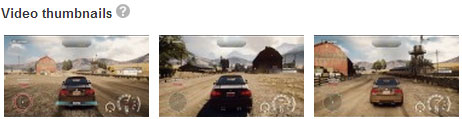
  • Choose a good thumbnail. After uploading, YouTube suggests three different snapshots from the video. Make sure you don’t use any ambiguous images, otherwise you might mislead the user and end up with something that has nothing to do with your video. Good and bad thumbnails have an impact on your long-term positioning in YouTube.

Choose accurate thumbnails

Other things to consider are tags and categories, which help make your video accessible to the right audience. Entertainment, for example, is more appropriate than Travel and Events for gameplay videos. Tags are short keywords that help make it easier to search for videos. Here, the name of the video game and the subject of your video are good options.

Post-processing on YouTube

At this point, you’re pretty much done, but there are a few tricks that you can use to engage even more users. After videos have been made public, YouTube offers options to enhance videos with effects. Annotations are particularly effective.

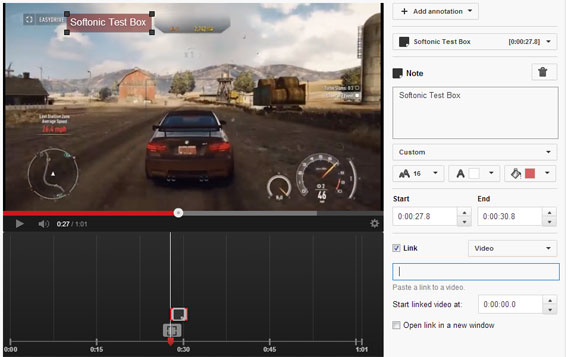
In YouTube, open the video manager (accessible here). The video manager will give you an overview of all uploaded videos. Click on the arrow pointing down next to Edit, and select Annotations.  The window that appears is similar to that of a simple editing program. Move the marker on the timeline to the desired position and click Add annotation.

Add annotations to your videos

You can lay text over the video and add links to it, a practical way to link to more of your videos once your archive has grown. Annotations are also a good way of referring users to channels with similar content or themes.

A word of warning: annotations are a great way of keeping users on your own channel for longer, but too many boxes can be annoying and may cause irritated viewers to leave the page.

Quality is key

Nobody wants to see pixilated videos that are poor quality and have lots of background noise, so don’t upload badly made videos. During recording, make sure you use HD resolution (1280 x 720 pixels or 1920 x 1080 pixels) and ensure that you don’t lose any of the quality during post-processing.

Here, we explain how to edit videos using Free Video Dub without losing quality, and with FileLab Video Editor, a free web app, you can export your video with 1280 x 720 pixels. If you do need to render the video again, choose the highly efficient Codec H.264.

Customizing your channel

If you gradually fill your channel with videos, you should also customize it a bit as well. You can give your channel a personal touch by adding your own background image, a matching channel description, and links to your social network. This helps your viewers better recognize your brand.

Watch out for legal pitfalls

YouTube is especially handy for sharing gameplay videos: uploading is simple, there are millions of game fans already using it to search for gameplay videos, and videos can easily be shared with anyone. One thing you should note when uploading gameplay videos, however, is that you will be working with copyrighted material. Make sure that you credit all of your videos back to the original game source.

Make sure to check out our article on how to edit gameplay videos using Free Video Dub.

How to: create animated cat GIFs

It’s not just owners who love their cats; GIF animations of them doing funny stuff have set the internet alight over the past few years. We show how you to transform video clips of your cat into animated GIFs on a PC, Mac, or via a web app. You can use these GIFs, for example, on Twitter and Facebook or as forum avatars.

In preparation, you’ll need to take a short video with your smartphone or with a digital camera. Then copy it to your PC or Mac. Most of the applications presented here don’t have a built-in preview. For this reason it’s advisable to open the video with a video player like VLC and note down the desired start and end time to the exact second. Then when you convert your video into a GIF animation, it will last for exactly the right duration.

Download VLC for Windows

Download VLC for Mac

Create Cat GIFs with Windows

Free Video to GIF - Cat and Dog

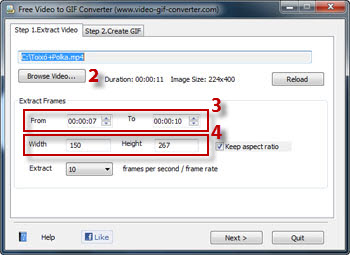
  1. Download Free Video to GIF Converter and install the application.
  2. After starting the program, select your cat video using Browse video.
  3. Specify the start and end point of the animation. Add the values – in seconds – ​​in the From and To fields.
  4. Determine the size of the GIF to be exported. Remember that the resolution, as well as the length of the GIF animation, determines the size of the exported file. Note: Most forums avatars have a size limit of 100×100 pixels.
  5. Specify how many images are displayed per second.
  6. In the next step, you can manually delete frames, adjust the image quality and adjust the playback speed. To complete the conversion just click on Make GIF.

Free Video to GIF Converter

Free Video to GIF Converter doesn’t come with a preview window

Download Free Video to GIF Converter

Create cat GIFs with a web app

Imgflip Gifgenerator

As an alternative to Windows or Mac software, you can create cat GIFs in your browser. This works across Windows, Mac or Linux. Most vendors offer similar tools, but limit the animation length and add a watermark if the GIF is above a certain size.

This also applies to Imgflip Gifgenerator; the GIF animation is capped at 360 pixels and limited to a maximum of ten seconds – it adds watermarks too.

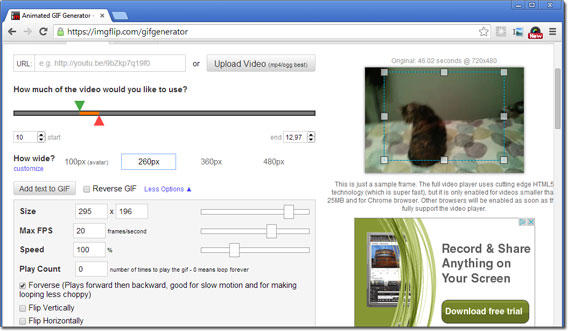
Web app - Imgflip Gifgenerator

Imgflip Gifgerenator offers a web app with lots of tools, but doesn’t have a preview either

  1. Open the Imgflip Gifgenerator website with a browser such as Firefox or Chrome.
  2. Click on Upload to load your cat video clip.
  3. The animated points will be between two sliders – the green arrow marks the start and the red arrow marks the end point. You can move these around to get the part of the video you want.
  4. To view more tools, click on More options.
  5. In the menu that follows, you can set the frame rate to a maximum of 360 pixels, adjust the playback speed and determine what happens at the end of playback. If you want a fluid, endless loop, for example, Forverse is a useful mode, as it plays the animation backwards after it ends.
  6. If you want to, you can add some text or crop your GIF to the desired size.
  7. For a preview, you need to click on Generate GIF. Once you’re satisfied with the result and you’ve adjusted the displayed file size, you can click on Download Image and save the GIF on your hard disk. Otherwise you can go back and select Choose different settings if you want to change anything.

You can embed finished GIFs via links or HTML code to your page, blog or Facebook. The necessary code will be available after conversion if you haven’t checked the mark for private use.

Start Imgflip Gifgenerator

Create cat GIFs on Mac

On Mac, there are two apps. Gifrocket is convenient to use, but doesn’t bring much in the way of tools. In contrast, GIF Brewery allows plenty of adjustments.

Mac - Gif BreweryGIF Brewery: for GIF enthusiasts

  1. Download GIF Brewery.
  2. Open your cat video from File/Open.
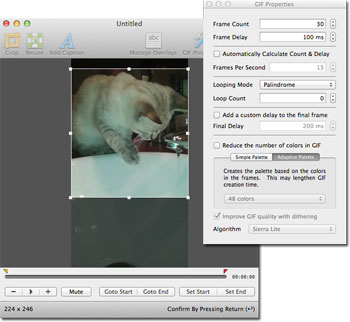
  3. With the Video Preview you can set the video excerpt you want. Move the yellow button for the start of animation and then click Set Start. Set the end to correspond to the red button and confirm it by clicking on Set End.
  4. If you want to crop the video, you can select an area and press Enter to crop.
  5. The GIF size can be adjusted to the desired number of pixels by using the Resize function. Bear in mind that a smaller animation requires less memory and loads faster on the internet. Forum avatars usually have a resolution of 100×100 pixels square.
  6. Under GIF Properties you can see more options. Frame Delay sets the playback speed of the animation. With Looping Mode you can specify the type of infinite loop. Palindrome ensures that the animation is played backwards when it reaches the end. This ensures that you get a GIF that’s both smooth and funny.
  7. Create GIF creates a preview of the animation. On top of that GIF Brewery incorporates the file size. If it’s too high, you can cancel and make corrections to the size of the animation (see point 5). If you’re pleased with the result, however, you can save your GIF.

Mac - Gif Brewery CatGIF Brewery offers the most configuration options among the GIF converters on this list. The integrated preview makes it unnecessary to resort to other media players and speeds up your work. Before it saves the file to the hard disk, GIF Brewery warns you of the importance of file size for Twitter, Facebook, forums or avatars. The many options it offers are great for experimenting, but may be a bit overwhelming for the casual GIF creator.

Download GIF Brewery

Gifrocket: for quick GIF fixes

Mac - Gifrocket - rolling cat

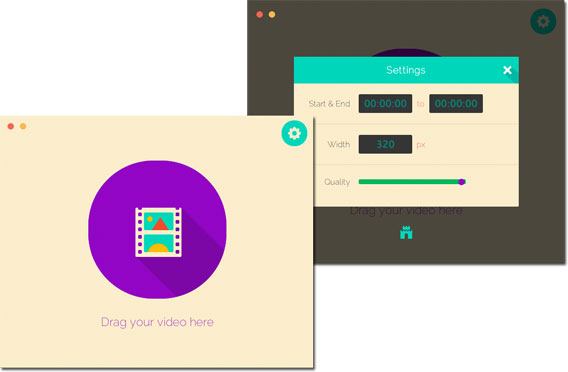
If you don’t need all the configuration options and you’re looking instead for a free and easy to handle alternative then Gifrocket could be for you. Simply drag and drop your video into the app – Gifrocket automatically does the rest.

You can access all the options via the spanner icon in the top right corner. Its menu only allows you to define animation size, quality and start and end times. Speed ​​or loop aren’t possible, and you can’t crop videos either.

Mac - Gifrocket

Gifrocket is a simplified version of Video to GIF converter for Mac

Download Gifrocket

Conclusion: four different GIF creators for fans of animated cats

The conversion of cat clips to GIFs isn’t rocket science. Free Video to GIF Converter does the job relatively quickly on Windows, but offers only simple loops. With the web app Imgflip Gifgenerator, you’re not bound to an operating system – it just works on your browser – but it’s not very fast, and creates GIFs with ugly watermarks.

The fastest way to GIFs for Mac owners comes by way of Gifrocket, but it has largely dispensed with configuration options. These are available on Gif Brewery in abundance. Whoever wants to get the most out of GIFs and has a Mac, could hardly find a better application for tinkering with adorable cuddly cat GIFs.

Have you made an adorable cat GIF? Care to share it with us?!

Elder Scrolls Online: chaotic mass slaughter in PvP

Obviously PvP mode is a big thing in massive multiplayer online role-playing games. Lots of players don’t like it. Others love the concept of crossing virtual blades with actual humans rather than predictable computer-controlled opponents. Elder Scrolls Online introduces a PvP mode, which neatly separates the player vs player combat into a specially equipped area separate from the rest of the online role-playing game. Well, in theory.

The Elder Scrolls Online (TESO) adventure begins northwest around Glenumbra. In this lush, wooded area I went all out last weekend, completing quests and keeping the peace in the dungeons. Although my character has clearly overcome the PvP hurdle of a minimum level 10, there was a problem.

On the wrong track for battle

The battle arena of the competitive multiplayer is in Cyrodiil, centrally located in Elder Scrolls Online’s fantasy world of Tamriel. So how do I get from my starting point to the action? The search for an answer to this naive question led me through areas that were way too advanced for my experience level.

Painfully, I learned just how persistent the evil creatures guarding the way could be. After I unlocked an achievement for 1,000 kills and paid a fortune to repair my threadbare kit, I was desperately looking for another way to my destination. In the depths of the menus, I found it.

Alliance war in Cyrodiil – with obstacles!

According to the Alliance menu, I could teleport myself directly into the Cyrodiil PvP area. Great, I thought, let’s go! But nothing happened. A bug prevented me from using the mouse to see the fight, so no battle for me!

Friendly teammates offered useful tips, but only restarting my PC solved the problem. I guess that’s just the way betas are. Once I got it working again, I could join an alliance and get into battle!

The usual chaos of a castle siege

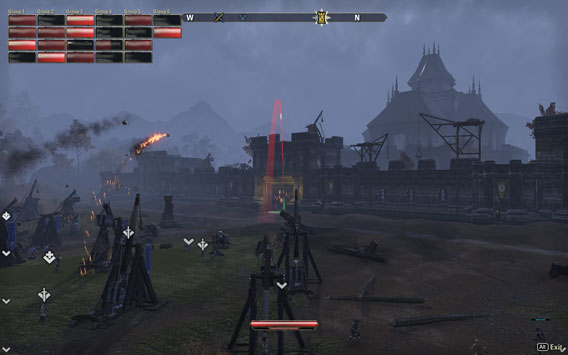
When I joined the fight, it was already in full swing. I could see on the map where the action was taking place. The road spanned a huge area. With no horse, I traveled on foot for quite a while. In the center of the action, catapults were already in front of the castle wall for a shot on the castle which was ripe for attack.

My attacking group almost had the maximum 24 players, though alliances can consist of far more groups and players. There could conceivably be battles with hundreds of participants. To conduct the attack in a somewhat coordinated fashion, the group is divided into six small groups of four players, a good method for tactical skirmishes.

In reality, everything was pretty far from tactical. To be honest, getting the players to operate in an organized fashion was like herding cats. Once the castle gate gave way to the catapults and everyone made their way into the courtyard, players promptly ran directly into a deadly trap.

Elder Scrolls Online - PvP Siege

Catapults attack the castle siege gates, then the melee followed

The defenders were no longer throwing flaming debris over the wall; they abandoned the gate, retreated to the courtyard and prepared for the storm that was to come. We ran straight into two flanks. After the fatal error, we had an opportunity to respawn and improve for the next time. They managed to occupy the courtyard and enter the castle, where the same bloody massacre repeated itself.

All in all, it must be noted that tactics, good leadership, communication and time play an important role in the alliance war. In the press event, taking a single castle dragged on for quite a while. Manufacturer Zenimax Online maintains that 15 minutes is all that’s needed to take a completely unguarded castle, but it’s rarely as easy as that. And it’s also not just about conquering a castle. Wars aren’t just won overnight!

Balance, points, alliance victory and emperors

Not every player has to rush into battle. Instead, you can support players who are struggling with raw materials and custom-built siege weapons like catapults or rams. Killing enemies and conquering fortresses aren’t the only ways to get points. Whoever wins the most points at the end of a war can call himself Emperor and enjoy the benefits for himself and his alliance – until another player wins the title, of course.

Weaker players are advised to take on support roles because the very different game progress, at least during the beta, isn’t really fair. You can lay into enemies without causing them significant damage, for example, while several well-placed blows will produce nothing more than a bloody nose.

Everything at a glance: UI in combat

Keeping an overview of a 24-man group is a big challenge. Here, TESO has a distinct advantage over Final Fantasy XIV, which also introduces a 24-person view with the recently launched Crystal Tower – but has a severely impaired overview. The advantage of TESO lies in a clear, direct combat system that operates, in contrast to many competing games, without complicated menus. The user interface is tidy enough to be able to have an alliance window showing all participants in the upper left corner, so you’ve got everything in view.

Somewhere between PvP and RPG

The Elder Scrolls Online PvP blurs the boundaries of MMORPGs. There are still all the typical roleplaying classes, as well as lots of tactics more common in strategy games. The game mode feels like a live view of Stronghold Crusader from a first person perspective, while the respawns and the Conquer mode also faintly remind us of a shooter.

Megaserver is a role play killer?

A weakness of PvP in Elder Scrolls Online is  the megaserver, as we’ve already discussed. While in World of Warcraft you must make a conscious decision between a server with difficulty points for role play or PvP, or in Final Fantasy XIV, with its wolf cave completed in a PvP arena, in TESO there’s more overlap. The PvP fighting takes place in Cyrodiil, while at the same time rumors are circulating that ordinary quests and dungeons are also available.

For this reason, it’s conceivable that less interested players might be drawn into fighting in PvP. Central story elements or end game raids should be solely reserved for winning alliances. If this decision is actually made in the final version of Elder Scrolls Online, it will scare role players off.

Conclusion: hectic castle siege action with a sprinkling of tactics

Chaos, chaos and…wait for it…more chaos! This best describes my first PvP experience in Elder Scrolls Online. During the beta phase, the world was inundated with other players and the sudden back and forward between players seemed confused and urgent.

As well as this, I felt a sort of sense of community for the first time, and I’m sure that care will be taken in the final game version to include capable and performance-based alliance leaders for organized and successful castle raids.

However, the fights are pretty tough; they’re lengthy, monotonous, and poorly balanced. On top of that you need to be prepared for lots of role players disturbing the PvP: aggressive, sullen players, who aren’t fast or good enough. If there is actually an overlap of PvP and roleplaying, and PvP is needed for the conclusion of the story, it’s not something to celebrate.

In short: as things stand now, we weren’t too excited by TESO PvP and it doesn’t come close to the cautiously optimistic first impression of the rest of the game. Zenimax Online now has a lot to improve on when it comes to balancing and ensuring that role players aren’t disturbed by PvP.

Read our preview of Elder Scrolls Online!

Quickly edit videos using Free Video Dub

Simple video editing can be done quickly, with the right tools. Here, I’ll show you how you can quickly edit videos, for free and without any loss of quality.

Most editing programs are overloaded with complicated functions that you most likely won’t need, making it more difficult to get used to the program. Free Video Dub takes a completely different approach: the freeware confines itself to editing alone so that you can quickly trim the video, remove scenes, and save the results. This tutorial will show you how to edit videos using Free Video Dub.

Choose a starting point

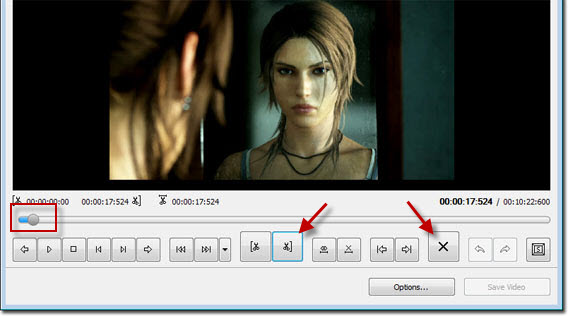
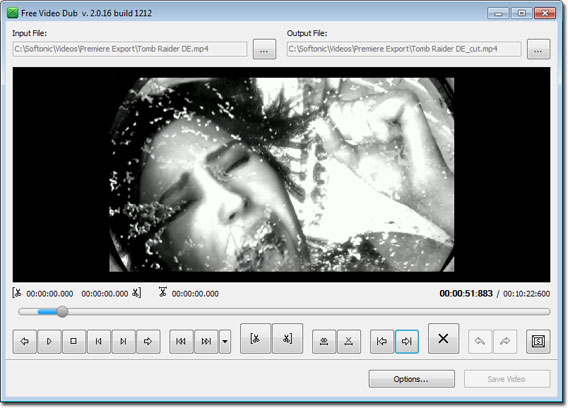
Open the video or drag and drop it into the Free Video Dub interface. Drag the button on the timeline to the right until it reaches the point where you want the video to begin. Using the Trim Right function, or the M key, mark the beginning of the video up to the desired starting point. Free Video Dub highlights the selected section in blue. Then, delete the selected area using the Delete button or the DEL key.

Free Video Dub - Buttons

Open the file, use the timeline, select, delete and save – the five steps to being editing your videos

Delete scenes and save the video

To remove a scene from the video, move the button on the timeline to the beginning of the unwanted content. Use the Trim Left function or the N key to select the desired spot. Next, move the button to the end of the unwanted scene and select it using the Trim right function or the M key. The unwanted content should now be marked in blue. Again, you can delete the selected area using the Delete button or the DEL key.

Free Video Dub

You can trim the end of the video using the same procedure. It’s useful to point out, however, that pressing the Trim Left button didn’t work during our testing. If you’re dissatisfied with your selection, you can delete it with the Delete Selection button or the X key.

Once you’ve removed all the sections you want, save the video by clicking on the corresponding button. Free Video Dub saves the edited video in the source directory with the tag _cut. This means, for example, that dasvideo.avi becomes dasvideo_cut.avi.

Default player


brightcove.createExperiences();

Good quality, but a few glitches

It’s handy that Free Video Dub doesn’t convert files once they’ve been saved and edited; it means that you don’t lose the video’s quality. The result looks the same as the original, but cut to perfection. It’s unfortunate that there are a few glitches that cause Free Video Dub’s timeline to freeze. If this does happen, the only solution is to shut down and restart the program. Overall, however, Free Video Dub is a great free and easy-to-use option for quickly editing videos.

Download Free Video Dub

Elder Scrolls Online: Full test of the Beta version

Elder Scrolls Online is a huge gamble; going against the trend of free-to-play games in the MMORPG genre, Elder Scrolls Online brings yet another subscription-based online role-playing game to the market. After my initial peek at Gamescom, I had the opportunity to explore the world of Tamriel rather more extensively. The following is my personal impression of the beta version after around 20 hours in the game.

The question of character

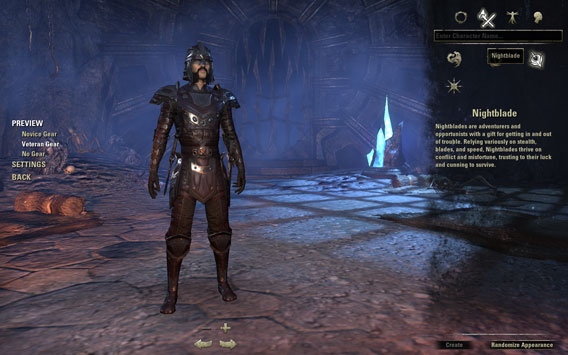
As usual, Elder Scrolls Online begins with the character creator. You choose class, race, gender, and stature. In the final version of the game, the Imperial character class is only available to those who bought the Imperial Edition.
Elder Scrolls Online - Character

The character editor allows you to request the preview in veterans’ clothing.

Impatient players can randomly generate a character. Perfectionists can shape their character from head to toe with numerous customization options from hairstyle to shoe size. The figure can be viewed from the start to finish, which is unusual and can be very useful. For example, when considering the momentous question of whether the hair color matches the high-spec suit of armor, to be chosen later.

The Dungeon

Yet again, I find myself abandoned in a dungeon like other games such as Dishonored and Black Guards. However, what I’m supposed to do is not so clear. Still, I’m glad as the shadowy prophet flickering before me ends its stay in this dingy hole.
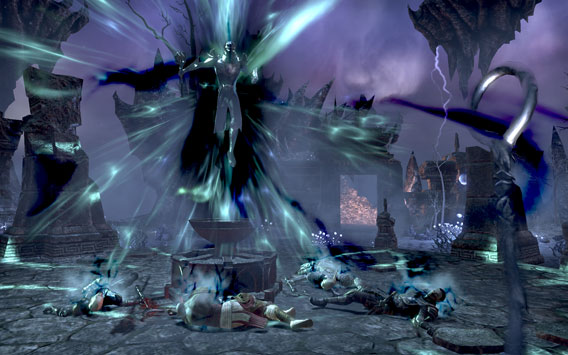
Elder Scrolls Online - Past

A glimpse into the past: The story is initially a bit confusing.

Open game world

After the dingy dungeon, the free world opens up for extensive exploration. I am drawn into exotic-looking deserts and lush forest landscapes. Both areas are expansive with tons to do. The environments are very detailed, especially when looking at how the sunlight shines through treetops and how leaves create  fine shadows on the ground. Still, the grass could look better.
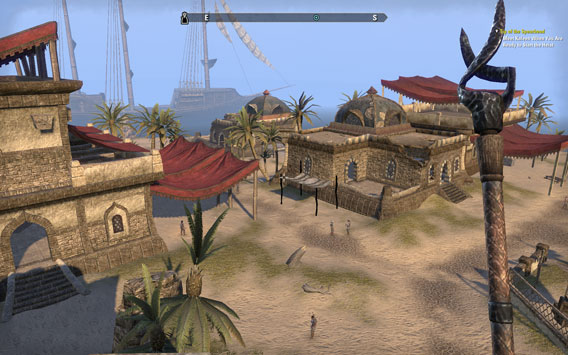
Elder Scrolls Online - Scenery

Attractively-designed landscapes belong to Elder Scrolls Online’s attractive side.

The little town with its markets, stalls, and shops seem like it comes from a soul-stirring medieval movie – just free of the stink and slurry on the road. Streams and rivers also meander prettily through the countryside. The ground stands out against nicely splashing water, provided you have a sufficiently fast PC or Mac.

Action at every corner

My diary quickly fills up with tasks wherever my characters meet other characters in the game. Additional tasks often appear at random, without being indicated on the map.
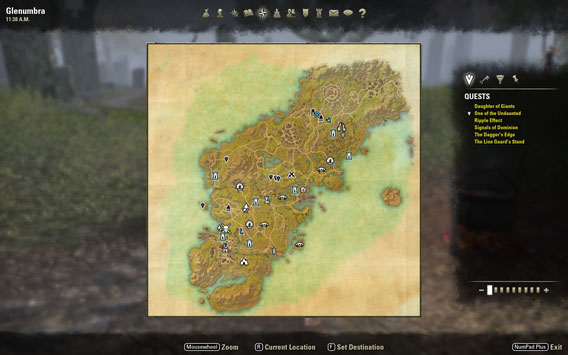
Elder Scrolls Online - Map

This map shows a small section of the Elder Scrolls Online game environment.

Refreshingly, Elder Scrolls Online’s range of initial tasks goes beyond the typical supply and run contracts. Here, there is a lost pig to find, a murder to be solved, or enslaved miners to be freed. After completing well over 50 mostly exciting quests, I have also helped forest druids with their nature element problems, banished and burned zombies, fought werewolves, talked to ghosts and flambéed skeletons.
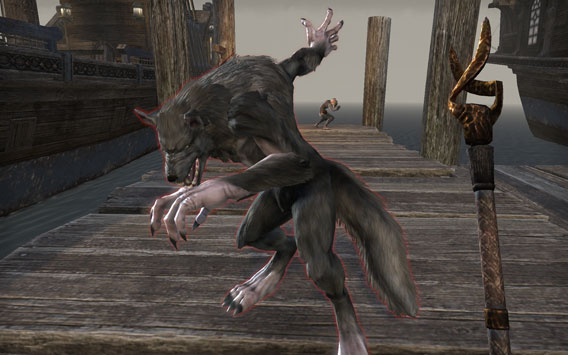
Elder Scrolls Online - Werewolf

Werewolves are everywhere!

Away from the very safe cities, wolves, and other creatures wait for adventurers. Defeated creatures drop a few gold coins and from time to time, even valuable objects that you can invest or sell. Defeated monsters return astonishingly quickly to the same place, which makes it easier to collect experience, money, and objects, but it does rather cloud the atmosphere.

From time to time, boxes in the landscape also wait for a skillful thief with skeleton keys to reveal valuable treasure – unless someone’s got there before you, as happened to me repeatedly. In that case you’ll find nothing but an empty, ransacked box and you’ll have to continue your search.
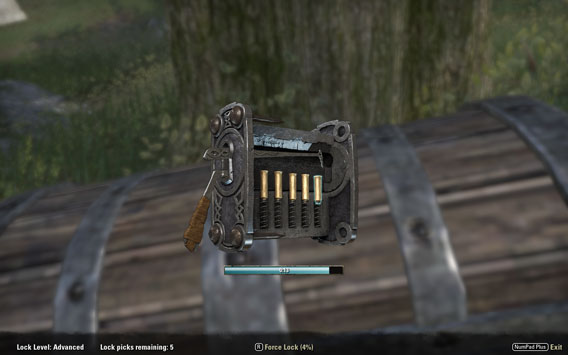
Elder Scrolls Online - Lockpick

Chests with valuable goods that require a certain amount of skill to break into

Many orders bring additional tasks after them. Sometimes I find myself holding the course of events in my hands by involving myself in dialogs. The extent to which these decisions have momentous consequences I couldn’t really tell.

You don’t always need to go back to the city to sell plundered goods or repair equipment. Tradespeople operating on the main roads see to this. Handy, huh? The transport stations called Wayshrines are also great time savers, which you can jump to directly. However, there is a cost for each trip. When you have the necessary means to buy a horse, you’ll cover larger distances swiftly.

You need to visit tradespeople to empty the inventory and to earn some gold that (at first) is swiftly spent – at the beginning repairs cost a pretty penny! In exchange for money, you can expand the inventory, which is initially limited to 50 slots. There’s no weight limit. Stackable items such as potions or food count as one item.

Group battles and Dungeons

Sometimes adventurers take on a particularly dangerous group of monsters, or end city sieges. Such events are somewhat comparable to Fates from Final Fantasy XIV and for the most part require a group for successful completion. Also, certain dungeons can only be overcome with a cleverly assembled group of attackers, defenders, and healers. If there are no friends on the spot, you can search for comrades using the groups tool. You can have small four-person groups or large groups of up to 24 players provided.
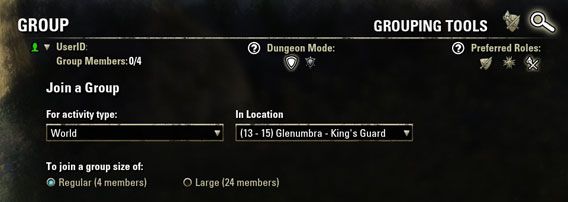
Elder Scrolls Online - Group Search

Players can look for a small four-member or a large 24-member group.

The first dungeons in the demo are easy, but the difficulty increases significantly from level ten forward. It’s not always apparent from the quest description that a particular task is intended for a group. However, I learned that lesson pretty quickly.
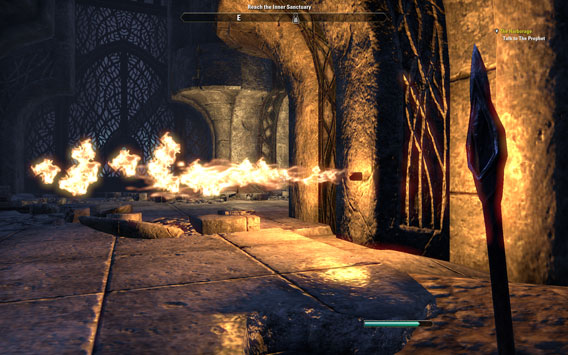
Elder Scrolls Online - Traps

Ground and firetraps ensure some variety in the dungeons.

Dungeons are clearly structured. You move through tube-like passages and carry out clearly labeled, predetermined tasks. There are some dungeons with traps and short cuts, but the beginner dungeons are easily navigated. Run to the target, kill enemies, and leave the dungeon.

Even the first dungeons in Final Fantasy XIV required a little more thinking and tact. Action or strategy, it’s a matter of your own tastes. During the beta I had the impression that Elder Scrolls Online places more emphasis on exploring the surroundings than on dungeon exploration.

Tried and tested formula: division into zones of difficulty

The further you move away from the starting area, the stronger the opponents. Elder Scrolls Online follows this common MMORPG practice. Provided that developer Zenimax Online find no antidote, development should be the same as for most games of this type: first besieging the player with low levels in this starting area; then, as the game progresses, this area develops into a deserted ghost zone. Later on, high level end zones prove to be overcrowded.

Crafting and improvements

Role-players want more than just fighting; I am no different. During a break between dungeons or raids, it can sometimes be quite relaxing to cast out your fishing rod or to build a suit of armor, which is nice since Elder Scrolls Online supports crafting.

The Crafting formula is similarly straightforward as in Skyrim: collect the required ingredients and use a stationary tool such as an anvil or a saucepan to craft. It works in a similar way for fishing. At designated areas you can grab a fishing rod, bait the line and get going.

It’s not possible to manufacture your own crafting tools and get started at any given point as in Final Fantasy XIV. Another difference are the recipes that, for the time being, you can get hold of in Elder Scrolls Online, and which are not automatically released as you gain in experience.
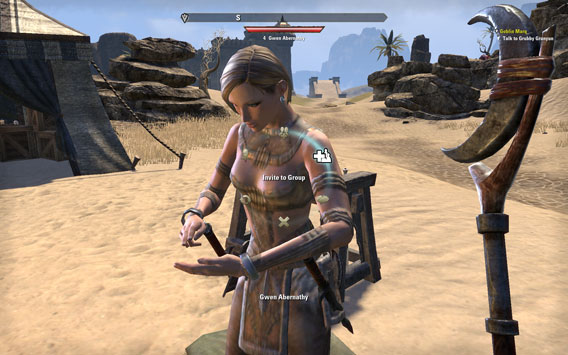
Elder Scrolls Online - Trade

You can interact with other players; invite them to a group or to swap via a circular menu.

Weapons can be upgraded with magical powers by finding matching objects and right-clicking on the weapon. If a friend has the necessary ingredients you can theoretically swap with him. However, in the beta the exchange was still not working.

Combat system

Elder Scrolls Online is based on specialized classes. At the beginning when you create the character, you also determine his or her combat specifications. Of course it’s possible to swing any weapon and train with it. You can also create any kind of armor. But the special powerful skills cannot be retrofitted.

Nevertheless, you have some freedom through this combat system that’ll be familiar from Skyrim. If, for example, you train with long swords as well as with the bow, from level 15 you can alternate between the two weapons and respond flexibly to close and long range combat situations.

There is the problem of choice and the distribution of skills in the action bar is most definitely restricted. I had to limit myself to five skills. There’s also a particularly powerful attack that you can use rarely and that can be recharged using slain enemies.

Mages, in particular, struggle with choosing their skills. This applies all the more if they want to use offensive and healing spells. At least you can merge skills after some training. This way you link not existing skills, but rather you add new features or make existing skills stronger. That makes some weaker skills dispensable and makes for a cleanup of the action bar.
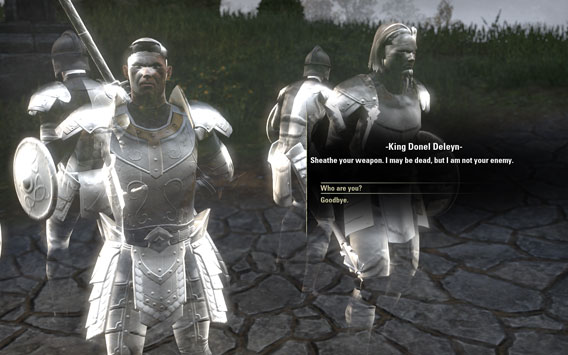
Elder Scrolls Online - Ghosts

Not all ghosts are hostile towards the players in Elder Scrolls Online.

As in Skyrim, experience points are collected for slaying enemies and completing quests, which eventually lead to the next level. You earn points that can be put into health, stamina, and Mana as well as new skills. In addition, the player improves his fighting skills by using spells, weapons, and equipment.

The fight itself is clearly different from most role-playing games. You mark no enemies and perform an action, as is the case with World of Warcraft or Final Fantasy XIV. Instead, the camera is directed either from a first-person perspective or Tracker at the opponent, aiming with the crosshair and launching an attack. These can be basic attacks using the left mouse button or special skills. Skills consume Mana or stamina and can therefore be of only limited use.
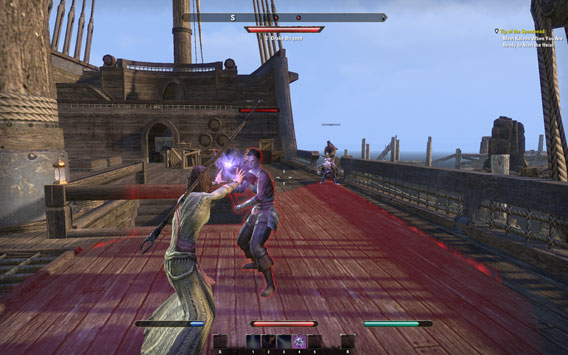
Elder Scrolls Online - AOE-Attacks

Range attacks are highlighted in red in Elder Scrolls Online.

You can block enemy attacks with the right mouse button. With a good block, you inflict damage on your attacker and he’s briefly incapacitated. Some attacks are aimed not at one person, but at an area. Red circles or areas mark the impact zone from which you should withdraw quickly.

Some classes also allow you to conjure up associates. These companions assist the player in combat by distracting enemies or even causing a bit of damage themselves.
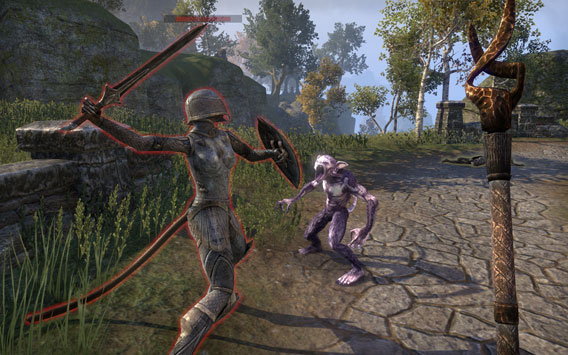
Elder Scrolls Online - Fighting Familiar

Companions are very useful in combat.

Age range suitability

Unlike World of Warcraft, Final Fantasy XIV and Guild Wars 2, Elder Scrolls Online is awarded a relatively ESRB rating. In Germany and Europe, the game is released to players of 16 and above, while most competing games have a rating of 12 and over.

It’s difficult to assess why this is. Elder Scrolls Online doesn’t really seem any more violent or permissive than the competition. The story is a bit darker and the characters lack the cuteness of World of Warcraft and even more so of Final Fantasy XIV.

The characters scowl a bit more fiercely. Emotions aren’t anchored anywhere in the menus. Consequently, absent from the demos are the usual scenes of players hugging and poking each other and showing off. Those who know or have tried out the relevant text commands such as wave, cheer ,or laugh can make their characters wave and cheer.

Superb graphics but clunky animations

Skyrim regular players have taken exception to the monotonous layout of the dungeons. Here, Elder Scrolls Online offers quite a change and makes the hovels seem more varied through different lighting, smoke and textures.

Even better is the array of highly detailed villages and landscapes. Even the characters bear closer inspection. Less convincing, however, are the animations, so it’s best not to switch your character to the pursuer’s view.
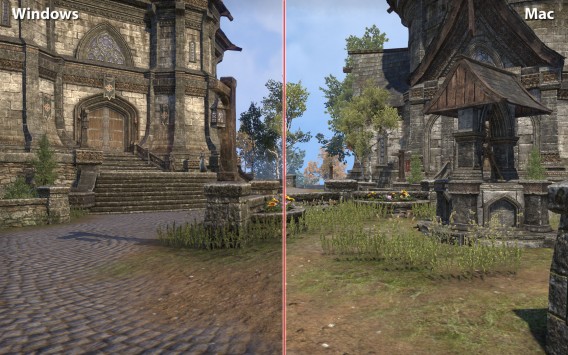
Elder Scrolls Online

Graphically there are hardly any differences between Mac and Windows (click on the image to enlarge)

When comparing Windows and Mac no significant differences in beta could be observed at the highest level of detail. However, you should have a particularly speedy Mac to make smooth movements out of the pretty pictures.

Music and Dialog

I really liked the background music. Throughout the entire game, high quality music can be heard in every area, which fits well with the atmosphere of the game. This is a refreshing change from Final Fantasy XIV, where music does not play at all in certain areas.

In addition, there is a complete soundtrack of dialog. Even in small quests the NPCs are supported with spoken text. Such a density is only known from Star Wars The Old Republic. The quality of the voice acting is very high.

Only a mega server for (almost) all players!

Before starting Elder Scrolls Online for the first time, you are immediately struck by something –  there’s only one server. There’s no need to choose between dozens of realms such as BlackRock, Darkspear or Dath’Remar in World of Warcraft or between fine-sounding servers like Balmung, Excalibur, Gilgamesh or many other in Final Fantasy XIV.

Zenimax Online calls this concept the megaserver. The good thing about the megaserver is that it connects friends instead of separating them. When it comes to the social fabric in an online role-playing game, this is a significant advantage.

Windows and Mac gamers share a server while console gamers from Playstation 4 and Xbox One each get their own server. In addition, Zenimax Online plans regional servers for the U.S. and Europe in order to reduce connection and latency issues.

Conclusion: Like Skyrim Light plus Multiplayer

Elder Scrolls Online feels like a slimmed-down version of Skyrim – grown up and mature, but somewhat heartless and unloving. The combat system is similar to Skyrim, but is greatly simplified by restricting the skills. In the long run, this can lead to boredom, if tactical finesse in multiplayer doesn’t provide a certain balance. There’s still no prognosis on this due to the short time I had with the game.

In direct comparison to the online role-playing competition this combat system provides a refreshing change. The same is true for the focus on just one (mega) server, on which all players meet.

For me, three interesting questions remain, which could determine the success or failure of Elder Scrolls Online in relation to its competition:

  1. How resilient are the megaservers in regular operation? Even after some months, Final Fantasy XIV is still showing weaknesses and torments players with lag and a poorly tuned combat system that doesn’t cope well with latency issues.
  2. How balanced is the combat system? A good combat system in an online role-playing game needs to be well balanced to forgive any fluctuations in latency. This is a crucial point, which can only be tested under real conditions.
  3. Is the player-versus-player mode (PvP) well balanced and does it blend meaningfully into the game? This is a question that we may be able to answer next week following the next beta test.

Elder Scrolls Online will be released on April 4, 2014 for Windows and Mac. The console versions for Xbox and Playstation 4 One will follow in June 2014.

Alternatives to Elder Scrolls Online: World of Warcraft, Final Fantasy XIV, Star Wars The Old Republic, Guild Wars 2.
Minecraft Realms vs Minecraft Servers

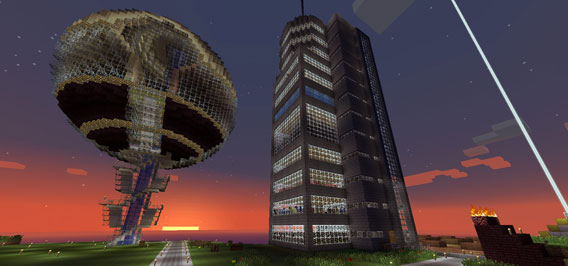
Minecraft Realms is a fee-based online extension for Minecraft that promises to simplify multiplayer games, although the beta version is currently only available in Sweden. While Minecraft fans await its release in other countries, we take a look at the differences between the free Minecraft Server and Minecraft Realms.

One of the charms of the block building game Minecraft is the fact you can create great buildings with friends; Minecraft Server for Windows and Mac lets you build things together. It’s precisely this that Minecraft Realms, created by the official Minecraft development team Mojang, is targeting, but it does cost an extra fee in addition to the price of the full version of Minecraft. So, is it worth suddenly paying ten euros a month for a free feature?

Easy to use and always available

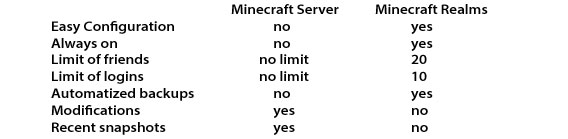
Setting up the Minecraft Server manually is not easy. Minecraft Realms relieves the player of the tedious configuration process, running on its own servers. This effectively eliminates the need for the host to have a powerful Internet connection or a PC that’s chock full of memory. On top of that, the Minecraft Realms servers are also accessible even when the host interrupts play.

Limiting the number of participants

A paying host can invite up to 20 players to participate in a multiplayer game in Minecraft Realms. Guests don’t have to pay anything. A maximum of ten players can be logged in at the same time, even while the host takes a break, and the host doesn’t have to keep their computer running in order for friends to continue adding to their world.

In contrast, Minecraft Server does not limit the number of participants. The only limit here comes from the performance of the PC and your internet connection. You can calculate how many players can simultaneously build on your computer with Minecraft Server by going to the Can I host a Minecraft Server page. Fast computers with a lot of RAM can process lots more block builders than is possible in Minecraft Realms.

Minecraft Realms

Backups and map export

Minecraft Realms automatically creates back-up copies, which means that destructive errors can be undone. Players can also export maps that are not limited in size from Minecraft Realms. Manufacturer Mojang is currently unsure whether it’s possible to import Realms maps into Minecraft, but we know that it’s impossible to do it in the opposite direction: you can’t import Minecraft maps into Minecraft Realms.

No Mods or snapshots

Anyone who enjoys modding Minecraft and constantly wants to try out the latest snapshots with friends won’t like Minecraft Realms. Experimenting like this is only possible with Minecraft Server.

Minecraft Realms vs. Minecraft Server

Conclusion: convenience has a price

The main reason to buy Minecraft Realms is its ease of configuration. The availability of the server, even when disconnected from players and their machines, is also a big advantage. Minecraft fans who love building, however, will have to learn to live with its limitations. Alongside current pre-release versions, the fact that popular mods have been dropped is more of a blow than anything else.

Source: Minecraft.net/realms

RELATED STORIES