The App Won’t Open? Don’t Delete it, just Fix It

Technical progress is awesome and we can’t imagine today without browser apps, password manager apps, cleaning apps or music organizer apps, this could go on and on. We are so accustomed to using various applications, that we just can’t imagine comfortable life without them. Therefore, when one of our apps fails to launch we’re left confused. Indeed, such things happen pretty often, however, advanced users have found the solution we would like to present it to you. So, no more need to panic, just follow these steps and make every app work.

There may be various reasons why the app won’t open. You can have more problems if you are not the Mac’s administrator. In this case, your user account just may be blocked from using the app. So, you need to ask the administrator to give you permission.

image1 (2)

Another reason why the app won’t open could be that it isn’t registered with Apple by the identified developer. That means the app is locked for security reasons. You will be able to open the app after changing these security settings. Simply follow this easy trick:

– Locate the app in Finder instead of Launchpad, because Launcher won’t allow you to do this trick.
– Choose Open from the shortcut menu after you ctrl-click the app icon.
– Click Open.
– Now you have changed the security settings for this app (it is set as any registered app) and it can be opened by double-clicking.
– Another reason why the app won’t open often appears when you have recently installed new macOS, some apps need to be updated as well or simply reinstalled.
– Also, we should note one more reason why you might not be able to open the app. This is a case of a damaged app. First thing you should try to fix this problem, is to reinstall the app. Reinstalling may not help everytime, so in that case you have two other options:

1) Contact the app’s manufacturer and pass the responsibility to them. This way, you will probably have to forget about the app and look for an alternative.
2) Follow our instruction to fix the damaged app and get a brilliant result. This way, you can start using it right away.

So, what is a damaged app? The problem is mostly caused by an error. That’s why, you get a notification like this: “The name of the app” is damaged and can’t be opened. You should move it to the Trash”. In most cases this message is related to non-Appstore apps. For instance:
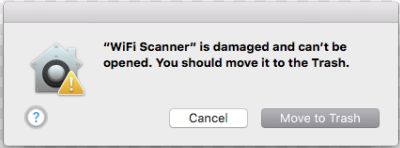
image2 (1)

How to fix an app that is damaged?

What should you do if you don’t want to delete the app and want to make it work? There are several troubleshooting steps that could help you fix the problem and open the app. Keep reading.
There is a simple way to make the app launch and work – use the Terminal.
Don’t move an app to the Trash and click Cancel. It’s time to start fixing instead of trashing.

Launch the Terminal

– Type sudo bash and press Enter
– Type your password and press Enter
– Type xatrr -cr /Application/[nameapp].app and press Enter
– That’s it. Now it’s time to test your app, so launch it and see if it works.

The apps often may not work due to one more thing you should pay attention to. MacOS X is designed to apply of a bundle of permissions. In other words, every item and process launched on macOS requires disk permissions. As any other software component, disk permissions could also happen to get errors. When such errors occur, the certain item can’t be read, written or executed. If something goes wrong with the permission, the app can’t be opened or when the app is launched it doesn’t work correctly and so on. So, this is another reason for the problem discussed.

The first step you should try to fix the problem is this: go to the Disk Utility and try to repair disk permissions. Every Mac keeps a database of the default permissions for most of the applications that you’ve installed. That’s why you need to launch Disk Utility and run its Repair Disk Permissions option.

Fortunately, the issue with permissions is related only to OS X Yosemite and Earlier. In return, OS X El Capitan and Later bypass file permissions system locking it down. That’s why the file permissions issue is out of the question in the later versions of OS X. Frequently, the bricked app can be fixed with simple updating.

Sometimes, there can be situations of an unexpected Mac shutdown or restart which often leads to app crashes and freezes. The reason for these bad actions is corrupted plist files that should be deleted. Then the app will create a new working plist file.

To delete the corrupted files do the following. Go to the ~/Library/Preferences where the most applications store their plist files.

Open the Preferences folder in the Library folder. The Preferences folder contains all of the plist files for each app installed on your Mac. Find the file ending with .plist. The preference file name is in the following format: com.developer_name.app_name.plist. There should be no other name after the plist.

Once you locate the correct plist file, quit the app in question, if it’s running.

Drag the app’s plist file to the desktop.

Relaunch the app in question.

After these manipulations the app should open correctly.

We hope the wide range of suggestions we’ve presented in the article help you to solve any problems you’re having with apps that won’t open. You can try them alternately and find the one that works for your specific case.
By the way, if none of the tips help you, you can try the last option – Safe Mode.

This is a diagnostic mode of a computer operating system that restricts most startup items and limits the operating system to just using the basic OS core. If you can start your Mac in Safe Mode and then use the app in question without issues, the likely cause is not permissions or preference files but a conflict with another app or a startup item.

We wish you all the best with your app problems and hope that you can solve them easily.

TOP 5 Tricks and Features you probably Don’t Know about Mac OS Sierra

It’s been few months since Mac OS Sierra launched and most users have managed to get acquainted with it, tried some of the new features and given feedback concerning their own experiences. Mac OS Sierra ha several useful tools like Siri, and is becoming more comfortable to use. However, we found some tips and tricks which you probably haven’t heard but which will improve your Mac experience many times over and make

you feel like a pro.

Let’s talk about Safari (1) which has become one of the most popular browsers among Internet users. You’ve probably accidentally closed a tab, which contains important information you have been searching for a long time, before. Of course, there is the traditional way of getting it back by searching through your internet History but we offer you the new quicker way that a professional user would do. Next time you unintentionally close a tab in Safari, try to recover it easily by pressing:

Shift +Command button (⌘) + T

This trick, which you may not know it is very handy and may save you some time. Moreover, you can use this trick even if you’ve closed multiple tabs. Just press the button combination as many times as there are tabs you’ve closed and you’ll recover all of them. You can apply this trick if you close the whole Safari window as well. Press Shift +Command (⌘)+T to open Safari back up with all the tabs you’d opened during your previous session.

The next tip, every advanced user should know, is an adjustment of typing text (2). It’s very convenient to set the automated preferences when you’re typing. Maybe you have already done it, otherwise, follow these steps:

Go to the System Preferences > Keyboard > Text > Put a tick in the following check boxes:

Correct spelling automatically; Capitalize words automatically; Add period with double-spaced. Now you can enjoy “lazy” typing with these handy features.

Maybe you noticed the new smart feature that has been appeared on macOS Sierra (3) – Coordinating alerts. Nowadays, there is a common situation when you are sitting in front of your iMac desktop with your iPhone in your pocket and your iPad laying on the table next to you. Earlier, when you got a notification, the sound played on every Apple device at the same time making all sorts of noise in the process. Now, coordinate alerts means that notifications make a sound only on the device you happen to be using at the time. This is only a little change but is a pleasant improvement.

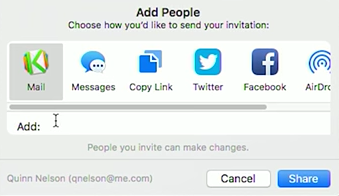
Sharing content has now become a common occurence in our daily lives. We share everything: photos, videos, music and different kinds of documents. Indeed, a set of iWork apps was designed especially for work with text files, tables, and presentations but many people still prefer using Google Docs which are free and offer needed features. It was comfortable to share information with Google Docs previously but now Notes have the same ease of use. You can not only share a Note with somebody but let them to edit it by allowing them to collaborate right there in the Notes app (4).

image1 (1)

In order to invite others to edit and write in a note, click the “Add people to this note” button, which is on the upper right hand next to the Share button. Invites are sent via Mail Messages, Facebook, Twitter, and other methods.

One more new macOS Sierra feature you may not know about is the Picture in Picture feature (5). It’s great because you don’t have to worry about keeping other windows from covering up the video you want to watch. On iOS, you can stick the video in the corners of the screen, and that was demonstrated at the keynote, too. In case the corners of the screen don’t work for you, though, there is a solution. If you hold down the Command key while moving the Picture in Picture window, you can drop it anywhere you like.

So, as you see, most features are obvious but a lot of users install and start using macOS Sierra without these tips because they just don’t have the time or wish to figure out these helpful details. We hope this article will save you time and bring you more convenience when using macOS Sierra. Enjoy!

Smart Deletion App: Get Rid of the Leftovers

It’s easy to find users who don’t have much free space on their Macs when you’re surfing through the Apple discussion forums. Sure, there are many reasons for this but the most common one is the improper uninstallation of apps. You have, probably, come across these difficulties yourself when simply deleting some apps hasn’t freed up the desired space on your Mac.

The fact is, that the uninstallation process isn’t easy like the installation of the application in the first place. Applications for Macs have some peculiarities you should know about so that you can manage your Mac like a pro. Let’s talk about ways to overcome the difficulties associated with getting rid of unwanted or outdated apps.

We prefer to think that whenever we delete an app, everything goes in the trash with it. Obviously, however, the simple moving of a piece software to the Trash bin doesn’t mean it’s completely deleted. Maybe it will be a surprise for some users but when we try to “uninstall” software, there is some invisible part of it that is left on a Mac even after emptying the trash. Every app, intentionally or not, leaves various left-over traces.

1 (1)

What are leftovers? These are the app associated files and folders which can include different languages, log files, agents or processes etc. These components are installed onto the Mac with the app and left there after you delete it. Usually, this process is natural and is a part of functioning system.

However, often program developers can hide some ads or unnecessary apps in these leftovers. It’s like a sloppy program, IT guys call it “software rot”. It is recommendded that you delete these unnecessary leftovers in order to keep your Mac clean, increase its performance and free up the space for more useful programs.

Well, let’s figure out how to get rid of leftovers, save you some money and save you some time. There are two scenarios depending on the apps specifications. Sometimes, you won’t even notice any changes. In this case, it’s better to do nothing unless you are experiencing some sort of problems. Otherwise, it’s better to keep your Mac clean. If you see your computer  has slowed down slightly or considerably or has any other issues, you should get a special app that will track the app deletion process until the very end.

Of course, you can track the leftovers manually if saving money is a priority. Some applications may install components in the ~/Library/Applications Support/ folder. So, you can check there to see if the application has created a folder. You can also delete the folder that’s in the Applications Support folder. Notably, these don’t do anything but waste disk space until the application is trashed.

Sometimes, software uses startup daemons or agents that are OS features. They can be found in /Library/LaunchAgents/ and /Library/LaunchDaemons/ or in ~/Library/LaunchAgents/.

The process seems to be simple, except one thing. Do you know the interesting fact, that according to the Compuware study* between 80 and 90 percent of all downloaded apps are used once and then eventually deleted by users.

2 (1)

*http://www.compuware.com/

Can you imagine, all the leftovers that there must be on your Mac?! That’s why developers keep on inventing apps especially designed to manage the complete uninstallation process. Depending on the application and the quantity of settings or customizations, this can be a huge time saver. Sadly, there aren’t many really good uninstallers out there. On top of that, uninstall programs often get the least attention of all when software is developed.

The result is that besides not always having all the features and options we might want, they often handle failure or unexpected situations poorly, leaving “stuff” behind.
There are plenty of different uninstallers. You might have heard about Hazel, CleanApp, CCleaner, Spring Cleaning and Autoruns, which are among the most popular. Using these apps gives the advantage of avoiding a daily routine that takes up a lot of time. The cost of these apps differs as well as their algorithm and additional functions.

3 (1)

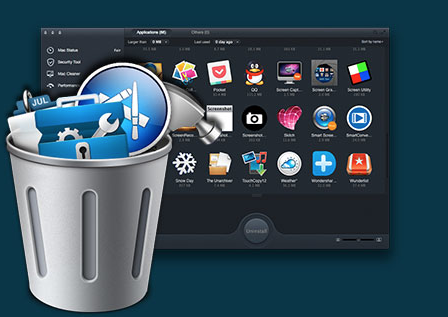
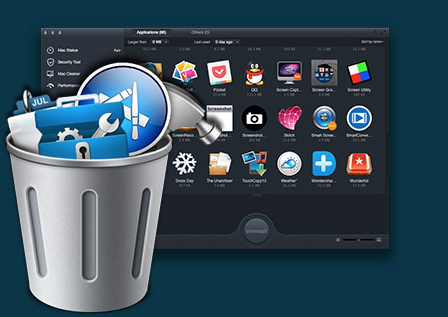
But what about saving time and money simultaneously? Would you like to get software that would scan your Mac at a scheduled time not only for leftovers but other junk files that have accumulated in your system? If yes, you should try MacKeeper. All you need to do is to activate it and customize it to your needs.

Moreover, this app embraces up to 17 useful features for improving Mac performance and simplifying the user experience. With a variety of different types of licenses offered you can choose the best one for you.

Read more information about features and prices on the official site https://mackeeper.com/.

4 (2)

Now you know everything about leftovers and ways to get rid of them. So, you can choose the program that best meets your priorities. Our aim was to make your time on the computer computer more pleasant and efficient. We hope you liked this article.

Don’t Believe the Most Popular Myths about Private Data Security

Reading articles about cyber crimes, people often think this is something that only happens in Silicon Valley or among huge IT corporations. In fact, cyber crimes may affect the lives of every Internet user. Most users don’t even understand how their private data can be exposed without their permission and knowledge even though the level of invisible cyber attacks increases every day. According to the latest statistics, the estimated annual cost of cyber crime committed worldwide adds up to 100 billion dollars! Besides companies and banks, this amount also includes individual users.

1

*2016 Cost of Cyber Crime Study & the Risk of Business Innovation – Ponemon Institute – Cyber Security Analysis

Every day many people jauntily connect to the Internet thinking they are totally secure. How then, do cyber criminals go on to earn huge amounts of money?

We are going to eliminate the 3 main myths about users’ private data security and show you the best way to stay protected whilst surfing the Internet.

1. Social Media provides you with a trusted circle of online friends

As the statistics show, the number of internet users using social media services online is up to 64%. That’s why they are the first to be targeted by cyber attacker. These are the most popular types of internet fraud:

Like-jacking and link-jacking: When you click the “like” button or follow the fake link posted by a hidden criminal, you are redirected to malware infected websites that may affect your system by installing malware or spyware.
Phishing: Attempts to obtain sensitive information such as usernames, passwords, and credit card details, often for malicious reasons, by masquerading as a trustworthy site in an electronic communication.
Social spam: Unwanted spam content appearing on social networks or any websites that have user-generated content like comments, chat, etc. and can include personally identifiable information

2

According to Statista* as a result of the above more than 600.000 Facebook accounts are compromised every single day!

*The Statistic Portal

2. Out-of-date system is not vulnerable

The point here is that software like Java or Adobe is often out-of-date and can be extremely vulnerable. They’re then vulnerable to being hit by exploit kits (software kit designed to run on web servers, with the purpose of identifying software vulnerabilities in client machines communicating with it, and discovering and exploiting vulnerabilities to upload and execute malicious code on the client).

This has become popular because Java and Adobe Flash are installed on almost every computer. All a hacker needs, to get a full access to your computer is a single click on an infected advertising banner.

3

To avoid this type cyber attack you should keep your software updated all the time; keep your operating system up to date; have a reliable AV installed on your computer.

3. Deleted files cannot be recovered and used without your permission

Do you know that when you “delete” files from your computer, they can remain on your hard disk? Actually, every deleted file can be recovered. In many cases, deleted files can be recovered with little effort because most computer operating systems will only delete links to the data so you can no longer see them, but the actual data remains on the disk.

Getting access to the deleted data is as simple as restoring the links. Whether it’s sensitive financial data, business documents, or scandalous photos that could be used for blackmailing you probably don’t want people getting their hands on your private stuff.

4 (1)

Fortunately, there are some steps you can take to protect your data by deleting files for good. Use Secure Empty Trash on a Mac. Files deleted this way are completely overwritten by meaningless data. Just drag the items into the Trash, then choose Finder > Secure Empty Trash. Unfortunately this option is no longer available for mac OS X 10.10 and later. However, you can do this another way if you install special software.
Now that you know the main delusions concerning surfing the Internet safely you should follow our advice so that you can feel more confident getting involved in social networks or dealing with sensitive and private information. Always remember, you are the one who is ultimately responsible for your online security. Fortunately, there are many programs that can significantly simplify a user’s digital life.