Touch Browser for Windows 8 with Chrome and Firefox tablet mode

Is Internet Explorer losing the advantage of its Windows 8 head-start? These days, Firefox and Chrome can also be used in Modern UI-mode. However, unlike on the desktop, they’re still significantly behind IE.

Chrome in Windows 8 Mode

With Google Chrome version 32, the touch version of Internet Explorer gets its first official competitor. Instead of selecting a tile, you start tablet mode by selecting an option in the browser menu.
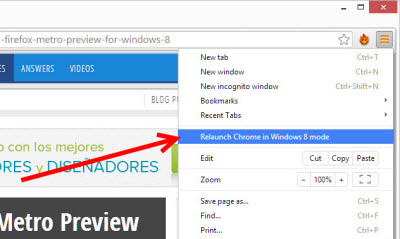
Windos 8 mode in Chrome 32

When you click the option, a selection window for your installed web browsers opens. After clicking again, Google Chrome opens in Windows 8 mode.

Choose your browser

By doing this, you also make Chrome your default browser. A downside of doing this is that the tablet version of Internet Explorer disappears from the Start menu and can no longer be opened. Unfortunately Microsoft doesn’t allow an alternative – this means that if you want to use Internet Explorer again, you’ll need to set it as the default browser. Fortunately, Internet Explorer automatically queries this next time you start your program.

Chrome’s Windows 8 mode isn’t very different from the desktop version. There are no finger-friendly buttons, no multi-touch gestures for zoom and navigation and Chrome for Windows 8 can’t cope with the practical snap mode either. The browser is really only suitable for computers with a keyboard and mouse.  You can still use the more versatile desktop version though.

Firefox in Windows 8 Mode

Firefox version 29 introduced a touch mode. To start Firefox in touch mode, you use the same principle as Google Chrome. A menu item allows you to set Firefox as the default browser. Then, when you start Firefox in future, it automatically loads the tablet-friendly interface.

However, unlike Google Chrome, Mozilla offers a browser that is genuinely optimized for tablets. Since our detailed analysis of the first test version, very little has been done to the interface. The design has been partially copied from Microsoft. As with IE11, you’ll now find the address bar below and there are two large arrows to flip ahead and back, as well as new tabs.

Firefox for Windows 8

Unlike Chrome, the controls are sufficiently large, there’s a tab bar with thumbnails like in Internet Explorer, and Snap mode and touch gestures for the zoom work perfectly.

Further strengths of Internet Explorer vs. Chrome and Firefox for Windows 8

Firefox and Chrome on tablets are still no real alternative to Internet Explorer. In addition to the weaknesses already described, two practical functions of the Microsoft browser are missing.

In Touch mode, only Internet Explorer is able to offer simultaneous viewing of two pages with Windows Snap.
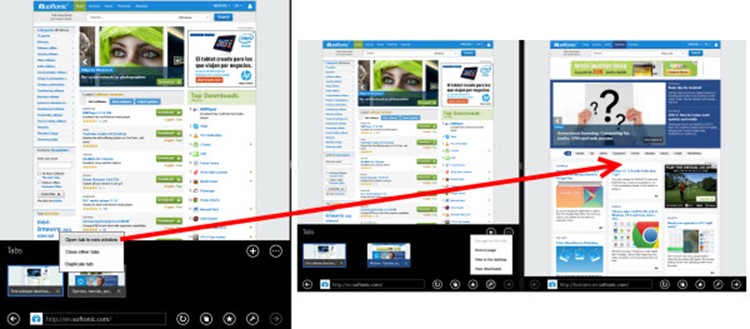
Two page view

The handy Reading List App as a bookmark manager only works with Internet Explorer and a similar function is still missing from Chrome and Firefox Apps.

Reading list

Anyone wishing to select and copy text will also be disappointed. There’s no touch-friendly selection tool. Clearly, Google and Mozilla have more work to do if they want to give Microsoft on Windows Tablets a run for its money.

Copying

Related reading:

One Windows: what to expect from the next big Windows update

After one update, another follows swiftly in its wake. Hot on the heels of the release of Windows 8.1 Update 1, the rumor factory is in full swing for Windows 8.1 Update 2, Windows 8.2, and Windows 9.

Here’s an overview of the half-truths we know already.

The next update: Windows 8.2 or Windows 8.1 Update 2

According to recent media reports, Microsoft is planning another update for Windows 8, to be released in August 2014. Whether it’ll be released as Windows 8.2, or Windows 8.1 Update 2, is still unclear.

Once again, the source of the rumors is the Russian hacker group WZor, which has already attracted attention in the past with its accurate predictions. Mary Jo Foley of ZDNet, who has contacts in Microsoft, has also talked about a further update for the summer.

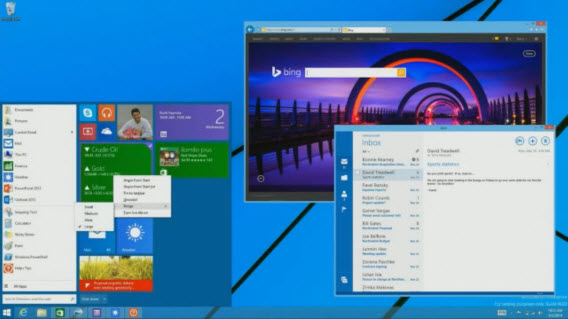
Little is known, however, about the expected innovations. At the BUILD conference, Microsoft demonstrated Windows Store apps (Metro Apps) in windowed mode, and a fully functional Start menu.

According to WZor, the future Start menu will work differently on touch screen devices compared to regular Desktop PCs. Other sources speak of a Start menu design optimized for swiping on touch devices.

Windows 8.1

As Mary Jo Foley reports, if possible, Microsoft plans to offer both innovations in the August update. Technically, that should be easily achievable for the Start menu: the technology is not new, nor is it particularly complex.

In windowed mode for Windows Store Apps, things already look rather different. At last, these apps have been optimized for full screen view. Stardock has already proven with ModernMix software that it all still works.

Windows 9

We know almost nothing about Windows 9, other than its targeted release date of April 2015, and a probable new version of the Modern Surface UI.

If the Start menu and windowed mode for Windows Store apps don’t make it into the fall update, these would be two significant innovations for Windows 9. Long before BUILD 2014, you could already look at interesting Windows 9 concepts on YouTube and sites like DeviantART, mostly with Start Menu and Windows Store apps in windowed mode.

It seems that Microsoft is bowing to pressure from users. For a large version upgrade, this wouldn’t be good enough, which means that we can count on further big innovations.

Windows for free

There were more rumors from WZor that Microsoft would be offering a free, stripped-down version of Windows as a kind of cloud OS. The user would then unlock advanced features through a type of subscription, just like for Office 365, via an internet connection.

Other sources have already talked about a possible free version of Windows. According to them, Microsoft was experimenting with a version called “Windows 8.1 with Bing,” which Microsoft could give away to Windows 7 users.

Windows 8.1 with Bing

These reports most likely weren’t plucked out of thin air. Microsoft is now pursuing an aggressive strategy and is offering ever more products at knock-down prices or completely free. As announced at the BUILD 2014 conference, it seems as if devices with screens smaller than 9 inches will have Windows for free.

In February, a 70 percent price reduction for Windows 8.1 on cheap computers and tablets made headlines, and back in December, rumors were already circulating about free versions of Windows Phone and Windows RT. For some smartphone makers, this has been a reality since March. Even the big crowd-puller, Office 2013, has been available free for mini-tablets since mid-2013.

One Windows: Merger of Windows RT and Windows Phone

Ever since the release of Windows 8, Microsoft has been working on merging Windows Phone and Windows 8. They started with aligning the interface. Both rely on visual tiles and the design known as Modern UI, which was first introduced with Windows Phone. This is all part of Microsoft’s long-term strategy.

Technically, aligning the systems is anything, but simple. Chip architecture and user requirements differ dramatically in smartphones, tablets, and desktop PCs. Currently, Microsoft is focused on the alignment of Windows Phone and Windows RT, where Windows RT represents the Modern UI and app ecosystem of Windows 8.

With the recently released Windows Phone SDK, developers can easily design apps for both ecosystems simultaneously.

Windows Phone SDK

Microsoft, however, isn’t content with this progress. As Microsoft’s chief operating system division head Terry Myerson revealed in an interview, the Redmond company is also planning to align the developer tools for other platforms.

Under the strategy One Windows, the software giant is working on a standardized development environment for all App types on Xbox, tablets, smartphones, and cloud services.

The extent to which Microsoft will bring together – or is capable of bringing together –  desktop and Windows Store apps remains unclear. Perhaps the classic desktop apps will be allowed to slowly die out through continuous development of the new app model.

Related Articles

How to install Windows 8.1 Update 1

The first major update for Windows 8.1 is finally here. Much like a service pack for older versions of Windows, it expands on the system, making improvements to existing features and security issues, while including some significantly new functions. Take a look at our installation guide below to make sure that you get all the critical updates for Windows 8.1 Update 1. You can install Windows 8.1 Update 1 in two ways: automatically via Windows Update, or manually. We’ll go through both options below.

Automatically install via Windows Update

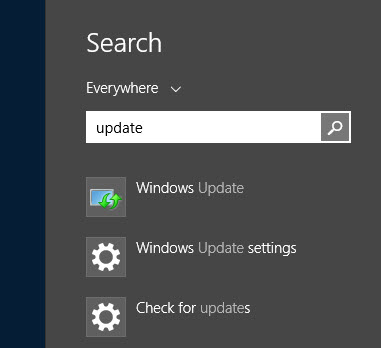
1. Open Windows Update

Windows update

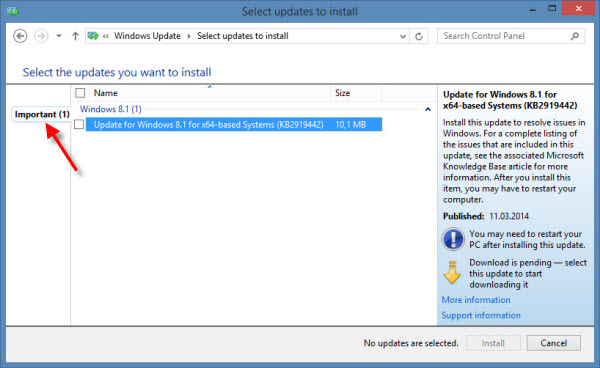
2. Select and install all Important updates

Windows 8.1 Update 1 is not offered as a single package, but consists of several separate updates. The Windows Updater will only gives you the first file, which can be identified as KB2919442. After installing this update and restarting your system, you can gradually find the other files you’ll need to install. Tip: Open the Windows Updater until you no longer see any new updates; this will ensure that you actually installed all the individual files.

Make sure you've installed all the Important updates

Manually install Windows 8.1 Update 1

As mentioned, Windows 8.1 Update 1 consists of individual smaller updates that you have to install one after the other in a specific order. Depending on your version of Windows, there are separate updates for 32 bit and 64 bit.

1. Identify your version of Windows

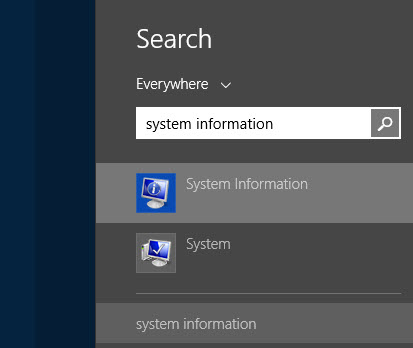
Using the search function, find System Information.

System information

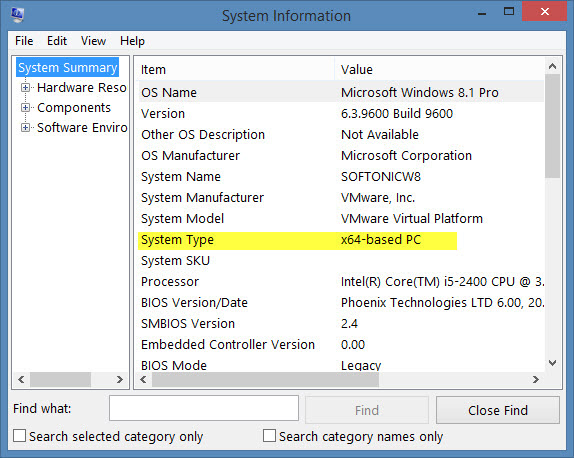
This will open the System Information window containing important system data. Here, you can see if you’re running Windows with 32-bit (x86) or 64-bit (x64).

System information

2. Install the first update: KB2919442

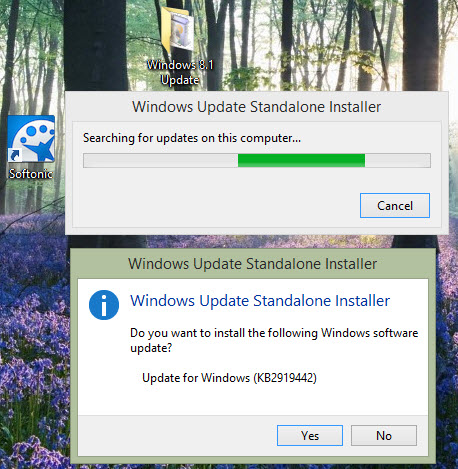
Before the actual Windows 8.1 update, you have to install the pre-update, identified as KB2919442. Download the file and start the installation by double clicking on it. After a reboot, you’ll be able to continue with the update.

3. Download individual updates for Windows 8.1 Update 1

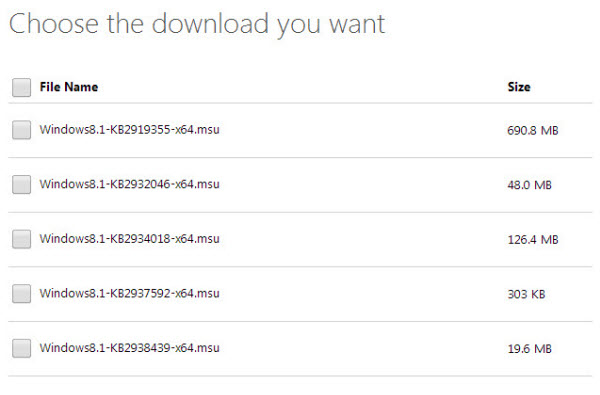
The following links will take you to Microsoft’s overview page. You can download all single updates at once to save yourself some time.

Microsoft Download Center

Choose which updates to download

4. Install each individual update

Install each update by double-clicking in the following order, reboot your computer, and you’ll be all set with the latest update to Windows 8.1

  • KB2919355
  • KB2932046
  • KB2937592
  • KB2938439
  • KB2934018

Windows Update installer Related articles:

Microsoft Office for iPad: the highs and lows

Microsoft Office for iPad should transform the Apple tablet into a powerful working tool. But for full functionality you’ll need a subscription to Office 365, so not all users will find the tablet version of Office such a revelation.

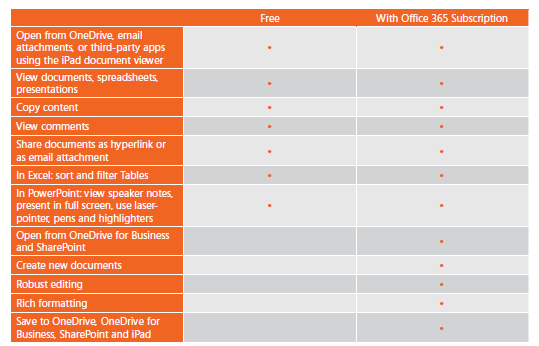
Office for iPad: free vs. Office 365 subscription

Office for iPad currently consists of three free apps: Word for iOS, Excel for iOS and PowerPoint for iOS. The name of the free version, however, is rather deceptive. You don’t really get more than a file viewer. To edit and create documents, a valid Office 365 subscription is required.

Office subscription options

Office for iPad feature comparison: Free vs. Office 365 subscription

Free features

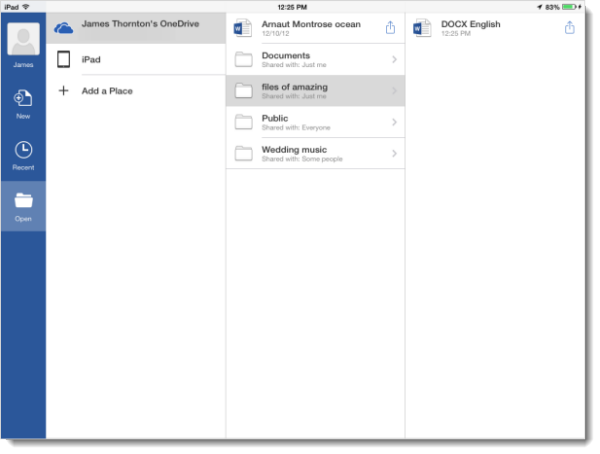
All apps can open your documents from OneDrive and can store them there too. In Word for iOS, you can add comments while you’re working with colleagues on the same text.

Word for iPad with OneDriveIn Excel for iOS, you can search, filter and sort tables.

Excel options

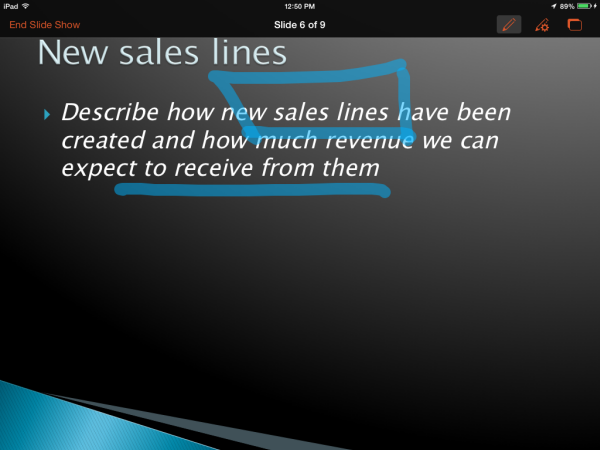
PowerPoint for iOS is suitable for presentations and shows material in either full screen or with notes. During the presentation, interesting points can be highlighted with tools such as a virtual laser pointer and marker pens.

Emphasize relevant points

As simple free viewers, the Office for iOS apps should form part of your basic iPad setup. Even if the apps can’t really offer much else, when it comes to viewing Office documents correctly in Word, Excel and PowerPoint on your iPad, there’s really no way around it.

What’s annoying is that although they’re just simple viewers they are relatively large apps. PowerPoint take up 215 MB, Excel requires 233 MB, while Word takes up a gigantic 259 MB. If you’re only using the free version without an Office 365 subscription, the other features are simply blocked.

Office 365 subscription features

With an existing Office 365 subscription you can use the full version of Office for iPad. This  $9.99 per month or $99.99 per year is for the most basic version of Office 365 Home Premium.

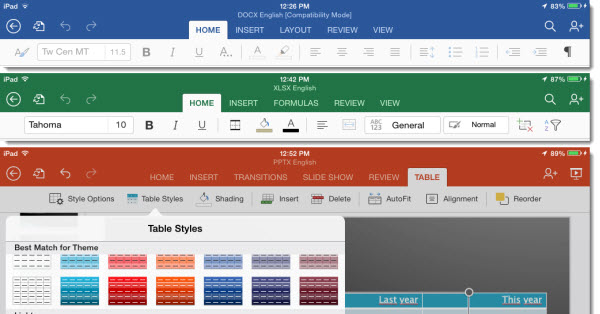
The Office for iOS interface is very similar to Office Online from the Windows version. On the iPad, you can also use the individual apps in the Ribbon toolbar.

Office for iPad ribbon toolbar

Word for iOS

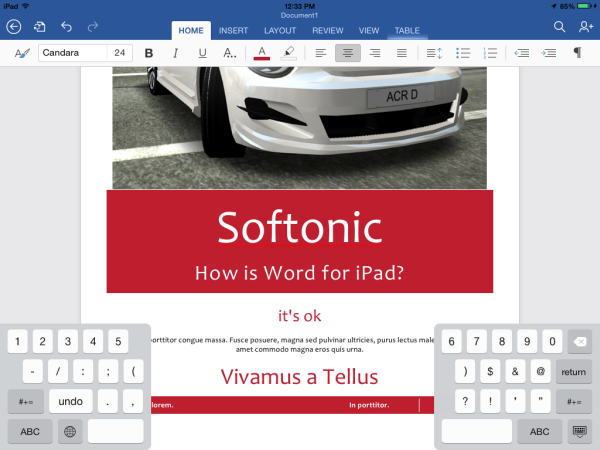
Word for iPad offers almost all the features you already know from Word: document templates, fonts and advanced layout features. With the help of the split keyboard, you’ve got enough space on a small tablet to design completely new documents and revise existing material.

Office for iPad -  Word editing

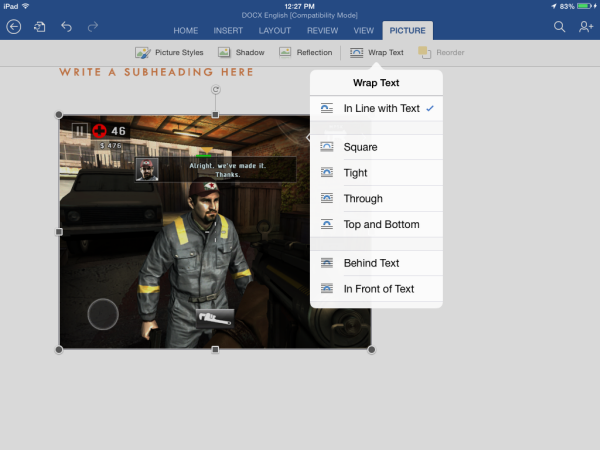
Formatting of text works well and quickly; you’ll achieve good results with it. When embedding elements such as images, however, you must compromise a bit. The orientation to center, left or right, can’t be altered after you place the images. On the other hand, size, rotation, and text flow can be easily adapted.

Word for iPad - text alignment

Normal editing of documents in Word for iOS also works easily. Shared documents can be edited simultaneously with others in real time.

Excel for iOS

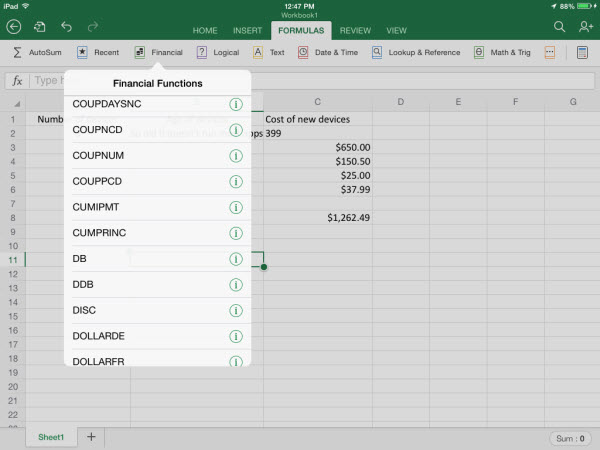
In Excel for iPad, Microsoft has splashed out and offers a comprehensive and well-thought out app. The touch controls work surprisingly well. You can easily select cells, columns and rows, and also create or change complex formulas with ease.

Difficulties arise with a rather limited display size, but Microsoft can’t do anything about this. Bear in mind that large tables won’t show up so well on iPad. In order to use the space intelligently, Excel for the iPad is optimized for landscape mode. From here you can access almost all the functions you know from Windows via the menu bar.

Excel for iPad - the usual suspects

PowerPoint for iOS

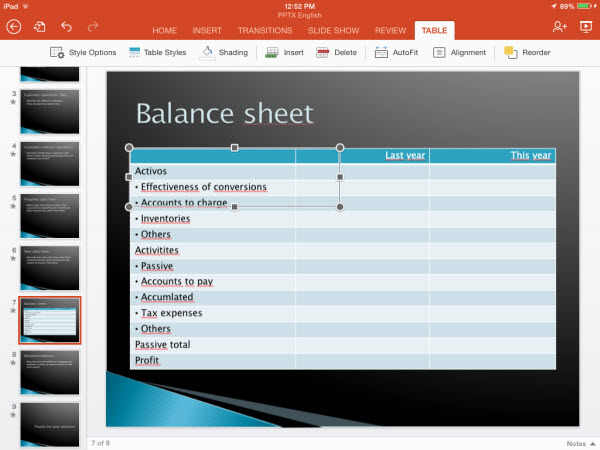
PowerPoint for iPad is also a fully-fledged app. As on the desktop, you can make appealing presentations from scratch. Adding slides with images and tables can be easily managed too.

PowerPoint for iOS - editing mode

If you’ve got a complex presentation in mind, however, you should resort to the Windows app. On the iPad, it’s missing too many features in comparison with the (now very sophisticated) Windows version. The real benefit of PowerPoint for iOS, however, lies elsewhere. The app is perfect for adding the finishing touches to semi-prepared presentations, then presenting them directly from the iPad.

Conclusion: Office for iPad brings new life to everyday business

Office for iPad is aimed at business customers and is perfect for this market. For those who still don’t use an Office 365 subscription, Office for iPad won’t provide sufficient motivation. As a home user, Office for iOS is only really essential for viewing Office documents. If you’re looking to reproduce Office documents exactly as you’re used to seeing them, you’d be better off with the traditional desktop apps.

PowerPoint, however, is an exception to the rule. This excellent presentation app is sure to reign supreme in the office life of many companies, even without an Office 365 subscription. Running through a finished presentation straight from your iPad is convenient as well as making a great impression.

Related articles

Office Online: Microsoft offers free Office version for the browser

What’s new in Microsoft Office 2013

Free Alternatives to Microsoft Office

Downloads

Download Microsoft Word for iOS

Download Microsoft Excel for iOS

Download Microsoft PowerPoint for iOS

Microsoft OneDrive for iPhone and iPad

Download Microsoft Office Mobile for Android

Download Microsoft Office Mobile for iPhone

Windows Phone: the advanced features

If you’ve already made the change from iOS or Android to Windows Phone, then we’ve got a few more tips for you for our Windows Phone series. Thanks to the intuitive interface, you can get up and running pretty fast, but there are some features that might not be obvious on first glance.

What the symbols mean

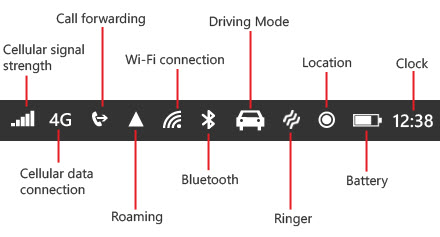
Symbols for the battery level and signal strength are pretty obvious right away, but as you can see from the infographic below, there are some that aren’t necessarily as obvious. A complete list of all symbols used by Windows Phone is available on the Microsoft support pages.

The Windows Phone symbols

Quick access to Wi-Fi, Bluetooth and data connection

To conserve battery power, you should turn on Bluetooth and WLAN only when needed. Unfortunately, there’s no direct way to the appropriate settings for Windows Phone. The Battery app will help you further here. Simply place the relevant live tile on your home screen.

See battery info quickly

By tapping on the tile, you can quickly switch all radio options on and off. The app also tells you the remaining capacity with a percentage value and the time remaining on the battery life.

Access the basics quickly

Data control

As part of the App Data Sense system, you can easily see all your mobile data traffic. For limited monthly data plans, you can specify the start date and the available data volume. The app encrypts data usage of all apps individually. Apps with lots of data volume that aren’t essential should only be used when you’re using Wi-Fi, if possible.

Get an overview of your data consumptionIf you’re approaching your monthly limit, Data Sense automatically lets you know how close you are to your limit, making next month’s data easier to manage.
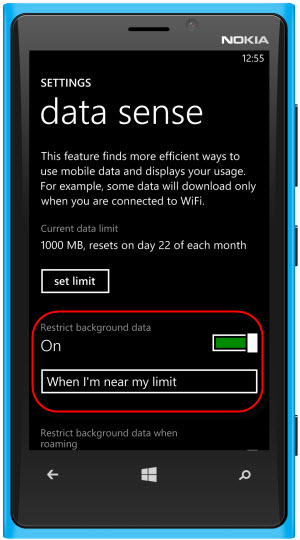
Intelligently manage your data

Use a web browser with data-saving mode

While browsing, you can use the data-saving mode and save up to 80 percent of data by using a web browser. There’s a similar feature in Nokia Xpress and UC browser.

Our tip: use Internet Explorer only on wireless connections and put everything else on alternative browsers.

Choose your browser wisely

Copy text from the clipboard

To make copying and pasting on the touchscreen easier, you can simply copy and paste longer text areas on your Windows Phone using the clipboard.

  • A short tap activates the text selection tool.
  • Move the start and end point to the appropriate place.
  • Copy the selected text with a tap on the copy icon.

Get a handle on the copy feature

Copying text not only works in the address bar, but also in many apps such as Internet Explorer.

Copying works throughout the system

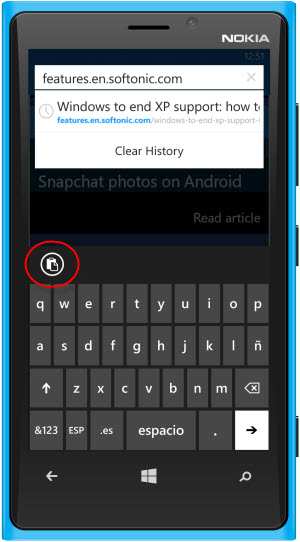
Once you’ve copied the specified text to the clipboard, you can paste it anywhere else on the system or to other apps. In keyboard mode, you simply tap the Paste icon.

The paste feature

Position the cursor on the text input precisely

Just like on iPhone and iPad, you can place the cursor with an auxiliary tool in Windows Phone as well:

  • Tap the input until a colored cursor appears.
  • By sliding back and forth, you can then move the cursor to the side.

If you don’t get there right away, the following YouTube video will definitely help.

Taking screenshots

By simultaneously pressing the Windows key and the power button, you can take a photograph of the screen. The pictures automatically save in a subfolder in your photos, under Screenshots.

Taking screenshots

Search function

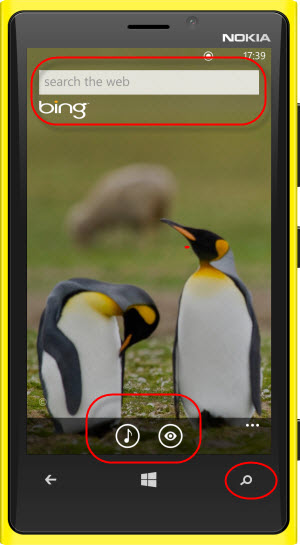
Hitting the search button at the bottom right will get you to Bing search. In addition to the classic search, Windows Phone also offers two handy extras.

  • By tapping the clef symbol, you can start automatic music recognition
  • The eye icon opens a bar code scanner for on-line product reviews

Searching on Windows Phone

The barcode scanner turns the smartphone’s camera to detect visible codes automatically.

There's a barcode scanner...

The music recognition works completely automatically. Just hold the phone close to the sound source.

...and a music recognition feature

As soon as the song is detected, Bing displays the title and album cover. You can then jump directly to the store and bring up more information.

Once you've identified the song, you can buy it!

Locate phone

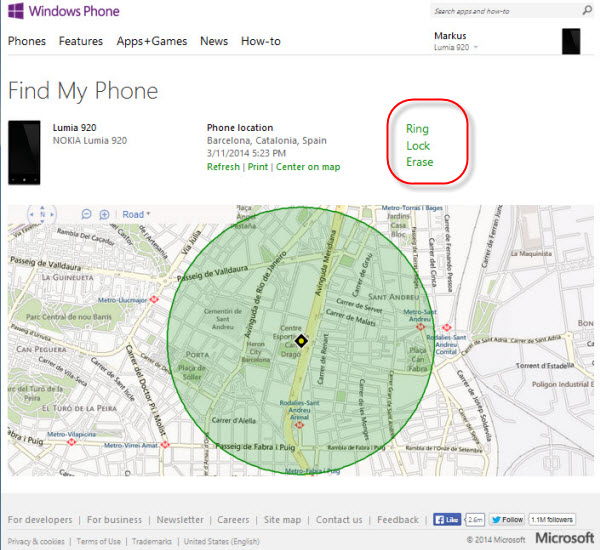
By visiting the website www.windowsphone.com, you can locate your smartphone in an emergency if it gets lost. Through your Microsoft account the device is automatically located.

If you’ve just misplaced it, the Ring function will make it ring with a loud beep. This works even if the ringer is deactivated.

In case of theft, you can lock the phone or erase all data remotely, as soon as it reconnects to the internet.

Windows Phone's Find My Phone feature

Backups

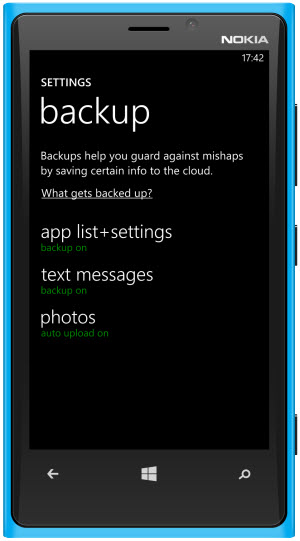
Important data can be automatically backed up at Onedrive or an alternative cloud storage on Windows Phone. Additionally, however, there is also a backup feature for your apps, settings and text messages. Find the option under Settings > Backup.

Backups keep you data safe

Kids Corner: Limit use to certain apps

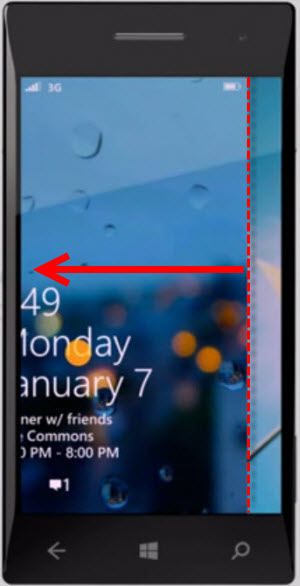
With the help of the so-called kid’s corner, you can leave your phone to third parties (like your kids) with limited functions and apps. The Kid’s Corner is an alternative menu with a fixed selection of tiles, and can be opened by a side swipe, instead of the normal upward motion.

Kid's Corner locks down optionsYou can access Kid’s Corner by going to Settings. Aside from all the apps, you can also search targeted videos and music.

Choose the content that will appear

You add individual apps via the context menu from the alphabetical app list.You can also add apps manually

Hopefully, this will help you get a better grip in Windows Phone.

Make sure to check out our entire Windows Phone Guide to get the most out of your Windows Phone.

Windows Phone Guide: the basic controls

The Windows Phone interface is very different from iOS and Android, and if you’ve recently made the switch, you might find it hard to get used to the changes. In this episode in our guide to Windows Phone, we’ll show you the most important gestures for the colorful tile interface so that your switch to Windows Phone is as seamless as possible.

Buttons

You’ll always find the same buttons on a Windows Phone: the on-off switch, volume control, a camera button just below the screen, and three navigation buttons.

The Windows Phone buttons

Back button

This button has different functions depending on what you’re doing:

  • It can take you back to the previous screen, menu, or app
  • If you’re browsing the internet, it will take you back to the previous site
  • If you press and hold the button for longer, you’ll be able to see all the active apps so that you can quickly switch between them

Windows button

With the Windows button, you can go directly to the Start screen with the colorful tiles. This doesn’t close apps, which will still run in the background.

Search button

The magnifying glass icon will open Bing. With the camera, you can scan QR codes, and quickly identify music playing in the background.

Volume control

If the audio player is active, you’ll be able to control it with the volume buttons. In the upper right corner, you can quickly switch between ringer and vibrate mode for incoming calls.

Quickly switch between ringer and vibrate

How to show the status bar

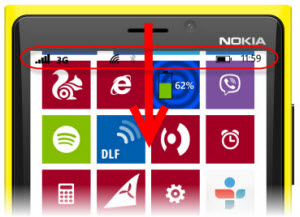
Windows Phone has a status bar that shows info about network connectivity, signal strength, battery power, time and much more. By swiping the top of the screen, you can access the status bar while performing any task.

Access the status bar by swiping down on the screen

Switching between and closing apps

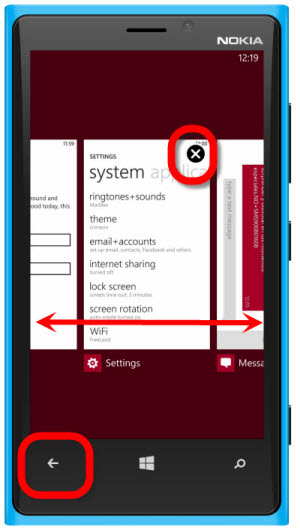
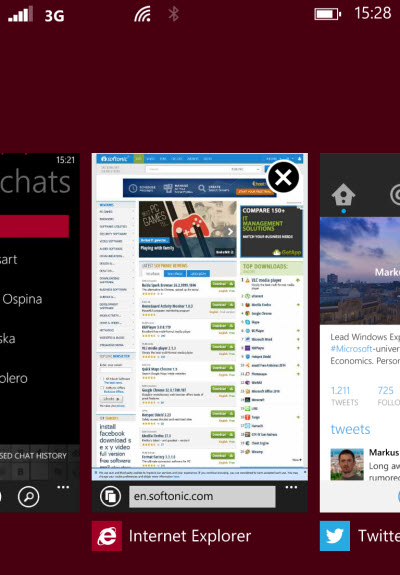
By pressing and holding the Back button, you’ll open the App switcher, which shows all open apps. Simply scroll by swiping left and right. After the GDR3 Update for Windows Phone 8, you can close apps easily by tapping on the little x.

Windows Phone 8 App Switcher

Organize the start screen

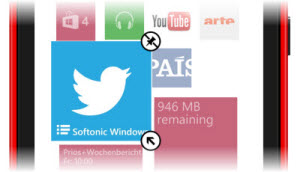
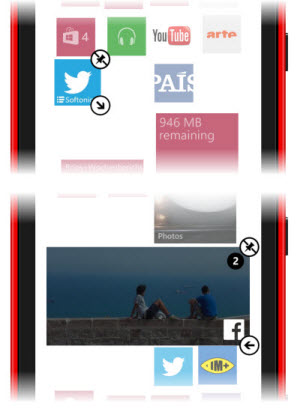
You can move the tiles on the start screen so that they’re organized as you want them. Just tap and hold a tile until it starts to float. You can then easily drag the tile to where you want it. In the top right corner, you’ll see a pin button that lets you remove the tile, while in the bottom corner, you’ll see an arrow that you can use to change the size of the tile.

Organize the tiles in your home interface

There are three tile sizes. Although the mini-tile uses little space, it can’t be used as a live tile. It’s best to use big tiles if you want it to display information.

There are three different tile sizes

The context menu in lists and apps

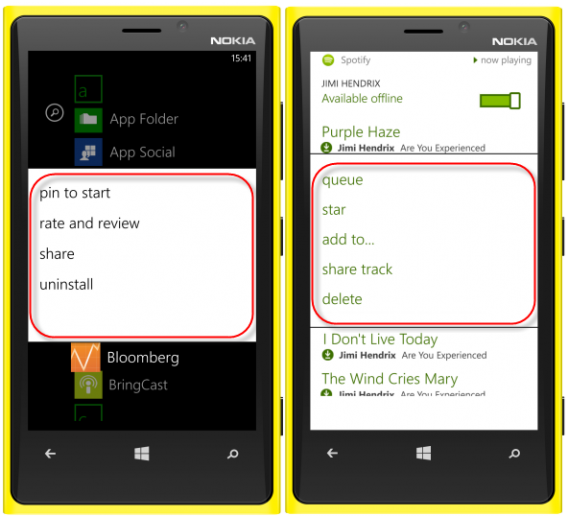
One of the best features of Windows Phone is the efficient use of menus. To open the context menu, tap and hold the corresponding entry, and the context menu will open.

In the Spotify app, for example, you can select a specific action for a song in the context menu.

The context menu in the Spotify app

Find advanced options in apps

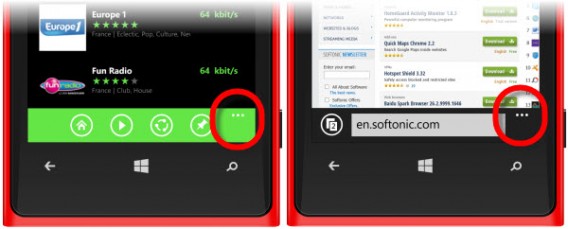
Only some (not all) apps use the bottom bar for important functions. It can be accessed by tapping the button with three dots that opens the settings and other advanced options.

Access advanced options

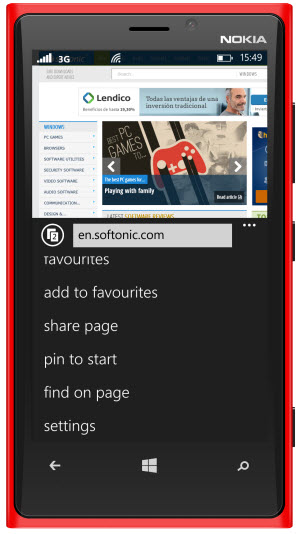
In Internet Explorer, you can manage bookmarks or even add a specific web page to the Start screen.

Set a page as your homescreen in IE

It may seem different compared to iOS and Android, but once you get the hang of it, Windows Phone can be quite easy to navigate.
If you need more tips, check out the rest of our Windows Phone guide to help make the switch as quick and painless as possible.

PCmover Express: Moving from Windows XP to Windows 7 and 8

With PCmover Express, Microsoft helps users move from the soon to be unsupported Windows XP, to Windows 7 or Windows 8. Using this guide and PCmover Express, along with our video tutorial, we’ll help you easily transfer from Windows XP and finally move on to newer versions of Microsoft’s OS.

PCmover Express helps users transfer personal folders, files, and even user accounts, as well as passwords and personal data, to another Windows computer via a network connection or using a transfer cable. Existing programs, unfortunately, aren’t transferred and must be manually re-installed. The software does, however, generate a compatibility report to mark programs which only function with Windows XP so that you don’t have to worry about transferring over ones that won’t function properly.

Note, if you want even more support, you can try out the paid version of PCmover Professional, with which certain apps can be transferred to the new system. Before you spend any money though, check out our tutorial below to see if PCmover Express can help you transfer to Windows 7 or 8 smoothly (and for free).

1. Installation and Preparation

  • Install PCmover on your Windows XP computer, as well as on the target computer with Windows 7 or Windows 8.
  • Connect both computers via a Wi-Fi network, LAN cable network or a transmission cable, available at Laplink.
  • Connect your computer to the network cable.
  • Disable the internet connection on your Windows XP computer.
  • Disable the anti-virus software on your Windows XP computer.
  • Select the internet connection on the target computer.
  • Close all background programs.

2. Start PCmover on the XP system

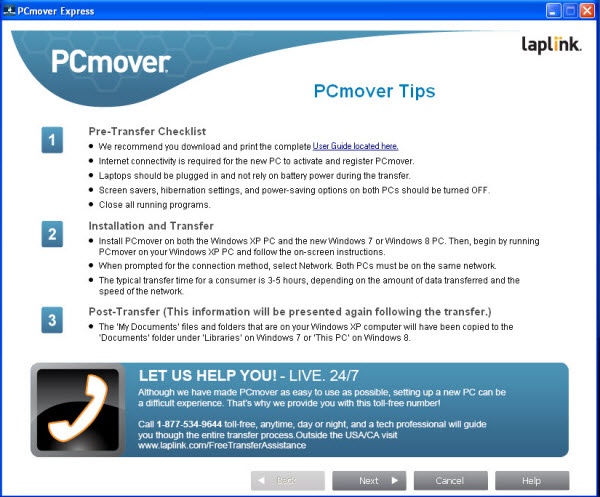
After start-up, PCmover Express displays a checklist and a brief description of the operation. For more detailed information about the process, you can download a manual in PDF format. PCmover Express Tips

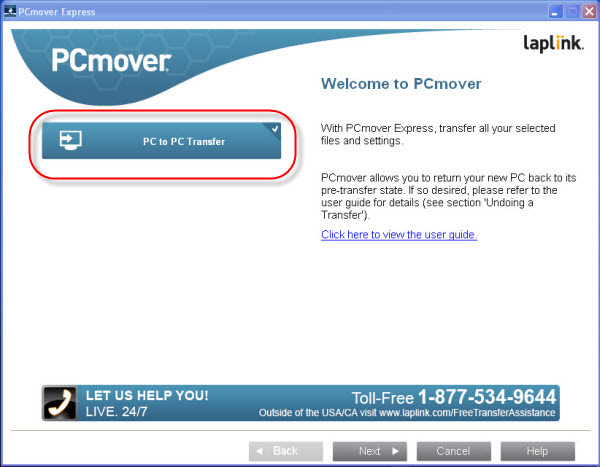
3. Select PC to PC Transfer

Click on the PC to PC Transfer button.PC to PC transfer using PCmover

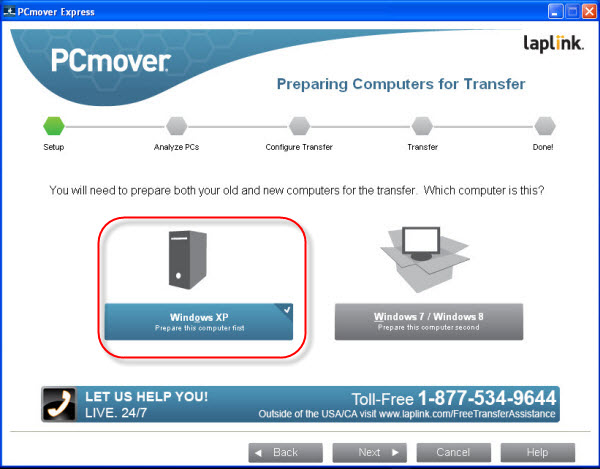
4. Select Windows XP

Next, select the option on the left for Windows XP. Select Windows XP

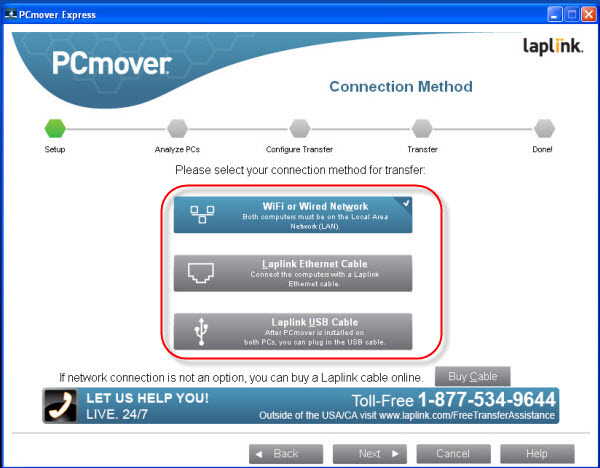
5. Select the connection type you want

With most PCs currently on the market, connecting via Wi-fi or a LAN cable shouldn’t be a problem. In an emergency, you can also purchase a connecting cable at Laplink. It’s still unclear as to whyPCmover uses no external media, such as USB sticks, to transfer data, but since the software doesn’t transfer programs, you can manually copy files later using a USB stick.  Use Wifi or a cable to connect PCs

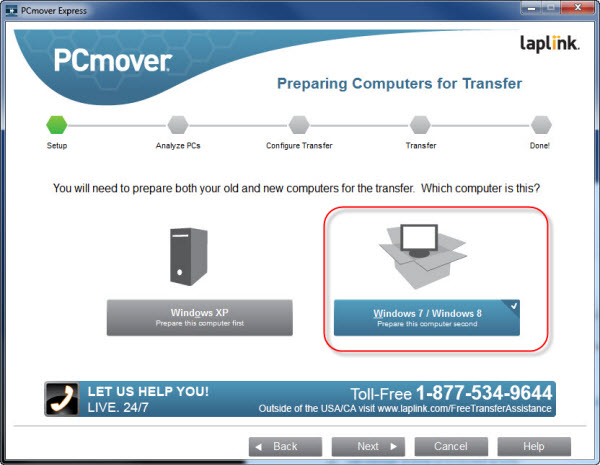
6. Start PCmover on the target system

Launch PCmover on the target system, and click on the option to the right that says Windows 7/ Windows 8.Click on Windows 7 / Windows 8 on the new system

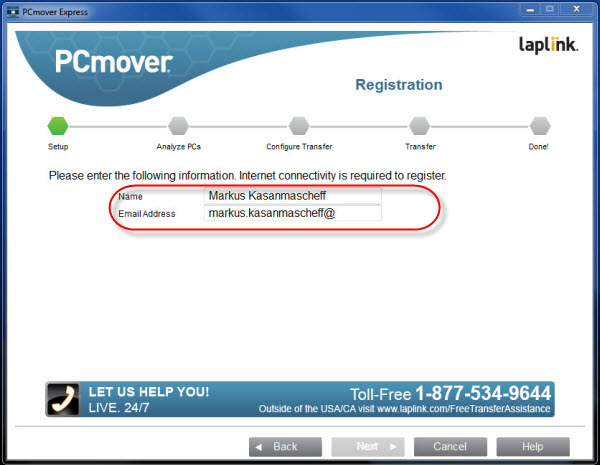
7. Enter your name and email address

Enter your name and email address in the appropriate fields.Enter your name and email address

8. Select your XP machine

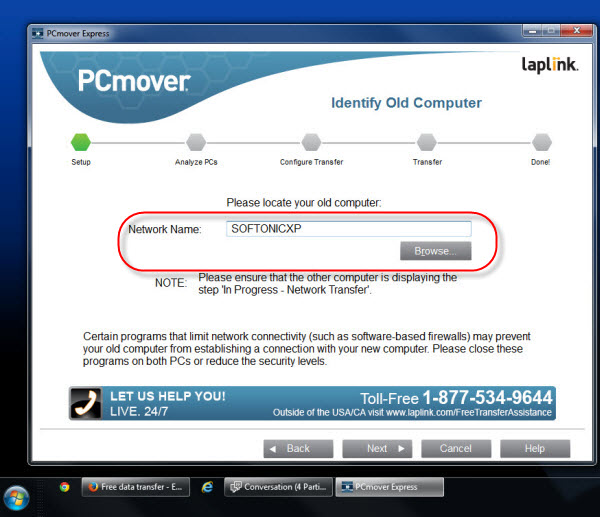
Click Browse and select your XP computer. If you can’t find your PC here, there are probably problems with the network connection. Search for your XP machine

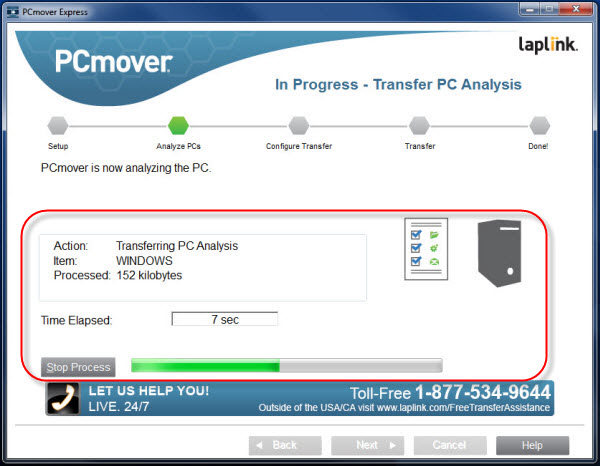
9. Analysis of the target system

PCmover analyzes your Windows system and checks the disk space and existing user accounts. The analysis report previously created with Windows XP will be transferred here– your data transfer happens later.

PCmove transfer analysis10. Select transmitted data

Hard drive

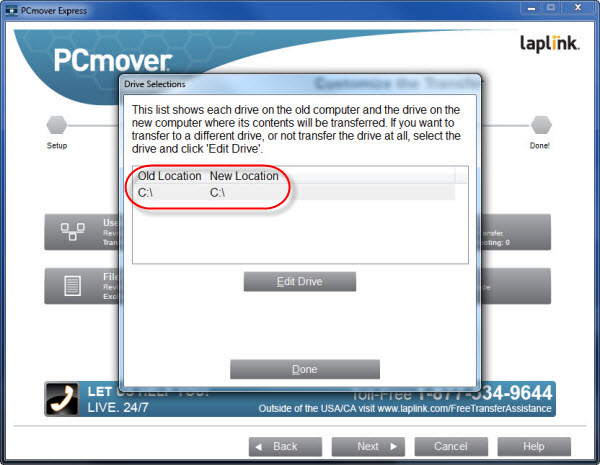
Normally, Windows XP will be on the C: drive of your XP system, and you’ll most likely want to transfer everything to the same drive on your new system. You can manually change the destination drive if you use a multi-boot system with multiple versions of Windows, or other operating systems like Linux. Choose the destination drives

User accounts

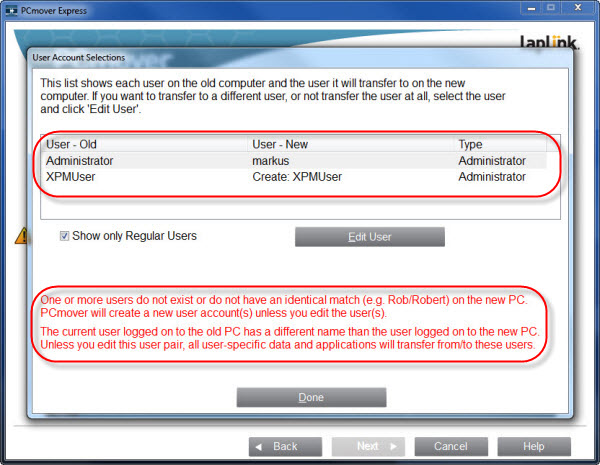
UnderUser Account Selections, you can choose which user accounts you want to transfer. You might have some user accounts on your XP computer that you no longer need. If that’s the case, simply remove these accounts. Remove accounts you don't want to transfer

What to transfer

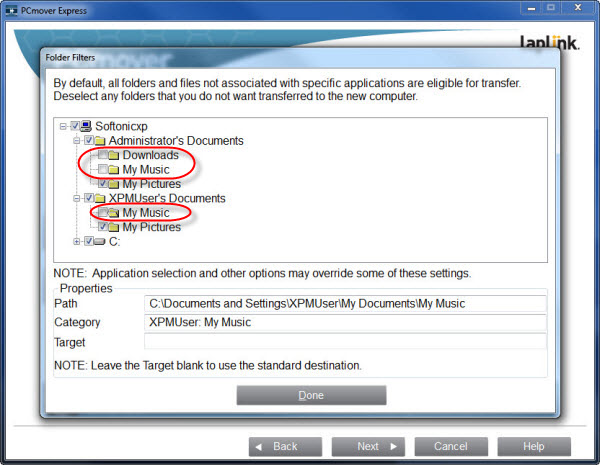
Even within folders, you can manually limit the data you transfer, otherwise PCmover will transfer all private folders from all selected user accounts by default.Manuall select which folders to transferExclude unimportant files

File filter lets you exclude certain file types from the transfer. You can set these file types with three checkboxes in the Common file types to exclude section. Using the last two checkboxes will keep stored backup files and temporary Office files securely on your XP computer.

Exclude file types11. Transmission of data

Depending on the size of your system and the selected data, the transfer can take several hours. It also depends on the speed of your connection. After you’ve transferred your XP system successfully, you’re done, although there are additional, optional steps you can take.

Optional steps

12. Select Microsoft programs

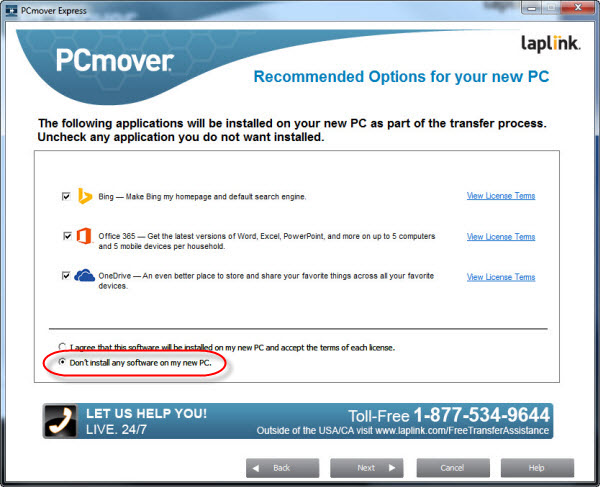
The data transfer should now be complete. After rebooting the system, click on the copied Windows XP user accounts, including files, on the new system running Windows 7 or 8. PCmover doesn’t transfer installed programs, but you might want to transfer some of your Microsoft software to your new computer at the same time. Because you can install these programs easily later, we recommend selecting Do not install any software on my PC. Choose not to install software on your new PC

13. Analysis of Compatibility Report

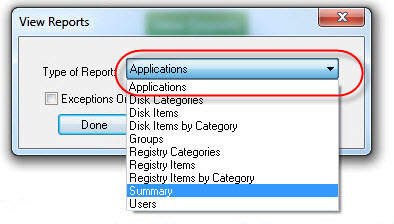
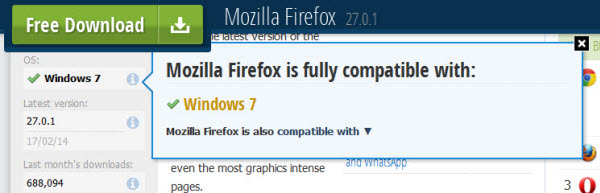
When switching from Windows XP to Windows 7 or Windows 8, you may lose some installed programs that you need to re-install manually. In the compatibility report, you’ll find an assessment of whether the programs work on Windows 7 or Windows 8. Compatibility reportThe information provided by PCmover can sometimes be inaccurate. According to the report, for example, Mozilla Firefox and Skype do not work with Windows 7. Compatibility report are often inaccurate
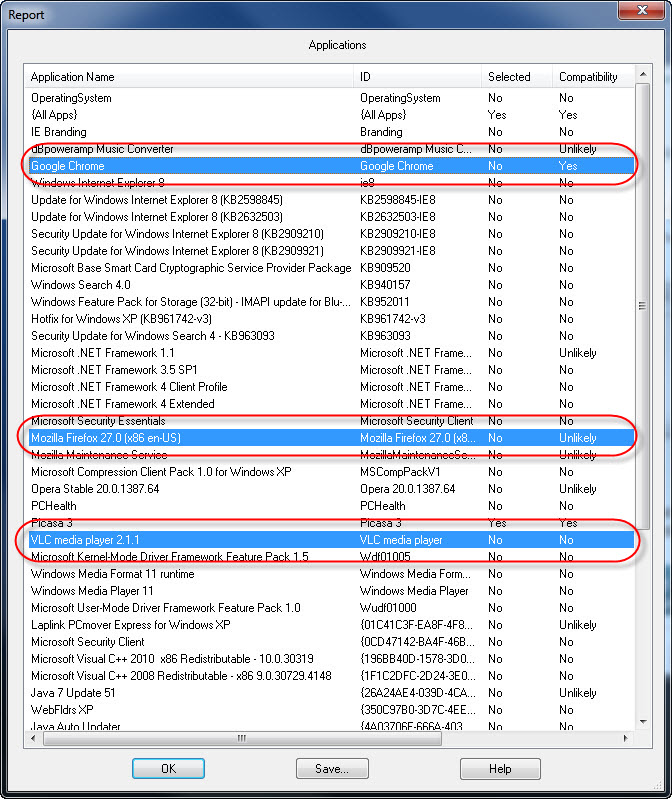
If you want to find out whether one of your applications is compatible, it’s better to check on our website. Clicking on the “i” in the appropriate program page provides detailed information about program compatibility. If you’re installing many programs at once, we recommend our practical software catalog, Softonic for Windows. Mozilla Firefox on Softonic shows Windows 7 compatibility

Whether or not you choose to follow these last two steps, your transfer to Windows 7 or 8 should be more or less complete.

More support for the end of Windows XP

Download

Windows Phone: the Live Tile interface

Many first-time users are surprised when trying Windows Phone; Microsoft’s OS has nothing in common with the old Windows Mobile system, or the Windows desktop. It’s more elegant and simple than many thought it would be.

In this Windows Phone Guide, we’re going to introduce you to the main features of Microsoft’s mobile OS. It doesn’t matter if you’re new to the system, or if you’re just looking for information before making the switch. Here, you’ll get a broad picture of what Windows Phone has to offer.

The Tile interface

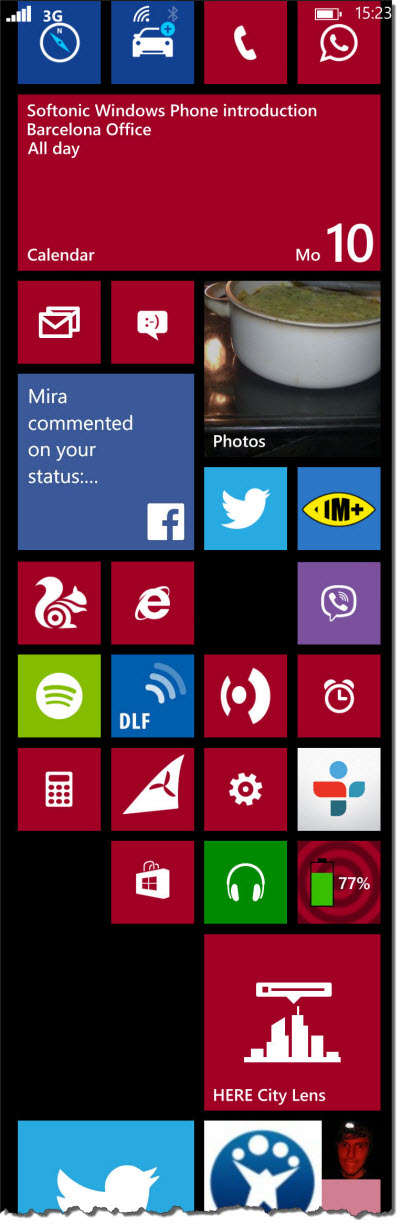
Windows Phone 8 offers a modern and colorful UI, the Live Tile. Unlike iOS and Android, there are no Springboard or Homescreen icons, and no menus. With WP, you have a series of tiles in three different sizes that you can freely pin to the Start screen.

Windows Phone 8 - live tiles

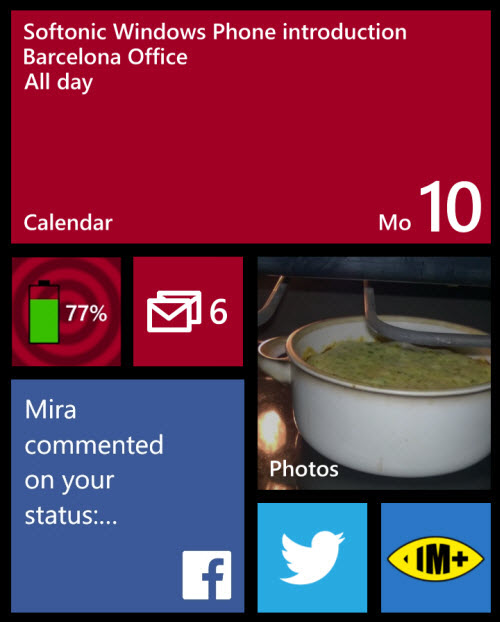
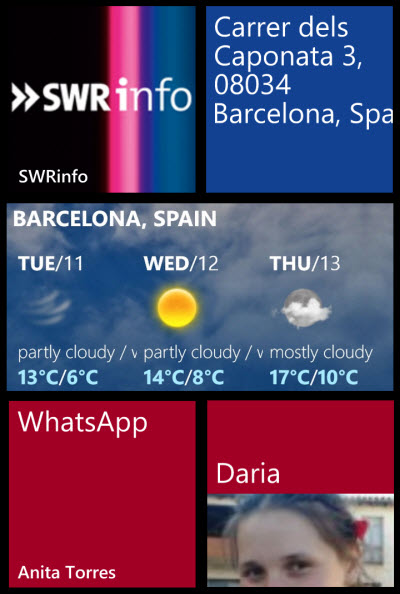
Live Tiles also display additional information such as thumbnails, notifications or notes. For example, the calendar displays information on upcoming events, while the Facebook app shows status updates, comments, and images. You can also see the weather forecast on the weather app, or your latest snapshots, as a slide show. Other tiles will notify you of new messages or other updates.

Windows Phone 8 - more Live Tiles

Depending on the app, you can choose a specific view for a given tile, like a playlist for the media player, an address for the navigation app, a website from the browser, or a contact from the phone book. This lets you directly access the information you want.

Windows Phone 8 - Live Tiles can provide valuable information

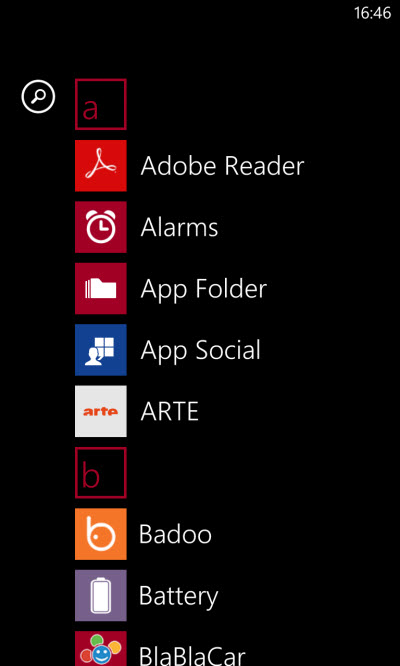
Alternatively, you can find your apps from an alphabetical list. A menu will open by flicking from right to left. From here, you can pin new apps to the Start screen.

Windows Phone 8 - alternatively, pick Live Tiles by hand

Menu navigation and app design

You can navigate through apps and menus by scrolling up or down. You can also alternate different screens by swiping from the edge. The name of the menu or section is displayed in capital letters above the current selection. Some apps also include control buttons at the bottom of the screen.

Windows Phone 8 - screen headings

Multitasking

Like with Android and iOS, Windows Phone includes a multitasking feature. All you have to do is flick between the individual apps and tap on the zoom overview. Apps that aren’t visible just keep running in the background.

Windows Phone 8 - multitasking is easy

What apps can I install?

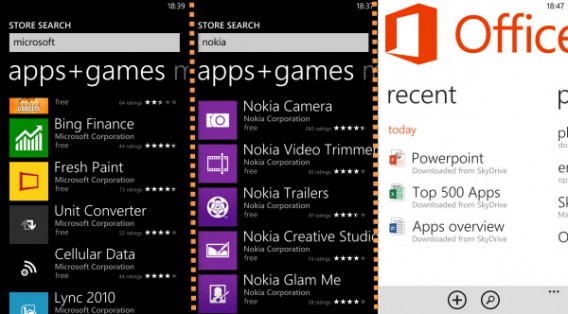
Windows Phone is still suffering from the reputation of missing many important apps, even though many of the most popular apps, such as Facebook, Twitter, Evernote, TuneIn Radio, Runtastic, and Instagram now have a version for Windows Phone. In many cases, you can also find great alternatives to some of the most  popular apps. If you’re looking for navigation apps, for example, Nokia provides a complete package with the HERE Maps app, with free offline maps included. There are also a ton of apps exclusively available for Windows Phone developed by Microsoft and Nokia.

Windows Phone 8 - plenty of apps are available

Syncing

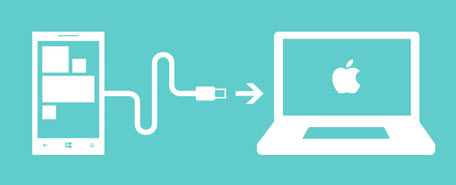
Windows Phone works best with Windows 8. The device is recognized automatically as soon as you connect it to your computer using a USB cable. Through Windows Explorer, you have access to all the files stored on your device, which you can transfer directly to the computer. The same goes for pictures and videos, thanks to Windows 8’s built-in syncing app. If you have Windows 7, you have to resort to Zune Software. If you’re a Mac user, you must first install Nokia Photo Transfer for Mac. That said, we haven’t seen great results with these apps and suspect you’ll get the smoothest experience by sticking to Windows 8.

Windows Phone 8 syncing

Customization and security

On iOS, you can jailbreak, and on Android, you can root to enjoy non-Apple/Google licensed apps to tailor system details to your needs. Windows Phone has still not been hacked, meaning this particular point is hard to compare. For now, Windows Phone actually seems to be a particularly safe device: it’s rare to find scam apps for Windows Phone. The scammers, it seems, are focusing their attention elsewhere.

Make sure to check out the rest of our Windows Phone Guide to get all the details about Microsoft’s mobile OS.

Check your Windows 8 battery health using the hidden command ‘powercfg’

Using the powercfg command, Windows can create detailed reports on the built-in battery in your Windows 8 notebook or tablet. In addition to the maximum operation time in battery mode, you’ll also learn how healthy the battery is. Even better, checking the status of your battery is really easy!

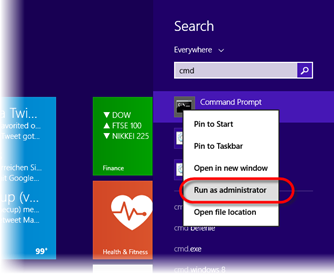
1. Start Command Prompt and choose to Run as Administrator

Command prompt

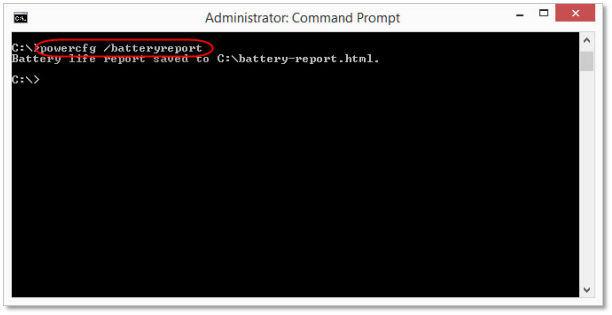
2. Type in the command ‘powercfg /batteryreport’ and hit Enter

Powercfg/batteryreport

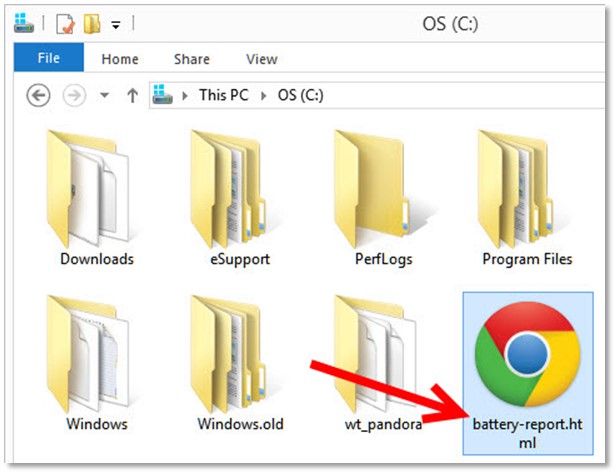
3. Load up the report in a browser

The default option for saving the Powercfg report is to save it as an HTML file in the C:\ folder. Double-click on the file called battery-report.html, and open the report in your browser.

Open the 'powercfg' report in your browser

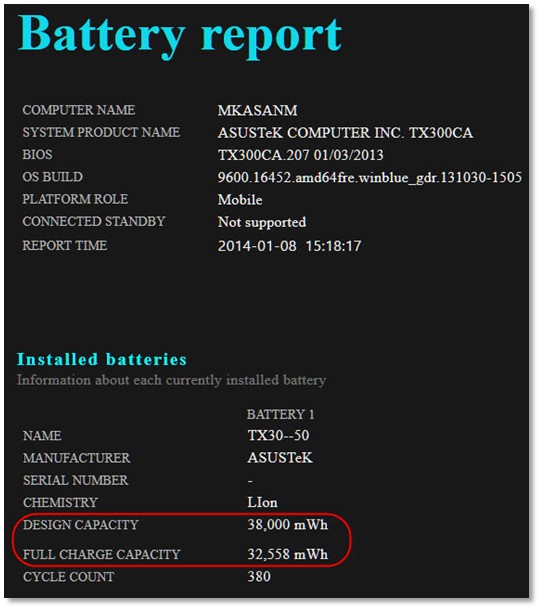
Useful information in the battery report.

First, you’ll see a brief summary of the important information about your computer and the integrated battery. The Design Capacity value is the value provided by the manufacturer relating to the maximum capacity of an unused battery. Full Charge Capacity displays the current maximum capacity of a fully charged battery.

On the basis of these values, ​​you’ll quickly be able to see how much power is left in your battery. If you’re buying a new one, you can easily discover damaged batteries and, if necessary, exchange the unit.

Battery report

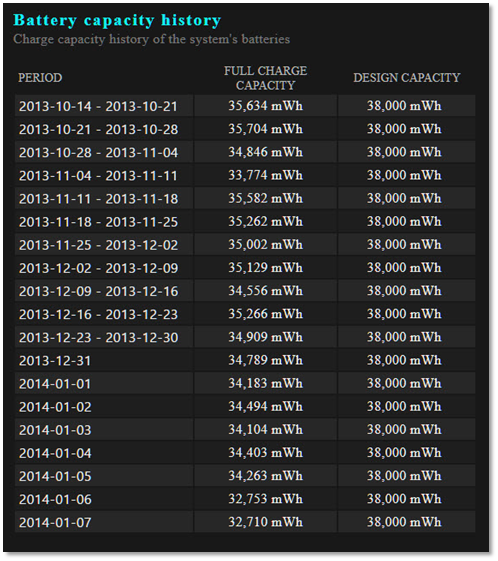
Further down in the report, you can find information regarding all the previous charging cycles, in chronological order. If you re-install Windows, you will lose all of the data previously collected.

Battery capacity history

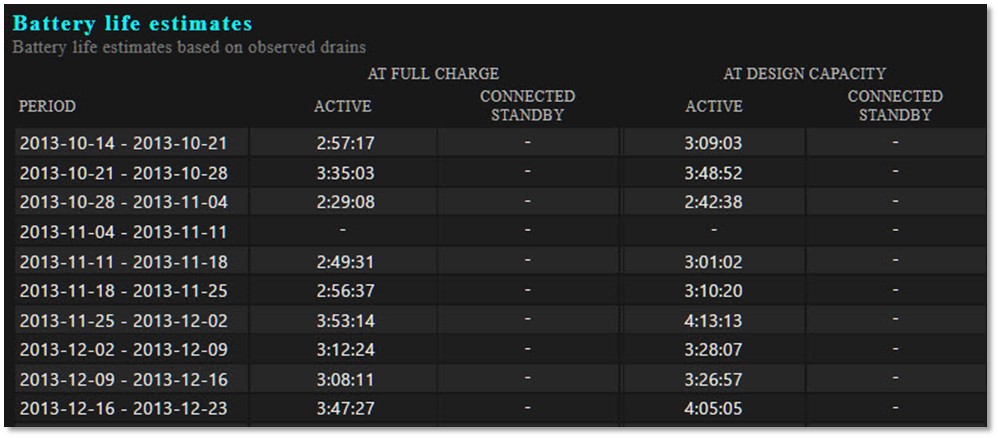
Using this and other data, ‘powercfg’ estimates the expected remaining battery life. This value, however, is never exact because it depends on how the device is being used; tasks that involve heavy use of the processor, Wi-Fi use and turning up the screen brightness, all mean that the battery won’t last as long.

Battery life estimates

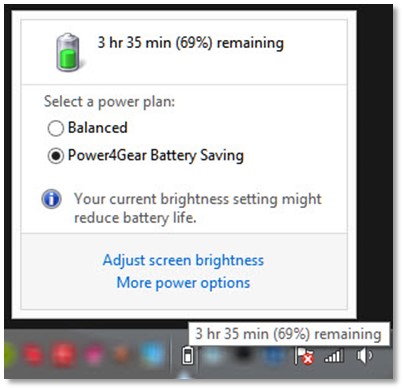
The more data that Windows has at its disposal, the more accurately it can estimate battery capacity. This value can then be queried at any time via the system tray icon.

Power settings

Each week, our Windows experts publish a new tip about Microsoft’s operating system.

If you want more information about Windows 8, check out our Essential guide to Windows 8.

Windows 8 Snap: Six useful apps for side-by-side viewing

The new apps for Windows 8 no longer use typical windows, instead functioning in full screen mode. By using split screen with the Snap Feature, you can view two apps at the same time. Although only a few new programs are customized for Snap Mode, here, we give you six apps that make using snap mode fun!

Clipà.Vu Clipboard Free

Copying and pasting text on touch screens isn’t particularly easy, no matter if you’re using an iOS, Android or Windows 8 device. This is where Clipà.Vu Clipboard Free – an intelligent clipboard – comes in handy. You can copy multiple text blocks and collect them in the mini view of the app before switching to another app in the main window and pasting in the text.

Default player


brightcove.createExperiences();

IM+ Messenger for Windows 8

With IM+ Messenger for Windows 8, you can use your favorite app and have all of your contacts from Facebook, Skype and other networks in view at the same time. In the mini version you can easily chat and simultaneously surf the web using Internet Explorer, which has been optimized for touch gestures. No more annoying switching back and forth between multiple apps.

Default player


brightcove.createExperiences();

SnapGadgets

The Snapgadgets app brings a clock, calendar, calculator and small notepad together in the sidebar. It’s especially useful when doing research on the web, like planning a holiday for example; you can easily gather important information with Snapgadgets and re-use it later elsewhere. The calculator is also helpful when you need to work things out quickly.

Default player


brightcove.createExperiences();

OneNote MX

The OneNote MX app is optimized for flexible note taking. OneNote is also very useful in the sidebar, where you can use the full space as an intelligent notebook. If your tablet has a pen, you can doodle by hand in the app. OneNote is also practical when it comes to collecting pictures – it saves photos from the browser along with the web address.

Default player


brightcove.createExperiences();

Maps App

The official Maps App for Windows 8 is also really well suited for Snap mode. With the intuitive search function, you can quickly look up addresses that come from websites. The small map section doesn’t extend far enough in mini-mode, but with the ability to flexibly split screens, you can temporarily enlarge the map without losing sight of the open app.

Default player


brightcove.createExperiences();

Metro Commander

File management and downloads aren’t exactly a specialism of the new Windows 8 apps, and this is where Metro Commander helps. With this tool, the download folder is always kept in view in the sidebar, meaning that you can delete and rename files, and in the case of programs, launch them.

Default player


brightcove.createExperiences();