Spotify search may be more useful than you think. Using search parameters, you can restrict your search to Google search results so that you can get targeted results and find music even more easily.
Spotify now has more than 24 million users, making it one of the most popular online music streaming services. The software is available as a browser app, as well as for Windows, Mac, Android, iOS, Blackberry, and Symbian.
Millions of songs and a sophisticated interface make for hassle-free music streaming, but some tracks or albums can only be found through elaborate clicking. With some simple filters in the search bar, you’ll be able to find exactly what you’re looking for, quickly and easily.
To use the advanced search
Place the desired search filter for artist or genre in front of your search term. For search filters, see the next paragraph. If the search term has multiple words, put the words in quotation marks.
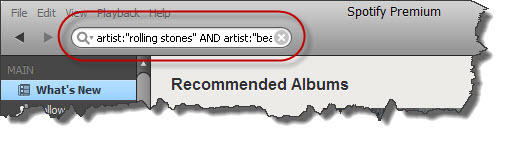
Combine multiple keywords with the parameters ‘AND’, ‘OR’ and ‘NOT’. ‘AND’ combines several search parameters, OR is for when at least one of the filters applies, and NOT excludes specific results from the search.
All Filters for Spotify
artist: searches only in artist names. All hits from albums or songs will be ignored. Example: artist:Metallica or artist:”Michael Jackson”
track: searches only for specific tracks. All hits from albums or artists are ignored. Examples: track:firestarter or track:”yellow submarine”
album: searches only for albums. All hits from tracks or artists are ignored. Examples: album: paradise or album:”born to die”
year: searches by release years or periods. All other hits will be ignored. Examples: year:2000 or year:2010- 2013
genre: limits the results to the chosen genre. Example: genre:Blues
label: finds music specifically from a particular label. Example: label:virgin
tag:new search specifically looks for the latest album from an artist. The filter must be combined with another parameter. Example: artist:”stevie wonder” tag:new
isrc: searches for specific tracks with the help of International Standard Recording Codes, including special tracks with many different recordings directly. Example: isrc:GBBKS9900090
When does searching with filters make sense?
Example 1: Your search didn’t match anything in the catalogue
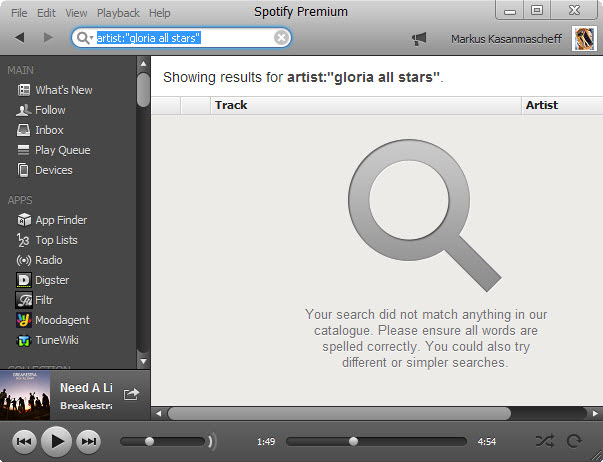
You are looking for the little-known reggae band Gloria All Stars. Spotify lets you input Gloria All Stars but nothing useful comes up. The input of artist:”Gloria All Stars” gives clarity – the band is unfortunately missing completely from Spotify.
Example 2: Find top songs on the first album from cult bands
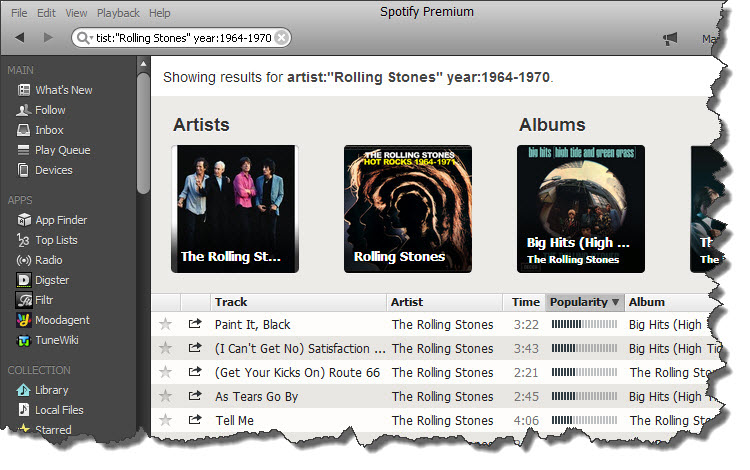
You’re looking for the greatest hits from the first albums by the Rolling Stones. Serach by artist:”Rolling Stones” year:1964-1970 and then sort the results by popularity.
Example 3: Search for other versions of classics
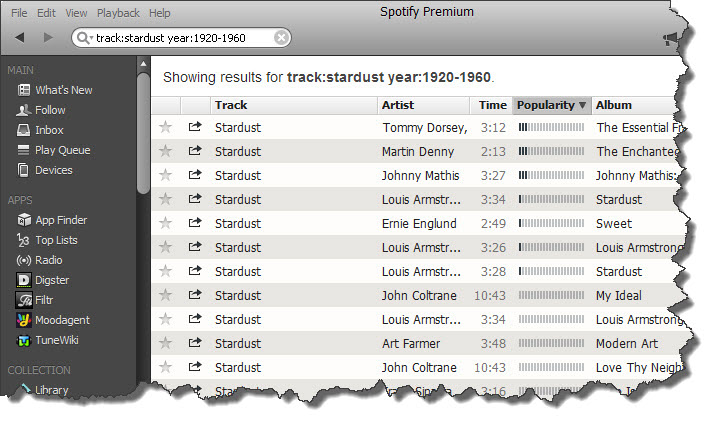
You like the jazz standard Stardust and you’re looking for old interpretations. Search track:stardust year:1920-1960, and sort by popularity.
Example 4: Finding the best cover versions
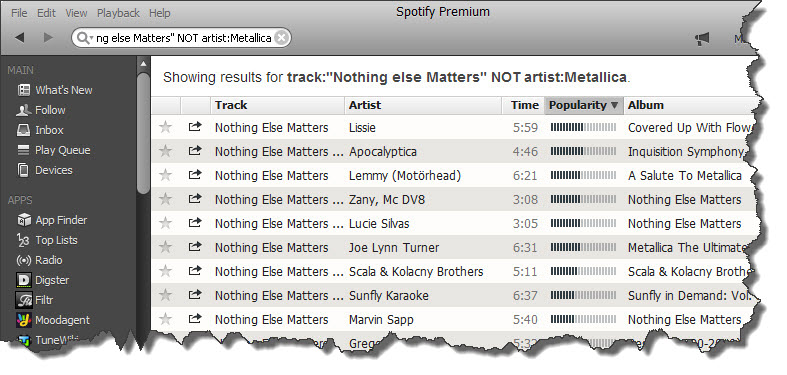
Say you like Nothing Else Matters by Metallica and you’re looking for the best cover versions. Enter track:”Nothing Else Matters” NOT artist:Metallica, and sort by popularity. Spotify will only look for cover versions and will hide all recordings by Metallica.
Example 5: Discover music from small music labels
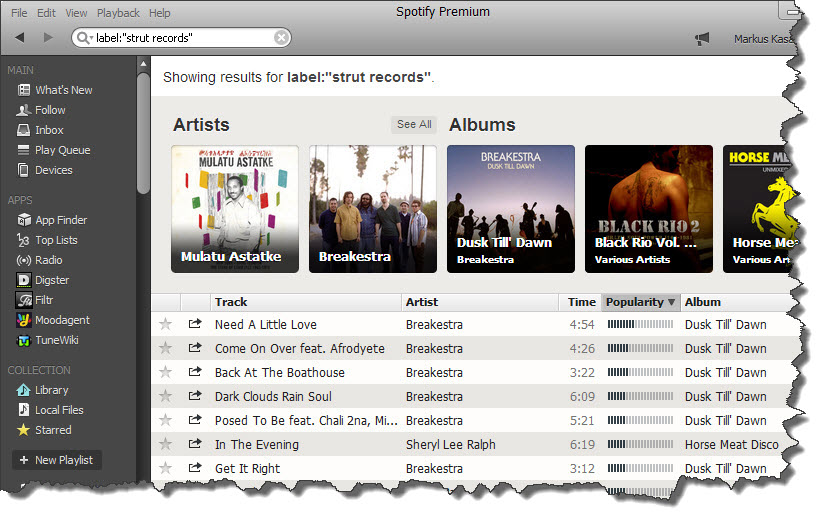
Do you like the iconic sampler Calypsoul 70 from the small label Strut Records? By searching for label:”strut records”, you’ll automatically find all available songs by Strut Records. The normal search won’t get there directly.
Example 6: Targeted search in a genre
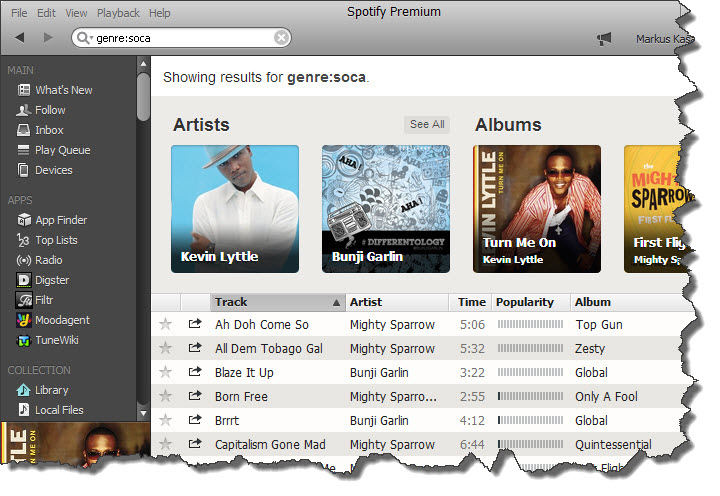
Maybe you like an exotic genre like Soca and want to find new music? A search for genre:soca will help. This works much better than the automatic radio function.
Do you have any other tips for finding music on Spotify?
So you want to surf online from the comfort of your own home using a smartphone or tablet, but you don’t have a wireless router? With Windows, you can turn your PC into a Wi-Fi hotspot in a few easy steps. You can also use this trick at work or in college to get fast mobile internet access. We’re going to show you how to do it.
1. Check if your network driver supports hosted networks
On individual computers, Virtual Router Plus can’t access the local network. The driver for your network card must support hosted networks. You check if this is the case in two simple steps.
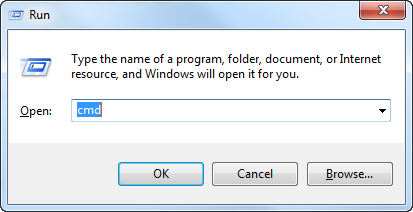
Press the Windows key and R. Type CMD in the character field Open and click OK.
A window appears with the Windows command line. Enter the command netsh wlan show drivers and press Enter or Return. Windows then lists details of your network drivers. If at Supported Hosted Networks the entry is Yes, then you can set up a wifi hotspot.
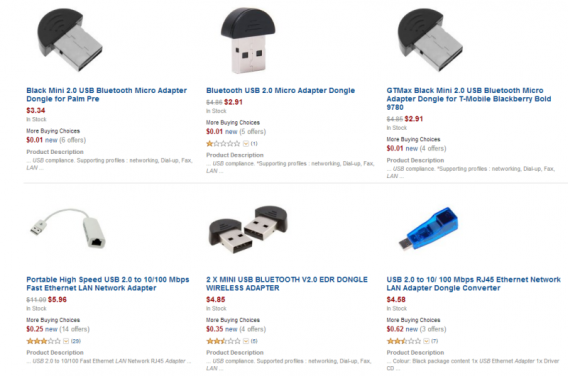
2. If your PC has no wireless adapter: Buy a USB wireless adapter and connect it:
You can buy a USB Wireless LAN adapter online for less than five dollars. Insert the adapter into an available USB port and you’re ready to go. Drivers are unnecessary in most cases – Windows automatically detects the device.
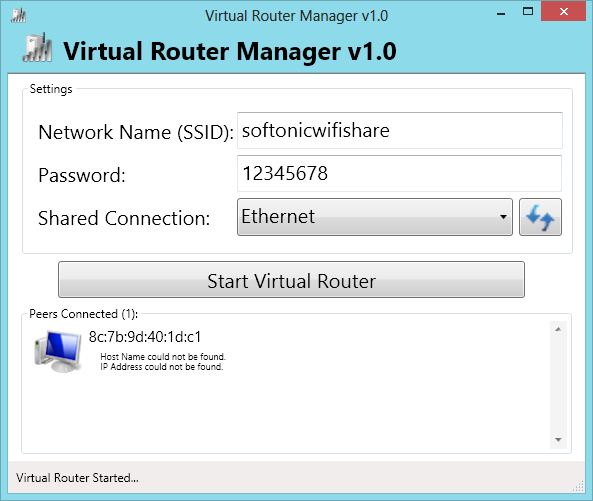
The freeware requires only three simple pieces of information: Under Network Name (SSID), enter a name. Then enter a secure password (as secure as possible) and choose your internet connection for Shared Connection. Click on Start Virtual Router to activate your personal Wi-Fi hotspot.
5. Connect the mobile device
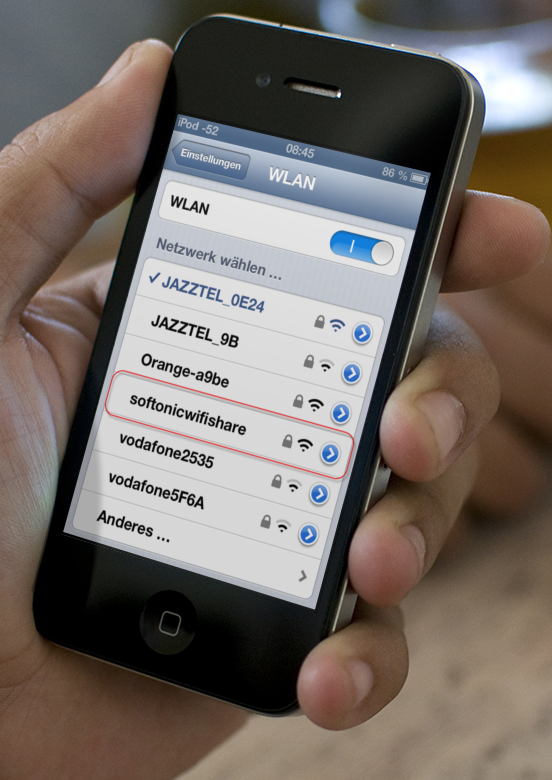
Your Windows Wi-Fi hotspot now shows as an available network on your mobile device. After entering the password, you can use the internet connection from your PC on your tablet, laptop, or smartphone.
If your mobile device can’t find the Wi-Fi hotspot, click on Stop Virtual Router in Virtual Router Manager, and then on Start Virtual Router again. Use this method to solve any connection problems, but we’re fairly confident you won’t have any.
Have you tried this method of creating a Wi-Fi hotspot? Did it work?
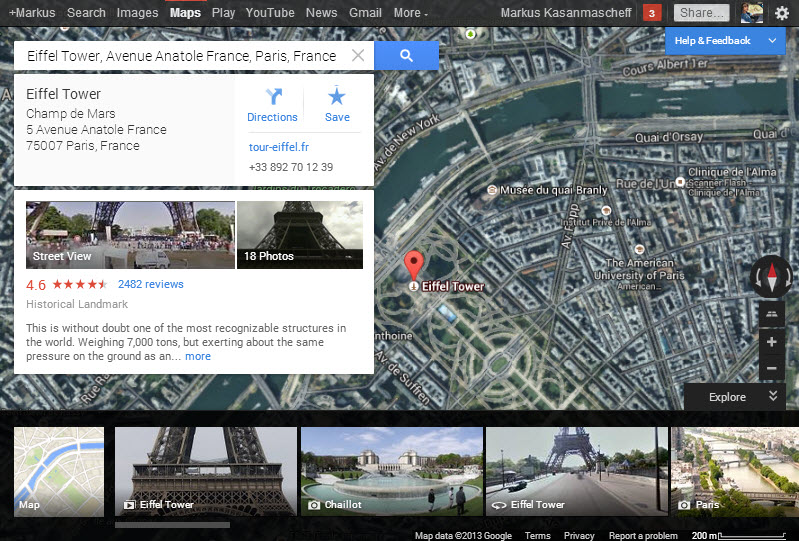
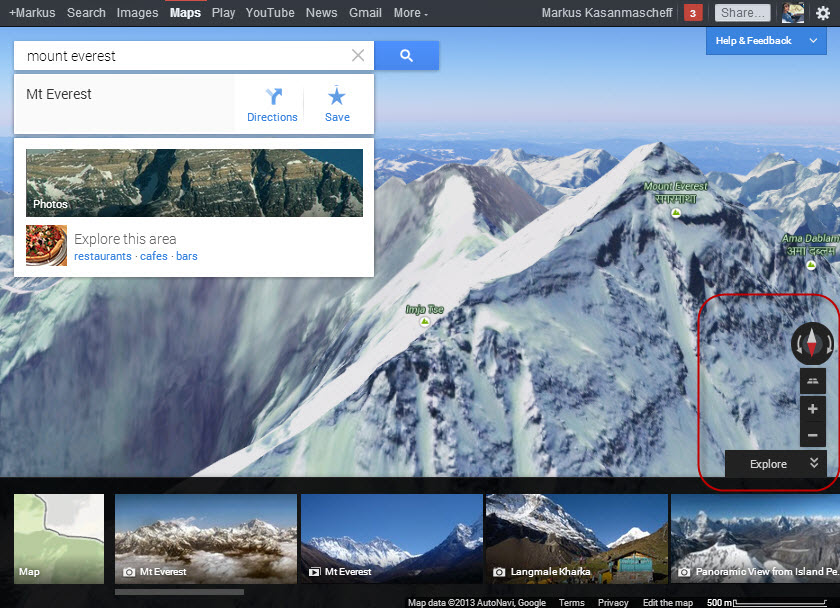
The new Google Maps is already available online (if it’s not your default version of Maps, you can enable it here). On machines without a fast graphics chip, however, you might be disappointed; maps load slowly, fast zooming isn’t very fast, and panning is pretty much impossible. But, there may be a solution: Lite Mode is a pared-down version that’s meant to bring the new Google Maps back up to speed.
The new Google Maps relies entirely on the WebGL graphics library. WebGL enables the 3D effects from Google Maps through direct access to Google Earth on your browser. The Google Earth mode replaces the traditional satellite perspective, which lets you tilt and rotate, giving an impressive 3D effect.
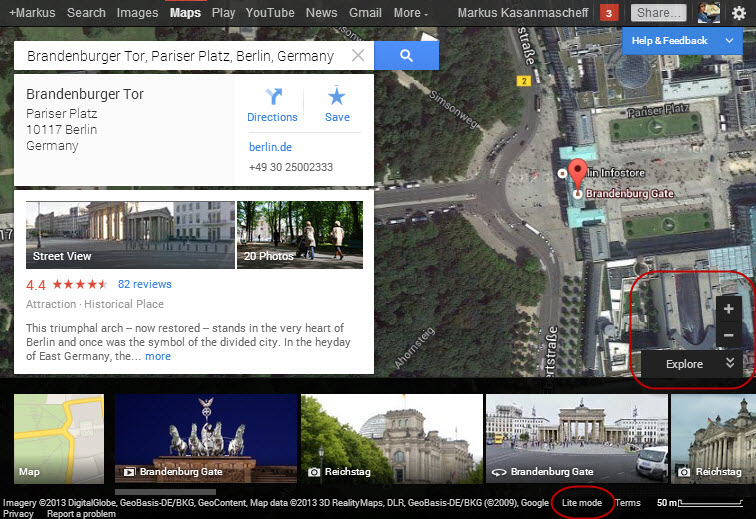
To make the new Google Maps run faster, you have the option of disabling WebGL. Google Maps will then run in so-called Lite Mode.
The new Google Maps is significantly faster in Lite mode and handles Google Earth’s 3D features perfectly. Even satellite maps are available as usual. Our suggestion: try the newest version of Google Maps first and see how it performs on your computer. If it works well, great, but unless it’s a pretty impressive piece of machinery, use Lite Mode to make the most of the new Google Maps!
Can you easily navigate the new Google Maps on your computer?
Like every year, we’ve once again carefully examined the top antivirus programs of 2013. Our criteria for analysis include the best antivirus for virus detection rate, system performance and quality of the user interface.
In 2012, we compared free and commercial antivirus software separately. Thanks to even more extensive data this year, we’ve been able to crown the best antivirus software for 2014 using a new approach.
Free and commercial in a single overview
In this year’s comparison, commercial and free anti-virus software compete head-to-head. Products like Norton and Kaspersky can compete with free software like avast!, AVG, or Avira, giving you both paid and free versions to choose from.
Comparison of principal components
For the first time, we’re not comparing actual products such as avast! Free Antivirus or Norton Internet Security, but rather aspects that are the same in the various editions, including shield and scan components from the individual manufacturers.
As a result, our analysis is aimed at users who expect powerful protection and think of additional functions as secondary features.
Our tip: first, select the software. Then, you can decide on an edition, depending on your need for additional features. Many additional features of the premium editions such as backup, cloud storage, browser protection, encryption, or parental control can also be found in free programs.
More winners
In addition to the overall best antivirus software for 2014, we’ve selected a number of other award winners:
The strongest antivirus: for virus detection rate
The fastest antivirus: for speed and system loading
The most complete free antivirus: for free antivirus software with the most features
The most promising antivirus: for the newest product with the best results
The disappointment of the year: for the antivirus that actually slows down your system
Our winner: The best antivirus software for 2014
For the evaluation of programs, we relied on a rich set of data from the past year. Our partner, the renowned test laboratory Virus Bulletin, tests the recognition rates of 30-60 antivirus programs and system performance every two months.
Virus Bulletin runs these individual tests exclusively for us. Additionally, we test all the programs using their benchmarks. We evaluate interface and features separately.
Long-term data instead of individual tests
Our winners are not based on a single test, but on the average test results over the course of the year. This ensures the long-term quality of the winning programs.
Based on this information, we determined our individual marks for safety and performance. The help of a test editor for the variety of features combined with the basic results ultimately gives us our 2013 Softonic Rating.
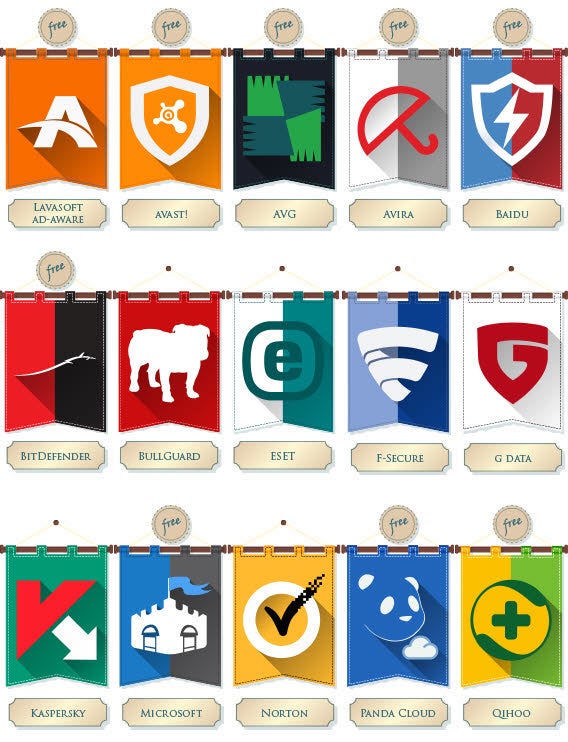
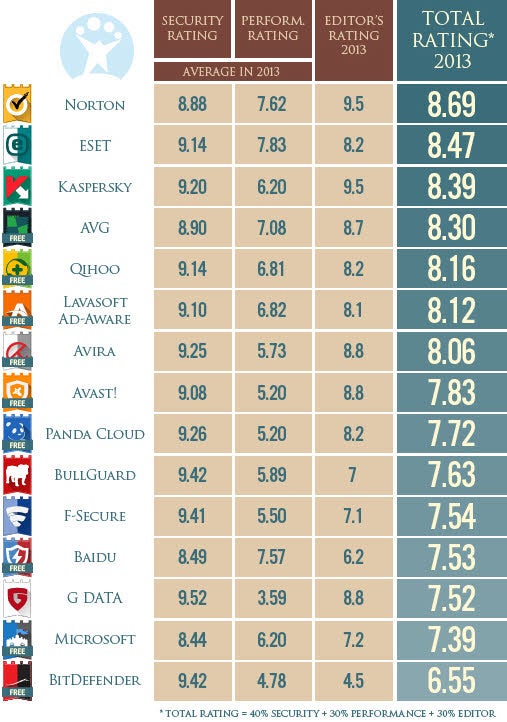
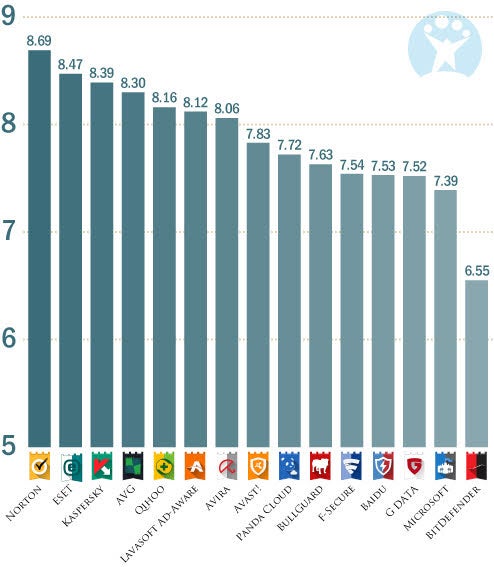
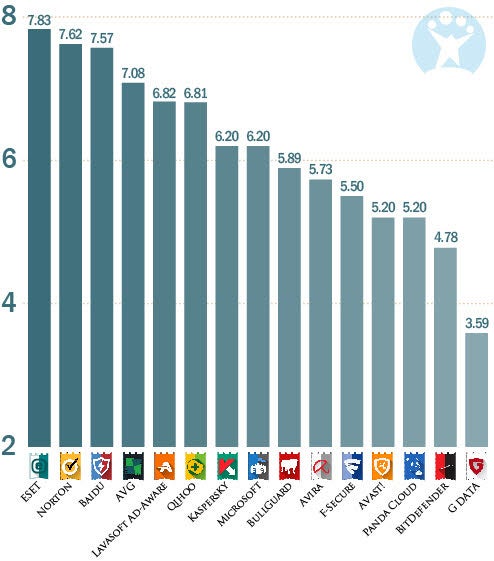
So, here they are, the results for fifteen of the most popular anti-virus programs, sorted by overall score.
This year’s big winner is Symantec/Norton with its Antivirus, Internet Security and Norton 360 products. Norton convinces with high ratings in all categories and seals the deal with its user interface and many standard features.
Second and third place go to ESET (NOD32 AntiVirus, Smart Security, Cyber Security) and Kaspersky (Antivirus, Internet Security, PURE). Kaspersky is on par with Norton on interface and features, as well as having excellent detection rates. Slightly worse values in system performance cost Kaspersky the top spot.
ESET is up there with Kaspersky with very good performance values. Light compromising on user interface made no difference. AVG is the best free solution this time, although it only reaches fourth place. Last year, we were able to crown Avira Free Antivirus as the big winner because of good performance values in this category, however the competition this year has improved significantly.
Check out our winners this year in our video overview:
Default player
brightcove.createExperiences();
The best antivirus software for protection
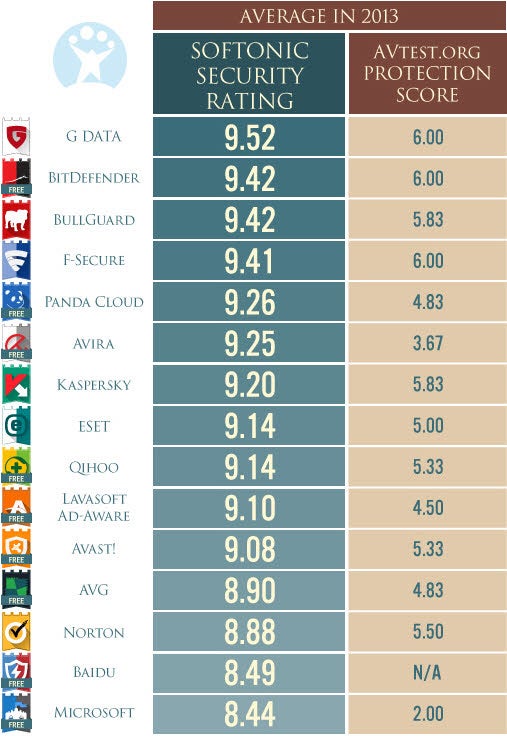
If you want maximum protection, and if user interface and system performance aren’t as important, the result is quite different. The top 3 here are G Data (Antivirus, Internet Security, Total Protection), BitDefender (AntiVirus Free, Antivirus Plus, Internet Security, Total Security) and BullGuard (Antivirus, Internet Security Premium Protection).
In the table below, alongside our Softonic rating (for reference), you can see the security score from the independent testing laboratory AVtest.org. Avtest.org tests differ slightly from Virus Bulletin, and they assign a maximum of six points. As you can see, our winners are also confirmed by the data from AVtest.org.
Softonic Security Rating 2013 compared to AVtest.org Security Score in 2013
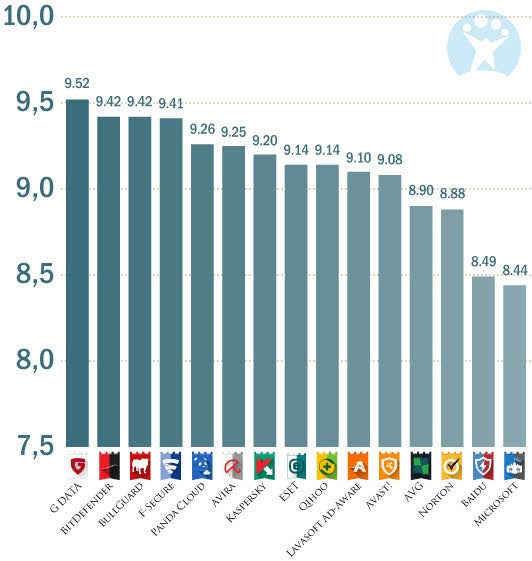
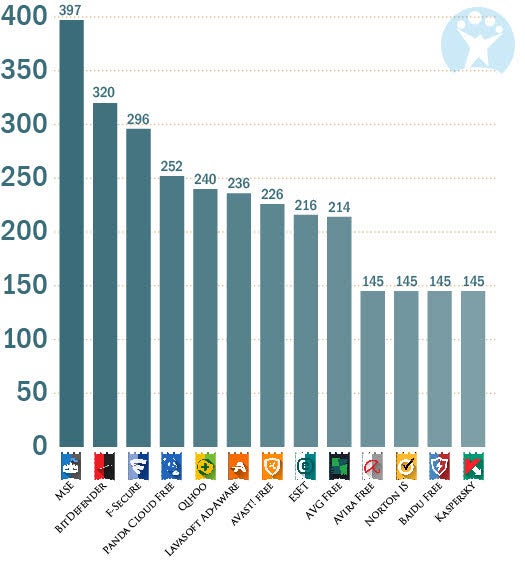
A look at the chart illustrates the last places particularly well. Microsoft (Security Essentials, Windows Defender) isn’t overly convincing in last place, since the scores are relatively close, but it’s clear that the results for all products are good overall.
The Softonic Security Rating reflects average recognition rate of known viruses. A software with a rating of 9 recognizes, on average, 90% of viruses present. Microsoft was last here, but still achieved a value of 84.40%.
Softonic Security Rating 2013
The best antivirus software on system performance
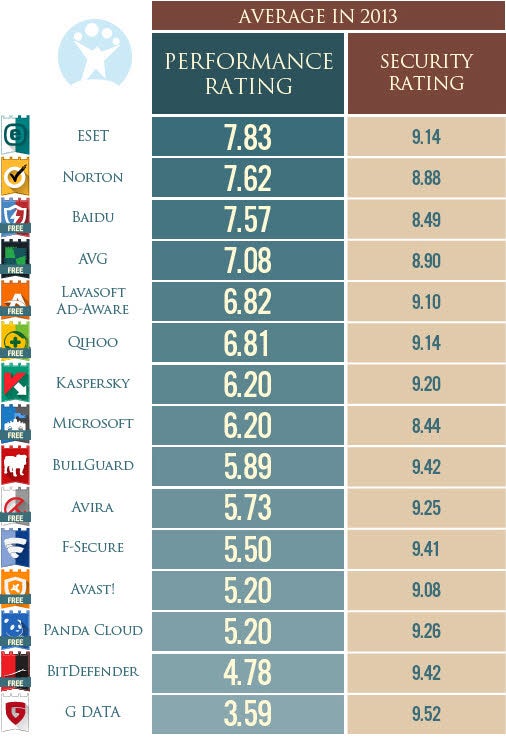
When you assess the programs only on system performance, the results give yet another picture. The top 3 here are ESET, Norton, and the Chinese newcomer Baidu. The programs with the highest detection rates, G Data and BitDefender, only occupy the last places on this test.
This illustrates the actual price of safety: the more thoroughly a software protects your system from threats, the more computing power is needed. According to this formula, Microsoft should rank first in our performance tests. The free programs (Windows Security Essentials and Windows Defender), however, only achieve middle positions in the ranks.
Average Softonic performance rating in 2013
Our Softonic performance rating assesses memory and CPU requirements of the shields as well as the scans. In addition, we take into account how much the shields of the respective antivirus software slowed down our system test. To this end, we extracted an example, a large encrypted ZIP file, and measured the time required to work on it.
Average Softonic performance rating in 2013
Other winners
Not every system is identical and the demands of users are different. That’s why this year, we chose a number of winners in addition to our three overall winners Norton, ESET and Kaspersky:
G Data – strongest anti-virus software
ESET – fastest anti-virus software
Avast! – most complete free solution
Baidu – most promising
Microsoft – disappointment of the year
Default player
brightcove.createExperiences();
G Data: the strongest antivirus of the year
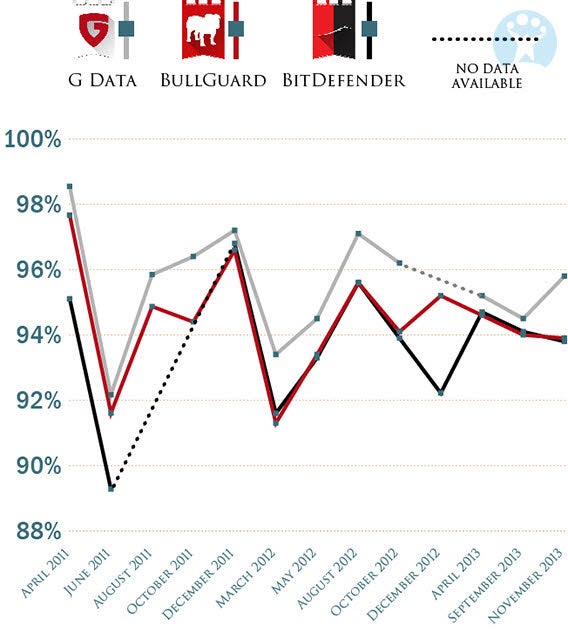
As shown above, G Data achieved the highest recognition rates over a long period of time. The table below illustrates how well G Data detects viruses over a long-term comparison with the second and third placed software packages in this category – Bitdefender and BullGuard.
There wasn’t a single test run since 2011 in which G Data admitted defeat to its two rivals, and in the last test from November, G Data performed particularly well (the data gaps only occur if the product didn’t participate in that round).
G Data vs. Bitdefender vs. BullGuard – detection rates in individual tests
ESET: the fastest antivirus of the year
Our award for the best system performance this year goes to ESET. The runner-up in the overall category is the only software to nab two prizes.
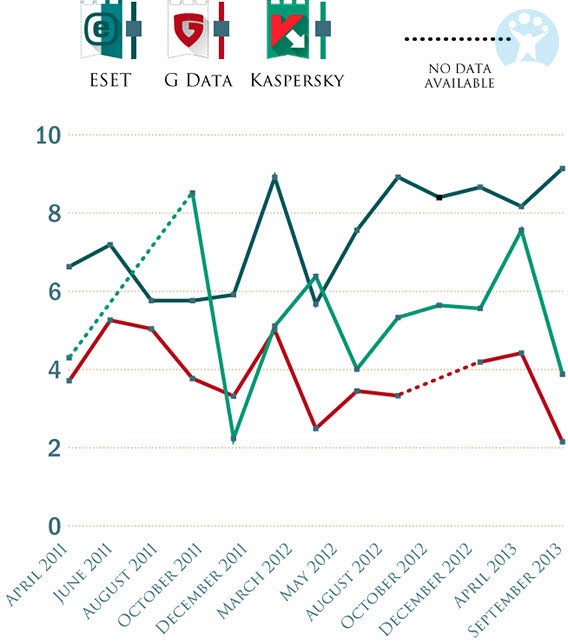
A long-term comparison with G Data and Kaspersky products illustrates the impressive differences: up until October 2011, ESET was always on top, and when compared with other programs, the results didn’t vary as much, which shows consistency. Since October 2012, ESET has always achieved a performance score of eight.
ESET vs. G Data vs. Kaspersky – Softonic performance rating in individual tests
Avast!: The most complete free solution
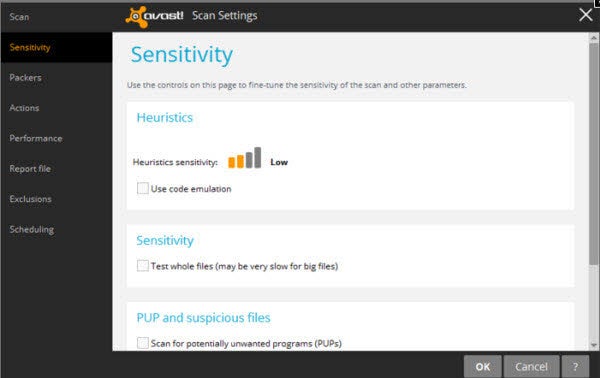
Avast! gets our extra prize this year for its free version Avast! Free Antivirus. It may only reach the middle of the rankings in our overall comparison, but there’s no other free anti-virus software which comes with such an extensive package of features and functions.
Avast! is particularly popular with Softonic users. No other anti-virus software has been downloaded as often. The visually attractive and tidy interface is certainly one reason for this.
avast! Free Antivirus
Baidu! Antivirus: the most promising antivirus
The free software Baidu Antivirus is our most promising antivirus of the year. With its new product, the Chinese search giant Baidu provides an excellent product in the antivirus industry. In our initial tests, the software showed better detection rates than Microsoft, and grabbed hold of third place in the system performance category.
German search technology in Chinese scanner
Baidu combines its virus protection with German scan technology from Avira. In addition to its own protection technique, you can also use the Avira engine. How well Baidu performs long-term is yet to be seen, however with this offering especially popular in China, the results have already been very impressive. As a free product, Baidu also enters into direct competition with Avast!, AVG, and Avira.
Baidu Antivirus
Microsoft: the disappointment of the year
No product has disappointmented as much this year as Microsoft Windows Defender. What was known up until Windows 7 as Microsoft Security Essentials has become an integral part of Windows 8.1. And as our tests show, it slows down the system considerably.
If we replace it with any other free solution, this makes for noticeably higher system performance. Although Microsoft ends up scoring in midrange in our performance rating, this is really only due to the relatively fast scan engine. Looking at the quality of real-time protection, it’s a very different picture.
This is illustrated by the results of our Unzip tests. Here, we extract a very large encrypted ZIP file and measure the time required to scan with the respective anti-virus software. With Microsoft Windows Defender, the process took two and a half times longer than it did for Norton, Kaspersky, Avira, or Baidu on the same test system.
And Microsoft can’t even dazzle with particularly high detection rates. As shown above, Microsoft Scanner was in last place in our test.
Shield Performance: Time needed to unpack a large compressed test archive
Spoiled for choice
Based on our results, you can easily choose a suitable antivirus software product to suit your needs. One thing our overall competition makes clear is that this year, the commercial providers are ahead of the free programs by the narrowest of margins. If you’re willing to spend money, Norton, ESET and Kaspersky are particularly good choices.
When people think of simulations, they often think of city planning games like SimCity. Games like Euro Truck Simulator are also relatively well known. But in recent years, the genre has started to offer much more variety.
Apart from SimCity, The Sims, and Civilization, not many big names have survived the simulation genre. Before the online revolution and the arrival of first-person shooters and MMPORGs, things were a little different. Graphics played a less important role, but gameplay was not diminished because of it. Does anyone remember Railroad Tycoon? Check out the game again with the help of DOSBox.
Image: Bus & Cable Car Simulator
The big names of today include Euro Truck Simulator 2 and Farming Simulator 2013, but there are also simpler simulators for vehicles like garbage trucks, buses, road sweepers, diggers, or even trains.
In the past few years, however, game developers are once again daring to explore other topics. Below, we’ll take a look at the range of simulators available on the market today.
Surgeon Simulator 2013
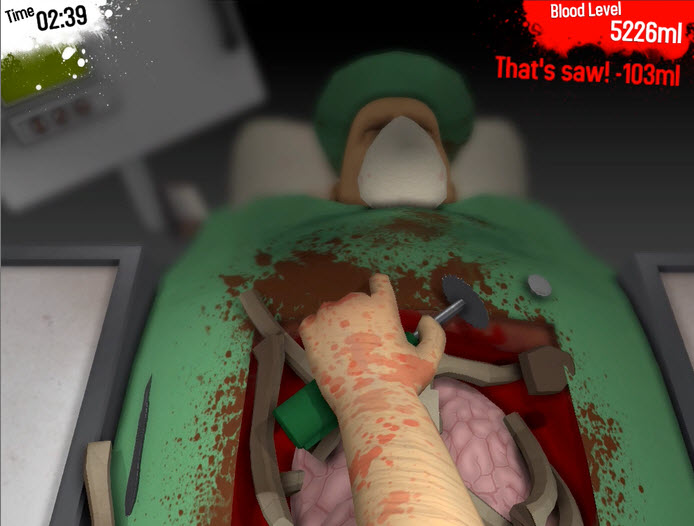
Cardiac surgery is not for the faint of heart; Surgeon Simulator 2013 defuses the issue with a healthy dose of humor. In the game, you play Nigel, a man whose job it is to transplant organs with virtually no knowledge of medicine.
But the idea isn’t just a joke; under the guise of an amusing medical simulation, Surgeon Simulator 2013 is actually a game of skill with a very high degree of difficulty.
Kerbal Space Program
Although many dream of it, in reality there are very few astronauts. For everyone confined to planet earth, there’s the free rocket simulator Kerbal Space Program, by way of consolation.
In this fun simulator, you can combine various rocket parts from engines, ignition sequences and accessories, and see what works. As an eccentric designer, you can create strange spaceships, huge rockets, or missiles that’ll achieve the most spectacular explosions of all time. With Kerbal Space Program, the possibilities are endless.
Demolition Company
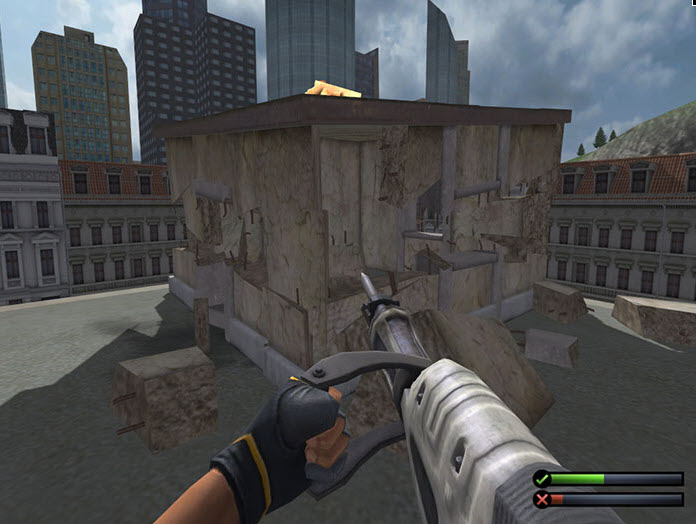
In Demolition Company, you get to bulldoze buildings with heavy equipment. Throughout your career as a demolition contractor, you can get your hands dirty and destroy buildings with pneumatic hammers, excavators, or wrecking balls. The game is just right for getting out all of your frustration after a busy day.
Even when you have to be really precise, destruction is clearly in the foreground. The graphics, however, aren’t as slick as those in the specialized demolition game Red Faction.
Take On Helicopters
Flying helicopters is pretty challenging, which is why in Take On Helicopters, you won’t instantly become a master of the sky. To succeed, you’ll need to follow the tutorials.
You’ll control various helicopters of different weight classes with a combination of mouse and keyboard strokes or with special controllers and pedals.
Wildlife Park 3
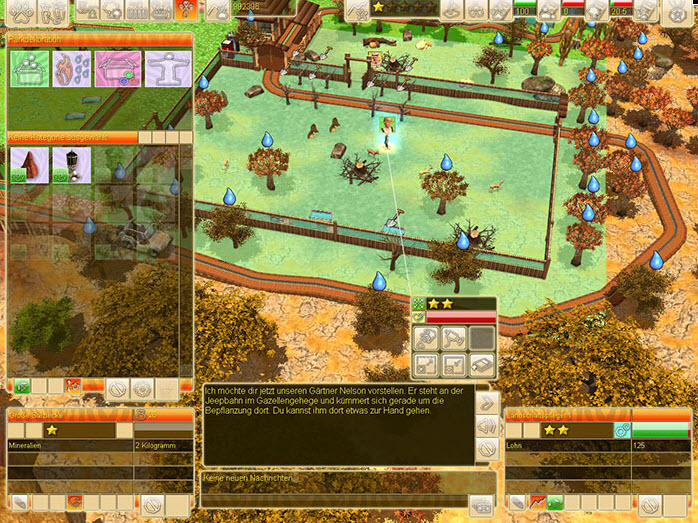
The zoo simulation Wildlife Park 3 is all about wild animals. The player takes the role of keeper, looking after a total of 25 different land and water species.For the zoo to remain a thriving business, you’ve got to make sure that the finances are in order too.
You’ll have to check the flow of visitors, revenue invested in new animals, popular attractions like jeep tracks or hot air balloons, landscape the park appropriately, and employ new staff. Zoo Tycoon is another very similar game.
First Class Flurry
In First Class Flurry, you’ll play the role of a flight attendant working for an ailing airline. Under constant stress, it’s important that you keep your passengers happy, which includes serving meals and drinks on time.
Bridge Builder 2
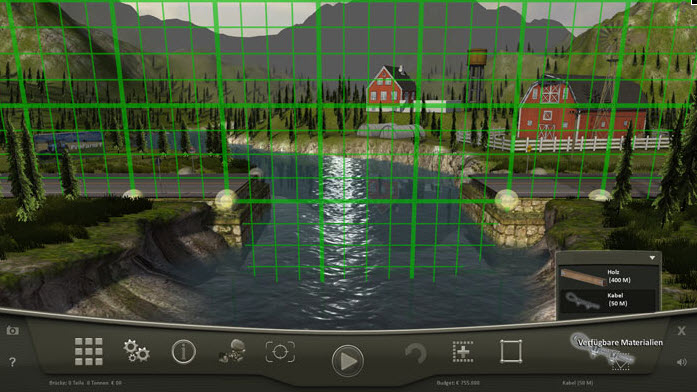
In Bridge Builder 2, you are a bridge engineer. Whether it’s a river or a gorge, the goal of Bridge Builder 2 is to overcome the obstacle with a stable platform for crossing.
Along the green grid, you’ll need to combine the individual bridge elements. You have steel cables and beams to stabilize the object and hydraulic elements will give the bridge its finishing touches.
Haven’t found anything you like? Check out our catalog for more than 50 simulation games to find something to suit your tastes.
Windows is turning 30 and we’re celebrating! On November 10,1983 Microsoft unveiled the Windows operating system to the public. For the software giant this was a real milestone, even though launching was still two years away. Today, we’ve seen versions of Windows that we’ve loved, and others that we’ve hated. These web emulators will let you look back at Windows 1.0, 3.0, 95, ME, 2000, XP, and Vista – ready for a serious trip down memory lane?
From today’s perspective, the early versions of Windows are so simple you can easily run them in your browser with a Windows emulator. With the newer versions, it’s a more involved process, but it’s worth it for a nostalgic look back on Windows XP and Vista. Windows emulators and simulators for browsers certainly bring back some memories!
Windows 1:01 emulator (in browser)
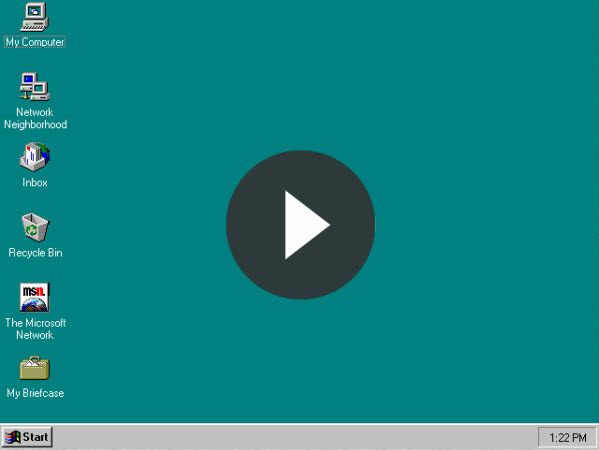
The first version of Windows was released on November 20, 1985. The public reaction was pretty limited because without expensive hardware like a mouse, hard disk, and memory expansion, Windows had no real purpose.
From today’s perspective, that’s kind of hard to imagine! Today to run Windows 1:01 all you need is a web browser and Java. With the PC emulator PCE.js by James Friend, you can operate a complete IBM PC XT including floppy drive and Windows 1:01. The first version of Windows can’t do much though – maybe you could have a fun game of the classic Reversi?
Windows 3.0 emulator (in browser)
With PCE.js you can also try Windows 3.0 in your browser. The third version of Windows was the first major commercial success. Windows 2.0 actually kicked off a copyright dispute with Apple which was triggered when Apple questioned Microsoft about certain features they claimed were copied, such as overlapping windows.
The Windows 3.0 emulator doesn’t work with the mouse and you’ll have to rely on some finger acrobatics to find your way around. Use the arrow keys, as well as ALT and TAB, to switch between menus and windows. It’ll be just like navigating round a cluttered desktop! A quick game of solitaire will make you feel better!
You can also install a version of Apple’s old Macintosh, as there’s an emulator based on the 7.0.1 system from 1993. In the same year, incidentally, Windows 3.1 was also released. Install them both and see which looks funnier – with the Mac emulator for the browser the mouse even works!
Windows 3.1 simulator (in browser)
No emulator is available, but you’ll still find a pretty smart web simulation of Windows 3.1, on www.michaelv.org. It really captures the operating feel of Windows 3.1. The programmer has even gone to the trouble of porting programs such as Minesweeper and the Calculator. The media player cheats a bit – it actually loads videos from YouTube!
Windows 95 “simulator” (web app)
The Windows 95 “simulator” illustrates, in a humorous way, the instability of this version of Windows. Having said that, Windows 95 was undoubtedly a great Windows milestone: the 32-bit processor supported multitasking for the first time, allowing parallel operation of several programs. But Windows 95 was still extremely challenging to use and crashed all the time.
Windows 98, Windows ME, Windows 2000, Vista and XP simulators
You can find simulators for Windows 98 to Windows Vista. But it’s still pretty versatile – with just a click of the mouse you can select the version of Windows of your choice and take a look at the main programs. All clickable elements are in pink, so you can check out all the features you can explore at a glance.
Windows XP to Windows 7 apps and fantasy simulators
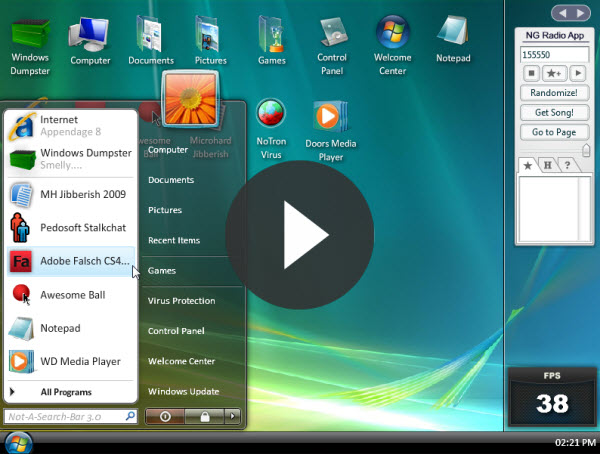
We’ve discovered a very different type of Windows emulators over at Newgrounds. It makes Flash versions of some flovors of Windows, like XP, Vista, and Windows 7. The developers make fun of classic Windows issues such as security, funny messages, and system crashes. A particularly good example is the Windows Vista simulator called Windows Doors Ultimate. There’s even a radio app on the widget bar for background music!
After taking a good look at the old versions of Windows, 2 things became clear: From a user perspective, the worst of Windows is certainly behind us. The current Windows 8.1 is stable, powerful and very versatile, thanks to its new touch interface.
There have been lots of complaints about Windows 8.1, but we’ve heard them all before. New versions of Windows have always had problems. Microsoft will release products that aren’t ready, then improves them through updates, as is the case of Windows 8 and Windows 8.1.
Do you have good or bad memories of the old Windows versions? Leave us a comment!
When migrating to Windows 8.1, there are several things to consider. Unlike Windows 8, there’s no upgrade license for Windows 8.1. However, a cost-effective change from Windows 7, Vista and XP is still possible.
Overview of the available editions
Windows 8 Full version:
For new installations – Requires no existing license
Windows 8 Pro Full version:
For new installations – Requires no existing license
Windows 8 Upgrade:
Update from Windows XP, Windows Vista, Windows 7 to Windows 8
Windows 8 Pro Upgrade:
Update from Windows XP, Windows Vista, Windows 7 to Windows 8 Pro
Windows 8 Pro Pack:
Upgrade from Windows 8 to Windows 8 Pro by activation of extra features
Windows 8.1 Full version:
For new installations or upgrades – Requires no existing license
Windows 8.1 Pro Full version:
For new installations or upgrades – Requires no existing license
Updating from Windows 8: Super easy!
If you already use Windows 8, you can sit back and relax. The installation of Windows 8.1 is similar to a service pack from older versions of Windows. All your programs, settings, documents, and apps are saved.
Upgrade from Windows 7: Two Alternatives
When you upgrade from Windows 7 to Windows 8.1, you can only take your settings, files and personal data with you. Programs installed under Windows 7 will be lost. Microsoft provides no real upgrade version of Windows 8.1 for older systems, but you can upgrade from Windows 7 to Windows 8, and then update to Windows 8.1 for free. This way, you can take your Windows 7 installed programs with you.
In addition, the upgrade license is cheaper than the full version of Windows 8.1. The acquired programs, however, only work with appropriate compatibility.The Windows 8 upgrade wizard can give an indication, which will also recommend the necessary upgrade to purchase.
Check the report from the upgrade wizard carefully. The change to Windows 8 might not be worth it and you might prefer to stay with Windows 7. Money saving tip: go ahead with the upgrade to Windows 8 Pro. This is only slightly more expensive than the standard version, and the update to Windows 8.1 is free. An upgrade at a later date from Windows 8.1 to Windows 8.1 Pro with the Windows 8.1 Pro Pack would cost you a lot more.
Upgrading from Windows Vista: Watch the Service Pack!
When you upgrade from Windows Vista, you can only bring your system settings and files. Unfortunately, there is no handy detour via Windows 7. Theoretically, you could keep your programs by upgrading to Windows 7 and then Windows 8. For this to work, however, you would need to get two separate upgrade licenses. The effort is worthwhile in any case, particularly if there are incompatibilities.
Whatever you decide, be sure that you’ve at least installed the Windows Vista Service Pack 1. Without Service Pack 1, switching to Windows 8.1 will result in the loss of all the specific system settings from your programs. An additional installation of Windows Vista Service Pack 2 can’t hurt either. When purchasing, the same applies as for Windows 7: get the upgrade for Windows 8 Pro.
Upgrading from Windows XP: Almost like Vista
The upgrade options for Windows XP are similar to those of Windows Vista: you can take any installed programs with you, and your personal files will remain intact. Unlike Vista, however, your system settings are not kept.
As with Windows 7 and Vista, you should pick up the Windows 8 Pro Upgrade and save yourself some money. This upgrade requires the Windows XP Service Pack 3.
In conclusion
If you already use Windows 8, then you’ve got it easy. Windows 8.1 is free and takes care of all of your programs and settings. For Windows 7, Vista and XP, you should first upgrade to Windows 8 Pro; what is retained from the old system depends on the version you’re upgrading. In any case, when you get to this stage, you’re getting more for the same amount of money. The acquisition of Windows 8.1 Pro on its own is much more expensive.
According to recent PRISM revelations, messages sent via major email providers are screened automatically by intelligence services. In this article, we’ll show you ways to help protect your privacy from this type of monitoring.
When monitoring e-mails, intelligence services (or even criminal hackers) use three types of vulnerabilities on our privacy.
Like all unencrypted data transfers over the internet, unencrypted emails can also be intercepted and the addresses and contents of the text can be easily read or analyzed
Anyone with direct access to a provider’s email servers can see personal mailboxes. According to whistleblower Edward Snowden, the NSA even has direct access to encrypted emails stored on Outlook.com
Using stolen credentials, anyone can access the mailboxes of other users
In addition, email addresses and IP addresses are usually not anonymous. Behind every email address, there is usually an easily identifiable person, even when fake names and abbreviations are used.
Luckily, for all of these technological problems, there are also technicological solutions!
1. Email encryption
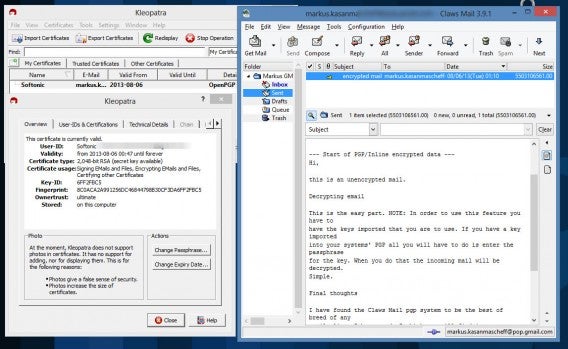
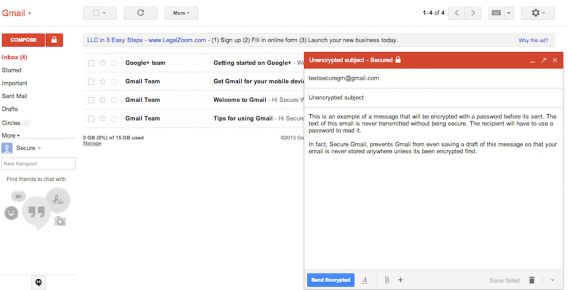
Emails usually use plain text, but you can actually send emails which are encrypted, then share the decryption key with the recipient using other channels. This is the safest solution for most vulnerabilities. Independent program packages such as Gpg4win or Symantec Desktop Email Encryption can encrypt messages, often using special email programs (for example, Gpg4win uses Claws Mail). Many of these programs are further developments of encryption software Pretty Good Privacy (PGP), developed in the 1990s.
Gpg4win with Certificate Manager Kleopatra and Claws Mail
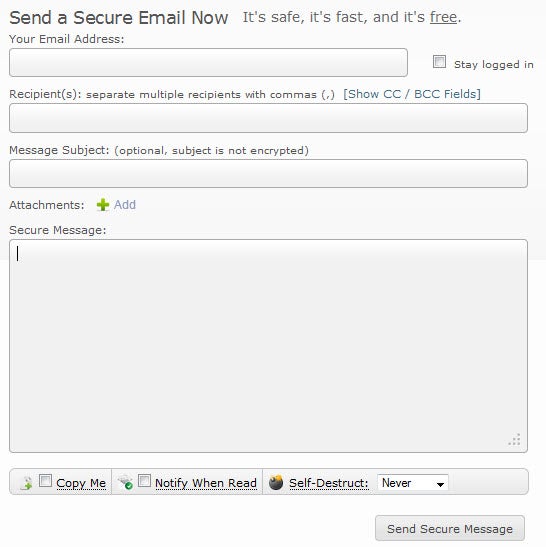
Web-based services like Sendinc or Lockbin aren’t quite as safe, but considerably easier to use. With these services, you can send encrypted mails directly via a Web form. The downside? You have to entrust all data to a specific provider.
Those who distrust services such as Gmail, Yahoo! Mail and Outlook.com can switch to alternative providers. The demise of Lavabit, the service used by NSA whistleblower Edward Snowden, means one less option, but there are alternatives in the mix.
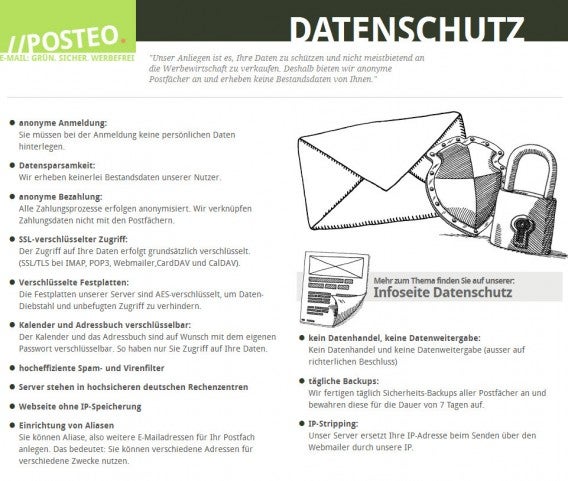
Posteo, a German-based start-up currently working on translating their full services in English, advertise with similar promises of privacy and data protection like those offered by Lavabit, including transmitting all data with SSL encryption and storing it using asymmetrical encryption on their server.
You can register and pay for Posteo anonymously: no connection or inventory data is collected about users, and the servers encrypt all email data, as well as address books and calendars.
3. Disposable email addresses
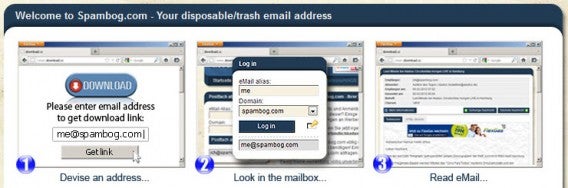
Another interesting option is to send an email with a so-called ‘disposable email address’. These addresses often have a lifetime of onlya few minutes and, in many cases, don’t even require you to log in. You remain anonymous upon request and none of the data will appear in your inbox.
4. E-mail messages with expiration dates
Instead of encryption, another option is deciding on the lifespan of an email. This is also handy for keeping control of email data held by recipients. The idea was first presented by Project Vanish.
A version of Vanish that’s easily installed on Windows isn’t available, but providers such as Sendinc and Burn Note already offer similar functions.