How To Connect Quickly to a WiFi With Your Mobile Phone?

Holidays aren’t complete without meeting loved ones, and many times we end up traveling during Christmas to meet the people we love and haven’t seen in a long time. It’s safe to assume you’ll spend some time with them or at least stay for a meal. While most of us have our mobile internet, it’s ineffective when traveling, especially in a new city or country. That’s where Wi-Fi comes in.

While you may feel it’s smart to connect to a public network that’s not password protected, that’s one of the riskiest things to do since these open networks are highly susceptible to virus attacks which could risk your device and the data on it.

In such scenarios, the best thing to do is to connect to the wifi of your host. How do you do that? Always begin by asking them if it’s ok, and then proceed to ask them for the password. Once you’ve got the go-ahead and the password, you’ll need to connect quickly to wifi with your mobile phone.

  1. Connecting Your iPhone to Wi-Fi

    Connecting Your iPhone to Wi-Fi 1

    If you’re looking to connect your iPhone to a wifi network, you need to go into settings. This is the gear icon you will see on your home screen. Under the settings menu, you will see wifi at the top of the screen. Tap it, and you will enter the wifi settings.

    At the top of the screen, toggle the WiFi switch to the “on” position. Your phone will now scan for all available networks nearby. If your wifi switch is already on, you just need to refresh your screen to see the list of available networks. When you see a network name you recognize, tap on it.

    If you see a lock icon next to the network name, it means that the network is protected by a password. Public networks are not usually protected by a password. If password protected, you will be asked to type in the password after you tap on it. Once you enter the password, click the join button in the top right corner.

  2. Connecting Your Android Phone to Wi-Fi
    Connecting Your Android Phone to Wi-Fi 2

    When connecting your android device to a new wifi network, you have a couple of ways to do it. The first way is to swipe down on the home screen. The notification shade will come down with a list of options. Some phones may have a profile option in the top right of their phone. You would need to tap it to bring down the menu options.

    Once the quick menu scrolls down, tap and hold on the Wi-Fi icon. You will see a list of available networks. If your wifi is not enabled, you need to toggle it on. You will see a list of networks. Password-protected networks will have a lock icon next to the name, and open networks will not have this.

    Tap the network you want to connect with and tap on connect. If the password is correct, you will be connected to the network. You can also connect to a Wi-Fi network through your android settings. In the menu, you will see a gear icon. Tap on it and then tap on “Wireless & Networks.”

    Some phones may have listed this as “network & internet” or “connections.” You will see wifi as an option on the next screen. If it is on, it will scan for available networks. If it is off, you will have to switch it on. The steps from here on are the same as the quick menu method.

  3. KaiOS

    KaiOS wi-fi

    If you have a phone running on KaiOS, follow these simple steps. Open the settings on your phone and tap “Network & Connectivity.” Switch on wifi on the next screen, and your device will scan for nearby networks.

    Locked networks will have a lock icon next to the name, and open networks will not. Once you tap on a password-protected network, you will be prompted for a password. Enter it and tap on connect.

Stay Connected, No Matter Where You Go

Limited internet connection won’t ever be an issue when you know how to use your mobile device to connect to a wifi network you trust. These steps mentioned above are simple and effective, so you’ll manage to connect to the network in no time, irrespective of which device you own.

While connecting to Wi-Fi during Christmas is easy, you need to remember to respect boundaries when you’re using someone else’s network. For starters, don’t download large files that could slow down the entire network unless necessary. It’s also rude to stay connected to the network when revisiting without permission. Whenever you plan to connect to wifi, no matter how many times it is, always ask before connecting.

The Most Technological Christmas Dinner

Festivals and food go hand-in-hand, and no matter how busy a lifestyle you lead, nothing can bring you more joy than having a Christmas meal with your loved ones. Whether it’s a small family gathering or involving all your friends, holiday meal planning is fun, especially when it’s done right.

Pulling out those Christmas recipes and juggling between the spatula, the pages, and the sauce can often lead to just one recipe – a recipe for disaster where you’ve got sauce spread over half the recipe, and you don’t know how to proceed.

These days dinners are more technological, and if you’re wondering how to put up the most technological dinner for Christmas, then lo and behold, the modern version of recipe books – apps that can make your life so much easier.

Kitchen Stories

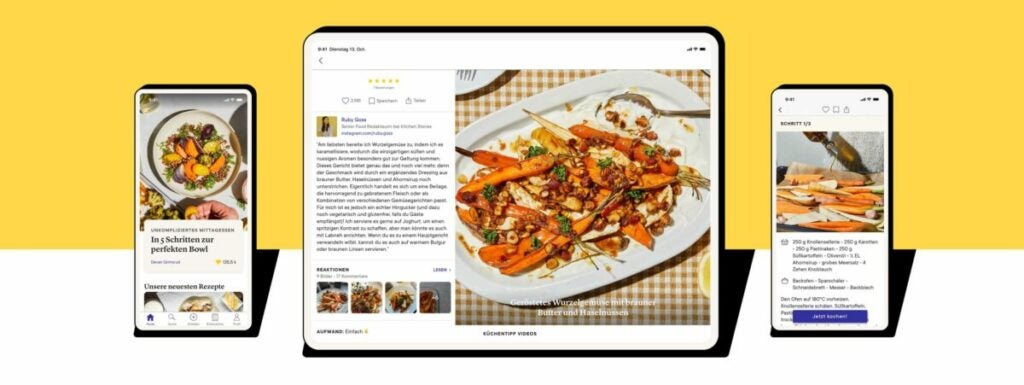
Who needs a recipe book when you’ve got an app that offers much more? Kitchen Stories is not just a cooking app; it’s a community of people who share a common passion for cooking. Remember when you started at a recipe and had a ton of questions in your mind? You can now ask all of those questions thanks to this app. It comes with detailed recipes and some tips and tricks that can help you improve the recipe to give it a personal touch.
The best part about the app is that it also comes with a measurement converter, so you know what quantities are needed without struggling to find a measuring unit. While the basic app version is free, it’s best to unlock all the features to get the best out of it.

Christmas Dinner Prep Apps

Oh She Glows

If healthy recipes are what you crave, Oh She Glows is for you. This app has over 160 plant-based recipes. The app also has pro tips from New York Times bestseller Angela Liddon.

With this app, you can check trending recipes. You can even make a list of special recipes you want to create for special occasions or the holiday season. You can also filter recipes based on season, allergies, diet, or dish type. You can even add personal notes to the recipes in the app for future reference. You can now embrace healthy food quickly with the help of Oh She Glows.

Christmas Dinner Prep Apps

Food Network Kitchen

Not everyone is a pro at cooking, and If you’re keen on learning new recipes for the holidays, then the Food Network Kitchen app is an app you need to get your hands on. The app comes with more than 50 live classes that are conducted by some of the best names in the culinary world, including chefs, authors, and celebrity guests. You can alter these classes to watch them at your speed and learn the basic cooking steps before you advance to a classic holiday dish.

The app has a huge library of recipes that enables you to find something you and your loved ones will enjoy. It’s connected to Amazon fresh, so you can just add the ingredients to the list and shop for them in the comfort of your home.

Christmas Dinner Prep Apps

Allrecipes Dinner Spinner

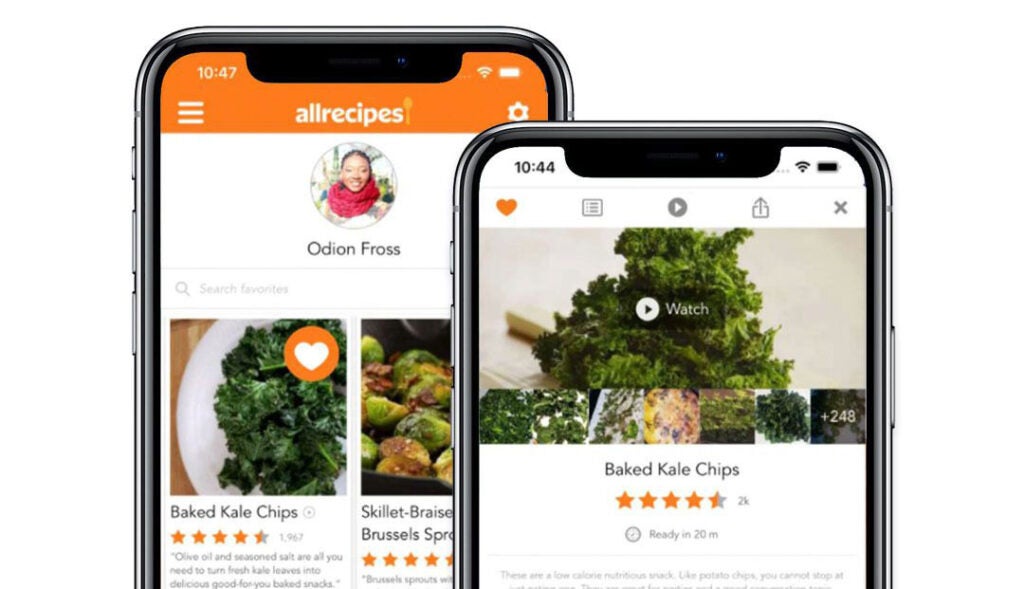
Now you no longer have to worry about finding delicious recipes with Allrecipes Dinner Spinner at your fingertips. This is basically a social app for food. The app allows home cooks to share their tips and stories regarding cooking. This is one of the best apps for homemade food, and the best part is it is free to download.
You even get a personalized feed where you can find the dishes you like to eat. You also get access to a library of recipe videos to watch and learn how to create sumptuous dishes. The app also provides ingredient suggestions that are easily available in your area. This helps make shopping a breeze.

Christmas Dinner Prep Apps

Yummly

The app needs to introduction; everyone is familiar with the viral social media recipes Yummly is popularly known for. The app is just as interesting but more in-depth. If you enjoyed watching those drool and Instagram-worthy dishes, Yummly could help you achieve it for the holidays. The app comes with detailed step-by-step explanations on how to prepare dishes and also helps to simplify a complicated process, so you get it right. The app boasts over 2 million recipes.

Yummly is known for its built-in timer that enables you to keep a close eye on your recipes without the risk of over or under-cooking them. It offers many tips and tricks and helps you connect with widgets, including the Apple Health App, if you want to keep track of your calories during the festive season.

Christmas Dinner Prep Apps

BBC Good Food

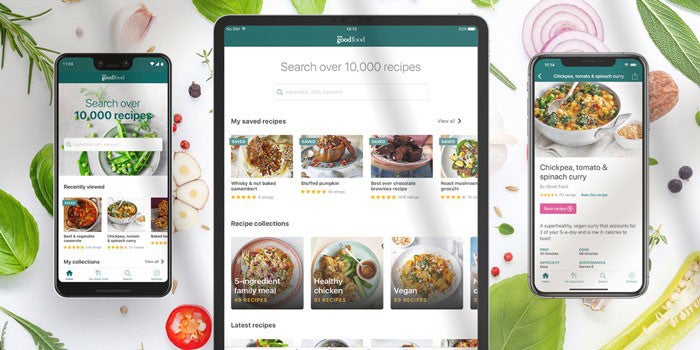
BBC Good Food stands out because of the volume of recipes available. You can search the recipe library using ingredients, keywords, dishes, or occasions. You can even create a special collection of your favorite dishes to reference them later easily.

The app even allows you to rate recipes based on ease of prep and taste. This will help the app give you suggestions based on your preference. Since it comes with a three-month trial, there’s no reason you shouldn’t download this app today and prepare for the festive season ahead.

Christmas Dinner Prep Apps

Tasty

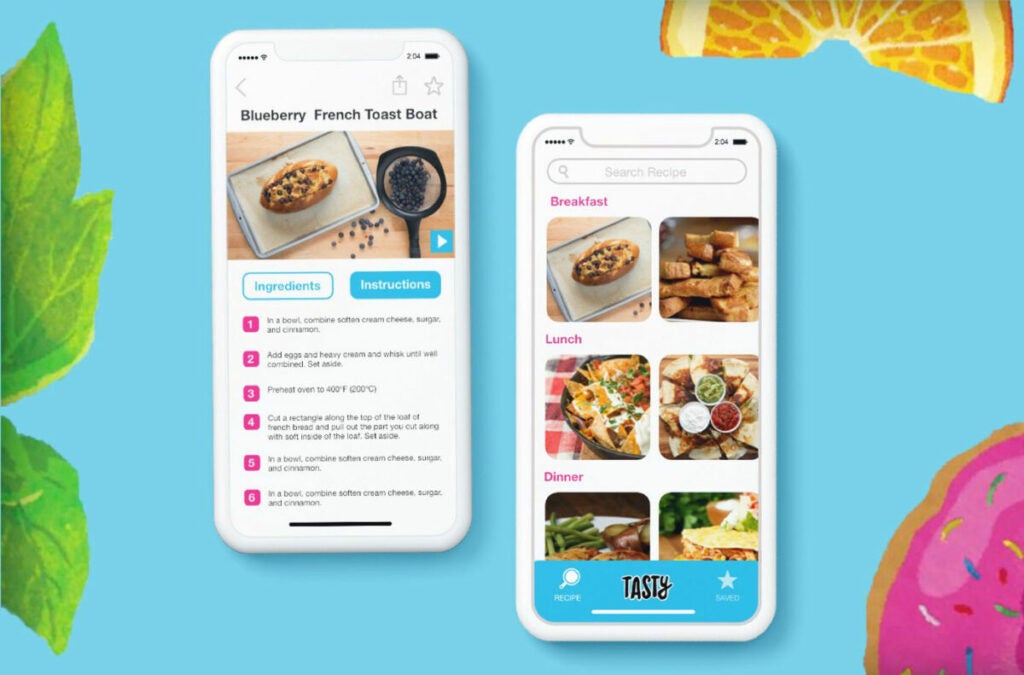
The app, like Yummly, needs no introduction. Tasty is another viral video brand known to share mouthwatering recipes that seem like a breeze to prepare. Downloading this app will do you a lot of good during the festive season. It’s one of the only apps on the list that allows you to sort out recipes based on occasion and helps you pick the most popular or the simplest ones to prepare, depending on how much time you have in hand. 

You can customize the Tasty app based on your dietary preferences. If you’re a vegetarian, you can set the app to only show vegetarian recipes. The app can be connected with your shopping apps to add and purchase ingredients too.

Christmas Dinner Prep Apps

Lay out the table in style this festive season

Cooking delicious and healthy meals will not be a challenge anymore with these amazing apps. The best part is most of these apps are available on all devices, so you won’t have any excuses not to put out amazing food. Try out any of these apps today and have a fabulous holiday season.

New Dishes for Christmas and New Year’s Eve! Do You Know What the Ingredients Are?

Christmas and New Year’s are times of family, fun, and frolic, and it’s unlikely to be complete with food. Come the festive season; everyone aims to put out their best dishes to gather around the table and enjoy. Food and memories have a deep bond, so each time someone reminisces about their childhood or a special moment around the holidays, it’s usually got a lot to do with food.

If you’re missing Grandma’s Christmas cake or the roast chicken your dad made when you were younger, fret not; these amazing apps will help you identify how to create new dishes for Christmas and the new year by helping identify what ingredients go into preparing them.

Whole Foods Market Recipes

Just because it’s the holidays doesn’t mean you have to let go of your diet plans. Thanks to Whole Foods Market Recipes, you can now look for amazing meals to prep for Christmas without compromising on your chosen ingredients.

This app is user-friendly and comes with search options that allow you to look for recipes based on dietary preference so you can keep the meals healthy. The app has a bonus feature that helps you look for the nearest Whole Foods Market to pick up your ingredients under one roof.

Fancy Christmas Food Apps

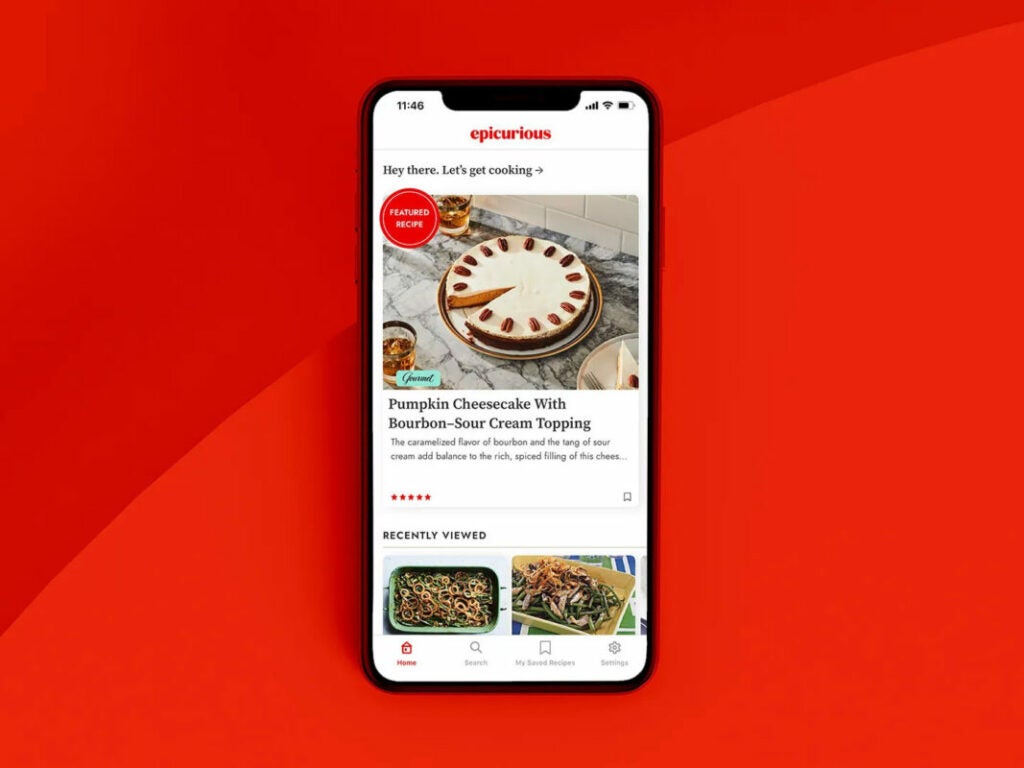
Epicurious

If you’re looking to impress your guests with a fancy spread, then Epicurious is the app you need. It includes a detailed compilation of over 30,000 Gourmet and Bon Appetit magazine recipes.

The videos are in-depth and give you all in information and a list of ingredients you need to prepare a full-course meal for the holidays. The app also comes with recipe reviews, so you don’t waste time on a recipe that isn’t popular.

Fancy Christmas Food Apps

Cook’s Illustrated

Chris Kimball, the host from America’s Test Kitchen fame, created this app to help amateur cooks master the skill with detailed recipes, step-by-step instructions, and ingredients they need for specific dishes.

Since everyone knows how important brands are, the app also helps you pick out ingredients based on brands so you can replicate a gourmet dish as closely as possible. However, if you want to read reviews about the ingredients listed, you might have to pay for the subscription, which can cost about $34.95 yearly.

Fancy Christmas Food Apps

Holiday Recipes & Party Planning Guide by Food52

What’s better than having a New York Times food writer create an app to share recipes curated for the holidays with you? Having two of them! Holiday Recipes & Party Planning Guide by Food52 is an app created by Amanda Hesser and Merrill Stubbs, who strive to share their food knowledge with home chefs. The app focuses on holiday food and helps you look for recipes you grew up enjoying. The book comes with a total of 127 recipes, all of which are popular holiday foods.
Fancy Christmas Food Apps

How to Cook Everything

Nothing warms the heart more than a wholesome home-cooked meal, especially when it’s prepared well. On the How to Cook Everything app, you’ll find everything from recipes to ingredients to tips on how to bake, grill, fry, and more.

It also helps you get recipes based on the time required so you can pick and choose a menu based on how much time you have. Although this is a paid app, it’s worth the investment considering you can even use the built-in timer and voiceover function that helps you hear the recipe as you go instead of going back and forth to your device to check it out.

Fancy Christmas Food Apps

Food Network In the Kitchen

What better way to prepare your holiday meal than to bring chefs into your kitchen? The Food Network In the Kitchen app is a hassle-free app that helps you pick out dishes prepared by chefs, and it also gives you details about the ingredients and creates a personalized shopping list. You’ll also get complete access to a library that consists of how-to recipes. This feature is only available on iOS for now.

Fancy Christmas Food Apps

Martha Stewart Makes Cookies

You can’t go through the holiday without a sweet treat from Martha Stewart, and what better way to enjoy them than to prepare them at home? The Martha Stewart Makes Cookies app gives you all the details, from recipes to ingredients to tiny instructions, that can make your dish outstanding. You can also use these recipes to craft treats to hand out as presents to your loved ones during the festive season.

Fancy Christmas Food Apps

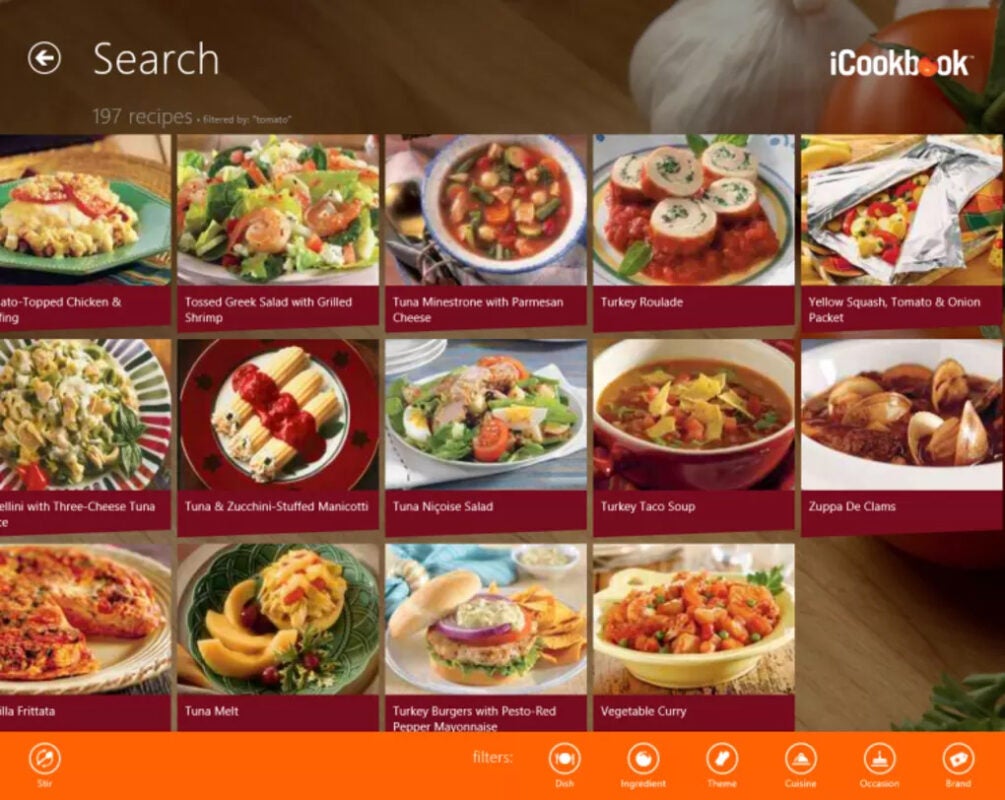
iCookbook

This app is any home cooks bible, and it’s safe to say getting the app on your phone will make your holidays merry and bright. Whether looking for the most impressive recipes to cook or picking out old classics, it has everything you need. The app is simple and efficient and gets you covered for any meals you may want to prepare during the holidays. It also has a huge compilation of healthy alternatives for people with diabetes or those who want to watch their waistline during the festivities.

Fancy Christmas Food Apps

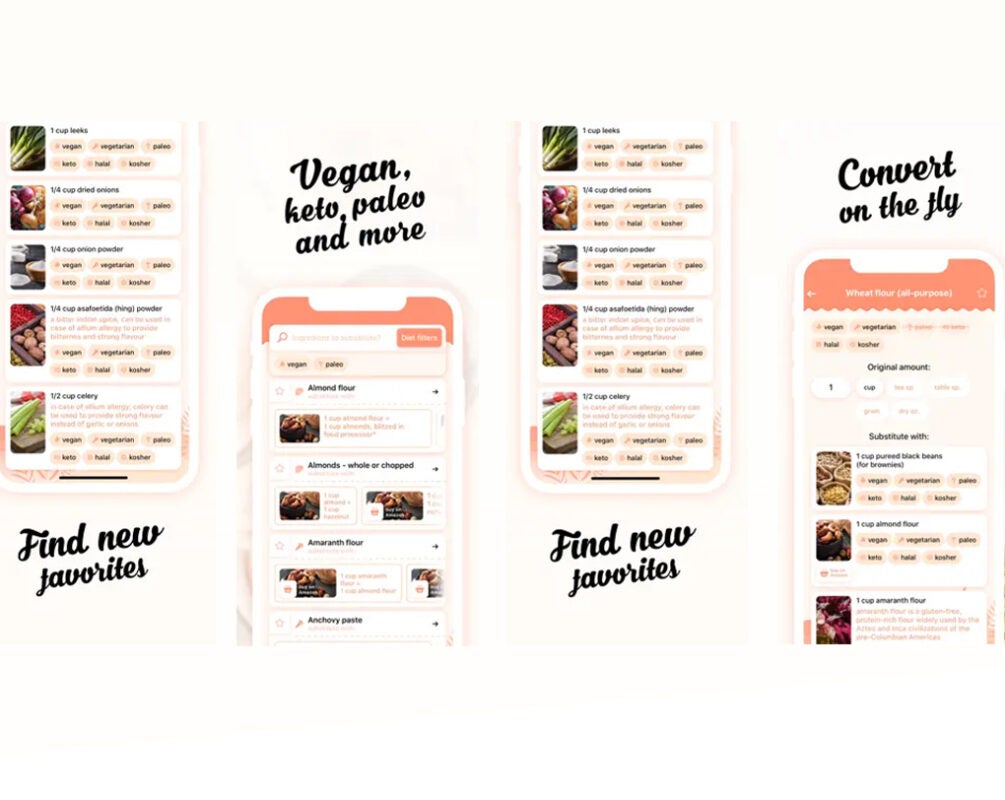
Substitutions

You’re wondering why this app made it to this festive special list and why you need it anyway? Imagine having chosen a recipe you’ve waited a long time to prepare. You’re all excited, and you got your ingredient list ready. You’ve headed over to the supermarket, and you’re frantically looking through the aisles. You head over to all the other shops you can think of, but you’ve got nothing.

That’s when Substitutions will feel like a savior. It’ll help you identify the closest possible substitution for the ingredient and enable you to carry out your special holiday menu without any hiccups. It’s also a great app to help look for alternatives when you’ve got allergens to worry about or ingredients you’ll don’t eat/like.

Fancy Christmas Food Apps

It’s time to lay the Christmas table

Now that you’ve got everything you need to start your Christmas or New Year party, it’s time to pull out your holiday china and set the table. These apps are all amazing and have features that’ll make cooking fancy holiday meals a breeze.

Top Cricket Streaming Apps To Enjoy Watching Cricket On-The-Go

Nowadays, watching cricket on your desktop or laptop and on the go with a mobile device like a tablet or smartphone is possible. Live streaming is the way to go if you love watching cricket but don’t want to fork out for an expensive subscription. 

Many apps offer live streaming of international matches. This article will look at the best cricket streaming apps so you never miss out on a game.

Picking the Top Apps for You

We picked these apps based on the following:

  • Number of users who have downloaded the app
  • Average rating of the app by users
  • How many games can you watch in real-time
Best Cricket Streaming Apps

Live Cricket HD

If you love watching all cricket games happening globally, then you can’t go wrong with the Live Cricket HD app. This Android app is one of the best cricket streaming apps available. It allows users to watch all cricket matches live from any location.

The app is easy to use and offers a smooth user experience that will help you watch every match. You can easily toggle between games and check live statistics to improve your knowledge while watching. 

Cricket Exchange – Live Score Analysis

Cricket Exchange is another fantastic app that lets you stream cricket matches globally. It provides scores and live updates on all major tournaments. Users can watch cricket highlights, news, interviews, and more on their mobile devices. It also has a section dedicated to live cricket news that keeps you updated with all the latest happenings in this game.

PTV Sports Live – HD

PTV Sports Live is an excellent app that allows you to watch live cricket matches and highlights of all games. You can also get access to HD matches on your mobile phone. The app is available for Android users and comes with a user-friendly interface.

HD Live Cricket TV 2022

There are many ways to watch cricket, even when you’re not in front of your television. HD live Cricket TV is one of the best ways. This amazing app lets you watch all matches on your Android phone or tablet.

All games are available in HD; you can watch highlights or complete replays of any games happening globally.

Cricket Line Guru

This app is easy to use and has a wide range of features. The developers have ensured that this app works well with all major networks so you can watch your favorite matches wherever you are. This app also provides several categories for users to choose from when looking for live matches and full HD quality videos so you can enjoy watching your favorite matches anywhere at any time.

The app offers many features, such as video highlights, live scores, and match stats. If you’re looking for an excellent cricket streaming app to enjoy watching, then cricket line guru is one of the best options available.

Best Cricket Streaming Apps

Live Cricket HD TV

This HD TV app is an excellent option if you are looking to enjoy cricket on your iPhone. It allows you to watch live matches from all over the world and provides an interactive experience that lets you follow the action in real-time. This makes it a great choice for those who want to follow their favorite team wherever they may be.

All you need to do is register with the app. Once that’s done, you’ll be able to watch all the matches live from everywhere worldwide. If there aren’t any matches, you can check out the latest news and check back later for a live game.

HopeTv – Live Cricket Score

HopeTv provides live scores, summaries, and schedules. It allows you to watch any match live through its live streaming service with high-quality video and audio in multiple languages. HopeTv does not require any registration. Simply download and install it on your Android device to stream live matches worldwide.

Live Cricket TV HD Streaming

If you love watching live HD cricket, you should try Live Cricket TV. The app not only streams live games but also gives you information about the game and other vital statistics related to the game.

Best Cricket Streaming Apps

Live Cricket TV

Live Cricket Streaming HD is another top Android app that provides live streaming, scores, and statistics for all games around the world. The app is available in multiple languages, and you can even set alerts when your favorite team is playing.

Live T Cricket Sports TV

This app offers live streaming and cricket statistics. You can watch all the matches live, along with live commentary. The app has an easy interface and provides information on players and past team history. This is a comprehensive app for all cricket lovers.

Star Crickets

Star Crickets is a classic cricket streaming app to enjoy watching cricket on the go. This app provides live matches, highlights, replays, and training videos of your favorite team. The app is available for Android users. It has a simple user interface, and you can enjoy everything in HD quality.

ABC Cricket Scores

If you are an avid cricket fan and want to watch the game on your computer or Windows phone, ABC Cricket Scores Widget is for you. This app provides cricket fans with everything they need related to their favorite game. It has user-friendly features, and you don’t have to go through many steps while installing it.

Cricket Australia Live

Cricket Australia Live is one of the best streaming apps to enjoy watching live cricket, especially if you’re a fan of Australian teams. The app is compatible with all Windows devices and lets you enjoy live streaming of popular cricket matches and major tournaments. All you need to do is download the app and install it with a few simple steps.

Cricket.com

If you love watching live cricket on your Android device, then cricket.com is the best app for you. This app offers live streaming and scores of all the matches played across the globe. The app also allows users to watch videos of their favorite players and teams. It has a user-friendly interface that makes it easy for users to navigate without problems.

Best Cricket Streaming Apps

Enjoy online cricket action!

Over the last couple of years, free-to-air coverage for cricket matches has improved. With the increase in the number of apps, it was imperative that we went through the top ones and provided only the best. All the apps mentioned in this article provide the best streaming services for watching cricket matches. If you love tournaments like the IPL, you can download specialized apps such as CricBuzz for entertainment.

How to use PassKeys with iOS 16

Never again will you need to remember a long five-digit password when signing in to your favorite app or website. With the release of iOS 16, users are given the option to replace passwords with digital keys while still having access to their fingerprints or face detection.

iOS 16 DOWNLOAD

So what are PassKeys, and how do they function? Read on to learn more about how to use PassKeys with your iOS 16 device.

What does the passkey mean, and how does it work with iOS 16?

As mentioned above, PassKeys are digital keys. These keys are stored on all your Apple devices and are meant to replace passwords. These digital keys use Apple’s cloud keychain tech and sync all your Apple devices. These PassKeys are also linked to the app you created them for.

This reduces the risk of phishing attacks where someone tries to sign you up for a fake website or app. PassKeys are one of the most secure features released by Apple. You can now have complete and instant access to all your accounts and apps without remembering any passwords.

How are PassKeys different from the cloud keychain?

Although the cloud keychain does a similar thing where it auto-enters usernames and passwords, PassKeys are more secure. With this feature, there is no password. Instead, a cryptographic key pair is created once you create an account. One key stays with the app server, and the other key is stored in the cloud keychain. This private key remains unknown. When trying to log in, your phone authorizes PassKeys using Face ID or Touch ID, and this authentication is sent to the app.

How safe is passkey in comparison with LastPass?

Lastpass is ideal for businesses with multiple users. There are charges per user. Although the system is secure, it gets expensive to scale up. PassKeys, on the other hand, are free to use. However, this is purely for personal use.

The setup for Lastpass is not that easy as compared with PassKeys. The support quality for Lastpass is also not that great compared to PassKeys.

What is the procedure to activate PassKeys for iOS 16?

  1. Create an account

    How to use PassKeys with iOS 16

    To use PassKeys on your iPhone, you first need to check which apps and websites it supports. You will need to enter your password as usual for websites not supported.

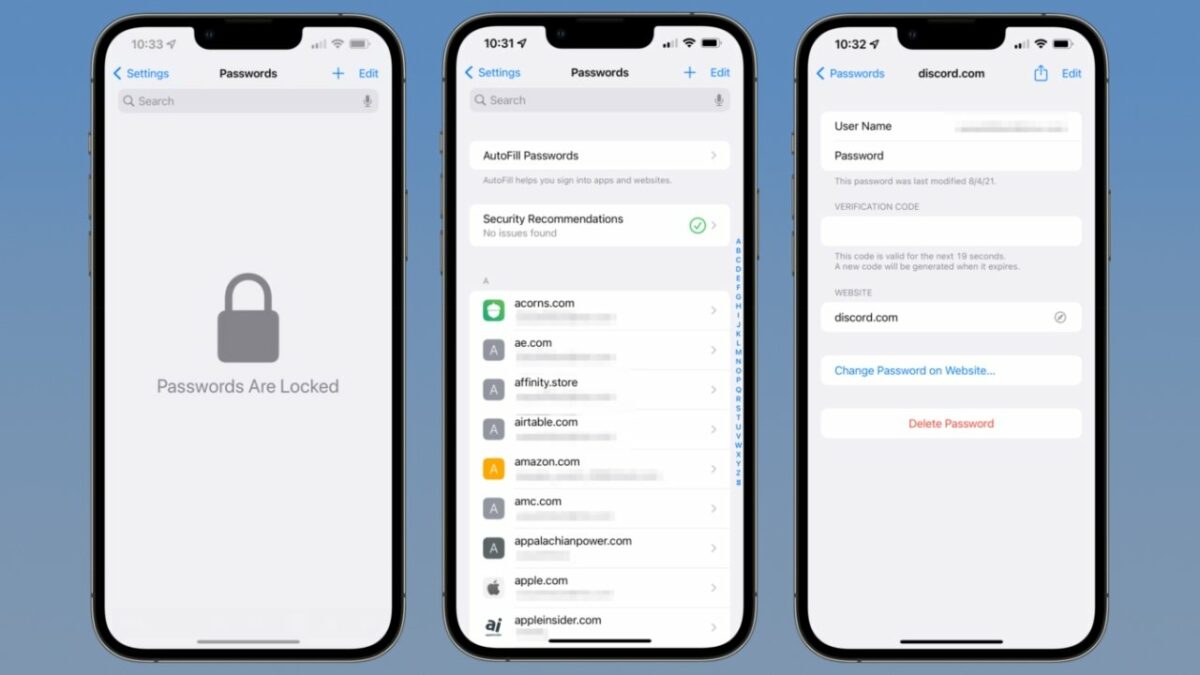
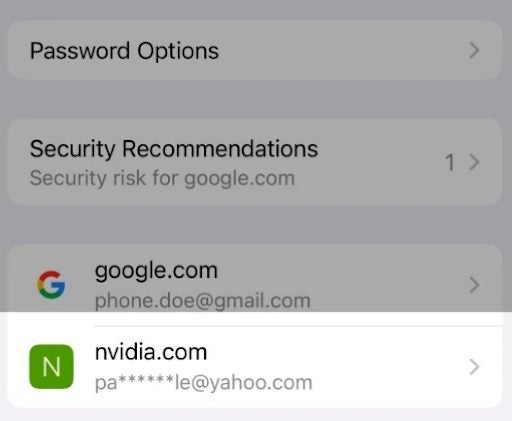
    Before using PassKeys, you must first create an account on their site. After creating your account, you will find your saved PassKeys under the passwords menu in the settings section. This section will also tell you for which sites PassKeys have been created.

  2. Enable PassKeys

    How to use PassKeys with iOS 16

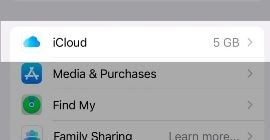
    To switch on PassKeys, all you need to do is go to settings. From there, you need to click on profile and iCloud. Then you need to select passwords and keychain. You must then click on sync this iPhone. After that, you need to enter your iPhone and iCloud passcodes to proceed.

Secure your iPhone

Overall, PassKeys is an excellent iOS 16 feature and can go a long way to secure your personal information. To check more features of the iOS 16, download the latest version here. If you’re looking for new iOS 16 chargers, read more here to know if you need one. You can also check out App Lock or Password Manager if you’re looking for similar password apps.

Latest features in iOS 16.1

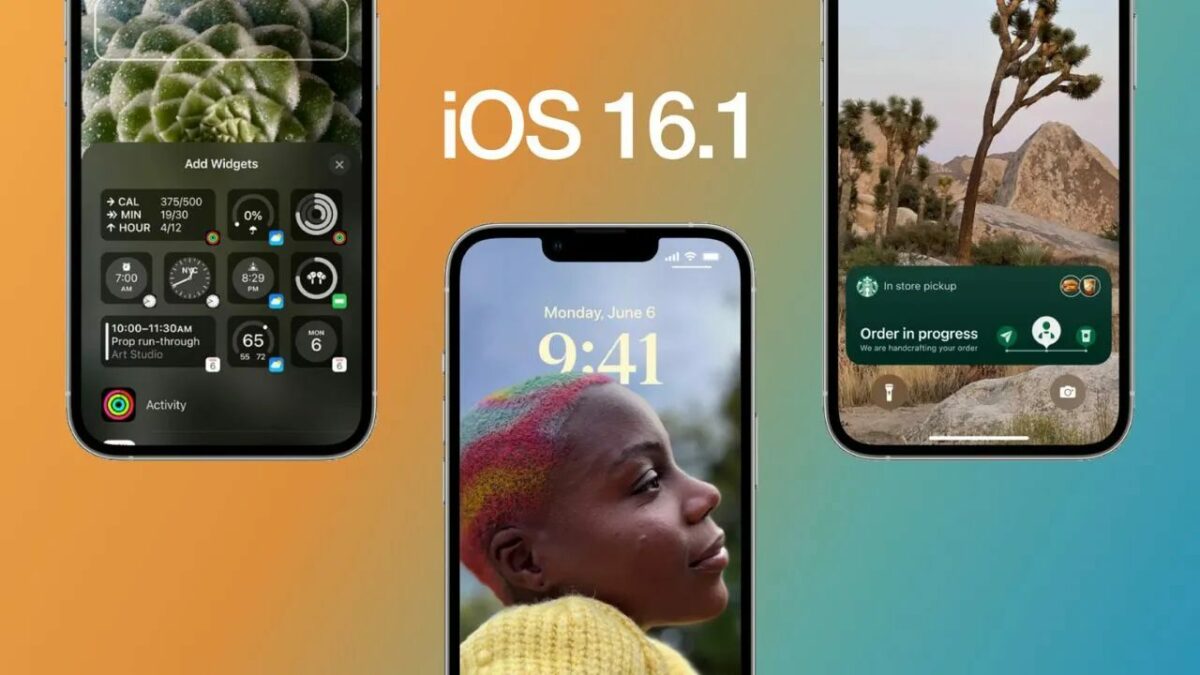
Apple recently released its latest update to iOS 16.1, one of the most anticipated iOS updates. This new version has been developed to make your iPhone or iPad faster, easier to use, and more reliable.

So what are the major new iOS 16 features? This article will walk you through all the new updates, what they do, and how to take advantage of them.

iOS 16 DOWNLOAD

Live activities

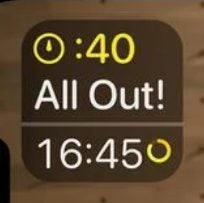
The redesigned iOS 16.1 update will allow it to run live activities on the lock screen. This means you’ll be able to interact with friends and family members or even just check in on your favorite apps, like Netflix, without having to unlock your phone first. To take advantage of these new features, you’ll need an active internet connection and an iPhone or iPad with iOS 16.1 installed.

Latest features in iOS 16.1

A redesigned iOS 16 battery percentage indicator

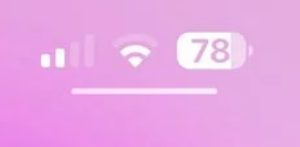
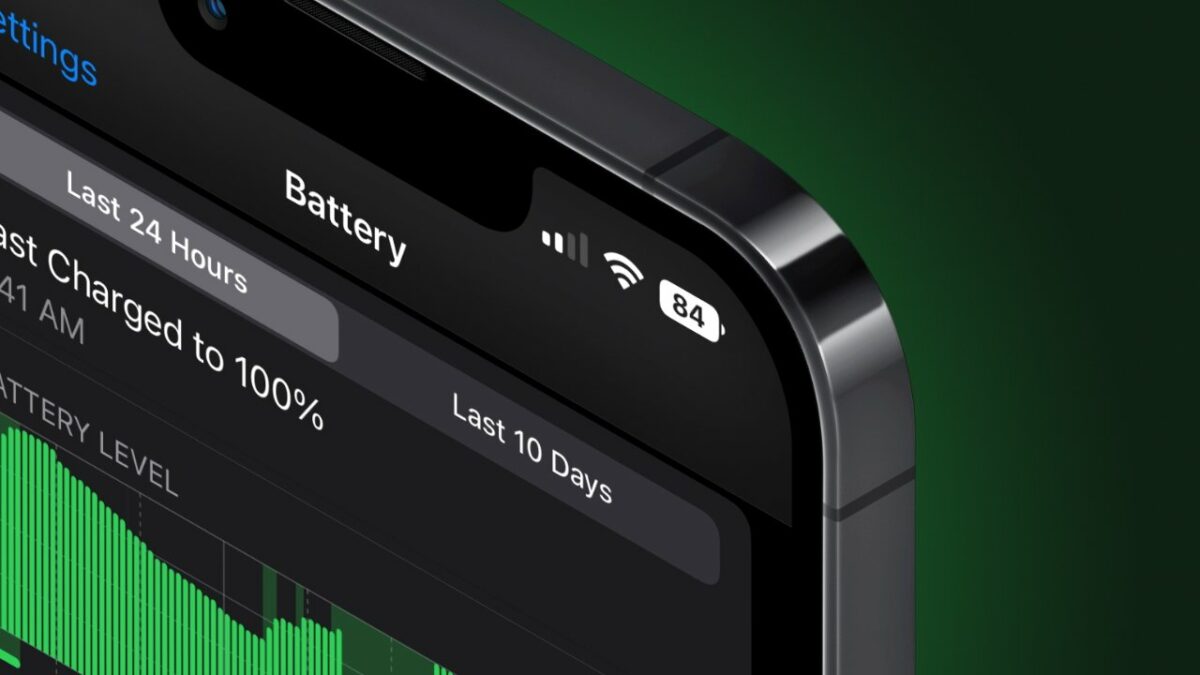
The redesigned battery percentage indicator is part of the new iOS 16.1. This design change was brought about by Apple’s desire to make the battery indicator more user-friendly and easier to understand. The new design has three separate bars representing your device’s current, minimum, and maximum battery levels. It also includes a percentage sign at the bottom to indicate how much battery life remains in your phone.

Latest features in iOS 16.1

Apple Fitness+

Apple Fitness+ is designed to be used in conjunction with other fitness-tracking apps, and it will automatically sync with these apps so that users can keep track of their progress over time. The app also offers some additional features like setting goals for yourself and seeing how far along those goals you’ve come over time, reviewing your stats in detail, and getting recommendations on how best to improve based on your current activities and habits.

Latest features in iOS 16.1

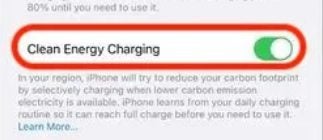
Clean energy charging option

The new clean charging option allows you to charge your iPhone when lower carbon-emission electricity is available. This ensures that there your phone uses a green charging method. One drawback of this method is it doesn’t charge the phone completely, and users will still need to recharge by toggling this option off.

Latest features in iOS 16.1

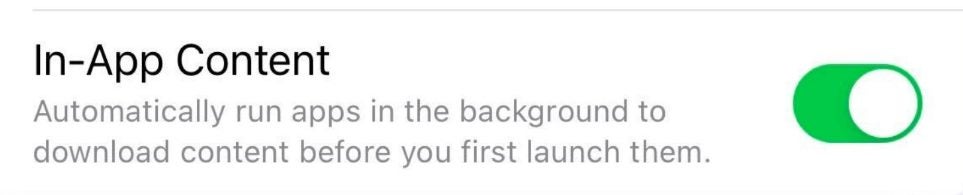
Background content download

Apple’s new iOS 16.1 update automatically runs newly downloaded apps to download content in the background before launching them. This is a change from previous versions of iOS, which did not do this.

This means that if you have a new app on your phone and launch it, it will download any needed data before opening. For example, if you have an app that requires access to the internet to function properly, it will download its required data before starting up. This feature improves the experience for users who often have trouble with their battery life due to downloading apps in the background.

Latest features in iOS 16.1

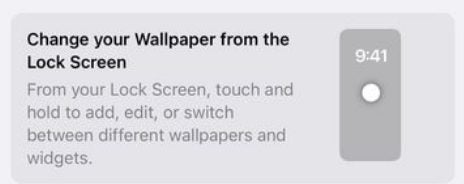
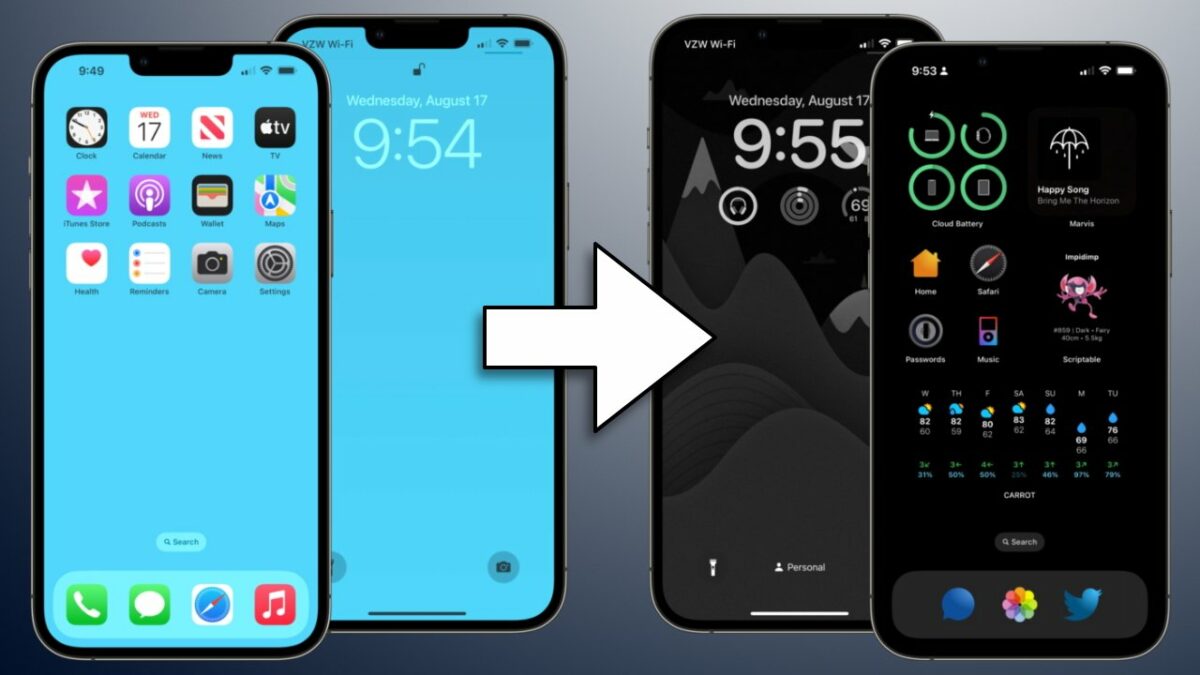
Redesigned iOS 16 wallpaper section

iOS 16.1 has a redesigned wallpaper section in settings, giving users more control over their wallpaper. The new designs are more intuitive and easy to use, and they’re designed to be more appealing to users of all ages.

Users can now control their home screen’s color, spacing between elements, and the size of elements on their device’s home screen. They can also choose from a new collection of realistic backgrounds that match the theme of each device.

Latest features in iOS 16.1

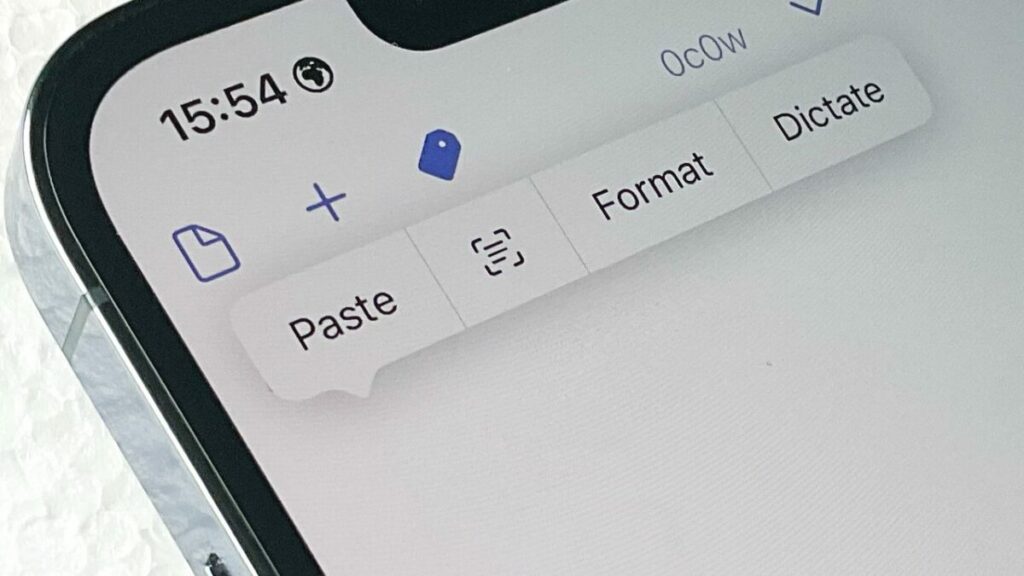
Copy paste prompt

iOS 16.1 has fixed the constant copy-and-paste prompt bug. In iOS 16, the constant copy-and-paste prompt would appear every time you copied and pasted text into a text field in your app. This was a problem for many users, making it difficult to use apps like Slack or WhatsApp, where text is often used as part of a conversation. In addition, it also caused problems with some third-party iOS apps that relied on pasting text from other apps into their interface.

Latest features in iOS 16.1

Enjoy the new iOS 16 features

iOS 16.1 arrives with several new features for Apple users, including some much-needed enhancements. Even though the update is relatively minor, it could be one to watch as we head toward 2023. Be sure you read more about how the EU will require all iOS 16 devices to use USB Type C charging ports.

Optimize iOS 16 for battery saving

As we all know, one of the main issues with Apple devices is battery life. While iOS 16 includes some battery-saving features, you can still do a few things to optimize your device for even better battery life. One of the best things you can do is to reduce the amount of time your screen is active. You can also disable raise to wake and enable low power mode under settings.

iOS 16 DOWNLOAD

Additionally, make sure to close any apps that you’re not using and update to the latest version of these apps when prompted. Here are a few simple ways to prolong your battery life on iOS 16 devices.

How to optimize iOS 16 for battery saving

  1. Spotlight and photo indexing

    How to optimize iOS 16 for battery saving

    With iOS 16, two new features drain the battery life: spotlight and indexing of photos. Spotlight is a new feature that allows you to search for specific keywords within your photos. So, if you’re looking for a photo of your cat, you can just type in “cat,” and it will bring up all the photos of your cat that are stored on your phone.

    Indexing of photos is a similar feature, but it goes one step further and actually creates a database of all the photos on your phone so that they can be searched more easily. Both of these features are great in theory, but they put a lot of strain on the battery life. So, if you want to preserve your battery life, you might want to disable these features.

  2. App updates

    How to optimize iOS 16 for battery saving

    Have you ever noticed that the battery of your iPhone seems to drain more quickly after you’ve installed a software update? While it may seem like a coincidence, it’s actually quite common. That’s because app developers often take advantage of new features in the latest operating system to add new functionality to their apps. However, they don’t always do a great job of optimizing their code for performance. As a result, installing app updates can sometimes lead to reduced battery life.

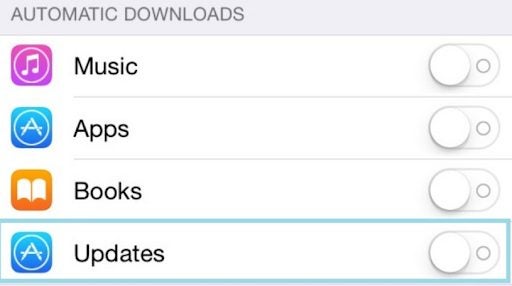
    Fortunately, an easy way to avoid this problem is to disable automatic app updates. Doing so will ensure that your apps only update when you’re ready to install the latest version. In addition, it’s a good idea to check for updates and install them manually regularly. This will give you more control over your apps’ updates and help you avoid battery drainage problems.

  3. Optimize apps

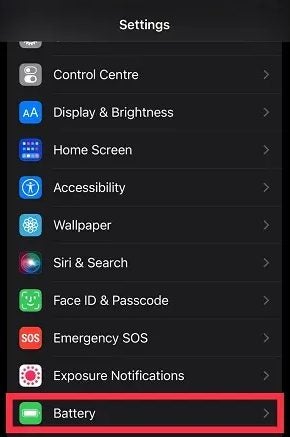
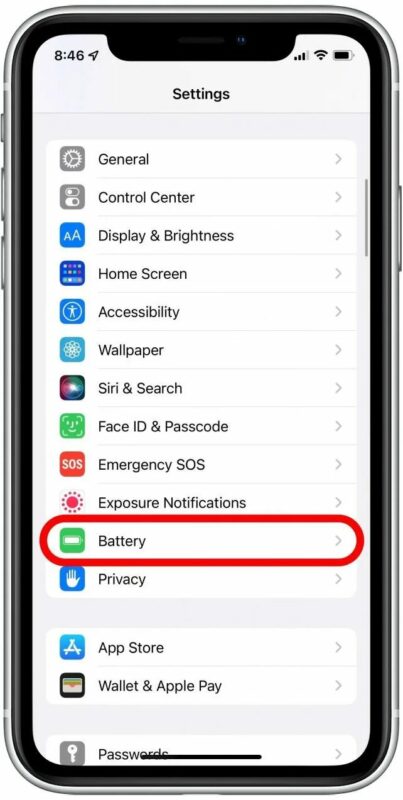
    There are a few ways to determine which apps are draining your battery the most. First, go to Settings > Battery. Here, you will see a list of all the apps that have used your battery power in the last 24 hours. The app at the top of the list is the one that has used the most power. If you tap on an app, you will also see how much power it has been used in the background. You can optimize your battery for this app or simply uninstall the app if you no longer need it.

  4. Low power mode

    How to optimize iOS 16 for battery saving

    The low power mode is one way to extend battery life on your iPhone. When you activate low power mode, apps will be restricted from accessing location services or cellular data. This means that apps won’t be able to use GPS, access the internet through your carrier, or even download new content from the App Store.

    You’ll still be able to use other apps that require these features – for example, if you want to take pictures with Flickr or browse Facebook – but they won’t be able to use these features unless they run in the background while they’re open.

  5. Keyboard haptics

    How to optimize iOS 16 for battery saving

    The keyboard has been equipped with haptic feedback in iOS16, which means that when you type, you feel the movement of your finger on the screen. This is useful because it allows you to type without looking at your phone but also uses a lot of power. If you turn off the keyboard’s haptic feedback, you can use your phone for longer before charging it.

3 ways to disable website not trusted message in browser

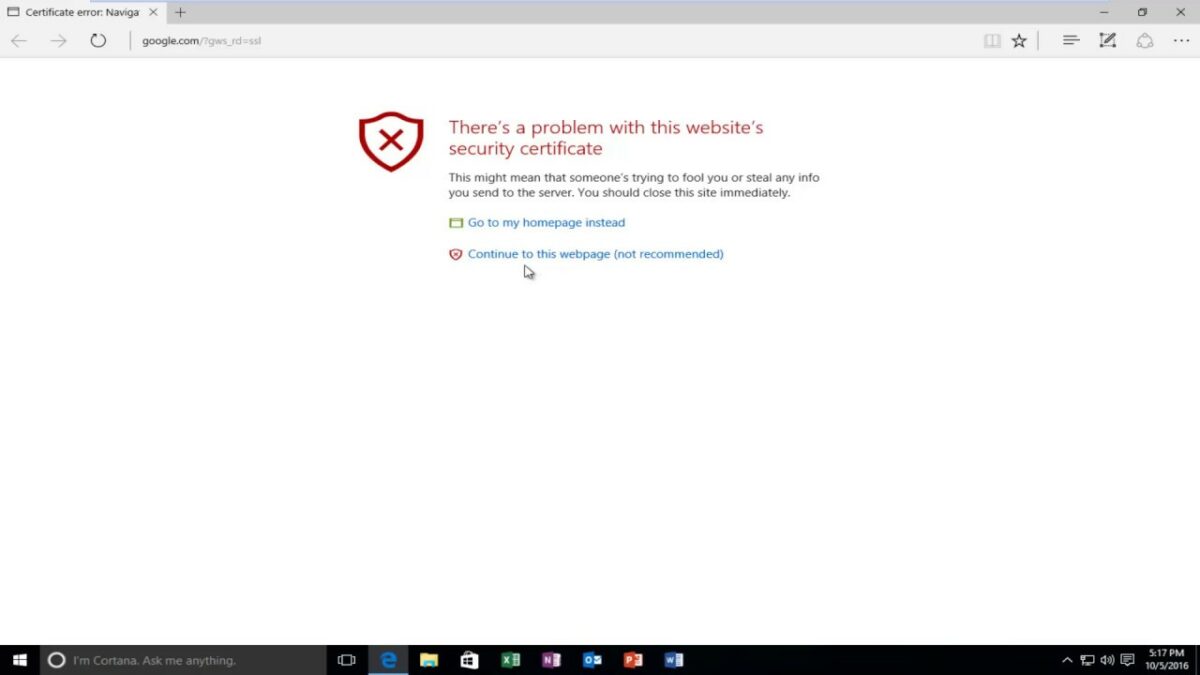
We all know that feeling of unease when we see a message on our screen telling us that a website is not trusted. It’s enough to make even the most computer-savvy among us click away instantly. But what does this message really mean? And is there any way to disable it?

Unfortunately, there’s no easy way to do it. The best thing you can do is to ensure that you only visit websites that you trust and that have a valid SSL certificate. If you’re unsure about a site, take a moment to research it before entering any sensitive information. By being cautious and informed, you can help to keep yourself safe online. This article is for you if you still want to access a site with a ‘not trusted message.’

What is the website not trusted message?

In short, the message tells you that the website you’re trying to visit may not be safe. This can be for several reasons, but typically, the site doesn’t have a valid SSL certificate. SSL stands for Secure Sockets Layer, a protocol that helps keep your data secure when browsing the web. A website with a valid SSL certificate means that the connection between your browser and the site is encrypted, making it much harder for someone to intercept and steal your data.

How to disable the website not trusted message in your browser

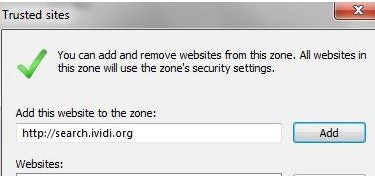
  1. Adding the website to the trusted list

    disable website not trusted message in browser

    In most cases, you can simply add the website to your browser’s trusted list, and the message will go away. This is an effective way to disable the certificate error message, but it’s essential to understand why it appears in the first place. You can also try using a different browser like internet explorer. Websites that are not on a trusted list are typically less secure than those that are, so it’s essential to be cautious when visiting them. If you’re unsure about a website, it’s always best to err on the side of caution and avoid adding it to your trusted list.

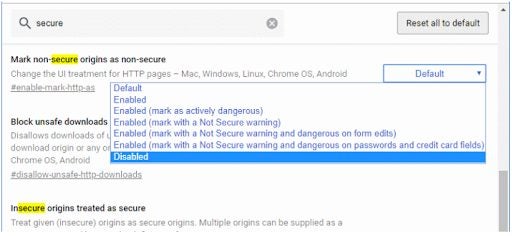
  2. Disabling the HTTPS warning

    disable website not trusted message in browser

    Disabling the HTTPS warning is an effective way to disable this error. This error message can be caused by various factors, including incorrect time and date settings on your computer. If you frequently see this message, your computer’s clock is likely inaccurate. Check your computer’s date and time settings and ensure they’re correct.

    If you continue to see the message after correcting your clock, you may need to clear your browsing data. Choose “Clear browsing data” from your browser’s settings and select “cookies and other site data.” This will remove any stored cookies that could be causing the problem.

    Finally, if you’re still seeing the error message, your DNS cache may have become corrupted. Try flushing your DNS cache to see if that fixes the problem. If none of these steps work, it’s likely that the website you’re trying to visit is not trustworthy. In this case, it’s best to avoid giving them personal information.

  3. Contacting the website admin

    disable website not trusted message in browser

    Asking the website admin to use a valid SSL certificate is another effective way to disable this message. When I tried to access my bank’s website, I saw this message and found out that the site wasn’t using a valid SSL certificate.

    I contacted the bank, and they told me they had already rectified the situation and now used a valid security certificate. Asking the website admin to use a valid SSL certificate is usually the simplest way to avoid getting the error message.

Visit the site, but remain safe

I hope this article helped you understand how to disable your browser’s “website not trusted” message. This is a common problem that several different things can cause, but the most likely cause is that your browser’s security settings are set too high. If you still see the message after following the instructions in this article, please contact the website’s support team; they’ll be happy to help. Be sure to check out our article on how to remain safe online.

How to disable the Search button on Home Screen in iOS 16?

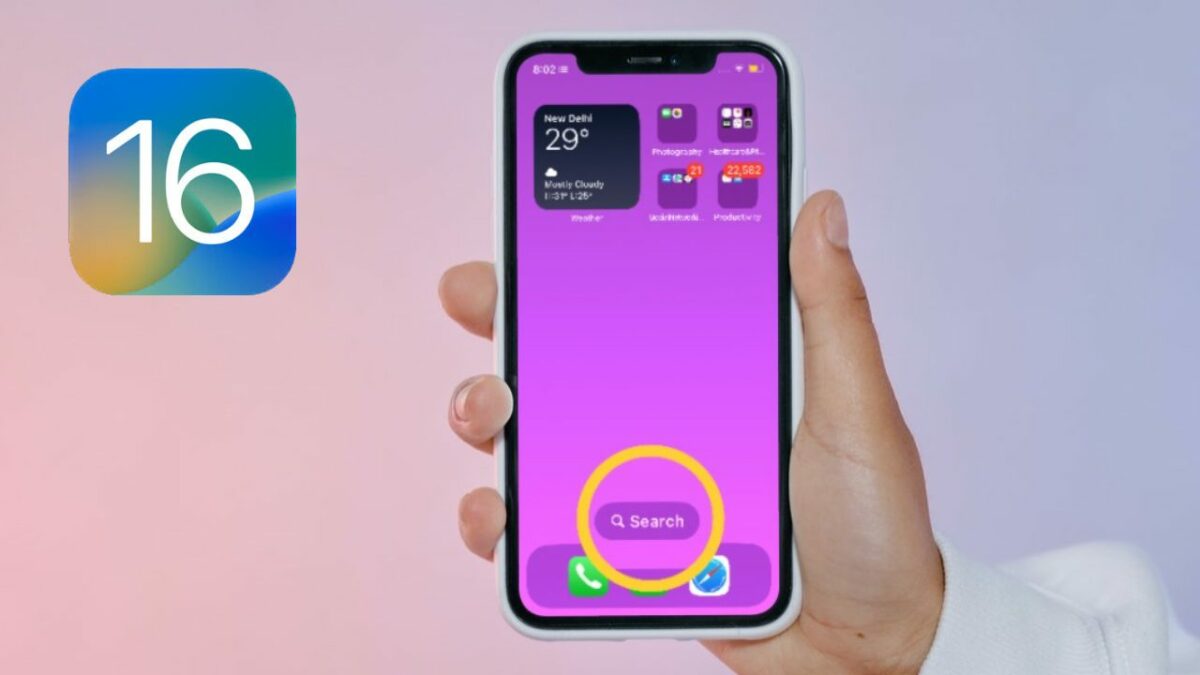
With the release of iOS 16, Apple enabled users to disable the search button on the home screen. While this may be convenient for some, others may find it annoying or intrusive. Fortunately, there is a way to disable the search button if you find it unnecessary.

iOS 16 DOWNLOAD

While the design of the iOS 16 search button was meant to make using your device more efficient, not everyone agrees. Here’s how to quickly remove it in a few steps, plus some helpful tips.

Not a user-friendly search button

A few people don’t like the new search button on the home screen in iOS 16. It’s not that the button is hard to find or use, but it’s just not as convenient as it used to be. Before, you could just swipe down and start typing. Now, you must tap the button first, and then you can start typing.

It’s a small change, but it’s one that a few people have noticed. It’s also one that a few people don’t like. The good news is that you can still swipe down to access the search screen. So if you’re one of the people who doesn’t like the new button, you can just ignore it and continue using your iPhone the way you always have.

Disable the iOS 16 search button on the home screen

  1. Removing the search button on iOS 16

    Removing the search button on iOS 16

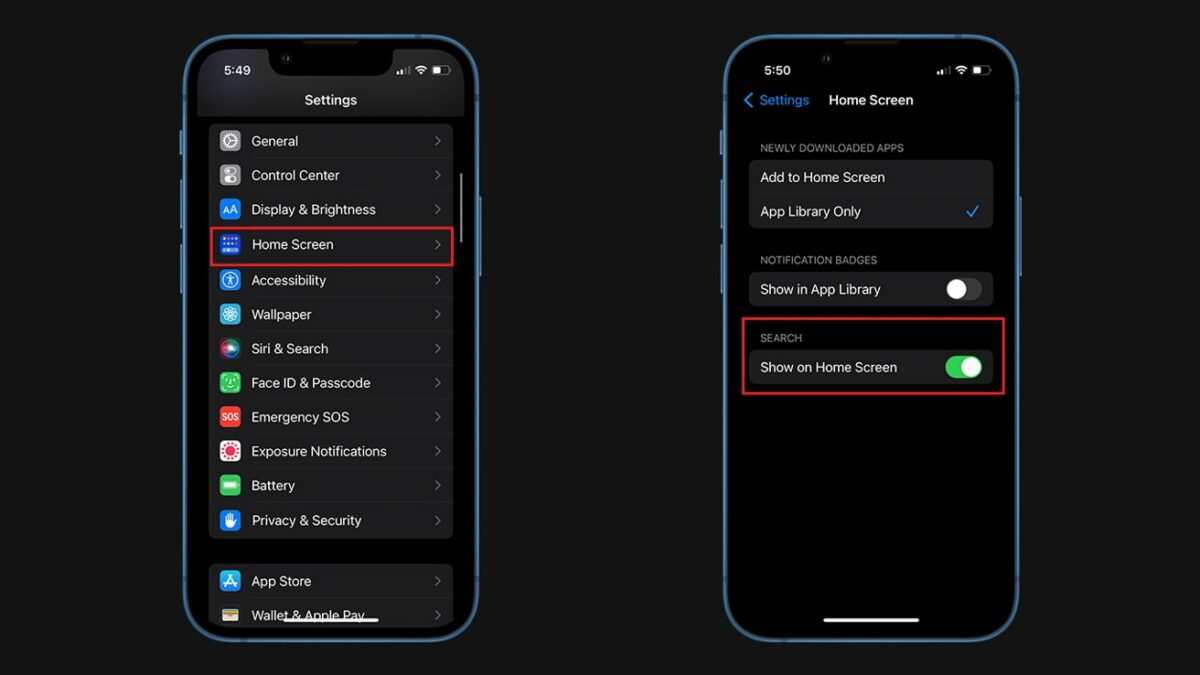
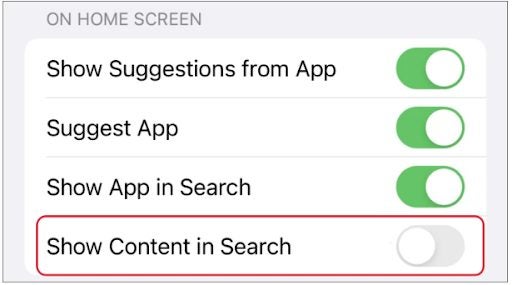
    It’s easy to turn off the Search button on your Home Screen in iOS 16. Just go to Settings > Home Screen. Then scroll down and tap the button next to “Show on home screen.” This will disable the Search button on your Home Screen. If you ever want to enable it again, just follow the same steps and tap the button next to “Show on home screen” to enable it.

  2. Change the way apps are displayed

    Removing the search button on iOS 16

    In iOS 16, you can now change how apps are displayed on your home screen. You can either have them appear as a list, or you can have them appear in a grid. To change how apps are displayed, open Settings and tap Home Screen. Then, tap on App Display. You will then be able to choose between List View and Grid View.

    If you choose List View, apps will be sorted alphabetically. If you choose Grid View, apps will be sorted by category. You can also move apps around by tapping and holding on an app, then dragging it to a new location. This makes it easy to customize your home screen to your liking.

  3. Remove unwanted or unused apps

    Removing the search button on iOS 16

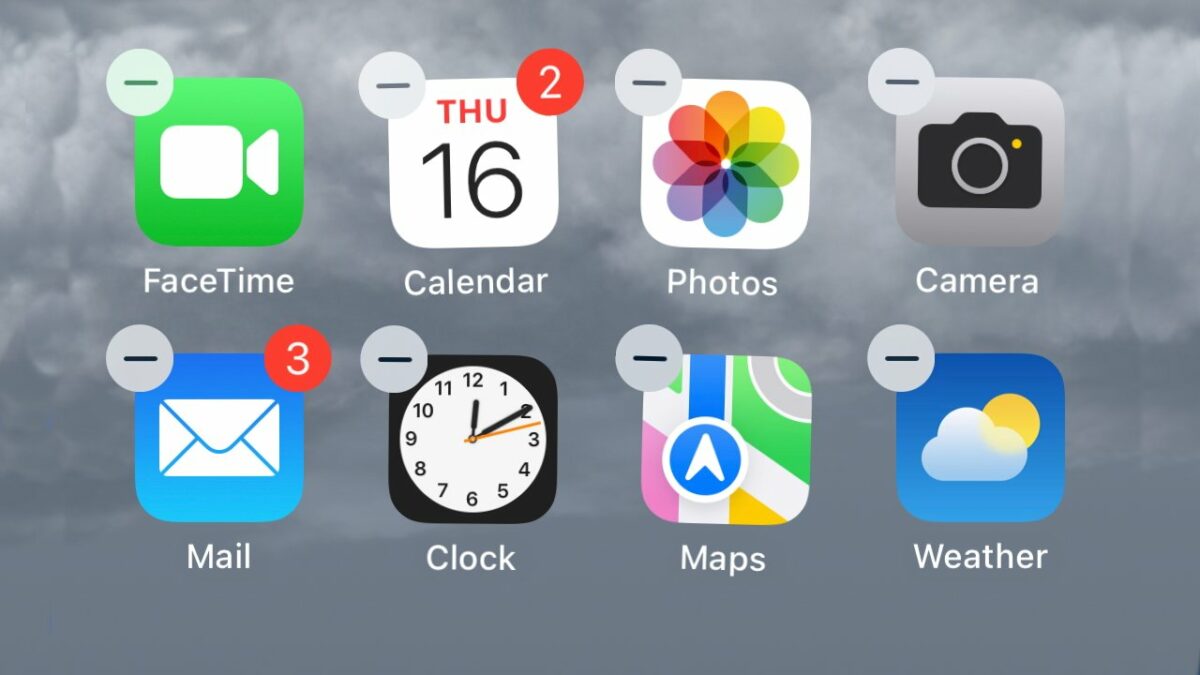
    With iOS 16, Apple allowed users to remove unwanted or unused apps from their Home Screen. This was a welcome change for many, as it helped declutter the screen and make it easier to find the apps being used. However, some users are unaware of this feature or have not yet taken advantage of it.

    If you are one of these users, here is a quick guide on removing apps from your Home Screen in iOS 16. First, long-press on the app that you want to remove. A menu will appear with several options. Tap on the ‘Remove from Home Screen’ option. The app will then be removed from your Home Screen. If you change your mind, you can always add the app back by opening the App Store and tapping on the ‘Add to Home Screen’ option.

    If you’re still confused about the home screen, be sure to read our guide on how to use the new Home app on iOS 16.

Best ways to cut people from photos and place as stickers with iOS 16

How would you like to remove someone from a photo and then use them as stickers in your replies? We’ve been seeing more of this happening lately on chatting apps. However, not everyone knows how to use the function on iOS 16.

iOS16 DOWNLOAD

In this guide, you’ll see how you can cut people from images and use them as stickers with iOS 16, as well as what are the best ways to do so.

How to cut and use people from images as stickers with iOS 16

  1. Copying and pasting with iOS 16

    cut images ios 16

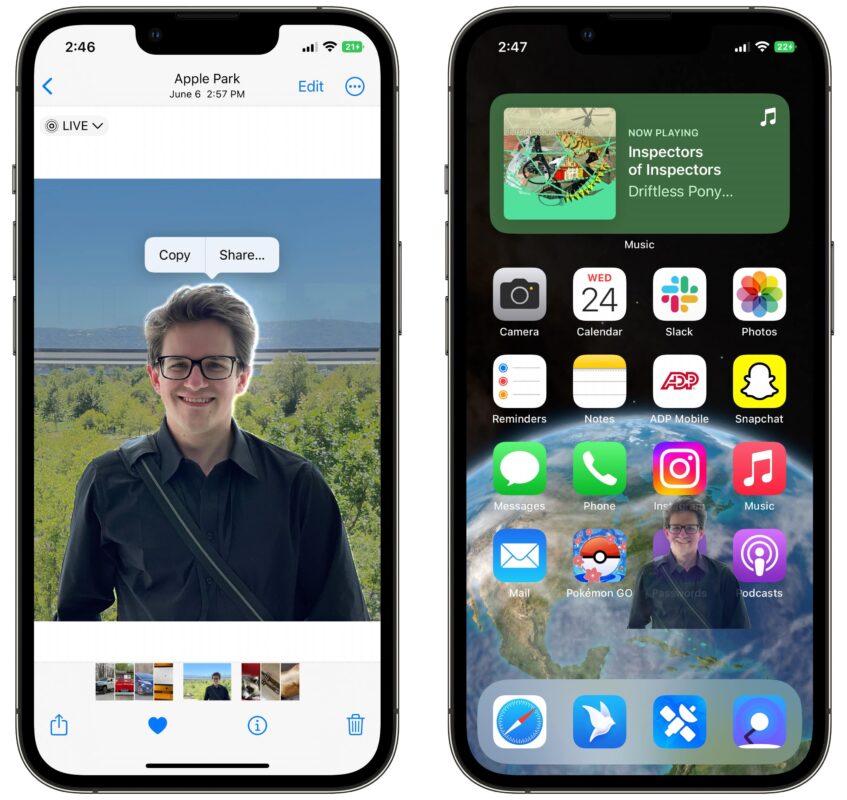
    Copying and pasting a photo cutout is now easy with iOS 16. Just press and hold the part you want to cut out, then tap “Copy.” You can paste the photo cutout anywhere in your notes or other apps. This feature is convenient when you want to create a collage or montage of photos.

    It’s also great for copying a specific object from a photo and inserting it into another photo. For example, you could remove a person from a group photo and paste them into a different photo. Or you could copy a flower from one photo and paste it into another photo to create a beautiful bouquet. With iOS 16, the possibilities are endless!

  2. Sharing made easy

    cut images ios 16

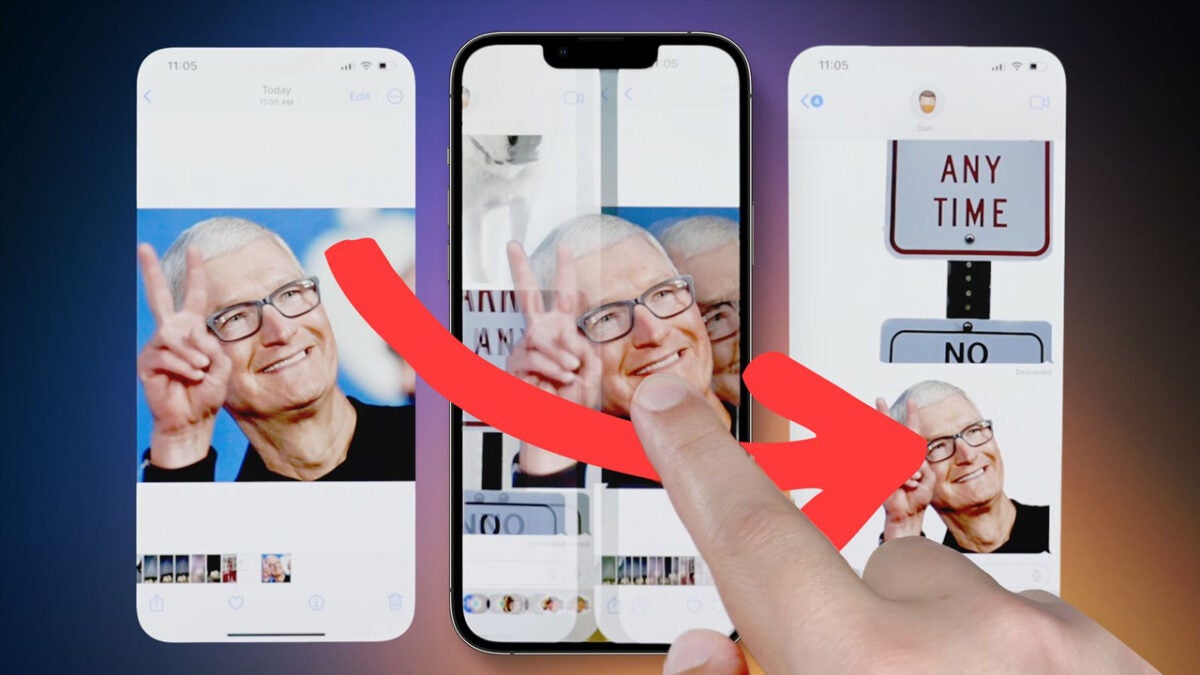
    Previously, sharing a photo cutout with a friend or family member could be a bit of a hassle. Cutting out part of a photo needed top photoshop skills. But now, with iOS 16, sharing a photo cutout is easier than ever. Thanks to the new feature, you can simply select the photo cutout you want to share and send it via any messenger app.

    The recipient will then view the photo cutout in high resolution and save it to their device. So next time you want to share a special moment with someone, there’s no need to go through the hassle of learning photoshop. Just hold down and share.

  3. Making a meme

    cut images ios 16

    With the release of iOS 16, making memes has never been easier. The new photo cutout feature allows users to select an image and then add their text quickly. This makes it quick and easy to create a meme without the need for any special software or skills. And best of all, the results can be shared with friends or family with just a few taps.

    So if you’re looking for a fun way to entertain yourself or others, why not try iOS 16’s photo cutout feature? You might just find yourself becoming a meme-making pro in no time. To make a meme, follow the below steps:

    – Open Instagram

    – Click on add a story

    – You can take a new picture or upload an existing photo as a background for your image

    – To do this, press and hold the image and tap copy

    – Come back to the Instagram app and click on the allow paste option

    – You will now see the cutout appearing as a sticker option at the bottom left

    – You just need to add sticking and make the cutout the subject of your meme


  4. Making a mood board

    cut images ios 16

    With the release of iOS 16, one of the most exciting new features is the ability to create mood boards easily. With this update, you can now cut out photos from your camera roll and add them to your mood board with just a few taps. This is a great way to quickly gather inspiration for a project or get your creative juices flowing. Since you can save your mood boards on your device, you can always refer back to them later. So if you’re looking for a new way to get inspired, be sure to give the mood board feature on iOS 16 a try.

  5. Have fun with photo cutouts

    cut images ios 16

    The new photo cutout feature on iOS 16 is a great way to add a little personality to your photos, and it’s also surprisingly easy to use. All you need to do is your iPhone or iPad. You then select the photo you want to use and cut out what you need.

    You can choose from different cutouts, including animals, objects, and even people. Once you’ve selected a cutout, you can simply tap and drag it into place. And that’s it! You can then share your creation with your friends and family and see how they react.

    If you’re a bit worried that this feature will interfere with the safety of your device, check our guide for taking control of your privacy on iOS 16.