The Most Popular Mobile Apps Downloads Of 2022

Apps have ruled people’s lives for a little over a decade now. There is an app for just about everything – even something as simple as reminding you to brush your teeth. While some believe that mobile apps have made humans lazy, others believe apps help improve their efficiency.

If you love apps and are looking for the next amazing app, check out this list of the most downloaded apps for 2022.

TapTap

Downloads: 2463247

TapTap is the perfect app for gamers. It allows gamers to see the various games available and try out these games so they can see for themselves if it’s worth spending on. Gamers can also see which developers are coming up with a new game. Some developers even allow gamers to test their games before a release. Gamers can try these games and give direct feedback to the makers.
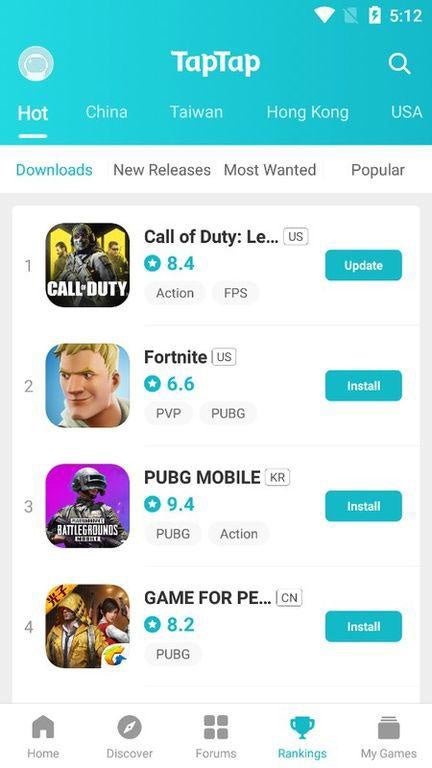
TapTap Most Popular Mobile Apps

VidMate

Downloads: 2152472

VidMate is a top downloader app that allows you to download songs and videos from different platforms such as YouTube, Vimeo, Tumblr, Dailymotion, Soundcloud, and more. It allows you to download videos from any platform of your choosing.

You can choose the quality of the download and all downloads are stored in your local download file. This is the ideal app for video lovers.
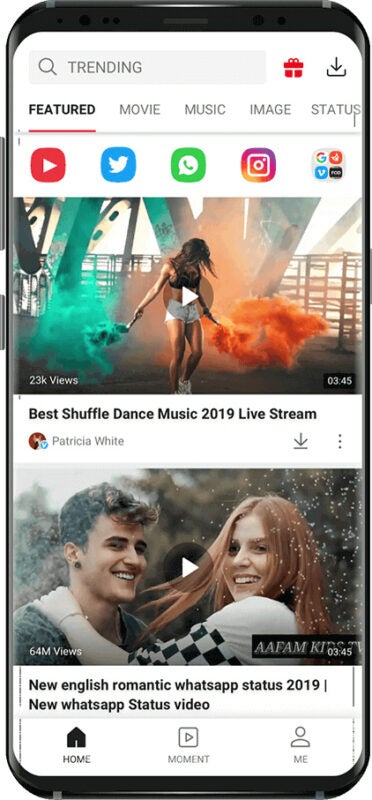
VidMate Most Popular Mobile Apps

Inat Box V2.0 Indir Tv Clue

Downloads: 842835

Inat Box V2.0 Indir Tv Clue is a lifestyle app developed by Darmanon Dev. The free app has a large collection of live streams and TV shows that can keep you entertained for hours.

The interface is very user-friendly and all content is categorized to perfection. While the app boasts mainly of Turkish content, it does have shows and movies from other parts of the world.

Inat Box V2.0 Indir Tv Clue Most Popular Mobile Apps

Dream League Soccer

Downloads: 669679

Dream League Soccer is a soccer simulation game similar to Pro Evolution Soccer (PES) and FIFA. It’s all about building your dream team. You need to pick the fastest and the most talented players and lead them to victory.

The file size is small and the app is free to download. This is the ideal app for football fans if they’re frustrated with large gaming files that take hours to download.

Dream League Soccer Most Popular Mobile Apps

CarX Street

Downloads: 932645

CarX Street is an exciting car simulation game. Drive around the busy city streets in a ride of your choice and explore the city and countryside.

You can also challenge other players in races and win points for each victory. Use these points to upgrade your vehicle and improve your gameplay. Show off your drifting skills as you take on your opponents.

CarX Street Most Popular Mobile Apps

SHAREit

Downloads: 927331

SHAREit is the perfect app to share any kind of file within seconds. The best part is you don’t need an active BlueTooth or wireless connection. The only thing the device needs (receiver and sender) is the SHAREit app.

You can share files with up to five devices at a time. This free app creates a private hotspot that allows you to communicate with other devices and share large files that are otherwise not possible via BlueTooth or WhatsApp.
SHAREit Logo
SHAREit

InstaPro

Downloads: 867618

InstaPro is an amazing app if you love Instagram. It allows you to download stories, reels, posts, and more from Instagram in just a few touches.

InstaPro has been developed by Atnfas Hoak who has also added privacy tools for users. Users can now hide their story views and ads with the help of this app. Since this app is not affiliated with the official Instagram app, you must be careful before downloading content.
InstaPro Most Popular Mobile Apps

WhatsApp Messenger

Downloads: 435694

WhatsApp Messenger has ruled the roost for over a decade now and it doesn’t look like slowing down anytime soon. With the advent of new chat apps, people assumed that the popularity of WhatsApp Messenger would fade away; however, that’s far from the truth. WhatsApp Messenger is still a popular choice for most people for personal and official chats. 

The reason the app downloads for WhatsApp Messenger is not that high in 2022 is that most people already have this app on their phones. The only new downloads would be when someone purchases a new phone and downloads the latest version of the app.
WhatsApp Messenger Most Popular Mobile Apps

YouTube Go

Downloads: 412456

If you love YouTube, then YouTube Go is a must-have app. This app is the ideal way to watch and download YouTube videos without using too much mobile data.

With YouTube Go, you can listen to music and watch videos on the go. You can also download these videos so you don’t have to rely on an internet connection if you feel like listening to your favorite song in a bad network area. Download YouTube Go today and enjoy the luxury of YouTube without the hassle of internet connectivity.

YouTube Go Most Popular Mobile Apps

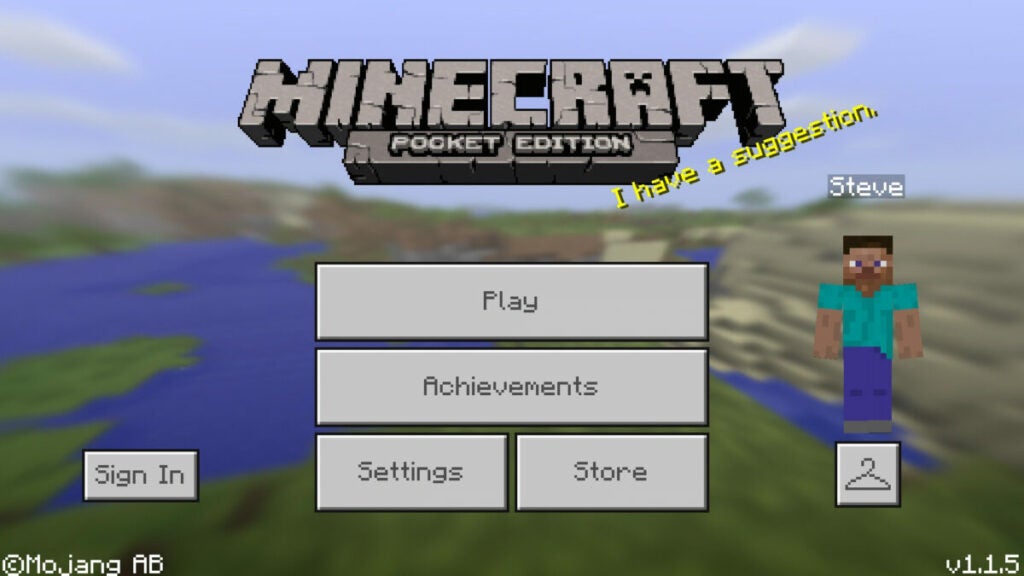
Minecraft Pocket Edition

Downloads: 471104

The Minecraft Pocket Edition is a mini-version of the desktop version. You get all the features of the desktop version in the palm of your hand. You can create buildings and 3D structures using blocks.

Minecraft Pocket Edition has impressive graphics for a mobile version game. With this app, you can enjoy all the features of the larger game while on the go.
Minecraft Pocket Edition Most Popular Mobile Apps

Top Apps To Help Ease Your Life

Apps continue to rule people’s lives. Apart from needing apps to sort their social media and workflow, apps also help entertain people. These were the top apps for 2022, and we can’t wait to see what 2023 has in store.
The Best Mobile Apps of 2022

Mobile phones have become so much more than just a device used to make phone calls. There’s a lot that you can do with a smartphone and the right apps, and while there’s a plethora of apps available, it’s always smart to know which ones are the best.

Here’s a list of some of the best mobile apps in 2022.

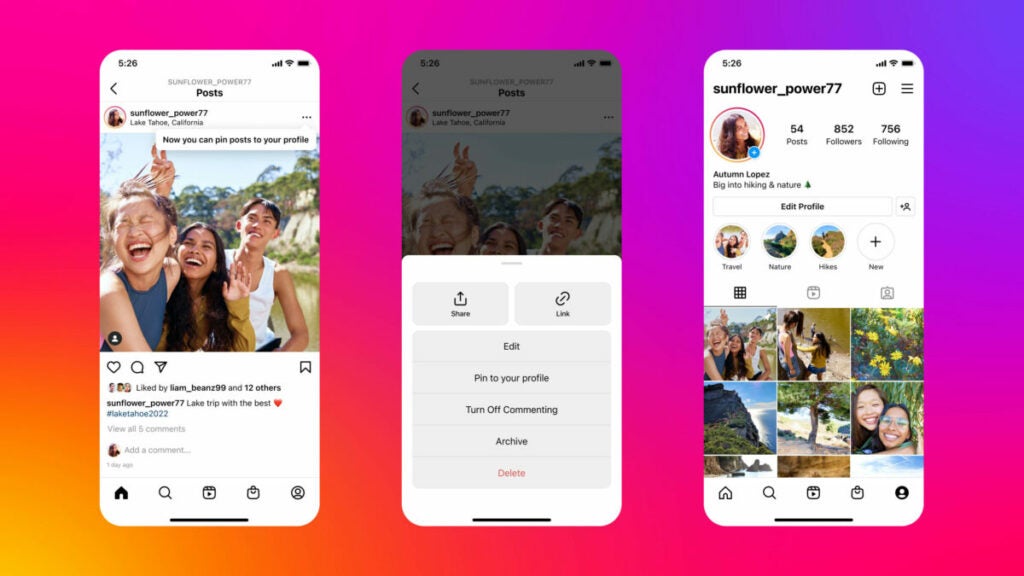
Instagram

Sharing pictures and videos gained a lot of popularity in 2022 and Instagram topped the charts when it came to apps that enable sharing of this information. With the introduction of reels, Instagram now has over 2 billion active users and is the 4th most popular social media platform out there.

People love following celebs and Instagram stars on the platform and even enjoy placing a hashtag before a few words hoping it’ll go viral. If you thought users don’t spend a lot of time here, you’ll be surprised to know that an average Instagram user spends up to 53 minutes a day on the platform.

Instagram Best Mobile Apps 2022

Amazon

One of the largest e-commerce platforms out there, your phone is incomplete without the Amazon app. Whether it’s online retail therapy or e-window shopping, there’s a sense of satisfaction when you browse through Amazon. You can also order your groceries and more from the platform and have them delivered on the same day. Amazon also has a wide range of ebooks that you can buy or download if you have a kindle membership.

Amazon Best Mobile Apps 2022

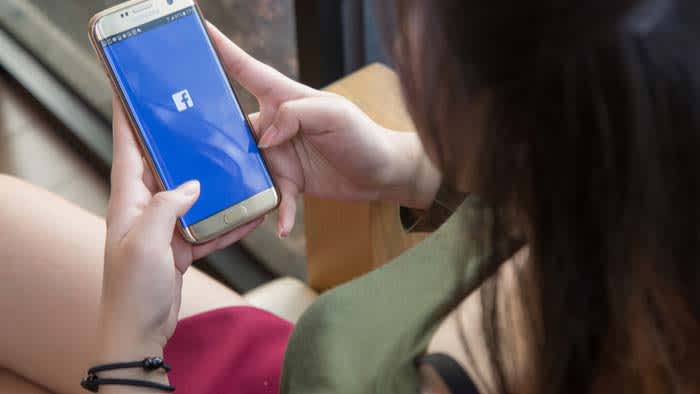
Facebook

Still at the top of the charts, Facebook continues to remain the most popular social media platform in 2022 with over 2.90 billion active users. Whether it’s sharing your feelings, pictures, or random posts, Facebook is a great platform to connect with friends new and old. From the days when you could poke someone on Facebook to being able to lock your profile to protect it from unnecessary prying eyes, Facebook has come a long way and earned its way to the top.

Facebook Best Mobile Apps 2022

Spotify

Listening to music happens to be one of the most popular hobbies worldwide and there’s no denying that Spotify is ideal for this. Enabling people to listen to popular tracks on the go, Spotify is one of the best music apps you’ll find.  The app has over 450 million subscribers and about 195 million paid subscribers.

Spotify Best Mobile Apps 2022

Snapchat

This instant messaging service does exactly what its name says, allowing you to use snaps to chat. With numerous filters and fun background music, you can create funny snaps and videos to share with your friends both on the platform and off it. Snapchat is best known for the viral filters that keep coming up based on what’s trending. For example, during Halloween, you’ll have a ton of scary filters to add to pictures when sharing.

Snapchat Best Mobile Apps 2022

WhatsApp Messenger

WhatsApp messenger has replaced the need to send text messages to people. It’s free to use and available in almost every country. WhatsApp comes with highly interactive features that not only allow you to chat with a person but also make video calls. You can add statuses, display pictures, and even share files. Whether it’s personal or professional, WhatsApp groups help people stay connected.

WhatsApp Messenger Best Mobile Apps 2022

Netflix

There’s nothing more fun than OTT streaming apps and Netflix is right up there when it comes to watching some of the best series and movies. The best part about Netflix is that you can download the app on your phone to enjoy binge-watching no matter where you are. The app has a ton of original content that’s not available anywhere else including documentaries that are worth watching.

Netflix

HBO Max

HBO Max is one of the top streaming apps. It comes with all that HBO offers along with additional TV shows, Max Originals, and blockbuster movies. This app gives you everything you love, under one umbrella. The best part about this app is you can stream all your favorite content at any time and as per your convenience. With HBO Max, you get unlimited access to hours of entertainment for everyone in your household. From action movies to murder mysteries and animations, HBO Max has it all.

HBO Max Best Mobile Apps 2022

Facebook Messenger

If you wanted to get in touch with all your friends on your Facebook list but have no intention of sharing your phone number then using Facebook messenger is the best way to do that. This app has features similar to WhatsApp, and you can even call people on it just like you do on Facebook. It comes with an easy-to-use interface and makes it convenient for long-lost friends to catch up without having to type everything.

Facebook Messenger Best Mobile Apps 2022

Zoom Cloud Meetings

Virtual meetings took a new turn with the introduction of work from home or remote locations. Today, a ton of businesses function completely remotely. The most effective way for these organizations to stay in touch with each other is with the help of virtual meetings and there’s no better way to do it than Zoom. 

With the ability to share files, computer screens, and so much more, Zoom has become a household name not only for working professionals but also for people who have loved ones living far away. The platform is also popularly used for online classes and can accommodate up to 1000 users in one meeting.

Zoom Cloud Meetings Best Mobile Apps 2022

Making The Most Of Your Phone

Whether you’re looking for entertainment or staying in touch with family and friends, these apps do it all. Most of these apps are part of people’s lives and have become integral to their daily functionality. With 2023 around the corner, it’s time to check out these top apps and welcome the new year with the best entertainment and networking apps.

How To Connect Quickly to a WiFi With Your Mobile Phone?

Holidays aren’t complete without meeting loved ones, and many times we end up traveling during Christmas to meet the people we love and haven’t seen in a long time. It’s safe to assume you’ll spend some time with them or at least stay for a meal. While most of us have our mobile internet, it’s ineffective when traveling, especially in a new city or country. That’s where Wi-Fi comes in.

While you may feel it’s smart to connect to a public network that’s not password protected, that’s one of the riskiest things to do since these open networks are highly susceptible to virus attacks which could risk your device and the data on it.

In such scenarios, the best thing to do is to connect to the wifi of your host. How do you do that? Always begin by asking them if it’s ok, and then proceed to ask them for the password. Once you’ve got the go-ahead and the password, you’ll need to connect quickly to wifi with your mobile phone.

  1. Connecting Your iPhone to Wi-Fi

    Connecting Your iPhone to Wi-Fi 1

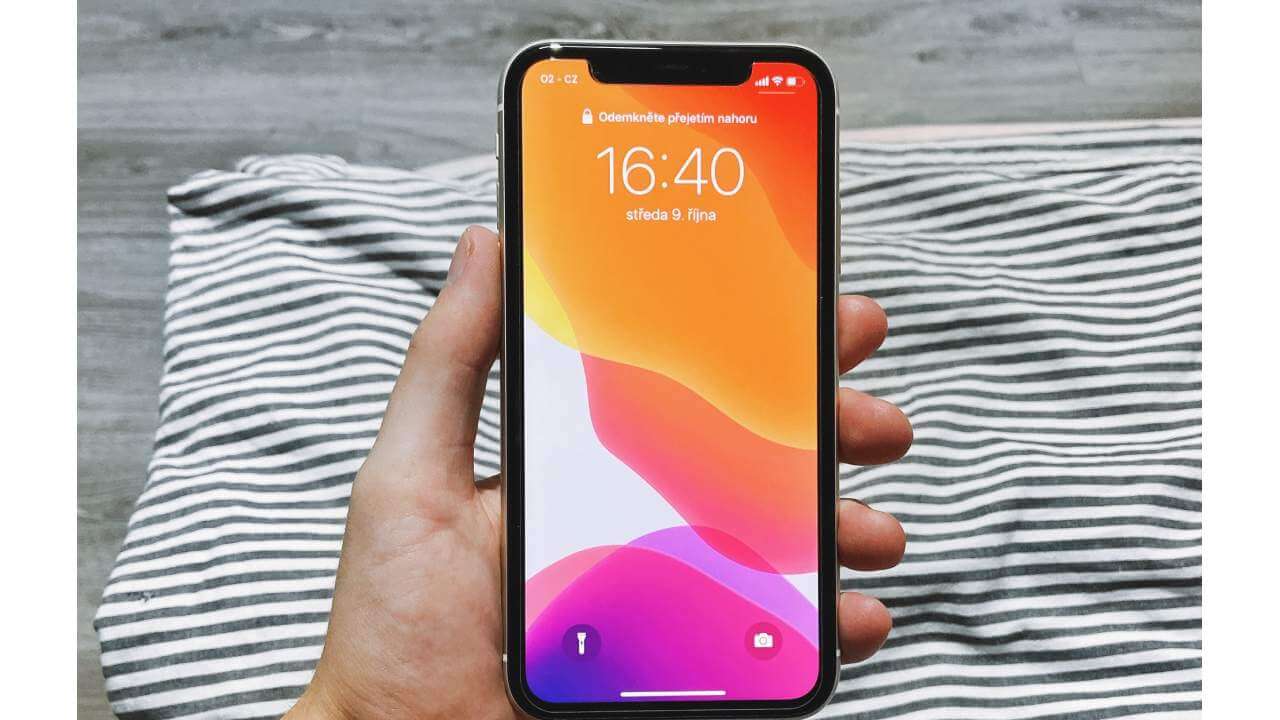
    If you’re looking to connect your iPhone to a wifi network, you need to go into settings. This is the gear icon you will see on your home screen. Under the settings menu, you will see wifi at the top of the screen. Tap it, and you will enter the wifi settings.

    At the top of the screen, toggle the WiFi switch to the “on” position. Your phone will now scan for all available networks nearby. If your wifi switch is already on, you just need to refresh your screen to see the list of available networks. When you see a network name you recognize, tap on it.

    If you see a lock icon next to the network name, it means that the network is protected by a password. Public networks are not usually protected by a password. If password protected, you will be asked to type in the password after you tap on it. Once you enter the password, click the join button in the top right corner.

  2. Connecting Your Android Phone to Wi-Fi

    Connecting Your Android Phone to Wi-Fi 2

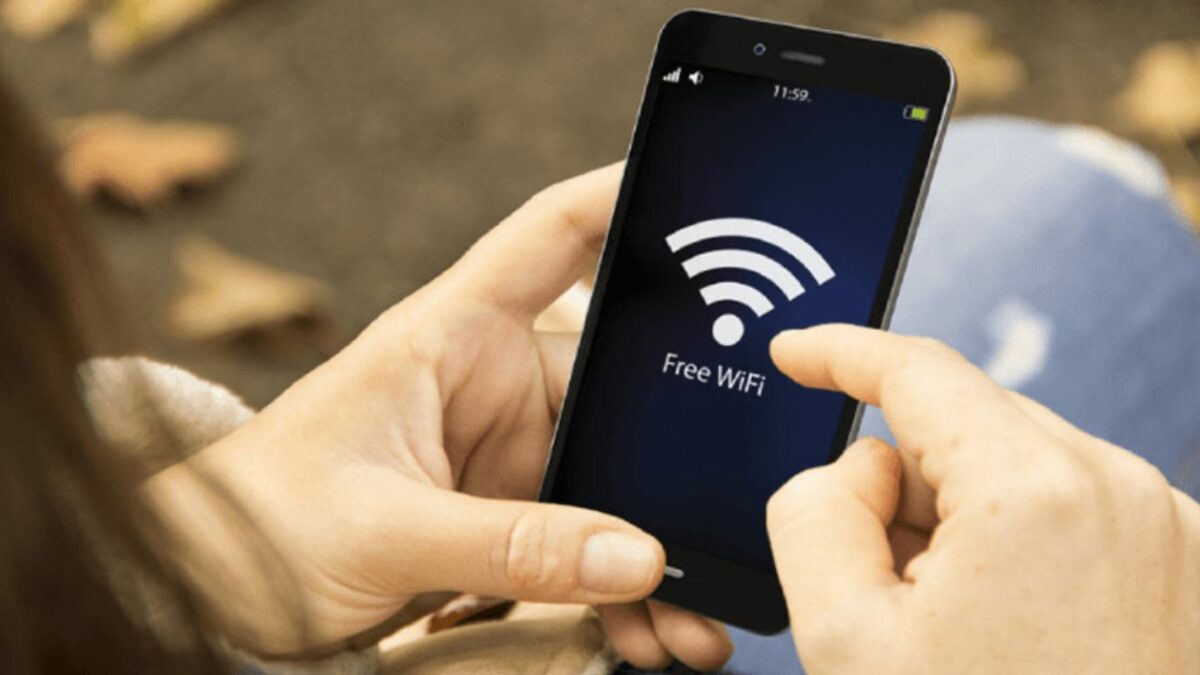
    When connecting your android device to a new wifi network, you have a couple of ways to do it. The first way is to swipe down on the home screen. The notification shade will come down with a list of options. Some phones may have a profile option in the top right of their phone. You would need to tap it to bring down the menu options.

    Once the quick menu scrolls down, tap and hold on the Wi-Fi icon. You will see a list of available networks. If your wifi is not enabled, you need to toggle it on. You will see a list of networks. Password-protected networks will have a lock icon next to the name, and open networks will not have this.

    Tap the network you want to connect with and tap on connect. If the password is correct, you will be connected to the network. You can also connect to a Wi-Fi network through your android settings. In the menu, you will see a gear icon. Tap on it and then tap on “Wireless & Networks.”

    Some phones may have listed this as “network & internet” or “connections.” You will see wifi as an option on the next screen. If it is on, it will scan for available networks. If it is off, you will have to switch it on. The steps from here on are the same as the quick menu method.

  3. KaiOS

    KaiOS wi-fi

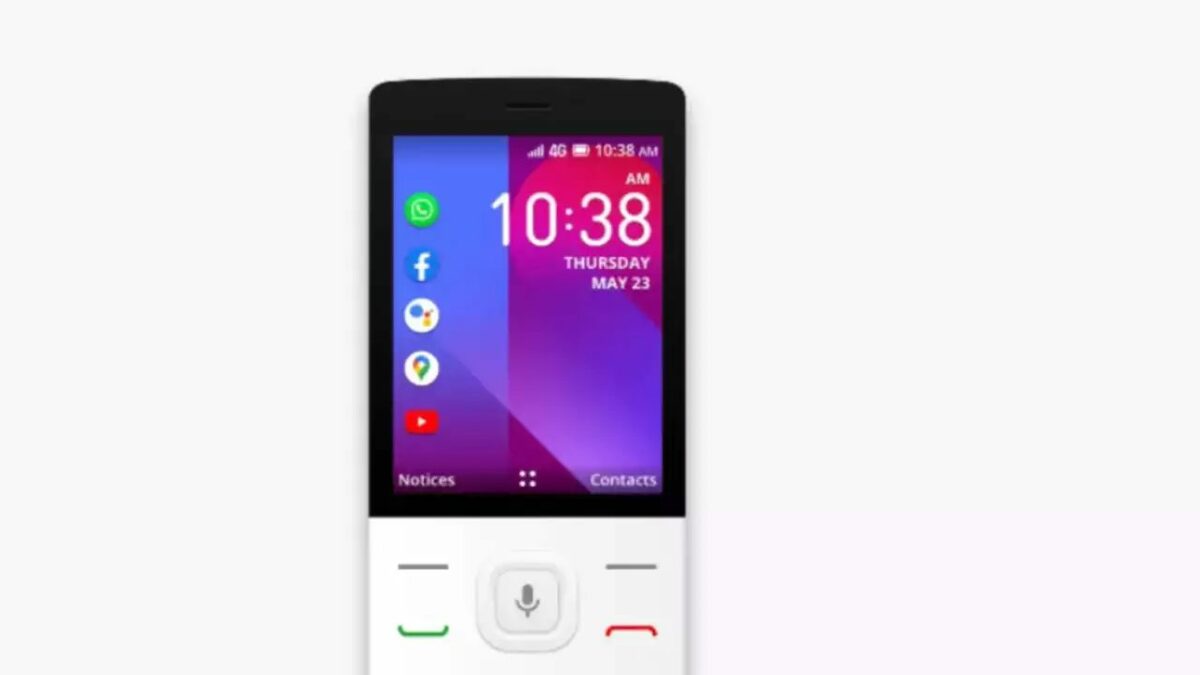
    If you have a phone running on KaiOS, follow these simple steps. Open the settings on your phone and tap “Network & Connectivity.” Switch on wifi on the next screen, and your device will scan for nearby networks.

    Locked networks will have a lock icon next to the name, and open networks will not. Once you tap on a password-protected network, you will be prompted for a password. Enter it and tap on connect.

Stay Connected, No Matter Where You Go

Limited internet connection won’t ever be an issue when you know how to use your mobile device to connect to a wifi network you trust. These steps mentioned above are simple and effective, so you’ll manage to connect to the network in no time, irrespective of which device you own.

While connecting to Wi-Fi during Christmas is easy, you need to remember to respect boundaries when you’re using someone else’s network. For starters, don’t download large files that could slow down the entire network unless necessary. It’s also rude to stay connected to the network when revisiting without permission. Whenever you plan to connect to wifi, no matter how many times it is, always ask before connecting.

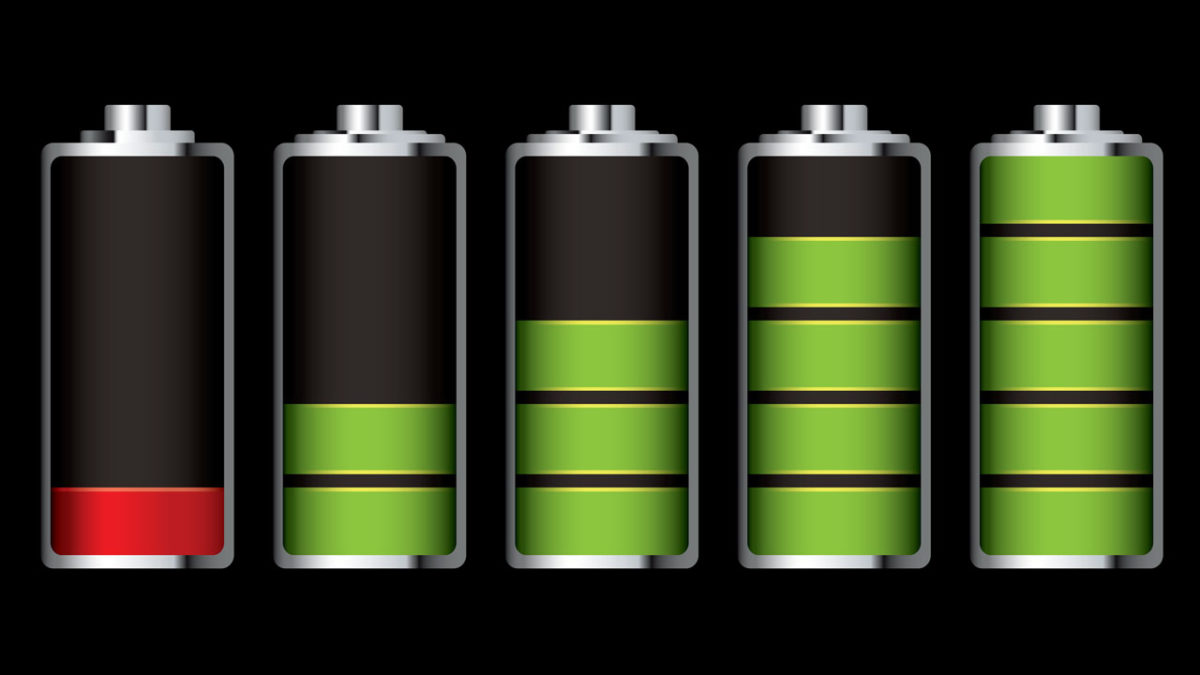
These apps are draining your battery

Does your smartphone battery hardly ever last a full day? These five apps are killing your battery.

Smartphones are amazing and there is absolutely no doubt that the phones we have today are much better than the phones we had just a few years ago. That is not true, however, for the batteries that power them. Battery life is the same as it ever was. Mobile phone manufacturers haven’t been able to move beyond a simple truth. For more battery power, you’re going to need a bigger battery. It really is that simple. You can’t have more power without having a bigger phone and phones are about as big as they can get.

As a phone owner, however, there are things you can do to help squeeze a bit more power out of your Android or iPhone’s battery. Yep, you should be familiar with your device’s battery saver mode and of course things like screen brightness, Bluetooth and Wi-Fi usage, and battery health will have an effect too, but you also need to know that certain third-party apps will be placing a massive strain on your battery usage. If you delete these apps, you will immediately notice a difference. Let us show you then, the apps that are draining your battery.

Biggest battery draining apps

All the apps below are draining more than their fair share of battery. If you regularly find your phone dying before the end of the day, consider deleting any of the following apps that you have installed on your Android or Apple mobile device.

Facebook

Mark Zuckerberg doesn’t just want all your private data, seemingly, he wants all of your battery power too as he owns the top three apps to make it into our battery draining list. Facebook, however, is by far and away the biggest of the lot though, and deleting Facebook from your phone will have the biggest effect of any action we’ll recommend you today.

The main reason behind Facebook’s excessive battery drain is that it is constantly trying to spy on everybody all over the world. This means that the app on your phone is constantly tracking what you do and constantly trying to notify you about what everybody else on your network is doing. Think about it, Facebook is always running in the background, it syncs and updates whenever it wants to, and it is constantly updating contacts and software. This means you can limit Facebook’s power usage by turning off all internal notifications for the app. Or you can just delete it altogether.

Facebook Messenger

Hot on the heels of Facebook is Facebook Messenger. You know that app that extra Facebook decided you had to download as it was no longer ok to send messages to your friends using the Facebook app. Yeah that app that you shouldn’t even need but do because a global corporation forces you to download it. That app is a massive battery hog that is likely causing your phone to run out of battery long before it needs to.

The reasons for this are much the same as they are for Facebook. Messenger is a busy app, constantly buzzing away in the background and using a lot of your phone’s hardware in the process. Fortunately, for anybody looking to save battery without losing access to the biggest social network on earth, you can download the Lite versions of Facebook and Facebook Messenger, which will use a lot less power than their bigger siblings.

WhatsApp

WhatsApp

We’re now at number three on our list and as you can see, we’re still talking about a Zuckerberg-owned app. WhatsApp is an incredibly useful app, so much so, that it is the most popular messaging app in the world. That comes as no surprise too, when you consider that you can use WhatsApp to text and call your friends and family, make video calls, easily send photos and videos, and effortlessly create messaging groups with lots of different people. Not too bad at all for a free app.

The catch, however, is that WhatsApp uses a lot of battery power. The internet modem on your smartphone is one of the most power-hungry pieces of hardware it has. By sending all your messages and transferring all your social data over the internet rather than the phone antenna, you’re placing more of a strain on your device’s battery. The real kicker here, though, is that there’s no real alternative. If you want WhatsApp to use less of your battery, you’re going to have to use it less.

Google Maps

Just like with your data, the other big guilty party when it comes to hogging your battery power is Google. In particular, out of all the Google apps, Google Maps is the one that is using the most of your juice. Google Maps needs a lot of data to accurately keep you up to date on your whereabouts. As we mentioned above, more data means more power.

To limit the amount of power that Google Maps needs you need to go into Settings on your mobile and then scroll down until you find the Google Maps option. Once you’re there select Location and adjust to While Using the App. Another quick battery-saving measure you can do is turn off notifications too.

Snapchat

Snapchat makes it onto our list today by being guilty of a number of the crimes we’ve mentioned above. Basically, Snapchat is always on and constantly tracking and looking for something to notify you about. On top of that, Snapchat is constantly tracking your location so that it can tell your friends where you are and what you’re up to.

As you’ve probably guessed, the best way to stop Snapchat hogging all your battery is to delete it from your phone altogether. If you don’t want to do that, however, you can limit certain features and functions. You need to go into the Snapchat app and open Settings and select the Who Can… option and hit My Location. When you’ve done that hit Ghost Mode and you should start to notice your battery lasting a little longer at the end of the day.

How to take better pictures on your phone

These quick and simple tips will help you take much better photos using your smartphone camera.

smartphone photography

Your phone today likely has a camera that is better than the digital camera you used to own just a few years ago. The smartphone camera has long been one of those battleground features that manufacturers have used to try and get one over on their competitors. This is why we now live in a world with AI-infused smartphone cameras with dedicated neural chips and ridiculous 108-megapixel mobile photography rigs.

Technology and hardware, though, is just only half of it when it comes to taking good photos. Sure, having a powerful DSLR camera with a beautiful lens or an expensive smartphone equivalent is one thing but if you don’t know what you’re doing it with, your photos will still come out the same, they’ll just be a little clearer and their file sizes will likely be bigger. Therefore, today we’re going to bring you some basic photography tips and tricks to help you take better photos on your Android phone or iPhone.

Tips on how to take better pictures

If you want to take better photos with your smartphone check out these quick tips below. These simple tricks will help you take photos you’re proud to show other people.

Learn about light

Photography is the art of capturing light. Whatever your light source, the photo you take will only ever be the light your camera captures that has reflected off everything that falls within the field of view of your lens. This means that you have to consider the lighting in your shot as much as you need to consider the subject. This is so important that we’re going to give a few more tips on it.

Avoid direct sunlight

The sun is a very powerful source of light and in most cases, it is so powerful that it is too difficult to control. You see the sun won’t just be lighting up your subject, it’ll also be lighting up your surrounding environment making it hard to clearly define what the photo is supposed to be and, even worse, creating shadows. The brighter the sun, the darker the shadows and you’ll notice this particularly when taking photos of people and faces. On a bright sunny day, stepping into the shadows will give you much more control over what you’re photographing and help you take great photos.

Use the flash during the day

This might sound counter-intuitive but in many situations, it is the perfect remedy to what we’ve outlined above. Your camera’s flash is there to provide extra light on your subject. You can use this extra light fill in the shadows that direct sunlight might be creating on your subject. You see, it is all about the light. Control the light, control the photo.

The magic hours

Our final tip on controlling the light in your smartphone photography is simple but also will help you take fantastic photos. The level of daylight is different throughout the day and there are two magical hours when the natural sunlight will bathe everything you could ever want to take a photo of in warm, beautiful light countered with softer more subtle shades and shadows that help create fantastic photos. The two magic hours in photography are just after sunrise and just before sunset. Make yourself available to take photos during these hours and you’re already well on the way to taking better pictures.

Think about height

Another amazingly simple way you can drastically affect the quality of your shots is to think about the height you’re holding your smartphone camera. It is second nature to grab your camera and hold the viewfinder up to your eye or at least hold it up to see the screen and then start snapping away. If you instead stop and start to think about the level you want the camera to be at in relation to the subject, you’re already beginning to construct the photograph rather than simply grabbing a shot of something that caught your eye.

Start thinking off-center

Another common photography faux pas is to place the subject of your photo smack bang in the middle. Instead, a good rule to follow when you’re taking a photo of something is to think about the rule of thirds. Photographers split everything that will make up a photo into thirds and then decide to place the subject of the photo on one of the lines that would represent one of these thirds. It also works on landscape shots if you think about the elements that make up the shot. This can make photos appear less busy but again it forces you to think more about the photograph as a whole rather than simply considering what you’re taking a photograph of. Fortunately, your camera app will likely have a grid view that will help you break up your shots into thirds.

Focus manually

Auto-focus is great in many situations but learning to focus yourself will help you take your photos o the next level. Focusing is a way to contrast your subject from the surrounding environment and it is all the more powerful on smartphones that have Portrait modes. Portrait modes will blur the background while leaving the subject of the photo crystal clear. This is either achieved through using lens trickery or AI algorithms. Either way, the end result is fantastic and shows you what you can achieve if you focus your shots manually. On smartphone cameras focusing couldn’t be easier, you simply tap the screen where you want to focus and the camera will do the rest.

Practice

Our final tip is the simplest of them all. Take photos every day. It is only through keeping an eye out for potential photos all around you and then trying to capture that image perfectly as often as you can that you will get better. Photography is just like anything else in that practice makes perfect. Take photos and then see which ones you like and which ones you don’t. Follow the tips above and hone your technique and results until you start to see a style you like.

All the best new features your Android mobile got in 2019

These are all the best new features that came to your Android phone in 2019.

The best new Android features from 2019

Android is the most used operating system on the planet, clocking up more active users than even Windows. That’s not bad considering the first version of Android came out as recently as 2008. The Android you have on your phone today, however, is very different to that first offering we got 12 years ago. Google has tinkered and tweaked its mobile operating system over the years releasing regular updates named after famous candies, with 2018’s Android 9 being called Android Pie.

In 2019 though, this changed. Google decided to ditch the sweet treat monikers for its Android updates and instead opted for a simple name; Android Q became Android 10 when it was released. Today we’re going to look at all the best new features for all Android, including Google Pixel phones and Samsungs, that landed on Android 10 in 2019.

Google App Download Now ►
8

New features for Android 2019

Dark Mode

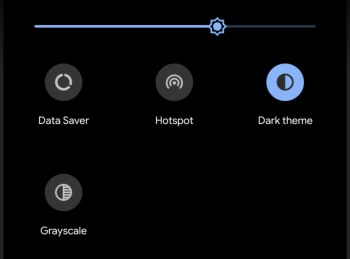
Android 10 Dark Mode

The biggest feature to land on Android phones in 2019 is, without doubt, the Dark Mode. Ever since Google published research showing that devices with OLED screens use less battery power showing darker colors than they do light, the web giant has systematically gone through all its core apps and added a new Dark Mode. In 2019 the feature was brought to the Android OS too meaning all you now need to do to activate a system-wide Dark Mode on your Android device now is drag your finger down from the top of your screen to open the Quick Setting menu, swipe to the left, and then activate the Dark theme option.

Improved new gesture navigation

Google has been working on gesture navigation for Android for quite a while now and a version was included in Android Pie. In 2019 though, Google made it possible to navigate Android using only gestures, removing the ever-present Home and Back buttons from the bottom of the screen. Users don’t have to use this new system, they’re disabled by default, but it isn’t hard to imagine a future were Google forces this change upon us.

Bubbles

Bubble notifications on Android

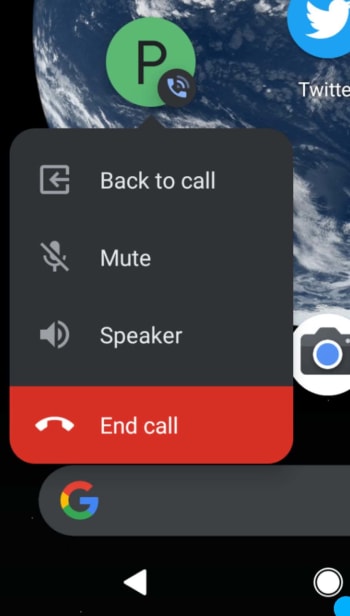
Android 10 introduced a new Bubbles feature that works a bit like the Facebook Messenger Chat Heads feature. Basically, Bubbles are round notification icons that appear on your home screen and can be dragged all over the screen just like you can when you have an active chat on Messenger. At the moment, Bubbles works with the phone app, with the bubble notification opening various available settings relating to in-call options. There is scope for other apps to use Bubbles for notifications too, but Google wants developers to think carefully about the types of notification that will be suitable, so users aren’t overloaded.

Focus mode

Smartphone and social media addiction have made clear some hard truths very clear in recent years. If not used properly, modern technology can have a detrimental effect on your mental health. This was behind Google’s development of Android’s Digital Wellbeing menu, which gives users access to stats relating to how they use their device and apps and, if necessary, set limits. In 2019 Google expanded Digital Wellbeing by adding a Focus Mode, which will turn off notifications for apps you think could be distracting and gray out their icons on your home screen. When you turn Focus Mode off everything goes back to normal.

Increased location and privacy control

Android 10 Privacy location controls

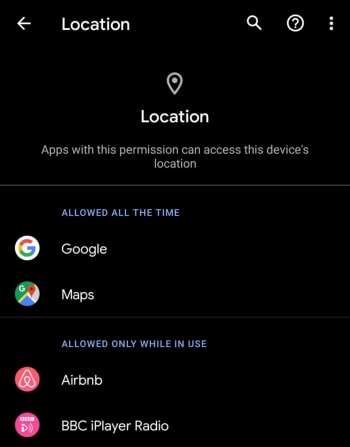
A very welcome addition to Android in 2019 is an improved control panel that allows you to easily control which apps can access your location data and which apps can’t. It is now easier than ever for Android users to stop apps sharing their location data when not in use. It seems mad that it has taken so long for this feature to become available. Now, Android users can find all privacy settings; including location, app permissions, and web and app activity in the one settings menu.

Parental controls

Another boost to the Digital Wellbeing section is Android’s new Parental controls features. These allow parents to link their children’s phones to their own and then keep an eye on screen time, set limits, and add restrictions to Google services like Google Play. This is particularly useful if your children play games or use apps that offer in-app purchases.

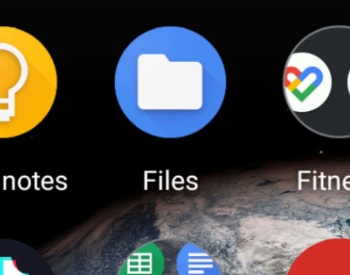
A decent Files app

The new Android Files app

In 2019 Google finally added a half-decent Files app to Android. There is still no Recycle Bin, but there is now a much better user interface, a file search bar, quick access to other apps, and a brand-new Files app icon.

Smart Reply for all messaging apps

Google introduced Smart Reply to Gmail over a year ago and the feature, which prompts short responses to received messages has been relatively well-received by Gmail users. In 2019 Google expanded Smart Reply to work with every messaging app available on Android. Now, when you receive a message, the Android notification tray will prompt you with short replies that could also include emojis. Furthermore, the expanded Android Smart Reply can also prompt actions like opening Google Maps, if, for example, your friend has sent you their address.

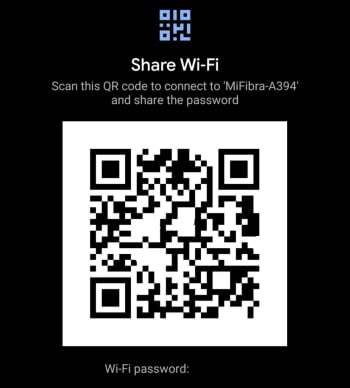
Wi-Fi QR codes for sharing your network

Wi Fi QR Code Share Android

Connecting to Wi-Fi networks can be really annoying but Google has made it easier than ever for anybody who has the latest version of Android. The new feature allows you to click Share on any active Wi-Fi connection you have. You then authenticate yourself using your fingerprint or password and generate a QR code, which others can then scan to gain access to the network.

Undo app removal

If you’ve ever accidentally removed an app from your home screen, this new feature will be useful for you. Thanks to this update you now have a short window of time to undo any app removals. Instead of having to think what app used to be in the space you now have on your Android home screen, you can now simply hit the Undo button, which will appear at the bottom of the screen.

Sign of the times: DottedSign finally makes e-signatures easy

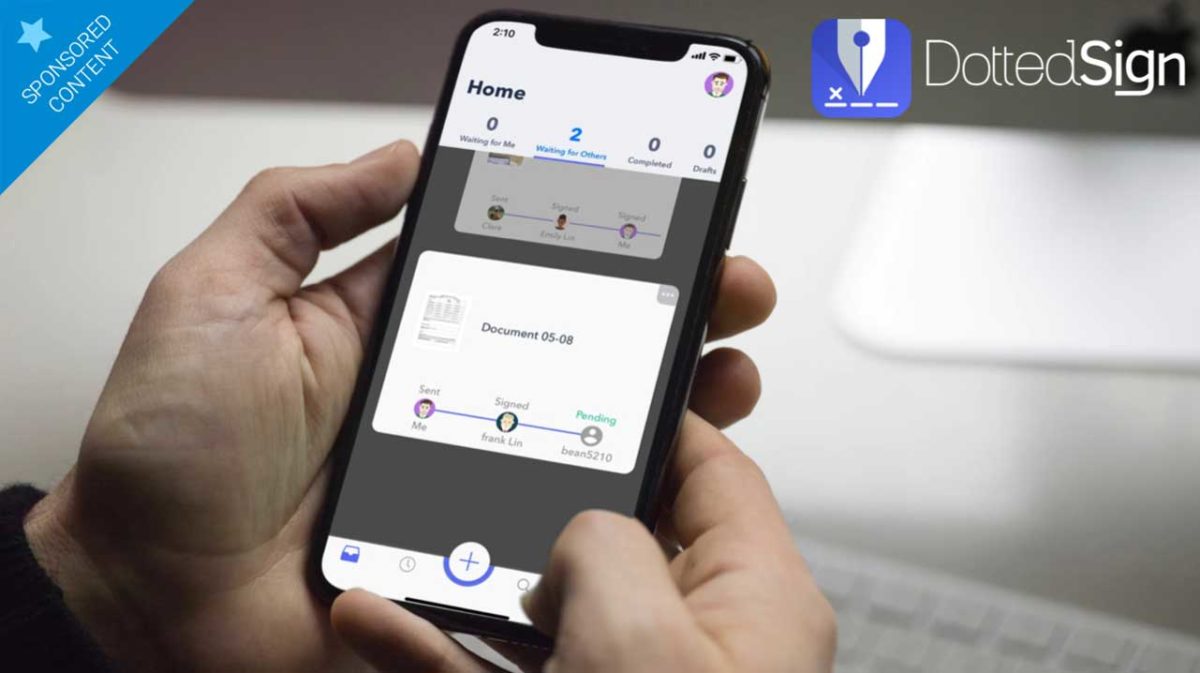
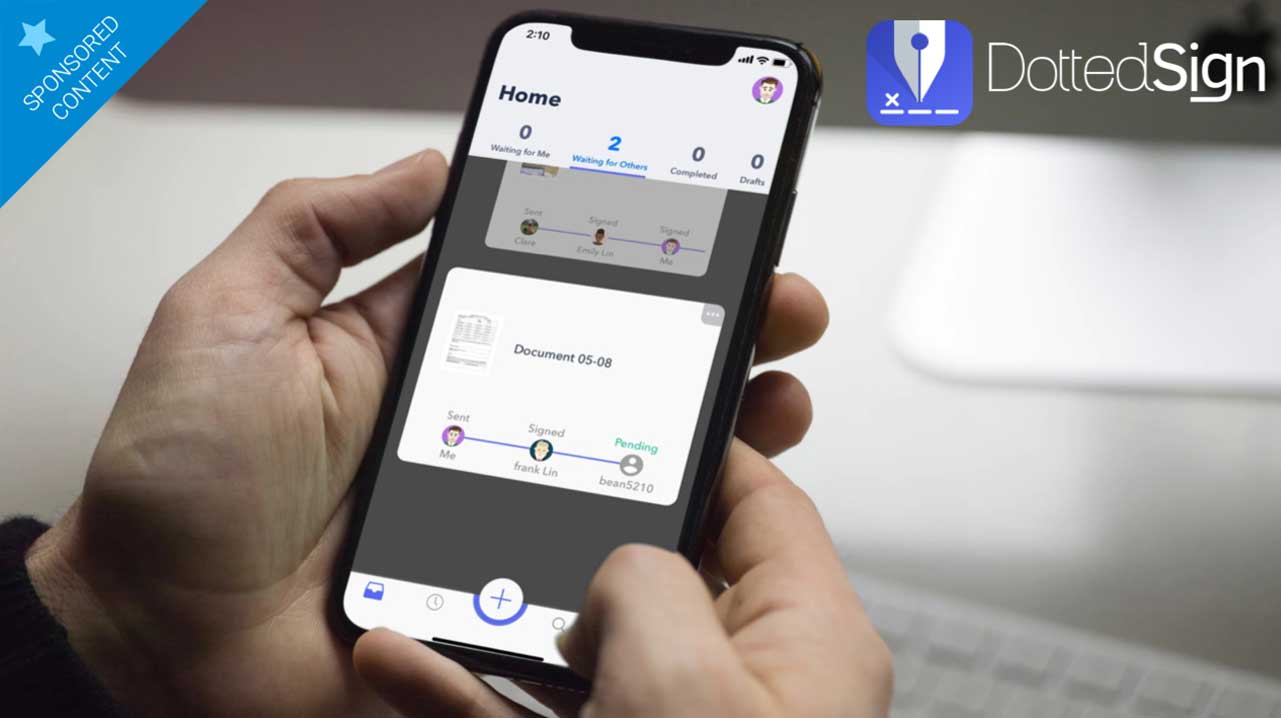
The company Kdan Mobile has released DottedSign a product that once and for all makes signing and tracking documents on the go as easy as checking your Facebook feed. It works across iOS and Android devices as well as through a web portal.

Signing documents has never been a joyous task. While services like Adobe Sign, DocuSign and HelloSign have attempted to bring ease to the process through electronic document signing, the result has often been confusing and not very mobile friendly. The company Kdan Mobile has now delivered a product that once and for all makes signing and tracking documents on the go as easy as checking your Facebook feed. Called DottedSign, the service works across iOS and Android devices as well as through a web portal to dramatically improve document workflow efficiency.

Mobile mastery

The issue with many online signing services is that, while they are meant to function in today’s world of electronic documents, they don’t necessarily take into account today’s mobile culture. Because Kdan Mobile is – well – a mobile app company, creating a signing system that works across a range of devices was paramount in building DottedSign.

“From the signing of business contracts to confirmation of receipt of any document, electronic signatures are necessary elements of mobile devices in the internet era,” explains Kenny Su, Kdan Mobile’s CEO and founder. “We created DottedSign to help close the loop and deliver that last mile.”

In addition to working across devices and operating systems, DottedSign also works with virtually any document – another advantage it has over its competitors who often force users into specific file formats such as PDF. DottedSign can handle documents from Google Drive, Drobox, iCould, OneDrive and Microsoft Office, as well as documents snapped via your smartphone’s camera. Creating a signature field on these documents is as easy as inserting a drag-and-drop box.

Real signatures

Another aspect of DottedSign that separates it from other e-signing solutions is that the software makes it super simple to create your own hand-drawn signature. You can either use your mouse or your laptop’s trackpad on the web or simply draw on your phone or tablet’s screen to digitize your actual signature. Other similar apps apply a pre-designed signature to your documents that most likely don’t resemble your actual John Hancock at all.

DottedSign also gives users the ability to indicate a signing order so that if multiple people need to sign the same document but in a particular order, the system will see to it that all goes according to plan. Simultaneous signatures are also supported.

Easy organization

When it comes time to check on the status of documents, DottedSign shines as well. A visual progress bar shows where any particular document is in the signing process, a tab system helps users separate tasks according to completed documents or those still in process, and auto-reminders help keep everything on track.

What’s more, a secure audit trail tracks the entire history of each document. This time-stamped system lists the IP address of signatories and which device they used to sign, with all information protected through RSA-2048 encryption.

DottedSign comes in a free version, which caps the number of documents per month and the number of signatures per document to three, while the unrestricted Pro version is currently available at half off, coming in at just $4.99 per month.

How to Know If My Phone Is Hacked and What to Do

Let’s have a look at some of the things you should look out for to make sure your phone hasn’t been hacked.

Have you ever wondered how to know if your phone is hacked? We are all aware of the many cyber threats surrounding us when we use the internet on our PCs. Think of all the measures we take to protect our computers from hackers, antivirus programs, VPNs, proxies, and more. But when it comes to our mobile devices, we aren’t always as careful.
With so much of our lives contained in our smartphones, these devices have become a crucial part of our daily lives. Think about that one time you forgot your phone at home, how utterly lost you felt without it. We store almost everything on our phones these days, important documents, bank details, health care, IDs, and more. If someone were to hack our phones, they’d have access to all of this information.
A lot of the time, you might not even know that you’re being hacked. This type of attack is much more subtle than a robbery. Once the hacker gets into your devices, they can easily access your apps, files and even use your data without you even knowing. This is why it is critical to know the signs of a hacked phone to protect yourself.

Can iPhone Get Hacked? or Is it Just a Matter of Android?

Although iPhones are usually better protected than Android devices, they can still be hacked. Unfortunately, as technology advances, so do hackers. Using a device that seems safe is no longer a surefire way to protect yourself from hackers. If they want to, hackers will find a way through the protective measures, which is why it is essential to stay one step ahead and not assume your safety just because of your device type.
Is my phone hacked? 8 ways to find out

There are quite a few things to look out for that could indicate your phone has been hacked. On their own, these could be simple issues that should be looked at individually. If you’re experiencing a few of them, however, then you should think about dealing with them as a whole.
1. Your device is a lot hotter than usual

phone is too hot

If your mobile phone has been hacked, there will be lots of unauthorized programs running in the background behind your operating system. These could be things like adware, spyware, trojans, etc. all designed to make money for the hacker in different ways. These will be putting extra pressure on your device’s processor and memory. This will, in turn, cause the processor to heat up much more than normal. If your device is hotter than usual, try to find out why. If you can’t get to the bottom of it, something fishy might be going on.

2. Your battery doesn’t last as long as it should

The same that goes for extra heat will also go for extra power. Even if you’re not feeling the heat, you might still notice that your battery is running down much quicker than it used to. Again, this could be because of unknown programs always running in the background.

3. You seem to be using more data than you usually do

This follows on from the other two. Most malicious programs running in the background will connect to the internet to do whatever it is they’ve been programmed to do. This could something like be transferring your data to a third-party server or showing you ads that wouldn’t normally be there. If you’re not connected to Wi-Fi, this will use mobile data. Check your data usage.

4. Your call message records include calls you didn’t make and messages you didn’t send

If the malware infecting your phone has permission to make calls or send messages then this could end up costing you big. Some hackers will program the malware to call their own premium rate phone lines that can cost many dollars a minute to call. The same goes for SMS messages too. If you notice outgoing phone numbers you don’t know or phone calls you don’t remember, check with your network provider immediately.

5. You’re seeing a lot more pop-up ads than you’re used to

As we’ve just mentioned, one way for hackers to make money is through raising ad-based revenue. They do this by forcing their victims to view more ads than they normally would. If you’re noticing more ads than usual, your phone may have been infected with adware and most likely has been hacked.

6. Your phone has new apps that you didn’t install

Always pay attention to the apps you have on your phone. For one of many reasons, hackers could try to install false apps. If something is there and you don’t remember how it got there, it may have been installed remotely by a malicious third party.

7. Your phone isn’t working as well as it should

As we’ve already mentioned, hackers will try to install their secret programs onto your device. These will try to do a number of things but will run in the background without you knowing about it. It stands to reason then that if your phone is running all sorts of extra little programs and protocols in the background, it won’t be able to perform its normal functions as efficiently.

8. Unusual Background Noises

Another telltale sign that your phone may be hacked is if you hear odd background noise. This can either be while you’re listening to the audio or even while making calls. If you hear strange background noises, you should immediately investigate further as it could mean that your phone has been hacked and someone is listening in on your conversations. 

What to Do If Your Phone Has Been Hacked

If you’ve noticed any of the above signs and you suspect that your phone has been hacked, don’t panic. There are things you can do to get rid of the hacker and keep them from coming back.

Check Your Phone Bill

First, you should check your phone bill for any calls you didn’t make. Make sure to check for any unknown number dialed and the length of the calls. Make notes of anything unfamiliar to you. Also, don’t forget to check your messages as well. You should carefully check all your messages for any traces of messages sent to numbers you don’t know or containing texts you haven’t sent. Once you’ve gathered all this data, contact your service provider and discuss the matter with them. You may even get the chance to claim back your losses.

Change All Account Passwords

If you notice any unfamiliar activity on your device, immediately log out of all accounts and change the password. It is best to use a strong, randomly generated password consisting of letters, characters, and numbers when doing this. It is a good idea not to make up a password yourself if you suspect that you’ve been hacked. This is because the hacker potentially already knows you and might be able to guess the new passwords.

Uninstall Any Malicious/Suspicious Apps

Go through all of your apps and delete any ones that are unfamiliar or that you don’t use often. This may take some time, but it is a crucial step as the hacker might be using malicious apps to gather your data, or worse.

Install an Antivirus App

Make sure to install a good antivirus app. As soon as you’ve installed the antivirus, make sure to run a full scan and remove any threats picked up by the app. Also, if your app has ‘Real-Time Protection, ’ we recommend enabling it. This feature will assist in keeping you safe by flagging suspicious websites, links and phishing attacks in the future.

Worse Case Scenario – Restore Phone to Factory Settings

If you’ve done all the above steps and it still seems like your phone has been hacked, you might have to resort to a factory reset. This will return your phone to how it was when you first took it out of the box. Any apps that you’ve installed will be removed. Any messages, emails, and photos will also be removed. This is why the factory reset is the last option on our list. Make sure to backup anything you want to keep before restoring your phone to factory settings.

Know the Signs of a Hacked Phone

In this day and age, we have to stay one step ahead of hackers. With more and more of our lives taking place online and through our mobile devices, we cannot afford to have our data breached. One way to stay safe is to know the warning signs and act immediately if you suspect anything.

Best free antivirus for mobile 2020

The best mobile antivirus apps

Android is more popular than Windows. It might be hard to believe it, but Android is used more than any other operating system in the world. Now Windows is famous for many things but one of its more infamous claims to fame is how susceptible users are to viruses and malware, just ask an Apple Mac user. This is because the more people use an operating system, the more hackers and cybercriminals will target it. So, with that being the case, you already know that there are plenty of malicious actors out there targeting your Android smartphone.

Today, to help you stay safe when you’re on your phone, we’re going to look at some of the best antivirus apps available on the Google Play Store that you can download and install on your Android device. Even better, all the Android apps we’re talking about today are free.

Best free antivirus for Android phone

AVG Antivirus Free

AVG for Android

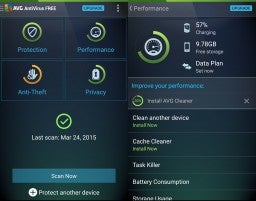
AVG is another strong mobile device version of a fully featured desktop antivirus program. It comes with a call blocker, regular scanner, cache cleaner for getting rid of your junk, and a power saving feature that can make your phone’s battery life last much longer. Another cool feature you’ll get with AVG is a RAM booster, which will hunt out programs that are hogging up your system’s RAM while not actually doing anything. This is excellent, if you’re phone is running slower than usual and your scans have turned nothing up.

AVG Free Download now
8

Sophos Free Antivirus and Security

Sophos is an excellent mobile antivirus app that regularly scores highly with independent testing labs. The app offers an ad-free experience, which is rare for free apps and also has robust anti-malware procedures. Other tools that come with this feature-packed app include an app locker, loss, and anti-theft features, web filtering, malicious site blocking, and call protection and spam blocking. This app is massive and free.

Sophos Download now
8

Bitdefender Antivirus Free

Bitdefender mobile security is a lightweight Android antivirus app, which makes it ideal for anybody using an older phone or a more mid-range model. Bitdefender spares your system resources by not running real-time protection all the time in the background. You’ll have to schedule your scans manually, although all new apps will be scanned when they’re downloaded. It isn’t hard to get it all set up though, so we can recommend Bitdefender for all users.

Bitdefender 2018 Download now
7

Avira Antivirus Security

AVIRA Android hero

The Avira mobile app has some neat features that set it apart from the rest. Apps are rated with a privacy scale, so it is very easy for you to know how they use your data and your phone’s sensors. The free version doesn’t come with malicious site blocking, however, you’ll have to pay for that, but you will get a comprehensive scanner that can not only scan the contents of your phone’s hard drive but also any SD cards you’re using too.

Avira Free Antivirus Download Avira ►
8

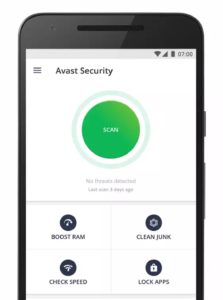
Avast Mobile Security

Avast is one of the best names out there when it comes to Antivirus software so you know you’ll get comprehensive protection from its mobile app. Features include monitoring how long you’re spending on each app, a disc cleaning feature that’ll get rid of all your junk files, and a strong scanner that works with a simple tap. Another cool feature is the Avast photo vault, which will give you a secure place to store private photos.

Avast Free Antivirus Download now ►
8

360 Security

Another cool free antivirus app worth your consideration is 360 Security. With this app, you’ll get all the usual features we’ve been through with other apps including an antivirus scanner, anti-theft protection, junk cleaner, and more. You’ll also get a rather handy CPU cooler tool, which will come in very handy whenever you feel your phone heating up, which more phones seem to do much more often these days.

360 Security - Antivirus Download now
8

Kaspersky Internet Security

The free Kaspersky mobile security app gives you access to a strong malware protection tool that’ll sniff out almost all types of malware that get onto your Android phone. It also has a robust blocker for malicious sites and will flag up dodgy links it doesn’t think you should click. Kaspersky runs in the background checking for apps, however, so it could be a little heavy on your phone’s processor and RAM.

Kaspersky Anti-Virus Download Kaspersky
8

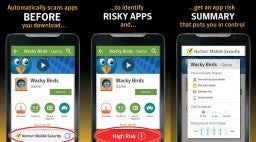
Norton Security and Antivirus

Norton for Android

Norton is another big name in antivirus protection and the giant is proud to offer a mobile app that gives a 100% detection rate with its antivirus and anti-malware scanner. All viruses and malware are then safely removed from your mobile. Other cool features include a find my phone type feature, dodgy website blocker, spam filters and call blocking, and a rather cool feature that will use your phone’s selfie camera to snap a picture of anybody trying to access your phone when you’re not there.

Norton Download now
8

DFNDR

DFNDR, like 360 Security, is another mobile antivirus and internet security app that doesn’t have the big-name recognition of the likes of Avast and AVG, but that still packs quite a punch and offers a feature-rich mobile security suite. It comes loaded with anti-hacking, anti-spyware, and anti-phishing features on top of the regular scanning features you’ll find elsewhere. Other cool features include an AppLock, which will secure your private apps behind a passcode or fingerprint, and an assist feature that will keep you updated on how best to use the app and its features. The only downside of DFNDR is that it’ll show you ads, which can be very annoying.

DFNDR Download now
10

Wrapping up

There you have ten of the best free mobile antivirus apps you can download for your Android smartphone. They all offer strong protection against viruses and malware and many come with feature rich toolsets to back up their core functions. When picking the right one for you consider the features you’ll need specifically and also think about whether you’re happy to view ads. Unfortunately, you may have to pay, if you have a specific feature in mind and can’t stand ads. If you’re not so rigid, however, you’ll definitely find what you’re looking for free in this list.

8 best apps for parents of babies and toddlers

Your phone can help you be a better parent. Here’s how.

new parent

Congratulations/condolences! You’re a new parent! Becoming a parent can be one of the most difficult transitions in your life. But with new technology, this process can be much easier than it was a few decades ago. Your phone is an incredible resource of information and cataloging that you may not even be fully aware of. With these apps, you’ll be able to put all your parenting anxiety away. (You can bookmark this until naptime. We won’t blame you.)

8 best apps for new parents

Reading Eggs

Eggs

Reading Eggs has learning tools for kids from ages 2 to 13.

When it comes to teaching your kids how to read, Reading Eggs does an egg-cellent job!

Kids have a blast playing games, singing songs, and earning rewards, all while improving their reading skills. 

The creators of Reading Eggs used solid scientific research to make a proven, working formula for teaching children how to read. With more than 2,000 online books for your kids to read, they will have plenty to keep them occupied. 

There is a version for teachers as well as one for parents. If you’re a parent, you can take advantage of a four-week trial to see how just how well Reading Eggs works. If Reading Eggs sounds like something you want to try with your kids, crack open this link to get started! 

Along with the Reading Eggs app, there are also workbooks that you can purchase if you want to reduce your child’s screen time, but still want them to work on their reading. 

Reading Eggs Download now ►
10

Peanut

New parents can sometimes struggle to make friends, or keep those who aren’t parents themselves. This app can help you meet other parents who are looking to spend time with similar families. The main purpose is to retrain your individuality, so you don’t just turn into “blank’s mom.” Their YouTube Channel does a great job of expressing the experience of using the app.

SitterCity

This app can help you find a sitter no matter where you may be. It can really be a lifesaver for last-minute sitter needs. Sitters fill out detailed profiles on their availability and references, making them easy to contact and sort through. It can really decrease the time and effort that goes into meeting with multiple sitters to choose the right one. 

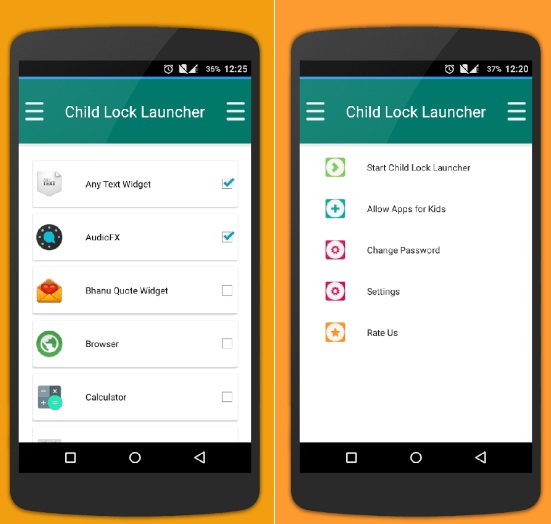
Child Lock

Child Lock

When a child is old enough to start using your devices, it may be difficult to keep them from accessing apps that you’d prefer them not to use. (“Tyler! I’ve told you a million times, ‘Black Mirror’ is only a Mommy and Daddy show.”)

Thankfully this app lets you customize your phone with locks to prevent your child from accessing anything you deem inappropriate. The customizability comes in deciding what you want to be locked and for how long. It has options for virtually everything on your phone, allowing you to pick and choose exactly what your child has access to.

BabyCenter

When you’re expecting, it can be overwhelming to try and find all the information you need leading up to the birth of your child. This app gives you real expert advice on all the questions you are wondering about when you have your first child. From what’s okay to what’s not, you’ll be able to find out a plethora of important information much quicker than continually looking it up online.

BabyCenter - Pregnancy Tracker Free Download
7

PBS Kids Video


Keeping your child entertained is the hardest thing to do when you can’t constantly be in the same room as them. This gets especially hard once they become a toddler and have a better understanding of the world around them. Thankfully, there are some fantastic shows out there to keep kids entertained and learning. No station is better at this than PBS Kids. They even have their own app so you have the station with you at all times. This app is more for your child than for the actual parent.

PBS Kids Video Free Download
10

Baby and Child First Aid

When something seems off about your child, it may be your first instinct to go straight to the hospital and find out what’s wrong. Alternatively, you may not realize something is more serious than it seems. This app helps you figure out what you need to do when something is off with your child, and whether it’s the right time to go to the hospital or to figure it out at home. While the app is owned by the British Red Cross, the advice is universal and worth using even outside of the UK.

Baby Connect

The ultimate baby tracker. This app keeps track of everything, from medical records to new achievements. It is the perfect app for recording your child’s first moments in life and keeping the schedule on track. For more information on this app, be sure to check out our in-depth article on how to use it.

Baby Connect Download Now ►
8

For some babies and young children, white noise won’t cut it for helping them sleep. Thankfully, our Softonic Solutions community offers their list of the best apps for helping your child fall asleep

Softonic is always looking for products we think our readers will value. When you buy through links on our site, we may earn an affiliate commission.