Remember when using photo editing software to remove an unwanted object meant spending ages with the Clone Stamp tool, only to end up with a suspicious-looking blur? Well, those days are mostly gone. Now a couple of clicks can do the trick. And who’s responsible for that? AI is certainly one of our prime suspects.
When we think about photo editing, one program has been the king for years: Photoshop. But now that there are so many alternatives to choose from, some of them completely free, can it still hold on to its crown in 2026? Let’s find out.
Why choose Adobe Photoshop?
You don’t have to work in photography or design to know what Photoshop is. Even your local fishmonger has probably heard of it! Whether you’re retouching portraits, working on advertising campaigns or creating elaborate compositions, Photoshop has a tool for practically everything.
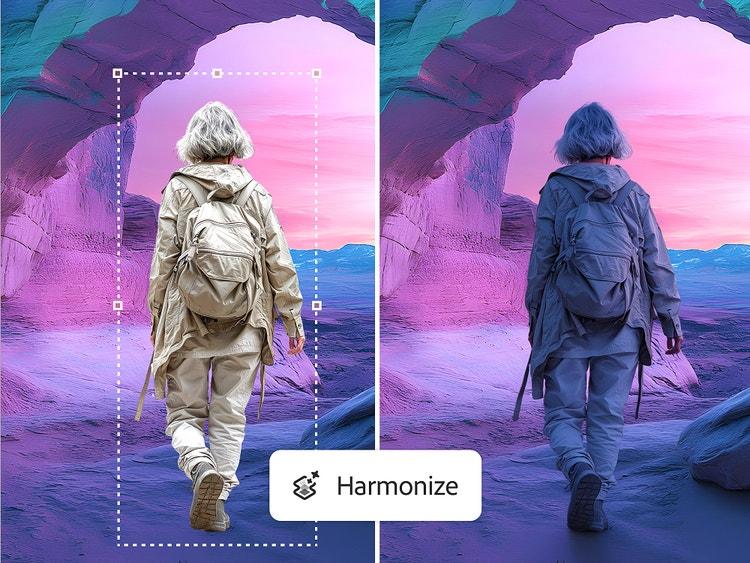
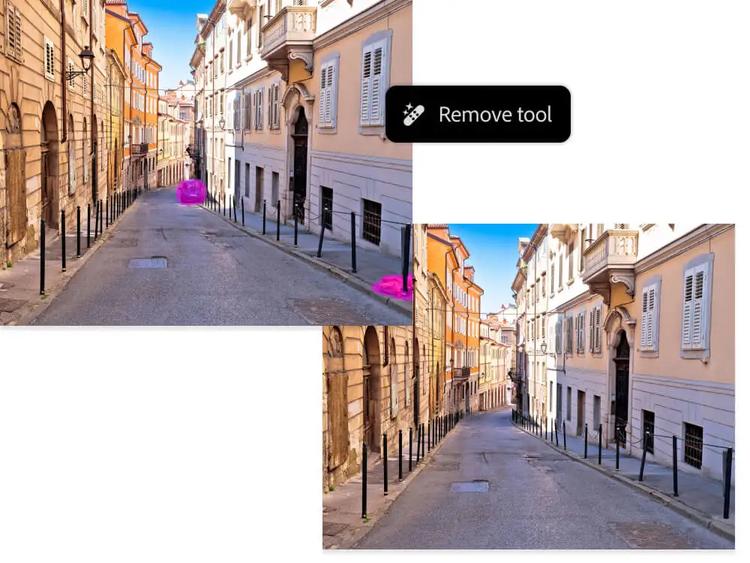
And AI has made things even more interesting! Features like the Remove tool can get rid of unwanted objects, Generative Expand lets you extend an image beyond its original borders, and Generative Fill can add or replace elements in seconds. There’s also Harmonize, which helps match the lighting and colors of objects you’ve added to a photograph. Generative Fill even won a Webby Award in 2024. Not bad, right?
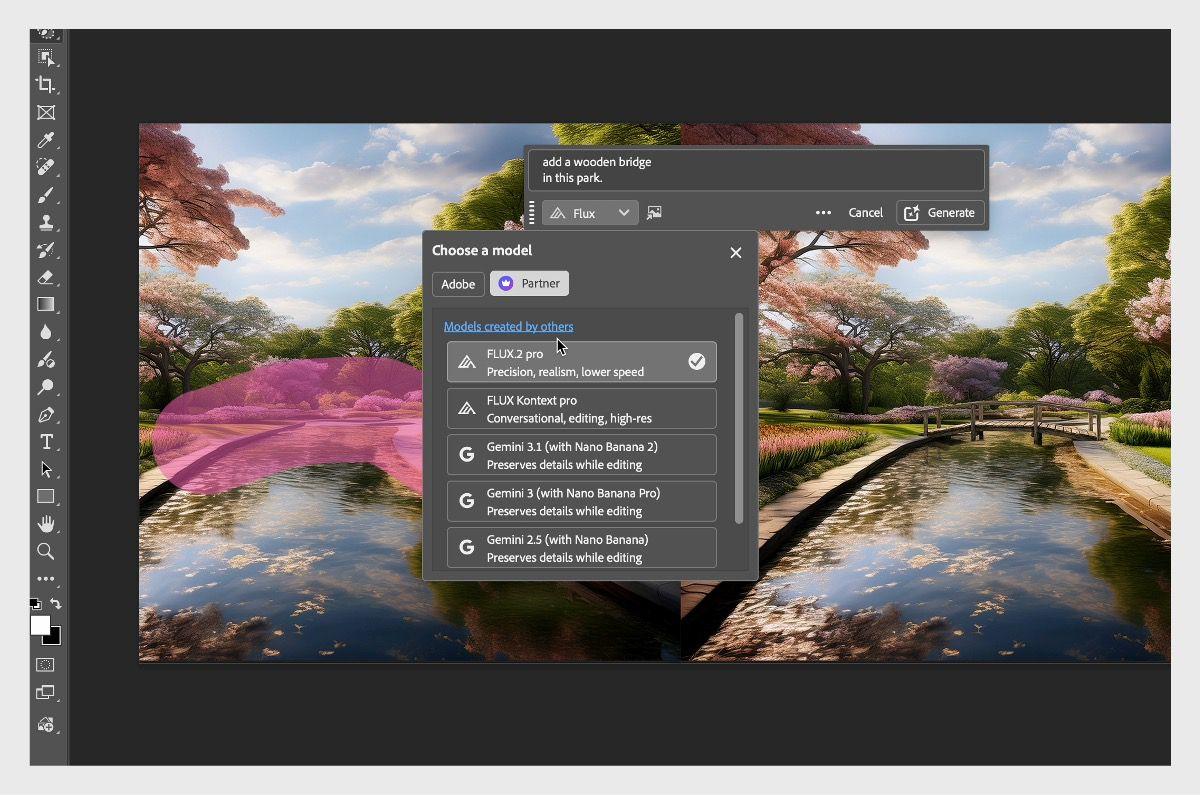
But there’s much more to Photoshop than its AI goodies. It’s a tool made by creators and for creators, becoming a fan favorite amongst professionals. The reason? Adobe has spent over forty years developing tools that suit their everyday needs. Features like Smart Objects, adjustment layers and native PSD/PSB support are particularly useful for complicated projects, but also simplify later edits, helping professionals get the results they want in less time. Adobe even has photographers and designers on its product teams, so the people behind the tools know the job.
So, what’s the catch? Well, Photoshop isn’t exactly cheap, and you can’t simply buy it and forget about it. It’s subscription-only, and cancelling an annual plan early could mean paying an extra fee.
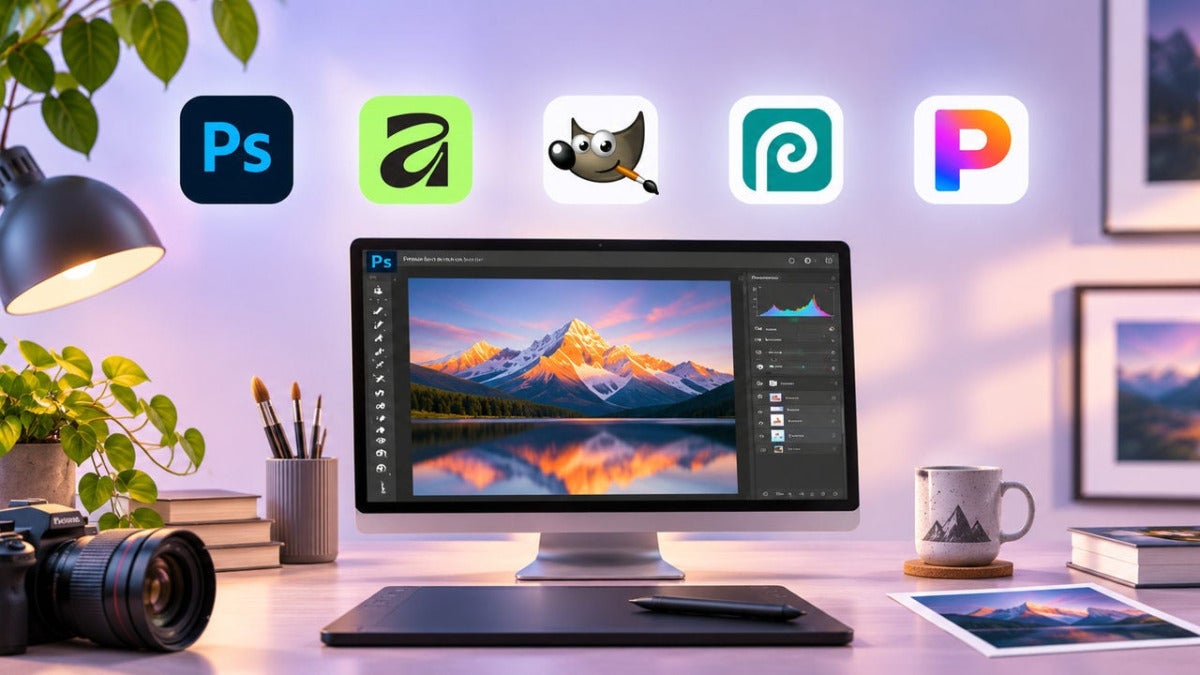
How do the leading photo editors compare?
Photoshop has the advantage when you need native PSD editing and a professional workflow, but you might prefer a free editor or a one-time purchase depending on your projects.
- Adobe Photoshop: Professional compositing, native PSD/PSB files and generative AI
- Affinity: Free photo, vector and layout tools
- GIMP: Free open-source retouching
- Photopea: Browser-based PSD editing
- Pixelmator Pro: Mac-focused editing with machine-learning tools
If you’re collaborating with designers who expect layered Photoshop files, compatibility is worth thinking about before you commit to a different program.
How to retouch a photo with Adobe Photoshop
Got a great portrait with something distracting in the background? Here’s how I’d tackle it in Photoshop.
- Remove distractions: Use the Remove tool to clean up smaller unwanted objects.
- Make bigger changes: Try Generative Fill to replace elements or Generative Expand to extend the canvas.
- Keep your edits flexible: Work with layers and adjustment layers; Harmonize can help when combining images.
- Check the final image: Zoom in and review the result before delivering it. AI still makes mistakes.
How to edit RAW photos with Adobe Photoshop and Adobe Lightroom
When you have hundreds of RAW photos to deal with, Lightroom and Photoshop can make a convenient team.
- Organize the shoot: Import and sort your photographs in Lightroom.
- Adjust the RAW files: Make consistent exposure and color adjustments before tackling the difficult images.
- Move to Photoshop: Use it for detailed retouching, layered compositions and more complicated changes.
How to prepare editable PSD files for a client
If you’re a designer working with agencies, chances are your clients will ask for editable PSD files. Many free photo editors let you export your work as a PSD. Sounds great, until you open the file in Photoshop and discover that some layers or effects have mysteriously disappeared. Suddenly, Roy Batty’s famous “tears in rain” monologue hits a little too close to home. Photoshop’s Photography plan costs $239.88 a year, which isn’t exactly pocket change, but it might save you quite a few headaches if you’re constantly exchanging files with other designers.
- Keep edits in layers: Preserve the parts that your client may need to change.
- Check PSD compatibility: Confirm that effects and layers survive if you’re exchanging files between editors.
- Open the delivery file: Review the saved PSD before handing it over.
Photo editing software pricing: how Adobe compares
Here are the key prices from the US comparison checked on November 13, 2026:
- Adobe Photoshop: $22.99/month with an annual commitment, billed monthly. Seven-day free trial available.
- Affinity: Free for photo editing, vector design, and page layout. Premium AI features available through Canva Pro for $18/month.
- Photopea: Free with ads. Optional Premium access costs approximately €8 for 30 days, without automatic renewal.
- Pixelmator Pro: Available through Apple Creator Studio for $12.99/month, with a one-month free trial. No standalone monthly subscription.
Photoshop also has an annual prepaid option listed at $263.88. Prices exclude taxes and promotions; AI usage and PSD compatibility can differ between plans.
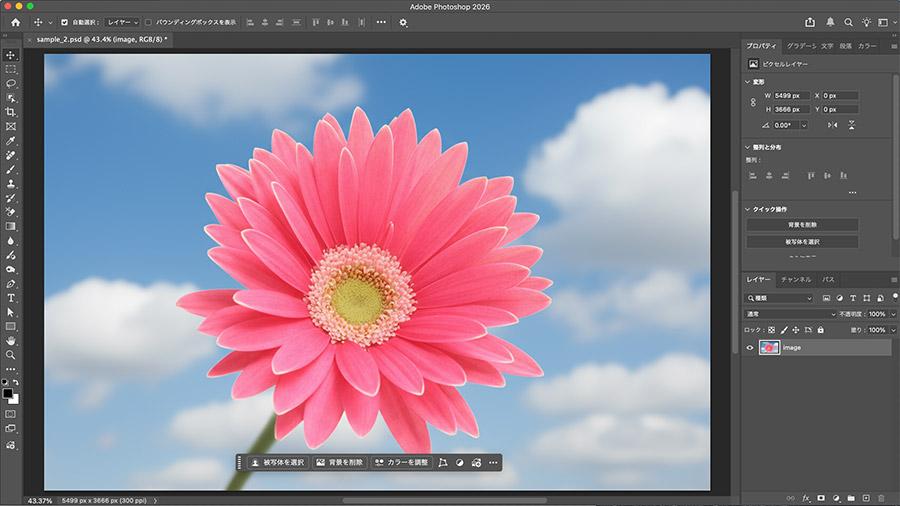
Which Adobe Photoshop plan should you choose?
Lightroom is great for organizing and editing large batches of RAW photographs, while Photoshop is better for detailed retouching, removing tricky imperfections or working with multiple layers. If you’re still not sure, check out our guide on how to choose between Photoshop and Lightroom.
If you think you’d make good use of both, here’s some good news. Adobe’s Photography plan costs $19.99/month and includes Photoshop, Lightroom, Lightroom Classic and 1TB of cloud storage. That’s actually cheaper than subscribing to Photoshop alone!
But before you go on a rampage of generating and deleting everything in sight, there’s something you should know: AI credits aren’t unlimited. Yes, with great power comes great responsibility! The standalone Photoshop plan includes 25 monthly generative credits, compared with 1,000 in Photography.
Luckily, not every AI feature uses generative credits. Most operations with the Remove tool, for example, won’t cost you any.
If you only want Photoshop, its standalone plan is an option. But if you also work with RAW photos, I’d look at Photography first: it includes Photoshop, Lightroom and Lightroom Classic for less than the standalone monthly rate on the plans compared here.
Why Photoshop is still a top choice for professional photo editing
So, after comparing all five editors, does Photoshop still deserve its crown? I’d definitely say yes, but that doesn’t mean it’s the best choice for everyone. If you’re looking for a job in the creative industry, learning how to use it could be a plus.
If you’re a freelance photographer, you will probably appreciate having Adobe’s program alongside Lightroom.
However, if you’re working with agencies or delivering professional PSD files, I’d stick with Photoshop. I know it’s not the cheapest editor around, but sometimes paying a little more for software you can rely on is worth every penny.
Prices, subscription plans, product features, availability, credit allowances and usage limits are subject to change. Please check the relevant provider’s website for the latest details before purchasing or subscribing.
