How to: get a tattoo done in Photoshop

Summer is traditionally the season when most people get their tattoos done. In a way it makes sense, because you usually wear tank tops and shorts, and can therefore show them off. But if you haven’t made up your mind yet, why don’t you try a Photoshop tattoo instead? It’s the perfect way to check how the design will look on you before actually using needles and ink. Plus, it can be redone and erased any time!

Get a tattoo done in Photoshop

Continue reading “How to: get a tattoo done in Photoshop”

How to download new MUGEN characters

I’m a big fan of using MUGEN to develop computer games based on old classics. However, one of the most tedious aspects of this intricate development platform lies in the creation of characters. Thankfully though, there are several online resources where you can download MUGEN sprites for free. Finding these sites can be difficult, but I’ll outline some of the best that I’ve come across.

Mugenation is a MUGEN developer community which a large database of different characters, which you can access by clicking the ‘Chars’ link on the homepage. You’ll find the stars of everything from Streetfighter to Worms here. Many of the character files are hosted by Mugenation which you can download for free. Some characters though are only available by clicking the link to an external site, and you’ll find that many of these are in Japanese or Korean.

Another decent community site is Heroes of Gaming, and you can access a few free characters from here. GCN‘s collection of characters is more impressive (unfortunately no longer available), featuring a huge range of Nintendo legends, such as Mario, Mega Man and Ryu. The site also offers template characters to help you build your own in MUGEN. Still not enough for you? Then head for eSnips, where you’ll find a feast of character downloads.

How to: Add extra dictionaries to OS X and iWork

Working on a Mac is a breeze: iWork is fast and easy to use, as well as being packed with features. My version (and I suppose, all the others) also came with 14 built-in dictionaries, enabling me to perform spell checks in multiple languages. But what if the language you need to check isn’t included? No problem. Installing new dictionaries is simple and will take you about two minutes. Here’s how to do it:

First, you need to download and install cocoAspell, a free and open-source graphical interface for ‘Aspell’. Basically, this will take over spell check duties from your Mac’s built-in utility. This is great, but not only because it’ll allow you to add new dictionaries: cocoAspell also boasts a smarter, more advanced suggestion system than your Mac’s spelling APIs.

Once cocoAspell is set up, you’ll need to get hold of dictionary files for your chosen language. This bit’s a little more complicated:

  1. Visit the Aspell dictionaries FTP site
  2. Open the folder corresponding to your language’s standard two letter code (e.g. EN for English or CA for Catalan).
  3. Select a file that looks like:
    aspell6-ca-20040130-1.tar.bz2 – as a rule of thumb, try do download a file beginning ‘aspell6’ over ‘aspell5’ and ‘aspell5’ over just ‘aspell’.
  4. Save the file to your Mac and unpack it.
  5. Copy the resulting folder to
    /Library/Application Support/cocoAspell/
  6. Following our example, you’ll now have a folder called
    /Library/Application Support/cocoAspell/aspell6-ca-20040130-1
  7. Open System Preferences -> cocoAspell and select your dictionary.

Once you’ve completed this installation, restart your Pages or Textedit application and you’ll find your new dictionary added in the available languages list. Job done!

How to create and remember strong passwords

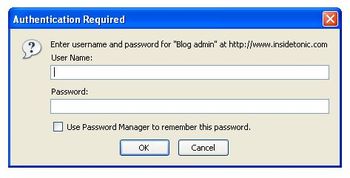
Create and remember stronger passwordsComing up with good passwords is not always that easy. Email, online banking, social networking sites, photo sharing communities, blog editors… they all ask for passwords and it’s hard to create the perfect one –easy to remember, hard to guess- every time.
I’ve had that problem too and I’ve been doing some research on easy ways to create stronger passwords. And guess what: I found some great tips that I’m willing to share with you, so that you can create the best passwords ever. Here we go:

  • Don’t use the same password for everything. This is almost compulsory. Just think about the risk you would run if somebody finds out that only password and breaks into your email inbox –or even worse, your bank account.
  • Avoid obvious words, such as your own name, your pet’s name or even correlative character sequences like abcd or 1234. These are the ones that password crackers try first. Don’t make things so easy for them.
  • How to create a safe, yet easy-to-remember password? Use a pattern. The best way to do it is using a base password plus a combination of letters that refer to the web you’re creating the password for. Let’s say my base password is “amm” and I want to sign up to Softonic; then I could use things like “ammsoic” (base password plus the first and last two characters), “ammsfoo” (base password plus first two consonants and vowels) and so on. You can add numbers and special characters –if possible- to make it even stronger: “ammsfoo#13“.
  • If you think this method is too complicated for you, grab hold of a password manager and let it do the hard work for you. Their usual working method involves saving all your login names and password in an encrypted database and asking for a unique, master password in order to view them.
  • Finally, in case you happen to forget any of all those newly created passwords, don’t worry: there are password revelators such as Revelation, which can help you to recover them by unveiling the text string lying under a row of asterisks.

Sharing desktops with TeamViewer

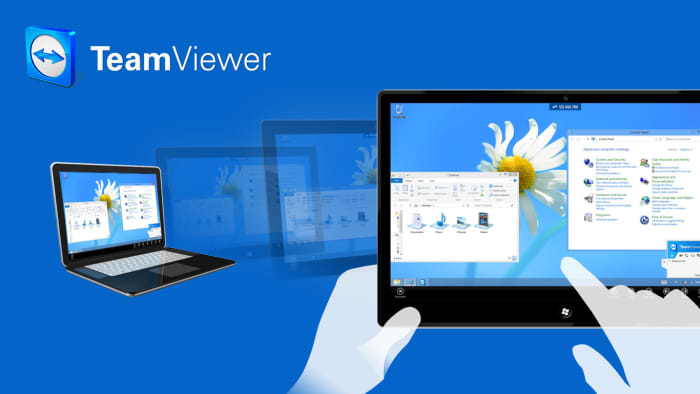
A while back I enthused about the desktop sharing software Crossloop because of it’s ease of use and great customer service. Recently however, I tried a decent alternative – TeamViewer – and it certainly gives Crossloop a run for its money.

Like Crossloop, TeamViewer allows you to access another person’s desktop and manage their files. This is great if you’re trying to provide troubleshooting assistance to someone who’s not on the same network or even in the same country as you. Unlike Crossloop, TeamViewer is split into two modes – Remote Desktop Mode and Presentation Mode.

In the first one, you are able to access and manage the files on the remote PC. It also allows you to send and receive files which is really useful if you need to send drivers to someone in order to solve an issue. Presentation Mode is purely just for presentations, which is useful if you’re working on a group Powerpoint project.

What both programs have in common is that they are free and very simple to use. TeamViewer assigns both the client and host username and password and, if they match, you are connected instantly. It can even circumvent Firewalls because if TeamViewer detects one at the host’s end, it runs the connection through it’s own servers.