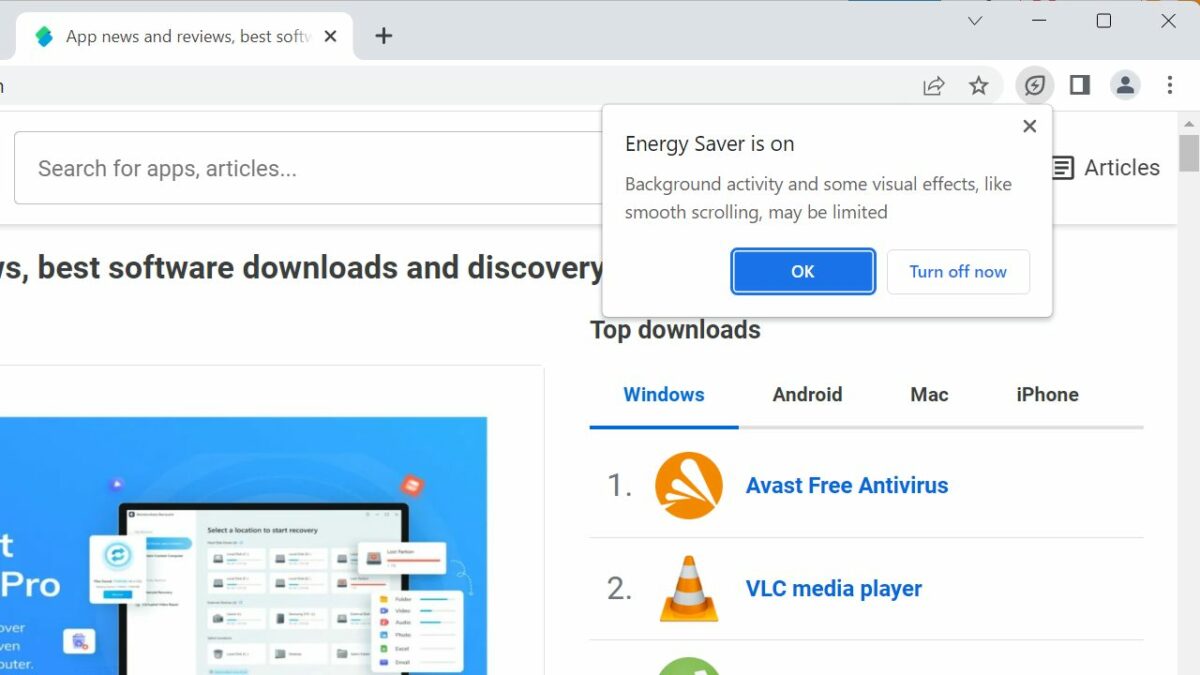
Google is rolling out two new features in Chrome Stable that improve the browser’s memory and power usage. The features are part of Chrome 108, which Google released in November 2022 to the public.
Features like these roll out over time to the entire Chrome population. This guide explains how these features work and how Chrome users may enable and configure them at this point in time.

Web browsers are notorious for using lots of system RAM and power. The latter may not be obvious on most desktop systems, but mobile users may notice that web browsers require lots of energy. While it depends somewhat on the visited sites, a video streaming or gaming site uses more than a site with articles, it is fair to say that web browsers are quite power hungry.
Google decided to address the issue by developing Memory and Energy Saver modes for the web browser.
Tip: Load chrome://settings/help in the Chrome address bar to check the installed version of the browser. Chrome updates itself automatically when an update is available.
Memory and Energy Saver explained
Memory Saver frees up memory that Chrome uses by putting inactive tabs to sleep. Until now, all tabs of the Chrome web browser were active and used memory; this guaranteed that users could switch to any of the open tabs without delay.
Sites put to sleep by the feature remain open in Chrome, which means that they can still be accessed with a click. There is a slight loading delay, however, but it should not be noticeable on most devices.
Chrome selects inactive tabs automatically to free up memory when the feature is enabled by the user.
Energy Saver, on the other hand, may reduce the browser’s energy usage. It runs automatically, either when battery is dropping below 20% or when the computer is unplugged. An option to turn it on manually is provided as well.
How to configure Memory Saver in Chrome
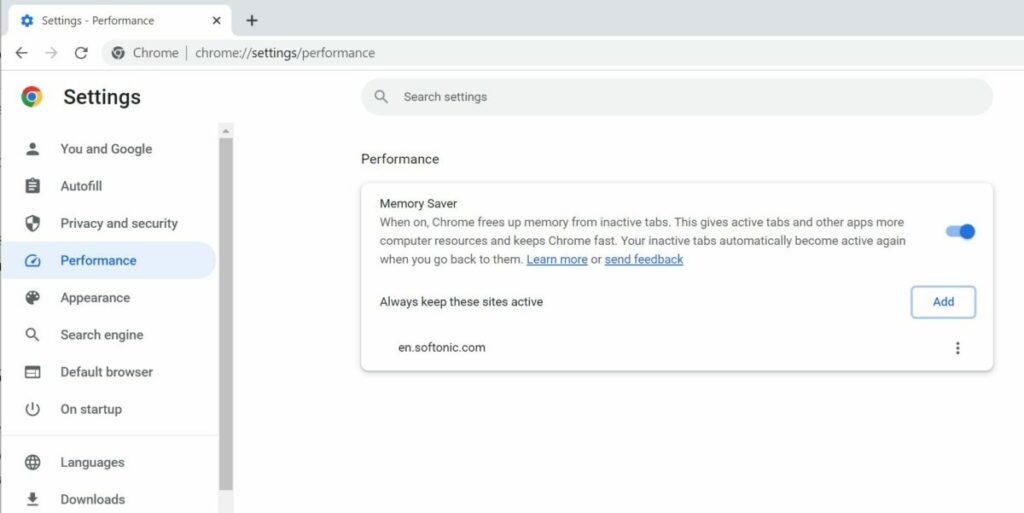
Memory Saver needs to be enabled by the user or administrator. Before that can even happen, it needs to be available in Chrome.
To check whether that is the case, load load chrome://settings/performance in the address bar, or select Menu > Settings > Performance to open the Settings. If Performance is not listed yet, do the following to enable it.
- Load chrome://flags/#high-efficiency-mode-available in the browser’s address bar.
- Set the status of the flag to Enabled.
- Restart google Chrome.
Flip the toggle on the Performance page to enable Memory Saver in Chrome. The browser puts inactive tabs to sleep automatically from that moment on.
There is an option to exclude certain sites from this. Activate the “add” button and type the domain that you want to exclude. Any site listed here is protected from the feature. In other words, it remains active all the time.
How to configure Battery Saver in Chrome
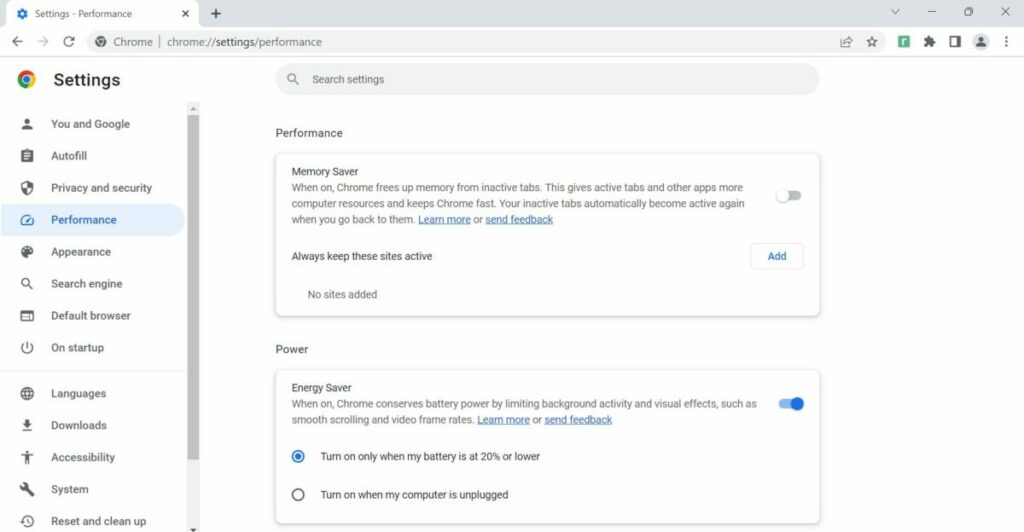
Battery Saver is the second performance enhancing mode. Like Memory Saver, it may not be available yet in Chrome 108. The feature is listed under Performance, when enabled, just like Memory Saver.
Note: the Memory Saver setting appears on battery-powered devices only, even after activation.
If it is not listed, do the following:
- Load chrome://flags/#battery-saver-mode-available in the browser’s address bar.
- Set the flag of the feature to Enabled.
- Restart Google Chrome.
Energy Saver is a new option under Performance after the restart. The feature is enabled by default and set to turn on automatically when the battery is at 20% or lower.
An option is provided to switch Energy Saver on whenever the device is unplugged.
“Chrome conserves battery power by limiting background activity and visual effects, such as smooth scrolling and video frame rates” when the feature is turned on, according to Google.
Conclusion
Both modes improve usage of the browser, especially if low- to medium-powered devices are used, or if Chrome is used in a mobile setting frequently.
It helps users use the browser for longer while unplugged and more efficiently.
Google is not the only company that is introducing these types of improvements. Microsoft added Sleeping Tabs and Energy Efficiency modes to its Edge browser some time ago. These help users of Edge save memory and power, very similarly to the functionality of Chrome.
