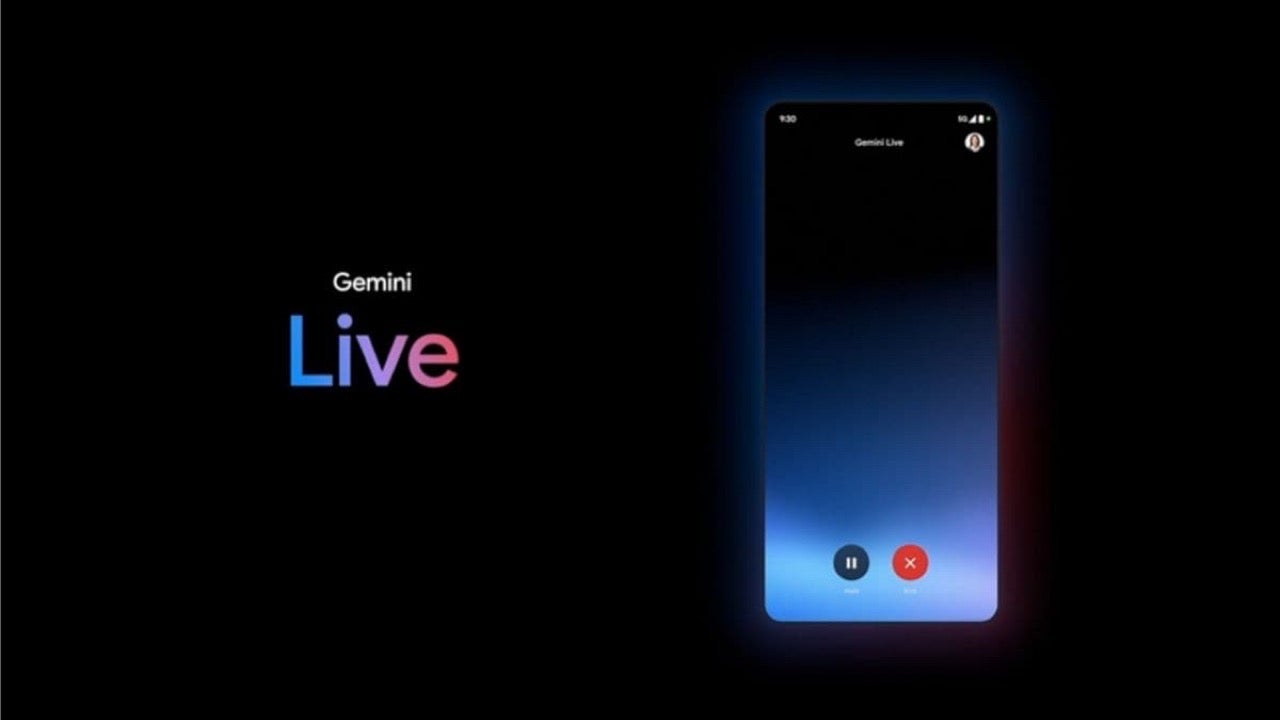
Google’s Gemini Live is now available for free on iPhones, unlocking powerful tools like real-time camera access and screen sharing without requiring a Gemini Advanced subscription. With this update, users can ask questions verbally, show objects or apps directly, and receive instant feedback from Google’s AI assistant.
How to activate Gemini Live on your iPhone
To get started, install the latest version of the Gemini app and tap the Live icon in the bottom-right corner of the Ask Gemini screen. The app will request microphone access, and once granted, you’ll be able to choose a voice and start your session.
Using the camera for visual questions
Want to identify a plant or get information about an object? Just tap the Camera icon in the bottom-left corner, give Gemini permission to access your iPhone’s rear lens, and point it at the subject. You can even switch to the front-facing camera and ask your question aloud — Gemini will respond verbally.
Sharing your iPhone screen with Gemini
For app walkthroughs or technical issues, tap the upward arrow icon to begin screen sharing. After selecting “Start Broadcast,” everything on your display becomes visible to Gemini. For privacy, it’s a good idea to activate Do Not Disturb mode from the Control Center to avoid unwanted notifications during your session.
Turning off camera or screen sharing
You can end camera sharing by tapping the Camera icon again or exiting the app. For screen sharing, tap the Share button in the Dynamic Island or inside the app to stop the broadcast. Gemini will show a transcript of the conversation afterward.