
To work effectively with large teams, it is essential to have good organization. Without a minimum of control, you will see how PDFs dance between emails, computers, and more, which can cause many delays and confusions.
Here, Acrobat Studio can be your lifesaver. This Acrobat plan provides us with what we need to be a shared workspace where we can all access the same documents in real time.

What Fails When Working in a Team
There are many mistakes we make when working in a team that undermine our productivity. Having our documents scattered, for example, is one of the most egregious errors. The same PDF can circulate via email, through work chats (Slack or Microsoft Teams), and some loose links… In each channel, some context is lost, such as its version, why it was changed, and more.
Having “scattered” feedback is also one of those mistakes. Yes, you may have reviewed a specific document, but others may not know if you are referring to document A, B, or another different one. Keeping our files centralized and located is essential.
In the end, all of this translates to a lot of wasted time. Understanding what was agreed upon, when, and the status of our materials involves a series of delays that could have been easily avoided.

Acrobat Studio: How it can help you
Acrobat Studio provides you with centralized workspaces, called PDF Spaces. This is a shared environment where our team works with the same set of files. This way, we do not lose context, as we can see at all times which documents are part of the project, which versions are current, and what has been commented on each one.
Each team member can comment directly on the documents within PDF Spaces and assign collaboration, review, or read-only roles to maintain a hierarchy.
Acrobat Studio also features AI Assistant, an assistant powered by artificial intelligence. This will help you generate graphics or diagrams with just a request, as well as answer questions about documents. And if you find it necessary, you can also create audio summaries to facilitate the understanding of certain more complex files.
Acrobat Studio, the antidote against misunderstandings
Centralizing the material and feedback in one place has many advantages. One of them is that there is no room for creative interpretations, as you can find comments on the documents themselves. It also generates few repeated explanations; everything is visible and accessible to anyone who needs to consult it.
Use Acrobat Studio in a practical and effective way
If you’re wondering how Acrobat Studio performs in real life, here you can clear your doubts. While each case is unique, this “workflow” can serve as a guide for applying it to your projects.
First, we will create the space for the project. Access Acrobat from the browser and go to PDF Spaces. Here, drag all the documents that will be used in this space. You can also click on Select files and select them from your PC.
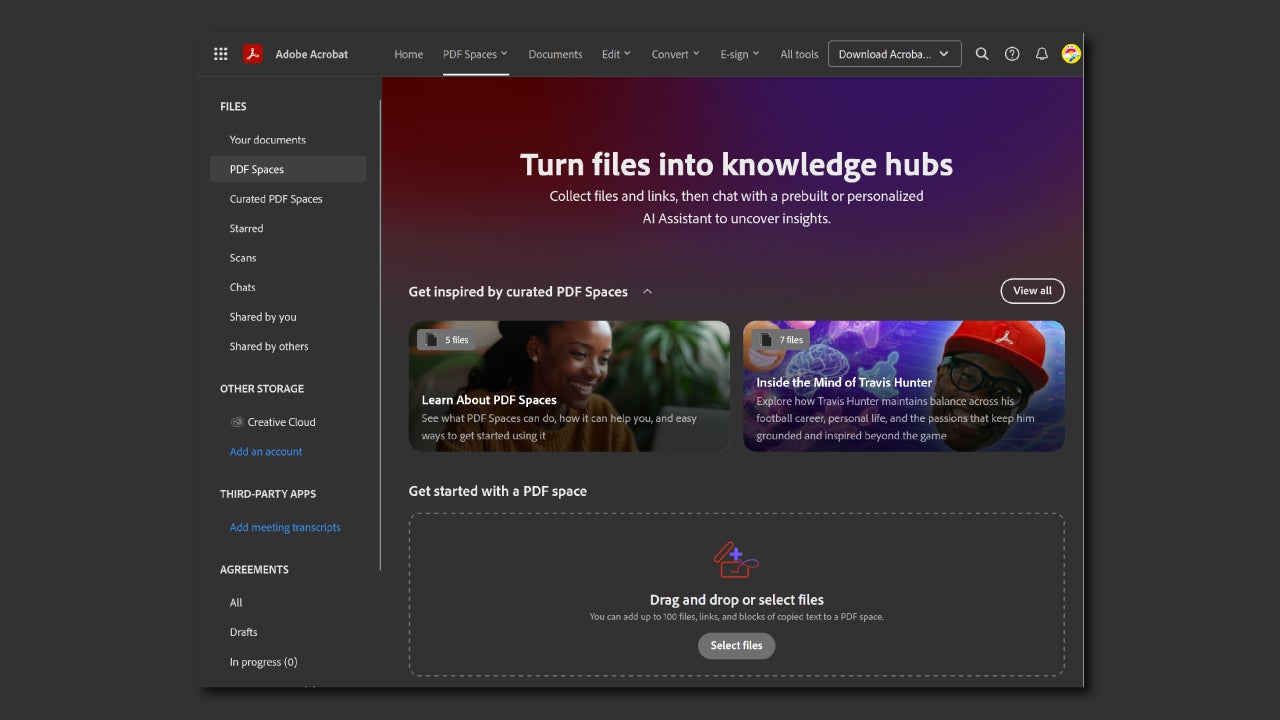
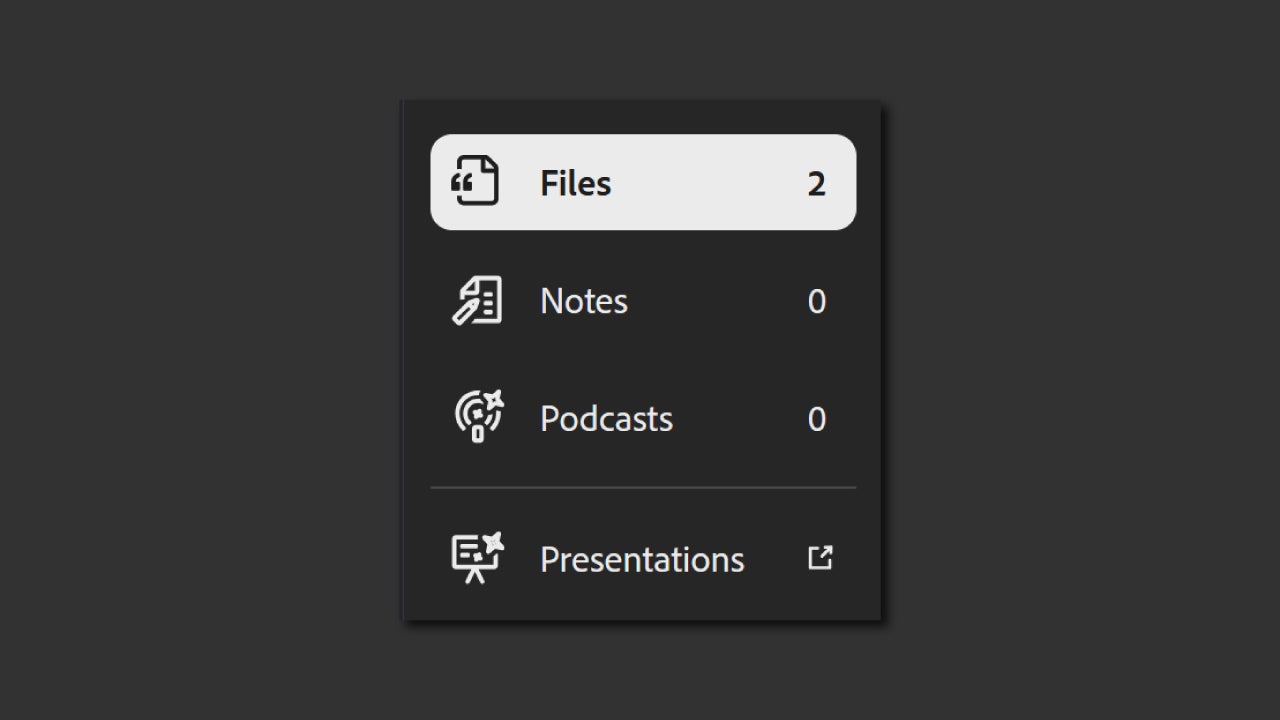
Include whatever you think is necessary: a brand guide, proposals, product sheets, etc. Keep the entire project in one place. Adobe will divide it into Files, Notes, Podcasts, and Presentations.
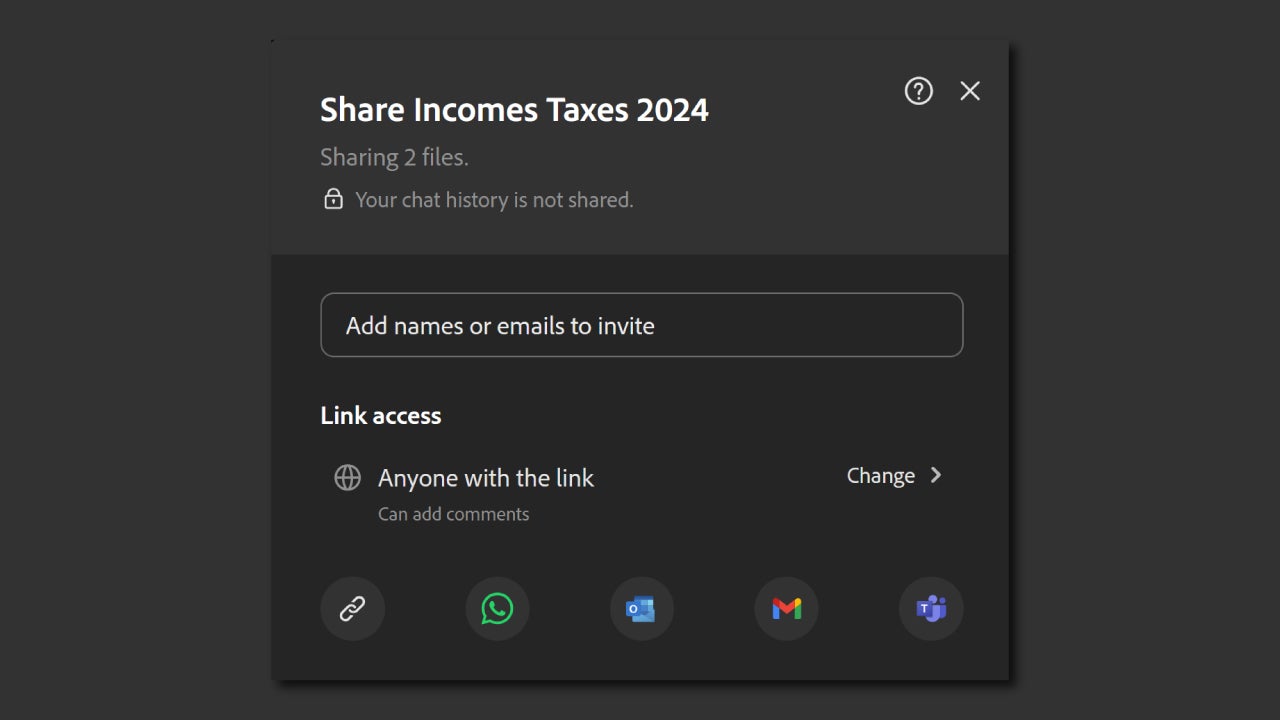
Then, define who can participate and with what permissions. In the right panel, select Share. Select the link under Control who has access and choose the link access level and permission level. Finally, click on Done. You can select to allow access to everyone with the link, only invited people, etc. In terms of permissions, you can pick between Contributors (can add comments, upload files, or delete them), Reviewers (can add comments), or Viewers (can view files and notes).
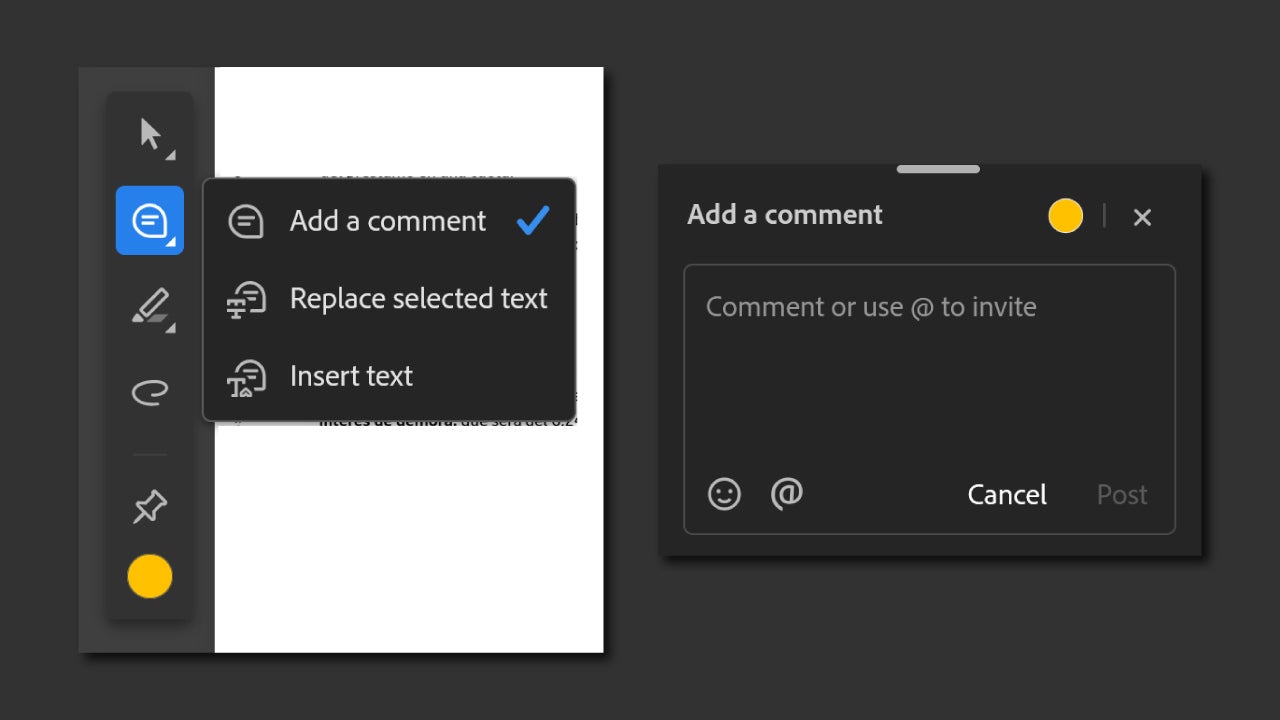
Now that we have all our files uploaded and the roles assigned, we will see how to comment and provide feedback. It is really elementary: select the document you want to comment on and go to the small tool panel on the left. There you will see the option to Add a Comment. With the tool selected, select the text of the document that you aim to add a comment to. Write what you want and click on Post. You can mention someone from your team by adding “@” before their nickname.
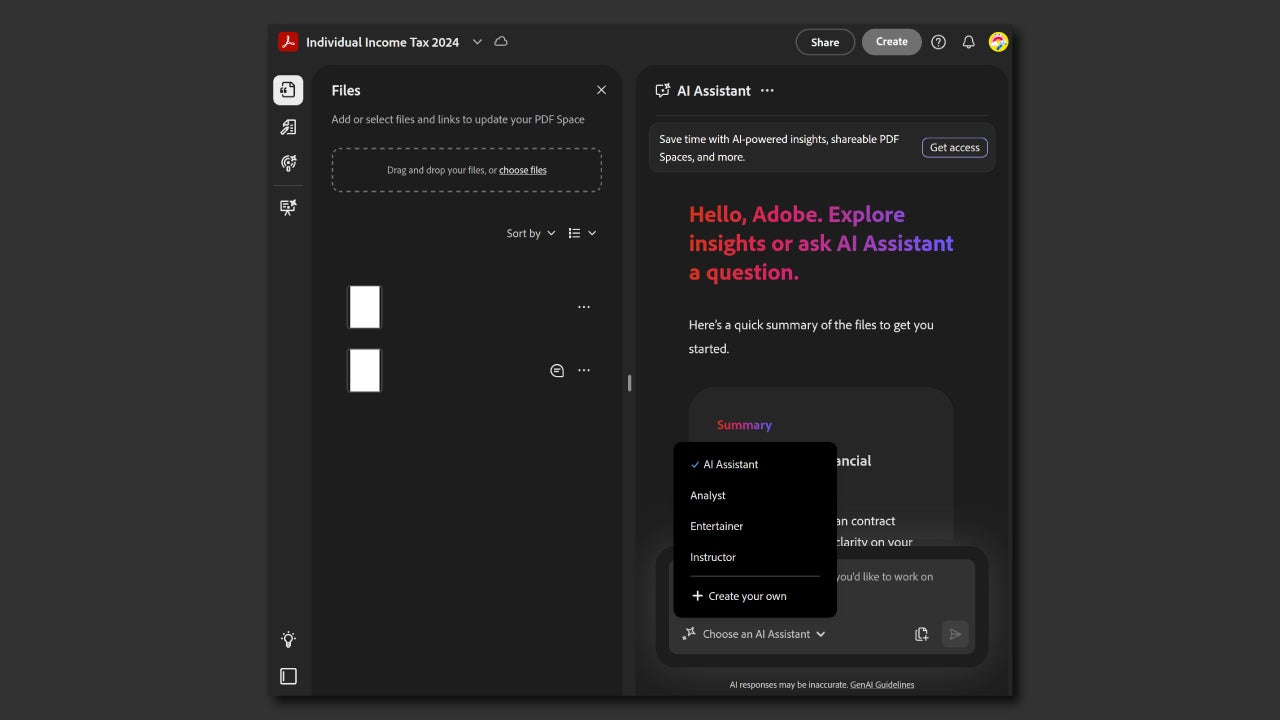
One of the most interesting features within Acrobat Studio is AI Assistant. When you access a PDF Spaces, you will automatically see an open conversation box with AI Assistant on the right. From here, you can ask the AI to summarize a document, list the most important points, or help you search for very details. In the same box where you type your request, you will also see another button, Choose an AI Assistant. This is used to change the type of responses, choosing between the profiles of Analyst, Entertainer, Instructor, or AI Assistant, the most neutral one.
By using Acrobat Studio, your team won’t have to deal with the chaos of having multiple versions scattered around. Not only that, but you will also see your team’s comments in real time, and you will even have the help of AI Assistant to help you analyze your documents.
How can I access Acrobat Studio
Adobe offers for free Adobe Acrobat Reader, one of the most used PDF viewers in the world. However, to access more advanced features you will need a paid subscription. Adobe currently offers several types of plans, depending on whether you are a individual, a business, or if you belong to the educational sector.
Individuals can decide between Acrobat Standard, Acrobat Pro, and Acrobat Studio, with the latter being by far the most complete option. Access from this link to find out its current price. Companies have the same options but adapted for teams. Teachers and students, on the other hand, have different plans, Acrobat Pro for students and teachers and Creative Cloud Pro for students and teachers. In this case, you can add AI Assistant additionally for a modest price.
