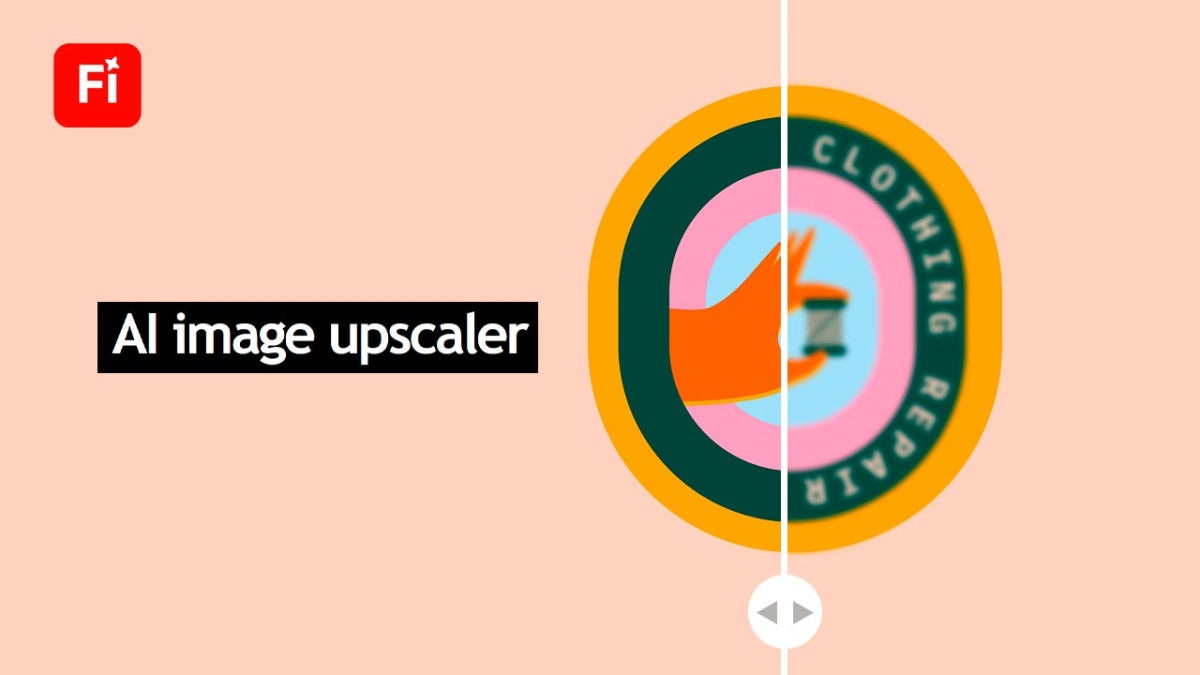
Adobe Firefly's Generative Upscale is one of those tools you appreciate the minute a tiny, low-res logo lands in your inbox and you have to do something with it. Anyone who works in graphic design has run into this. In this post, we'll show you how to use Adobe Firefly's Generative Upscale to bump up the resolution of low-resolution logos and photos that could use a bit of improvement.

How to upscale a logo that's too small
Working with tiny logos often feels like a dead end. In a perfect world, you'd ask for the logo again in a higher resolution or, if that file simply doesn't exist, redraw it by hand. But when you need to work with what you've got, Adobe Firefly's Generative Upscale is the tool we'd reach for first.
What Firefly does here is pretty straightforward: its AI rebuilds the edges of shapes and letters so they don't break apart into visible pixels, sharpens the image and preserves the original colors. That makes it possible to rescue the logo that's been causing problems and make it usable again.
What is Generative Upscale in Adobe Firefly and where is it?
Generative Upscale is a tool within Adobe Firefly that raises an image's resolution and improves detail using generative AI. It works much better than standard rescaling, which usually softens the image, makes it look blurry, and leaves you with a photo, logo, or graphic that's difficult to use professionally.
So if you've got an old logo you'd like to salvage, Generative Upscale is a good place to start. It can clean things up quite a bit and give you a higher-resolution, sharper version.
To get to Generative Upscale quickly, just follow these steps:
- Go to the Adobe Firefly page, then click on Quick actions in the left pane.
- Select Upscale image.
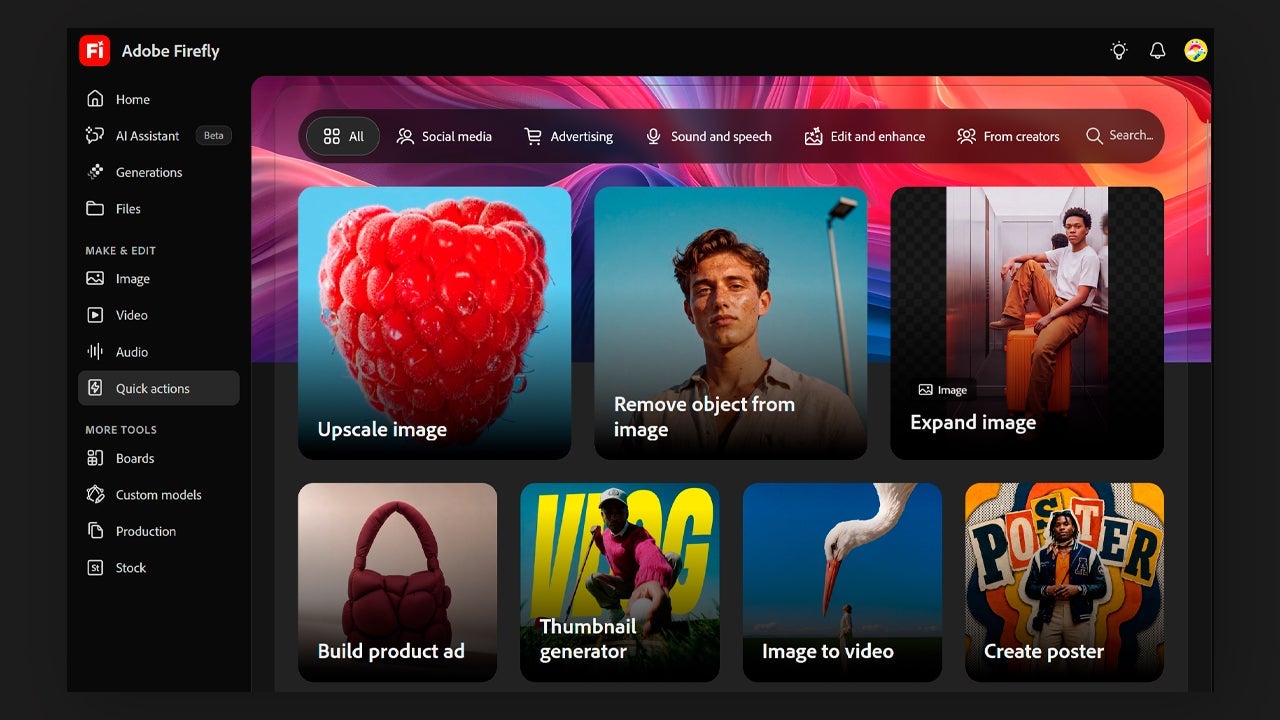
- Once you're in, upload your image and choose the output resolution: 1K, 2K, or 4K. We'd suggest starting smaller and moving up gradually while you check how the result looks.
- There's another route too. Go to Image, then choose Edit Image. Upload your file, click Upscale, and you'll find the option in the toolbar on the left.
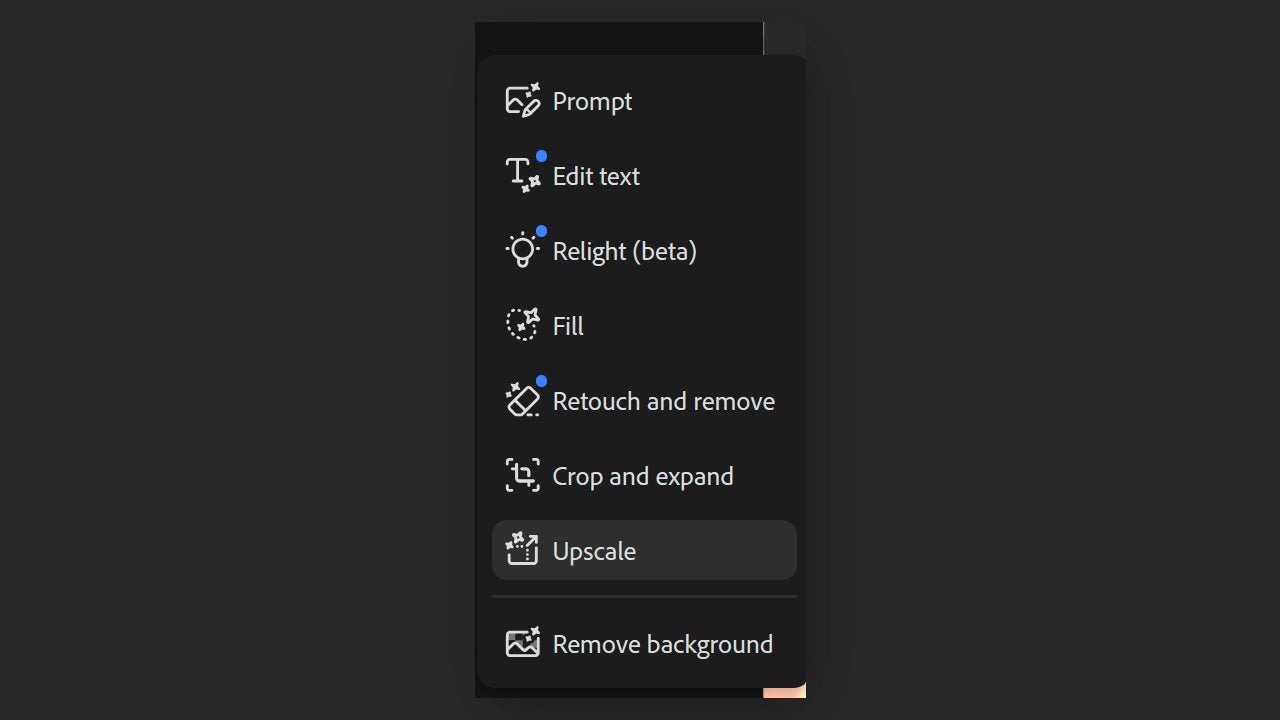
- At that point, you can choose which generative model to use. The available options are Firefly Upscaler (Adobe's own model), Topaz Bloom, and Topaz Gigapixel. All three do a good job, but it's smarter to test one first and see whether it gives you the kind of result you want. After that, if you're not convinced, try another and compare.
Adobe Firefly accepts JPEG, PNG, and WEBP files up to 100 MB, and it creates the upscaled version as a new document. That's useful for one simple reason: your original file stays untouched, so if you end up needing to go back to the low-resolution logo, you still have it exactly as it was.
What resolution should I choose in Generative Upscale?
When you use the Upscale option, start with 2X and move up to 4X when you need the final file at a larger size. For example, if your logo is 600 x 600 pixels, choosing 2X will turn it into 1200 x 1200 pixels. If you go with 4X, you'll get 2400 x 2400 pixels instead.
A 4X result can look much cleaner, as long as the original image has enough detail to begin with. Within reason, of course. That's why it's a good idea to check the result every time before you call it finished.
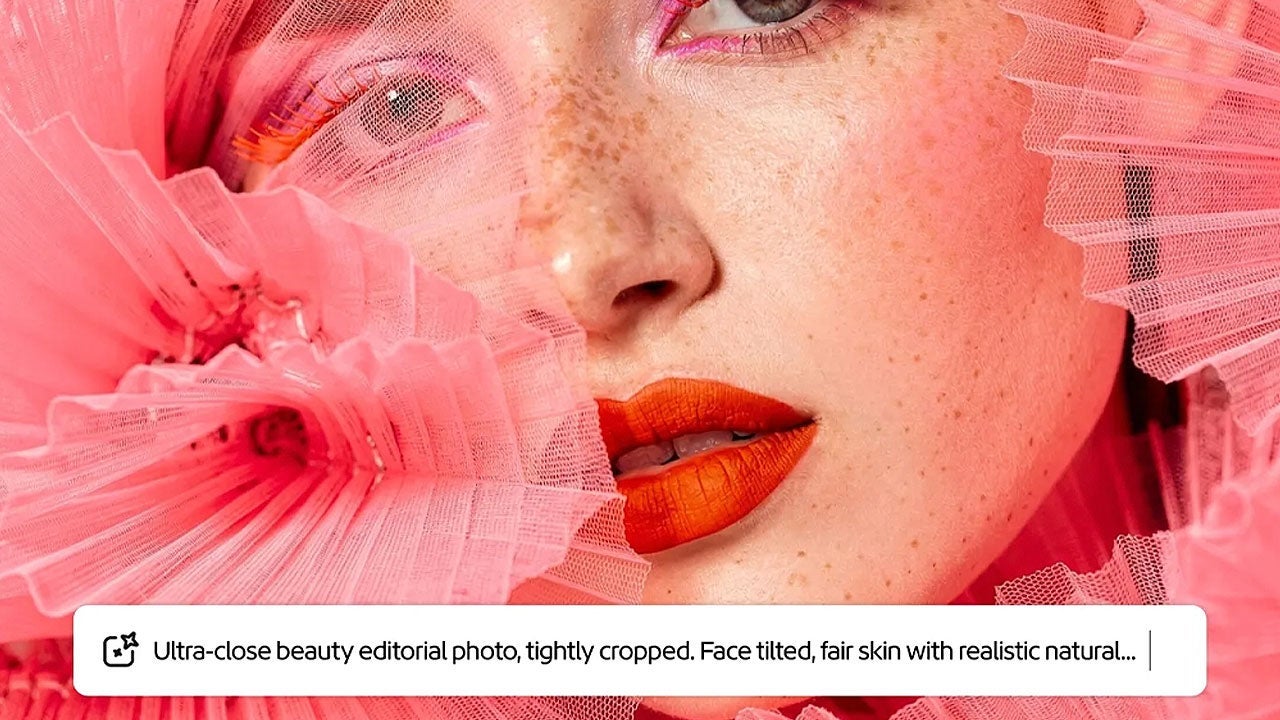
Why use Adobe Firefly as an AI image upscaler?
Adobe Firefly is a genuinely useful tool for people working in graphic design or audiovisual projects. The benefits go beyond simply increasing the resolution of a logo or image. It also saves time, especially when the source material is in rough shape and you'd otherwise be stuck figuring out how to make something workable out of it.
One last thing. If the first result isn't quite right, keep testing different settings and adjustments until it lines up with what you need. Firefly can do a lot more than this, and it's worth taking advantage of that.
