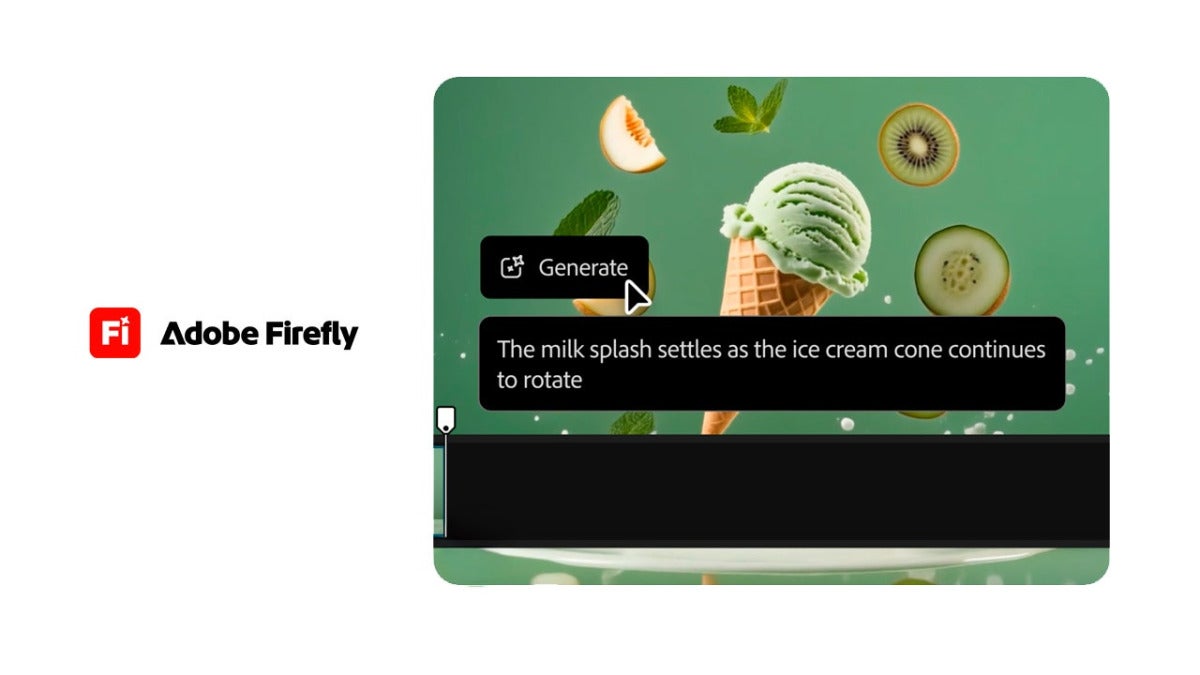
You recorded yourself talking to camera, the takes are full of stumbles, the pacing sags, and the video never leaves the folder you dumped it in. Firefly Video Editor is built for exactly that stretch: the one between raw takes and something you would actually publish. You can generate clips, voices, and music with AI inside Adobe Firefly, mix those with your own footage, and finish the edit without hopping across three or four different apps.
So, what is Firefly Video Editor really for? What can you do in it? And how do you start using it without wasting an afternoon figuring it out?

What is Firefly Video Editor?
Adobe presents Firefly Video Editor as the built-in video editor inside Adobe Firefly. You use it in your browser, Chrome or Microsoft Edge at the moment, so you don’t have to install anything. Just go to firefly.adobe.com with your Adobe account, then click Timeline in the left sidebar.
What makes it handy is simple: it puts two parts of the process that are usually split into separate tools in one workspace.
- Create. You can generate video clips, voiceovers, and music with AI.
- Edit. You can trim, rearrange, and polish those clips, along with your own footage, on a multi-track timeline, which is what you’d expect from any solid video editor.
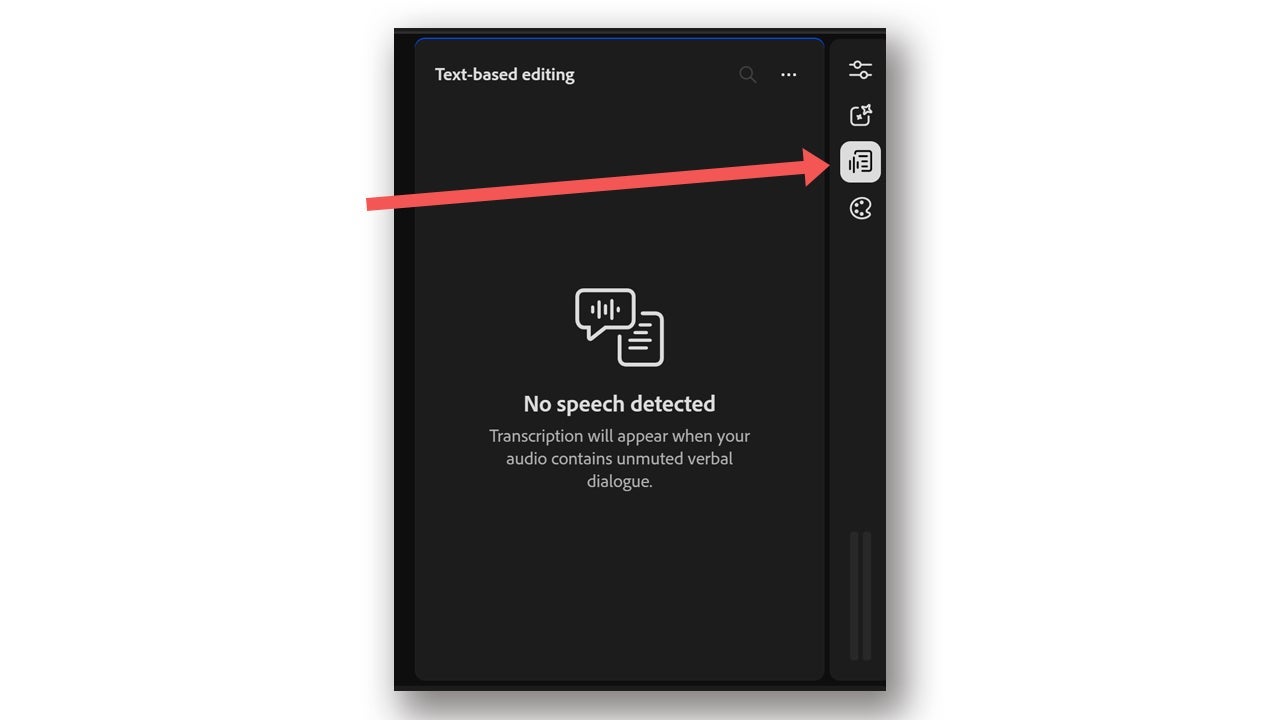
There are also two ways to edit. You can move clips around directly on the timeline, or you can use Text-based editing. With that second option, Firefly transcribes the spoken audio in your video, and you edit by changing the text almost like you’re working in a document.
Once you’re done, export in the format that fits where the video is going, whether that’s horizontal for YouTube or vertical for Reels and TikTok.
Generate and edit in one place
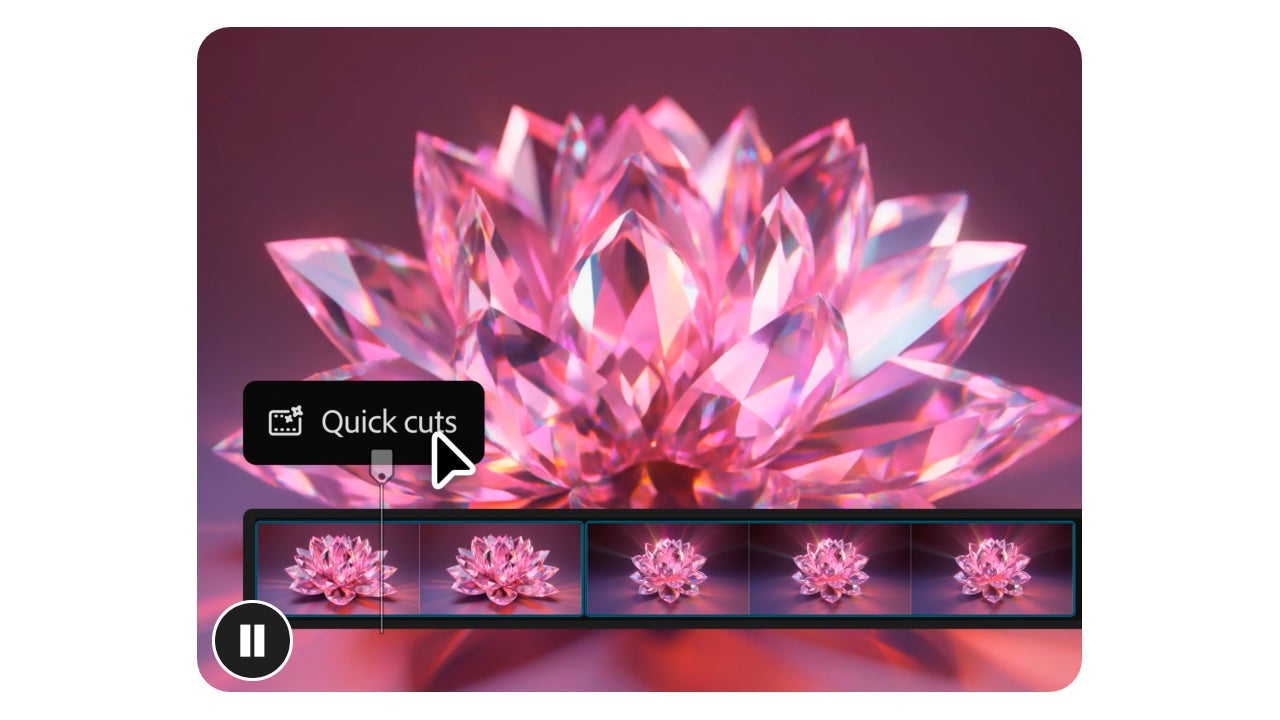
One of the better things about Firefly Video Editor is that you don’t need to walk in with every asset already finished. If you’re missing a clip, generate one. If you need a voice, a sound effect, or some background music, you can make that too.
The Generate media panel is where that happens. From there, you can create videos or sound effects from a short written prompt. A practical way to work is to place your own footage on the timeline first, see what’s missing, and then fill those gaps with generated media. Anything you create appears in the Generation history panel. If a scene is missing something, you can generate a new one from any frame so it matches the style of the rest. And once a clip is generated, you can edit it by describing what you want: Runway Aleph adds or removes objects and swaps backgrounds without you touching the timeline.
Quick Cut: an edit put together in no time
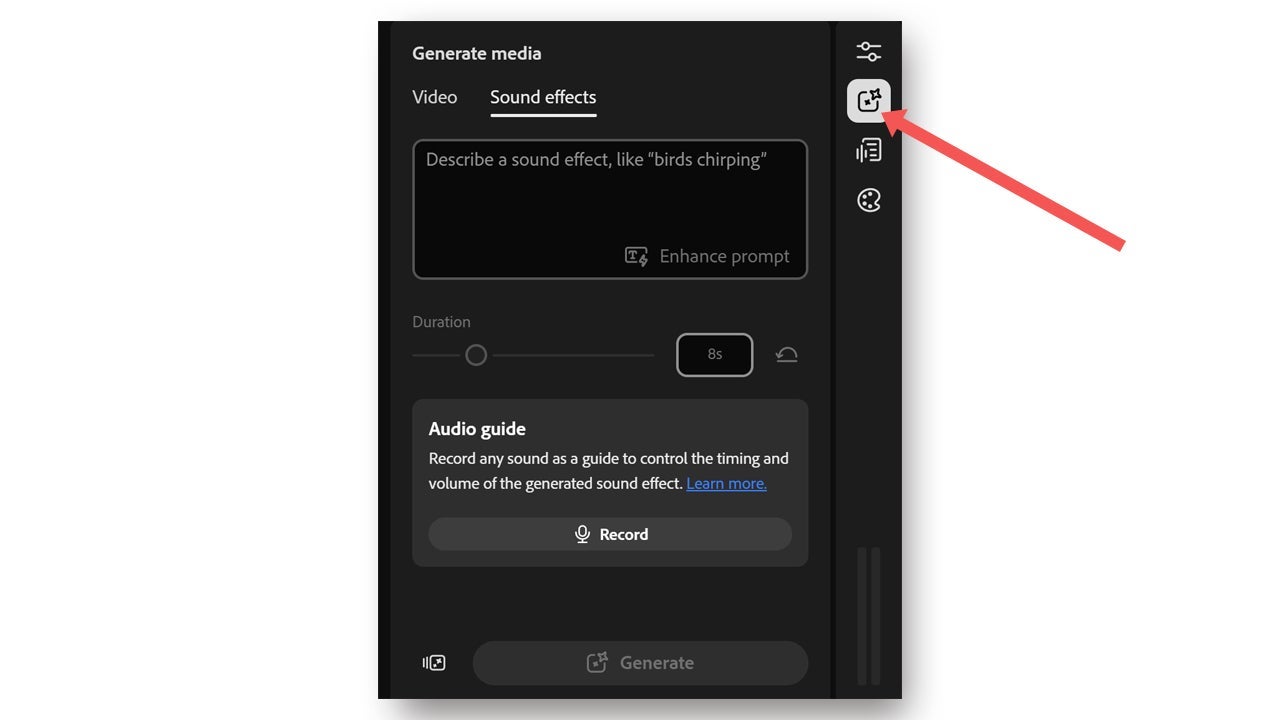
Sometimes the hardest part is just starting. If you open the editor and blank out in front of an empty timeline, Quick Cut helps by assembling a first draft for you.
- Start by uploading your videos to the editor, or generate new clips if you need them.
- Click the Quick Cut button in the bottom-right corner.
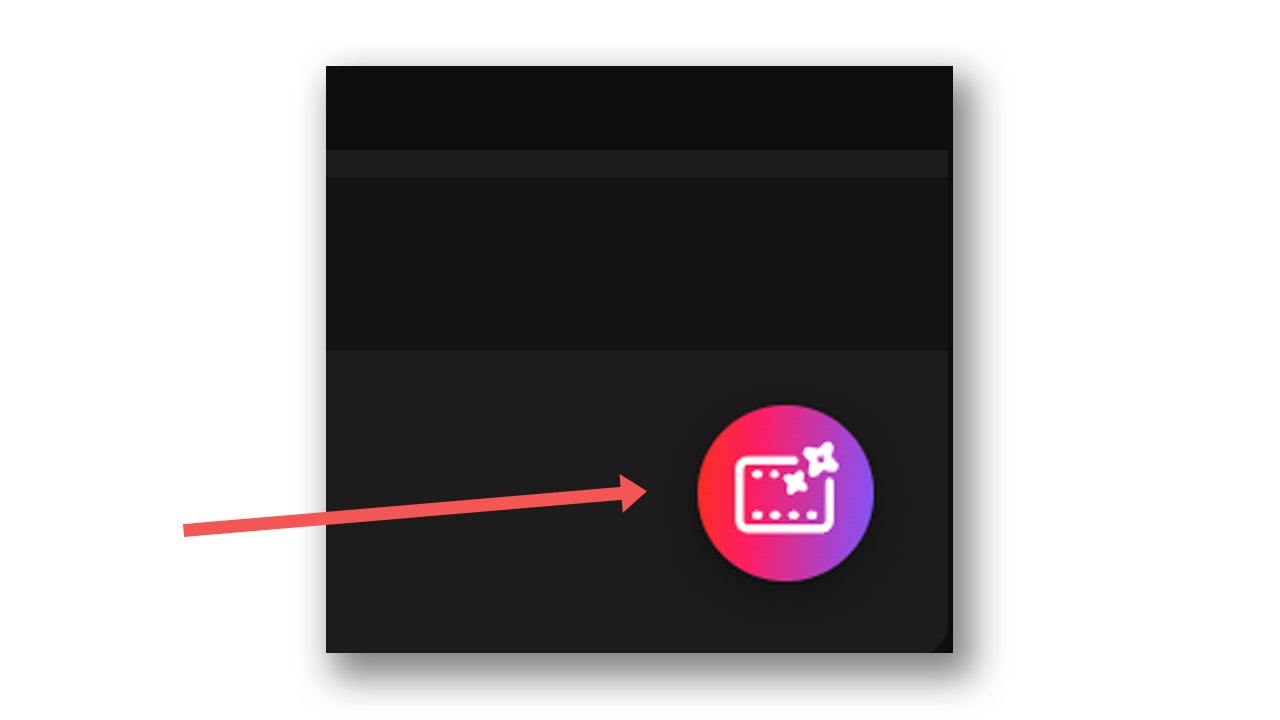
- After that, choose the Quick Cut function again.
- Then pick the type of video you want and describe the look you’re after. You can also choose the duration, set the aspect ratio, and decide which clips it should pull from. When that’s set, click Create quick cut. If you want more control, add a script or a shot list so it follows your direction more closely. From there, you can replace clips, tweak the pacing, and shape it so it feels more like your own work.
Adobe Stock inside the editor
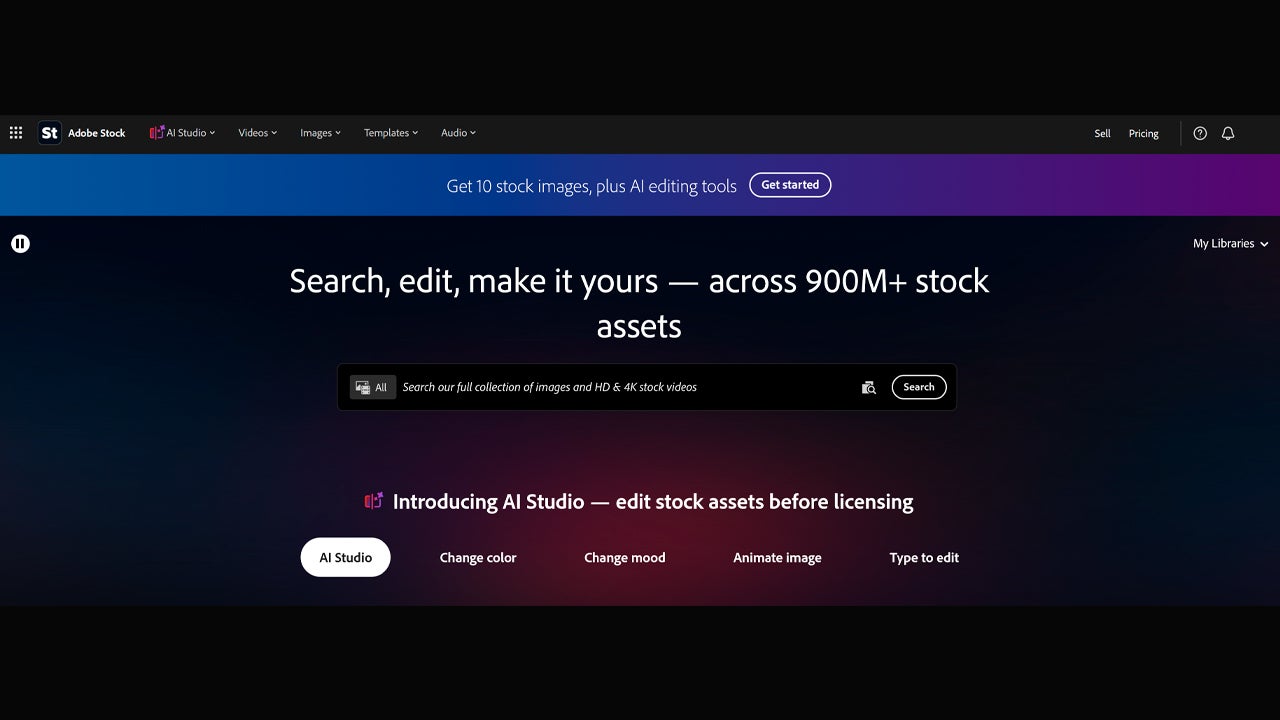
Adobe Stock is available right inside the editor too, with access to more than 800 million licensed assets without leaving the app. You can pull in videos, images, music, and sound effects from there. Whatever you download lands either in the Project media panel or directly on the timeline, depending on where you opened Adobe Stock.
Turn a product photo into an animated ad
If all you have is a single product photo, the Product Ad Microstudio walks you through it. Upload the image, follow the guided workflow, and you come out with an animated product ad without building anything from scratch.
And make the thumbnail that goes with it
The Thumbnail Microstudio does the same job for the thumbnail. It creates one that complements the video and is ready to publish, instead of something you throw together at the last minute.
How to get the most out of Firefly Video Editor
Here are two ways to get started with Firefly Video Editor: a short social clip, and a cut made from a longer video.
- Upload your clips to Firefly Video Editor.
- Trim them down and arrange your strongest takes on the timeline. If you’re speaking on camera, Text-based editing makes cleanup faster because you can remove lines straight from the transcript.
- Use the Color adjustments section to make the footage look more consistent.
- Move the playhead to the spot where you want to begin, then click Record voiceover to record your voice-over, up to five minutes at a time. If you’d rather not record it yourself, choose Generate Speech.
If what you want is to turn a longer video into a shorter social clip, here’s another way to do it:
- Upload the full-length video to Firefly Video Editor.
- Open Quick Cut and describe what you want.
- Pick the vertical format and set the duration you need.
- Review the draft, then fix whatever needs work. If a clip doesn’t sit well in a vertical frame, use the Aspect ratio icon on the timeline to set it correctly. After that, turn on Auto reframe from the Properties panel.
- Add subtitles from Captions, and it’s ready to publish.
- If the audio came out rough, run the footage through Enhance Audio to clean it up and fine-tune the music, ambience, and sound effects.
If you already work in Premiere Pro, Firefly doesn’t replace it. It gives you somewhere to think out loud, put a first assembly together, or spin off the social version without tying up your main edit. And if you come from Photoshop, the thumbnail and product-visual workflow fits when you need every piece of brand material to look like it belongs together.
Try Firefly Video Editor
You don’t have to install software to use Firefly Video Editor since it runs in the browser. Right now, Adobe says it works in Chrome and Edge, on both Windows and macOS computers.
Paid plans include monthly generative credits, which is what video generation and third-party models draw on. As of October 2026, Adobe also lists a free tier with generations that refresh daily if you want to try it before committing. Adobe Stock works a bit differently: some assets are free, and others are paid.
Adobe also says Firefly’s own models are trained on licensed Adobe Stock content plus other public-domain material. That’s why the company says those models are safe for commercial use.
