Skip to content

Softonic English

Just another Softonic Sites site

How to turn scanned contracts and reports into searchable working PDFs with Adobe Acrobat Pro

When you digitize paper documents by scanning them, the result is usually an image-based PDF that is hard to search, copy, or edit. Adobe Acrobat Pro can turn those scanned pages into searchable, editable files in no time.

Your scanned documents can become text you can search for, edit and, in general, make more secure too. Here’s how you can do all of that with Adobe Acrobat Pro.

Adobe Acrobat Pro DC
Adobe Acrobat Pro DC Try now

Why does a scanned PDF waste your time?

For a computer, a scanned PDF document has the same limitations as a photograph or image. Essentially, both work the same way, since you can’t copy text or search for specific information.

This also makes reviewing the document quite difficult. And, if you have to correct anything, most likely you’ll have to redo the document. Luckily, with Adobe Acrobat Pro you can change all that.

How to use Adobe Acrobat Pro OCR on a scanned PDF

OCR stands for optical character recognition. This feature is built into Adobe Acrobat Pro, which means Adobe Acrobat Pro can analyze an image, detect the letters, and recognize the text in it.

  • Open the PDF you scanned in Adobe Acrobat Pro.
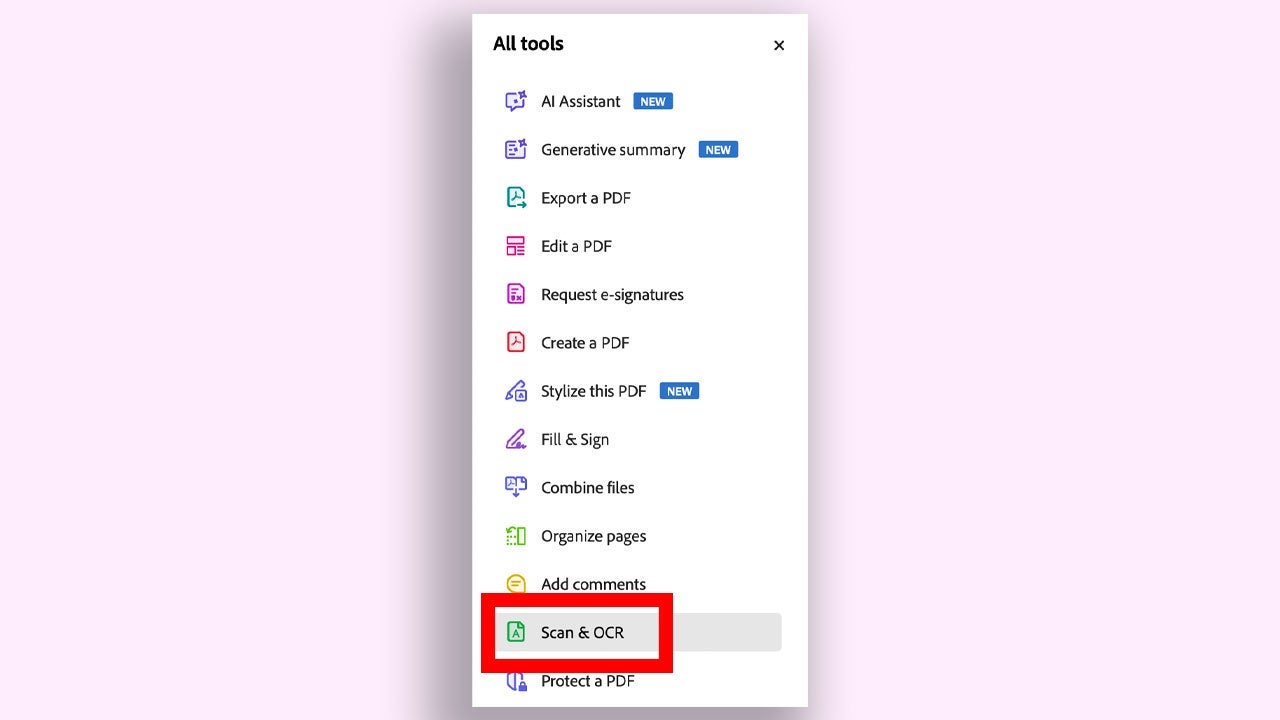
  • Look for the Scan & OCR tool.
  • In the Recognize text section, choose the In this file option. Then select the appropriate language. Finally, click Recognize text.

At first glance, your document won’t change, but now you’ll be able to search for words, select phrases, and copy them, among other things. That said, you should keep in mind that if your original document is wrinkled, has stains, or has very small text, Adobe Acrobat Pro may make some recognition mistakes. If that happens, review and correct the recognized text.

How to clean up scanned PDF pages so they’re easier to read

In a document scanned in a hurry you may find folded pages, pages out of order, or black borders. Adobe Acrobat Pro includes tools to refine your document even further. Some of these are:

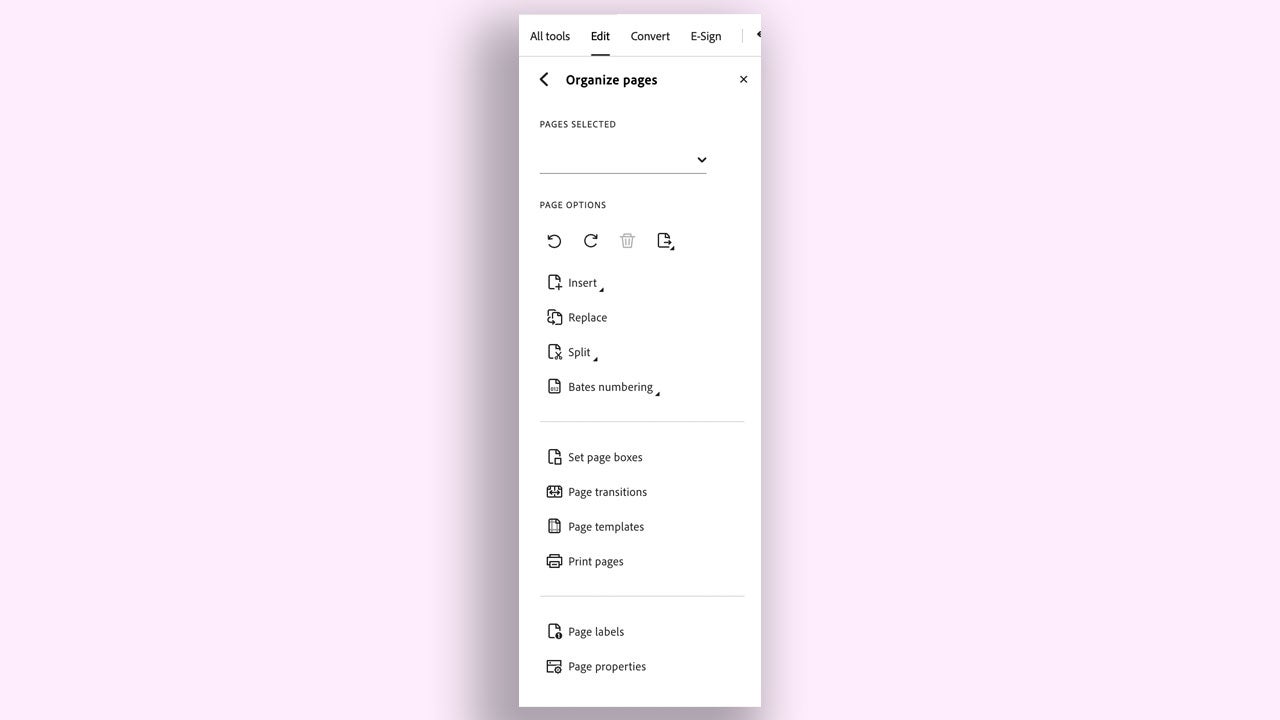
  • Organize pages: This function lets you select pages with a different orientation so you can place them correctly, insert new pages, replace others, or split the document.
  • Combine files: It lets you combine several files into a single file.
  • Stylize this PDF: Clicking Stylize this PDF opens Adobe Express in your browser. From there, you can add geometric shapes, text, tweak the document’s design, and much more.

How to edit, search and comment in a scanned PDF

Once you apply OCR to Adobe Acrobat Pro, your PDF will stop being an “image” and become a document you can work with. Some of the tasks you can do are:

  • Searches: You can use the search tool to locate specific words just as you would in a Microsoft Word or Google Docs file.
  • Correct text: If you find misspelled words, you can change them directly without redoing the document. Keep in mind that for scans, it’s best to make small changes to get the best results.
  • Comments and review: With Adobe Acrobat Pro you can underline, cross out text, or add notes to your PDFs. If other people open the document in Adobe Acrobat Pro they’ll also be able to see your comments.
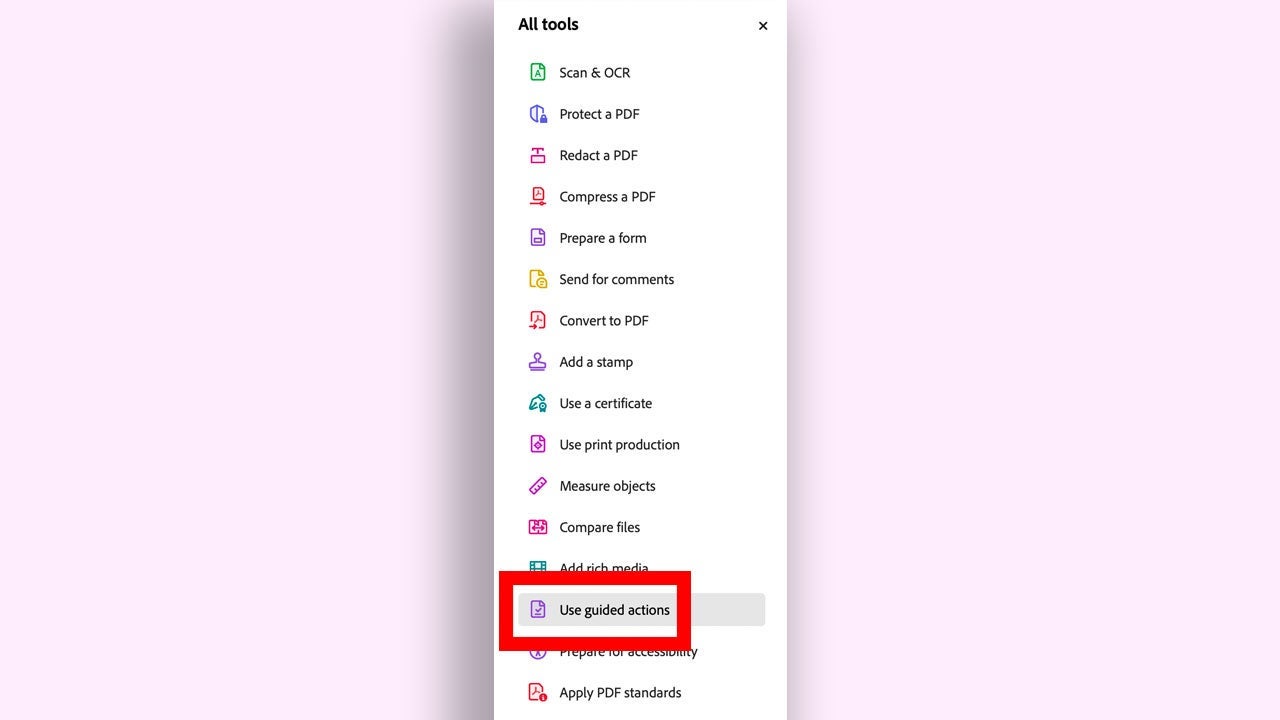
  • Work with many files at once: Adobe Acrobat Pro lets you create guided actions to apply a series of actions to several files in a row. To access this feature, go to All tools > Use guided actions.
How to protect sensitive information in a PDF

Documents such as contracts or reports usually include confidential data that shouldn’t be shared outside your organization. Adobe Acrobat Pro has very useful security options such as Protect a PDF, a function you’ll find in the All tools panel. With Protect a PDF you’ll be able to set a specific password to open a document. It’s the simplest and most straightforward protection.

  • Adobe Acrobat Pro also lets you redact sensitive words and data with Redact a PDF, a tool that you’ll also find in All tools. Click Redact a PDF, choose the Redact text and images option, and use your mouse to select the text to hide.
  • If you need to redact a word or phrase that’s repeated hundreds of times, select Find text and redact. Adobe Acrobat Pro will find every instance and you’ll simply have to review the results to decide what to cover up.
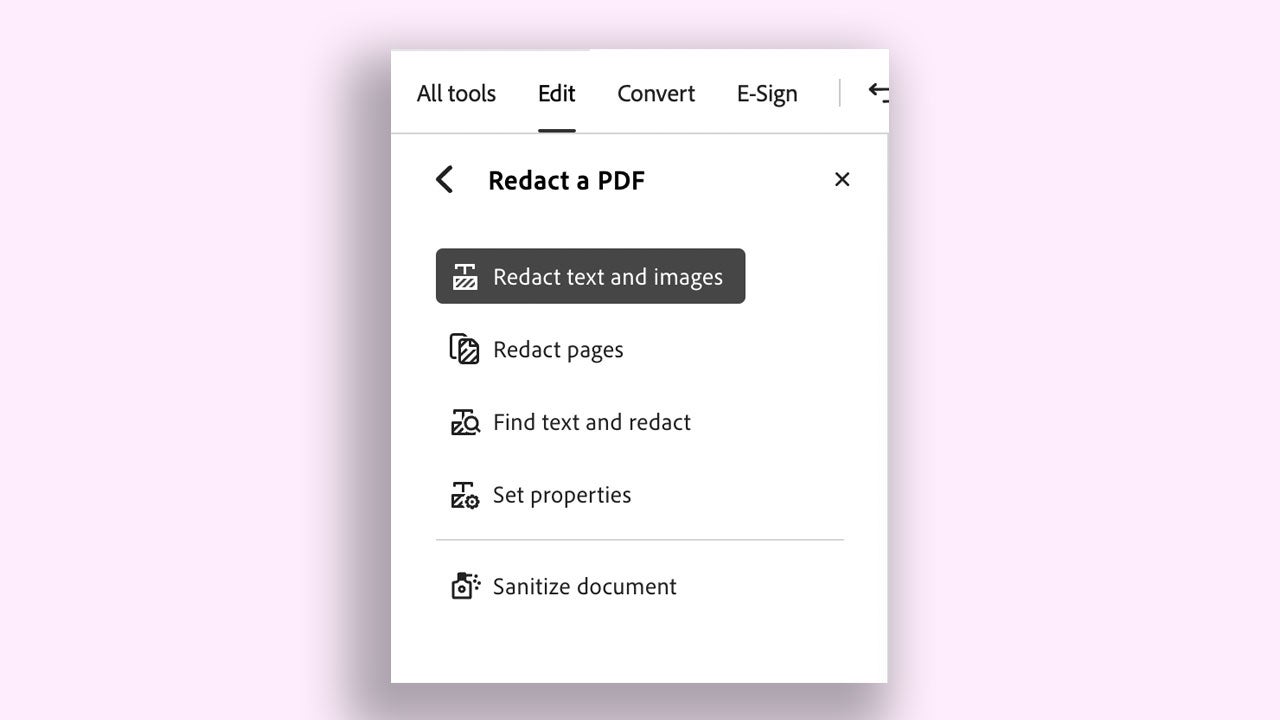
  • In Redact a PDF you’ll find the Sanitize document option, which will let you remove all hidden data and metadata from your document. Use it before sending any document.
  • If you need stronger document protection at work, Adobe Acrobat Pro also lets you create security policies, predefined protection settings that you can apply with a single click. You’ll find this option, Manage security policies, in Protect a PDF.

What protection should you choose in each case? If only certain people should see the document, use password protection. If there’s data that must not be seen, redact the PDF. If you have to protect many identical documents, use security policies. Every situation is different: try out each option to see which one suits you best.

How to export or share your PDF for approval or signature

If you’ve already properly reviewed and protected your document, it’s ready to be shared. You have several options:

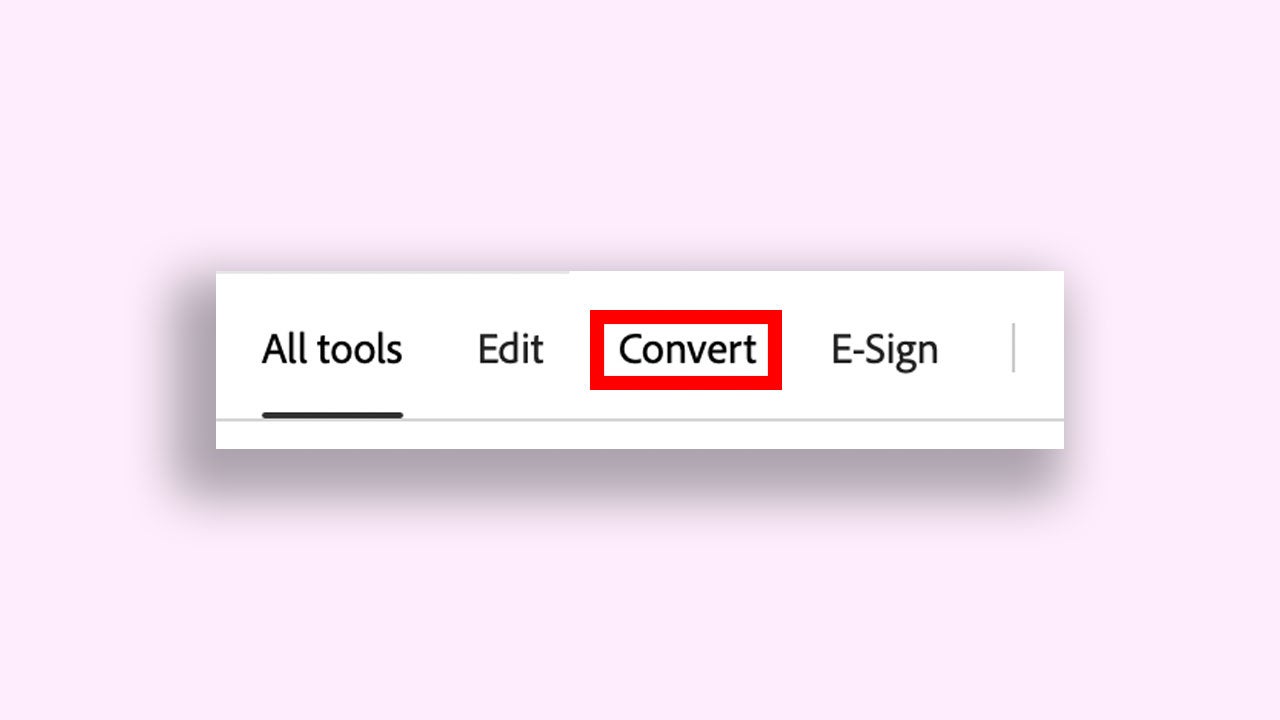
  • If you need to make major changes to a document or edit it more extensively, you can save it as a Microsoft Word file and continue from there. Click Convert to export your PDF to other formats.
  • Send a link so other people can comment on the document and keep all the work in one place.
  • In the case of contracts, the next natural step is signing. In Adobe Acrobat Pro you can send the document for secure signature.

Is it worth using Acrobat Pro compared with other free tools?

There are countless programs besides Adobe Acrobat Pro that let you open or view a PDF. Even so, their features may fall short when it comes to scanned documents.

Using Adobe Acrobat Pro makes more sense if you work with contracts, invoices, reports and need to share documents with sensitive information. If you already use other Adobe tools such as Adobe Photoshop and Adobe Premiere Pro, you’ll be able to use them alongside Adobe Acrobat Pro to improve your documents even further.

A scanned PDF doesn’t have to mean a dead end. All the Adobe Acrobat Pro tools we’ve covered here will help you turn any paper into a document you can work with.

Adobe Acrobat Pro DC
Adobe Acrobat Pro DC Try now

Author: María López

{ "de-DE": "Künstler aus Berufung und Technikliebhaber. Seit ich denken kann, habe ich gerne an allen möglichen Gadgets herumgebastelt.", "en-US": "Artist by vocation and technology lover. I have liked to tinker with all kinds of gadgets for as long as I can remember.", "es-ES": "Artista de vocación y amante de la tecnología. Me ha gustado cacharrear con todo tipo de gadgets desde que tengo uso de razón.", "fr-FR": "Artiste de vocation et amateur de technologie. J'aime bricoler avec toutes sortes de gadgets depuis que j'ai l'usage de la raison.", "it-IT": "", "ja-JP": "", "nl-NL": "", "pl-PL": "", "pt-BR": "", "social": { "email": "", "facebook": "", "twitter": "", "linkedin": "" } } View all posts by María López

Author María LópezPosted on October 8, 2026October 8, 2026Categories News

Post navigation

Previous Previous post: Game of Thrones: Dragonfire adds Smoketail, now in The Dragon’s Divide
Next Next post: “You have failed, you should be ashamed of yourselves”: The Green Lantern writer who has hated the HBO Max series with all his heart

Recent Posts

  • Cyberpunk 2077 gets a live-action movie: Paramount teams up with CD Projekt Red
  • HVAC Systems Are Your Home’s Biggest Energy Draw: New Federal Data
  • Superman’s Man of Tomorrow gets a suit upgrade: leaked photos hint at a sharper 2027 look
  • Marvel’s The Amazing Spider-Man #1000 is out now: Mysterio gets a disturbing new look
  • Harry Potter streaming could change: HBO Max and Paramount+ stay separate for now

Archives

  • October 2026
  • September 2026
  • August 2026
  • July 2026
  • June 2026
  • May 2026
  • April 2026
  • March 2026
  • February 2026
  • January 2026
  • December 2025
  • November 2025
  • October 2025
  • September 2025
  • August 2025
  • July 2025
  • June 2025
  • May 2025
  • April 2025
  • March 2025
  • February 2025
  • January 2025
  • December 2024
  • November 2024
  • October 2024
  • September 2024
  • August 2024
  • July 2024
  • June 2024
  • May 2024
  • April 2024
  • March 2024
  • February 2024
  • January 2024
  • December 2023
  • November 2023
  • October 2023
  • September 2023
  • August 2023
  • July 2023
  • June 2023
  • May 2023
  • April 2023
  • March 2023
  • February 2023
  • January 2023
  • December 2022
  • November 2022
  • October 2022
  • September 2022
  • August 2022
  • July 2022
  • June 2022
  • May 2022
  • April 2022
  • March 2022
  • February 2022
  • January 2022
  • December 2021
  • November 2021
  • October 2021
  • September 2021
  • August 2021
  • July 2021
  • June 2021
  • May 2021
  • April 2021
  • March 2021
  • February 2021
  • January 2021
  • December 2020
  • November 2020
  • October 2020
  • September 2020
  • August 2020
  • July 2020
  • June 2020
  • May 2020
  • April 2020
  • March 2020
  • February 2020
  • January 2020
  • December 2019
  • November 2019
  • October 2019
  • September 2019
  • August 2019
  • July 2019
  • June 2019
  • May 2019
  • April 2019
  • March 2019
  • February 2019
  • January 2019
  • December 2018
  • November 2018
  • October 2018
  • September 2018
  • August 2018
  • July 2018
  • June 2018
  • May 2018
  • April 2018
  • March 2018
  • February 2018
  • January 2018
  • December 2017
  • November 2017
  • October 2017
  • September 2017
  • August 2017
  • July 2017
  • June 2017
  • May 2017
  • April 2017
  • March 2017
  • February 2017
  • January 2017
  • December 2016
  • November 2016
  • October 2016
  • September 2016
  • August 2016
  • July 2016
  • June 2016
  • May 2016
  • April 2016
  • March 2016
  • February 2016
  • January 2016
  • December 2015
  • November 2015
  • October 2015
  • September 2015
  • August 2015
  • July 2015
  • June 2015
  • May 2015
  • April 2015
  • March 2015
  • February 2015
  • January 2015
  • December 2014
  • November 2014
  • October 2014
  • September 2014
  • August 2014
  • July 2014
  • June 2014
  • May 2014
  • April 2014
  • March 2014
  • February 2014
  • January 2014
  • December 2013
  • November 2013
  • October 2013
  • September 2013
  • August 2013
  • July 2013
  • June 2013
  • May 2013
  • April 2013
  • March 2013
  • February 2013
  • January 2013
  • December 2012
  • November 2012
  • October 2012
  • September 2012
  • August 2012
  • July 2012
  • June 2012
  • May 2012
  • April 2012
  • March 2012
  • February 2012
  • January 2012
  • December 2011
  • November 2011
  • October 2011
  • September 2011
  • August 2011
  • July 2011
  • June 2011
  • May 2011
  • April 2011
  • March 2011
  • February 2011
  • January 2011
  • December 2010
  • November 2010
  • October 2010
  • September 2010
  • August 2010
  • July 2010
  • June 2010
  • May 2010
  • April 2010
  • March 2010
  • February 2010
  • January 2010
  • December 2009
  • November 2009
  • October 2009
  • September 2009
  • August 2009
  • July 2009
  • June 2009
  • May 2009
  • April 2009
  • March 2009
  • February 2009
  • January 2009
  • December 2008
  • November 2008
  • October 2008
  • September 2008
  • August 2008
  • July 2008
  • June 2008
  • May 2008
  • April 2008
  • March 2008
  • February 2008
  • January 2008
  • December 2007
  • November 2007
  • October 2007
  • September 2007
  • August 2007
  • July 2007
  • June 2007
  • May 2007
  • April 2007
  • March 2007
  • February 2007
  • January 2007
  • December 2006
  • November 2006
  • September 2006
  • August 2006
  • June 2006
  • May 2006
  • July 2001
  • January 2001
  • November 2000
  • September 2000
  • August 2000
  • July 2000
  • April 2000
  • March 2000

Categories

  • Affiliate post
  • Expert Review
  • Gaming
  • Guides
  • How to
  • Legacy how To
  • News
  • Noticias
  • Software>Security
  • Sponsored
  • Trucos y Consejos
  • Uncategorized
  • Windows software

Meta

  • Log in
  • Entries feed
  • Comments feed
  • WordPress.org
Softonic English Proudly powered by WordPress