
Artificial intelligence has completely changed how creatives work today. Adobe has been one of the companies that has embraced AI the most, through Adobe Firefly and its integration within Photoshop, Illustrator, and many other programs. In addition to the use of online features, Adobe also allows us to work with AI locally on our PC, without the need for a constant Internet connection.
Having more speed and privacy when working with AI was something many creatives desired. Now you will see how it is possible to do it from Photoshop.

Artificial intelligence that works locally: what does it actually mean?
When we say that generative artificial intelligence “works locally” within Photoshop, we mean that much of the processing required to create, modify, or complete images is done directly on your computer, without relying on external servers. Broadly speaking, this means that the AI model runs on your PC while you use Photoshop.
For you as a user, it can mean several things. The first is that you do not depend on an internet connection to work. Secondly, your files are not processed by third parties, so you can work with more “sensitive” material with peace of mind. However, this also means that your computer must be powerful enough to handle the tasks you ask of it.
Fortunately, Adobe has designed these features to work optimally even on non-high-end equipment. No matter what type of creative work you do: photographer, designer… you can perform all your tasks from anywhere while preserving the privacy of your files at all times.
These are the AI-powered features that now work locally within Photoshop
If you are a regular user of Photoshop, it is very likely that you know (and have used) many of the AI features that Adobe has been incorporating in recent years. Several of them can work locally on our computer, such as the following that we list for you now.
Select Subject
Photoshop can help you select objects, people, or animals much faster. This is thanks to AI and, specifically, to the Select Subject feature. It is very easy to use: you just need to select the magic wand and then click on Select Subject.
Next to Select Subject you will find a button that will allow you to choose between Device and Cloud. The first will process the image on your PC. The second will use Adobe’s external servers for that.
Remove background
Although Photoshop offers by default the option to remove backgrounds through external servers, you can also use it locally. There are several ways to use this function, and one of them is through the contextual menu. If you don’t have it activated, you can do so from Window > Contextual Task Bar.
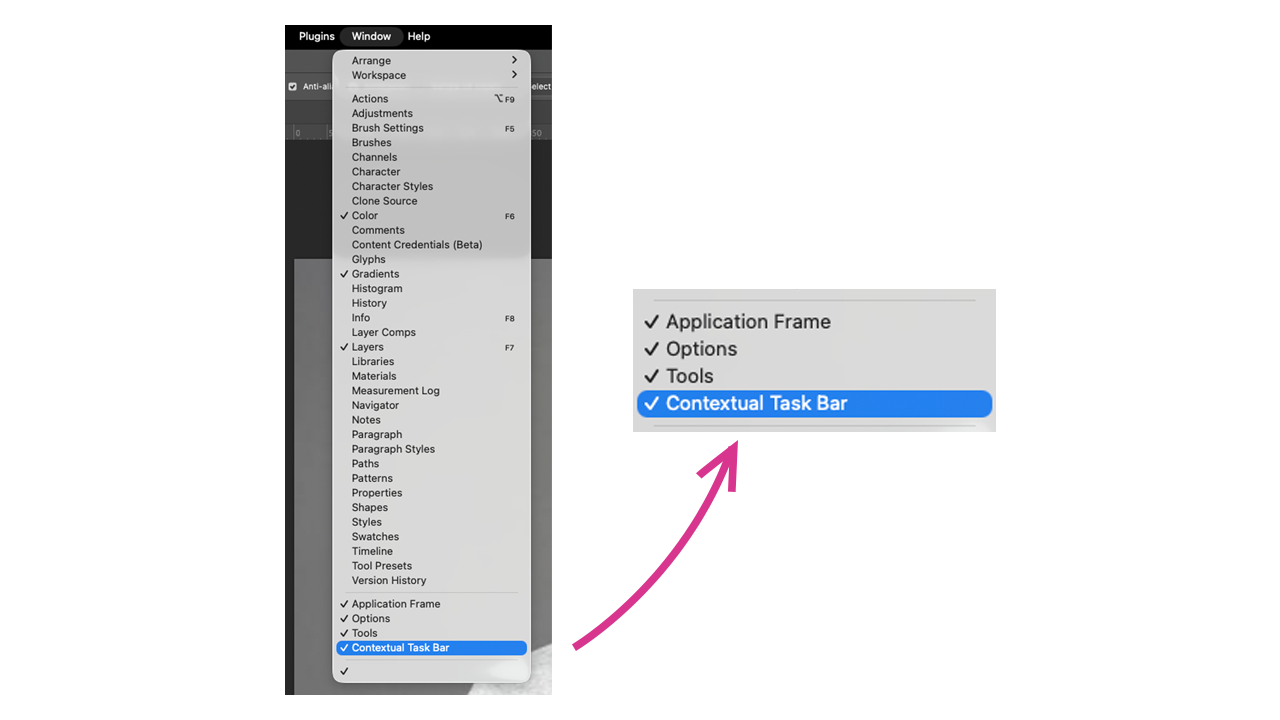
Then, go to the layer where the image with the background you want to remove is located. When you click on it, you will see the contextual menu with the option to Remove background. Click on it and let Photoshop process the image to remove the background.

You also have another alternative: open the Properties panel (Window > Properties) and then select the Remove Background option.
Neural filters
The Neural Filters group some well-known features within Photoshop. Several of them can be run locally, as long as you have previously downloaded the filter in question. While some do require a constant Internet connection, there is a set that works offline.
Within the long list of filters, the ones you can currently use locally are:
- Skin Smoothing: Reduce wrinkles and texture naturally, ideal for photographic portrait and quick retouching.
- JPEG Artifacts Removal: Cleans typical imperfections from JPEG compression. Very useful in low-definition images or those with excessive noise.
- Colorize: Automatically recolors black and white images by analyzing the scene.
- Smart Portrait: Some feature transformations can work offline as long as the models are installed. You should keep in mind that more complex tasks usually require the cloud.
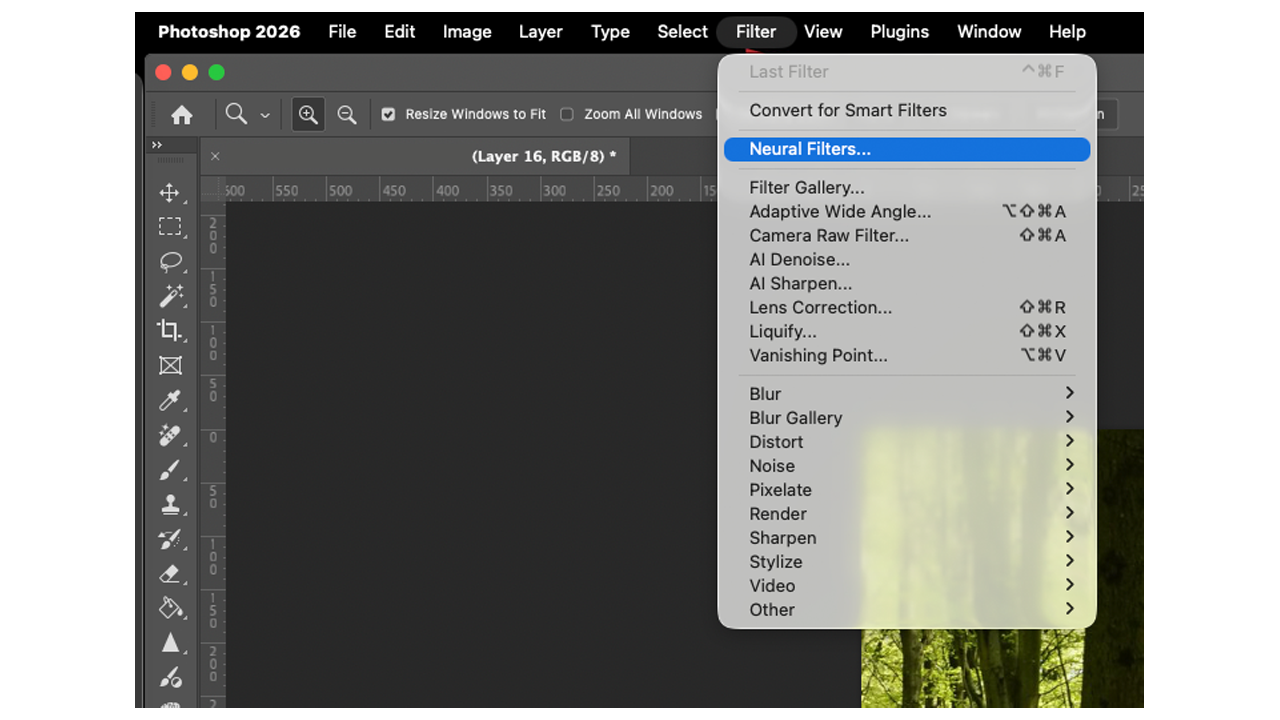
All Neural Filters are applied from Filters > Neural Filters. When you click there, you will see a new panel on the right with the complete list of filters. Then, click on the one you want to use and slide the switch to activate it.
Each of the filters has more specific settings that will allow you to control the intensity of them. Additionally, you will be able to preview how they look, so you can experiment without compromising your image. Finally, select from Output how you want to apply the result (on a duplicated layer, a new one, etc.) and select OK.
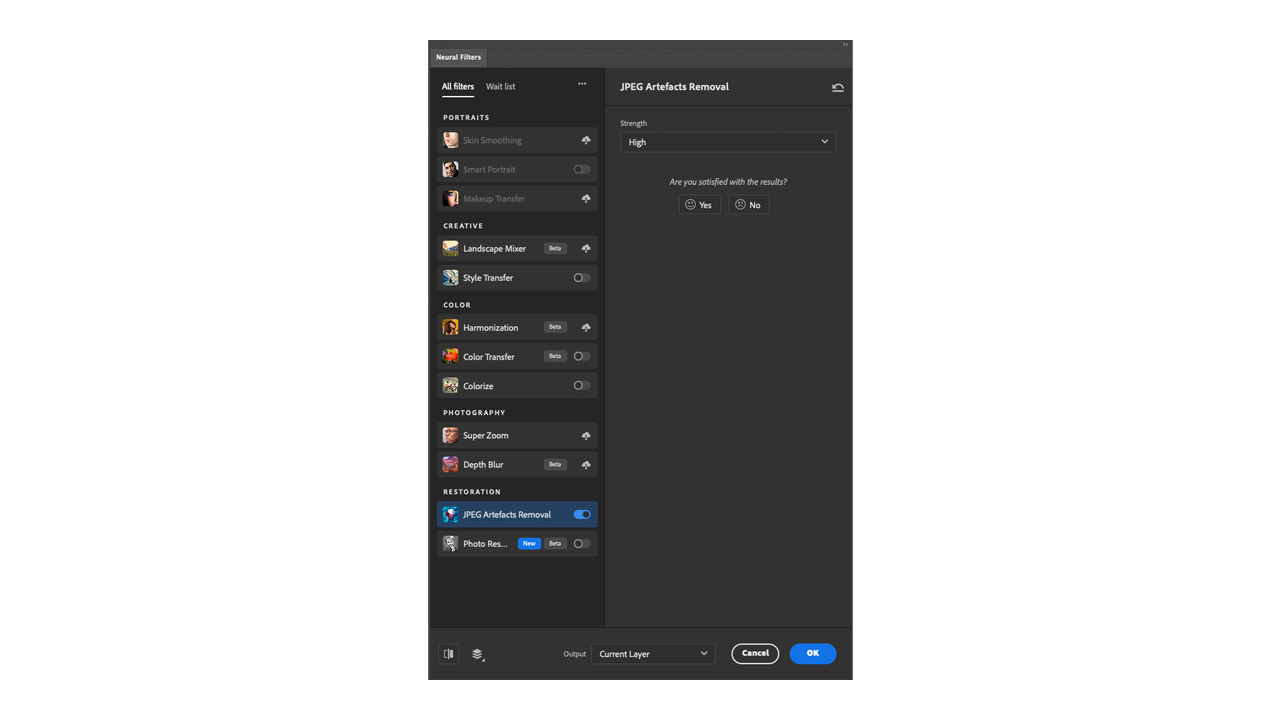
Photoshop itself will indicate whether a filter you already have can be run locally. Once you download the filters, you will see that the performance is fast and stable.
What requirements should my PC have?
A powerful computer can help us out of almost any jam, at least when it comes to technology. However, not all users have high-performance PCs and for many others, this is not even a possible option. Fortunately, many of the AI-powered features we find within their programs run in the cloud. Thanks to this, our devices are not overloaded as much and we can also achieve better and faster results.
However, working locally is a necessity on many occasions, whether it’s because we don’t have a good connection or for other multiple reasons (confidentiality, lack of resources, etc.). If this is your case, here are the technical requirements your PC must meet to run Photoshop 2026:
- Operating system: Windows 11, Windows 10, macOS 26.
- RAM: 8GB
- Graphics card: GPU less than 7 years old with at least 1.5 GB of memory. In the case of Mac, it must be compatible with Metal.
- Monitor with a minimum resolution of 1280 x 800.
- Hard drive: 10 GB of available space.
If you want to see the data in more depth, you can access the official Adobe website through this link.
AI Under Our Control
Although cloud models remain essential for achieving more detailed and creative results, working with AI locally provides a solid foundation, useful in any situation. With it, Photoshop becomes more flexible and reliable, as well as better adapting to the needs of creatives.
