Microsoft PC Manager is a system application that promises to give Windows PCs a boost, a security check and more. Designed by Microsoft and in beta currently, PC Manager combines performance improving features with security options.
Microsoft plans to release the PC Manager application on the Microsoft Store. It is not listed publicly at the time and officially labeled a beta program.
PC Manager looks similar to CCleaner and other applications of its kind. The program shares some features, albeit more limited, with this type of applications.
It may, for example, be used to delete temporary files, disable startup programs, or run a security scan of the system.
PC Manager by Microsoft
PC Manager is compatible with Windows 10 and 11 devices. The app installs quickly and configures itself to run on system start. An option to disable this is provided in the application’s settings.
Important information is displayed on start. The application lists the current memory use, available storage and the size of temporary files on the startpage. A click on the boost button frees up some memory and cleans all temporary files on the system. The process is quick and it may indeed improve the performance of the system in the short-term. Memory usage goes up again shortly after executing the boost option.
The four main entries on the cleanup tab lead to health check, storage management, process management and startup apps. A click on any of those options executes the function.
Health Check
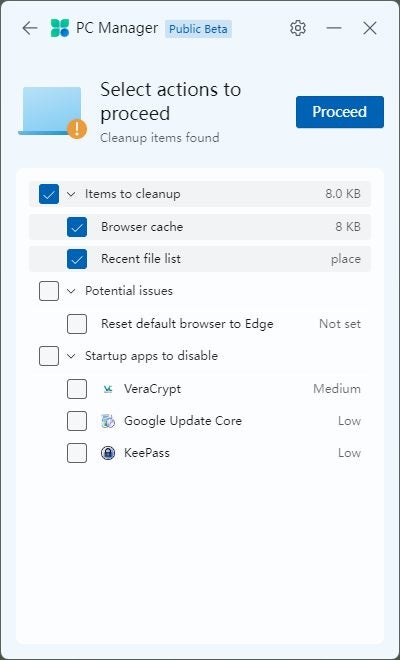
Health Check, for example, scans the system for potential issues. It highlights items to cleanup, which frees up storage space, potential issues, and startup apps to disable, to speed up system start.
In effect, it is giving the system a quick scan to find areas of improvement.
The cleanup recommendations lack depth when compared to programs such as CCleaner or BleachBit. Even Windows’ own Disk Cleanup tool supports more cleanup options.
The most useful option here is probably the startup apps option. Some apps extend system start significantly and PC Manager makes it easy to disable those. Microsoft does not list its own apps here or elsewhere in the app though. A quick opening of the Task Manager’s startup apps tab is equally fast and more helpful.
Storage Management
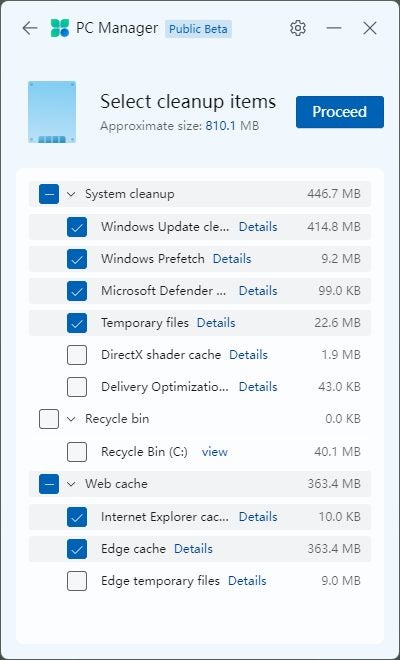
Storage Management displays four options when it is selected. The first, deep cleanup, scans more locations on the system for leftover and temporary files. These can then be removed in a swift operation. Still not as extensive as other cleaners, but better than the health check’s scan.
There is also a large file management option, which runs scans in File Explorer to find files larger than the specified size. Options to filter by file type are provided as well.
The two remaining options link to two Settings page to manage installed apps and configure automatic storage cleanups.
Process Management and Startup apps
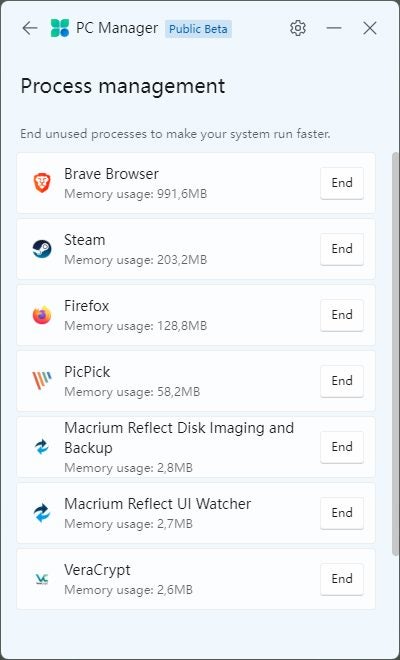
These two options are basic versions of features that Windows’ Task Manager provides. Process management lists user-run processes, their RAM usage, and an option to terminate them.
Startup apps lists some of the apps that start with the system. More than what health check displays, but still less than the Task Manager’s listing.
Security
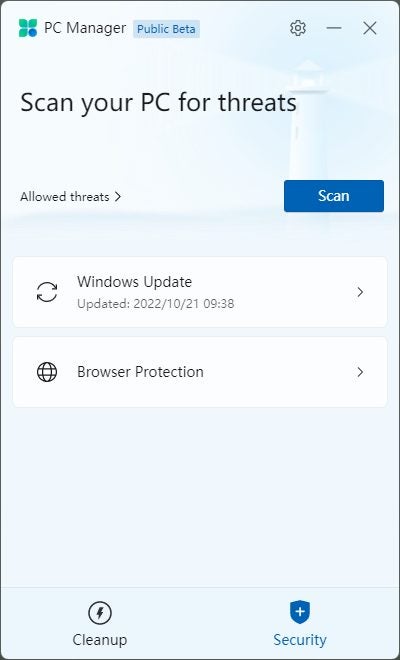
The Security tab of the PC Manager application lists an option to run a thorough security scan on the system. The app scans key locations, such as the startup apps, browser extensions, background services or hardware drivers.
Any threat found during the scan is returned and can be dealt with in the application.
The two other options are less useful. The first runs a check for updates, the second to change the default browser to Microsoft Edge, Chrome or Firefox (if installed).
Verdict
PC Manager left mixed impressions during the review. Several of the application’s features are limited versions of tools that Windows already supports. There are some features, however, that may indeed be useful to some users.
Users may like the security scan feature, or the handy option to search for large files in File Explorer. While the latter is also possible with filters, e.g., by using the size:> filter, it makes things more comfortable to users who do not know about that option or quicker one.
In summary: PC Manager is a beta program that may improve over time. For now, it may be useful to some Windows users, but the majority of users may prefer using more advanced tools for the tasks it offers.
