You want to present your branding vision in full, authentic context, so that your clients approve more easily by seeing their designs over objects that make sense to them.
There’s one problem with that: Most design workflows place a divide between vector creation and mockup visualization. As good as Adobe Illustrator is for creating sharp graphics, needing to switch to another platform just to render them on real objects breaks creative momentum.
That’s all changed. Mockups smooths out this jitter between creation and visualization, and makes mockups accessible to all levels of brands and apparel designers. And it’s been updated to be better than ever.
Several robust compositing and rendering platforms allow you to place your Illustrator assets on 3D geometry, materials, and lighting, but this new set of tools asks whether you should even need to leave Illustrator. Mockups lets designers visualize quickly and easily how their work appears in real life objects.
It’s now out of Beta and a recent update made it even better.
Seamless Integration: Bringing 3D and AR Into Illustrator
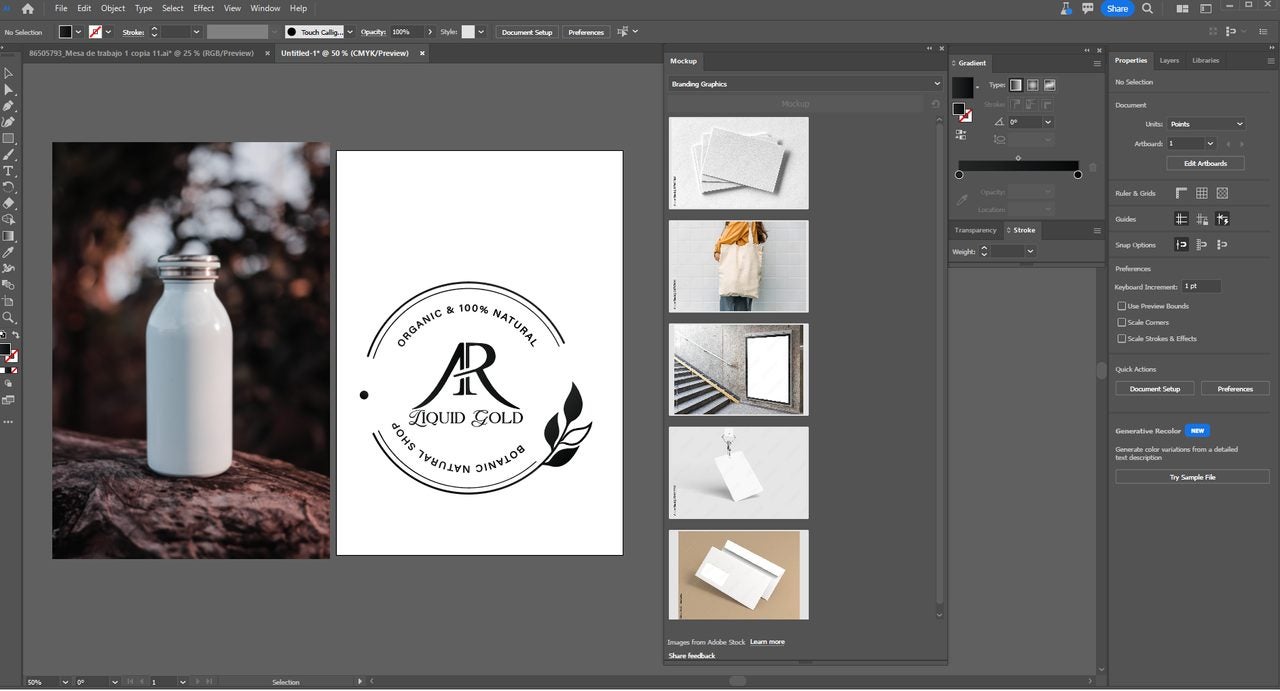
“Mockups” integrates 3D and AR visualization tools directly into Adobe Illustrator. This addition closes the longstanding gap between vector design and realistic rendering. The integration is elegant, taking up as little space as possible within the original layout of Illustrator’s interface, and then opening the door to an entire library of apparel, packaging, and merchandise templates without accessing any third-party platform.
From product packaging to branded swag or uniforms, the ability to visualize in context has transcended technical wows and become a critical validation step in the creative workflow. Traditional methods—pinning vector assets onto a Photoshop mockup, or exporting and uploading to a 3D modeling platform—are laborious, breaking creative flow and leading to less iterations.
“Mockups” makes the whole process easy, embedding straight into the familiar workspace in Illustrator. With the artwork you already have open, a “mockup” can be called up from within your Illustrator project. Drag and drop your work directly from the artboard you are working with onto a real-world object, visualize that data, and adjust it where needed. This cloud-based library is ever expanding, covering product and apparel types like t-shirts, caps, boxes, bottles, and a huge collection of merchandise.
Effortless Artwork Placement and Live Previews
The real strength of “Mockups” is not just providing pre-built templates; it’s the ease with which your artwork is placed onto them. Immediate and responsive visual feedback means that users can trust that their work will be mapped as expected, which in turn means the opportunity to iterate without switching mental gears due to software clunkiness. That means more time perfecting the designs and less time fighting software.
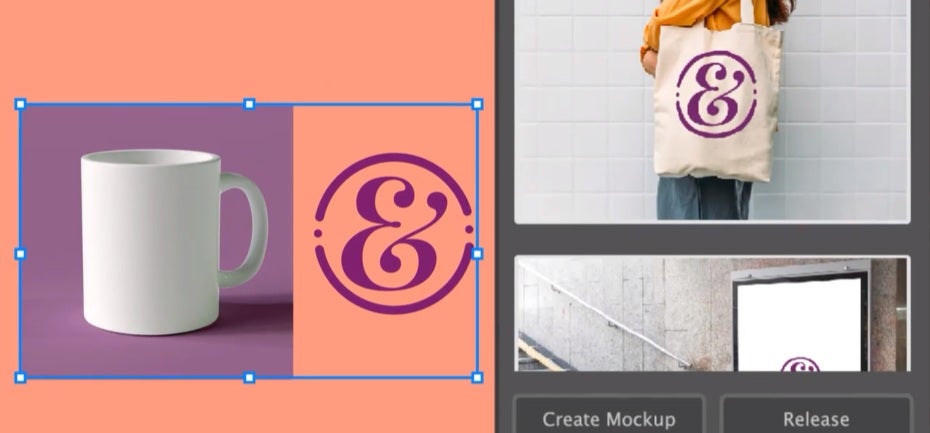
With your AI file already open, you simply grab an object or group of objects from the artboard and drop it directly onto a product placement zone. That artwork is then conformed proportionally onto the template with overlays that scale, position, rotate, etc.
Changes in real time are previewed right back onto the template without you having to leave Illustrator, which gives edits a level of fluidity that wasn’t really achievable before now.
Photorealistic Rendering, Lighting, and Materials
The realism of a presented mockup has a vast influence on client perception and how they interpret the project. “Is this how the object will end up looking?” is an important question in an industry that relies on crisp execution, and requires designers to render work as close as possible to the final product. Mockups achieves convincing previews in three core areas of visual feedback: material properties, lighting conditions, and print-accurate color.
Mockups has some pretty powerful customization options to make a design blend with the surface of a t-shirt, say, adding creasing to the fabric so that artwork stretches correctly. Even the subtle sheen of plastic, the glossiness of paper, and the reflective property of a metallic substrate is tuned so that the visual cue looks real.
It doesn’t provide the power to tweak with the infinite precision of a photoreal 3D platform; it comes very close and in most use cases—presentation and proof of concept—it is more than you’ll ever need for asset review.
“What will my design look like in a sunlit room?”
Probably pretty good. Mockups has some rich lighting options that help vary conditions depending on what would be most appropriate. You might want to mimic a retail shelf with diffuse accent spotlights, or a softly lit event outdoors in the afternoon.
Finally, there’s color and detail. The biggest limitation to preview is if a mockup can’t accurately communicate the chromatic value of the design. Mockups boasts print-accurate color rendering, so at least as far as the base artwork is concerned if you have calibrated your screen or printed a pantone chart, the mockup should be a very close representation of the final production asset.
Workflow Benefits: From Design to Approval
Think of a typical mockup process as of late: Designing a logo in Illustrator, then exporting it into a PNG file, opening up Photoshop, searching through a repository full of mockup templates, dragging the artwork into the right layers, and somehow manipulating the shape and perspective to fit.
Now create several iterations…
It’s doable, but needs to be handled in a step sequence and with some patience, which means that the process is not optimal when you want to rapidly brainstorm alternatives, or go back and look at previous work multiple times.
With integrated tools, your design never leaves Illustrator. That’s a huge difference, because it means that the layers you’ve been carefully managing in your vector file are all available to the tool, you can turn them on, off, change them, or duplicate them to generate new ones.
Mockups then interacts with those layers directly; accidents and additional tweaks inside of another system aren’t needed anymore. There’s nothing to export, nothing to import and no compatibility issues. This is the same file, with the same amount of edits, simply being rendered and previewed over the geometry of a mockup. When satisfied, you just save.
This unity in the application drastically compresses the time in iterating. Because changes are shown in real-time, feedback cycles shrink. It empowers designers to present highly polished, accurate mockups early in the discussion. There aren’t multiple, separate projects anymore, each with different versions in multiple folders and being compressed to be emailed. There’s one file and a single place to work with it.
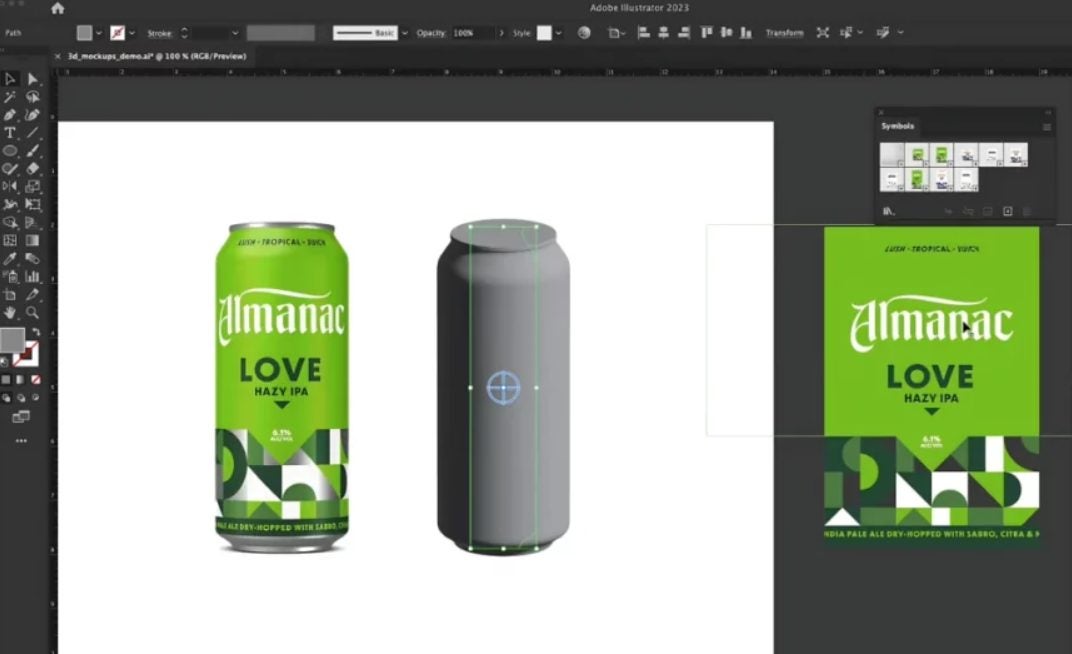
Major Upgrades to Mockups in Adobe Illustrator
In exiting its Beta phase, Mockups in Illustrator has just become even more powerful with a series of new features aimed squarely at further accelerating workflows, customization, and creative control in 3D and AR brand visualization.
- Multi-Artwork Mockups for Rapid Exploration: You can apply several assets to a single mockup template to visualize and compare branding variations or present layered design options side by side. This eliminates the need for multiple separate mockup files with versatile iterations within a single workspace.
- “Your Mockups”: A highly-requested feature to “Save mockup as a template”. Store up to 20 custom mockup configurations in your personal library. These templates retain precise placeholder positions, so you can instantly swap new artwork in while preserving layout and scale.
- Curated Free Template Previews: Browsing the Mockup panel now serves up live previews of curated free image templates spanning apparel, packaging, and devices. Test your artwork on a selection of high-quality stock items with a simple drag-and-drop to find the perfect object context for your design before committing.
- Enhanced Editing with Streamlined Controls: Editing mockups now has commands in the Properties panel. You’ll find options to “Edit Mockup Group,” “Edit Image,” and “Edit Content. Fix artwork placement or jump back in to adjust your vector symbol, making refinements a seamless part of your iteration process.
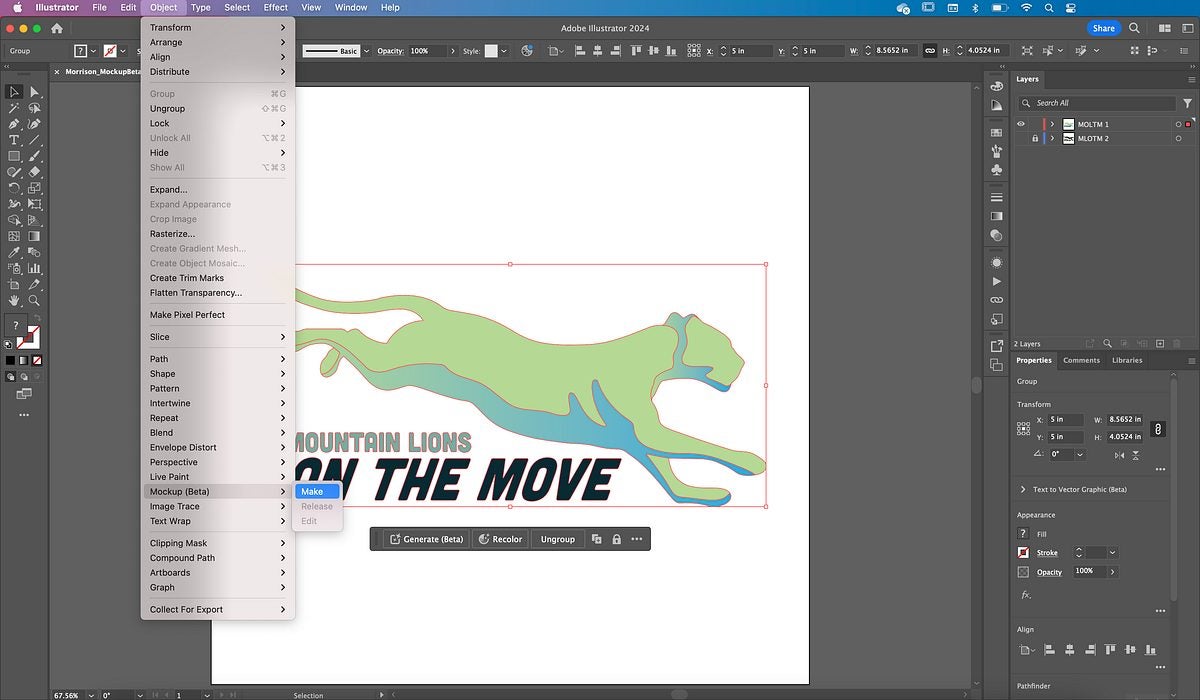
- Symbol-Based Non-Destructive Workflows: When a mockup is created, Illustrator converts your selection into a symbol, unlocking non-destructive editing in isolation mode. Double-clicking the mockup group or the symbol itself gives you total flexibility to fine-tune effects or tweak the underlying vectors, keeping your original design intact and fully editable.
- AI-Powered Realism with Smart Wrapping and Mapping: Perhaps the most impressive under-the-hood boost is Adobe’s AI now intelligently analyzes a single photograph to infer the 3D shape of even complex objects. Your vector art is then accurately wrapped around curves, corners, and surface details—such as the rim of a beverage can or the folds on a t-shirt. This delivers photorealistic projections in just a few clicks, helping client presentations feel all the more real.
These updates solidify Mockups as a leading-edge, must-have tool for anyone seeking to bridge the gap between flat vector concepts and compelling, real-world product visuals—all within Adobe Illustrator.
The Advantages of Staying Inside Illustrator
So we return to the question at the beginning: “Why now, and why inside Illustrator?”
The constant march of design technology is making toolbox options more responsive to creative needs since streamlined tools calibrate efforts against real-world needs. AI-based enhancements in Mockups, such as automatic perspective-aware overlays, try to anticipate and automate technical work, freeing up creative resolve.
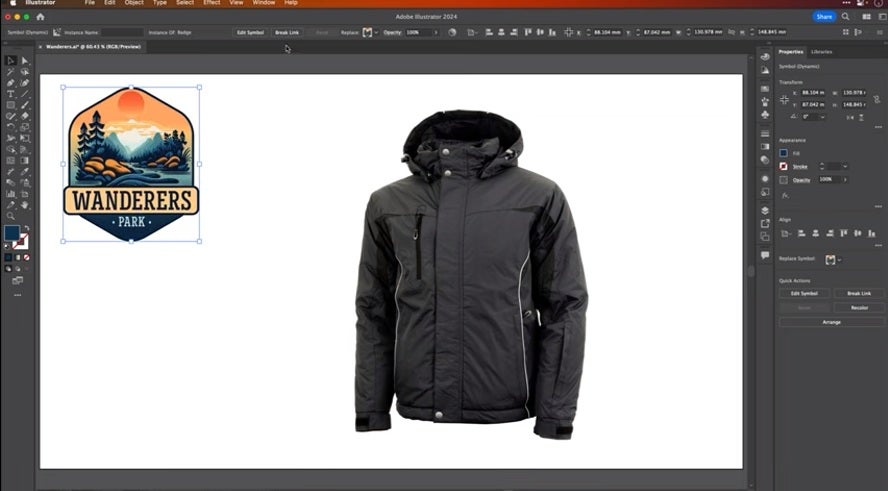
More time is then spent on exploration. When it becomes easier to visualize and iterate ideas, brainstorming organically increases and adapts to feedback in a more responsive way. Brainstorm review proof of concept adapts instantly to clients’ feedback, iterating through possibilities literally during a call in order to check how a t-shirt design reflects under muted lighting or how a logo maps over unconventional shapes.
From freelancing to professional studio work, integrated mockup tools are closing the gap between inspiration and realization. They’re not just showing prospective visions but expanding them, challenging what designers believe realistic.
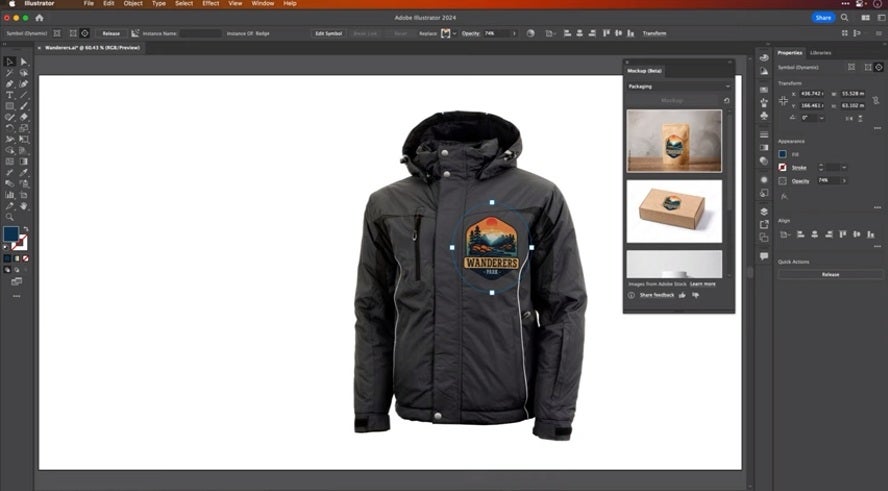
Accelerating Creative Visualization
That’s not replacing anything, but widening the choices. This exists to complement the tools and not to supplant them. The future is definitely moving to be more immersive and accessible for a much wider range of designers.
For freelancers, agencies, and in-house teams, “Mockups” presents an entirely faster way to deliver ideas. It isn’t just a productivity tool; it translates imagination with much more immediacy and accuracy in the necessary language at a time when new projects have less time but require higher standards.
Experience the Future of Branding Visualization Today
Mockups inside Adobe Illustrator has transformed how designers present, iterate, and approve brand assets—making the leap from vector to vivid 3D and AR faster and more intuitively than ever before.
Adobe Illustrator, paired with next-generation mockup tools, puts the power of seamless creation and immersive visualization under your fingertips. Perfect for freelancers, agencies, and in-house creative teams alike.
Ready to experience the next generation of brand visualization?
Download Adobe Illustrator here and unlock a smarter, smoother, and more inspiring way to design, present, and get client approvals. Your best ideas deserve the best platform!
Questions about Mockups:
Does it do “real” 3D?
It doesn’t build geometry but rather uses preset templates that can be textured and overlayed with designs. These are typically sufficient for most client presentations, but specific technical rendering applications can require more detailed modeling.
How accurate is the color rendering?
Colors are pretty much print-accurate, staying true to design documents calibrated on a professional monitor. It shouldn’t be considered a final prepress tool, but for most uses, the accuracy is more than enough.
Can I add my own templates?
Currently, the server/storage-based model alone means templates are managed and updated centrally, but the library is growing quickly.
What’s the advantage over Photoshop mockups?
The principal advantage is in-streamline. Without having to move files between applications, edits and iterations are much faster. This might seem like a minor consideration, but it adds up to an awful lot of minutes across a project.
