If you work with PDFs, you’re probably familiar with the tedious job of copying data from PDFs into Excel, then pasting it and hoping the formatting remains. You may even have to create invoice trackers or enter certain figures and totals into different applications manually.
While this sort of busy work seems innocuous enough, it can have a big impact. A mistake can create unnecessary bottlenecks with clients, hamper compliance reporting, and slow progress on other tasks. Manual data entry from PDFs inevitably ends up as a compromise on speed, reliability, or quality of output and causes frustration for teams.

Copying PDFs Manually Has its Issues
And there are many! It’s sometimes difficult to select text for copying and pasting due to its formatting or tables can break its header/row/column structure. Another common reason is documents that are created from scans don’t have selectable text at all, so you have to rely on OCR, which isn’t great if you don’t have the right tools. PDFs can chain unrelated sections across pages, making it hard to collect relevant information per page.
The result of all these issues is that manual extraction can’t scale in an affordable way. As volume increases, this process slows down, unless you put in more people. Work can’t be optimized. This gap between what we are able to do digitally and how documents are locked professionally holds back performance and collaboration.
How to Automate Information Extraction from PDFs
Adobe PDF Tools provide structured methods to automate manual PDF data extraction that saves time and creates a clear benefit. These are tools made to handle multi-format layouts by extracting information to make it reusable, scalable, and ready in a few steps. Here’s how Adobe can help you with each of the mentioned tools, depending on your needs.
1. Convert PDFs Directly to Excel or CSV
Acrobat can export whole PDFs directly to Excel or CSV, usually as a flat file rather than row/column formatted tables. This works best for documents where data is consistent, like monthly summaries, but can run into misalignment in layouts with more complexity. If the PDF is image-based, Acrobat applies text recognition (OCR) first during the export process.
- Tool used: Adobe Acrobat
- How to: Directly export to spreadsheet from inside Acrobat using the “Export PDF” option and choosing “Export as CSV, XLS or Excel”.
- Input: Existing PDFs on your desktop or Adobe Cloud
- Output: CSV, XLS, or Excel flatfiles
- Plan: Acrobat Standard, Pro and Studio
2. Batch Convert with an Action from Acrobat’s Wizard Tool
When you use Action Wizard, Acrobat Pro can batch repetitive tasks across folders of files. Action Wizard builds a custom set of conversion steps, such as applying OCR and saving to spreadsheet, that can be run on a click. This is ideal when you receive regular document batches at the same intervals across different points in time, like weekly or monthly.
- Tool used: Adobe Acrobat Pro
- How to: Batch convert to CSV, Excel, flat XLS across multiple files by clicking on “All Tools” followed by “Use guided actions” and clicking “Action Wizard”.
- Input: Existing PDFs on your desktop or from Adobe Cloud
- Output: Batch convert to CSV, Excel, flat XLS across multiple files
- Plan: Acrobat Pro
3. Accurate, Multi-Page Reports Using the Adobe PDF Extract API
Deep or highly complex, dynamic layouts are easier to automate with the Adobe PDF Extract API. Unlike flat export, the PDF Extract API outputs JSON for deep structure, maintains multi-row and multi-column formatting, and exports files which can be validated as actual CSV/XLSX and table images. It can separate variable column widths, spanning rows, missing headers, and works over consistent layouts for scalability.
- Tool used: Adobe PDF Extract API
- Input: Existing PDFs or manually upload/submission
- Output: JSON, CSV/XLSX, PNG
- Plan: Acrobat Services API Subscription
4. Extract Tables Directly Using Acrobat and Copy with Formatting
Region-based Copy With Formatting and Export Selection As in Acrobat Pro convert manually-selected table areas to CSV or Excel. You get row/column structure retained with some level of precision, even in image-based PDFs if OCR is run on the document first. Export Selection As is valuable when you need to parse multi-page files, or just need to grab individual tables rather than convert the entire document. Copy With Formatting preserves structure reasonably well on clean PDFs.
- Tool used: Adobe Acrobat
- How to: Export a highlighted area, such as a single or multiline table to Excel or CSV by selecting the table region with a right-click and choosing “Copy with formatting” or “Export selection as”
- Input: Existing PDFs on your desktop or from the Adobe Cloud
- Output: Exports a highlighted area, such as a single or multiline table to Excel or CSV
- Plan: Acrobat Standard, Acrobat Pro
5. Power Automate Connector for Adobe PDF Services
The Adobe PDF Services connector for Microsoft PowerAutomate exposes PDF actions that compose end to end automation like “Extract PDF Structure”, “Extract Tables”, and support for different PDF operations.
You can use additional connectors to automate tasks for storage, delivery, or format conversion. Across multiple industries, users have created different workflows that extract tables, export invoices, and automate data extraction to automate non-technical processes, which save days or even weeks of time.
- Tool used: Adobe PDF Services integrations for Power Automate
- How to: Automate PDF processes using Microsoft Power Automate, using actions such as Extract PDF Structure and Extract Tables to route, organize, use, and convert table data from PDFs
- Input: Cloud files (SharePoint or OneDrive) or emails (Outlook) and external triggers, like websites or apps
- Output: : JSON and XLSX from Adobe actions. Use other Power Automate connectors to store in SharePoint or OneDrive, send via Outlook or Dropbox, or convert to CSV.
- Plan: Acrobat Services API Subscription
6. Combine Filled Forms into One CSV with Acrobat
In cases where you have dozens of signed or filled forms that are identical, Merge Data Files into Spreadsheet can combine many into a single CSV. This is something that will work nicely for HR onboarding, site inspection, sign-up sheets, and compliance questionnaires where the structure is always the same. This is why it is crucial to provide internal consistency in how forms are created initially.
- Tool used: Adobe Acrobat
- How to: Collect filled responses from dozens of replicated forms to one table or spreadsheet by clicking on “Tools” followed by “Prepare a form”,“More” and “Merge data files into a spreadsheet”.
- Input: Locally saved PDF forms or from the Adobe Cloud
- Output: Combines filled forms into one CSV with Acrobat
- Plan: Acrobat Standard
7. OCR and Process PDF Data into More Workable, Future-Proof Formats
Scan & OCR in Adobe Acrobat transcribes PDFs into searchable and selectable text at scale. It is able to run over large batches of files to generate access for downstream conversions, or exports for structured data extraction.
Best practices recommend 300 dpi input for accuracy and correcting skew. Adobe Acrobat features a Deskew utility just for this purpose.
- Tool used: Adobe Acrobat
- How to: Click on “All tools” followed by “Scan & OCR” and “Recognize text”
- Input: Locally scanned or OCR (image) PDFs
- Output: OCR and process PDF data into more workable, future proof formats
- Plan: Acrobat Standard
8. Extract Data with Acrobat Studio AI Assistant and PDF Spaces
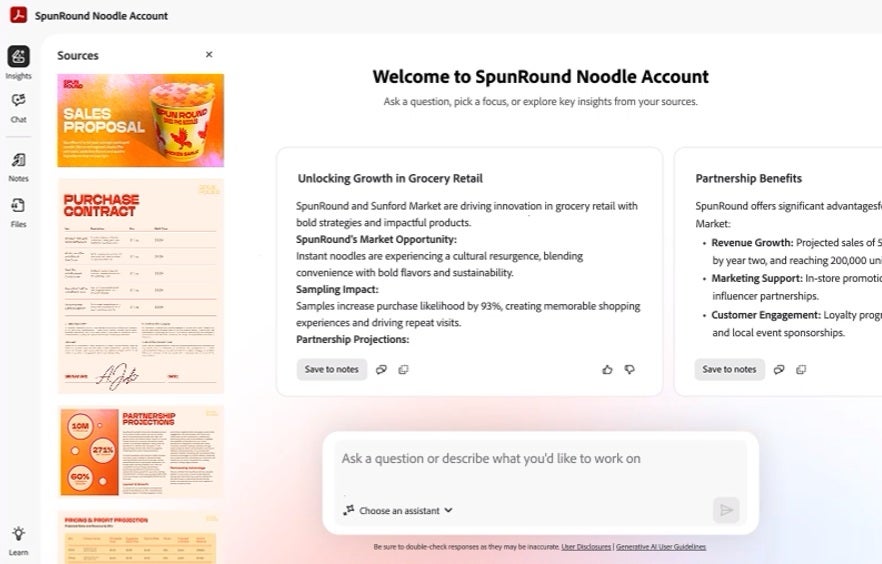
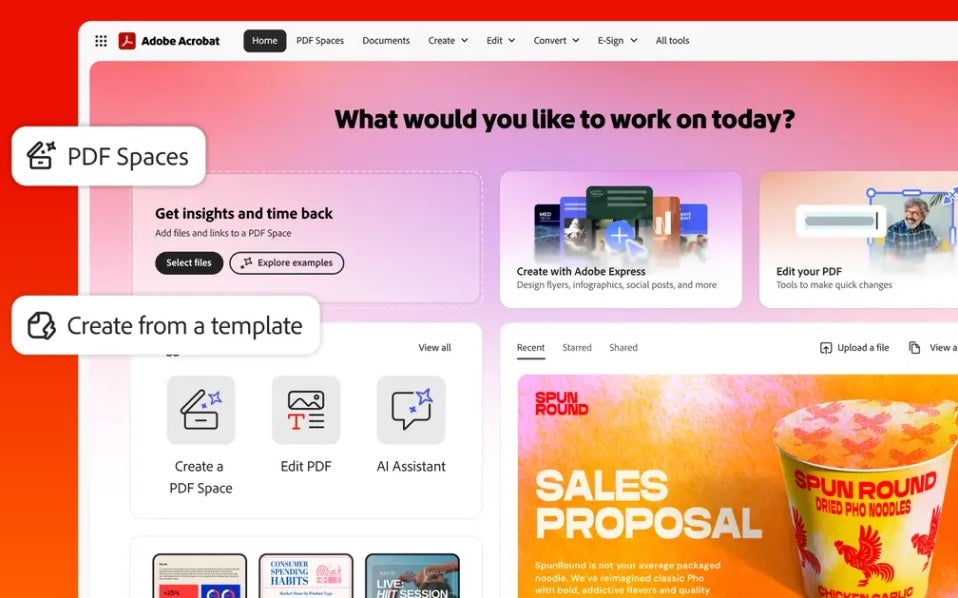
Acrobat Studio centralizes Acrobat Pro features with AI for querying documents and synthesizing information across a Space. Use AI Assistant to extract key facts, then export tables to Excel when you need structured data like tables.
- Tool used: Adobe Acrobat Studio
- Input: Single PDFs, collections of files and websites grouped in PDF Spaces; local uploads or cloud files.
- Output: AI Assistant summaries and answers. Convert source content to Microsoft Excel, Word, or PowerPoint using built-in export tools.
Compare Your Needs to the Right Plan or License
Adobe offers different levels for data pros and compliance based environments. Here’s what each tier offers:
- Adobe Acrobat Standard: Fundamentals for basic editing and conversion work. Standard supports OCR modes for Searchable Image, but Editable Text & Images is a Pro feature.
- Adobe Acrobat Pro: Full OCR, Automation and Advanced Export for scanned docs.
- Adobe Acrobat Studio: Adobe’s newest platform, which uses an AI Assistant for AI-powered productivity and streamlines extraction workflows. Also includes Adobe Express.
Now choose scale and compliance according to your needs with Adobe Acrobat’s Plan Comparison.
Change the Speed of Your Data Extraction
Extracting PDF data shouldn’t slow you down. Automating repetitive tasks creates an exponential difference in effective processing compared to baseline manual methods.
The faster you resolve converting data, the faster you get to everything else. It shifts more of your time to deliver better-focused work for others.
- Need a more bespoke solution? Check Adobe’s PDF Services API Hub for more automation around PDFs.
- You can explore Power Automate and see what you can build using the Adobe PDF Services connector for simpler business cases.
Build Automated Extraction Today
If you are still copying and pasting data, this is a slow and error-prone process. Even if you use different products to better automate data extraction, it can still eat into your time and create reporting delays.
This guide shows practical workflows you can start using today to move from manual reporting from PDFs to automated processes. The result? Faster closes, more accurate data, and smoother operations. Start with your first case and experience the improvement with Adobe Acrobat Pro.
