If you publish videos daily, you know that it’s often not about editing faster, but about being able to edit without constant chaos behind you. Between changes, creating different versions for each platform, late arrival of resources, and multiple revisions, improving our processes can help us be more efficient. And with Premiere, it can be straightforward.
Here you will see how to reduce video production time from start to finish with a practical and repeatable approach, with asset preparation in Illustrator (with quick variants using Adobe Firefly) so that editing in Premiere Pro is smoother, more predictable, and easier to manage. Select shortcode
Why video production is still too slow for marketing teams
Video production remains slow in marketing because the workload keeps increasing. The time is not spent so much on editing, but on coordinating, deciding, reviewing, and re-versioning the same thing over and over again, not to mention the numerous exports to adapt to different platforms.
There are other situations that create bottlenecks, such as assets arriving late, inconsistent material, and lengthy conversations between different departments. Without a well-established system of predefined templates, brand adjustments become heavier and heavier. Fortunately, an effective editing system is needed to cope with any inconvenience.

Where is the most time actually lost in video production?
To begin designing an editing system, you first need to identify where your time is going. It could be in asset creation: perhaps you have too many variations of the same design or too many color changes that, ultimately, are not that necessary.
There may also be inconsistent formats or too much internal bureaucracy. Changes that do not contribute anything, decision-making without criteria, lack of direction… The important thing is that you truly analyze the situation and be honest with yourself.
The role of Illustrator + Firefly in faster video production
The combination of several programs, such as Illustrator and Firefly, with Premiere can enhance the quality and speed of your video editing. Illustrator is the perfect tool for creating eye-catching designs, custom iconography, and original graphics.
On the other hand, if we use Firefly well, it can help us generate visual ideas, propose quick alternatives, and even assist us in creating visuals. This is not about making the artistic process robotic, but about “smoothing out” the rough edges that a professional production may have.
A practical end-to-end workflow for marketing videos
We are going to suggest a realistic workflow so you can see how each program can help us create a video quickly with Premiere.
Now, we will set up a design kit within Illustrator to use in Premiere. We will need to create different templates according to the formats we need, with guides and safe areas. We will also need modular components, with logos, drawings, or illustrations. This will save you a lot of time in the future.
Next, we will start by defining the requirements for the videos. This includes the formats we will use (9:16, 1:1, 4:5, 16:9), the sizes, the durations, and mandatory messages that we will need to include, as well as the languages. In this case, we are going to choose to create an Instagram reel.
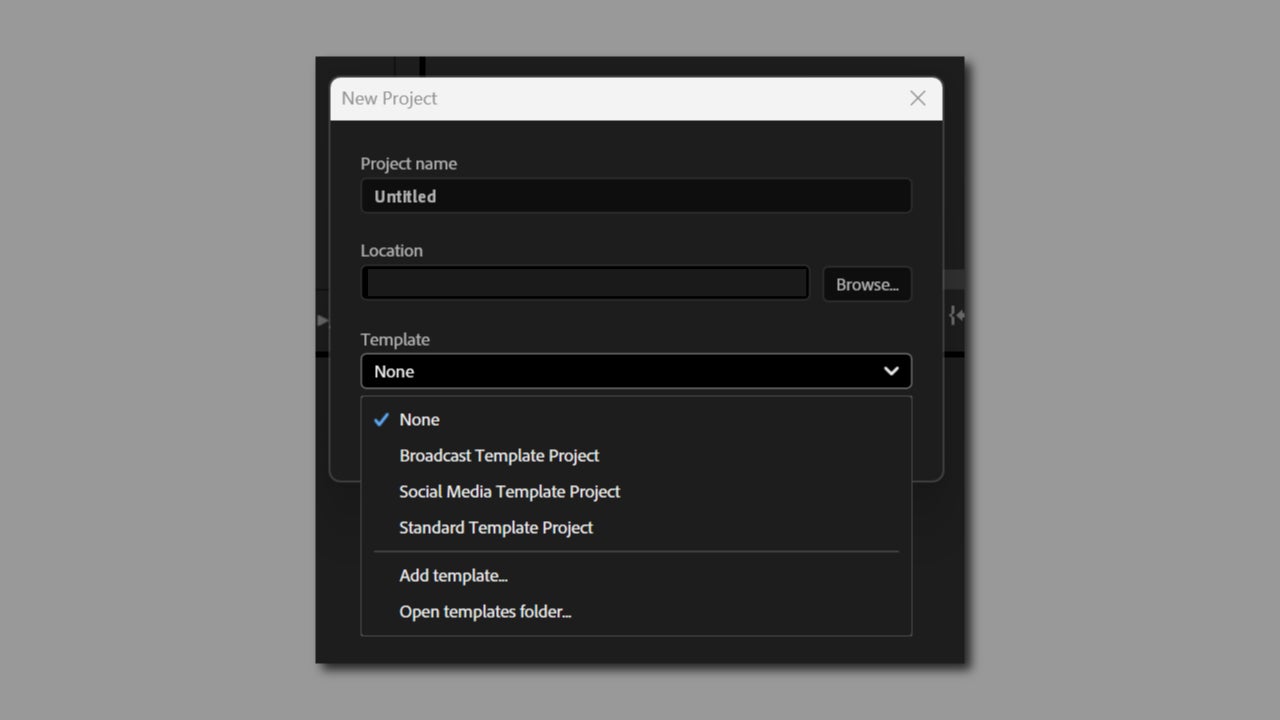
We click on New Project and then, we write the name of our project. We can also choose the location of the project, which is where it will be saved on our computer. In Template we can choose Social Media Template Project.
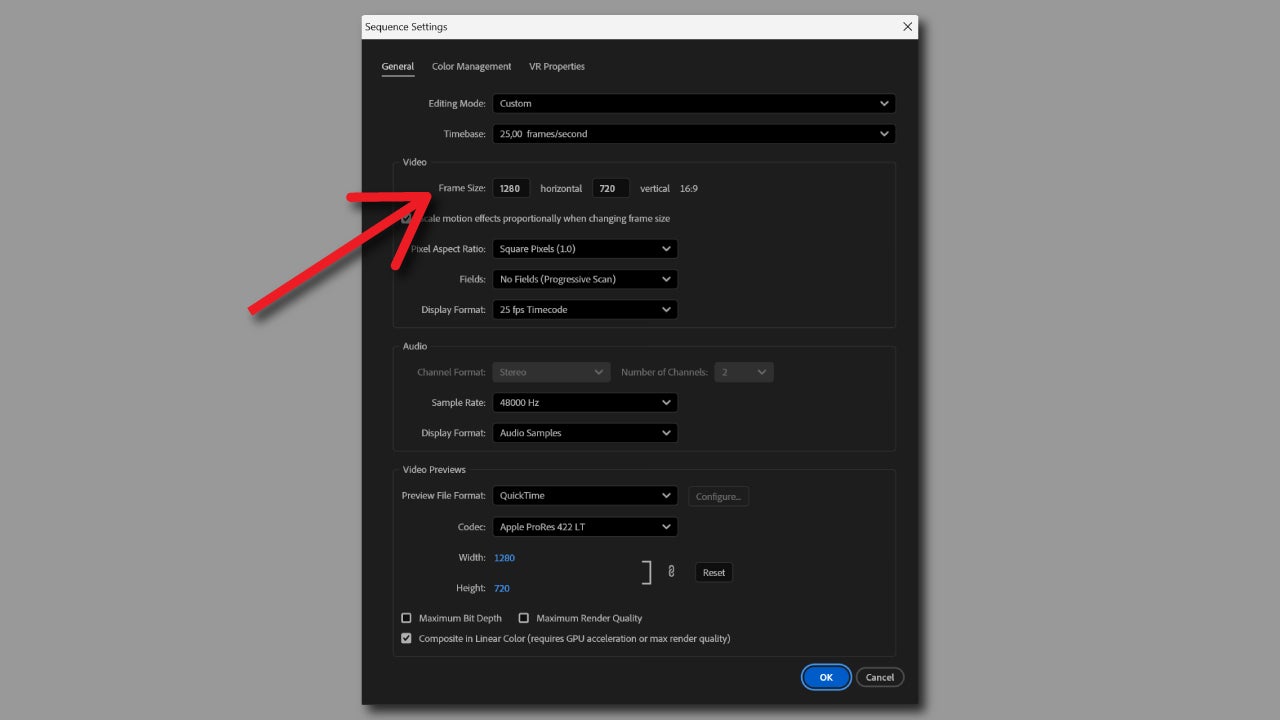
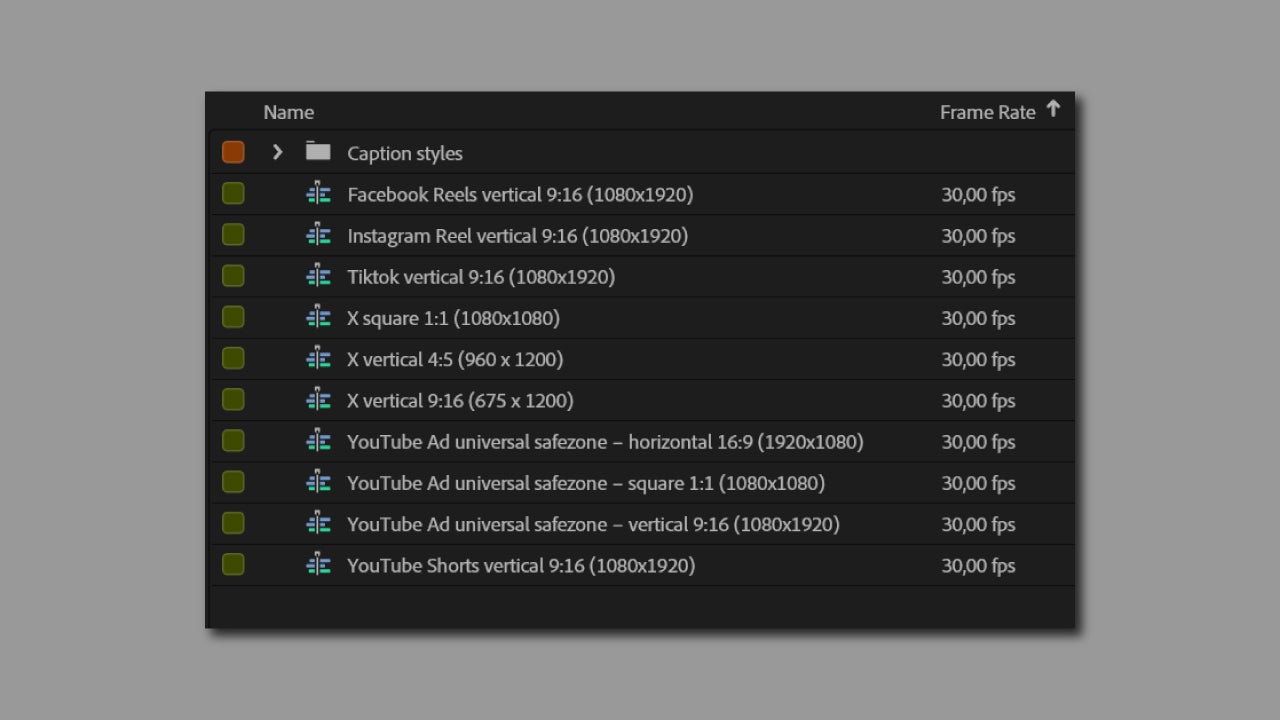
Next, we choose the media we want to import into our project and select Import. An Instagram reel has dimensions of 1080 x 1920 pixels. If the sequence you have open does not have that format, go to Sequence and then to the Video section. In Frame Size, enter the dimensions. Click OK and continue.
You can also change the sequence measures within the Project panel. By choosing the Social Media Template Project, we will see the formats for different social networks: YouTube, TikTok, etc. You can choose one of them from there.
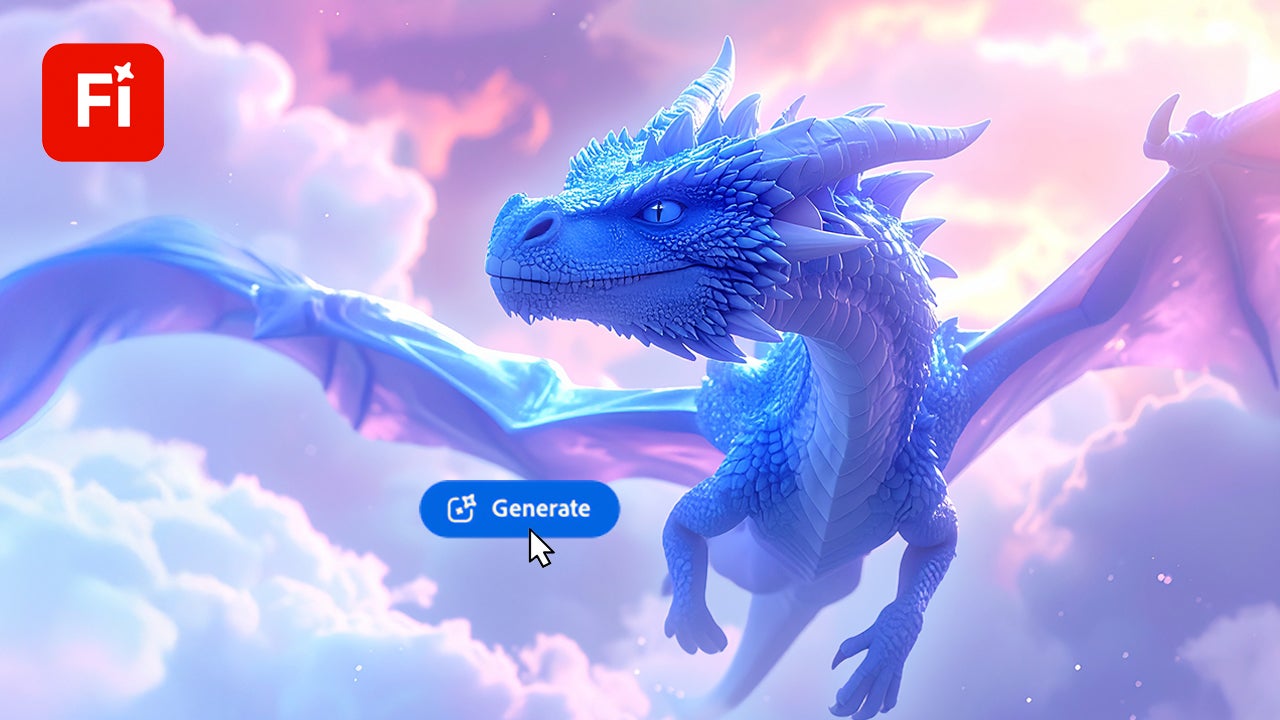
At this moment, we can use Firefly to quickly explore ideas. In case we need funding, secondary visual patterns, or any supporting element, Firefly can help us create them quickly. Always ensure they are consistent with your content.
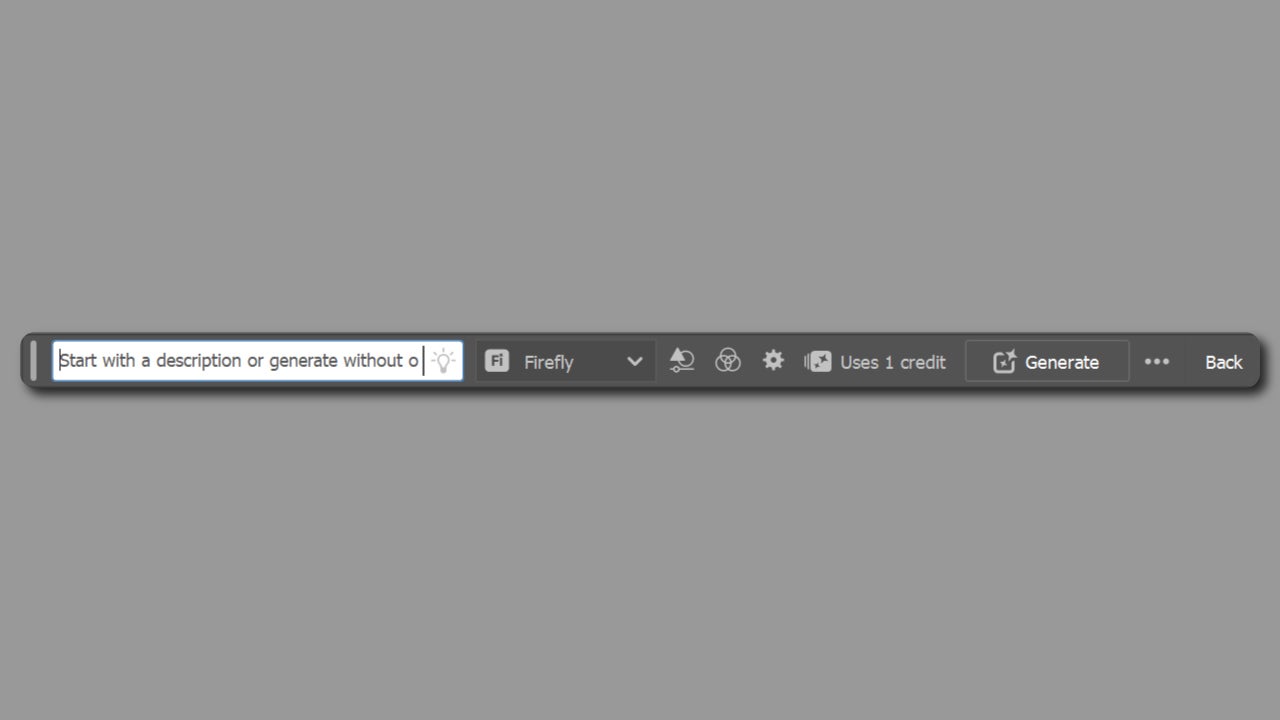
One of the most useful features here is Generate Vectors. With it, you can create an icon, an element, or even a vector scene and then retouch it by hand if necessary. To use it, click on the Rectangle tool, drag the mouse to draw the shape, and then click on Generate Vectors. In the context menu, describe what you want to generate.
It is good for the process to dedicate an entire day to creating material that you can use later. Backgrounds, short videos, logos, icons… organize the content by format and types of scenes. It is very important that you establish a nomenclature that the team knows to name things. This way, the editors will always know what they are working with.
Reducing Revisions with Better Asset Preparation
Reviews decrease when the foundations are clear from the beginning. To reduce them, the key is to prepare the graphics meaningfully. It’s not enough to design pretty images; they must be created with a purpose in mind: blocks for headlines, prices, or others. This way, if we decide to change any of these, we don’t have to redo the entire design, just replace a piece.
Afterward, it is essential to organize the work so that no one spends too much time searching. This is what we meant by clarifying some nomenclatures. To do this, it is advisable to use clear names and organize the files well to know where each material is located.
Common Workflow Mistakes to Avoid
Now that we know what to do, it is also worth highlighting some mistakes to avoid, at least as much as possible. One of them is over-personalizing a video. When a project excites us, it is normal to spend more hours than necessary to make it the best it can be. However, passion can become very costly if, ultimately, it leads to a delay that creates a domino effect.
Therefore, you should not treat each video as if it were a unique piece. Marketing does not work by continuously creating masterpieces; there must be consistency among the productions. You know, done is better than perfect.
Creative Cloud offers
As of today, you can access Creative Cloud through four types of plans: Individuals, Students & Teachers (with discount), Business (with management and user licenses), and Schools & Universities (for educational institutions). Within each type, the most common choice is between a single app (for example, Premiere Pro or Illustrator) or the all apps plan (Creative Cloud with everything included).
Adobe often publishes special promotions (for example, discounts in the first year on some plans), so it’s a good idea to check the current offers section before signing up. Here’s how you can access it:
- Go to the Creative Cloud plans page and choose your profile (individual/student/business) and the type of plan (single app or all apps).
- To try programs like Premiere Pro or Illustrator, go to the applications catalog and select the Free Trial button (Adobe indicates that, in general, you can try an app for 7 days).
- Install the app from Creative Cloud and, if it doesn’t suit you, Adobe also offers a refund guarantee within a certain period for some plans after billing starts.
With this, in one afternoon you can be testing the complete flow (assets in Illustrator + iteration with Firefly + editing in Premiere) without needing to fully commit.
