How to recover deleted files from CamScanner in 3 different ways

CamScanner is a useful app that allows users to scan an image or document without needing a scanner. There are many ways that CamScanner can be used to make life easier. With its cloud syncing function, it’s easy to access your scanned documents from any device as long as you have the CamScanner ID and account password.

But what do you do if you’ve accidentally deleted the images you need? Or if you open CamScanner only to find it empty? Luckily, you can try a few different methods to recover deleted files from CamScanner.

Why do you lose or delete files in CamScanner?

Before we start looking at how to recover deleted files from CamScanner, we first need to understand how they can be deleted. In most cases, you probably deleted the files thinking that you don’t need them anymore, only to discover later that you do. However, other factors could also lead to deleted or lost files. Here are a couple of reasons for deleted or lost files in CamScanner:

  • You formatted your mobile device
  • You uninstalled CamScanner and later reinstalled it
  • You have factory reset your device
  • You have not signed in to your account or accidentally created a new one
  • You’ve not synced your CamScanner accounts; if you accidentally have multiple

3 options to recover deleted files from CamScanner

As we mentioned, you can use a few different methods to recover your deleted files from CamScanner. We recommend trying each one and seeing if they work. If you’ve tried all the methods below and still can’t recover your deleted files, you may have to take your device to a trusted smartphone center that can assist with data recovery (at a fee).

  1. Re-sync your device

    How to recover deleted files from CamScanner

    First, we’ll be looking at using the re-sync function on your device to recover your files. Sometimes it might appear as if files have vanished that you knew were on your device. Often this can be as simple as a syncing issue and can be fixed by syncing your device.

    Step 1: Check your internet connection

    To sync accounts, your device requires a stable internet connection. Any interruptions or drops in connection can cause a sync issue. Ensure that your mobile device is connected to a reliable and strong internet connection.

    Step 2: Open CamScanner

    After checking the internet, you can launch the CamScanner app on your mobile device.

    Step 3: Log in to your account

    Make sure to log in to your CamScanner account. If you use multiple CamScanner accounts, log into the account where you know the image should be that you’re looking for.

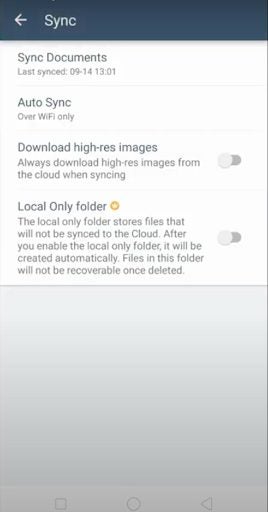
    Step 4: Check your sync settings

    Check when your device last synced by navigating to your account settings on the app.

    Step 5: If needed, sync your device manually

    The sync should reflect the current time for you to know that it is active and working. If it shows an older timestamp, you can click to sync your device manually. Once the sync has been completed, you should see your files. If not, move on to the next method in this list.

  2. Use the “Restore” option

    How to recover deleted files from CamScanner

    This second option makes use of the “Restore” option. CamScanner free users can restore deleted files from the web app for seven days after deleting. CamScanner premium users can restore up to 30 days after deleting a file. This only works for files that have been synced and are stored in the cloud. If your app hasn’t synced recently, you might not see the files you’re looking for.

    Step 1: Log into the CamScanner web app

    First, navigate to the CamScanner web app. Once here, log in with your account credentials (CamScanner ID and password). 

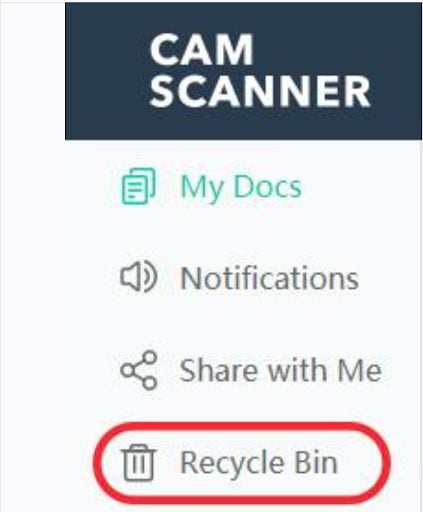
    Step 2: Click on “Recycle Bin”

    Once logged in to your account, you’ll see a “Recycle Bin”option in the menu to the left of your screen. Click on it to see all the files that have been deleted in the last seven days (30 if you’re a premium user).

    Step 3: Restore your deleted files

    Search for the file you are looking for, and once you find it click on it and choose “Restore.”

  3. Use software recovery tools

    How to recover deleted files from CamScanner

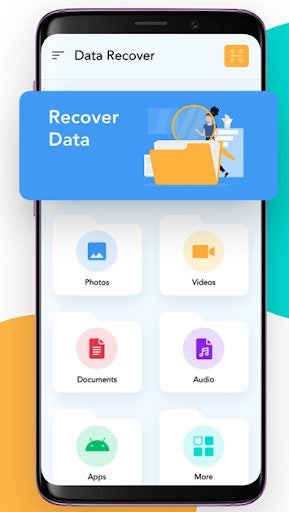
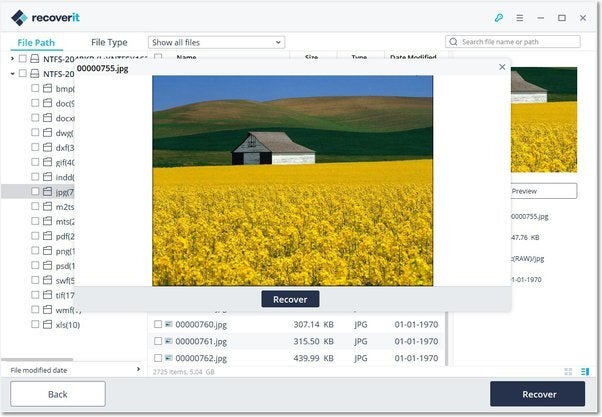
    If neither of these options works, it might be time to call in the big guns, i.e., software recovery tools. These apps are uniquely designed to help find and recover deleted items on your device.

    Step 1: Find and download a recovery tool

    Search your device’s app store for a reliable data recovery tool and install it on your device. Some good options include TotalSaverPro for iOS, EaseUS for Android devices, and Recuva for Windows PCs.

    Step 2: Open the recovery tool

    Once you’ve decided on a recovery tool and installed it, you can run the tool on your device. 

    Step 3: Follow the instructions in your recovery tool to search CamScanner for deleted or lost files

    Follow the on-screen instructions in the recovery tool to try and recover any deleted or lost items from CamScanner. These recovery tools can also help recover lost data from other apps or programs as well.

Get back your files with ease

Accidentally deleting data is more common than any of us want to admit. How often have you deleted a file you thought you didn’t need, only to discover later that you need it back. These three methods above can help you recover any lost or deleted files from CamScanner to get them back without any worry.

If you’re not that familiar with the program, here are the top 6 uses of CamScanner.

6 of the best uses for CamScanner

CamScanner is a handy, free app that allows users to scan documents without needing a separate scanner. Most of us have been in positions where we need to scan a document, but we don’t have a scanner nearby. Sometimes, you just need to send a scanned copy of your ID or driver’s license, so what do you do if you don’t have a scanner handy? Use an image scanning app, like CamScanner, of course. 

How to use CamScanner App

CamScanner is a straightforward app to use. It is available for free on Android, iPhone, and Windows devices, making it even more helpful. With CamScanner, there’s no need to invest in expensive scanners. You simply download the app from the Google Play Store. Once you’ve created a free account, you can start using the app to scan documents and other important information.

You simply use the app and your phone’s camera to take a photo of the document. The app will enhance it and save it in an appropriate format so that you can easily keep your scans organized.

best uses for CamScanner

What is CamScanner used for?

CamScanner was initially developed to enable users to scan, store, sync and share essential documents from the convenience of an app on their smartphone. While scanning is the app’s core feature, there are many ways that the app can be used.

Do you need to scan your receipts for tax purposes using the CamScanner app to take a picture of your receipt and store it securely? Perhaps, HR needs a copy of your ID, and you don’t have a digital copy to send them? You can use CamScanner to take a photo and save it as a PDF which can be sent directly to HR via email.

6 of the best uses for CamScanner

Aside from simply scanning documents and images, CamScanner has many different uses. Let’s take a look at the six best uses of CamScanner.

Find important images easily

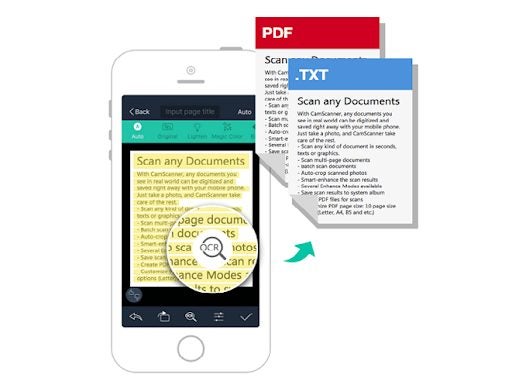
CamScanner makes it very easy to find important information. The app uses OCR (optical character recognition), which means it can read and understand (to an extent) the text in your scanned document. This means that when you search for scans of a particular topic, all the images that contain those words will be shown in the results. For example, if you’re looking for a recipe that you scanned about chicken pasta, all images containing those words will be shown when you type in ‘chicken pasta’ in the search bar. This means you can easily find any important information using the search function and OCR.

Convert the format of images and documents

Like traditional scanners, when an image or document is scanned using CamScanner, it’s converted into PDF format instead of a .jpg or .png like other images taken with your camera. This means the scan is already optimized to be sent and can also be printed in high quality with good clarity. 

best uses for CamScanner

Capture information easily

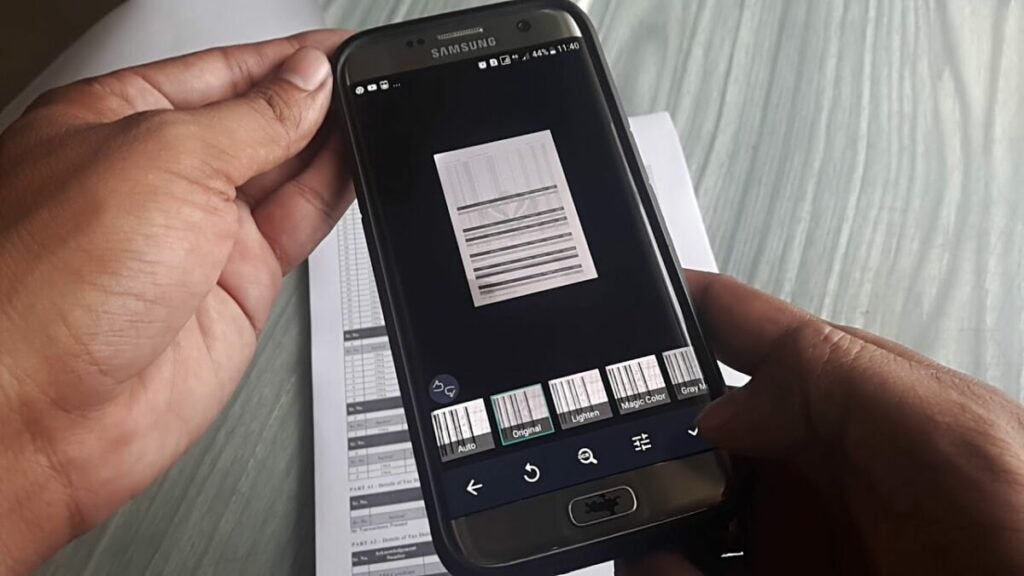
The app also features advanced crop and enhanced features, making it easier than ever to capture information. You can use the advanced crop features to straighten out and remove any useless information from the scanned document or image. This way, you only keep the most useful information. Furthermore, you can use any of the four different enhancement features to make the pictures clearer and easier to read.

The four enhancement features of CamScanner are:

  • Magic color – improve the color and sharpness of images scanned in full color.
  • B&W – removes any color and shadows that clutter an image and enhance black and white. Best used for faxes, emails and printing.
  • Greyscale – allows you to preview how the document will be printed.
  • Lighten – adds fill in lights to brighten sections of the image taken in insufficient light.

Extract text

Another useful feature of CamScanner is extracting text from your images using OCR. If you have to collect various pieces of information and compile them into a single document, CamScanner is a very useful tool. You take images of the different pieces of information and then use the extract tool to gather the text in another document.

Print or fax directly from the app

Another useful feature of CamScanner is that you can send images to be printed or faxed directly from the app without needing another program. You can send the image to a local printer for printing directly from the app or fax a copy to over 30 countries.

Easy file sharing and collaboration

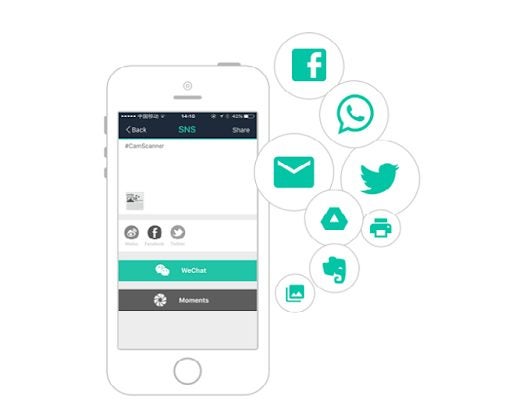
CamScanner also makes it convenient to share files and collaborate with friends, family and co-workers. You can share your scanned documents via email, WhatsApp, Facebook, Twitter, etc. You can also invite friends and colleagues to view and comment on files. They will also be able to make annotations, add watermarks and sync the documents to a central cloud storage space. Worried about sharing documents that may contain sensitive information? Don’t worry; you can set passcodes to add an extra layer of security when sharing images from CamScanner.

best uses for CamScanner

The power of CamScanner in your hands

CamScanner is a very useful app. Armed with this app on your smartphone, you can have the convenience of a fully functioning office in the palm of your hand. So, even if you’re working remotely or need to send an urgent scan of a document, CamScanner allows users to do all of this and more from one simple app.

Scan documents with CamScanner

Do you ever need to scan documents, but don’t have a scanner? It’s now possible to scan, edit, and send PDF copies of important documents with your mobile device.

There are a lot of different apps that can help you scan, but they all differ in usability and quality. The best app that I’ve found, is CamScanner.

A good picture of a document

To take the best scan, the document shouldn’t be plastic or reflective, should have portrait orientation, and be as smooth as possible. Lighting is important so that there aren’t any shadows or unwanted glare. If there are any problems, you can edit the image after you’ve taken the photo.

camscanner_start

CamScanner makes its purpose obvious.

CamScanner uses your device’s camera to scan, but also has other options to fine tune the scan.

Edit your image

If you need to share documents, it’s important that they are good quality. CamScanner’s editing tools are great to fix problems. The auto-edit works well in CamScanner, and these improvements work in most cases.

camscanner_sharing

Examples of use by CamScanner.

If you want to really optimize scans, learning the cropping settings is important.

Crop the scan

Since CamScanner takes photo, it might include the background, like your desk or table top. CamScanner can automatically detect the difference between the document and the background. It’s also important to note that you can manually edit the image and crop the scan until it’s perfect.

camscanner_cut

It’s important to take a good photo, but editing can help too.

Edit manually if necessary

You can edit a lot in CamScanner, including enhancing the document text and lighting. The app also has several presets already included. With manual editing, you can also change color settings like contrast and brightness.

camscanner_tuning

Automatic or manual editing.

Make multi-page documents

If you’re scanning a multi-page document, CamScanner lets you combine them into one document in PDF format so that you don’t need to send each file separately.

camscanner_original

Make an unwanted change? Return to the original scan.

Share or save

After you take the scan, you’ll probably either need to send or save it. CamScanner will export the scan as a PDF and send it to whoever you want.

If the scan is for personal use, you can upload the file to cloud storage like Google Drive or Dropbox.

Camscanner_register

If you use CamScanner often, I’d recommend you make a user profile.

Extra options

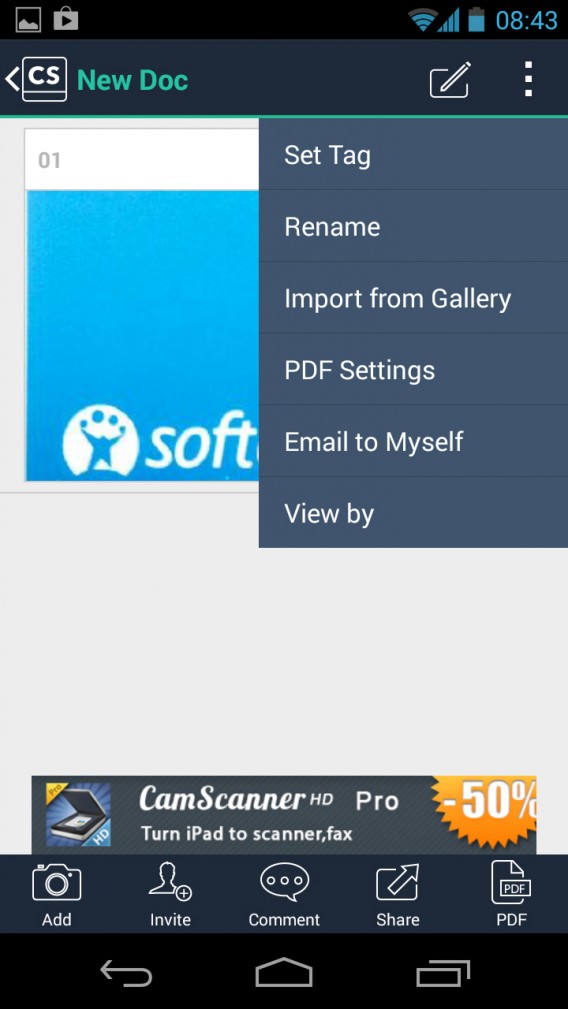
There are a few more cosmetic options in CamScanner. The app also has tags so that you can categorize documents or add people.

camscanner_options

A simple scanner that works

CamScanner is a simple replacement for a physical scanner. It might not have the same quality results as a physical scanner, but it works. If you have a lot of things you need to scan, this is a good app to use.

Download CamScanner: Android | iOS

RELATED ARTICLES

How to speed up your Android: 5 tricks that really work

Which password manager should you use – 1Password, Dashlane, or LastPass?

Software Clinic: “How can I find my lost phone?”