Chrome App Launcher arrives on Mac

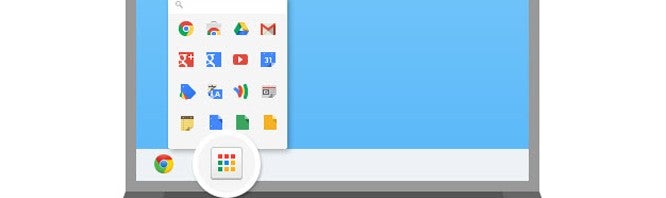
Google’s Chrome App Launcher debuted on Windows a couple of months ago and now Mac users can finally get it for themselves. While it’s a simple web app launcher, it may be useful for those who live inside Chrome.


  • Chrome 29 out now, brings reset button and improved omnibox suggestions
  • Chrome Beta for Android gets new gesture controls, advanced image search
  • Parental controls coming to Google Chrome

  • The Chrome App Launcher for Mac works exactly like the Windows version. After installing the launcher, you’ll notice a new icon in your dock. Clicking on it will bring up a menu where you can see all of the Chrome apps you have installed. Clicking on one will launch the app. Note that the Chrome browser doesn’t need to be running, though its services will be running in the background.

    There are options when you right click an app to set it as a pinned tab, regular tab, or  maximized window. You can also easily remove an app right from the App Launcher. There’s a search bar up top if you have a ton of apps and don’t feel like digging through them.

    The Chrome App Launcher is available in the Dev and Beta channels by default but users of the stable release of Chrome can activate it by typing chrome://flags into the address bar and enabling “App Launcher OSX App Bundle.”
    Source: Chrome Launcher

    Chrome App Launcher released for Windows

    Google has taken the wraps off of its App Launcher for Chrome. The extension puts a button on your Windows taskbar so you can quickly launch Chrome apps without having to launch the browser first.

    Previously, the App Launcher was only available to users of the developer preview of Chrome. It’s now stable enough that Google has released it for all Windows users. Mac and Linux users will have to wait a bit longer but Google is working on bringing the Chrome App Launcher to the platforms.

    Using the App Launcher is simple; just install the extension and you’ll notice a new icon in your taskbar. Click on it and it’ll give you pages of apps you have installed for Chrome. There’s a search bar up top if you want quick access to an app. There’s also a settings menu where you can log into your Google account, change advanced sync settings, and switch user profiles.

    To try the Chrome App Launcher yourself, hit up the download link below.

    Download: Chrome App Launcher