How to Install VPN on Gameloop in 3 Easy Ways

Gameloop gives you access to Android games on your PC, but you can only install and play them if it’s available in your country. However, you can also install a VPN on Gameloop that will let you connect to a server overseas, letting you play the title as if you’re living there. Fortunately, performing this task is as easy a placing a new game on the emulator.

How to Install VPN on Gameloop

You’ll need to keep in mind that you need an Android VPN application for it to work on Gameloop. Furthermore, it will ask you to create a free or paid account before you can use the virtual private network. If you have all this at hand, you can start the following steps.

Step 1: Open Local Installation on Gameloop

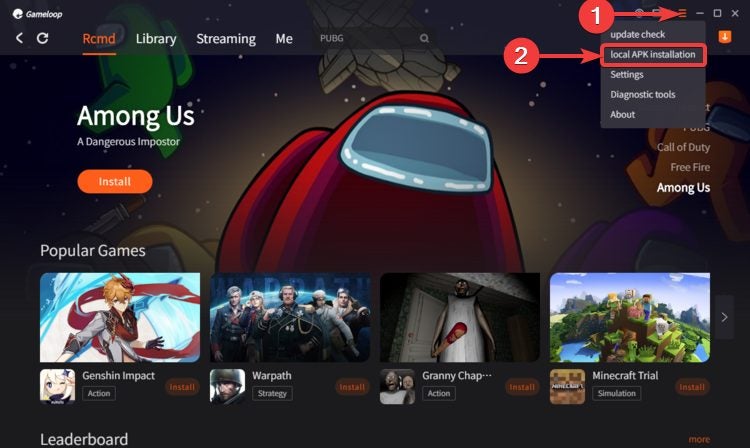
Firstly, open Gameloop as soon as you’ve chosen which VPN you want. Click on the menu icon, and select local APK installation. You’ll need the APK file saved on your computer for this step to work.
How to Install VPN on Gameloop in 3 Easy Ways

Step 2: Find your VPN

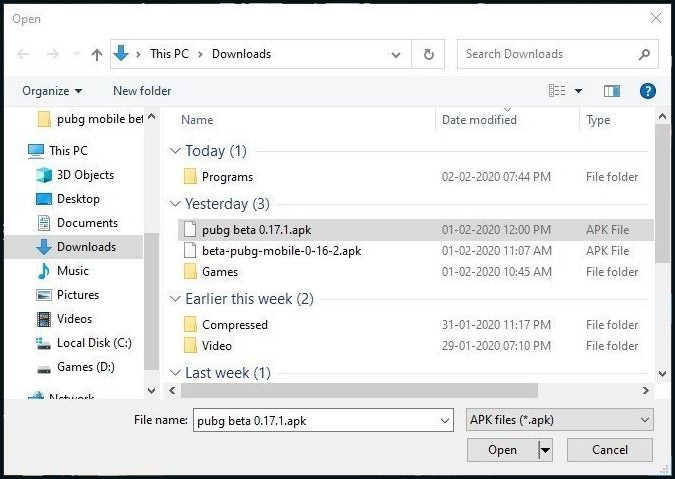
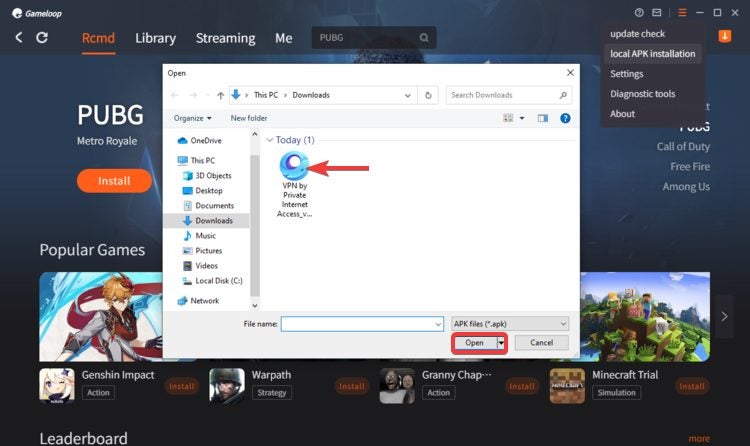
A new window will open asking you for the file location. Browse to where you saved it, or to Downloads as the default save point. You can double-click on the file to begin the installation.
How to Install VPN on Gameloop in 3 Easy Ways

Step 3: Open VPN

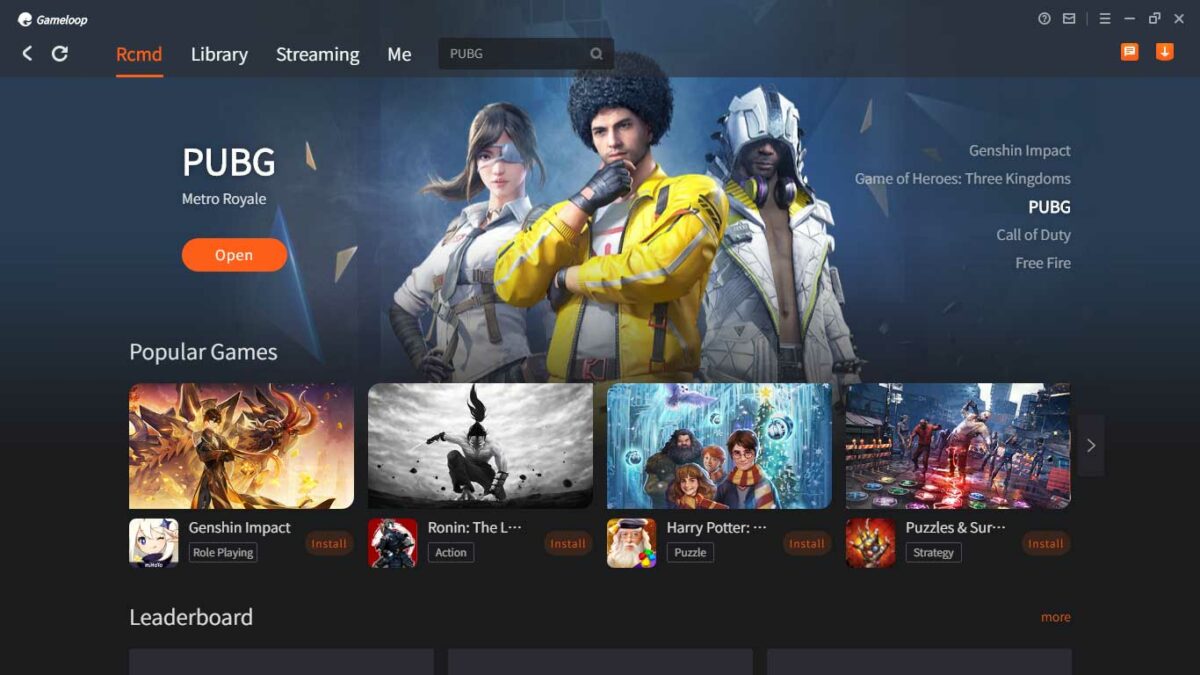
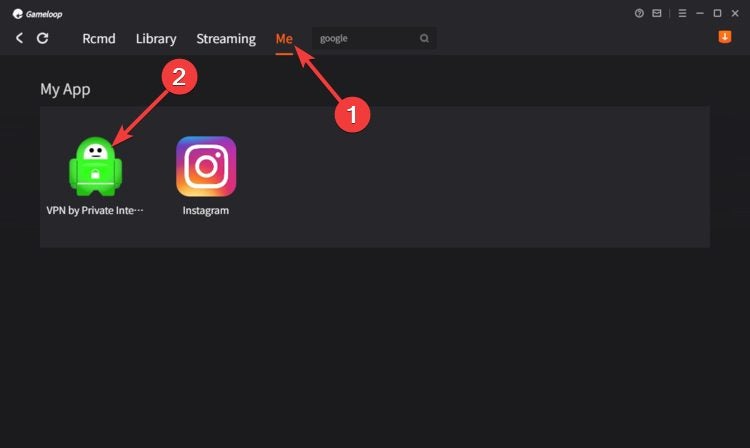
If you want to make sure it installed properly, click on the ‘Me’ tab. This space is reserved for all the apps you placed on Gameloop using this method. Whenever you want to use a VPN, you can access it here and open it to connect to a new server. Remember, you’ll need to create an account first.
How to Install VPN on Gameloop in 3 Easy Ways

Play games in a different country

Using a VPN on Gameloop isn’t excellent if you want to access game servers in a different country. You’ll experience less lag, there’ll be more fun, and you can play titles you don’t have available in your region. You can even stream content on Netflix that’s not available by you, enhancing your experience on this emulator.
How to Use PS4 Controller on Gameloop in 3 Easy Ways

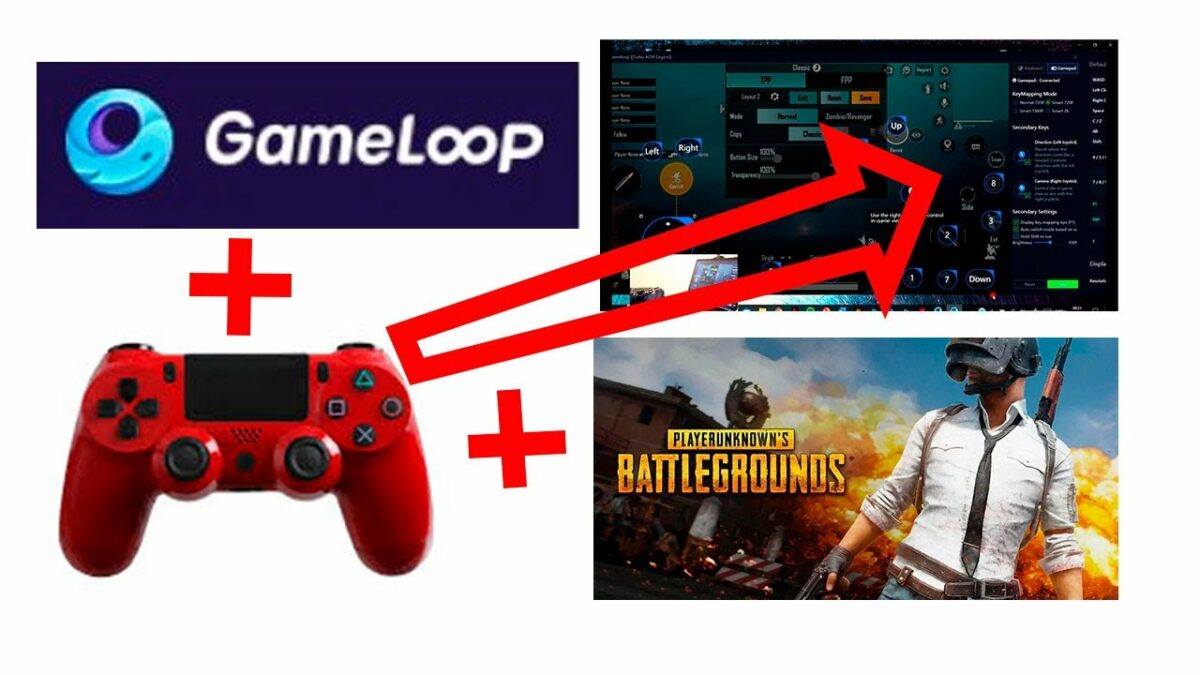
Gameloop may be an excellent Android emulator for PC, but you might want to play Call of Duty: Mobile or PUBG Mobile with a controller instead of a keyboard. Even if you insert your PS4 controller in your controller, it won’t work with any of the games properly until you set it up.

How to Use PS4 Controller on Gameloop

The steps we’re about to show you for how to use a PS4 controller on Gameloop works for an Xbox 360 control too. If you’re using a wireless connector, ensure that your PC recognizes the device first. There’s usually a driver installed on Windows 10 for it already.

Step 1: Insert PS4 Controller

Firstly, insert your PS4 controller using the USB cable. Wait for your computer to recognize it first before you open Gameloop. 

How to Use PS4 Controller on Gameloop in 3 Easy Ways

Step 2: Select the Gamepad

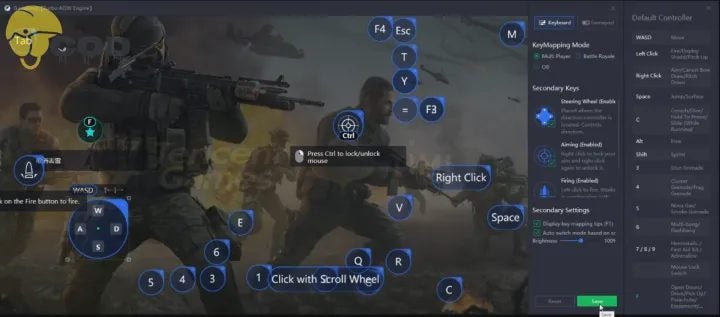
Within Gameloop, you’ll see there’s a keyboard symbol on the right-hand side. When you click on it, you’ll have the option to open the Gamepad. It hosts all the settings for your controller on the right panel with the relevant actions.

How to Use PS4 Controller on Gameloop in 3 Easy Ways

Step 3: Configure the buttons

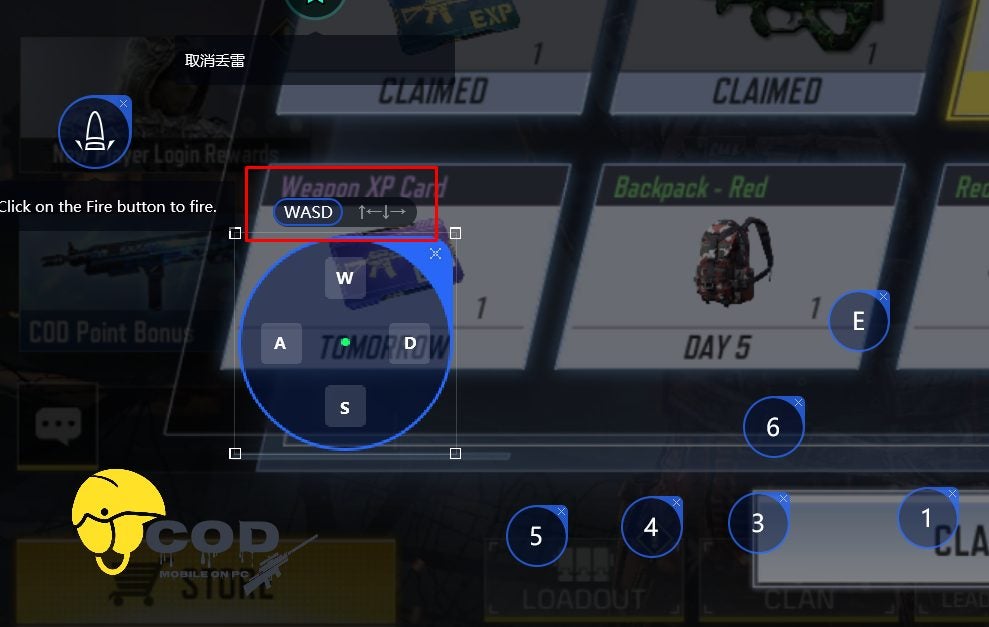
Now, you’ll need to map the keys to your controller. You can assign them as you wish, but try to make it as easy as possible for you to play the game. You may need to keep some actions assigned to your keyboard if you can’t assign them all to your controller. Once done, save all the changes and head to your game. Open the controller settings and make sure the buttons are correctly assigned. 

How to Use PS4 Controller on Gameloop in 3 Easy Ways

Victory is in your hands!

With your PS4 controller assigned, you can now use it to play games on Gameloop. It may provide an advantage over other mobile players, especially when you rack up the kills. You enjoy gaming on the PC emulator than on your mobile phone, specifically when your phone doesn’t have enough battery or data.

How to Install PUBG in Gameloop in 3 Easy Ways

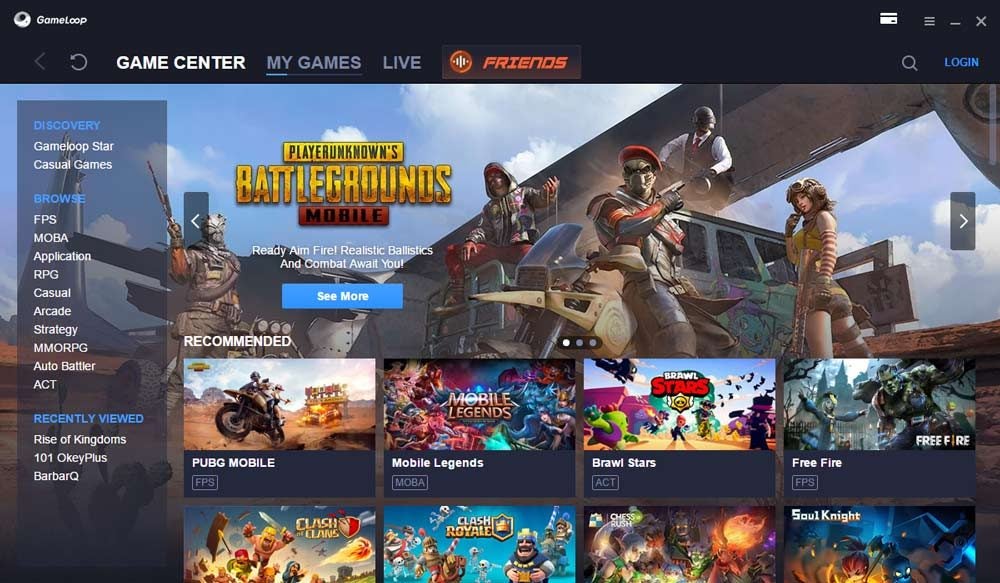
PUBG has been an internet sensation and a player favorite since its release. Although you might think you’re a little late to the party, an easy start through the Gameloop emulator is guaranteed. What are you waiting for? You’re just a few clicks away from being in the center of the battle! 

How to Install PUBG in Gameloop

The guide below will give you the steps to install the game for players who already have the Gameloop on their PC.

Step 1: Access Gameloop’s Browser

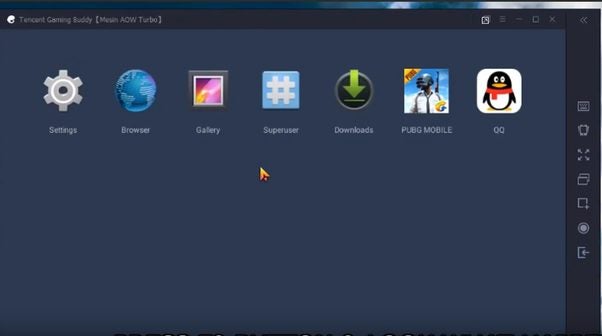
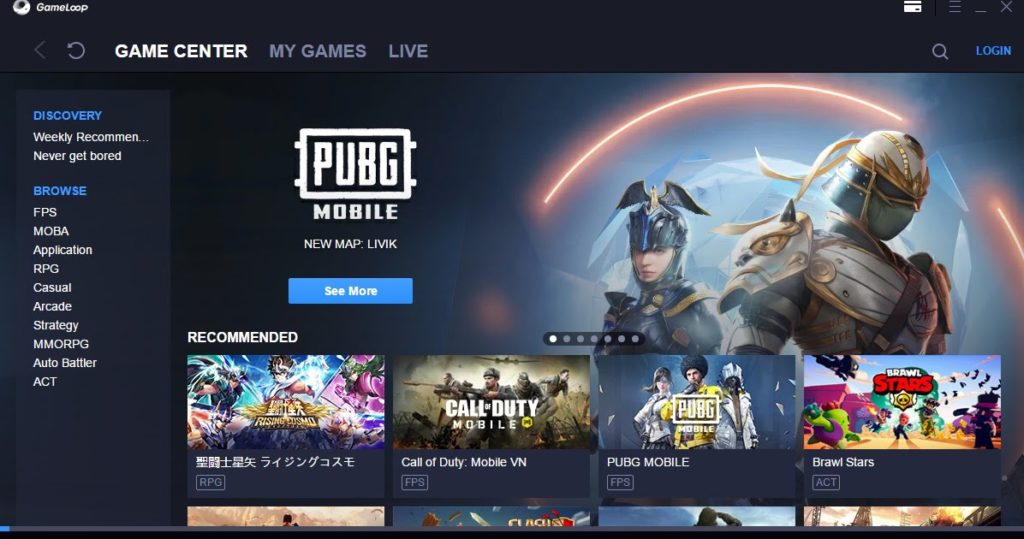
Find the Android emulator on your PC and double-click to open it. Find the Browser (second from the left on the screenshot below) and open it. Search for the ES File Explorer and download the apk file. The latter will help you locate the PUBG file in your system. But before that… 

How to Install PUBG in Gameloop in 3 Easy Ways

Step 2: Download your PUBG Mobile APK file

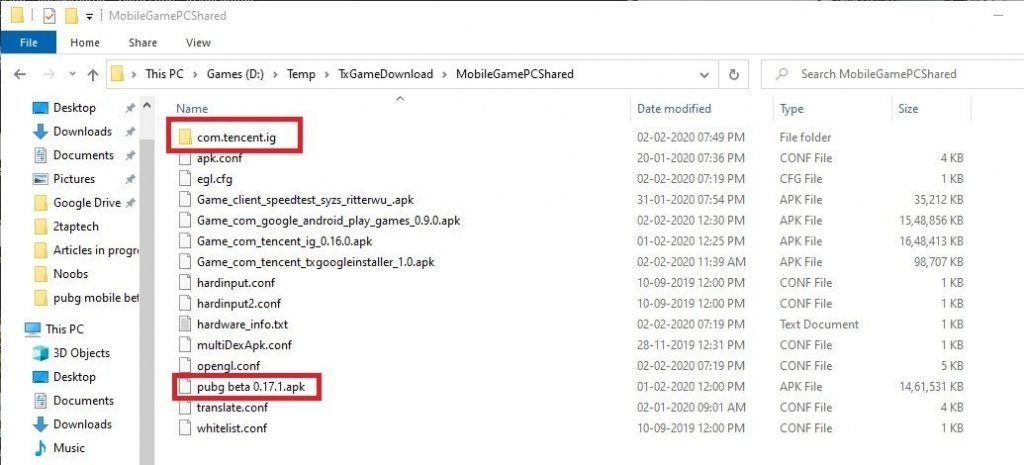
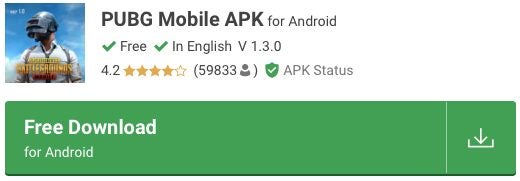
Find the PUBG file from your preferred source, click “Download,” and wait until it’s on your computer. Go back to the Gameloop screen you left and use the file explorer to locate the downloaded apk. Click it and install, following the prompts.

How to Install PUBG in Gameloop in 3 Easy Ways

Step 3: Restart Gameloop

Sure, you can start playing right away. However, to make sure that everything works correctly, close the emulator and start it again. Restarting will help the settings set to default.

How to Install PUBG in Gameloop in 3 Easy Ways

Get your guns blazing!

Playing survival shooters is exciting, and PUBG is on top. Now with Gameloop, you don’t even have to own an Android device to enjoy the action-packed adventure. Get shooting, and don’t get killed!

How to Fix Lag in Gameloop in 3 Easy Ways

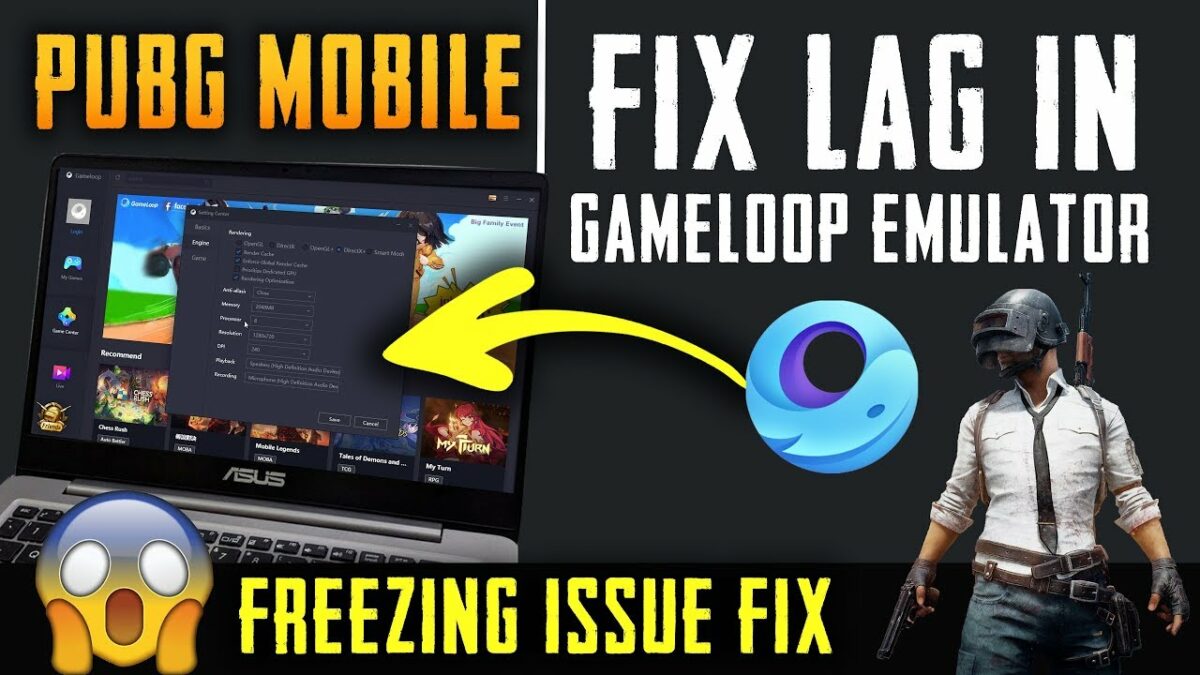
While Gameloop is an excellent way to play Android games on your PC, you may experience some lag when playing high-end games like PUBG Mobile. You may be able to ignore it the first few times, but we find it completely frustrating, especially when we’re dying to get that legendary kill. There are a few ways you can fix lag in Gameloop, and we’re going to show you how.

How to Fix Lag in Gameloop

Some of the methods below entail making changes to your PC or laptop settings, while others deal with Gameloop itself. Ensure your running both at optimal performance if you want to avoid any lag. You might want to also check your internet connection speed.

Method 1: Apply the best PC performance settings

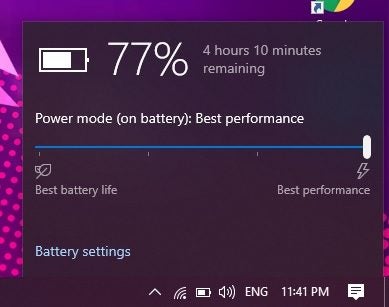
Some computers have a battery-saving mode, which drops some of the resources like CPU speed and memory. Select your battery in the Task Bar and check that it’s set at “Best Performance.” If you’re running NVidia GeForce on your PC, ensure that all settings are at their highest.

How to Fix Lag in Gameloop in 3 Easy Ways

Method 2: Change Gameloop settings

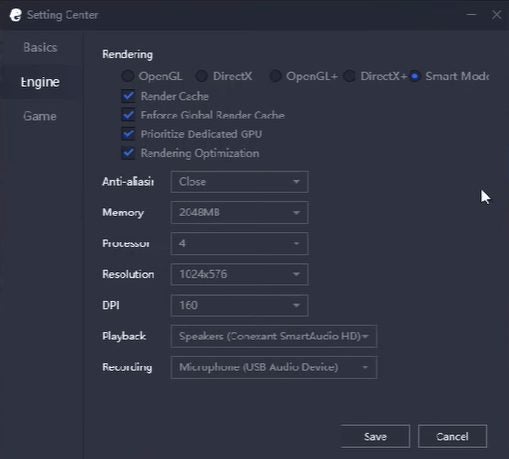
If the first method doesn’t work, it’s time to look at Gameloop. Head into the Setting Center, and ensure you have the following selected:

  • Render Cache: Enabled
  • Graphics Rendering: Smart Mode
  • Global Render Cache: Enabled
  • Close Anti-aliasing mode
  • Rendering Optimization: Enabled
  • Prioritize Dedicated GPU: Enabled (if possible)
  • Memory: Half of available memory
  • Processor: indicate which one you have
  • Alter the resolution to default 
  • Dot Per Inch: 160
  • Game Tab/Gaming Resolution: SD 720P
  • Game Tab/Display: Smooth
How to Fix Lag in Gameloop in 3 Easy Ways

Method 3: Alter game settings

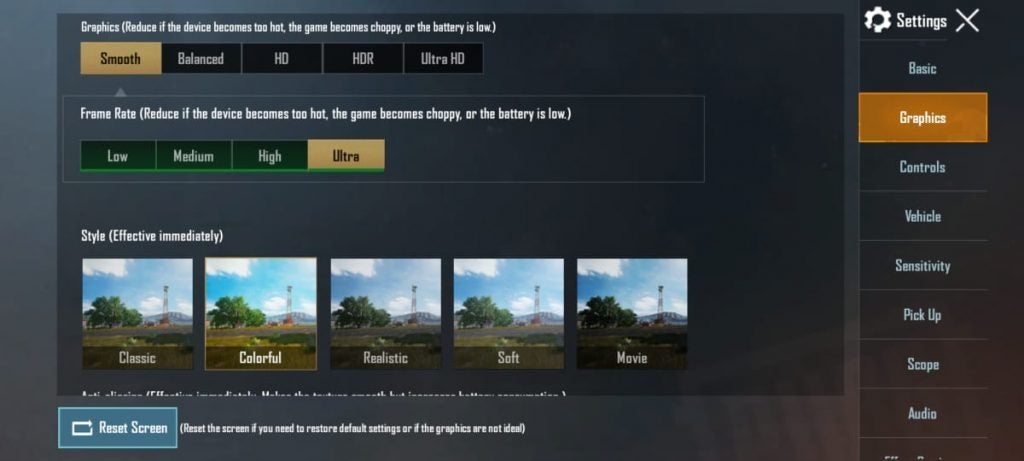
Finally, you’ll have to look at the game settings. Look at which options are available, and change some selections to a low performance if necessary. If your computer can handle it, set it higher.

How to Fix Lag in Gameloop in 3 Easy Ways

Don’t let your finger lag on the trigger

Now that you know how to fix lag in Gameloop, you can go on the hunt and start killing in PUBG Mobile. Remember, it also depends on your ping rate and internet speed, so changing these settings might not help if that’s an issue.

How to Install Apk in Gameloop in 7 Easy Steps

Although Gameloop gives you access to an extensive library of Android games, you may want a game that isn’t featured. In this case, you would need to install an apk (Android Package Kit) file in Gameloop to be able to play this game. Don’t worry, lucky for us; this is a straightforward process.

Let’s look at how to install apk files on Gameloop and Gaming Buddy.

How to Install Apk in Gameloop

Step 1: Download the Game Apk File

First, you will need to download the apk file for the game you want from an external source to your computer. Please make sure to use only reputable sources when downloading any games. Once the game is downloaded, extract the files into an easy to find folder.

How to Install Apk in Gameloop in 7 Easy Steps

Step 2: Open Gameloop

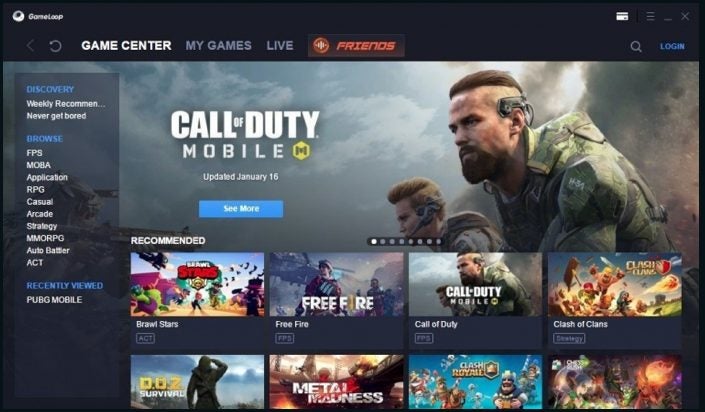
Open the emulator on your computer

How to Install Apk in Gameloop in 7 Easy Steps

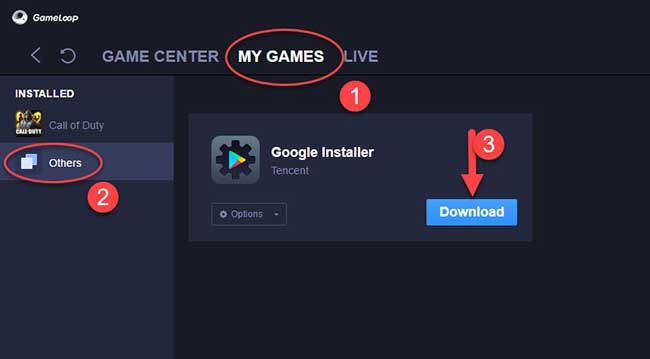
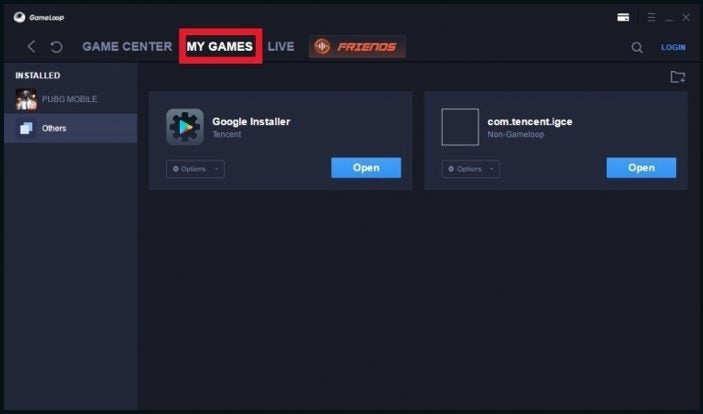
Step 3: Go to “My Games’

Click on the ‘My Games’ tab in the top menu bar.

How to Install Apk in Gameloop in 7 Easy Steps

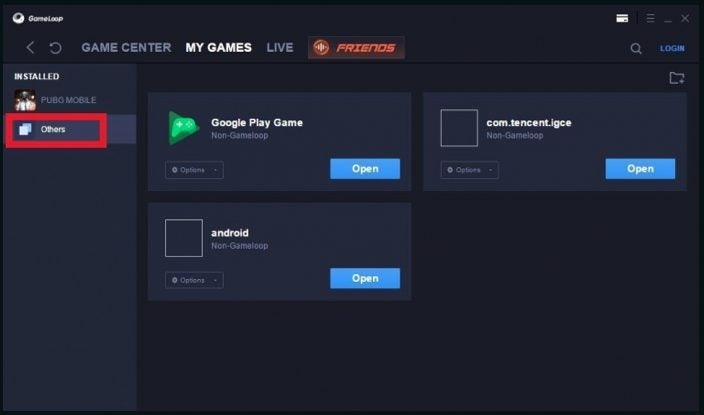
Step 4: Click on ‘others’

To the left of the screen, click on the ‘Others’ option.

How to Install Apk in Gameloop in 7 Easy Steps

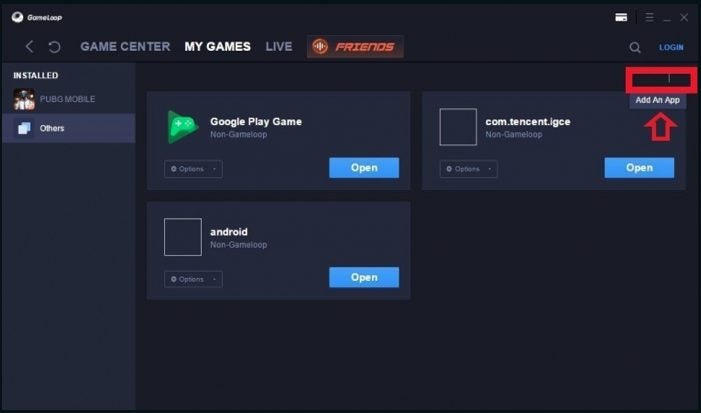
Step 5: Add an App

Next, click on the ‘Add an App’ option to the right of the screen.

How to Install Apk in Gameloop in 7 Easy Steps

Step 6: Add the APK File

In the next window, search for the apk file of the game you are installing.

How to Install Apk in Gameloop in 7 Easy Steps

Step 7: Install APK

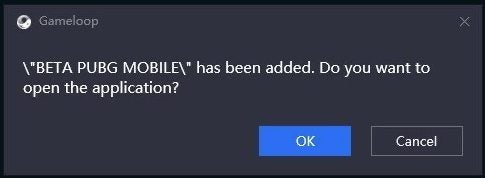
Once you’ve added the file, it will automatically be installed. A pop-up window will appear to let you know the installation was successful. 

How to Install Apk in Gameloop in 7 Easy Steps

Install More Games, Have More Fun

As you can see, the option to easily install apks on Gameloop means you are not only limited to their library but also any other games that have apk files. This opens up the whole world of Android gaming on your computer.

How to Install Android 7 in Gameloop in 4 Fast Steps

Gameloop initially came out with Android OS 4.4.2. This version is too old to play most of the newer Android games that are being released. Therefore you might want to install a more recent version, such as Android 7, to play these newer games.

Here are the steps to install Android 7 in Gameloop:

How to Install Android 7 in Gameloop

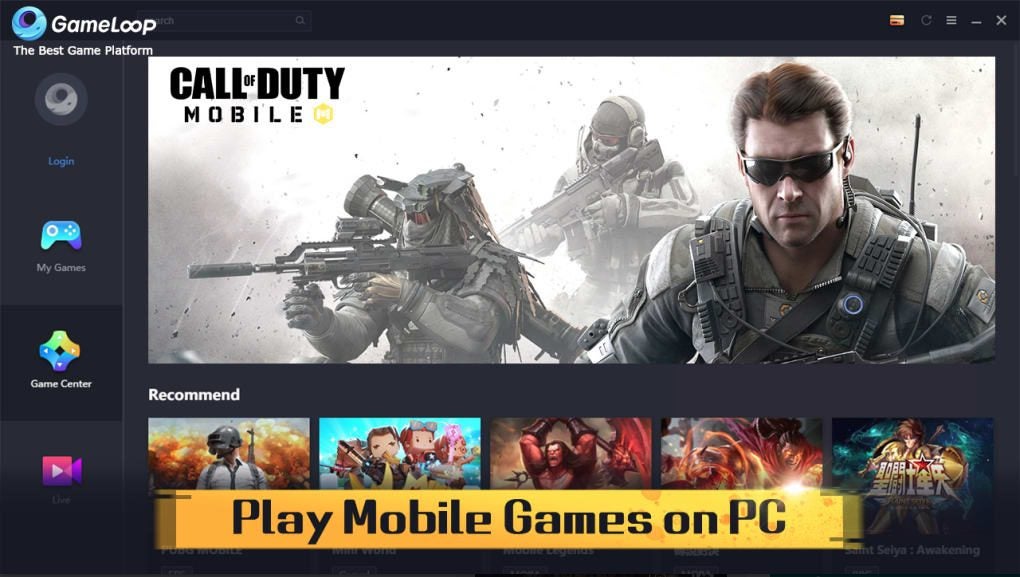
Step 1: Open Gameloop

Launch the emulator on your computer.

How to Install Android 7 in Gameloop in 4 Fast Steps

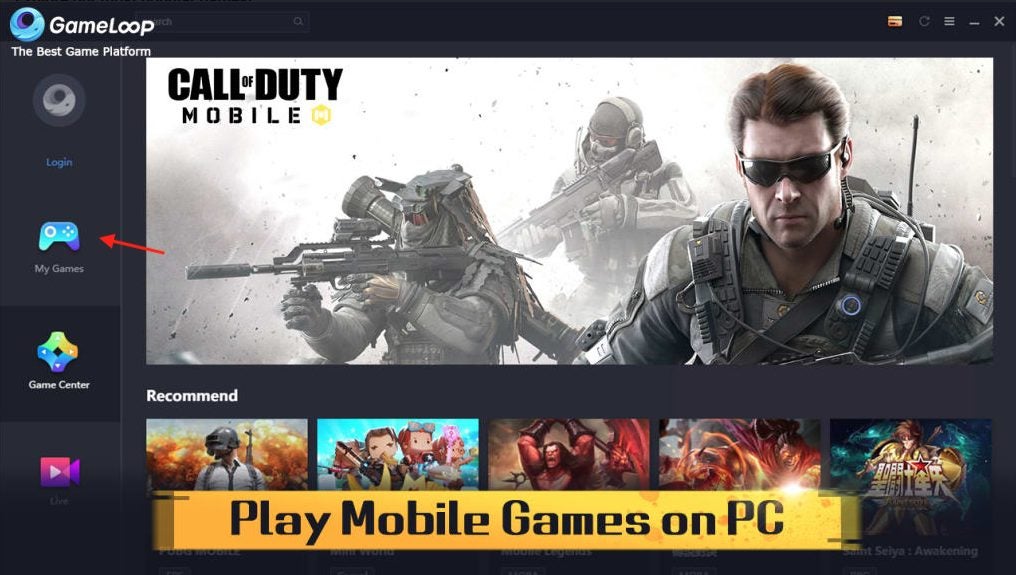
Step 2: Go to ‘My Games’ Menu

Head to the ‘My Games’ menu by clicking on the tab on the left side of the screen.

How to Install Android 7 in Gameloop in 4 Fast Steps

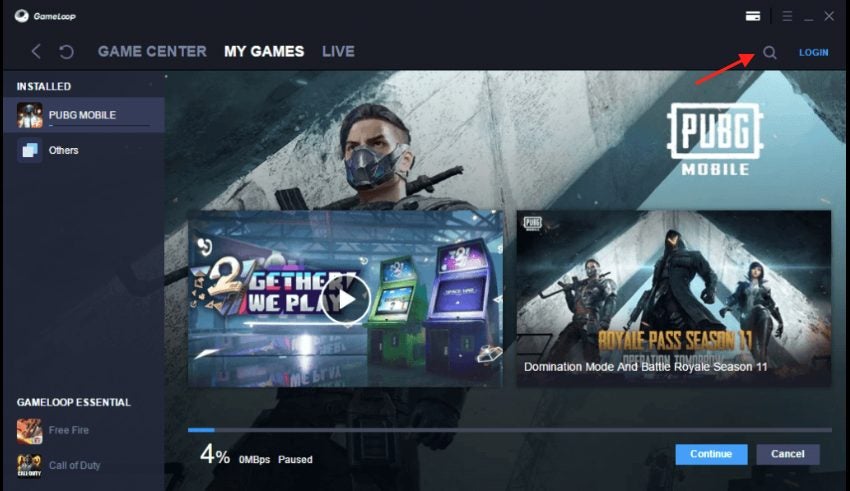
Step 3: Search for BnB M

In the search bar, type in the game BnB M and search for it. We are using this game as it requires Android version 7 to play. You can alternatively use any other game that you know requires Android 7 to play.

How to Install Android 7 in Gameloop in 4 Fast Steps

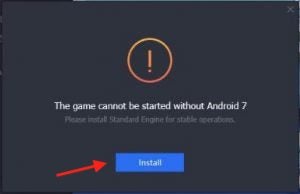
Step 4: Update Engine to Android 7

A message will pop up stating that the game you are trying to install needs Android 7 to play. There will be an option to install Android 7; click on ‘Install.’

How to Install Android 7 in Gameloop in 4 Fast Steps

Enjoy All the Latest Android Games

Now that you have Android 7 installed on your emulator, you can enjoy all the latest Android games on your computer. Remember it’s the best to have the latest version of Android on Gameloop to continue enjoying the newest games. There is no reason to be left behind.

How to Clear Cache in Gameloop in 4 Easy Steps

Gameloop is an official Android emulator created by Tencent Gaming, which brought you the Clearing your cache is a necessary step to keep Gameloop running smoothly. When your games start lagging suddenly when they’ve been running well for a while, clearing your cache can fix the problem. 

Clearing a cache might sound like a very technical thing to do, but it is pretty simple. The developers of this emulator thought about the users when designing the features. 

Let’s take a look at how simple it is to clear your cache in Gameloop.

How to Clear Cache in Gameloop

Step 1: Open Gameloop

Launch the Gameloop emulator on your computer.

How to Clear Cache in Gameloop in 5 Easy Steps

Step 2: Click on the ‘Settings’ Tab

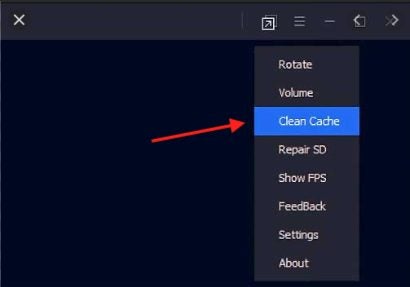
Click on the ‘Settings’ tab found in the top right of the Gameloop main screen. 

How to Clear Cache in Gameloop in 5 Easy Steps

Step 3: Click on ‘Clear Cache’

In the drop-down list that appears, click on the ‘Clear Cache’ option.

A window will pop up asking you to confirm that you want to clear the cache. Click on ‘OK’ to complete the clearing of the cache.

How to Clear Cache in Gameloop in 5 Easy Steps

Step 4: Restart Gameloop

Now that you have cleared the cache, exit Gameloop and restart the emulator. From here, you can continue enjoying your games.
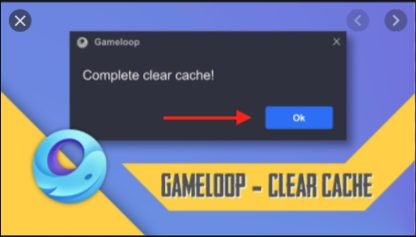
Remember that clearing the cache removes only temporary files that have been stored in the emulator’s memory. Clearing the cache should not affect any of your downloaded games or saved files. 

How to Clear Cache in Gameloop in 5 Easy Steps

Return to Your Usual Gaming

Clearing the cache can help sort out some issues you might suddenly be experiencing when playing games on Gameloop. If you experience sudden lags that can’t be explained, try clearing the cache.

How to Change Gameloop Language in 5 Easy Steps

It is always helpful to know how to change a program or apps language settings. Recently, a few people have reported that when downloading the Gameloop gaming buddy, the language on the emulator is displayed in Chinese, even if they downloaded the English version.

This can be quite a headache for some, especially if you don’t know the language, but luckily there is an easy fix. Let’s look at how to change the language on your emulator.
How to Change Gameloop Language

Step 1: Open Gameloop/ Tencent Gaming Buddy

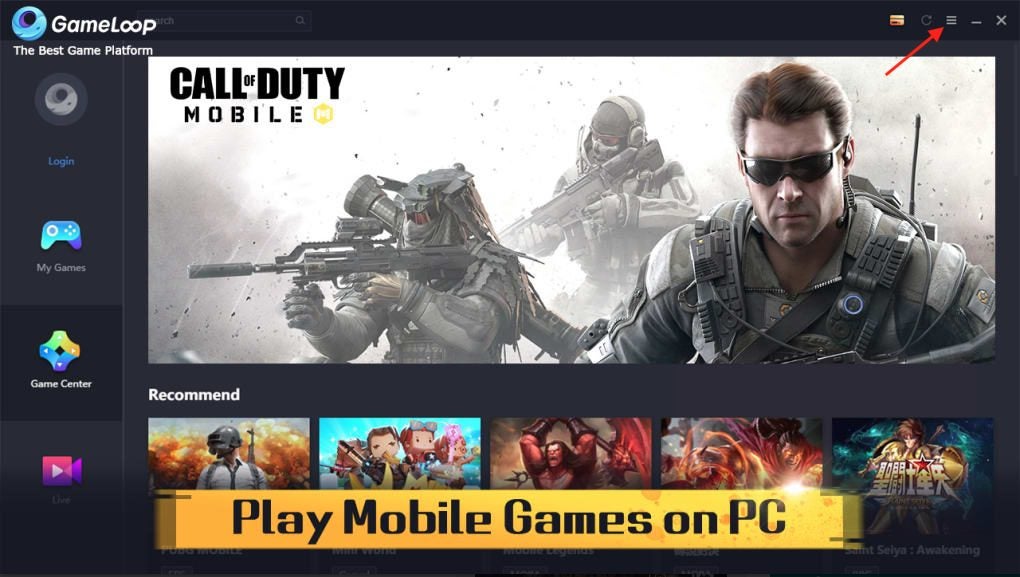
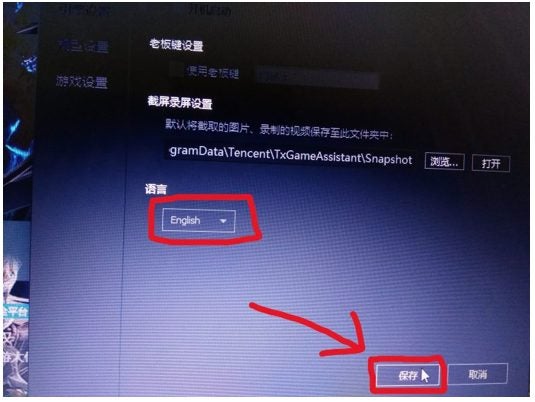
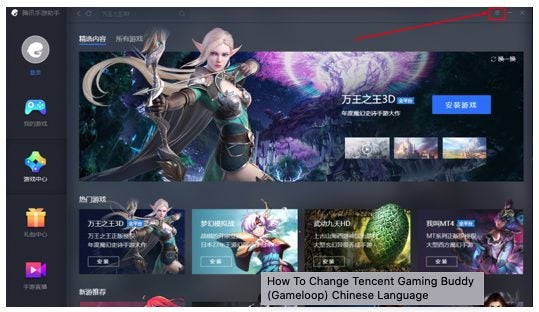
Open your Gameloop emulator on your computer. If the language displayed is not your preferred language, do not fret. For this example, we will use an emulator in Chinese and show you how to change it to English. Click on the three straight lines on the right side of the screen. These lines represent your settings.

How to Change Gameloop Language in 5 Easy Steps

Step 2: Click on the Third Option

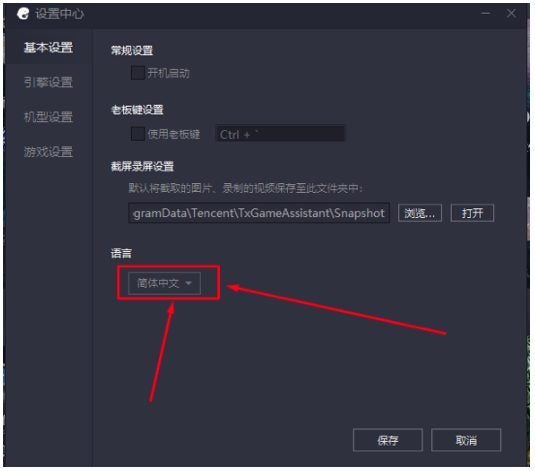
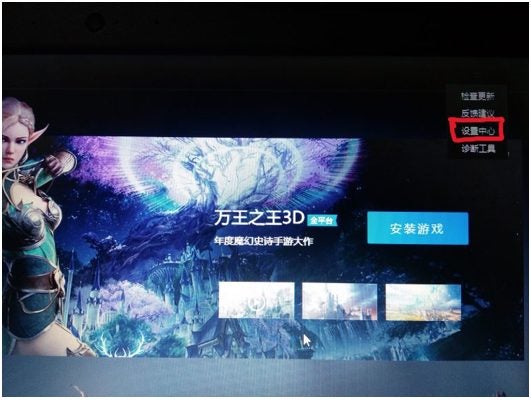
On the right side of the screen, you will see four options available. Even if you cannot understand them, click on the third option. This will open a new window that will display your language settings and other options.

How to Change Gameloop Language in 5 Easy Steps

Step 3: Click on the Drop-Down Menu

At the bottom of the window will be a drop-down list. Click on it to see all the available languages.

How to Change Gameloop Language in 5 Easy Steps

Step 4: Select Your Preferred Language

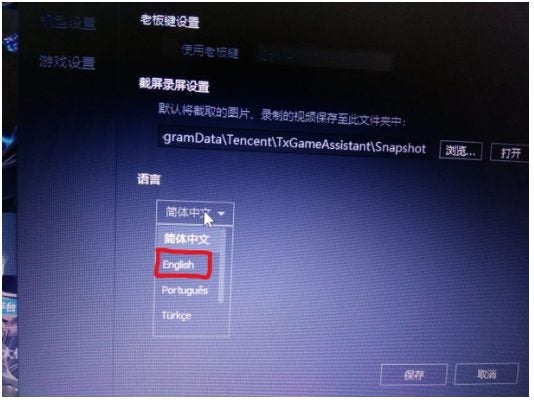
In the drop-down list, you can now choose your preferred language. For the sake of this example, we will change it to English.

How to Change Gameloop Language in 5 Easy Steps

Step 5: Confirm Your Choice

At the bottom of the window, click on the button on your left, which is the ‘OK’ option. Clicking ‘OK’ will change the language of your emulator.

How to Change Gameloop Language in 5 Easy Steps

Enjoy Android Gaming on Your Pc in Your Language

As you can see with this guide, it is simple enough to change the language on your emulator. Now you can enjoy Android gaming on your computer in your preferred language.
How to Update PUBG on Gameloop in 3 Easy Steps

If you enjoy playing PUBG on your emulator, you should know how important it is to update it regularly. One of the reasons is that updating the game gives you access to new content and bug fixes, but also, you will not be able to play with users who have the latest version while on an older version. This might limit your matchmaking and give you access to fewer games. 

Updating PUBG in Gameloop is not tricky. Let’s look at the steps you need to take to achieve this.

How to Update PUBG on Gameloop

Step 1: Open Gameloop

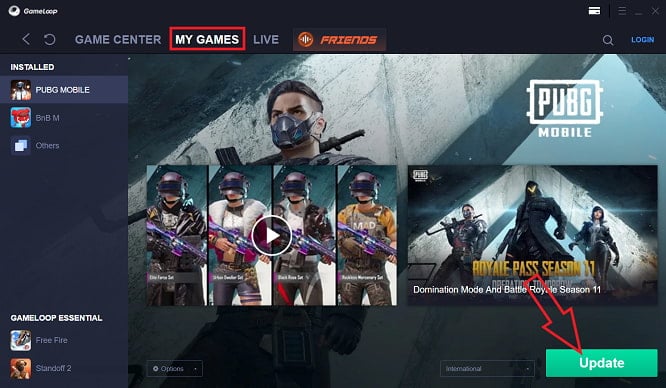
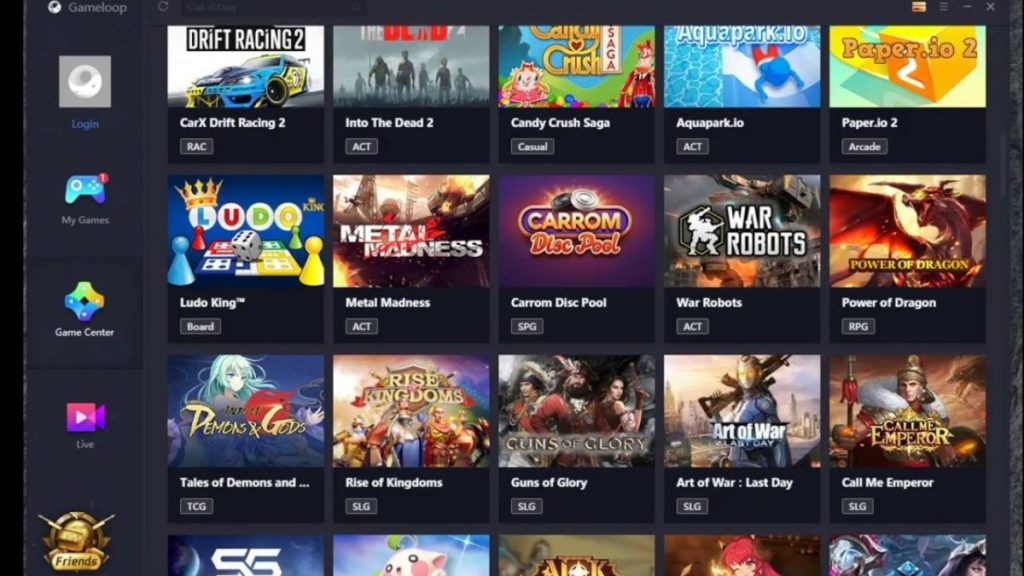
Open Gameloop or Gaming Buddy on your computer. Click on the ‘My Games’ tab located in the top menu of the emulator.
How to Update PUBG on Gameloop

Step 2: Click on ‘PUBG’

Scroll through the list of games until you find PUBG. Alternatively, you could also use the search function to find the game faster if you have many games.
How to Update PUBG on Gameloop

Step 3: Update the Game

Click on the ‘Update’ button to manually update the game. If there is no update button available, you already have the latest version. The update will start and can take a few minutes, depending on your internet connection.

How to Update PUBG on Gameloop

A Simple Way to Update and Continue Enjoying PUBG

As you can see, updating PUBG through the Gameloop emulator is simple to do. There is no reason why you shouldn’t be able to enjoy the latest version, with all the recent additions, easily.