Google Docs update brings location services to your documents!

Google has recently added a useful tool to Google Docs that allows users to insert emojis into their documents. All users have to do is type the @ symbol into their documents and then spell out the name of the emoji they are looking for. Now, Google is building more functionality into the @ symbol as the company is rolling out an update that will allow users to include Google Maps chips into Google Docs. Here is what you need to know.
Google Docs Download Now

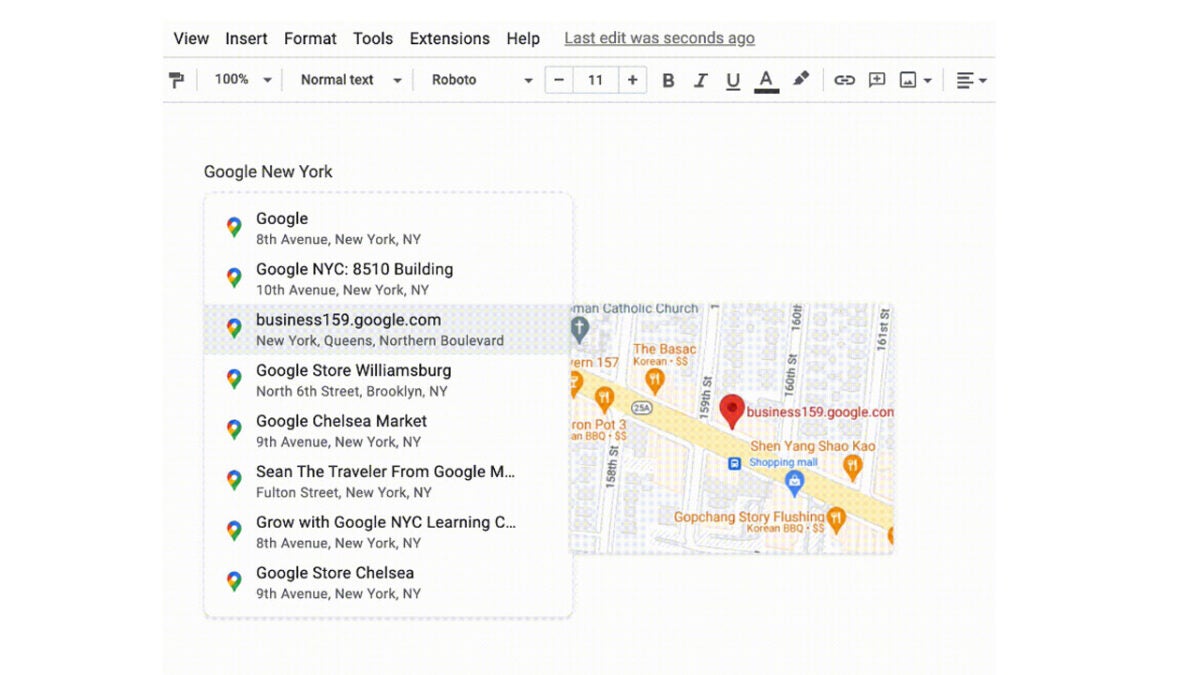
Last year Google rolled out an update that allowed users to add Google Maps chips into documents by pasting a Maps link into the document. Now, however, Google is making it even easier by incorporating the feature into the increasingly useful @ functionality. This means all users will have to do to add the chips to their documents is type @ and then write in the location or address of the place they want to include in the document.

Google has put together a help page explaining more about the Google Map chips and also including full instructions on how to use them and why they might be useful, which you can find here.

The Google Maps chips update has already started rolling out to all Google Docs users on both a Rapid Release and a Scheduled Release, with the Rapid Release rollout almost coming to an end. Those users receiving the Scheduled Release rollout should have access to the updated feature by the end of the month.

In other Google Docs news, it is now much easier to handle collaborative notifications and silent annoying messages regarding updates to the documents you are working on.
It is now easier than ever to insert emojis into Google Docs

There have been a lot of stuffy business-related updates coming to Google Docs recently as Google works hard trying to turn heads away from Microsoft word. That is all well and good, and they mark important updates for the app, but it is nice to get to report on an update that is bringing a little more fun into the app as well as updates that bring serious utility. Today we can tell you that it is now easier than ever to add emojis to Google Docs and we can show you exactly what you need to know.

Google Docs Download Now

Back in April, Google added emoji reactions to Google Docs, giving users the ability to react to comments and express opinions and give feedback on work in a less formal manner. Now, Google is making it easier than ever to add emojis directly into the text of your documents.

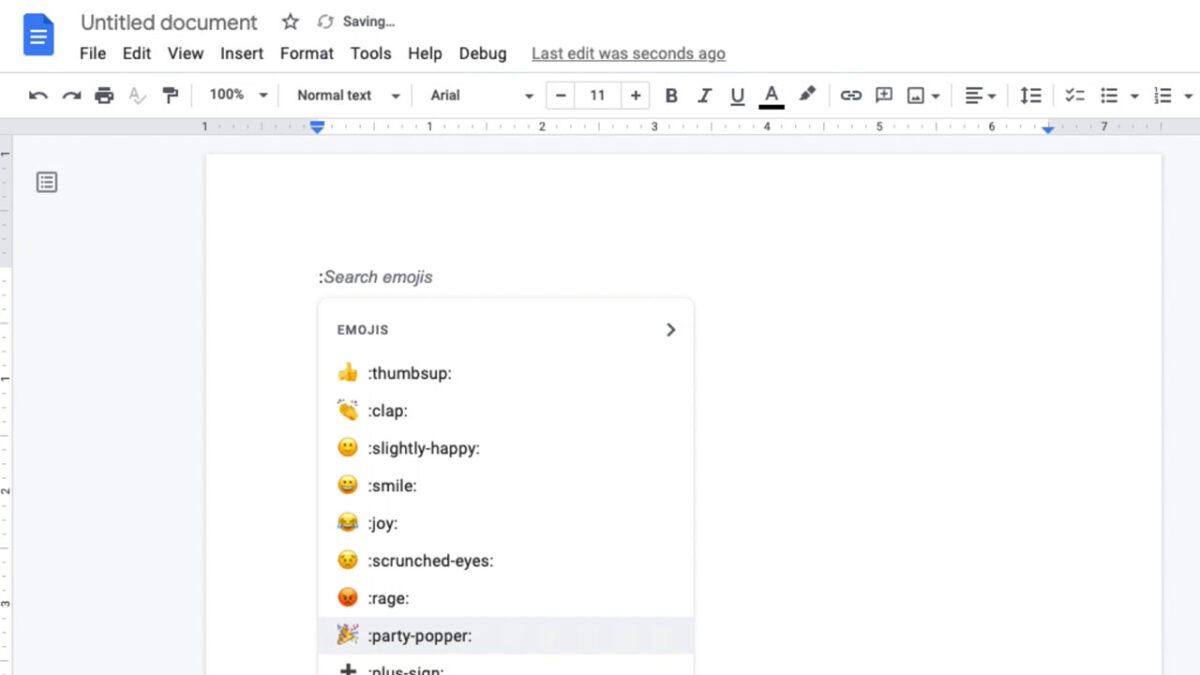
The new feature couldn’t be easier to use either. All you have to do is type in the @ symbol and then start typing out a word that describes the emoji you want to react with. Think of it like the @ symbol opening up an emoji search bar that you can then use to directly add emojis to your document.

What is also great is that Google Docs will provide you with a drop-down menu of emojis related to the word you are searching for. You could, for example, type in dog and then scroll down through all the different types of dog emojis available until you find the one you want. If you simply want to see a list of all the emojis available you can access that by typing @:.

This new update has already started rolling out to rapid-release domain and should have reached all of them by September 12. It will then start rolling out to scheduled release domains and will take 15 days to reach all users from then. The new update will be available to all types of Google Docs users including personal account holders.

In other recent Google Docs news, some business users can now add official signatures to their documents.

Google Docs makes it easier to delegate tasks

Google Docs and the Google Drive suite of productivity apps such as Sheets and Slides, ushered in a new era of teamwork collaboration. Microsoft’s Office suite also offers strong collab-friendly features now too, which is more important than ever with more and more people working from home and teams spread across multiple locations. As well as being able to work together, however, management is an important feature working in teams and Google has just introduced a new feature to Docs to help facilitate easier management practices and the delegation of tasks.

Google Docs Download App

There are many different project management programs and apps out there like Asana and Trello that help you manage your own tasks and the tasks of team members and colleagues. Google looks to be implementing some basic project management functionality, commonly found in these types of specialist programs, into Google Docs.

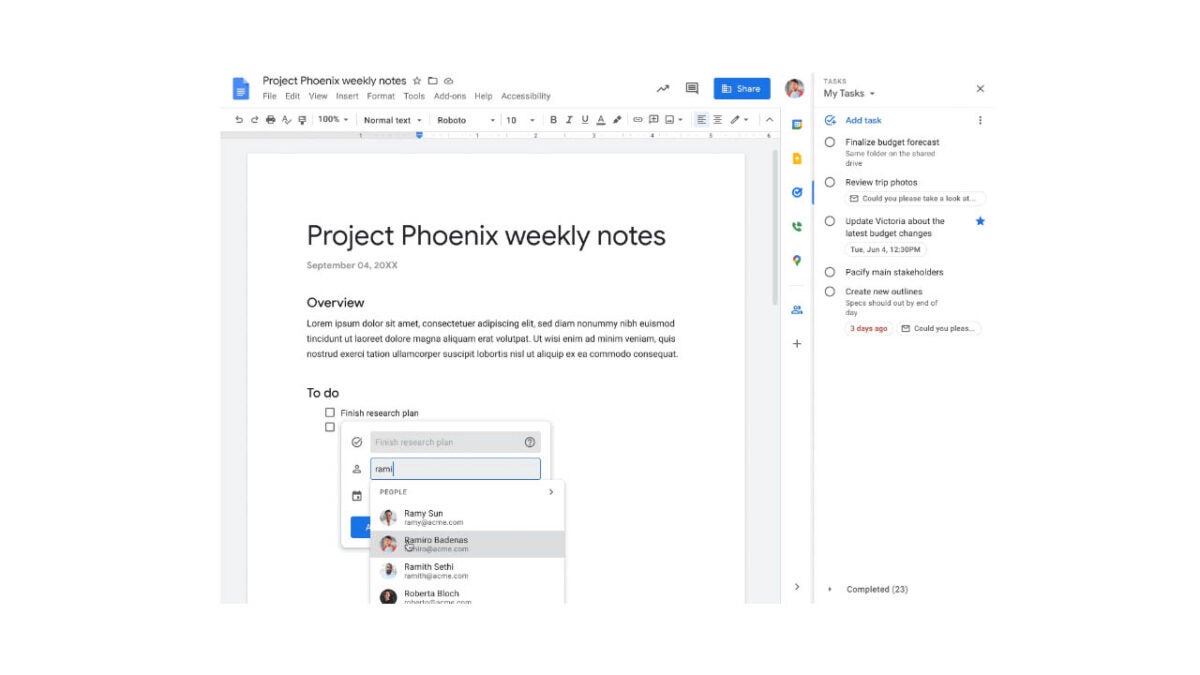
In a Google Workspace Updates blog post, the search giant has released news of an update that will allow you set and assign project checklists. The items in the checklist will then show in your task list or, if you have assigned them somebody else, they will show up in their task list.  Google summarizes the new update like this:

“In Google Docs, you can now assign a checklist item to yourself or a colleague that will then show up in the assignee’s Tasks list. When edits are made to an assigned item in Tasks, such as a change to the title, due date or completion state, those updates will show in the Doc, and vice versa.”

Google already begun rolling out the update with all Rapid Release domains due to receive it by September 1st and Scheduled Release Domains to receive by August 14th. For the new feature to work, however, Google Tasks will need to be switched to on for all team members and this also means that it will only be available for Google Workspace users and not users with personal business accounts.

In other recent Google Docs news, you will soon be able to add official signatures to your Google Docs documents.

You can finally silence those weird Google Docs notifications

It has to be said that Google Docs has some fantastic collaboration features that make it very easy to work together with colleagues and teammates on the very same document. One of those bothersome little idiosyncrasies, however, is that the word processor will send you a notification every time somebody makes a change on the document. This means things can then get out of hand quickly and you are bombarded with useless emails. Well, finally, Google has announced a change to address this situation.

Google Docs Download Now

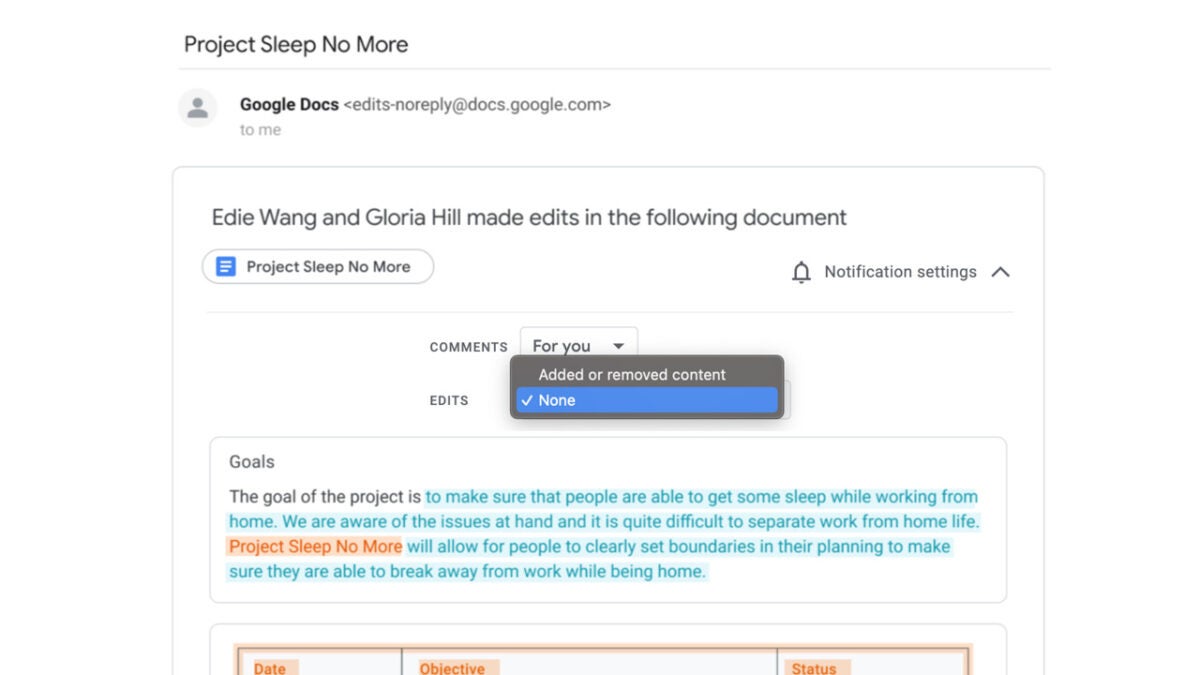
In a Google Workspace blog post, the search giant has announced that it is giving users the ability to set the level of email notifications they will receive on a per-file basis. Rather sensibly, the new feature will collect all the changes made, including when and by who they were made into a single message.

To help you more quickly identify who has made the changes, they will be color-coded, which again is a very sensible setting to add to the update. On why this update will be useful for you, Google said:

“Staying on top of relevant changes and comments across multiple documents can be difficult. By giving you the option to specify which comments and changes to be notified about, you can more easily stay on top of what needs your attention most and keep track of collaboration.”

The feature is rolling out right now so within a few weeks it should be available for all users to take advantage of.

The edit notifications feature will be off by default, but you will be able to set it differently for every document you work on. To do so, click the Notification Settings dropdown menu, which has a bell icon, and then make your adjustments as needed.

This update will help you keep your email inbox less cluttered, which will be great news for your productivity. Google has been working on quite a few features in this regard recently, including this impressive AI-powered productivity-boosting feature.

You will soon be able to add official signatures to Google Docs

Signatures have always been a bit of a problem for digital documents. There are solutions out there, but they are often third-party add-ons that require you move from one program to another or work entirely online. Now, however, that looks set to change as Google is working on incorporating an eSignature feature right into Google Docs. Let’s check out what is happening.

Google Docs Download Now

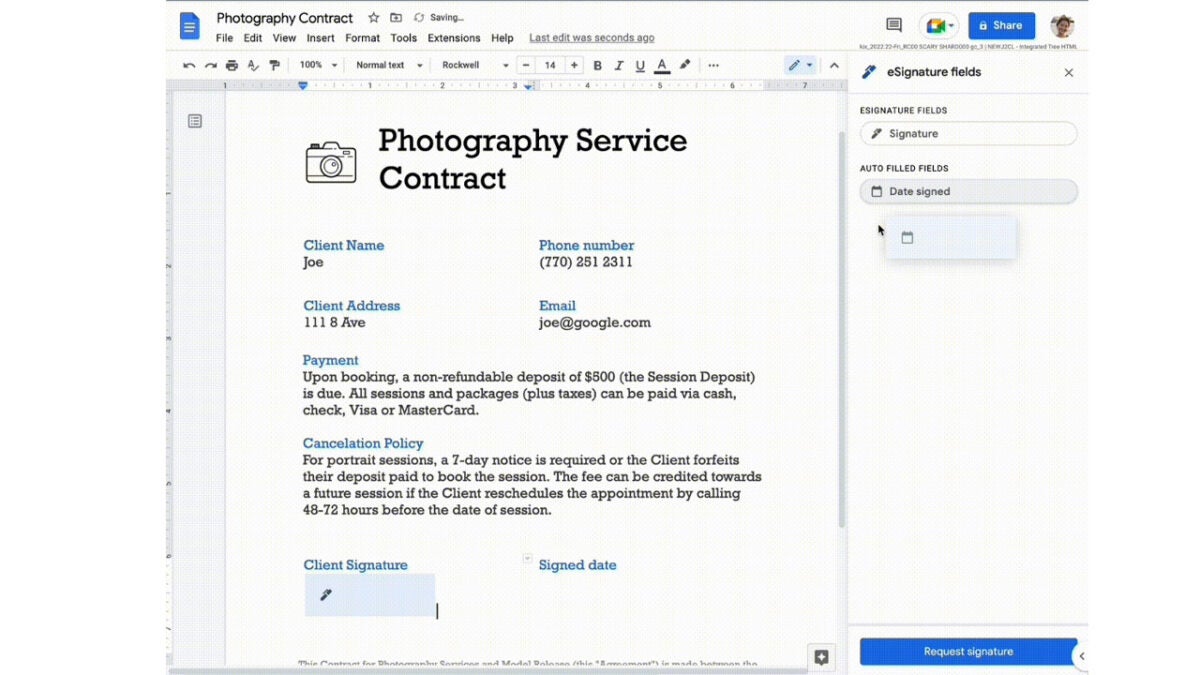
Google has announced in a Google Workspace blog post that it is working on a new feature to help small and solo business owners. The feature will allow users to drag and drop elements into Google Docs, including a box for signing and dating documents.

Google also says that users will be able to request signatures on documents in a similar way to how document sharing works at the moment. You can send it over to a particular user complete with a request for a signature. Interestingly, Google says that before signing, all documents will need to have first resolved all suggestions and comments.

The reason Google says it is implementing this tool is to help protect small business users from potential security weak spots by removing the need to use the third-party programs mentioned above. John Shriver-Blake who is Group Product Manager at Google Workspace, said:

“eSignature in Google Docs will take advantage of the same secure-by-design infrastructure and built-in protections Google uses to help secure your information and safeguard your privacy.”

Google says that the feature is coming to the beta version of Google Workspace Individual, which is the subscription model aimed at solopreneurs, soon. This means that it still has quite a bit of development to get through before it will receive a wider rollout, but Google says that it is on the way.

There have been quite a few Google Workspace updates recently, that are worth your attention. These include improved scheduling options, collaboration-friendly updates, and improved security features.

How to use Google Docs’ new automated summary feature

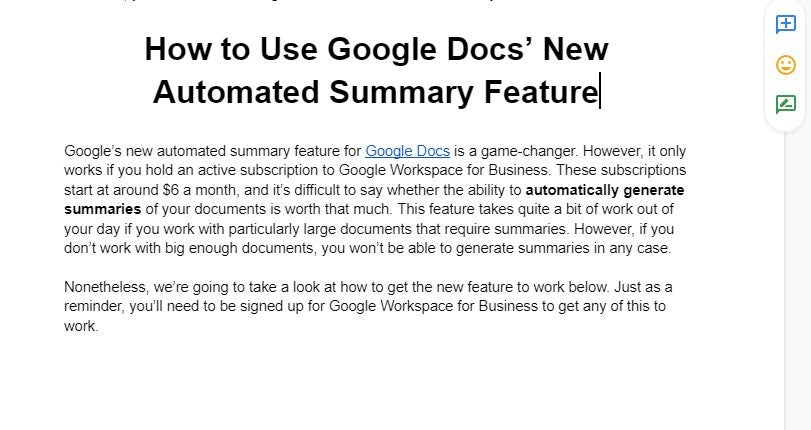
Google’s new automated summary feature for Google Docs is a game-changer. However, it only works if you hold an active subscription to Google Workspace for Business. These subscriptions start at around $6 a month, and it’s difficult to say whether the ability to automatically generate summaries of your documents is worth that much.  

Google Docs DOWNLOAD

Nonetheless, we’re going to take a look at how to get the new Google Docs summary feature to work below. Just as a reminder, you’ll need to be signed up for Google Workspace for Business to get any of this to work.

  1. Open your Doc in Google Docs

    How to Use Google Docs’ New Automated Summary Feature

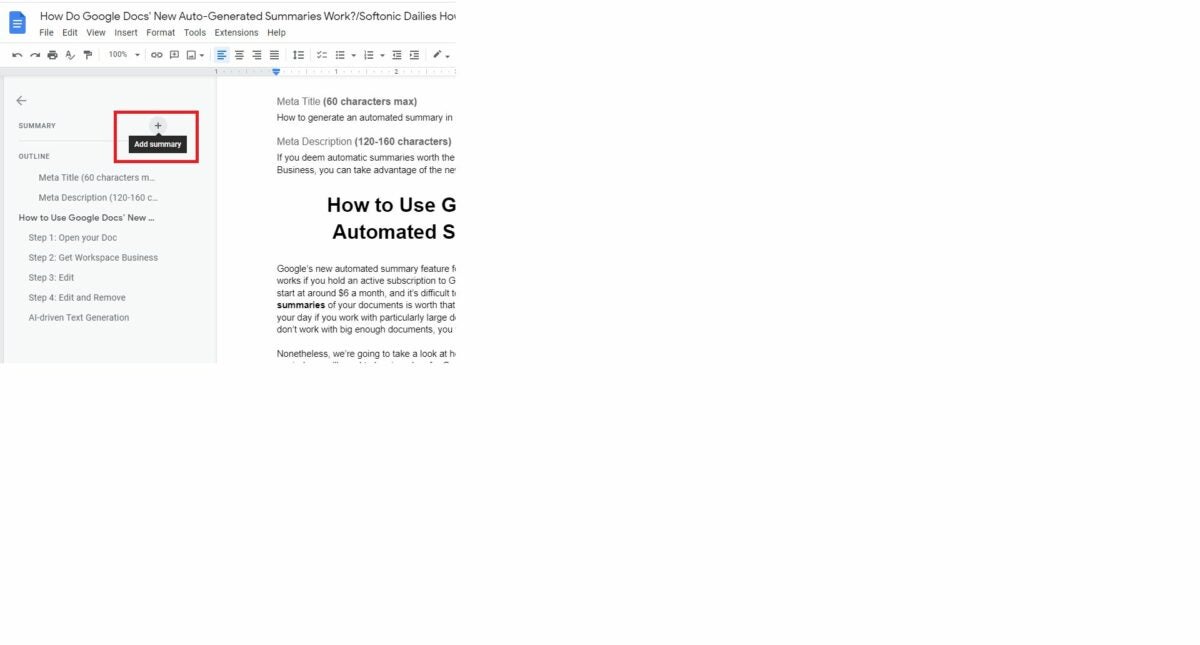
    The first thing you need to do is open the document that you’d like to generate an automatic summary for. Next, you need to head to the menu bar and click on View. From here, ensure that you enable the Show Outline option. If you then hit the document outline icon on the top left-hand side of the page, you’ll open the outline interface.

  2. Get Workspace Business

    How to Use Google Docs’ New Automated Summary Feature 1

    If you’re on a Google Workspace Business plan, you’ll notice that the plus sign next to Summary in the document outline interface has changed to a blue document with stars around it. This icon means that Google Docs has already generated an automatic summary of your document.

    However, if there is too little information to formulate a summary from, Google Docs will not show you this icon and will thus not generate an automatic summary.

  3. Edit in Google Docs

    How to Use Google Docs’ New Automated Summary Feature 1

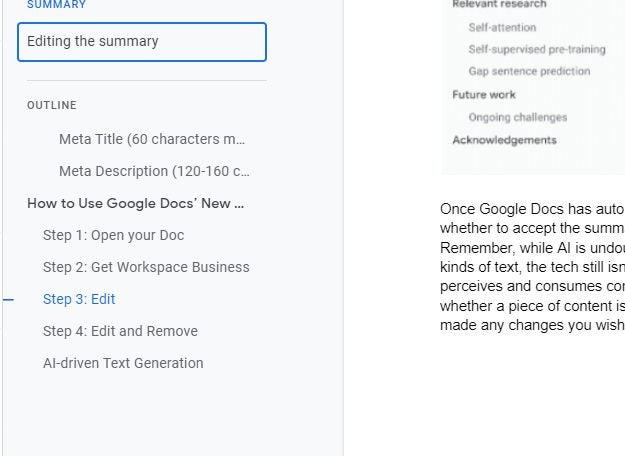
    Once Google Docs has automatically generated a summary of your document, you can choose whether to accept the summary as is or whether you’d like to make your own changes. Remember, while AI is undoubtedly getting more intelligent and adept at generating various kinds of text, the tech still isn’t perfect.

    You still have a better feel for how your target audience perceives and consumes content; therefore, you are still the deciding factor when it comes to whether a piece of content is acceptable or merits a few tweaks here and there. Once you’ve made any changes you wish to make, hit Enter to save the summary.

  4. Edit and Remove

    You have the power to edit the automatically generated summary at any time. All you need to do is hit the Edit icon, make your changes as before, and save the updated summary. If you feel you could write a better summary or simply no longer need a summary, you can also remove the summary at any time. Simply. Head into edit mode, delete all the text in the summary, and then hit Enter to save the changes. The summary is now entirely gone.

AI-driven text generation in Google Docs

The future of AI integration into even more aspects of our daily lives is an exciting one. We still have quite a way to go before AI can type up entire articles and generate the same kind of reader and search engine engagement that a skilled writer can. However, knowing that you can generate a summary automatically based on the content of a document makes any kind of text-based job just that much easier.

The only issue here is that you need an active subscription to the Google Workspace for Business service in order to gain access to automatic summary generation. For a utility like Google Docs that is hailed for giving users free access to otherwise premium features, this feels like a little bit of a letdown.

The small Google Docs update that should make a big difference

The battle between Microsoft and Google to capture the increasing work from home productivity market has been heating up recently. Google has been constantly updating Google Workspace so that it can better compete with Office 365, even pumping AI-powered features into Google Docs. We now have news of another small update to Google Docs that should make a big difference for people using it.

Google Docs Download Now

It has to be said that this update simply marks another way that Google is playing catch up with Microsoft as it is a simple feature that has been available to Microsoft Word users for a long time.

The update will allow users to select multiple parts of a document at once and reformat them with a single command. For example, you could select all of the opening words of a series of bullet points at once and then make them all bold at the same time with a single click. Incredibly, until now it hasn’t been possible to select multiple areas of a document at the same time, never mind format them.

The feature is going to roll out to all Google Workspace users meaning it should become available on enterprise versions of Google Docs and Google Sheets soon. When it does land on your version of the app you will be able to find suitable keyboard shortcuts here. If, however, you can’t be bothered finding them there, we’ve laid them out for you below:

For Windows and ChromeOS : Ctrl + Alt + Shift + Left/right arrow

For Mac: Ctrl + ⌘ + Shift + Left/right arrow

So, there you have it. Google is adding a small but useful update to Google Docs that brings the Google word processing app a baby step closer to Microsoft word. For more news on Google Docs updates read our report on these new team-focused features.

Google Docs AI update offers impressive productivity-boosting features

The final big announcement we will bring you from Google I/O relates to Google Docs. The ever-popular word processing app is set to receive a very impressive update that will make your work life much easier. Let’s dive in…

Google Docs Download Now

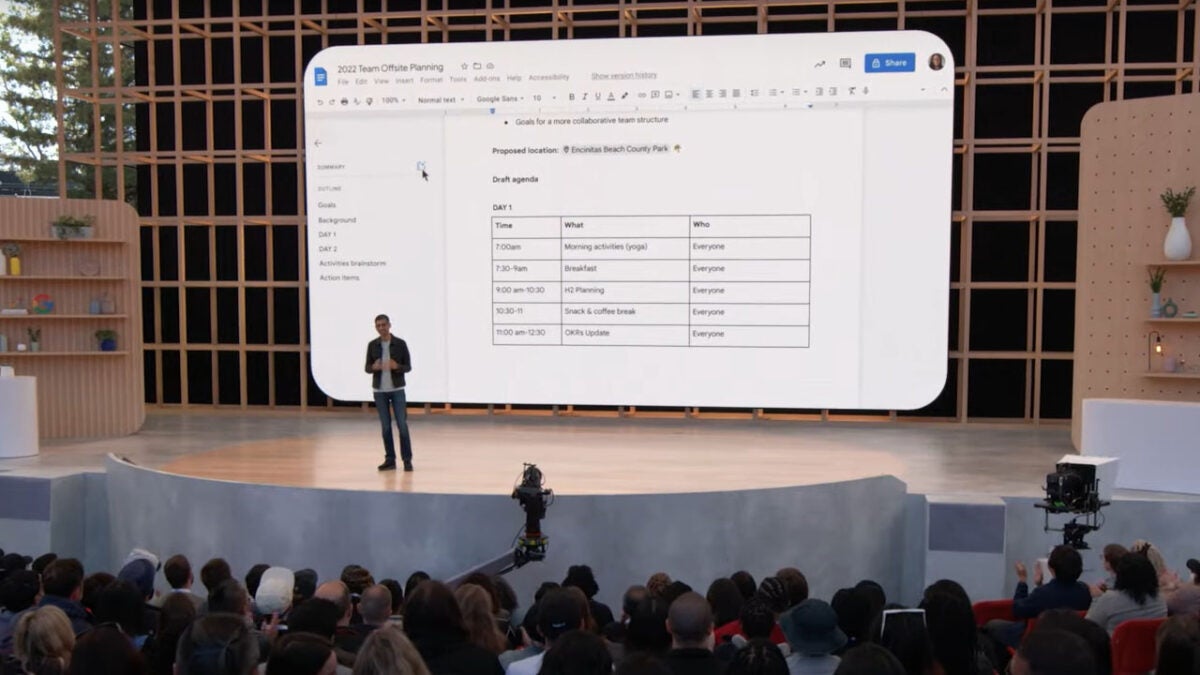
Google highlighted a feature that is available to all Google Workspace subscribers that gives them the ability to automatically generate summaries of their work using Google Docs. This useful tool will form the backbone of a slew of new features that Google will be implementing across the Google Workspace ecosystem over the next few months.

Google is going to also giving this impressive feature to Google Chat. This means that once you have finished your conversations on chat, the app will provide you with a summary of all the important points that came up. If you perform any business functions over chat, this tool could prove invaluable and save you a lot of time scrolling back and forth between old conversations.

Next up is that Google Meet is going to receive an update that will allow the app to automatically transcribe all conversations that happen during your meetings. This means you’ll have an automatically generated written record of all your meetings. This marks another step in Google Meet’s long journey to catch up with the likes of Zoom and Microsoft Teams.

All three of these updated features show that Google is keen to push Google Docs and the Google Workspace offering as a genuine alternative to the productivity and business ecosystem Microsoft is able to offer. The internet giant does have a lot of catching up to do but there is promise in these latest announcements. Being able to automatically generate a summary of your work is quite the unique selling point and may start to turn the heads of office managers and company directors. This could be an interesting tech battleground that is only just starting to heat up.

If you like the sound of Google Doc’s new productivity features and are looking for ways to improve your own workflow and boost productivity, check out our guide to the best apps to increase work productivity in 2022.

Google Docs receives two new team-focused features

Google Docs is one of those programmes that is hard to believe it is free because of just how good it is. Sure, it may be a little light on features compared to Microsoft Word, but it has more than enough features to help most people and most professional teams get the job done. Collaboratively working in teams is one of the things Docs and the other programs in the Google Drive productivity suite do particularly well, and it is in this area that the Google Docs developer team is pushing out a handy new update.

Google Docs Download Now

A recent Google Workspace blog post introduces two new collaboration features coming for all Google Workspace customers. Let’s scroll down to take a look at these new features.

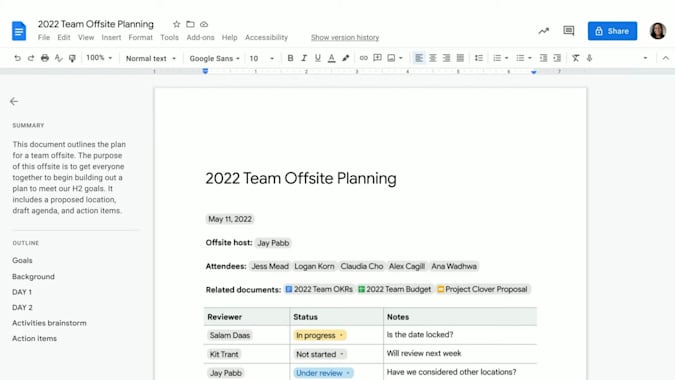
The first updated feature coming to Google Docs is called dropdown chips. These will be little chips you can add to a document that will quickly signify the status of the document or project to any teammate or colleague who opens it. The feature allows you to leave another type of chip on the document so you can also track the review process.

The options available on Project Status Chip include “Not Started”, “Blocked”, “In Progress”, and “Complete”. For the Review Status Chip, the options include “Not Started”, “In Progress”, “Under Review” and “Approved”. The new feature also comes with custom text options and different colour settings meaning you can create dropdown chips for all sorts of different types of projects.

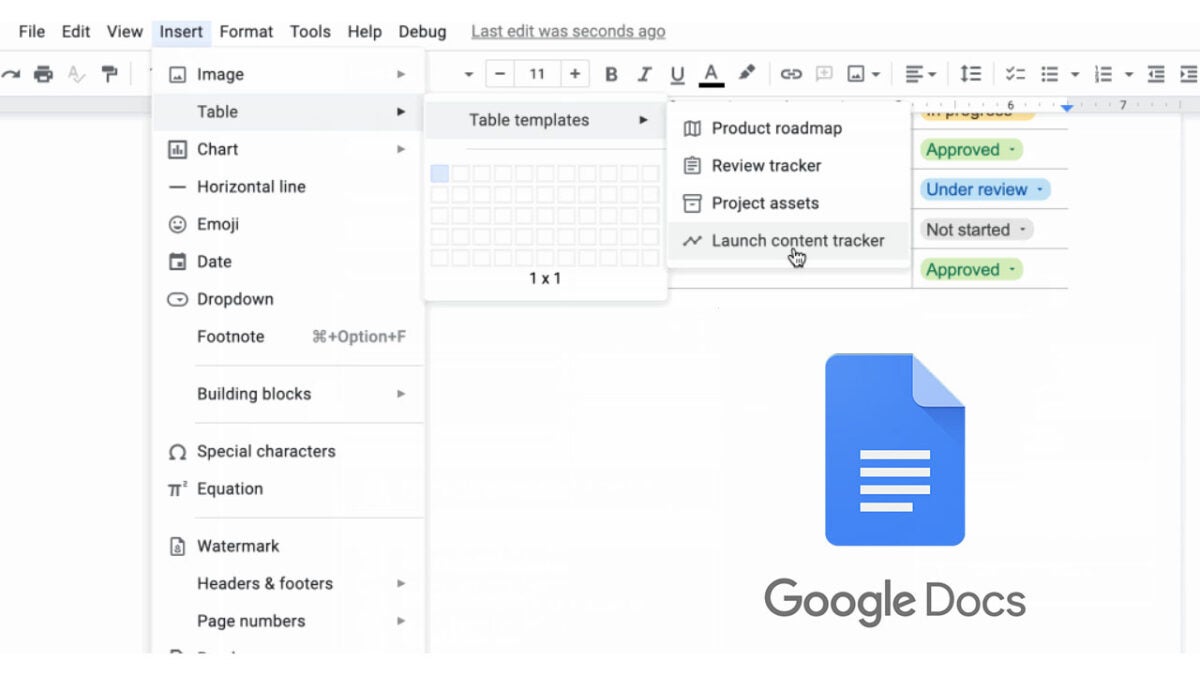
The other new feature coming in this update is table templates, which Google says will allow you to, “quickly insert building blocks for common workflows.” These include templates including Launch content tracker, Project Asset, Review Tracker, and Product Roadmap.

When combined with the dropdown chips, this tool puts powerful project management tools into the hands of Google Docs users.

These new features are already available to all Google Workspace customers and legacy G Suite Basic and Business customers too. This means you will have access to them now if you have any sort of premium subscription to the Google Workspace subscription. Unfortunately, there is no word on whether these features will come to the free version of Google Docs, but considering the collaborative nature of the features, it is highly unlikely they will be available on the free tool, which is primarily for personal use. If you use the regular version of Google Docs, why not check out some secret Google Docs tips and tricks to help you get more out of the free version of the app. You can also read our Google Docs Review to get a more rounded view of all feature.

Google Docs updates toolbar menu with top features

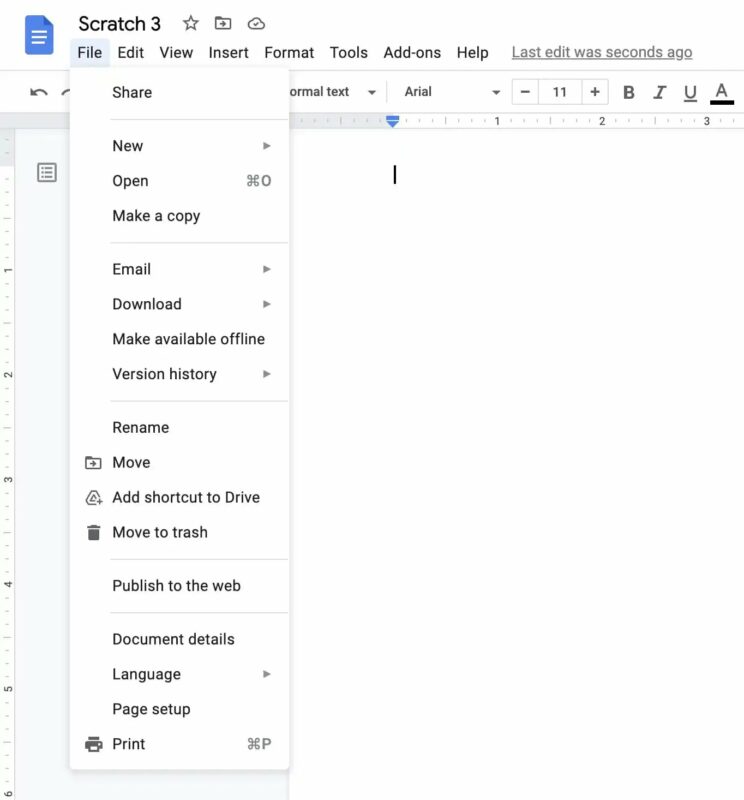
We love when developers listen to the voices of users when they ask for a better user interface. A new announcement reveals that the toolbar menu in Google Docs on web browsers will receive an update. You’ll see fewer items in each menu and improved organization as a start.

The current menus in Google Docs have long lists that stretch over the page you’re working on. Not only that, but their organization means you generally hunt for the right function if you’re not used to the system. It seems as if the new update will address both issues in different ways.

The update notes mention how there will be fewer menu items in each tab. It makes us wonder if some functions will move elsewhere or if they will just add more menu tabs. One element we noticed immediately is that Google Docs will refer to Add-Ons as Extensions. It’s a strange decision, as that’s what sets it apart from Google Chrome extensions.

As for the organization of functions, you’ll see more helpful hints and shortcuts on the toolbar menu. Small icons will draw your attention to the features commonly used worldwide. They’re also located near the top of each menu, such as creating a new document being first on the File list instead of “Share”.

The new update shows us how a company can use the data it receives from users to good use. However, you won’t see the new functionality until the end of May when Google plans to distribute the changes. There also won’t be any new tools for admins, so the new features are primarily targeting end-users. We’re going to have to learn a new way of managing add-ons in Google Docs once it goes live.