Google Slides adds live pointers to collaborate better

To help with seamless collaboration and boost productivity, Google Slides has rolled out an exciting new feature that’s set to transform the way we work together on presentations. The web version of Google Slides is introducing a live pointer, allowing you and your colleagues to see each other’s mouse pointers in action, making collaboration smoother than ever before.

What is the new live pointer feature on Google Slides?

Traditionally, Google Slides users could only discern which slide their collaborators were viewing, along with the telltale sign of them actively editing text. While these were valuable indicators, they left room for improvement. Now, with the introduction of live pointers, Google Slides takes collaboration to the next level by providing live insight into where each participant’s mouse cursor is located. When activated, the familiar arrow icon becomes more prominent, and each user is assigned a unique color accompanied by their floating name.

“To boost collaboration in Google Slides, we’re introducing live pointers, a new feature that allows you and your colleagues to see each other’s mouse pointers in real-time. With this update, co-creators can easily point out specific text or visual elements within a Slide in order to highlight important information and content,” said Google in the official announcement.

Google Slides DOWNLOAD

This new feature is especially handy during collaborative walkthroughs when a presentation is still a work in progress. Located at the right end of the toolbar, the live pointer icon is just a click away. It’s essential to note that this feature is off by default, ensuring that you have full control over when you activate it.

Additionally, you have the flexibility to manage the visibility of your collaborators’ pointers. If you wish to hide their pointers temporarily, you can do so by selecting View > Live pointers > Show collaborator pointers, or by entering the presentation mode.
How to use the live pointer on Google Slides

For those eager to embrace this groundbreaking feature, here’s a step-by-step guide on how to enable and use live pointers in Google Slides:

  1. Open Google Slides.
  2. Go to View.
  3. From the drop-down menu, select the Live Pointers option.
  4. Step 4: Then, click on Show my pointer. Alternatively, you can activate the feature using the pointer icon conveniently located in the toolbar.

Remember that live pointers will remain visible across all slides until you decide to turn them off. To hide your collaborators’ pointers for the current session, simply navigate to the presentation mode or select View > Live pointers > Show collaborator pointers.

In the weeks ahead, this exciting feature will be gradually rolled out to both Workspace customers and personal Google Accounts, promising to revolutionize the way we collaborate on Google Slides presentations. Say goodbye to the guessing game of where your collaborators are and embrace the era of live pointers for a more efficient and engaging collaborative experience.

How to make a presentation with effects in Google Slides

Creating a presentation consists of more than just adding content to slides. You want your presentation to be visually stimulating so that the information you share can be remembered. Google Slides is a wonderful free-to-use platform where you can create all manner of striking presentations, complete with transitions and animations to keep your audience engaged. 

Google Slides DOWNLOAD

In this article, we’ll be taking a look at how you can add effects to your Google Slides presentation. Keep reading to discover how you can create visually striking presentations in Google Slides by using effects.

How to add effects in a Google Slides presentation

  1. Adding Transitions

    How to make a presentation with effects in Google Slides

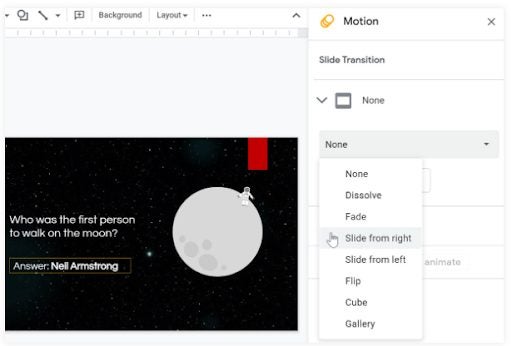
    The first effect that you can add is slide transitions. A transition is how the current slide moves into the next one. Google slides have a few different transitions that you can use. These transitions are:

    • Dissolve
    • Fade
    • Slide from right
    • Slide from left
    • Flip 
    • Cube 
    • Gallery

    Depending on the style of the presentation, you can choose the transition style that best suits the content. You can also set transitions for each individual slide or all the slides, depending on the look you’re going for. 

    Step 1: Create or Import your presentation

    First, open or create the content of your presentation in Google Slides. Effects are always added last after the content has been added to the slides.

    Step 2: Select the slide

    Select the slide that you want to add a transition to. Click on ‘Transitions’ in the top toolbar with the slide open. The ‘Motion’ pane will appear to the right of your screen. Here you can see the current transitions and animations set for the slide.

    Step 3: Choose the transition

    Click on the drop-down list below transitions and select the transition you want to use. Once selected, you can click on the ‘Apply to All Slides’ button if you want to use this transition for all your slides. By not clicking on this button, the transition will only be added to the current slide.

  2. Adding animations

    How to make a presentation with effects in Google Slides

    Animations are another great way to add interest to a presentation. Animations are how specific objects move into the slide – these objects can be images, graphs and videos. Let’s take a look at how to add animations in Google Slides. Some of the available animations include:

    • Appear
    • Disappear
    • Fly in (different directions)
    • Fly out (different directions)
    • Zoom in
    • Zoom out
    • Spin

    Step 1: Select an object to animate

    Click on the object you want to animate and right-click to open the drop-down list. In the drop-down list, click on ‘Animate’.

    Step 2: Check the current animation

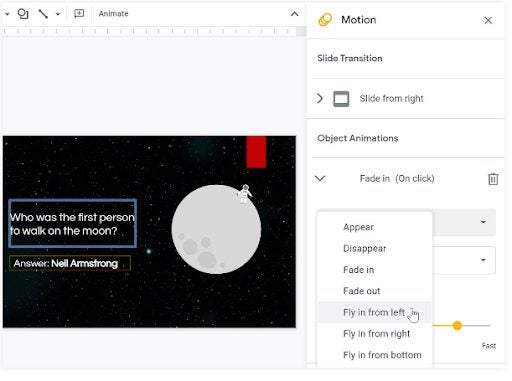
    Once again, the ‘Motion’ panel will open to the right side of your screen. The bottom section, below ‘Transitions’, is where you’ll find the object animations.

    Step 3: Choose the animation type

    Click on the drop-down menu underneath ‘ Object Animations’ and choose the desired animation for the selected text or image.

  3. Adding music or video elements

    How to make a presentation with effects in Google Slides

    Music and video can also be great additions to a presentation when used appropriately. 

    Step 1: Select the slide where you want to add the audio or video element

    Select the slide where you want to add the audio or video element.

    Step 2: Click on ‘Insert’

    Click on ‘Insert’ in the top toolbar and select either video or audio.

    Step 3: Add your audio or video

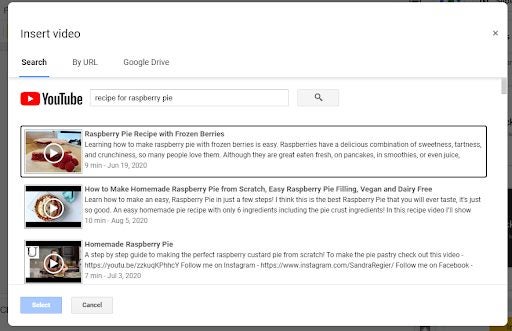
    A window will open where you can choose which video or audio to add. If adding a video, you’ll also have the option to search YouTube for the relevant video.

    Step 4: Adjust settings

    Once selected, the video or audio will be placed on the slide. The audio will show with a speaker icon, whereas the video will be added as a resizable image that you can move around or adjust. You can change any settings on the right, such as what parts of the video or audio to play and when to start playing them. You can adjust these settings as needed to create the best effect.

Start creating eye-catching presentations

Presentations can be used in different ways, to deliver insights at a business meeting, to win over new clients, to present educational topics to students or even to celebrate special events such as birthdays and weddings. Adding special effects can make the presentation striking and memorable – which we all want.

However, be careful to not go overboard with the effects you use. If you want to maintain a clean, sophisticated presentation, then less is more. Now that you know how to add effects to Google Slides, start creating your next presentation now.

Be sure to check our guides on the top Google Slides templates and themes for 2022.

Best Free Google Slides Templates READ MORE
Best Google Slides Themes READ MORE

10 of the Best Google Slides Themes for 2022

Presentations deliver content in a visual way so that the audience can better understand the data. It’s one thing to place all the relevant information on slides and read them out to everyone, making them fall asleep. Another approach is using one of the best Google Slides themes to make the colors and details pop, making them more interested in your products or services.

Google Slides DOWNLOAD

Here are our top choices for Google Slides themes and templates. It’s best to see which ones will work best for your presentation to prevent spending too much time making alterations. Also, you can mix and match some elements to make your own theme.

What’s the difference between Google Slides themes and templates?

We made a separate guide for the top Google Slide templates. If you’ve seen that article, you may be wondering what the difference is between templates and themes. When it comes to templates, they provide layouts that focus on the actual content and how you portray them to the audience.

Google Slides themes are primarily aesthetic, meaning they concentrate on colors, patterns, shapes, and anything else that makes the presentation stand out from normal, bland ones. There are also specific themes that cater to specific industries, such as panels for photographic displays.

Where can you obtain Google Slides themes?

While Google Slides provides free templates when you enter the app, it doesn’t generally supply themes. You may find Chrome extensions that assist in this regard, but not all of them are reliable. That means you’re actually only left with one way to obtain themes for your presentations.

That’s right; you’ll need to hunt online for them. While some content creators do it free of charge, others require you to subscribe monthly to access as many of them as you want. The good part is that, once you have the templates you need, you won’t need to stay subscribed. You’ll also find theme providers that ask for a once-off fee. We recommend you ask anyone in the community if they have free versions before you pay for anything.

Top 10 Google Slides themes

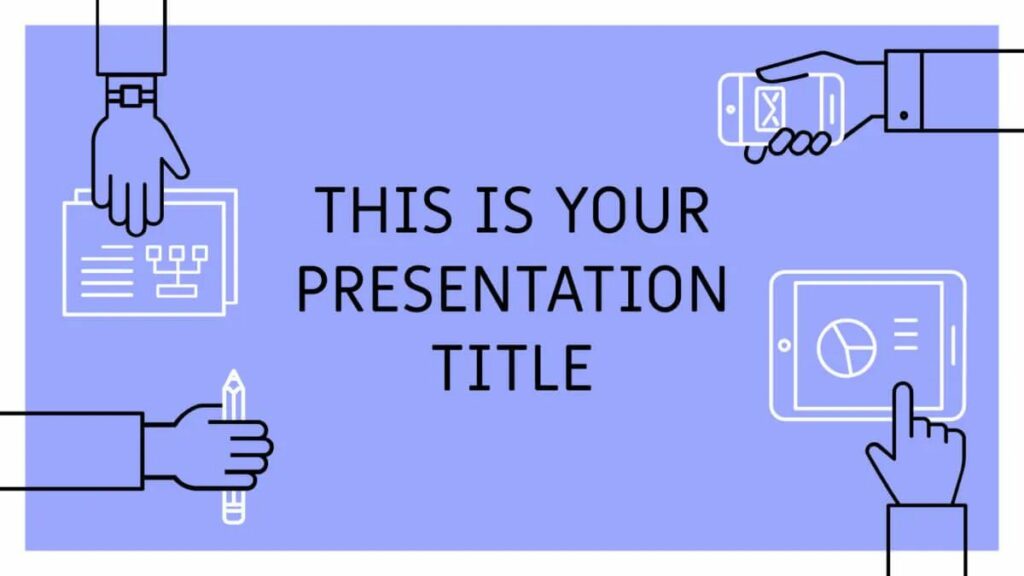
Teamwork Illustrations

Do you need to present slides on your company’s team members for a proposal or business plan? The Teamwork Illustrations Google Slides theme is free, and you can copy it straight from the directory. It has several icons and images related to the workplace, and you’ll have interesting transitions between slides you can adjust.

Best Google Slides Themes

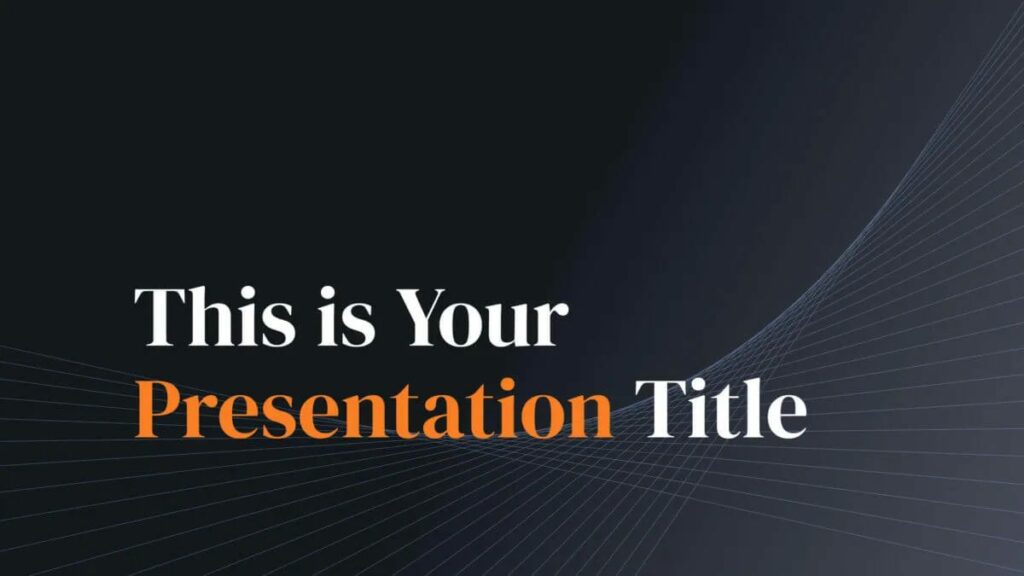
Dark Theme with Dynamic Lines

Working with reports, agendas, minutes, or financial data can be dull, especially for the presentation’s audience. The Dark Theme with Dynamic Lines theme for Google Slides adds darker tones with a minimalistic design. There are soft geometric shapes in the background that will help the viewers engage more with the content. You’ll also find large, bold text for items that need to stand out from the rest.

Best Google Slides Themes

Colorful and Modern

If you want to pitch an idea to management or another company, you’ll want the colors and layout to pop. This colorful, modern Google Slides template might start with a dark background, but you’ll find plenty of bright hues on the other slides. It also includes other design elements, such as tables, images, and maps.

Best Google Slides Themes

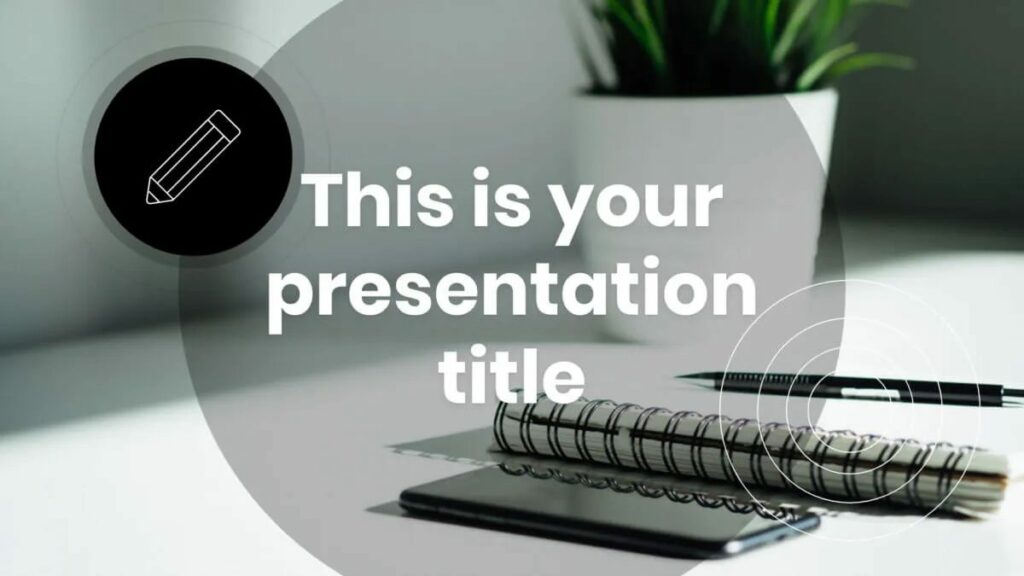
Going with Circles

Perhaps you need to keep your presentation professional without all the splash colors or dark tones. This Google Slides template has circular lines with black and white shades for all the slides. The circles let you highlight important products or images, or you can separate one section of text from the others. Use your creative mind and go wild!

Best Google Slides Themes

Photographic Backgrounds

Not all presentations focus on text alone. You may need a visual gallery to bring your point across or for a pitch. If you’re working with facilities or construction projects, it’s helpful to add some photos of the actual sites or buildings, as an example. This Google Sheets theme lets you quickly add photographic backgrounds and foreground panels with text.

Best Google Slides Themes

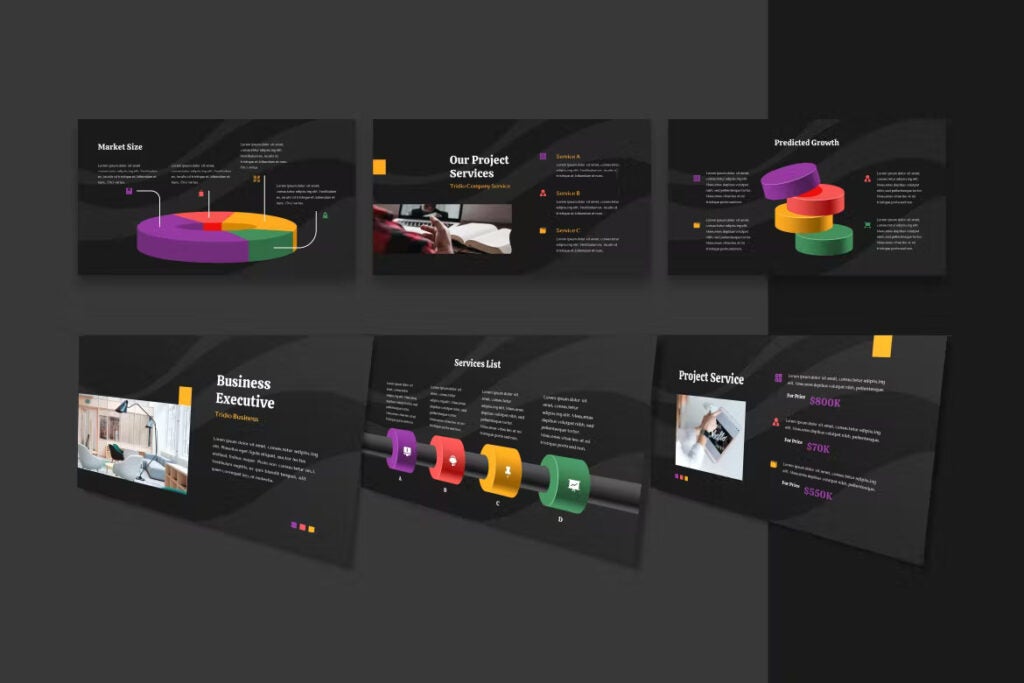
Dark 3D Presentations

3D themes for Google Slides lets you completely alter the appearance of standard slides. You can add 3D objects for so many purposes, such as graphs, marketing strategies, financial bars, and more. There are many layouts available in this theme, and you can customize each one to meet your needs. Even if you copy over a piechart from Google Sheets, it’s easy to convert it to a 3D image.

Best Google Slides Themes

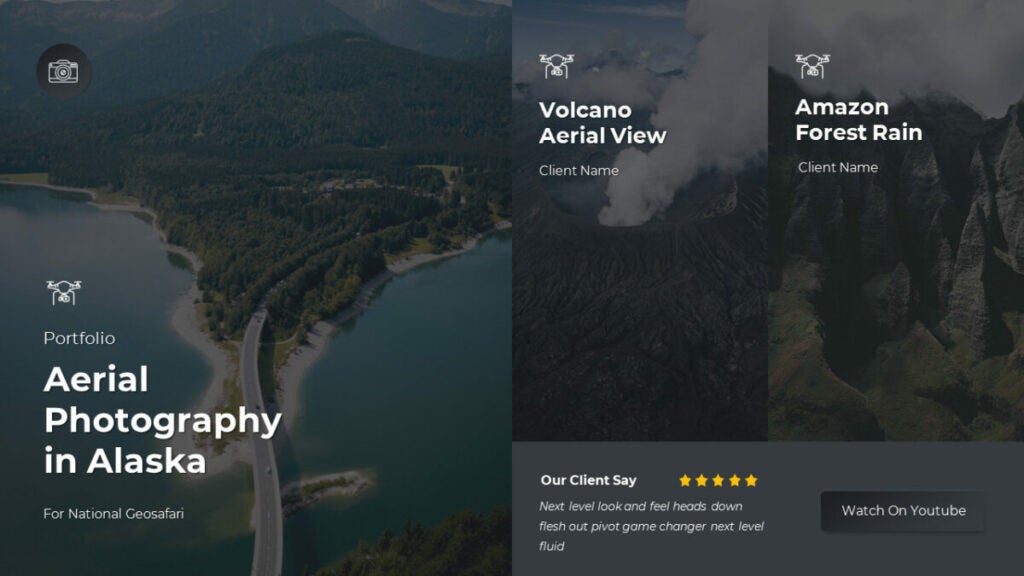
FotoGramly Photography Profile

Anyone that works with photography will love this FotoGramly theme. You can choose from several photographic panel layouts for the images, while you can superimpose one over the other as foreground over background. You’ll receive both Light and Dark Mode versions so you don’t have to waste time converting them. It’s ideal for content creators who want to showcase their work or products.

Best Google Slides Themes

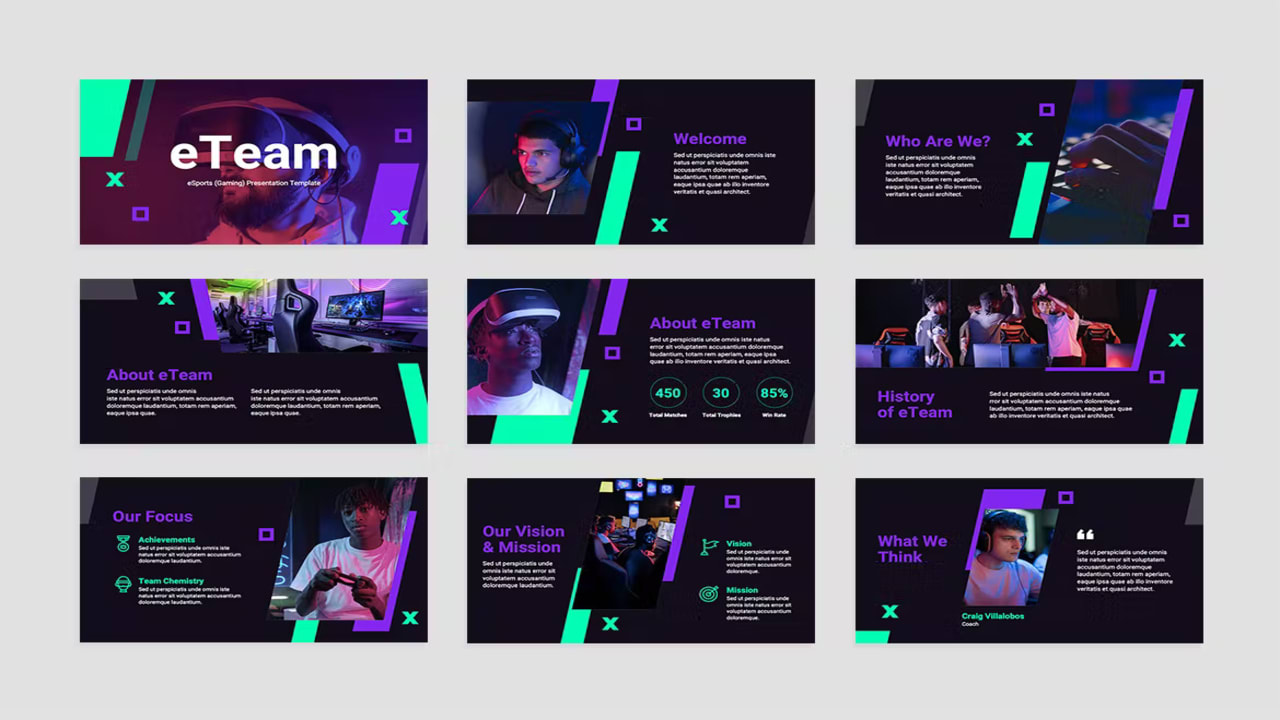
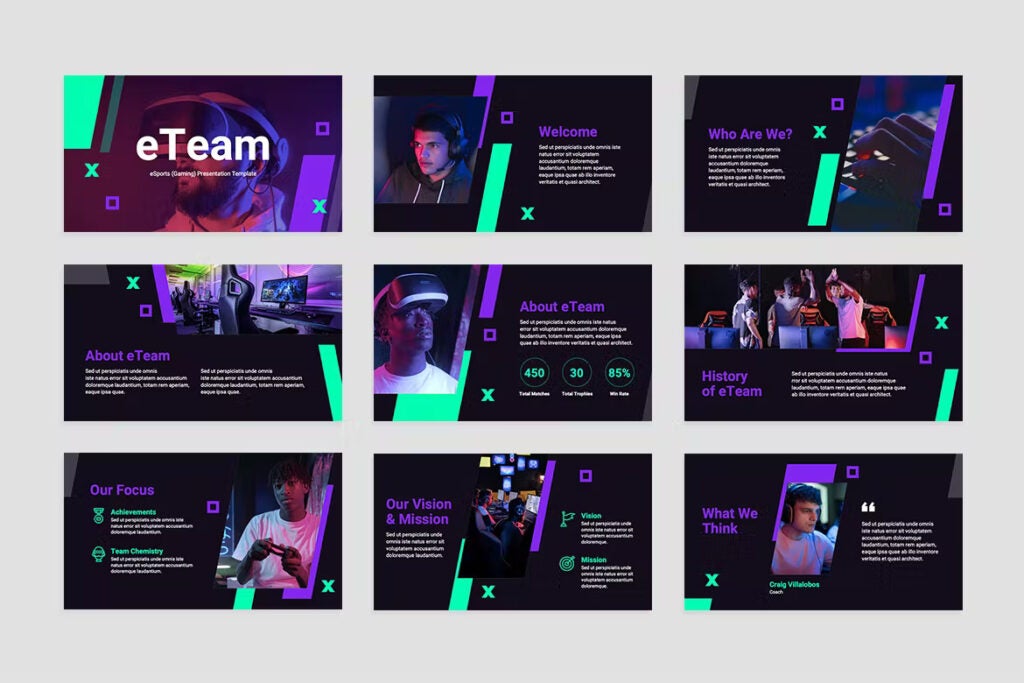
eSports Gaming

Are you an eSports team that wants to appeal to sponsors for funding? Perhaps you just want to increase your followers? This eSports Gaming Google Slides template adds lovely gaming colors that will draw your audience’s attention, with elegant headers and text panels. You can also include stats in geometric panels to impress the readers.

Best Google Slides Themes

Twitch and Play

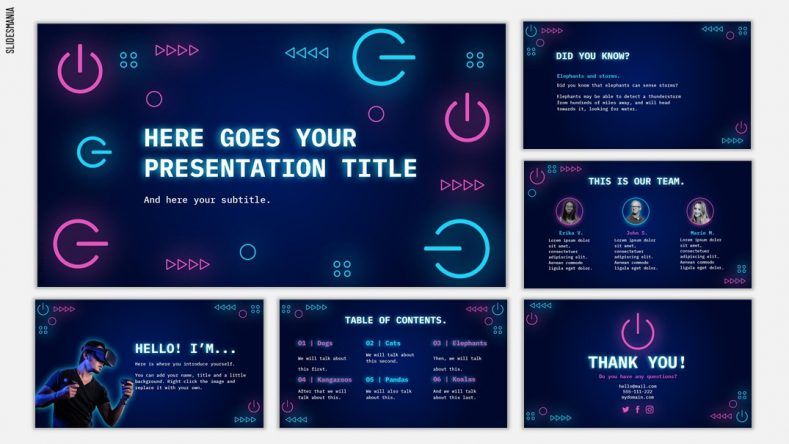
If you have a website about games or you’re a game streamer, you may want to check out the Twitch and Play Google Slides template. It has bright neon colors to catch everyone’s attention while also organizing your content in a professional way. Showcase your team members in a fun manner, and you can also place an elaborate table of contents.

Best Google Slides Themes

Desktop Organizer Chalkboard

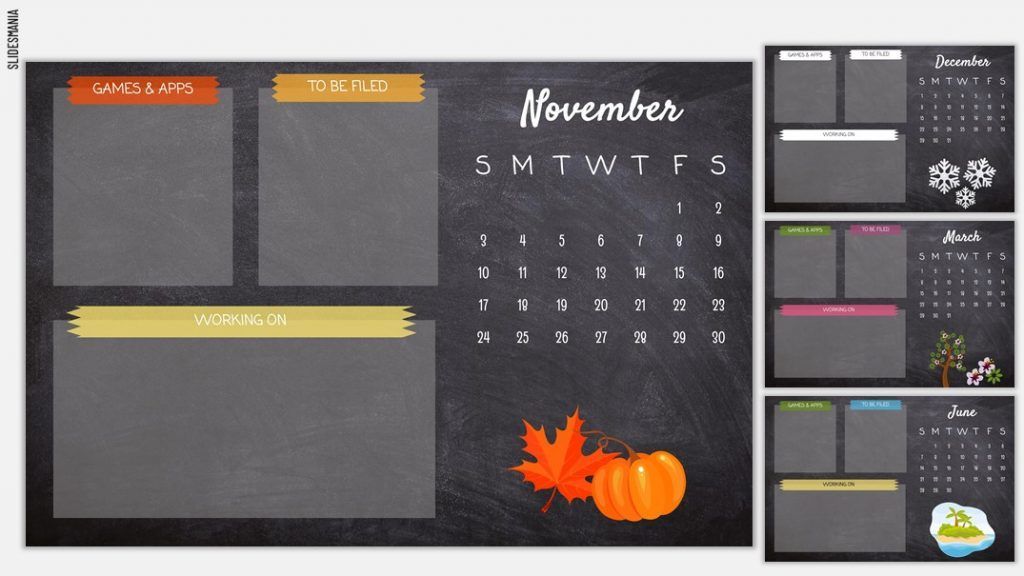
Our final Google Slides theme is for the educational sector or anyone else that needs to organize content and plans for the year. The Desktop Organizer Chalkboard presents charcoal backgrounds with text that looks like white chalk. Most of the panels have the monthly dates set out on one side, while there are panels for different categories.

Teachers can use these presentations to show students what they can expect for the month ahead. They can add topic discussions or assignments, and you can add fun images to the side that represents the season or subject matter.

Best Google Slides Themes

10 of the Best Free Google Slides Templates for 2022

Do you often find yourself needing to prepare a presentation, but you’re not sure where to start? Maybe this is your first time. While it can take hours or days to develop slides from scratch, an easier option is using free Google Slides templates that take most of the work from you.

We’ve pulled together a list of the 10 best free templates for Google Slides. You’ll see we focussed on different industries, but they apply to most businesses and freelancers. There are also a few you can try out for fun, and we’re eager to make our own Yearbook presentation for Softonic.

Google Slides DOWNLOAD

What is a Google Slides template, and how does it work?

To put it simply, a Google Slide template is a design and layout with most of the content already completed. Well, it’s default content, and you’ll still need to insert your own text and images. It saves you the time you would have wasted doing it all by yourself alone at your desk with no guidance.

A lot of research has gone into developing these Google Slides templates. Even if there are some slides missing from your project, you can quickly make them by duplicating and altering the content. It’s still an effective way to quickly make a presentation.

How to get and use Google Slides Templates

There are various ways you can get Google Slides templates and use them on your device for your presentations. When you head to your Google Drive and open a new Google Slide, you’ll see free built-in templates available on the side and bottom. Another option is downloading it from online sources, where you’ll have free and paid choices. Be sure to also look for Chrome extensions that provide free templates.

10 top free templates for Google Slides

You can head to the templates page for Google Slides to access any of their top outlines. Here’s our selection of the best templates you should try.

Consulting Proposal

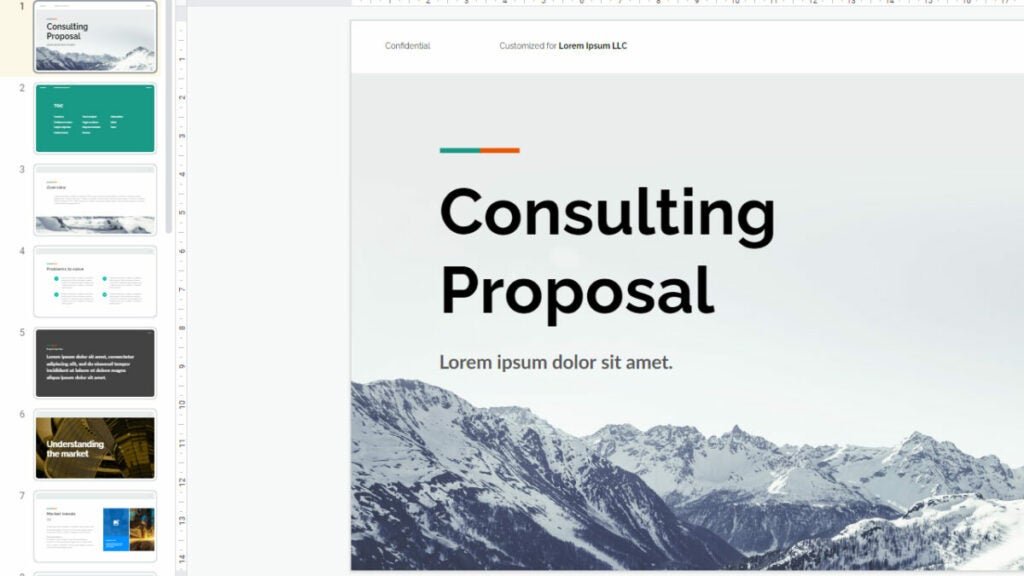
There are many businesses and freelancers with plenty of experience that provide advice on how to deal with specific situations. The free Consulting Proposal Google Slides template lets you set up the problem and solution across several slides in a professional manner. While showing sophistication with your research and methodologies, you can also display the expected deliverables and processes.

Best Free Google Slides Templates

Case Study

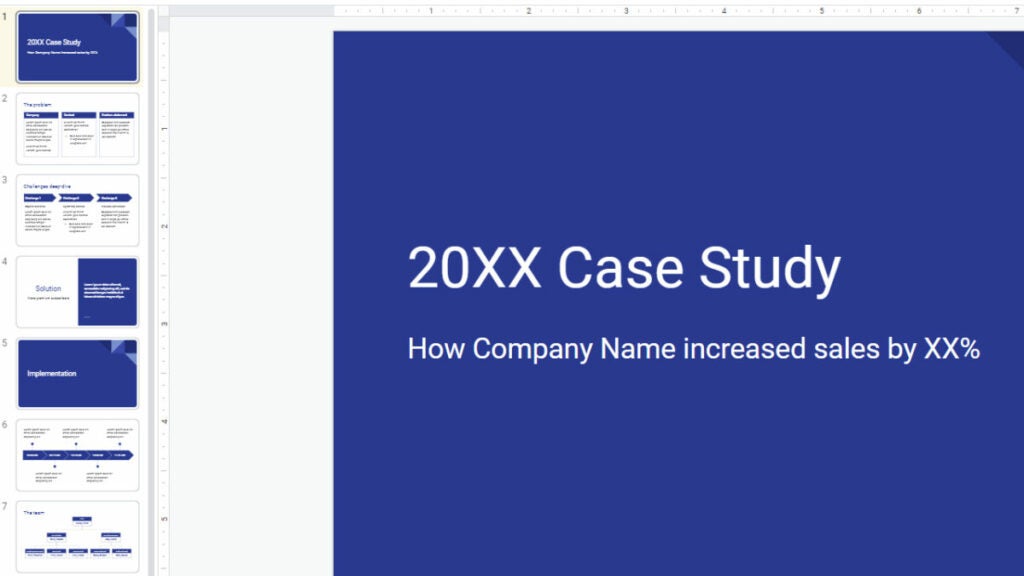
Sometimes the best way to tackle a problem your company’s facing is to look at case studies in the industry for the best solution. This Case Study template for Google Slides lets you set the problem and solution upfront before discussing the details of what needs to be implemented. There’s also a linear graph showing how to achieve the best results, and you can showcase the team members.

Best Free Google Slides Templates

Status Report

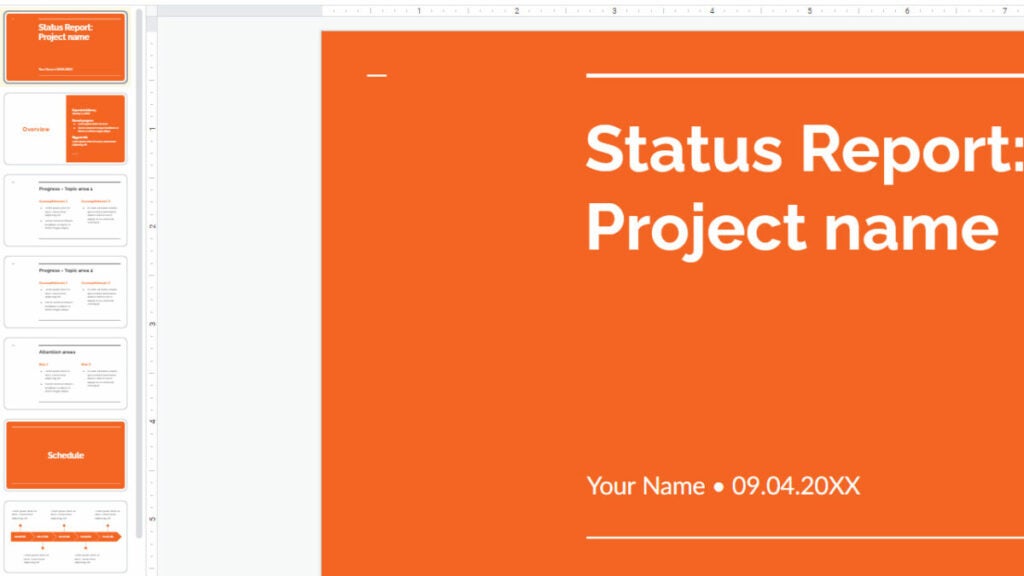
One aspect of managing projects and meeting timelines is sharing the status with various stakeholders, even company directors and managers. The Status Report template for Google Slides has several pages established where you can present where you are with each task. There are also sections for presenting what the expected schedule is and what the following tasks are in the process.

Best Free Google Slides Templates

Project Wireframes

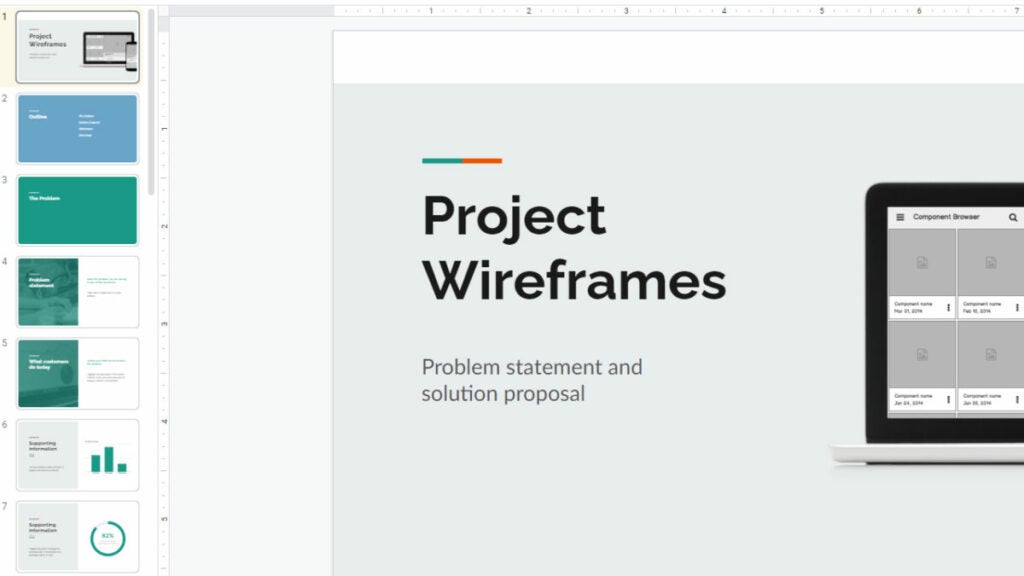
If your company is looking for a way to improve the website structure and design, then look into the free Google Slides template, Project Wireframes. It combines the features of problems, solutions, and user experience to present a way to improve the UX design. There are panels where you can show portions of the site, existing and proposed. It also helps when wanting to discuss buttons and menu features.

Best Free Google Slides Templates

Professional Profile

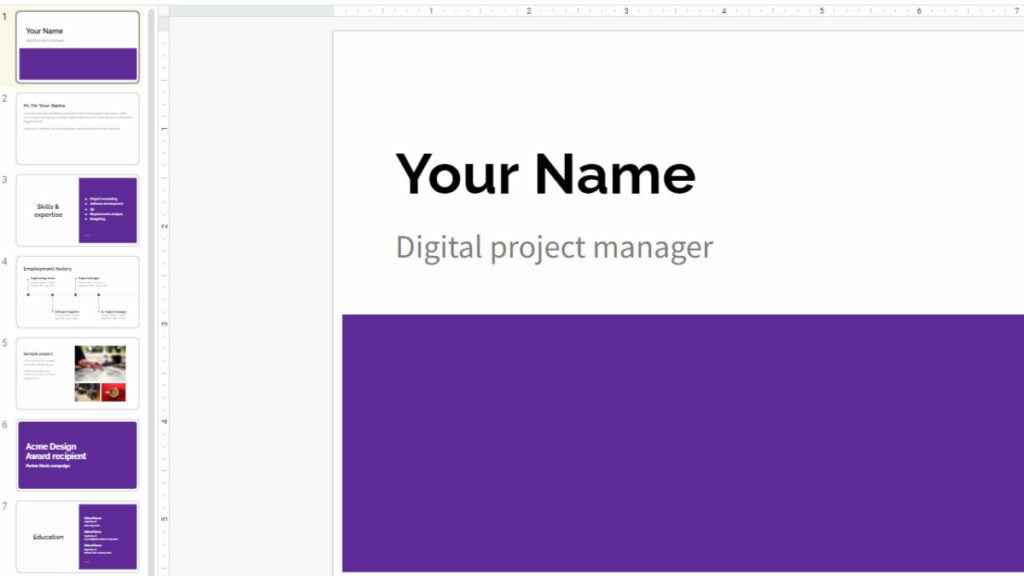
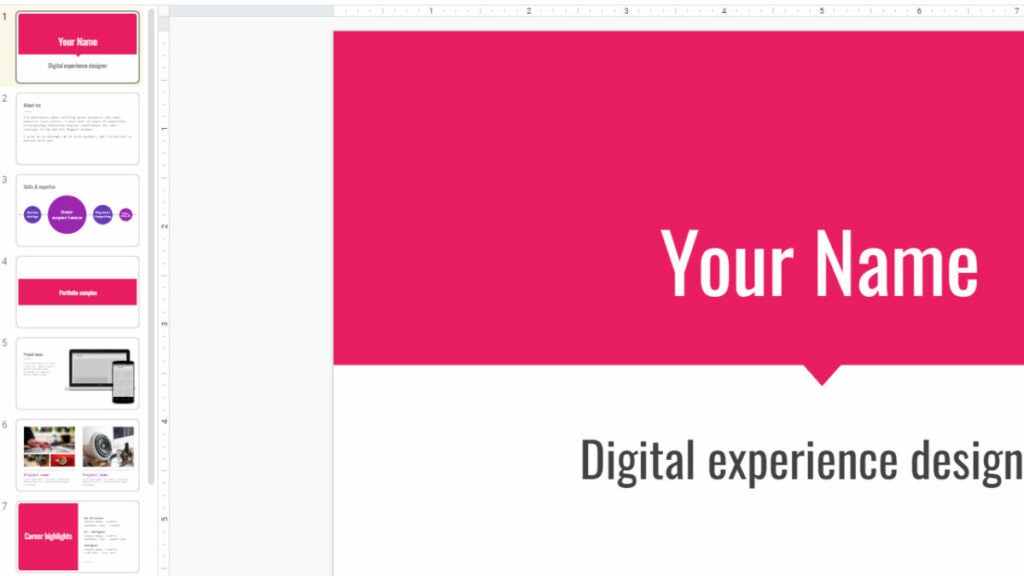
Writing a curriculum vitae on a document can be boring and bland. Even if you spice it up with themes and colors, it only holds the readers’ attention for so long. With Professional Profile, you can lay out your experience and portfolio in a way that stands out. There’s an employment timeline that is visually appealing, and you can present sample projects for the company to review.

Best Free Google Slides Templates

Product Portfolio

The Product Portfolio Google Slides template is similar to Professional Profile. The main difference is that it lets you showcase your products over your experience. It’s useful when you need to show prospective clients the quality of your services, and you can apply it to so many fields. You’ll also find a skills line that reveals your top abilities related to the service.
Best Free Google Slides Templates

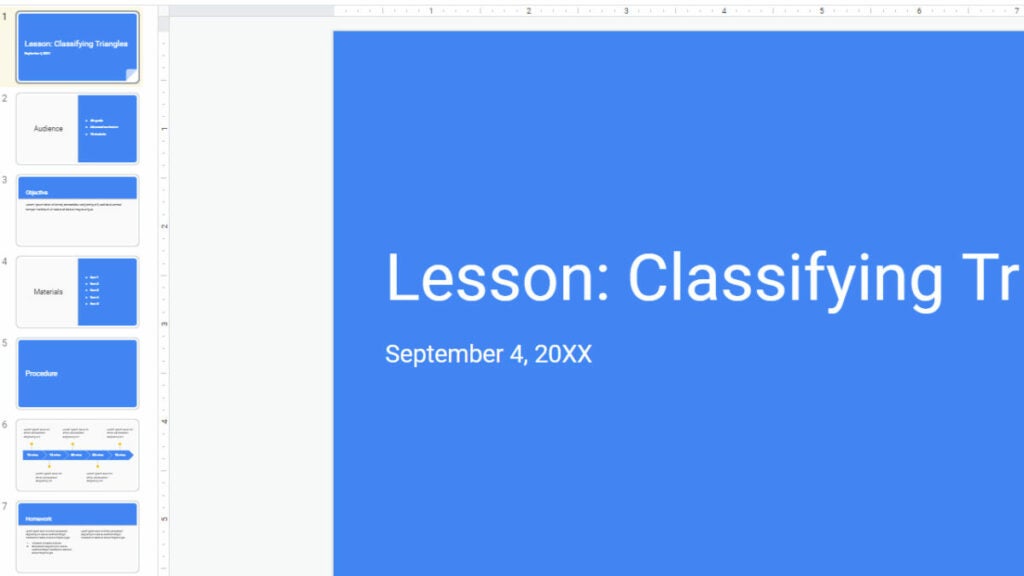
Lesson Plan

Here’s one for the teachers. Perhaps you want to establish a lesson plan for the year ahead, for yourself or the school management team. Lesson Plan for Google Slides sets out the main aspects to focus on, such as objectives, learning modules, materials, and the audience. It has a basic theme, but there’s a valuable timeline slide to prepare for different terms.

Best Free Google Slides Templates

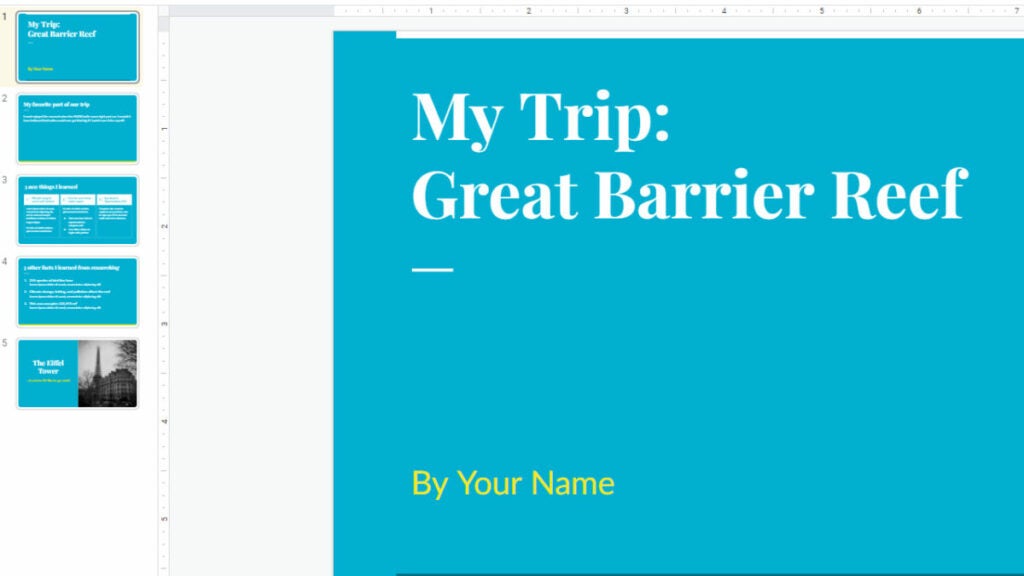
Field Trip

Sometimes, you may receive an assignment as a student to go on a field trip and present your findings. The Field Trip Google Slides template only has a few slides, but you can expand on any of them to meet the task requirements. The sections included are explaining your favorite part of the trip, what you learned on it, and other research you performed.

Best Free Google Slides Templates

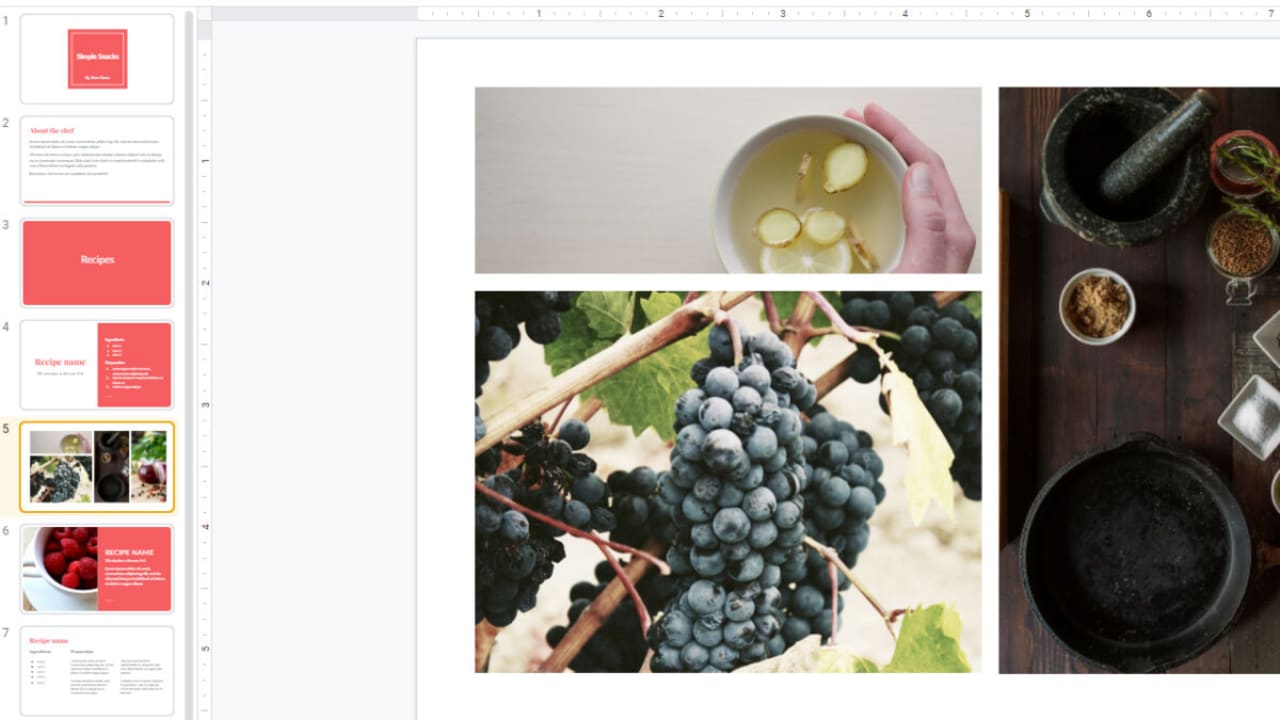
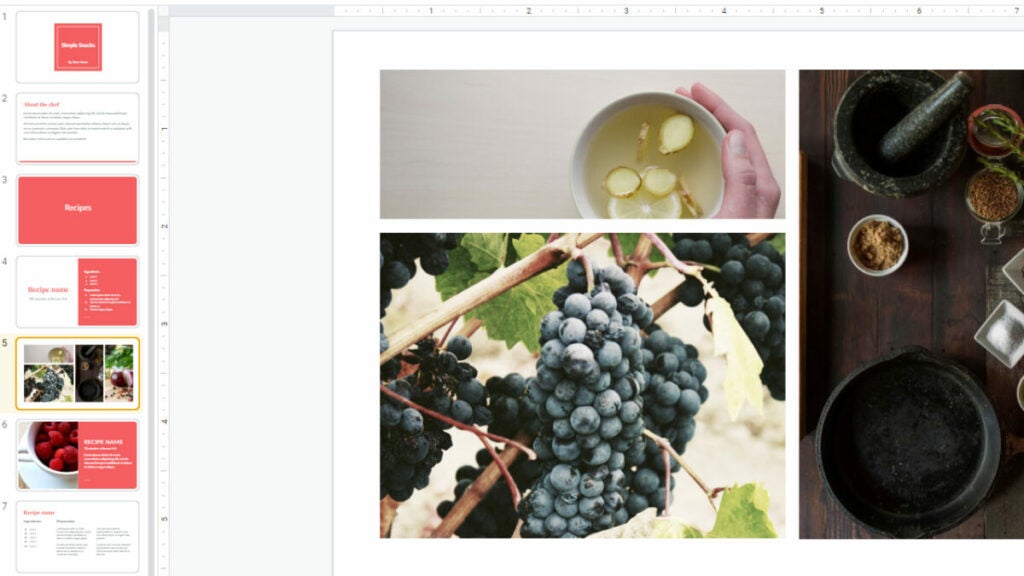
Recipe Book

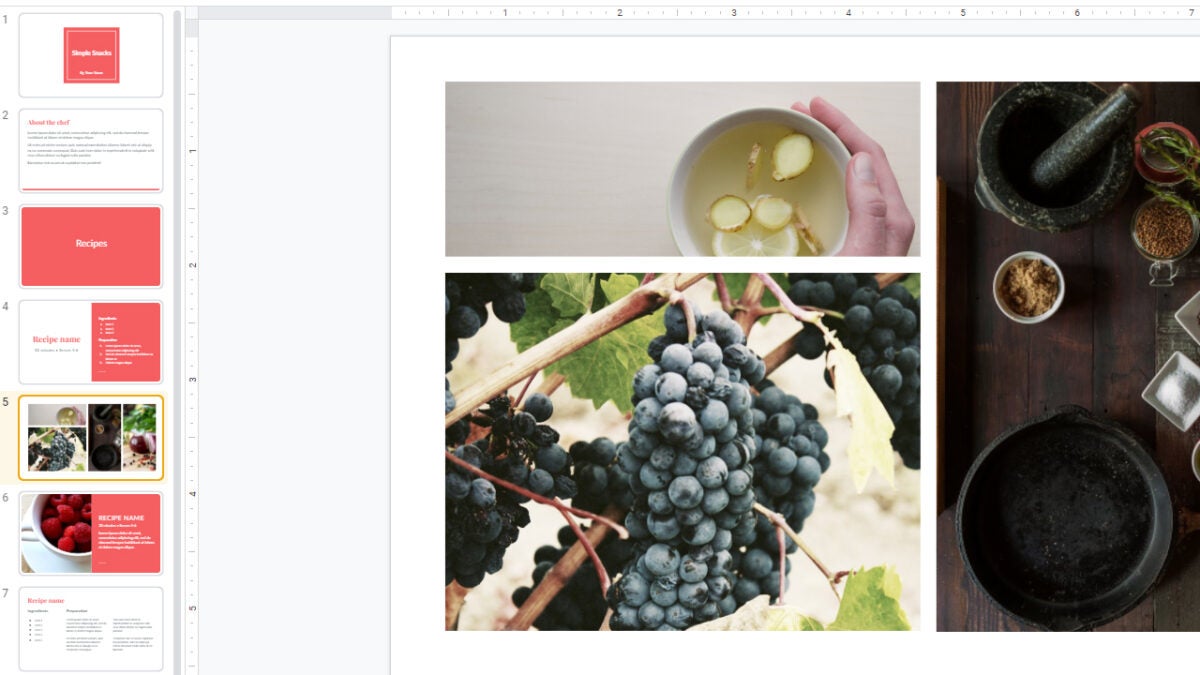
Presenting several recipes on a website doesn’t always read well. Also, you’ll want it to be visually appealing to wet the reader’s appetite. Recipe Book is an ideal free Google Slides template that lets you place images and text for the ingredients and methods side-by-side. It also sets out the process in a more interesting way. To show off your skills, there’s a section for the chef’s biography

Best Free Google Slides Templates

Yearbook for Google Slides

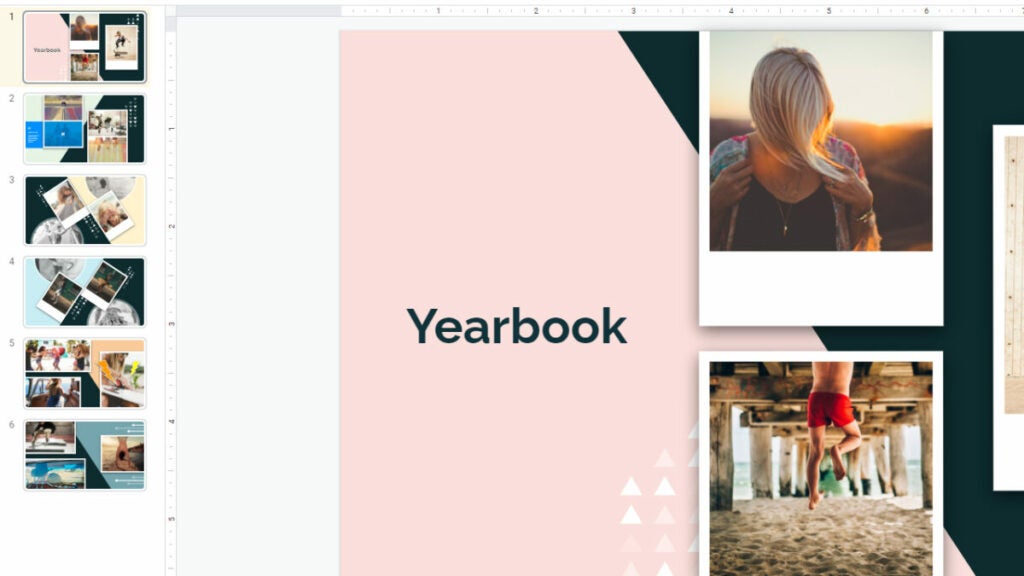
Creating a scrapbook is always fun, and it’s not only for children. Some companies develop a digital yearbook to celebrate the company’s achievements, while it can also present challenges that the teams solved. The best way to make one for your team at the end of the year is with a free Google Slides template.

Yearbook mostly has panels for images with sections for you to place descriptive text. You can duplicate panels you enjoy if you want to create more content. We recommend also adding some corporate branding as part of the themes as a unique touch.

Best Free Google Slides Templates

Google Slides: easy to use with lots of options

Back when I was in college in the early 2000s, I only had a few assignments that needed presentation software. Microsoft PowerPoint was the most popular choice for presentations. My presentations were simple, using mostly text, lists, or pictures. Inserted video would only play in a media player.

Today, using my prehistoric knowledge of PowerPoint, I tried to create a presentation using Google Slides by using all the basic tools that I used in PowerPoint. Google Slides made making presentations surprisingly enjoyable.

Themes

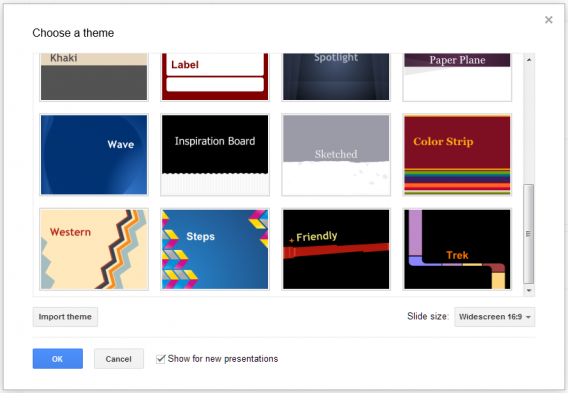
When you start a new presentation, you have the option of choosing a theme from Google or importing your own. Google’s themes are ok, but a bit basic. There are a lot of other themes available in Google Docs Templates, so you’re not stuck with the same set.

Google Presentation Themes

Even though there are preset layouts, each one is customizable. You can move the text box around, change orientation, and customize the font. It’s very similar to PowerPoint, but the simplicity of the layout in Slides is much easier. It’s quicker to get to the options you want rather than hunting for them.

Text

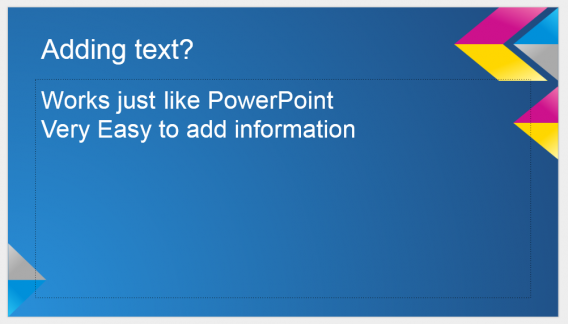
Adding text to slides is easy; select the text box feature and start typing. You can customize the text and adjust the size of the text box to fit. Depending on the theme, you may need to adjust the font color if it matches the background. If you’re going for a simple presentation, the best decision is to use an interesting theme.

Google Presentation adding text

Since most information is presented using words, it’s important that there is an impact with your text and Slides offers a good font selection.

Photos

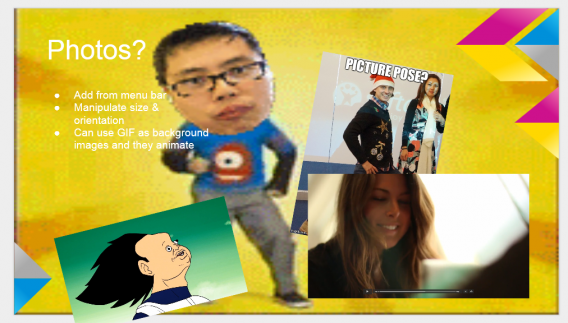
Visuals can grab viewers’ attention quicker than text. Adding relevant images is really important, but in the case of this test I chose images that I had in Google Drive. You can easily upload images to add, but the ability to add images from Drive (or a shared folder) makes group projects much easier. Slides is a powerful tool for collaboration.

Google Presentation photos

Since Drive serves as your cloud storage, you can access all your important images fast. Also Slides supports animated GIFs. You can even replace the background with a GIF that will animate in the background. Whether this has a real use doesn’t matter, it’s the potential of using animations inside a presentation.

Video

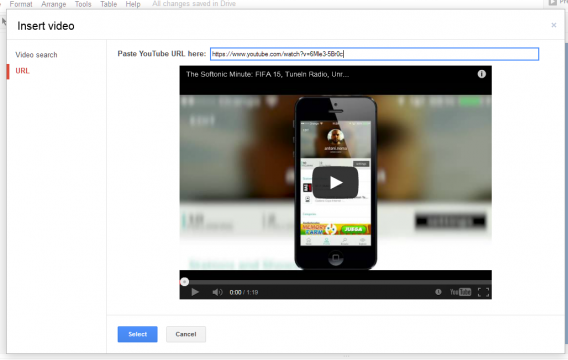
Slides also supports video, although embedded videos are limited to YouTube. A quick workaround would be to upload a video to YouTube to use in a presentation. You can use unlisted videos but not private ones.

Google Presentation video

You can’t play them when you’re editing the presentation, but they will play when you’re actually presenting.

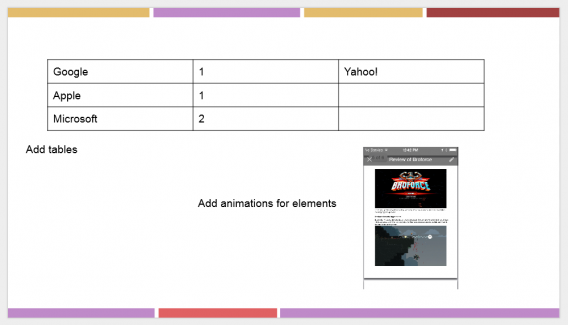
Tables

If you have a lot of comparative data, using a table is the best way to show it. Unfortunately you can’t add different types of tables like circle graphs, but those can be imported as an image. The simplicity of tables may be better used as placeholders until you get the actual table you want to import.

Google Presentation adding tables

Animate everything

Individual section of slides can be animated. Depending how you want information be presented, you can animate text boxes, images, and tables display to give some life to a static slide. The rules are simple: on click, after previous, and with previous. So depending on how you decide to display the data it can animate on command or all at once in order.

A decent alternative

While I don’t know how many people need to make presentations now, Google Slides does a decent job of covering your basic needs. Since there’s a high level of customization, slides don’t have to be the standard title and bold list. Adding photos and animated GIFs give a lot of life to slides and the ability to embed YouTube videos can be really useful to keep people interested.

The biggest weakness of Slides is the lack of table varieties and inserting a picture of a table is hardly ideal.

Google Slides will likely suit your collaborative needs, but the web app has been a bit ignored in favor of Docs and Sheets. Those apps probably see a lot more use than Slides and Google is likely focusing development on them instead of improving Slides.

Next up, Google Sheets.

Related Articles