How to Speed Up Games With Lulubox in 3 Steps

One of the top features you get after you download Lulubox on your Android phone is the ability to boost gaming speed. You’ll see less lagging, improved performance, and a more enjoyable experience. You can apply it to a single game, or across all of the apps on your device.

Here’s how you can speed up games with Lulubox quickly and easily.

  1. Update the game with the latest patch
    How to Speed Up Games With Lulubox

    Sometimes, the game may be slow due to internal issues that the developers need to fix. There are times when they release patches to improve performance and remove glitches. You should ensure that you have the latest update for the game before you apply the booster.

  2. Locate the game

    How to Speed Up Games With Lulubox

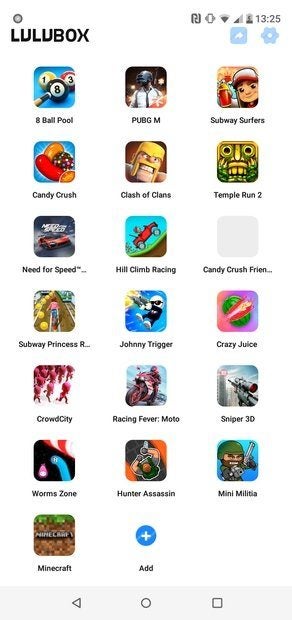
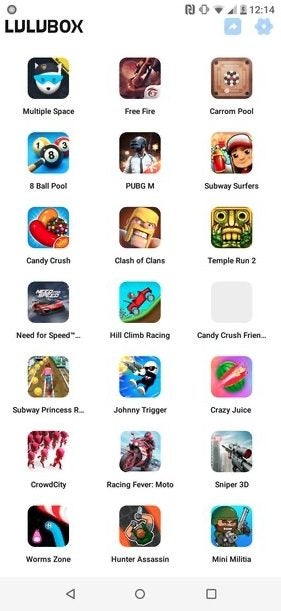
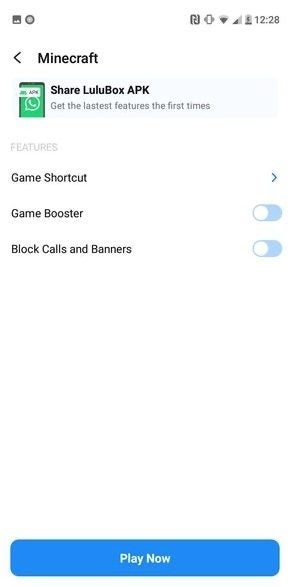
    Next, you’ll need to enter Lulubox and access your game library. You’ll see all the apk files in a list, where you’ll be able to select the one you want to boost. We recommend only boosting the one you plan on playing next and not others for the time being. It will prevent potential conflicts and issues.

  3. Apply Game Booster

    How to Speed Up Games With Lulubox

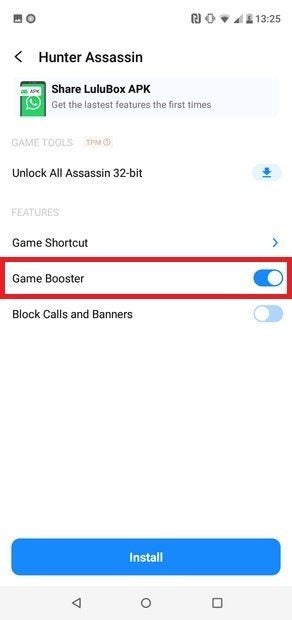
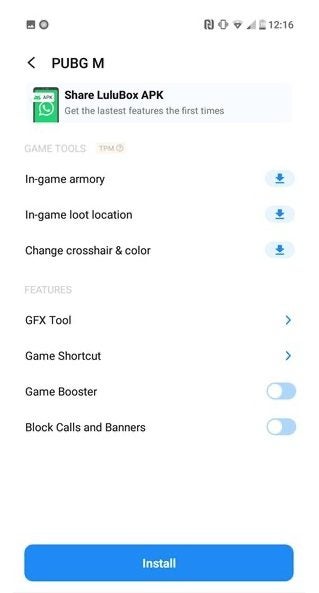
    When you select the icon, you’ll see a list of options appear. Right near the bottom, you’ll see a slide for Game Booster. You’ll need to switch this on if you want to improve performance for the selected title. If you won’t be playing it again for a while, remember to turn it off.

Fast and furious gaming

Now that you know how to speed up games with Lulubox, you’ll be shooting and racing with smooth performance on your Android device. You may have an advantage over other players who haven’t learned this method yet. Be a good pal and let your friends know, though.
How Do I Use Lulubox on My PC

Lulubox has its own set of patches for specific games that the user can download, making this type of software very unpopular with the game designers, as it can strip away their money-making options. 

While it usually resides on an Android device, you can download Lulubox onto a PC or Mac, provided it is done under an Android emulator. To find out how to do so, read on and follow our few straightforward steps.

  1. Download and Install an Android Emulator

    How Do I Use Lulubox on My PC

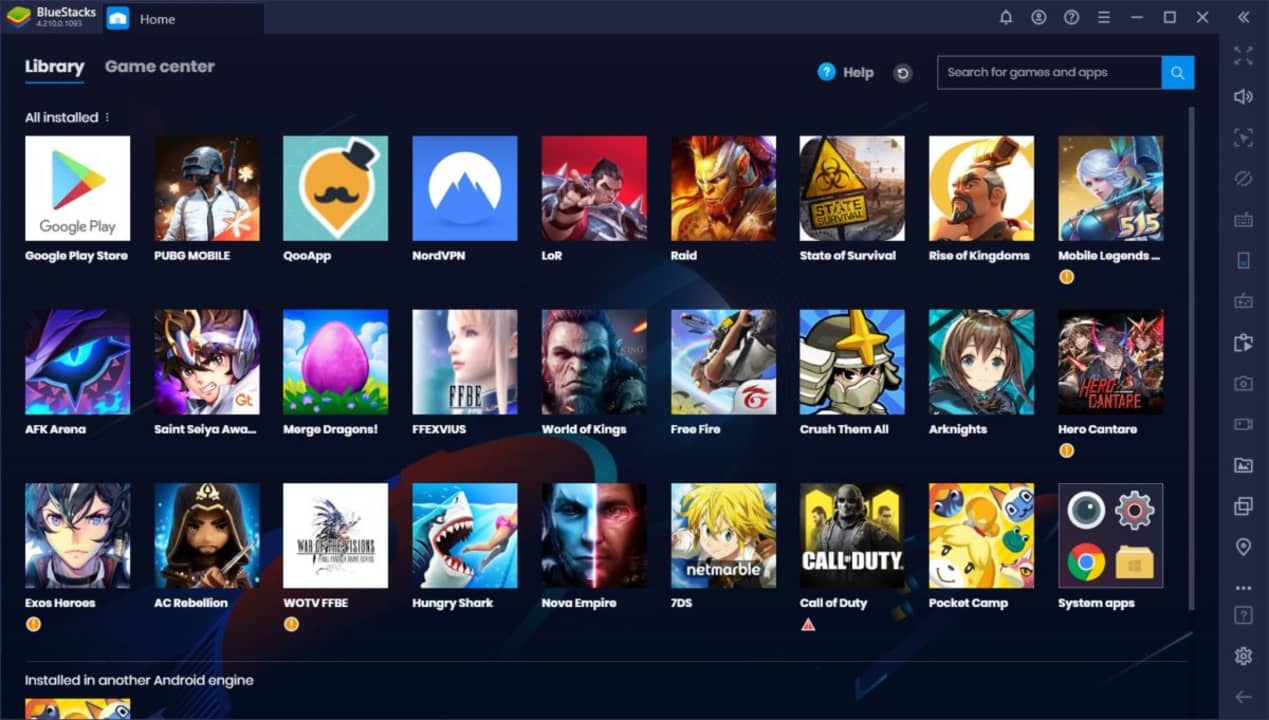
    It is impossible to load an Android app onto a PC without first having an Android emulator. The best-known Android emulators for the PC are Bluestacks, LDPlayer, Nox, MeMu, and KoPlayer

    Select any of the Android Emulators and install the software on your PC.

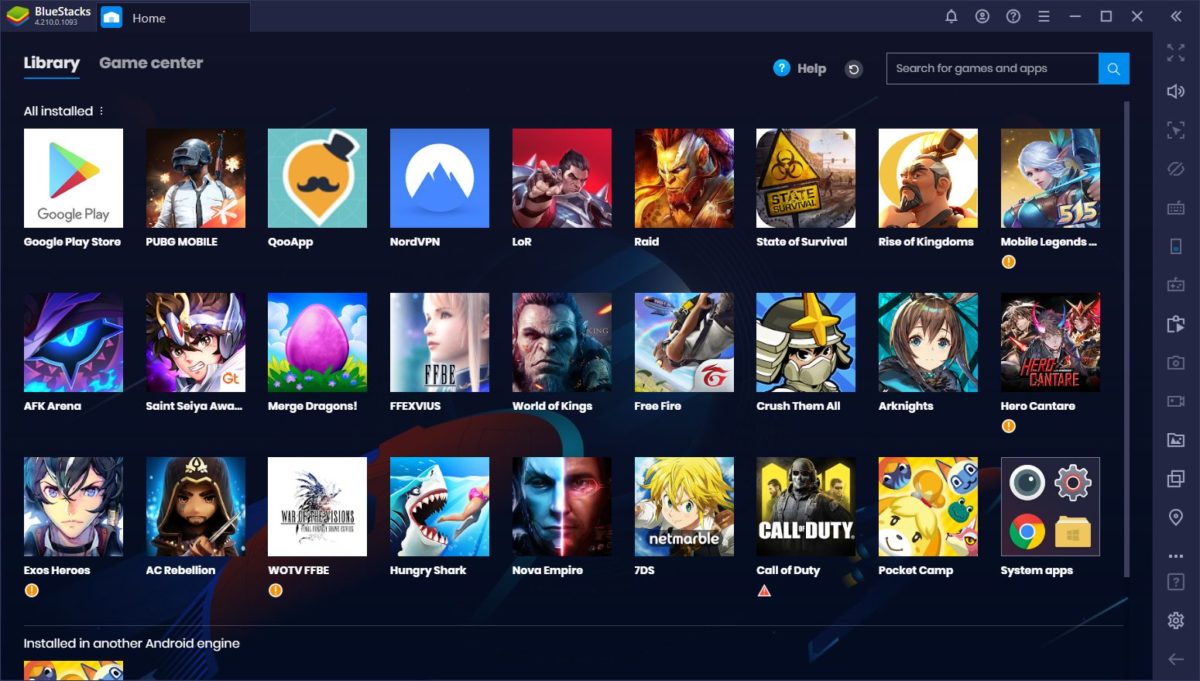
    For this article, we have used Bluestacks. Everywhere you see Bluestacks, you can substitute the emulator that you use.

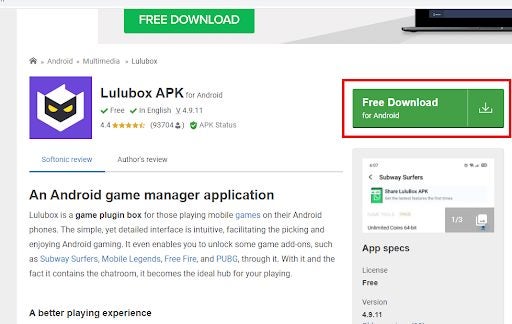
  2. Download Lulubox for the PC

    Now, you will need to download the Lulubox apk file to install it into Bluestacks. 

    Please do not click on the downloaded file; you will install it through Bluestacks.

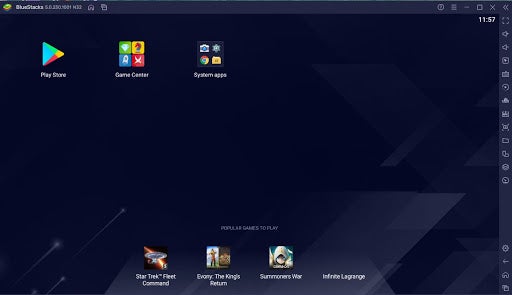
  3. Open Bluestacks

    How Do I Use Lulubox on My PC

    Open Bluestacks and click on the ‘Install APK’ button.

    Find the downloaded file for Lulubox.apk. On most PCs, all your downloaded files will sit in the Downloads folder, but if you have used a different folder, go to that folder to find the correct file.

  4. Open Lulubox and Select Your Game

    How Do I Use Lulubox on My PC

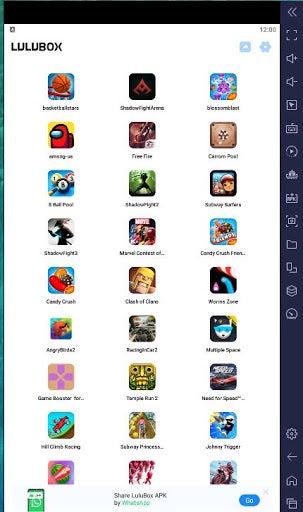
    Lulubox is now installed under your Android emulator on your PC. You can go ahead and select the game that you wish to use.

Use Lulubox wisely

Be aware that Lulubox is not welcome with many popular game sites because you can bypass many of the features of the game by using it. 

Game sites make it clear that using third-party software to change the game’s features will result in the complete cancellation of your account. They see the use of this software as the equivalent of cheating, and as Lulubox is clearly third-party software, use it at your own discretion.

How to Update Lulubox in 4 Steps

Lulubox is a Plugin box for people playing mobile games on their Android phones. It should be updated whenever the developers release a new version to ensure it coordinates with updates of games that run on it.

Updating Lulubox is easy if you follow these steps.

  1. Check if Your Version is Outdated

    How to update Lulubox

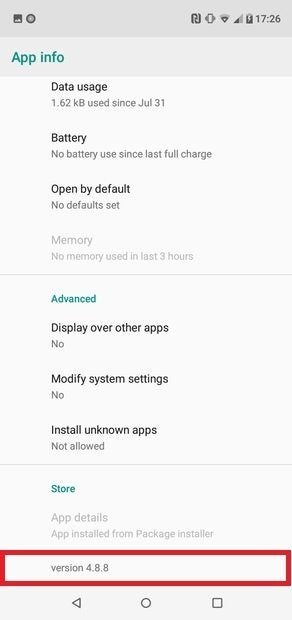
    Go to your App menu and find Lulubox. Click and hold on the icon and you’ll see App info. In it is a window. At the bottom, you’ll find the version number.

  2. See Which Version is on Offer

    How to update Lulubox

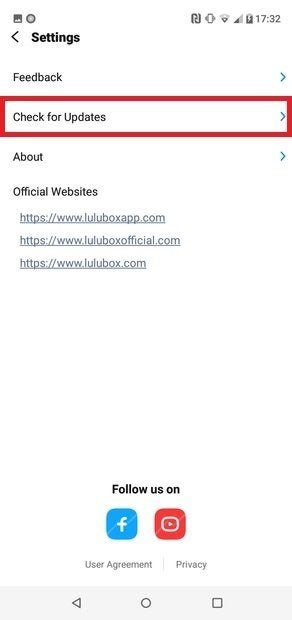
    Go to the Lulubox website and see which version is available to download. Or go to the Lulubox main window and Check for Updates in the Options menu. If a newer version than the one you have is available, it’s time to upgrade.

  3. How to Download the Latest Version

    How to update Lulubox

    On the Lulubox website, you’ll see a green Download button. Click on it, and the latest version will download onto your device. When it has finished downloading, you can access the file when the operating system informs you that the download is complete. You can also find it in your Downloads folder.

  4. Install the New Update on Your Device

    How to update Lulubox

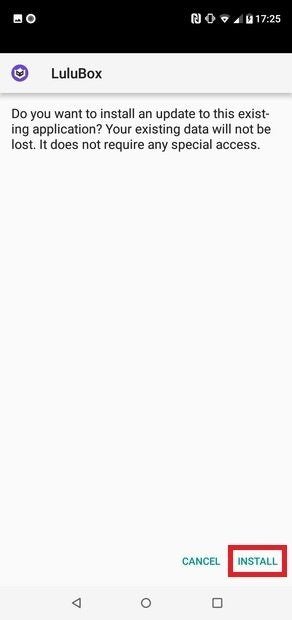
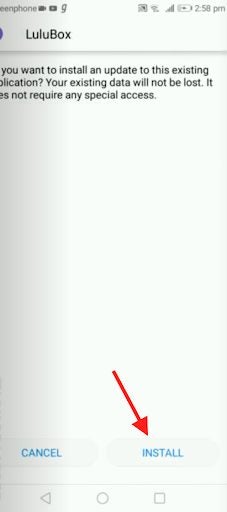
    You’ll be asked if you want to install the update. Click Install if you do. When the new version has finished installing, click on Open or go to the menu of your installed Apps and click on the shortcut icon.

Why You Should Use and Update Lulubox

Lulubox is a great place to play games.  It even has a chatroom, which makes it the perfect games hub. If you update it every time a new version is released, nothing will interfere with your fun. It’s also safer and more efficient to use the newest version of an App like Lulubox because it will have even more features than an older version. 

How to Unlock Skins in Lulubox in 2 Steps

Lulubox allows Android players to unlock skins to create characters and decorate weapons in popular games like Free Fire. Usually, players have to buy diamonds with cash to get the skins released every month, and they can be expensive.

Here is a step-by-step guide to how you can unlock all the skins you want without paying.

  1. Download and Install Lulubox

    How to Unlock Skins in Lulubox

    Go to a trustworthy website and download the Plugin App. Its size is about 15 MB. Once you have downloaded Lulubox, you have to go to the settings of your Android phone and allow access to Apps from an unknown source.

    After doing this, you can locate your Lulubox APK (Android Package Kit) and install it. This is the key to getting access to the games you want to play and unlocking the skins for free.

  2. Load the Game You Want to Play

    How to Unlock Skins in Lulubox

    From within Lulubox, type the name of the game you want to play, like Free Fire, in the search toolbar and download the mod. This connects you to your game automatically.

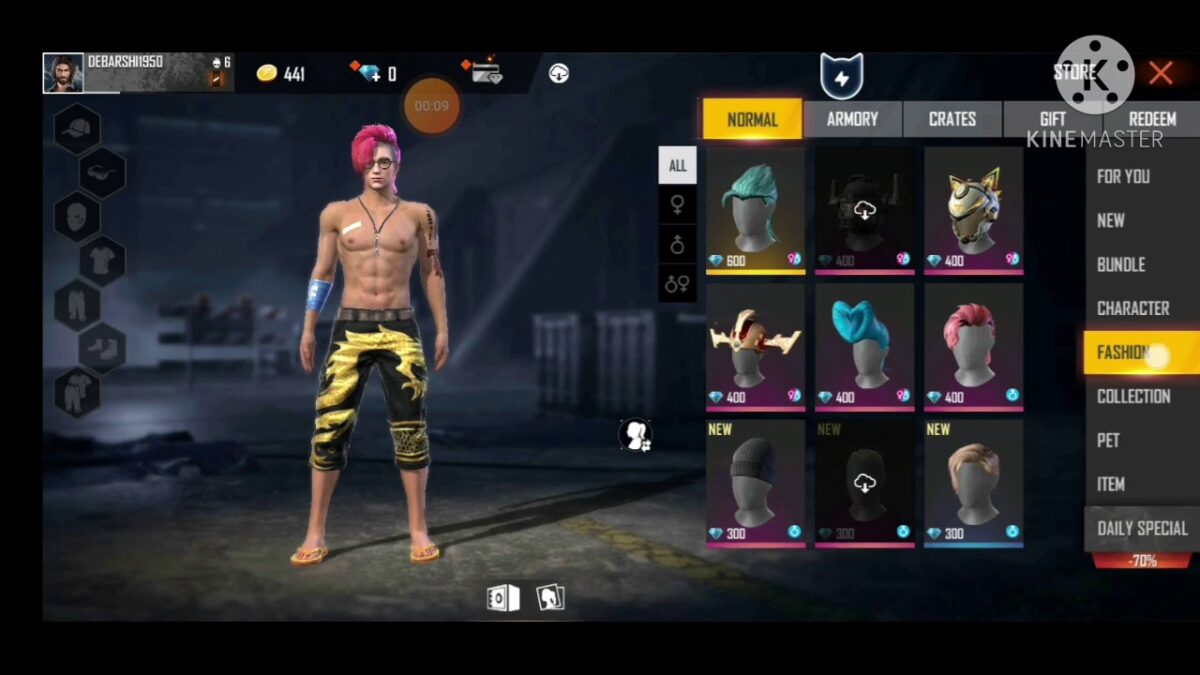
    Then you can unlock all the things you need to enjoy your game, including bundles, skins, and characters, by just selecting the item you require and starting to play. You can get character skins and weapons skins like the ones below.

Is There a Risk to Getting Skins for Free?

Some software developers and owners do not approve of the use of Lulubox for unlocking skins and threaten to ban the game accounts of players who do so.  But using Lulubox is very safe because only you can see your skins, so there is little risk of being banned.

How to Hack Free Fire With Lulubox in 5 Simple Steps

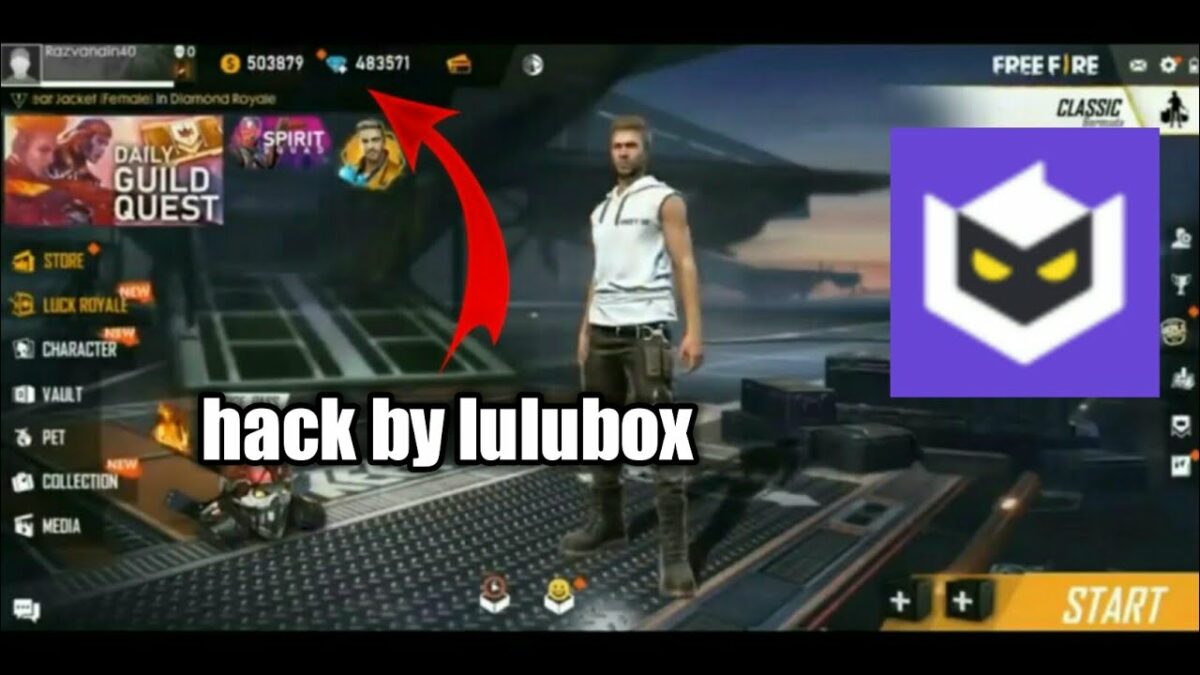
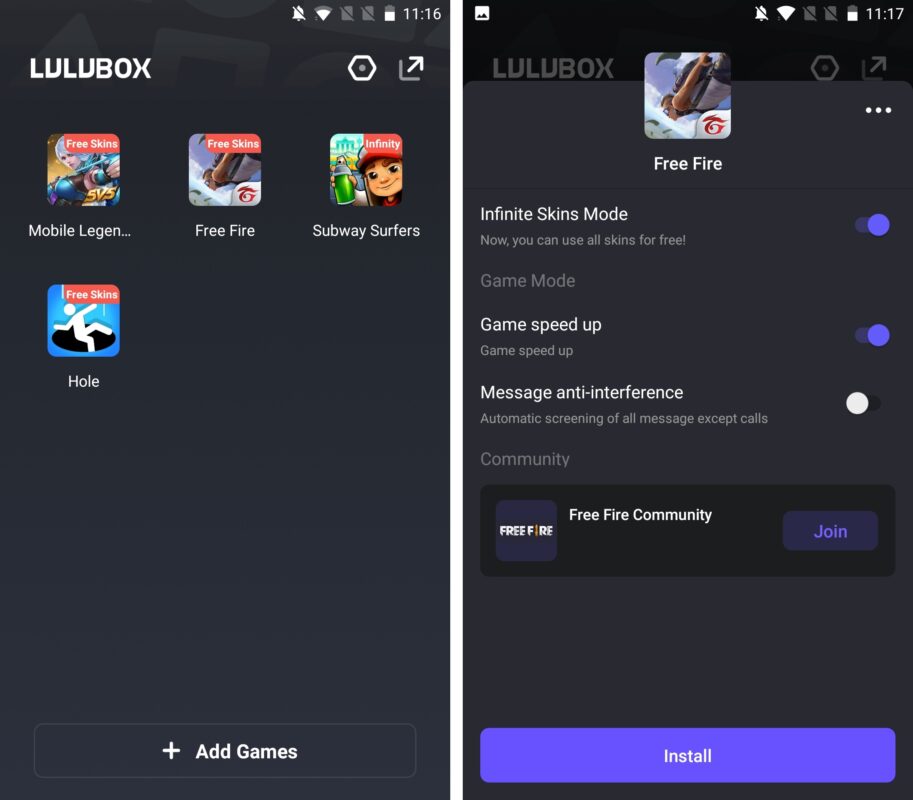
One of the games that is available for free on the Lulubox game plugin box is the popular mobile game Free Fire. If you’ve enjoyed playing the game on the Lulubox app for Android devices, you may be wondering what you can do to freshen up the game and bring in some new life. Or perhaps you want access to all the different skins without having to buy them? Fear not, Lulubox has you covered by offering simple ways to hack the game. 

How to Hack Free Fire With Lulubox

Step 1: Open Lulubox

Launch Lulubox on your Android device by tapping on the app icon in your app menu.

How to Hack Free Fire With Lulubox in 5 Simple Steps

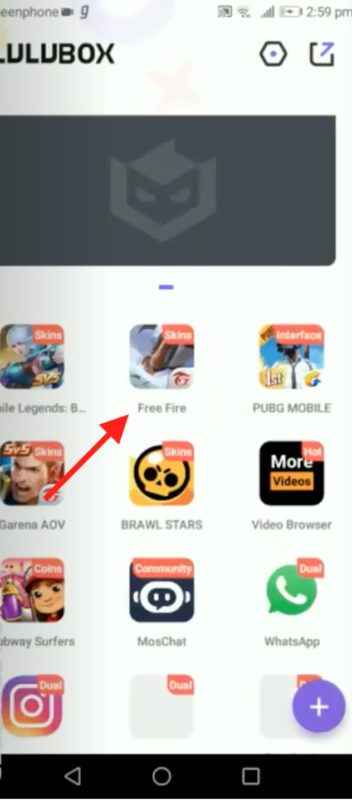
Step 2: Tap on Free Fire and Install It

Tap on the game from the app’s home screen and then tap on the install option at the bottom of the screen.

How to Hack Free Fire With Lulubox in 5 Simple Steps

Step 3: Open the Game on Lulubox

Once the game has finished installing, tap the game icon from the Lulubox home screen.

How to Hack Free Fire With Lulubox in 5 Simple Steps

Step 4: Download the Plugins

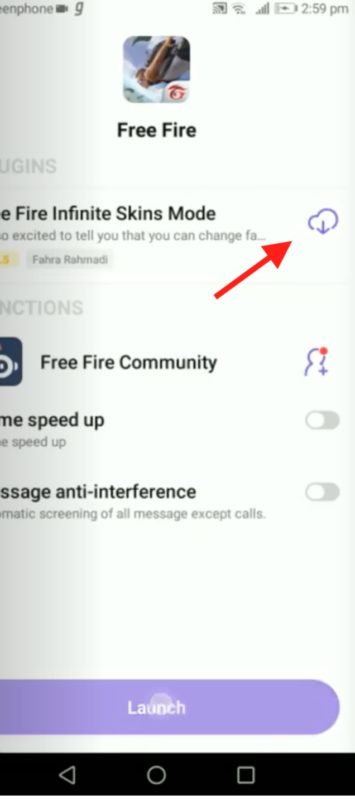
Download all the available plugins by tapping on the cloud with the down arrow icon. A message will pop up to ask if you want to download the plugins and accept the message.

How to Hack Free Fire With Lulubox in 5 Simple Steps

Step 5: Launch Free Fire from Lulubox

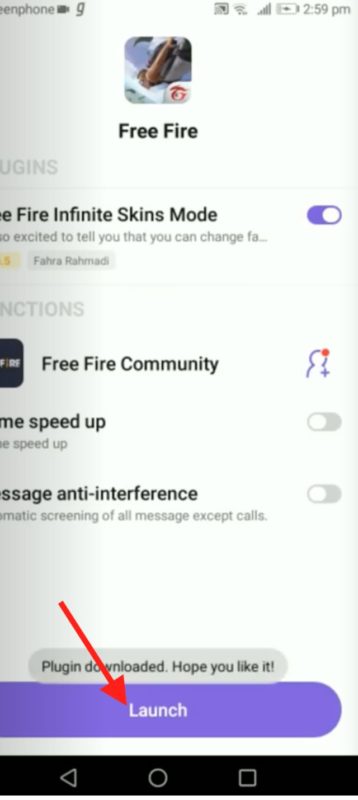
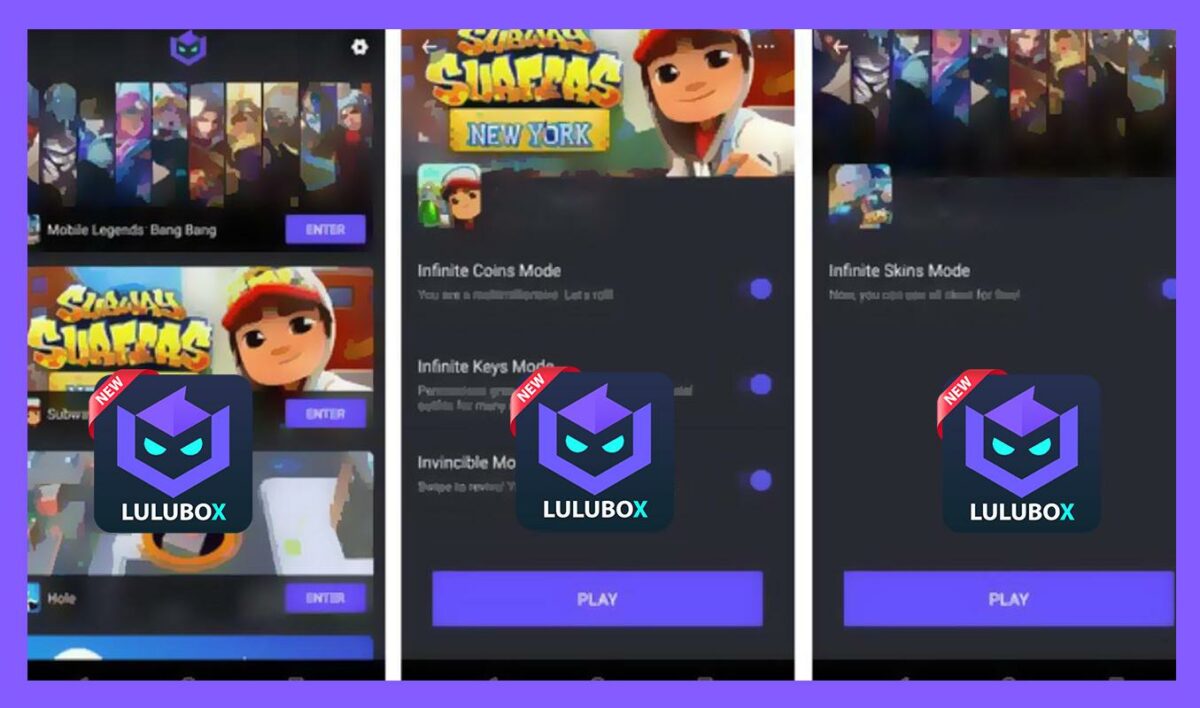
Once the plugins have been downloaded, launch the game by tapping ‘Launch’ at the bottom of your screen. Your game will now open with all the available hacks, such as ‘Infinite Skin Mode,’ which gives you access to all the skins without having to buy them.

How to Hack Free Fire With Lulubox in 5 Simple Steps

Get Access to More on Free Fire by Using Lulubox

Using Lulubox to play Free Fire gives you access to other plugins and hacks to keep the game fresh and exciting. You can also use Lulubox to download and install mods and additional content for other games as well. Enjoy playing your favorite mobile games with these fun extras on Lulubox.

How to Use Lulubox in PUBG Mobile in 3 Easy Steps

Are you a PUBG player who wants all the possible modifications in the game? There’s a fantastic solution to your problem from the third-party application, Lulubox, which hacks the complete pack of skins and other gameplay features in your PUBG mobile.

How to use Lulubox in PUBG mobile

Before reading this guide, ensure that you have PUBG and Lulubox apk files installed on your Android device. If you need help with the latter, read our Lulubox installation article.

Step 1: Find PUBG in your Lulubox app

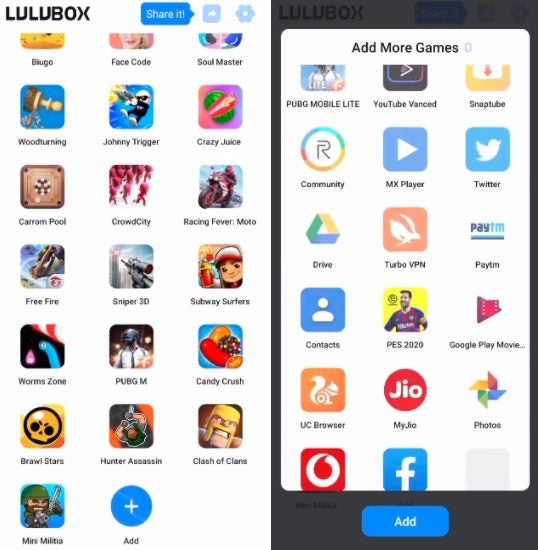
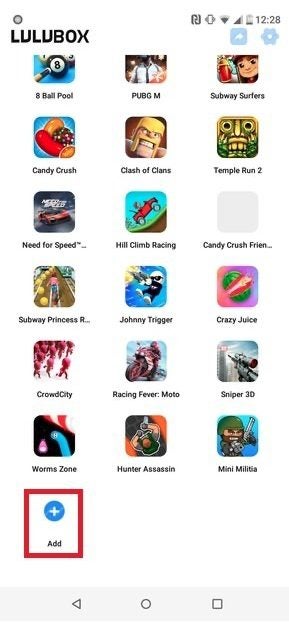
Once you find the installed Lulubox app and open it on your Android device, the PUBG icon should be among the available apps and games. If the shortcut isn’t there, you can tap “Add” on the bottom of the screen and search for the program.

How to Use Lulubox in PUBG Mobile in 3 Easy Steps

Step 2: Open PUBG settings and download the necessary plugins

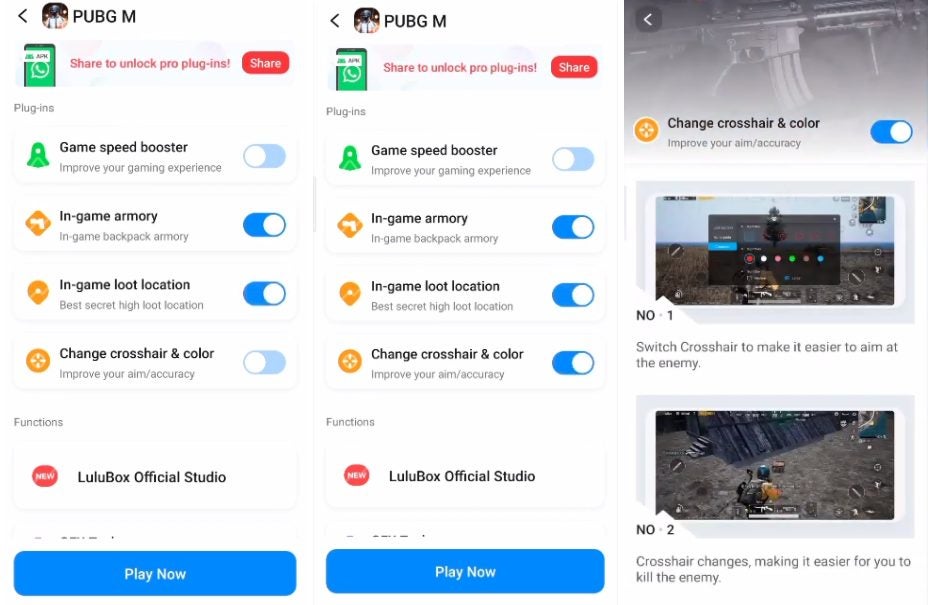
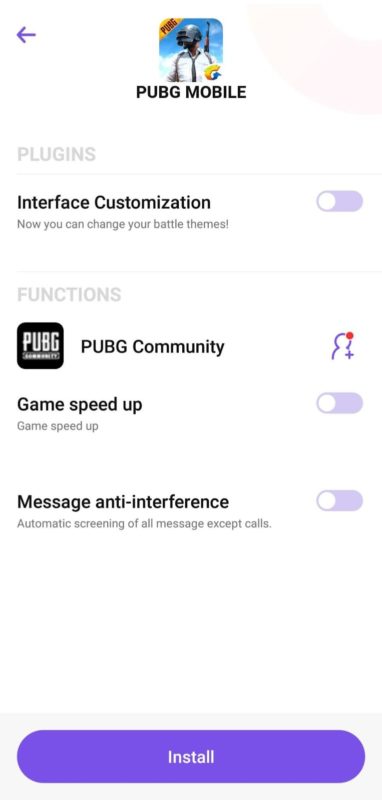
Now that you have the game added to the lot click on the icon to open the settings screen. All the options Lulubox gives you should be on display. Click on the plugins and toggle them on. Each of them has a description, where you’ll be able to see the exact modifications it makes.

How to Use Lulubox in PUBG Mobile in 3 Easy Steps

Step 3: Tap “Play Now” and enjoy

The final and most delightful action is to press the “Play Now” button and initiate the game. However, you might have to allow a few permission requests here if you haven’t done so before.

How to Use Lulubox in PUBG Mobile in 3 Easy Steps

Permissions, Beware!

PUBG is a fun experience, and it can be an immense joy to play, but remember, you need to ensure your safety on the internet. Third-party applications can sometimes be dangerous for your device. Although Lulubox is a credible app, being careful is never “extra.”

How to Use Lulubox in Free Fire in 3 Fast Ways

Playing Battle Royale games on your phone can be a fun adventure, but what if you want the extra features and fashion choices in the game all at once? While some players might be more fixated on experiencing the game, others like choosing from a wide variety of skins. Let’s see how you can reach your goal of unlocking all of them in Free Fire using Lulubox.

How to use Lulubox in Free Fire

This guide is for those who already have the Lulubox app installed on their Android device. For more information about how to download and install the .apk file, click here.

Step 1: Open Lulubox and access Free Fire from the list

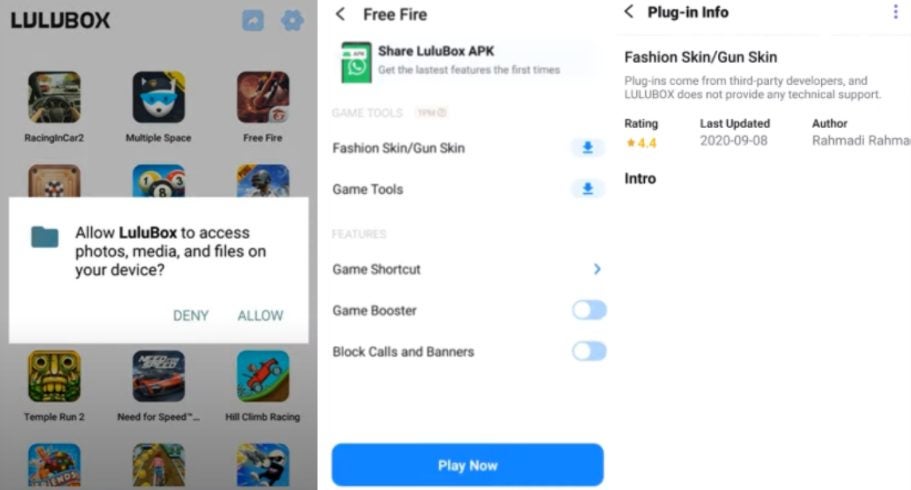
Find Lulubox in your home screen or the folder you hid it in and tap to open it. You’ll see all the games available with the booster. Tap the Free Fire icon to open its info page. A bunch of options will be available on the screen, including the plugin names and details (when you tap on each).

How to Use Lulubox in Free Fire in 3 Fast Ways

Step 2: Download the plugins you need

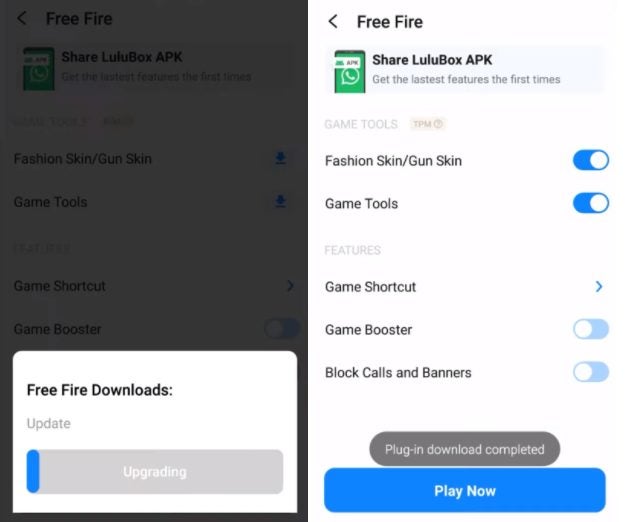
Click on the available plugins as needed and wait until they install. Once they’re available, the “Download” button on each line will turn into a toggle that you can turn on or off before playing.

How to Use Lulubox in Free Fire in 3 Fast Ways

Step 3: Tap “Play Now”

Once the plugins are in, you can start playing instantly. Tap the blue “Play Now” button and wait until the game begins. While it’s loading in the background, you’ll see the Lulubox floating icon on the screen. Then the app will ask for a few permissions. Tap “Allow” if you agree.

How to Use Lulubox in Free Fire in 3 Fast Ways

Ensure that you stay safe while playing

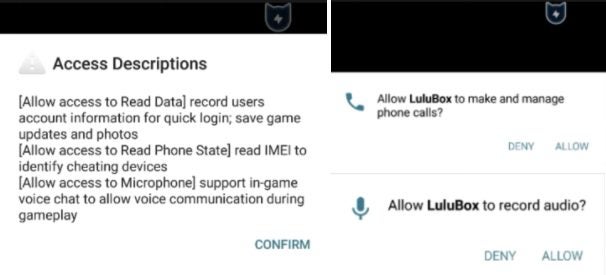
Lulubox asks permission to manage your phone storage, make phone calls, and record audio. While it might be a fantastic solution for getting extra boosts in-game, the permissions are a bit more than you’d want to give out to a third-party app. Make sure that you read the app’s privacy policy before starting to enjoy Free Fire with Lulubox.

How to Download Lulubox in 3 Simple Steps

Lulubox is a very useful game plugin box for Android devices. The app can be downloaded and installed on your phone in a few simple steps, and then you can use it to manage your games, including installing new features such as skins and other mods. Lulubox is not available on the Playstore, so you will need to download the apk from another source to be able to install it. This might make some people nervous, so we will guide you through the steps of downloading Lulubox.

How to Download Lulubox

It is essential to remember only to download files from safe, reputable sources to keep your computer and personal information secure from any malware.

Step 1: Go to the Download Website

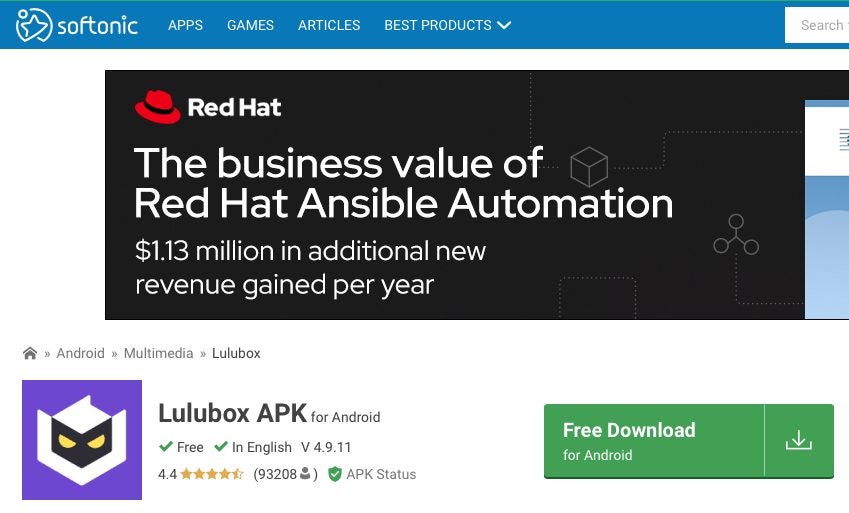
Go to a reputable site to download the Lulubox apk (Android Application Package).

How to Download Lulubox in 3 Simple Steps

Step 2: Click on Download

Click on the Download button to start downloading the apk file. Wait for the download to finish before moving on to step 3.

How to Download Lulubox in 3 Simple Steps

Step 3: Open and Install Lulubox

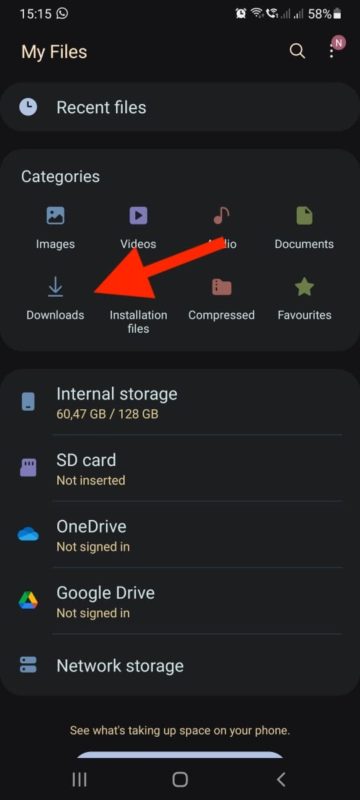
On your mobile device, head to your ‘Downloads’ folder, sometimes located in your ‘Files’ folder. In this folder will be your recently downloaded Lulubox apk. Open the file to start with the installation process. During the installation process, the app will request access to the games on your Android device but will not ask for permission to access any other personal details. This is one of the bonuses of using this app.

How to Download Lulubox in 3 Simple Steps

Downloading Lulubox Is as Easy as One, Two, Three

If you follow our steps above, you will see just how easy it is to download and install Lulubox. As long as you remember to stay safe when downloading, you should be able to download the app and enjoy all the new features of managing your games from a single app.

How to Install Lulubox in 3 Simple Steps

This free game plugin box allows you to manage all your Android games from a single app. Within the Lulubox app, you can easily run, manage and update all of your favorite mobile games on your Android device. But how do you install the application? For those not used to working with apk (Android application package) files, we have set up these instructions to help you install the app on your phone.

How to Install Lulubox

You will need to have the Lulubox apk file downloaded before you can install the app. When downloading apps, make sure you use one reputable source. You can refer to our guide on how to download Lulubox for more information.

Step 1: Find and Open the Lulubox APK File

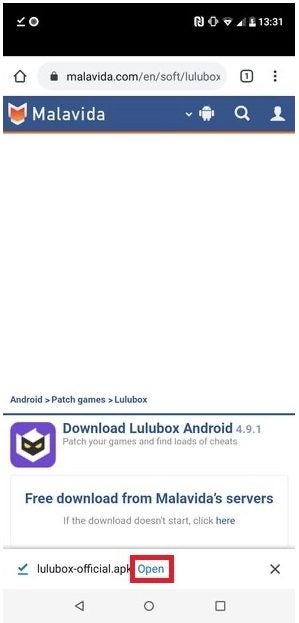
Once you have downloaded the Lulubox apk file, you need to open it to start installing the application. If you kept an eye on the download process, you could open the file from the process bar. Alternatively, you will find the apk file in the ‘Downloads’ folder on your device.

How to Install Lulubox in 3 Simple Steps

Step 2: Tap on ‘Install’

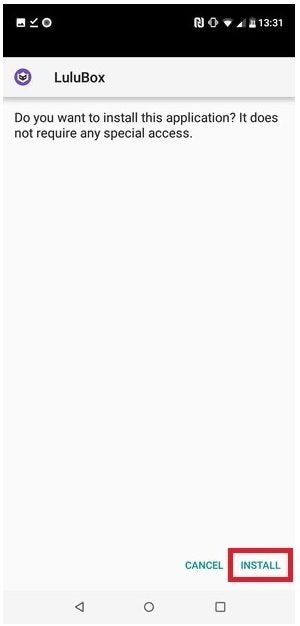
An installation window will open asking if you want to install the application. Tap on ‘Install’ in the bottom right of the screen.

How to Install Lulubox in 3 Simple Steps

Step 3: Wait for the App to Finish Installing

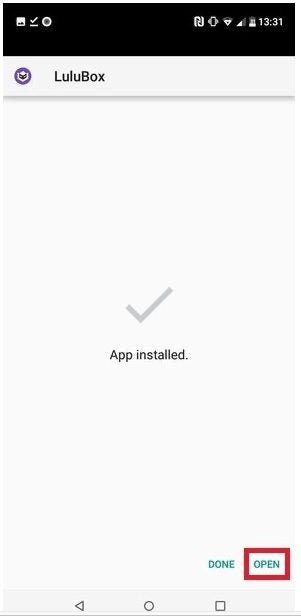
Wait a few seconds while the app installs on your mobile device. Once the application has finished installing, you can open it from the last window in the installation process by tapping on ‘Open.’ Or you can tap on the Lulubox icon from your app menu.

How to Install Lulubox in 3 Simple Steps

Bear in mind that when you launch Lulubox for the first time, you will have to accept their terms of service before you are able to continue to the home screen of the app.

All of Your Games Conveniently in One Location

With Lulubox, you can enjoy all your favorite games from one convenient app on your Android device. It is so simple to install Lulubox that there really isn’t any reason why you shouldn’t start using it now. 

How to Play Lulubox in 5 Easy Steps

Lulubox is a free app for Android that allows users to manage and play their games from one convenient program. Not only can you organize your games, but you can easily update them and once there is additional content available for the game, such as skins or unique locations you can add them from the app. You may be wondering how you can play games from Lulubox? We will cover those steps so that you can start enjoying your favorite Android games on Lulubox.

How to Play Games on Lulubox

Step 1: Open the Lulubox App

Open the application on your mobile device. Once opened, you will be on the Lulubox home screen, where you will see a list of compatible games.

How to Play Lulubox in 5 Easy Steps

Step 2: Tap on Any Game

You can tap on any game to see more options such as game boosters, shortcut creators, and any additional content that may be available for the game on the app’s home screen. 

How to Play Lulubox in 5 Easy Steps

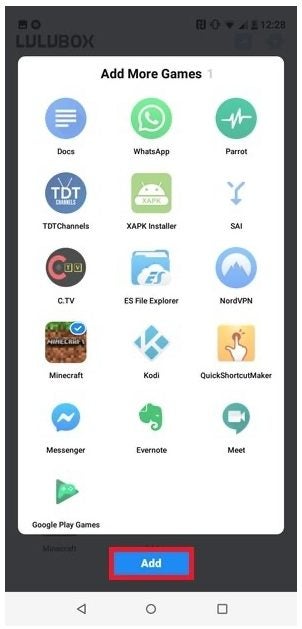
Step 3: Add Games

If the game you want to play is not listed on the home screen, you can add it. At the bottom of the home screen, tap on the ‘+’ icon to add another game.

How to Play Lulubox in 5 Easy Steps

Step 4: Choose the Game to Add

A list with all your installed games will open. Choose which game or app you would like to add to Lulubox.

How to Play Lulubox in 5 Easy Steps

Step 5: Play the Game

Once you have the game that you want to play, tap on it. Right at the bottom, tap on the ‘Play Now’ button to start playing the game. If you’ve chosen another app, then tapping on ‘Play Now’ will launch the app.

How to Play Lulubox in 5 Easy Steps

Bear in mind, games you add may not have all the additional features that the base games that come with Lulubox. Also, keep in mind that playing modded and patched games online might get you banned from certain games if you misuse them. 

Choose Your Game and Start Playing

Playing and adding new games is a simple and intuitive process. So, start playing games on Lulubox now.