What Is PowerPoint and How it Works

PowerPoint is one of the most popular programs in the Microsoft Office suite, alongside Word and Excel. This powerful presentation tool is available on Mac, Windows, Android, and iOS.

However, when opening Microsoft PowerPoint for the first time, you will see a lot of tools and settings, which can be pretty overwhelming. Don’t let the fear of a new program overcome you. With the beginner’s guide, you’ll soon be able to create striking presentations with PowerPoint quickly and easily.

What Is Microsoft PowerPoint?

Microsoft Powerpoint is a robust program for creating slideshows and presentations. If you have a big sales pitch coming up, you might want to consider adding a Powerpoint presentation to visually illustrate what you are pitching. The same goes for other business meetings, lectures, and seminars.

You can include various media into your presentation, such as graphs that display data visually, videos to add more clarification, and more. This means that you have helpful visual aids to add to your arsenal of tools.

What Is PowerPoint Used For?

Many people have asked what a PowerPoint presentation is? And what can it be used for? A PowerPoint presentation is a term given to those slideshows created in the program that can be used for presentation purposes. The software is often used by businesses, lecturers, public speakers, and even students. It is a great way to enhance any information that you present.

The Basics of Using PowerPoint

Now that you have a better idea of what Microsoft PowerPoint is let’s look at how to get started with the program.

Using the PowerPoint Ribbon

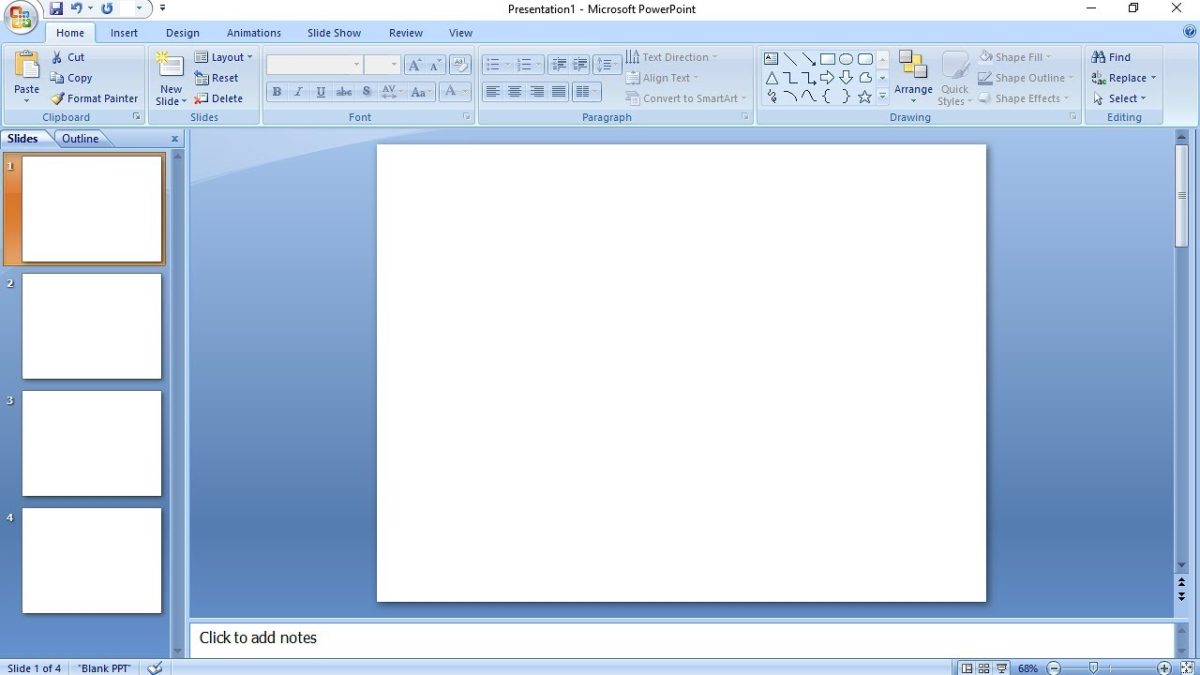
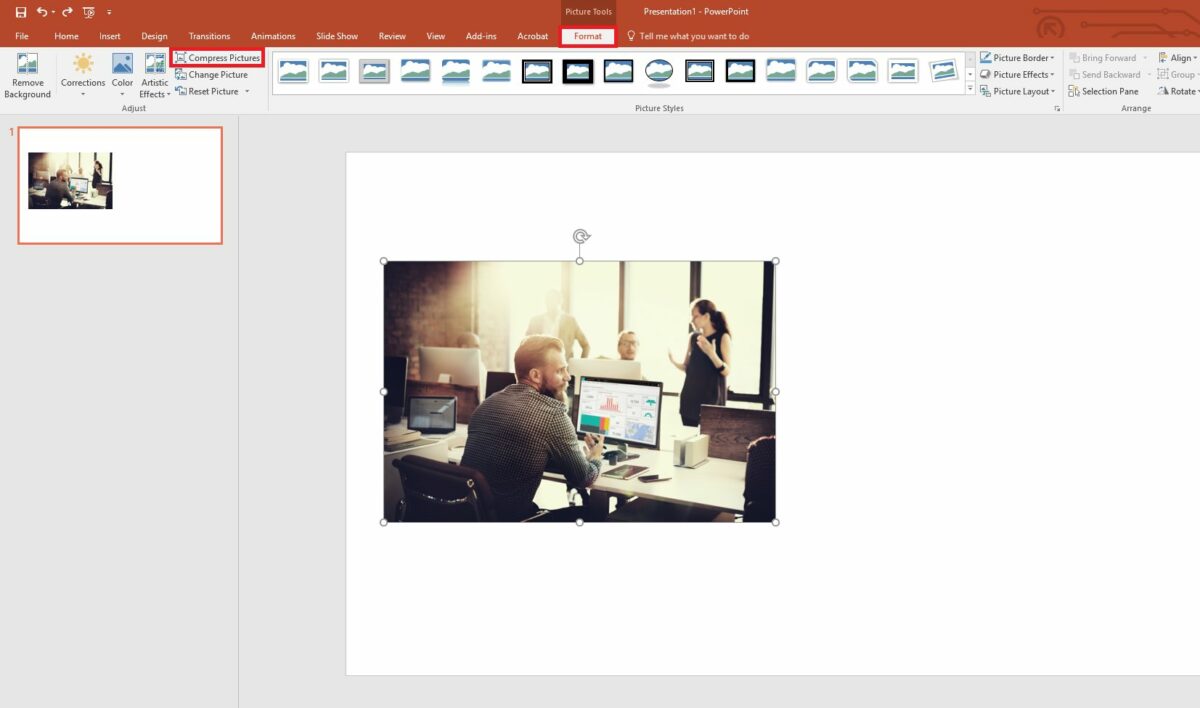
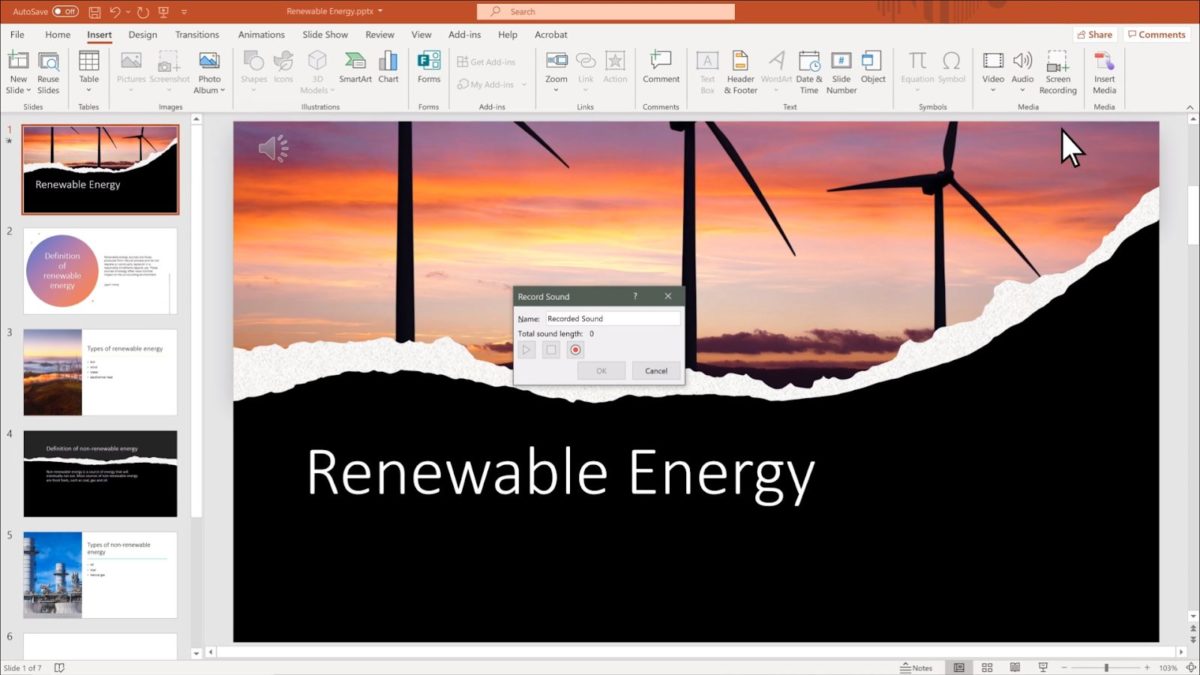
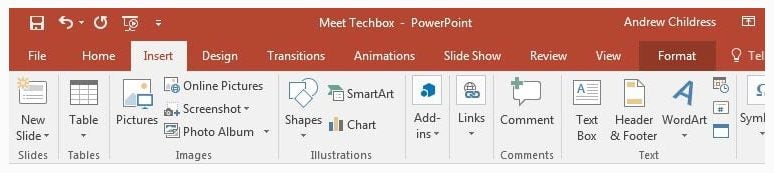
You will find the ribbon menu across all of Microsoft Office’s programs. It is located at the top of the screen, just below the main menu. It is essentially another menu that contains all the specific tools which can be used on your slides. By clicking on a different tab in the main menu, you will see different tools become available in the ribbon. The ribbon makes it faster to access specific tools such as adding slides, transitions, images, and more.
What Is PowerPoint and How it Works

Starting a Project

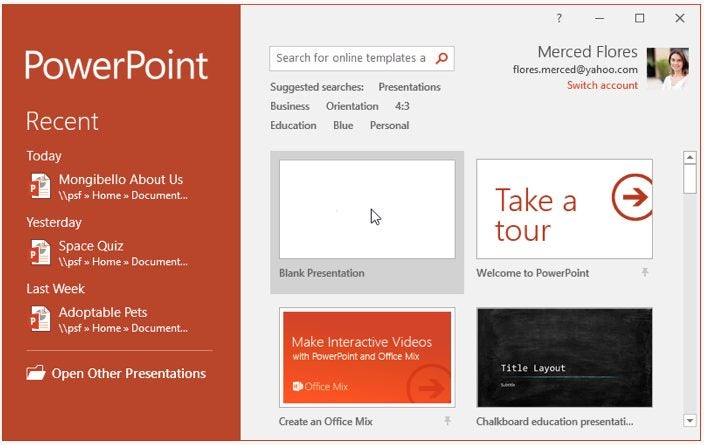
When you open PowerPoint, the first window you come across will be asking you if you want to open an existing project or start a new one. If you start a new project, you can choose a blank presentation or use one of the many templates to help you get started. There is even a helpful tour that you can take that walks you through using the program.
What Is PowerPoint and How it Works

Inserting a New Slide

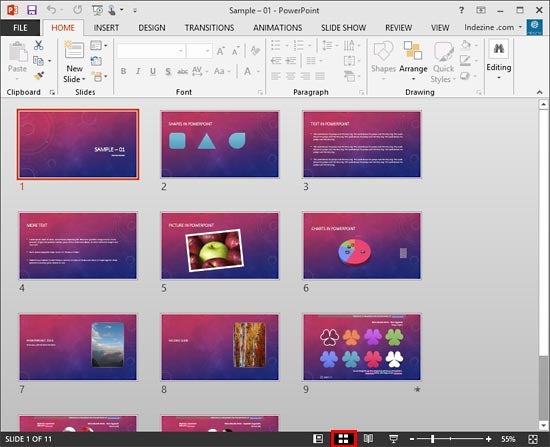
Slides are the individual sections of your presentation where you can add your content. One slide will be displayed, and then it will move on to the next one in a slideshow. You don’t want to have all your content on a single page. Instead, you want to spread the content over different slides.

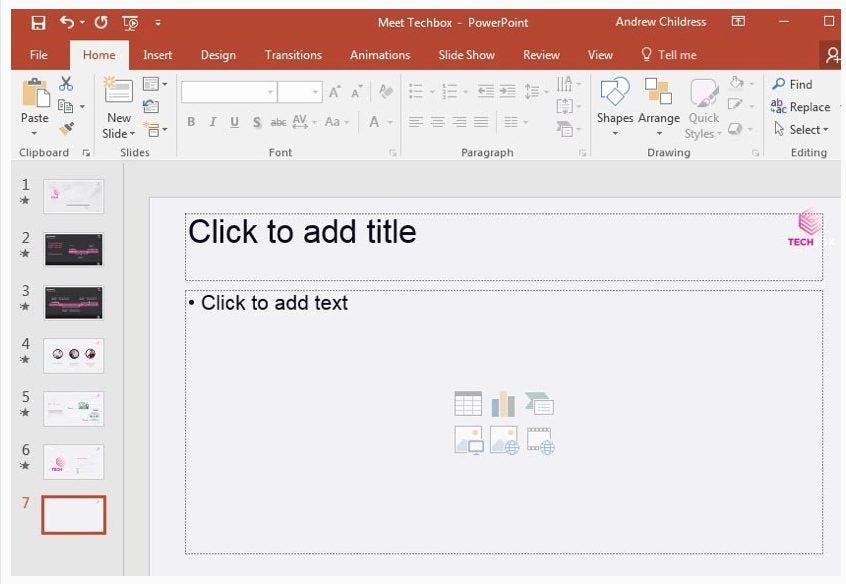
You may often find that you have to add slides to your current presentation. To do this, click on ‘Home’ in the top menu, and then in the ribbon, click on ‘New Slide’. By clicking on the down arrow below the ‘New Slide,’ you will see different slide options which you can choose from.
What Is PowerPoint and How it Works

Inserting Content

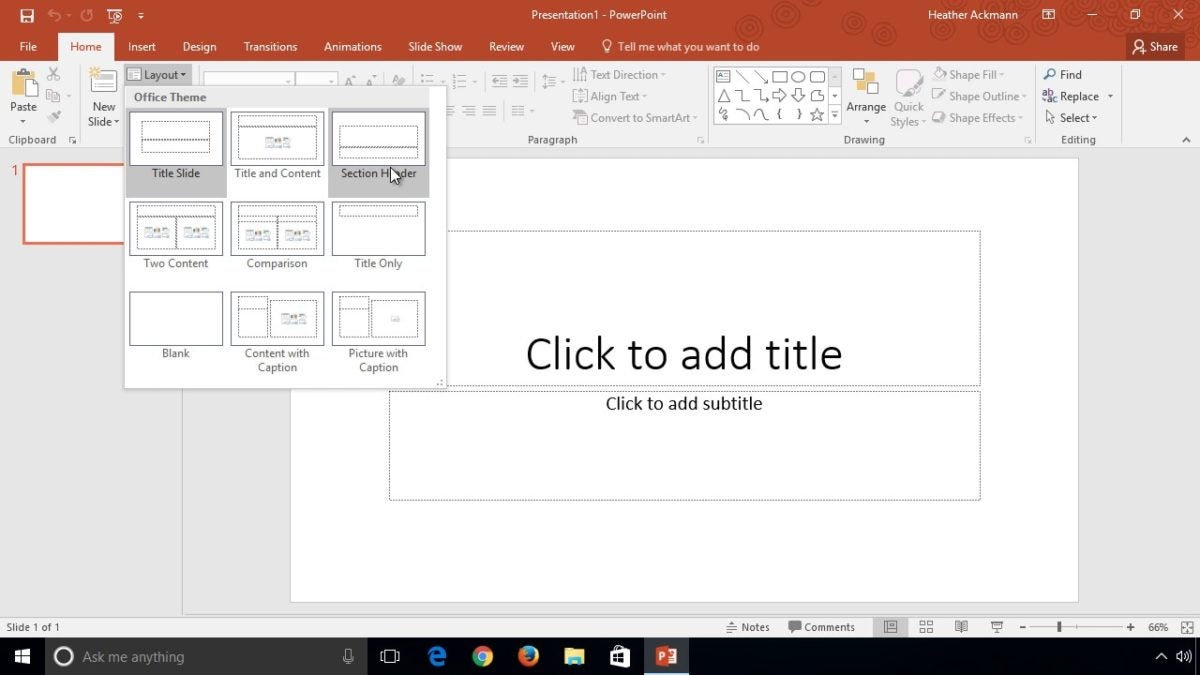
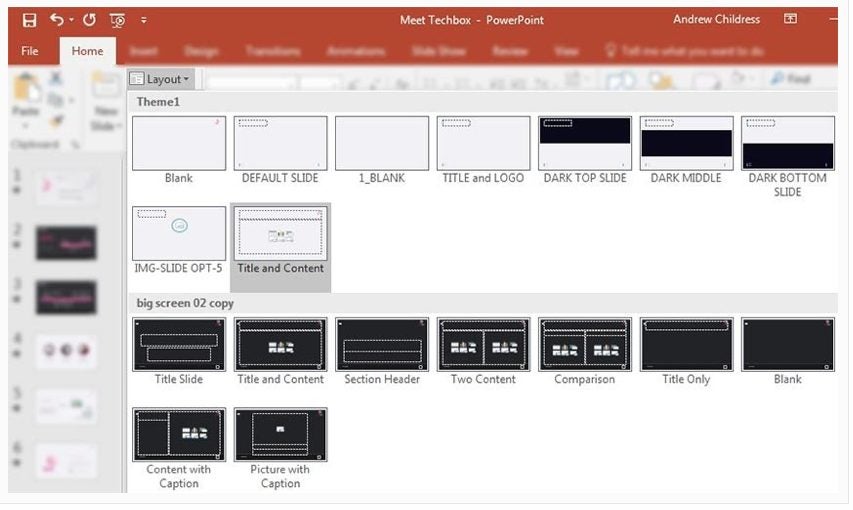
You could choose to add content manually by inserting images, text boxes, etc., from the ‘Insert’ tab. Or you can choose to click on a slide to select the one you are busy with, then click on ‘Home’ in the menu and then ‘Layout’ in the ribbon. This will give you different layout templates that already contain text and image boxes that you can use.
What Is PowerPoint and How it Works

Inserting Graphs and Diagrams

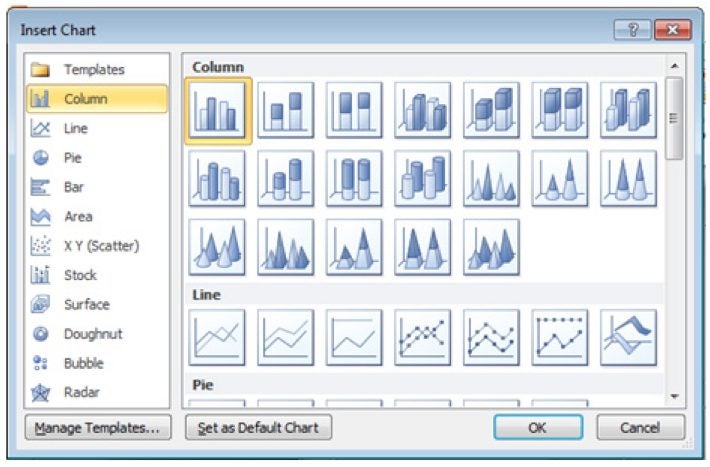
Graphs and diagrams are a great way to display a lot of data visually. To add a graph or diagram to your presentation, click on ‘Insert’ in the menu and ‘Graph’ in the ribbon. A new window will open up, asking you what type of graph you’d like to add.

Choose the option that makes the most sense for your data, and click ‘Ok’. Don’t worry; you can change the graph type later if you’re not happy with it. Now you’ll be taken to an Excel spreadsheet where you can insert the data to be used in the graph. 
What Is PowerPoint and How it Works

Inserting Audio

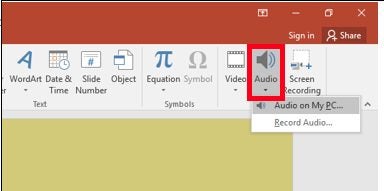
If you want to add audio such as music to your presentation, you can do so from the Insert menu. Here, you can click on ‘Audio’ in the ribbon and choose the audio file you want to add.
What Is PowerPoint and How it Works

Inserting Video

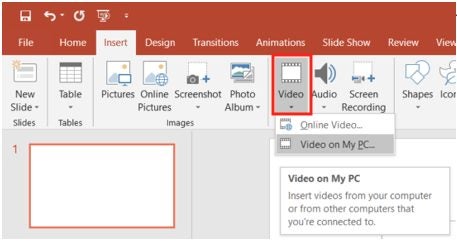
You can also add videos to your slides. You can do this from the ‘Insert’ menu as well. Here, you can click on the ‘Video’ option to add your video file to the slideshow.
What Is PowerPoint and How it Works

More Tips and Tricks for Microsoft PowerPoint

If you want to start using PowerPoint for your slideshows and presentations, here are a few more guides to get you started with the powerful software.

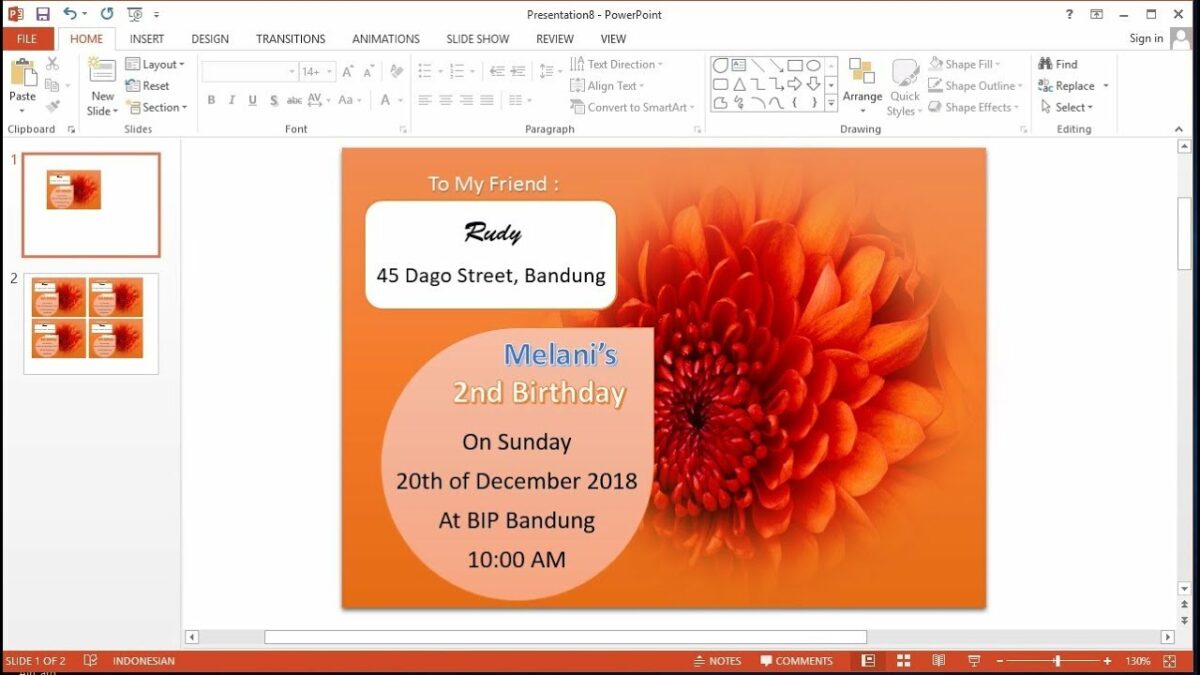
How to Make Invitations With Microsoft Powerpoint in 3 Steps

Microsoft Powerpoint is best known for its presentation-creating features. One popular use of Powerpoint is to make invitations to parties and events with the software.

Let’s look at how to make a memorable invitation using Microsoft Powerpoint.

  1. Choose ‘New Blank Design’

    How to Make Invitations With Microsoft Powerpoint

    Start the program by clicking on the icon on your desktop or in your start menu. If you are using the mobile app, tap on the app icon in your app menu. Although you are able to use any of the templates available, it might be easier to start with a blank design when making an invitation so that you can add all the features you require manually.

  2. Add Text Boxes and Text

    How to Make Invitations With Microsoft Powerpoint

    First thing first, add a few text boxes for the content of your information. A quick design tip is to use multiple text boxes to easily adjust text size, fonts, and layouts. We suggest using one box for the header, another one for the event or party details, and a final box for the conclusion.

  3. Add Media and Details

    How to Make Invitations With Microsoft Powerpoint

    Now comes the fun part, adding the media. Now you start adding borders, backgrounds, and images to bring the invitation to life. Powerpoint has some images, but if your party has a specific theme, then you might need to download a few to use.

    When downloading images, try to get ones with a transparent background if you plan to use a background on your invitation. If you don’t, the image might appear in a white box, which might ruin the effect.

Make Invitations Easily Using Powerpoint

Using Powerpoint to make invitations is easy and straightforward. You can even experiment with slideshow invitations to send digitally with WhatsApp or email, which works incredibly well in this digital age and creates more interest.

How to Convert Microsoft Powerpoint to Google Slides in 2 Easy Methods

Cloud storage is getting increasingly more traction these days, so being computer-bound isn’t trendy anymore. While you might use and like Microsoft PowerPoint, sometimes you need to share the creation, collaborate on it online, make the same for different operating systems, or present in a setting where you can’t use hard drives.

This article talks about converting the PowerPoint file into a Google Slides document. We discuss two viable and slightly different options.

  1. Upload the file to Google Drive

    How to Convert Microsoft Powerpoint to Google Slides

    The first method is as straightforward as it can get. Follow the steps below to get the presentation running.

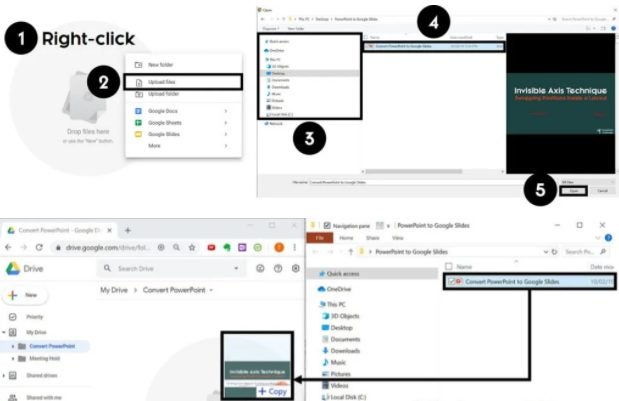
    – Open Google Drive, find the relevant folder, and upload the original PowerPoint file

    – Right-click it and navigate to Open with > Google Slides

    – Go to File > Save as Google Slides

    (Optional) Delete the initial upload to avoid confusion

    From here, you can open the presentation, make adjustments, and have it on the cloud, accessible from everywhere.

  2. Import slides

    How to Convert Microsoft Powerpoint to Google Slides

    While the method above shows how to import and convert the whole document, the second one gives you more granular control of which pages to keep.

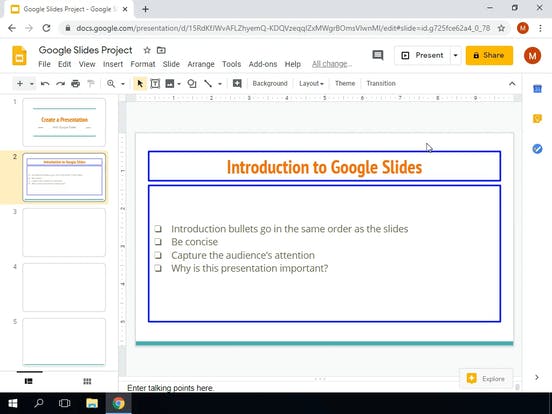
    – Start an empty Google Slides file

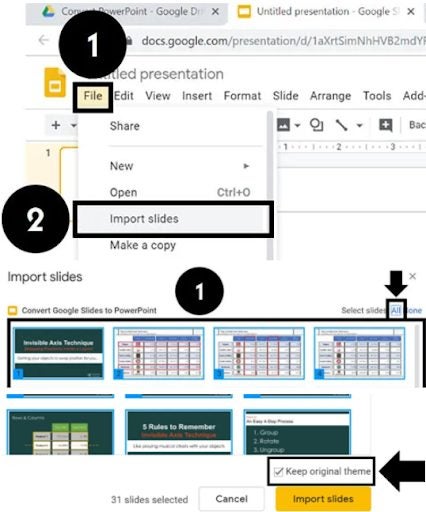
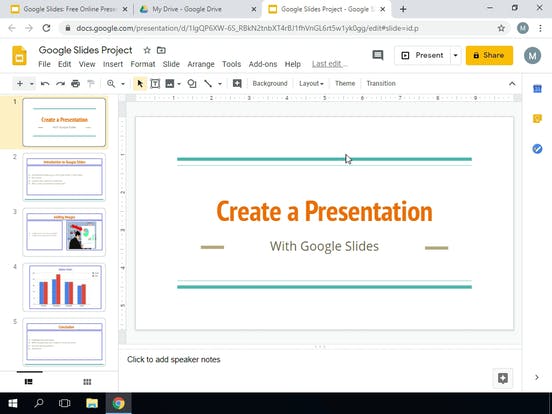
    – Go to File > Import slides

    – Click Upload > Select a file from your device

    – Browse presentation and click “Open”

    – Select the individual pages

    – Decide if you want to keep the original theme, and click “Import slides”

    • Delete the blank slide and make adjustments if needed

    An alternative way is to choose an uploaded .PPT file from the “Presentations” tab in the “Import slides” window instead of uploading it from your computer. Next, you just need to take the rest of the steps as described above.

Your presentation might look different

Although the two programs do the same thing, for the most part, Google Slides has fewer transitions, fonts, and templates. Thus, the presentation’s intricate details might be lost in the conversion process. Still, you can ensure that you keep the best parts of your slides.

As we’ve mentioned before, simplicity is key to a successful presentation. You might not need too many elements to tell a memorable story, and the conversion might be an opportunity to simplify.

Top 3 Microsoft PowerPoint Tips

Microsoft PowerPoint is a truly powerful software with a massive amount of tools and features. Still, the crucial thing in a presentation goes beyond the tool functionality. It’s about the message, the audience, the design, and finally, the presenter.

Making effective presentations is a massive topic with intricate details. Still, we’ve decided to mention the three main aspects of a compelling speech with slides.

  1. Present accurate and relevant information

    Top 3 Microsoft PowerPoint Tips

    The two key concepts about the topic and material are the accuracy and relevance of the concepts introduced. You need to ask two questions to get the base and tone of your presentation:

    – Are you qualified to talk about the topic?

    Who is your audience?

    While the accuracy of the information is a no-brainer, its relevance is more challenging to get right. Even if you’re the best speaker and the most qualified person to talk about a topic, the audience is key to assembling fantastic slides that hit the mark.

    Learn about who will be present and filter the information you have through their eyes. Fill the speech with exciting bits and pieces, entertaining anecdotes, and personal experience. In short, all .PPT presentations need to tell a cohesive and engaging story.

  2. Keep the slides clutter-free

    Top 3 Microsoft PowerPoint Tips

    One of our pet peeves on PowerPoint slides (any slides, really!) is having long and unreadable text on a white background. Not only is it hard to read and comprehend, but it also has no visual value. While having detailed information in your report and presenting it to the audience in a relevant matter is critical, the information on the screen should be:

    – Drastically decreased compared to blocks of text

    – Put in bullet points

    – Spread out into a few slides if possible

    Text isn’t the only thing that can overpopulate or clutter the slide. Use fonts, design elements, animations, and pictures to help the eye find the information. Overengineered presentations rarely work. Keep it simple and easy to comprehend.

  3. Put on the show of your life

    Top 3 Microsoft PowerPoint Tips

    Last but not least, you might be talking:

    – About a topic that you master

    – To the audience, you know perfectly well

    With slides to conquer the world

    You’ll still be unsuccessful in your endeavor if you ignore non-verbal communication.

    Ensure that your body language doesn’t contradict what you state verbally. Plus, practice to make your posture, voice, and movements commanding yet friendly enough to keep the audience hooked.

Be clear

You might render it absurd to summarize a massive topic like presenting before the audience in just two short words, but it’s really that simple. Whether you’re considering the included information, the slide design, or what you speak, it’s possible to make any complicated topic easy to chew. Being clear takes time, but it’s worth it.

How to Draw on Microsoft PowerPoint in 2 Easy Methods

In some cases, like lectures or work meetings, you need to show idea relations and teach some complicated concepts to your audience.

Whether you prefer doodles on slides or annotations in your ready Microsoft PowerPoint presentation, today’s article will show you how.

  1. Draw on the slides

    How to Draw on Microsoft PowerPoint

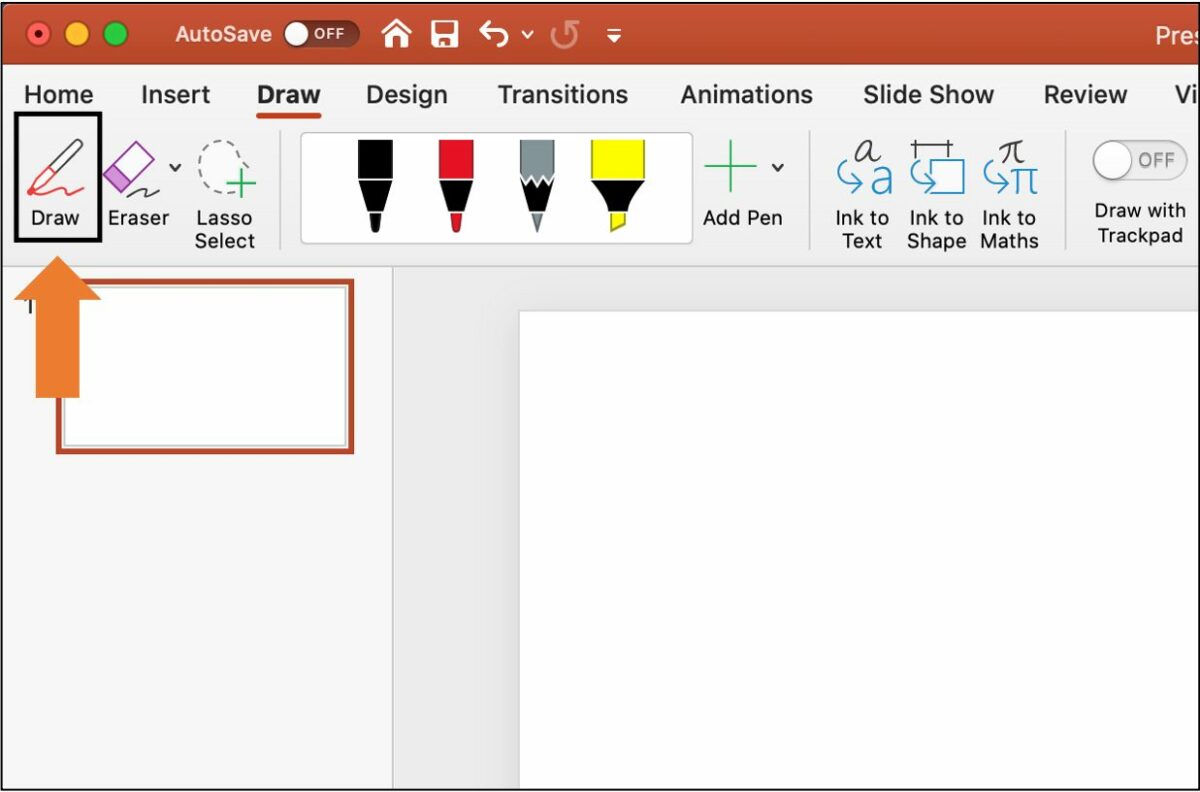
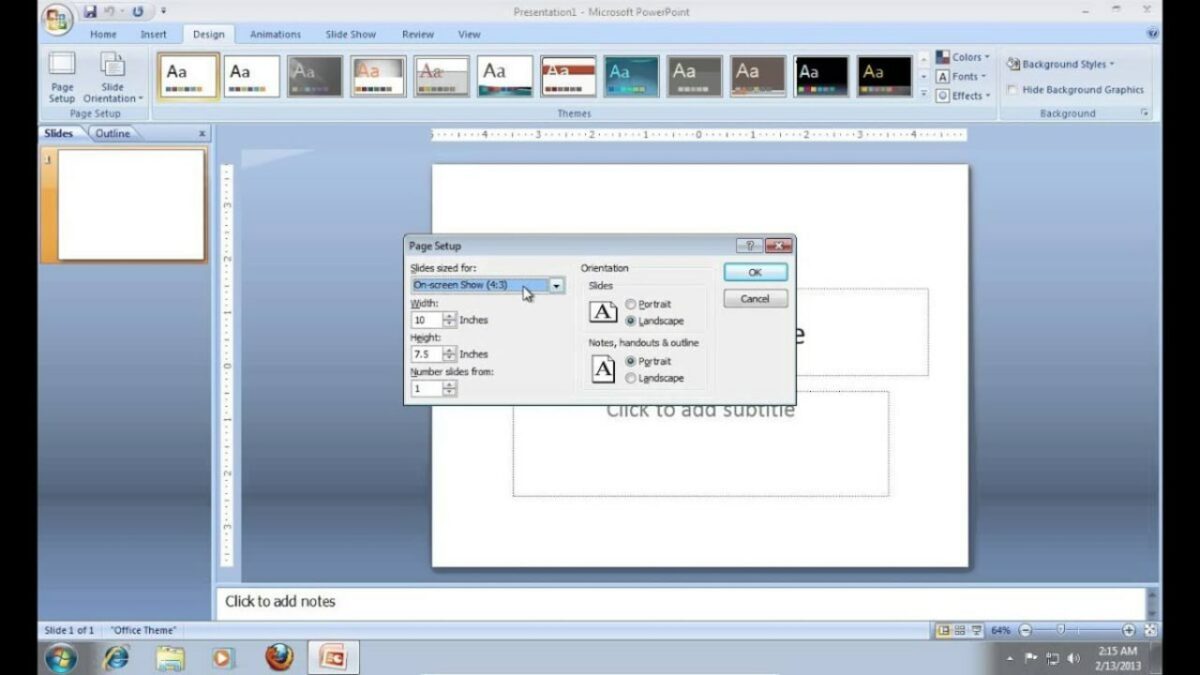
    To draw on the slide itself, you need to use the main menu of the program. Open your document, set the page, and do the following sequence of steps:

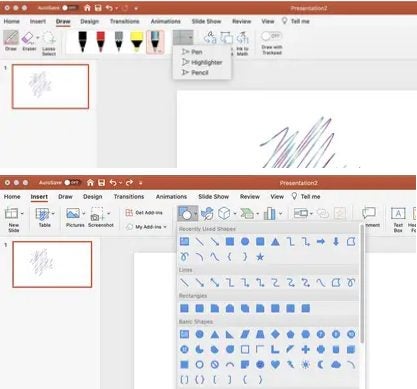
    – Go to the “Draw” tab in the main menu and click “Draw”

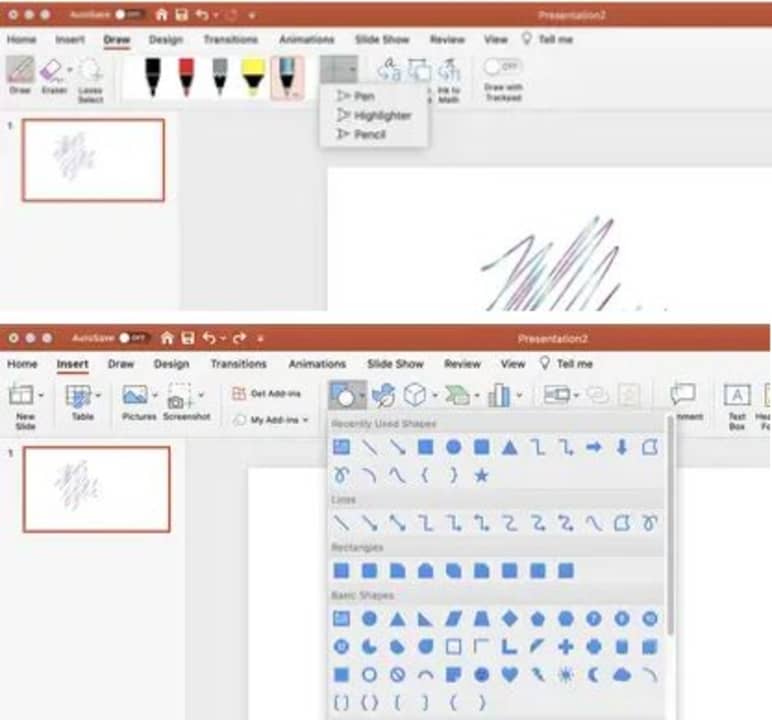
    – Choose the preferred drawing tool (a pencil, a pen, or a highlighter)

    – Set the ink color, size, or add effects (the last feature works on the “Pen” tool only)

    (Optional) Add or remove the preset tools and colors

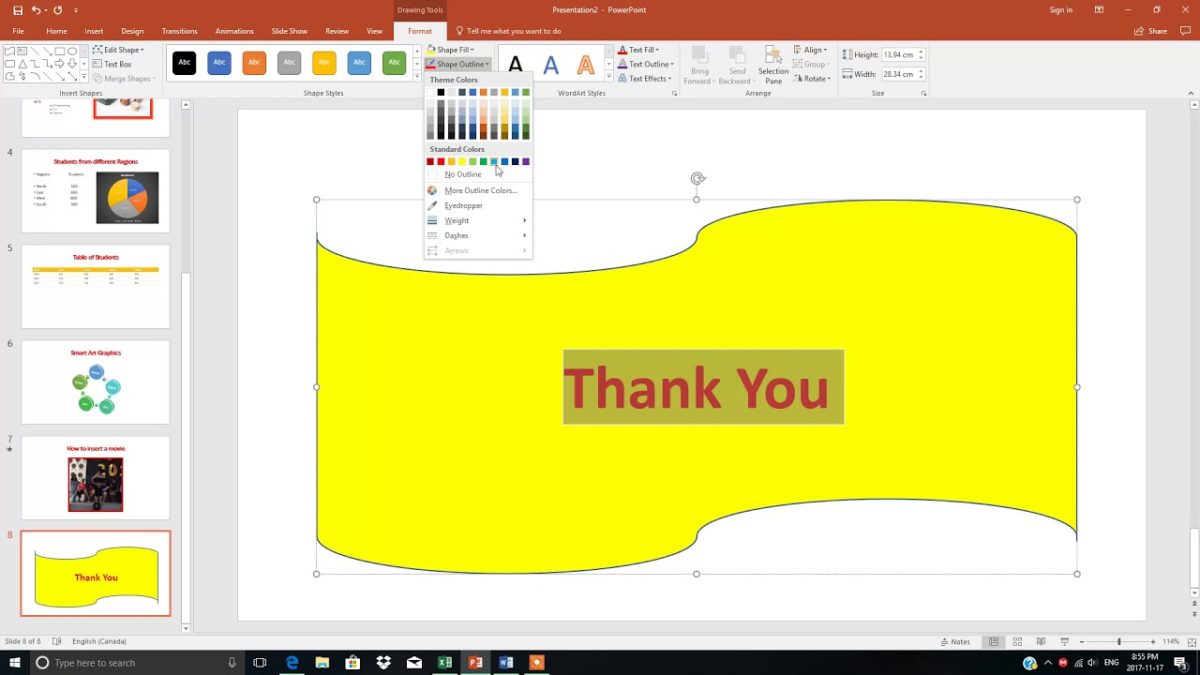
    You can also erase the drawing using the “Eraser” on the top left. Or use the “Lasso” tool to select what to erase. Adding shapes and lines to your PowerPoint presentation is also possible. Navigate to Insert > Shapes.

  2. Draw in the presenter view

    How to Draw on Microsoft PowerPoint

    Sometimes you need to draw during the presentation to make a point. Here’s how you can achieve that:

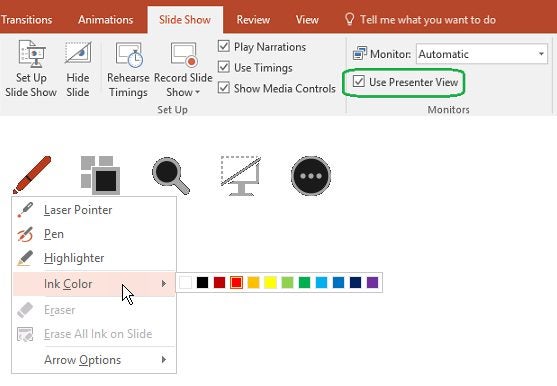
    – Turn on the presenter view: Before you can draw on the presentation, put one together. Jump to the presenter view and find the toolbar.

    – Click “Pen”: The latter contains a few useful buttons, including the next and previous slides, magnifying glass, and the “Screen” icon to dim the presentation and shift the focus to you. Find the pen icon among them. You can draw on any slide from here.

    • Change ink color and erase: Modifying the pen color for more visual control and erasing the annotations are among the options. After the presentation, you can keep or delete the drawings.

Which method will you take?

PowerPoint presentations don’t need to be boring. Whether you choose the first or second method to make your statement, you can still be memorable. Choose the best option for you, and nobody will be able to look away from your performance.
How to Add Fonts to Microsoft PowerPoint

Microsoft PowerPoint is a space for personal expression and fantastic presentations. Design is one of the crucial aspects of a successful one, so you might need to add a dazzling touch to your .PPT document through type.

You can play around with many settings, one of which is the fonts. We’ll show you how to add new ones that aren’t available by default in PowerPoint.

  1. Find the font on the web

    How to Add Fonts to Microsoft PowerPoint

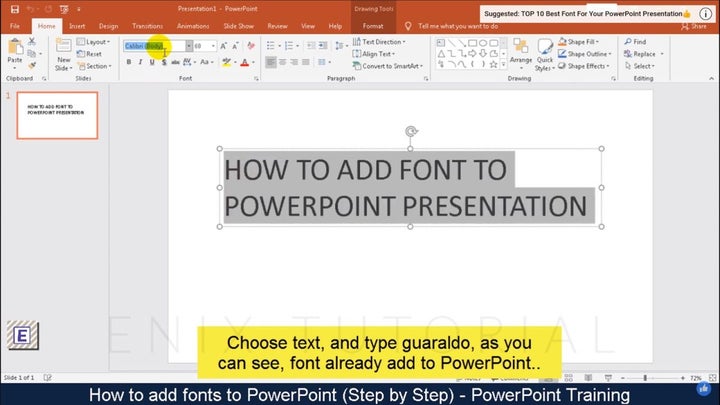
    For starters, you need to browse the web for the font you want in your presentation. There are thousands of free ones on websites like 1001freefonts.com, dafont.com, and fontspace.com. Once you browse and find your favorite, download the file.

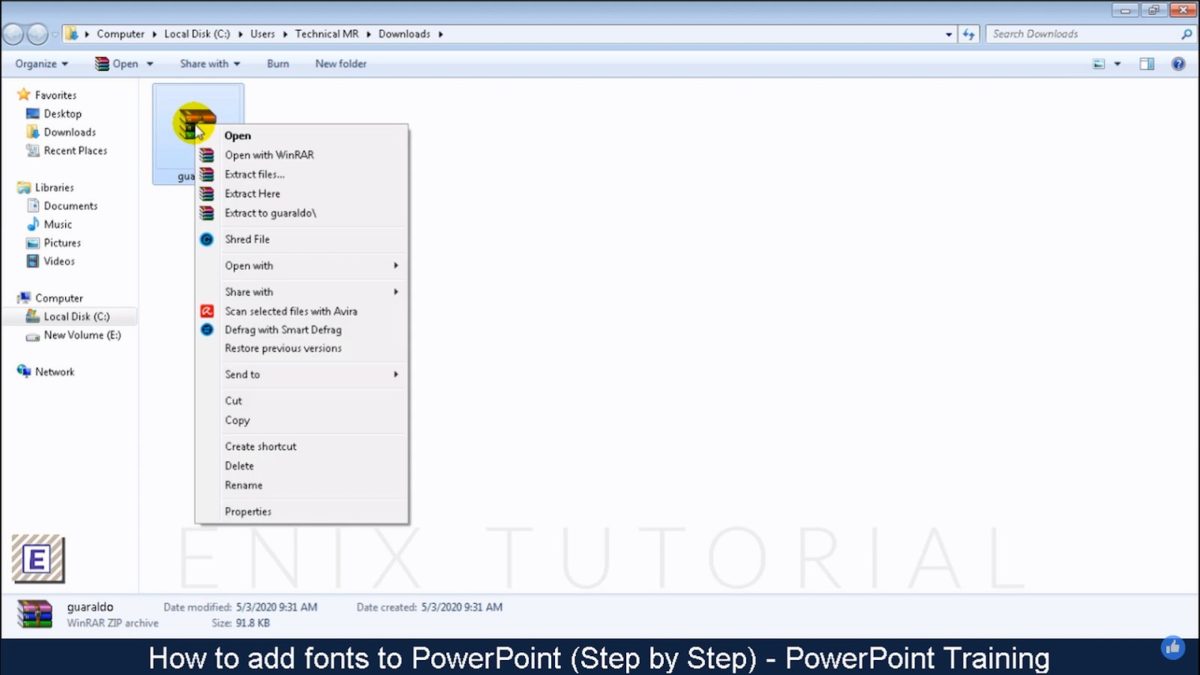
    Back on your computer’s “Downloads” folder, find the .zip file, and extract the directory.

  2. Install the file

    How to Add Fonts to Microsoft PowerPoint

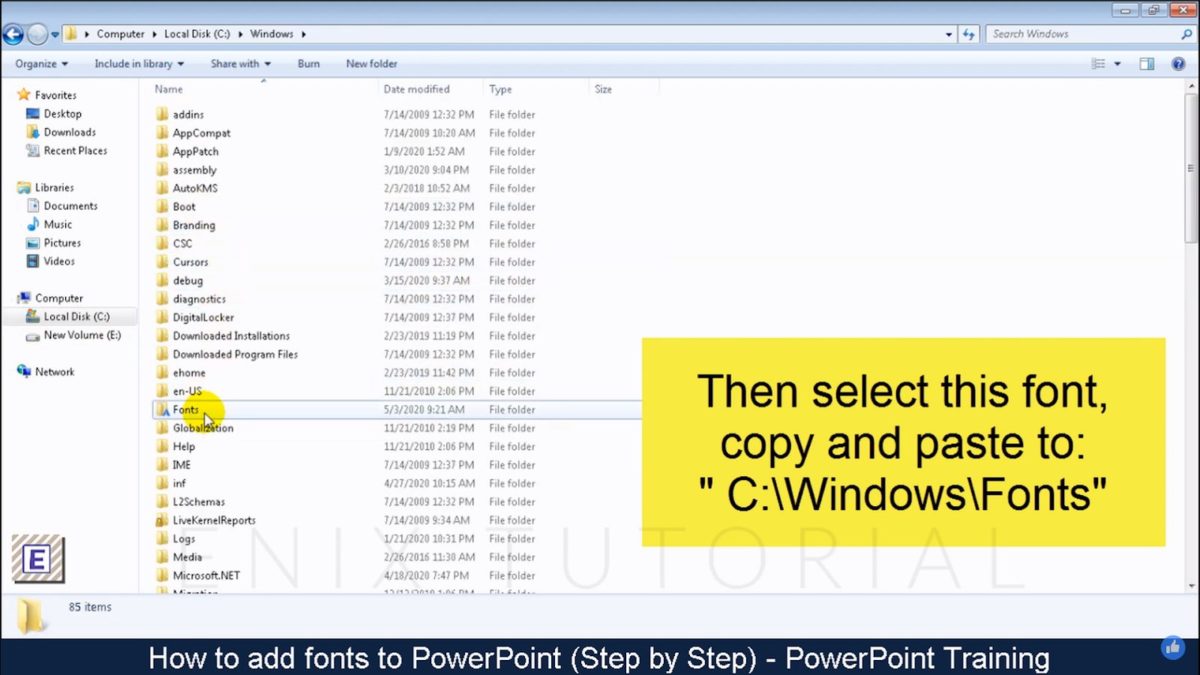
    Open the folder, find the font file, and copy it to the fonts folder (C:\Windows\Fonts folder) on your computer. The last action will install it automatically.

    Another way to introduce a font to your machine is to find the file in the folder, right-click it, and hit “Install.”

  3. Access it from PowerPoint

    How to Add Fonts to Microsoft PowerPoint

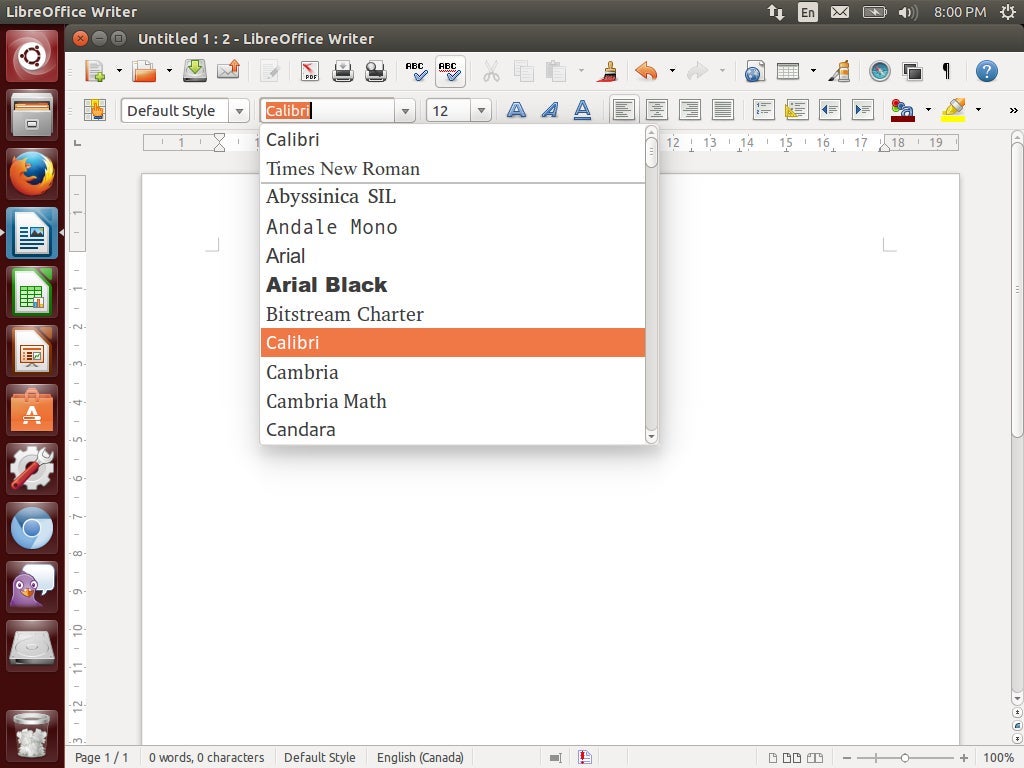
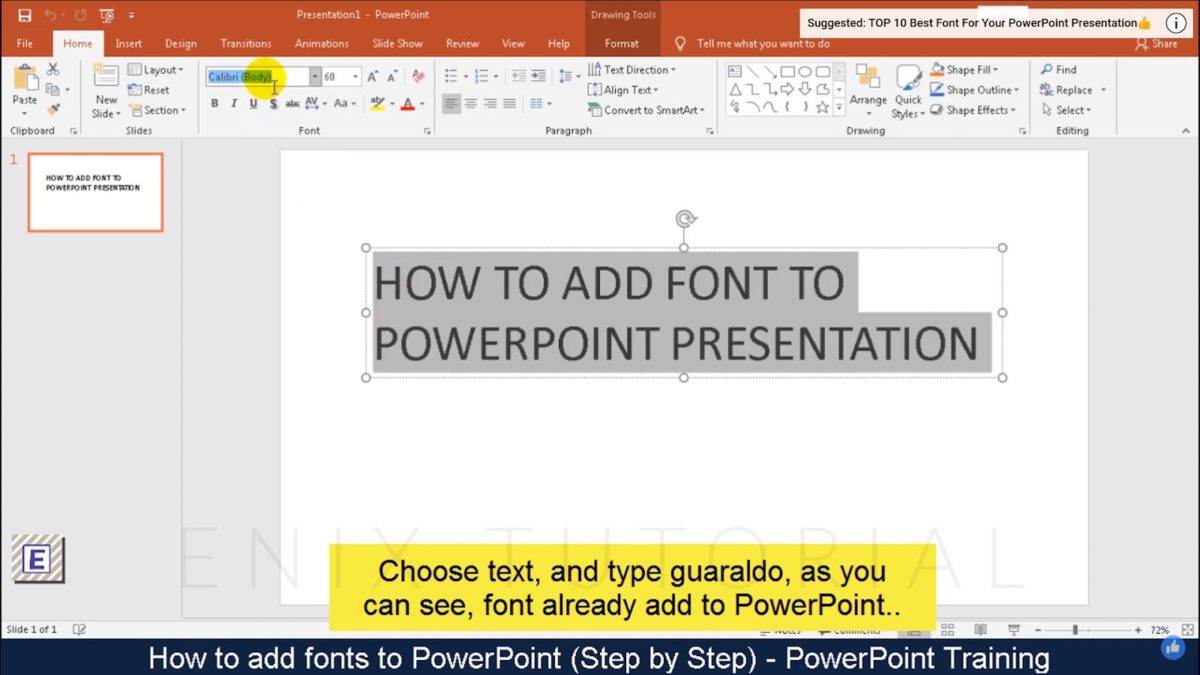
    Now, it’s time to move to the presentation program itself. If you search the font at once, it might not appear. Restart PowerPoint, choose the text, go to the “Font” panel on the “Home” tab, and search for the downloaded type. This will apply the style to the selected text.

Be bold!

Although installing a new font is technically easy, you might get lost in their abundance. If you know what you’re going to style (a heading or a body text, a quote, or a phrase to emphasize), it would be easier to settle for a look. Try to make the presentation eye-catching but not too distracting. Follow design rules but trust your gut too.

How to Add Music to Microsoft PowerPoint in 2 Easy Methods

Music in a presentation creates ambience and lets the audience dive into your vision. Inserting and controlling the audio file in Microsoft PowerPoint is as straightforward as it can get.

You can add downloaded files and record narration as you work through the presentation. Only a few clicks, and boom!

  1. Audio on My PC

    How to Add Music to Microsoft PowerPoint

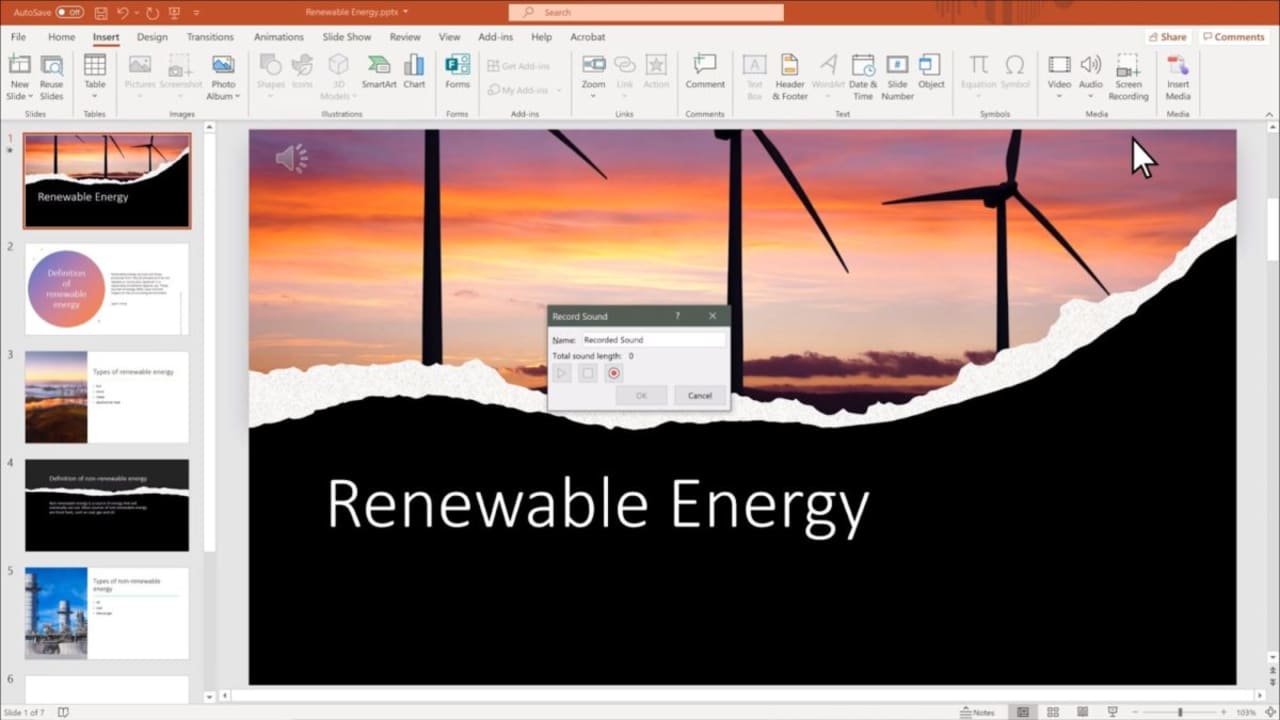
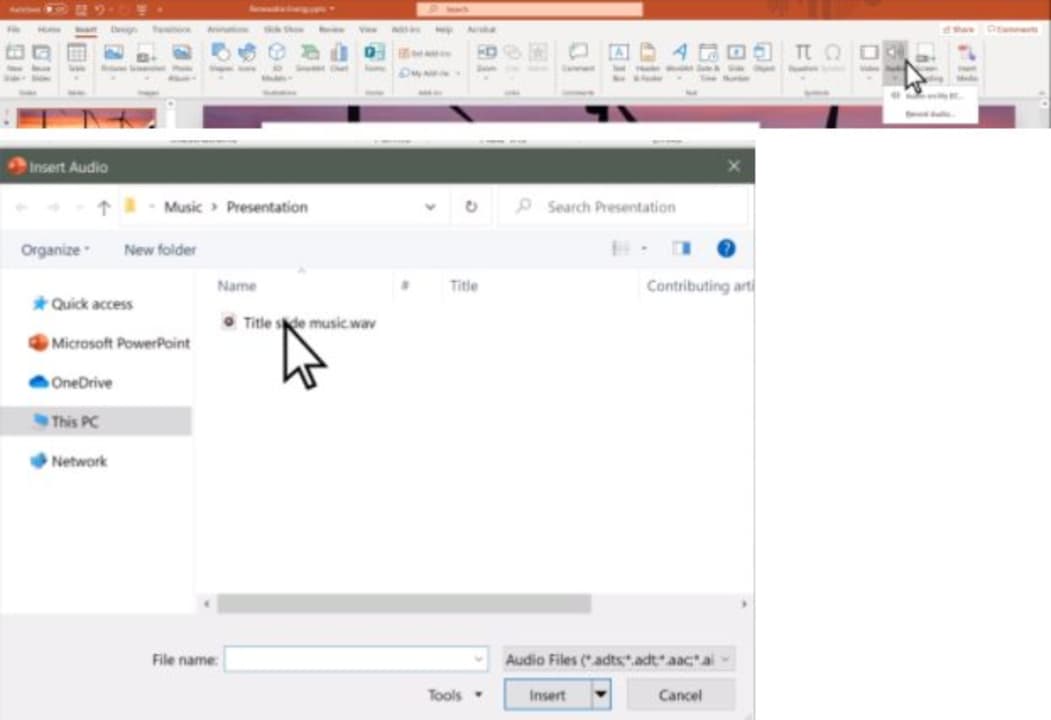
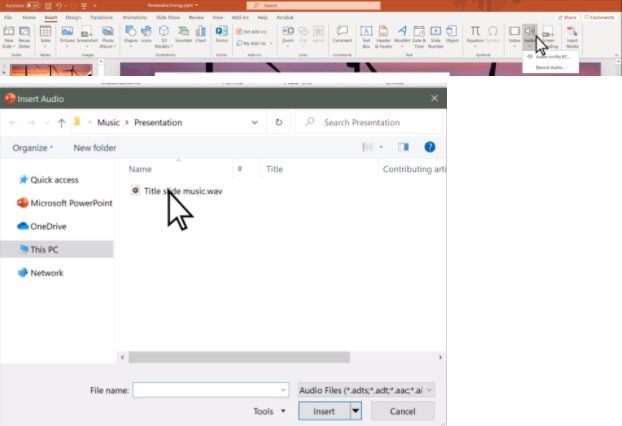
    One of the easiest methods is to add the file from your computer’s local storage. Once you know where and what to choose, go to the slide and click “Insert.” Find the “Audio” tab, and click the “Audio on My PC” option.

    This action will open a dialog box, where you can select the audio file (it might contain anything from narration to music). Click the “Insert” button. Once it’s on the slide, adjusting its settings is straightforward.

  2. Record a tune or a narration

    How to Add Music to Microsoft PowerPoint

    In the same Insert > Audio section, the other choice is to “Record Audio.” For this option to work, you need to ensure the input microphone is working. If it does, click the red “Record” button and start speaking (or singing!).

    As you finish, name the recording, listen to it and modify it as you would any other audio file.

Full control!

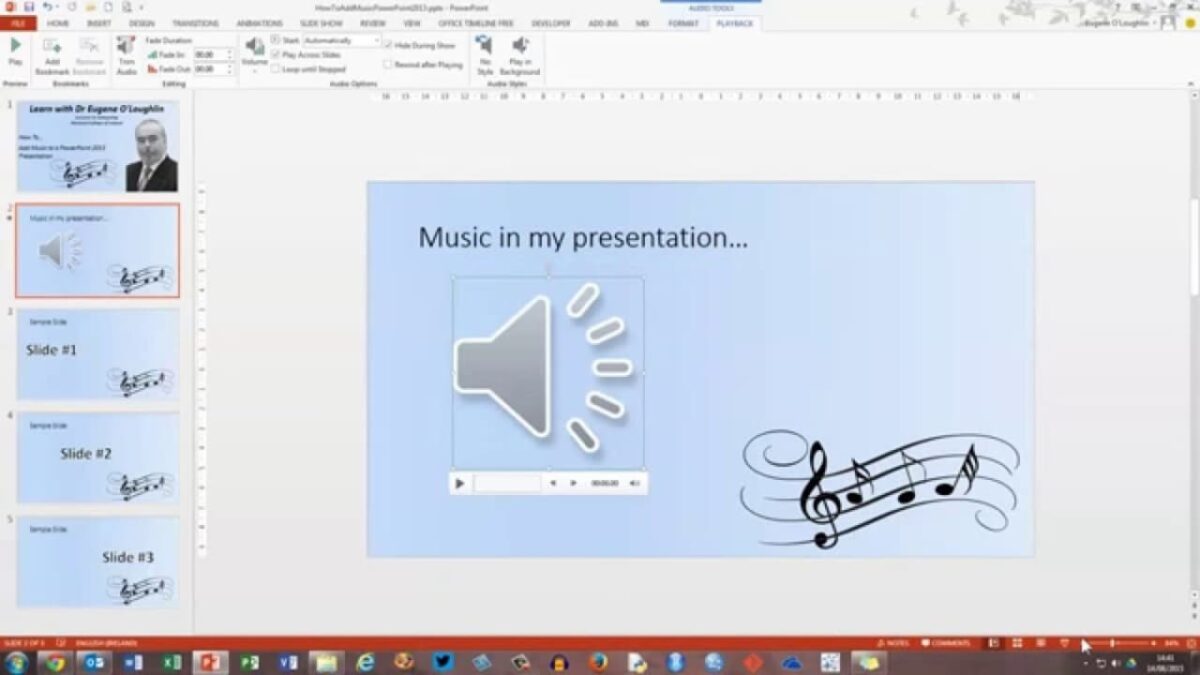
PowerPoint lets you control the audio length, fade in and out, set and change the volume, and play the music in the background. You can also manage its start and end, put it on a loop, and establish the automatic playback time. These instruments will let your presentation go as smoothly as possible.

How to Convert Google Slides to Microsoft Powerpoint in 3 Steps

There may be cases where you will need to convert your presentation file between Google Slides and Microsoft Powerpoint formats. This could be especially true if others need to collaborate on the files or need to add specific information.

Luckily for us, Google has made converting a Google Slide to Microsoft Powerpoint a relatively straightforward process. Let’s take a look at the steps you need to follow to convert  Slides to Microsoft Powerpoint presentations.

  1. Locate Your Google Slides

    How to Convert Google Slides to Microsoft Powerpoint

    Open your Google Drive in your chosen web browser. Or launch the Drive app from your mobile device by tapping on the Drive icon in your app menu. Search for the Google Slide that you need to convert among your other files in Drive. If you have many files in Drive, you can also use the search function to find the Slides file quickly.

  2. Open the Presentation

    How to Convert Google Slides to Microsoft Powerpoint

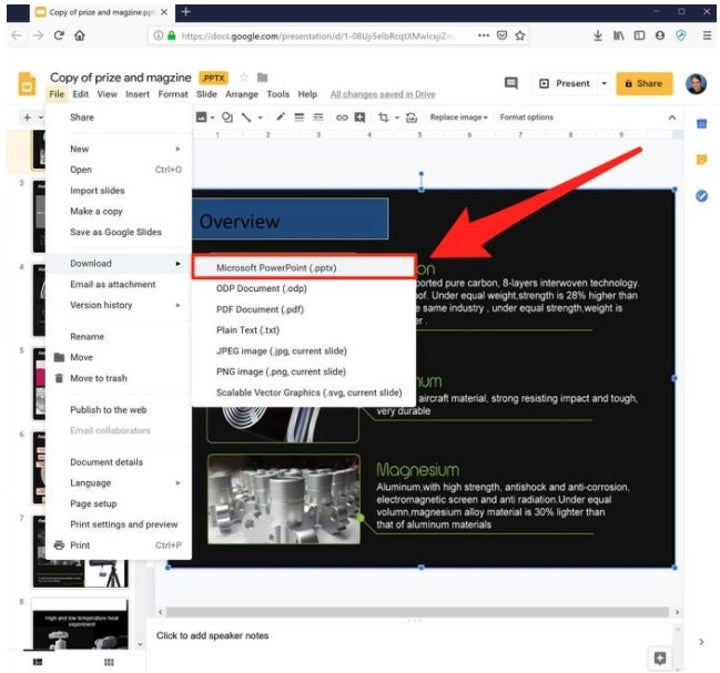
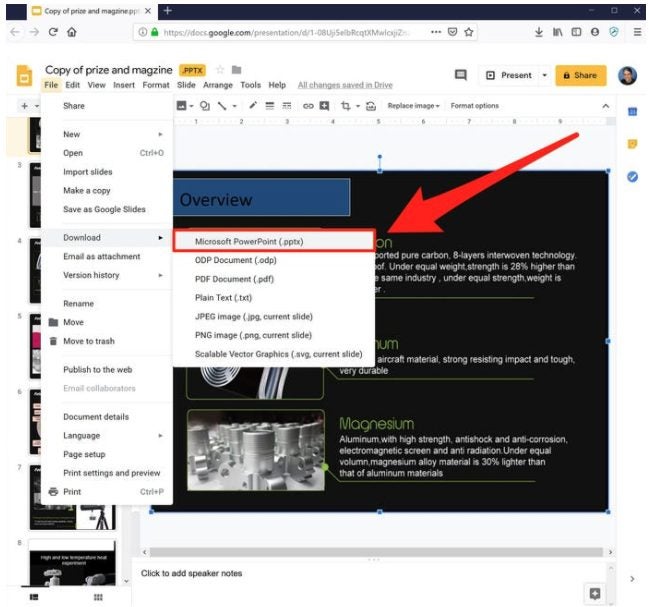
    Open the presentation by double-clicking on it from your Drive. Alternatively, you can also right-click on the files and select ‘Open With’ and the ‘Google Slides’. Once the presentation opens, click on ‘File’ in your top menu to open up a drop-down list.

  3. Download as Powerpoint Presentation

    How to Convert Google Slides to Microsoft Powerpoint

    In the drop-down list, click on ‘Download’ and then choose Microsoft Powerpoint. Your presentation will now be downloaded to your computer in the correct format so that you can open it with Powerpoint and make any changes or adjustments.

Switch Between Google Slides and Microsoft Powerpoint Easily

As you can see from the above steps, it is very easy to convert your Google Slides to Microsoft Powerpoint presentations and vice versa. This makes it very easy to share and collaborate on different projects. How don’t you try changing from Slides to Powerpoint format now?
How to Get Microsoft Powerpoint for Free 3 Different Ways

Microsoft Powerpoint is an incredibly full-featured program that enables users to create powerful presentations.

There are free spreadsheet programs available, but they usually don’t have all the features and ease of use that Powerpoint offers. So how can you get Powerpoint for free so that you can use all the features without the hefty price tag?

  1. Web Version

    How to Get Microsoft Powerpoint

    Microsoft Powerpoint is available in the online version for free. You will need to set up an Office account, but this process is simple and doesn’t cost anything.

    You will need an internet connection to use these programs. Let’s take a look at what you need to do to use the web version of Powerpoint.

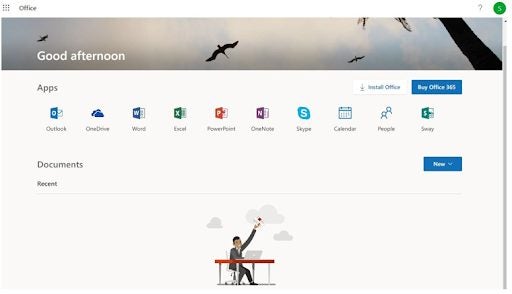
    – Head to Office.com and log in to your account using your Office account details. 

    – If you don’t have an account yet, you can create one from here by clicking on ‘Sign In’ and then choosing ‘Create Account’.

    • Once you sign in to your account, you will be redirected to the apps screen to see the available programs. Click on Powerpoint to start creating a presentation.
  2. Use the Mobile Version

    How to Get Microsoft Powerpoint

    Similar to the web version, Microsoft has released mobile versions of all the popular Office programs such as Powerpoint for free. The apps are available on iPhone and Android devices. Not all the features are included in the apps, as Microsoft needs to keep some elements for their paying customers. However, there are still more than enough to create compelling presentations from your mobile device.

  3. Use the Trial Version

    How to Get Microsoft Powerpoint

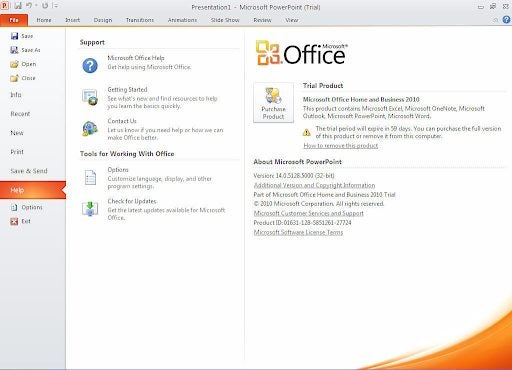
    All Office programs come with a one-month free trial. If you only need Powerpoint for a few short presentations and don’t need the program long term, this might be a good option for you to access the full version of Powerpoint for free.

Create Free Presentations Using These Options

With the above options, you can start creating presentations using Powerpoint for free on your computer or mobile device. Why not try these options now?

How to Update Microsoft Powerpoint in 5 Steps

Microsoft Powerpoint forms part of the Office suite of software. The program has to be updated periodically to ensure that they continue working and fix any bugs or issues that users may be experiencing. 

You can turn on automatic updates so that your Office products update whenever Windows updates from the ‘Systems and Security’ panel. However, if you prefer to update your programs manually, here’s how to do it.

  1. Launch Powerpoint

    How to Update Microsoft Powerpoint

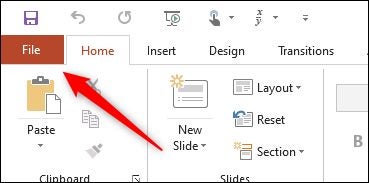
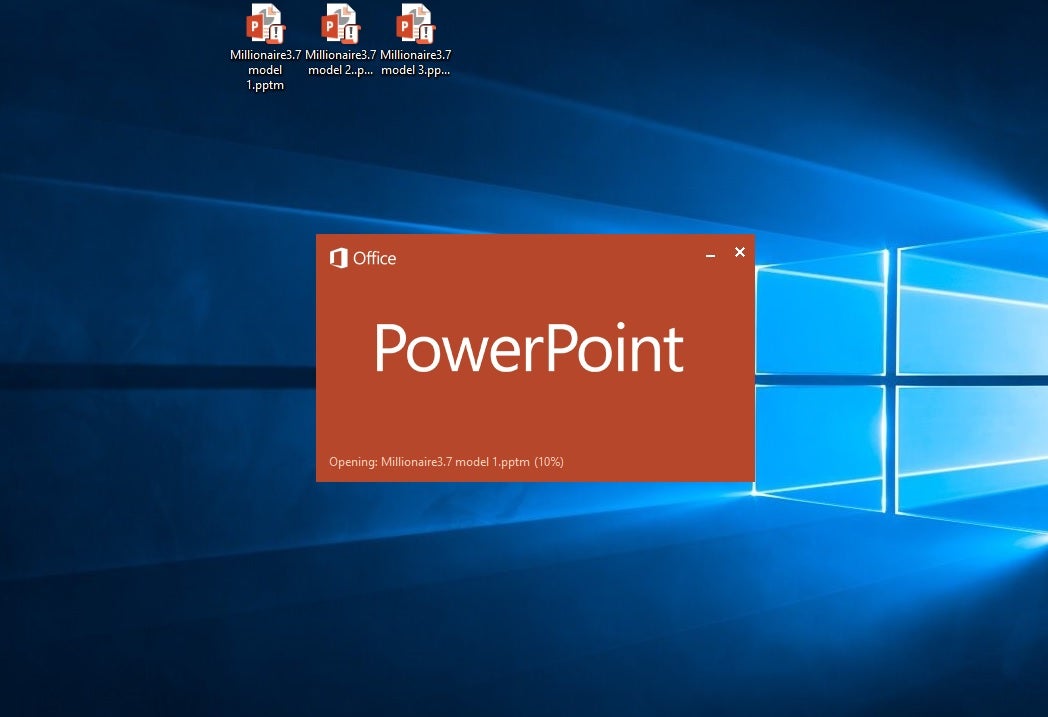
    Launch Microsoft Powerpoint on your computer by double-clicking on the Powerpoint icon on the desktop or from the Start menu. Click the ‘File’ tab in the menu at the top of your screen.

  2. Click on ‘Updates’

    How to Update Microsoft Powerpoint

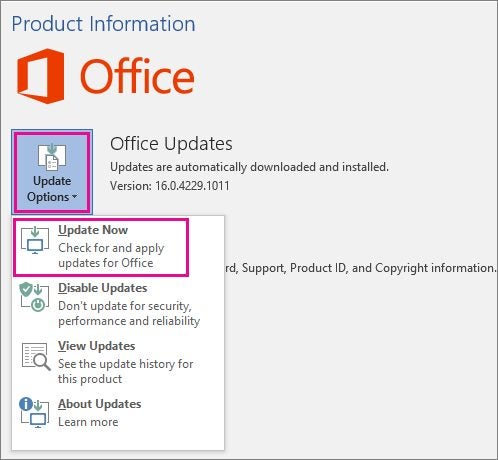
    Click ‘Update Options’ and then choose to disable all updates. You need to first disable the updates so that we can force an update in the next step. This is important to complete the manual update of Powerpoint.

  3. Enable Updates

    How to Update Microsoft Powerpoint

    Click ‘Update Options’ again, and this time choose ‘Enable Updates’ to force Powerpoint to update if there is one available. You may need to restart Powerpoint and any other Office programs once the update has been completed.

Update Powerpoint to Get More Features

By updating Powerpoint, you ensure that your program will continue to work correctly and also install new features and improved security settings. Why not try updating your Powerpoint now?