Microsoft’s OneDrive event date is finally set

Microsoft had been planning on holding an online OneDrive event. After a leaked video teaser surfaced online, the company had nothing to do but reveal the details of the event. According to Microsoft’s announcement, the online OneDrive event will be held on October 3.

Microsoft has scheduled an event for October 3, 2023, where it will unveil new features and enhancements for OneDrive. This event, titled “The Future of File Management,” is part of Microsoft’s Teams Live Event platform and will provide a first-hand look at the upcoming OneDrive improvements. The enhancements are expected to include faster file access, improved organization, and enhanced security, among other things.

While the event is primarily targeted at IT administrators, partners, and Microsoft 365 enthusiasts, anyone interested in OneDrive and its future developments can join. Jeff Teper, who leads the product, design, and engineering teams for Microsoft 365 and other OneDrive product members, will be presenting the new features. There will also be a Q&A session where attendees can delve into topics like roadmaps, insider access, employee distribution, and tenant access.

“Join Jeff Teper and the OneDrive product team as they showcase the next generation of file management across Microsoft 365. See the new enhancements to OneDrive and discover the benefits of faster file access, better organization, simpler collaboration, and improved file security across Microsoft 365. Plus, we’ll give a sneak peek at our AI plans which include new search, sharing, and information queries across all your files in OneDrive,” Microsoft’s official announcement read.

Microsoft OneDrive event information

Here is the official information released directly by Microsoft:

Get an event reminder and important follow-up information after the event by signing up for the OneDrive newsletter. 


OneDrive Presenters

Microsoft’s OneDrive event was leaked prior to the announcement

The video clip posted by “WalkingCat” on X suggested that Microsoft may have some updates or announcements regarding OneDrive on October 3. OneDrive recently received a refreshed look on its web platform, and it has been adding features like AI-powered file recommendations for users. Additionally, recent developments related to Xbox console integration with OneDrive have allowed automatic uploads of game clips and screenshots to users’ OneDrive accounts. It seems that Microsoft is continuing to improve and expand the capabilities of OneDrive, and we can expect to learn more about these developments on October 3.

Here is the leaked video:

Microsoft has been gradually incorporating more user-friendly features into OneDrive, aligning it more closely with the native File Explorer experience on Windows. Nothing is official yet, so we might see some surprises once the event date comes.
How to dominate Microsoft OneDrive

Microsoft OneDrive is a free and useful cloud storage option that comes standard with both Windows 10 and 11. While many functions of OneDrive will automatically run in the background, it is worth taking a few moments to properly set up your OneDrive for maximum efficiency and utility.

With just a few simple steps, you can take full advantage of Microsoft’s potent cloud technology.

  1. Getting started with Microsoft OneDrive

    Opening OneDrive, a free storage option for Windows.

    Each free OneDrive account comes with 25 GB of storage on the house. This is plenty of space for your documents, images, videos, and audio clips. Each file type will automatically be uploaded to storage when you save it on your PC or phone. Then, you can easily access the files from any other device that has access to your Microsoft account.

  2. Enabling OneDrive on your mobile device

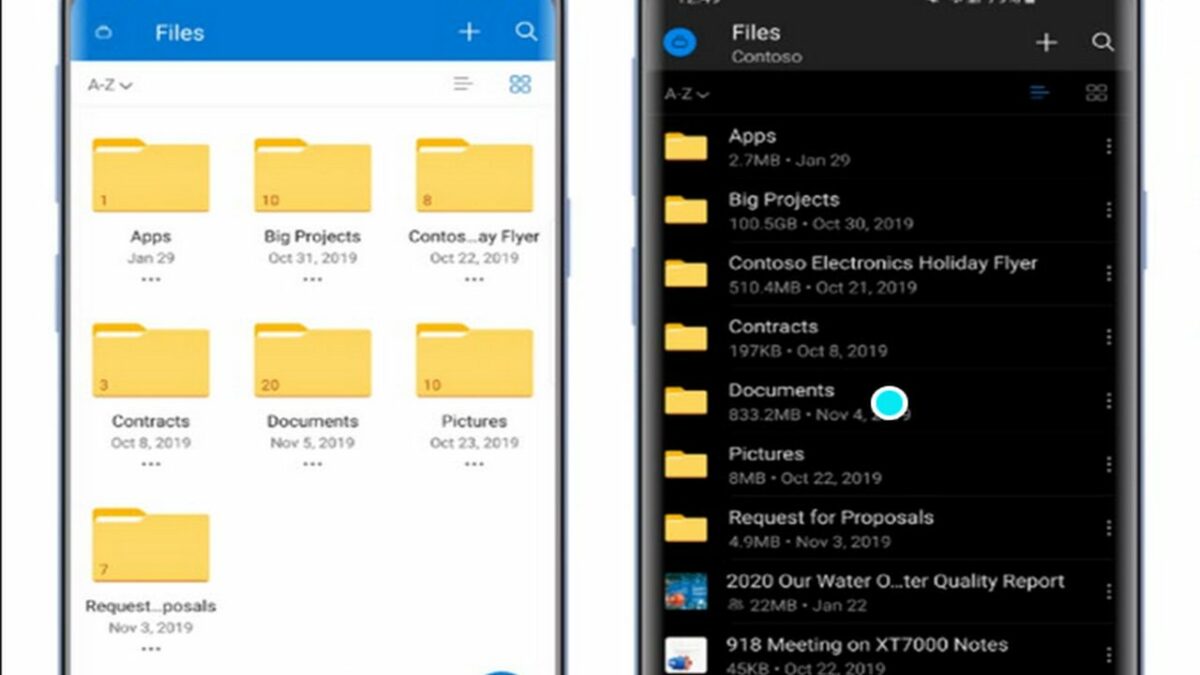
    OneDrive is easy to use and navigate on mobile platforms.

    The first thing you will want to do is ensure your files appear on both your PC and phone. The main benefit of cloud storage is the ability to access your files anywhere. Go to the Google Play Store (or the app store if you have an Apple device) and search for OneDrive. The top result on either platform should be the official version. To verify this, ensure the publisher of the app is Microsoft before downloading.

    After the installation is complete, log in with the same Microsoft Account you use on other devices. This step can be repeated for all devices that you own.

  3. Determine where files are located

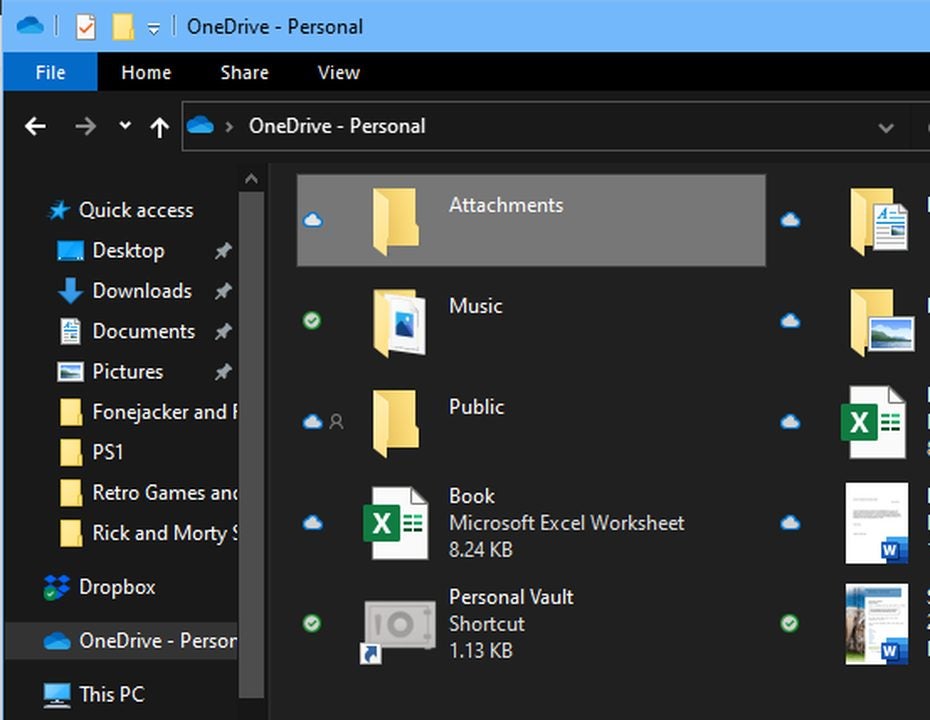
    The icons next to each folder that display the file's location.

    To determine where a file is located, you need to observe the symbol under each file icon. A green circle with a checkmark denotes that the file is both on your device and stored in the cloud. If you simply see a cloud symbol, then the file in question is not stored on your device.

    The person icon indicates when a file has been shared with at least one other user. If you see arrows next to a file, it means it is currently being uploaded to the cloud. To see more information about any file, simply click on it. You can then see a list of users that have access to the file.

  4. Sharing files with other users

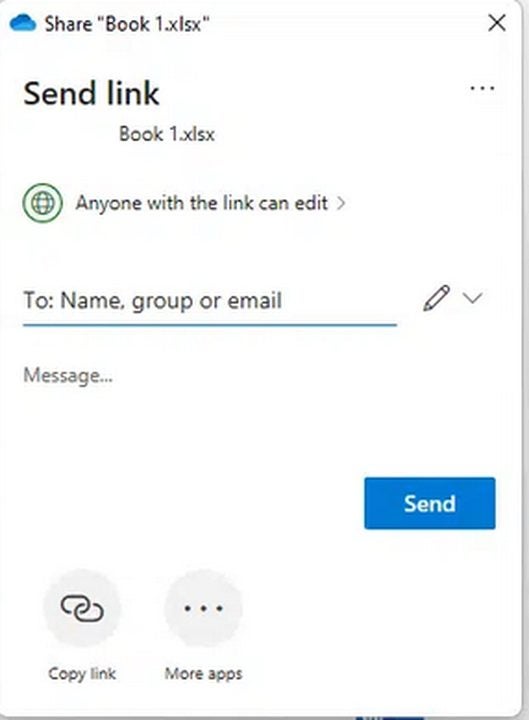
    Using OneDrive to share your files with others.

    In addition to transferring files between your own devices, you can selectively share files with other Microsoft OneDrive users. The process is as simple as right-clicking on the file and selecting share from the drop-down menu. Clicking anyone with the link can edit will allow you to set some basic parameters before sending a file.

    If you have a paid Microsoft 365 subscription, you can enable password and expiration timers for added levels of security. If you trust the user completely, you can simply click share link to save time and bypass additional setup.

  5. Track the version history of files you share

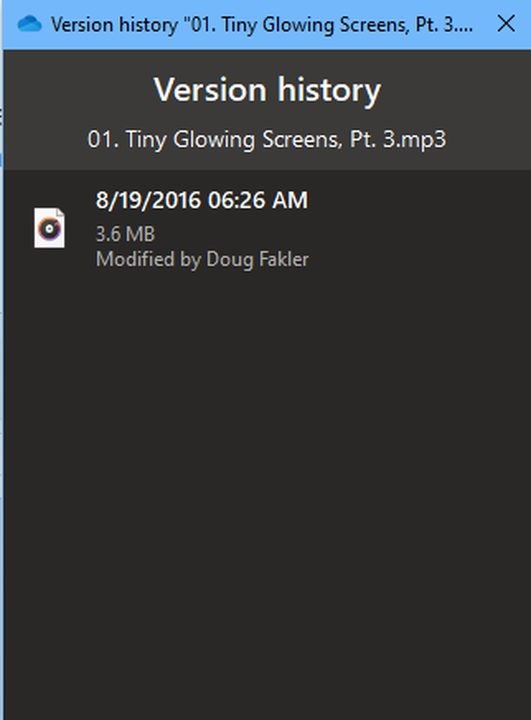
    This screen in OneDrive lists all prior file iterations.

    – When collaborating with multiple users, it is vital to know which changes have been made to each file and at what time each edit occurred. OneDrive automatically records each change to files stored in the application.

    – When things go awry, you can even revert to previous file versions from before the issue occurred. Right-click on the file you wish to examine and select version history from the drop-down menu.

    • When the list of file version appears, click the ellipses next to the version you wish to interact with. This menu allows you to download the specific file version or revert the shared file back to a previous state.
  6. Vaulting sensitive files

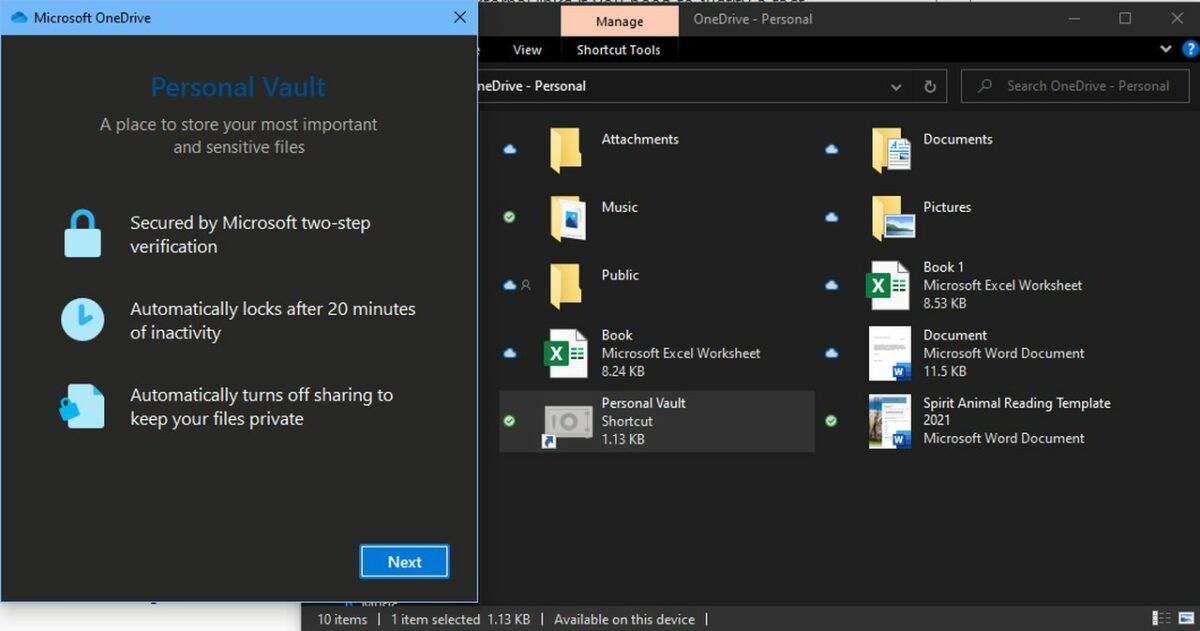
    In the Personal Vault, you can safely store private data.

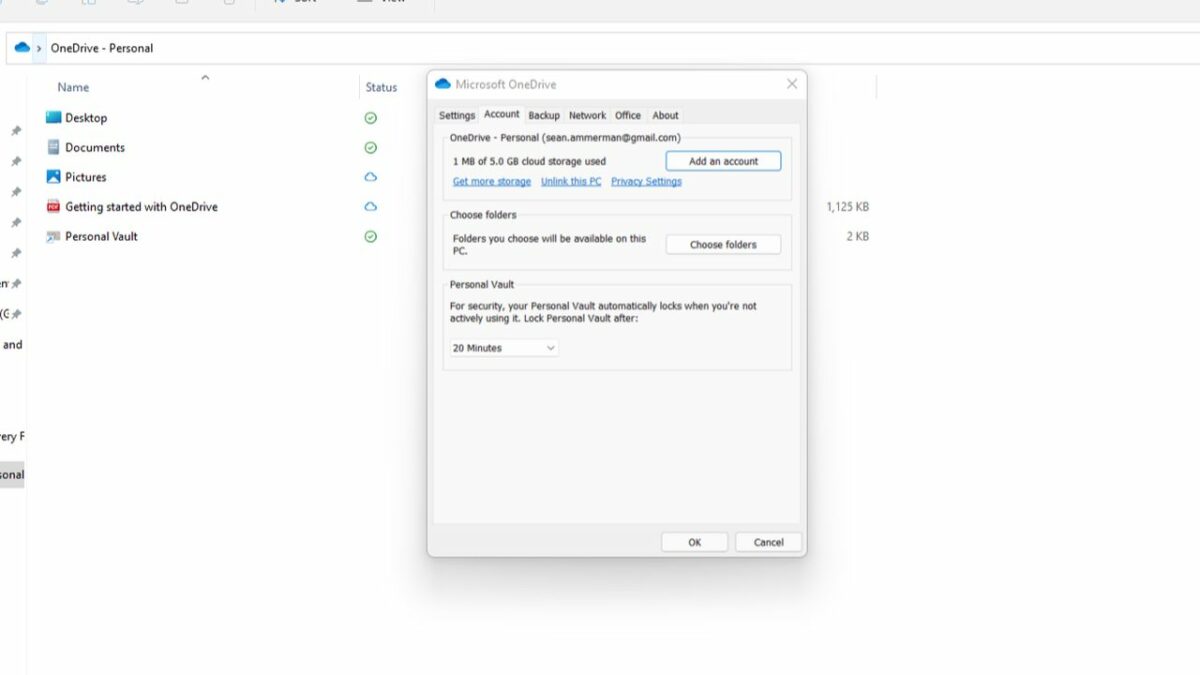
    For files that must remain secure, Microsoft introduced a vaulting system. You can lock files behind two-factor authentication and have each session expire within 20 minutes of inactivity. To do this, find the personal vault under my files. You can add files to it just as you would any other folder. To access each file again, you will need to verify your identity by entering a code sent to your email.

    Alternatively, you may download an authenticator app on your phone to speed up the 2FA security check.

To the Cloud and beyond

Now that your Microsoft OneDrive is set up to take advantage of all major features, you can get back to what matters most — staying productive and having fun while doing so. When cloud storage is used effectively, you can work and play as hard as you need to. To get started, download Microsoft OneDrive app for free today.