Malware scams popping up in OpenDocuments

OpenOffice is a great free alternative to Microsoft 365 and Google Workspace. It is a fully featured productivity suite of programs complete with a word processor, spreadsheet app, database program and more. Furthermore, you can download the apps, so you don’t even need access to the internet to work them. The OpenDocument format is kind of like OpenOffice’s file format, but as you’d imagine from the name it has been built to work across a variety of different programs. This broad compatibility, however, has attracted scammers as today we are here today to warn you about a new malware scam found in infected OpenDocuments.

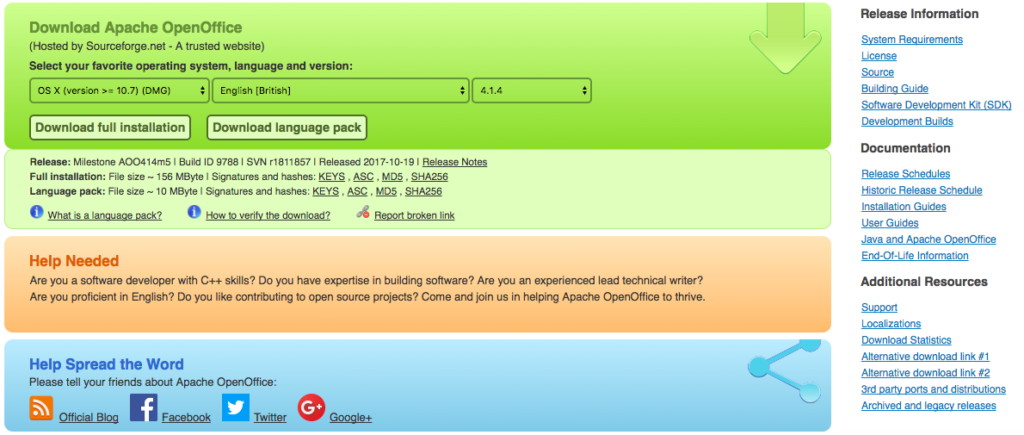
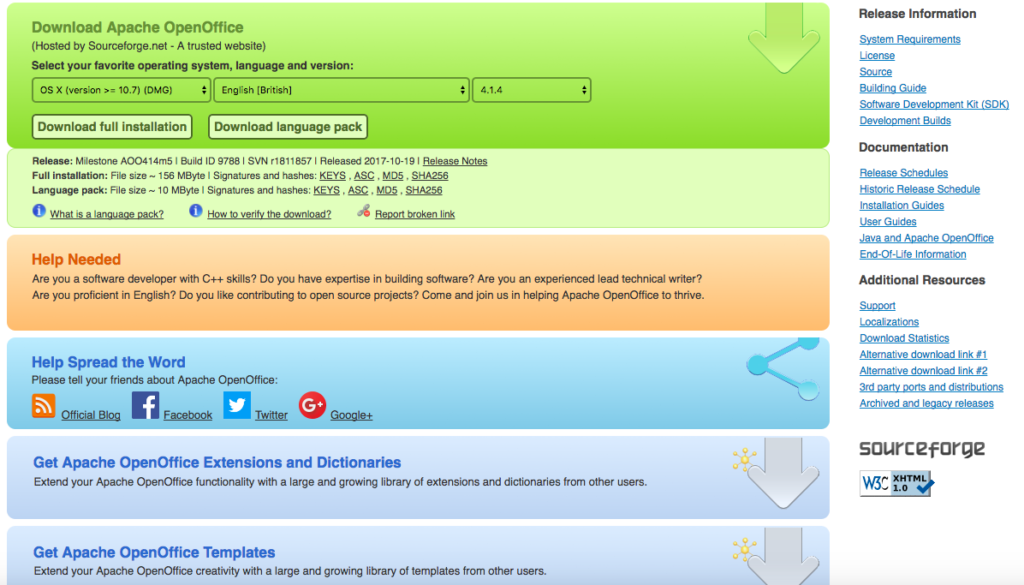
OpenOffice Download Now

HP’s in-house threat research team, HP Wolf Security has announced that they have been tracking a phishing scam involving OpenDocument text files since June.

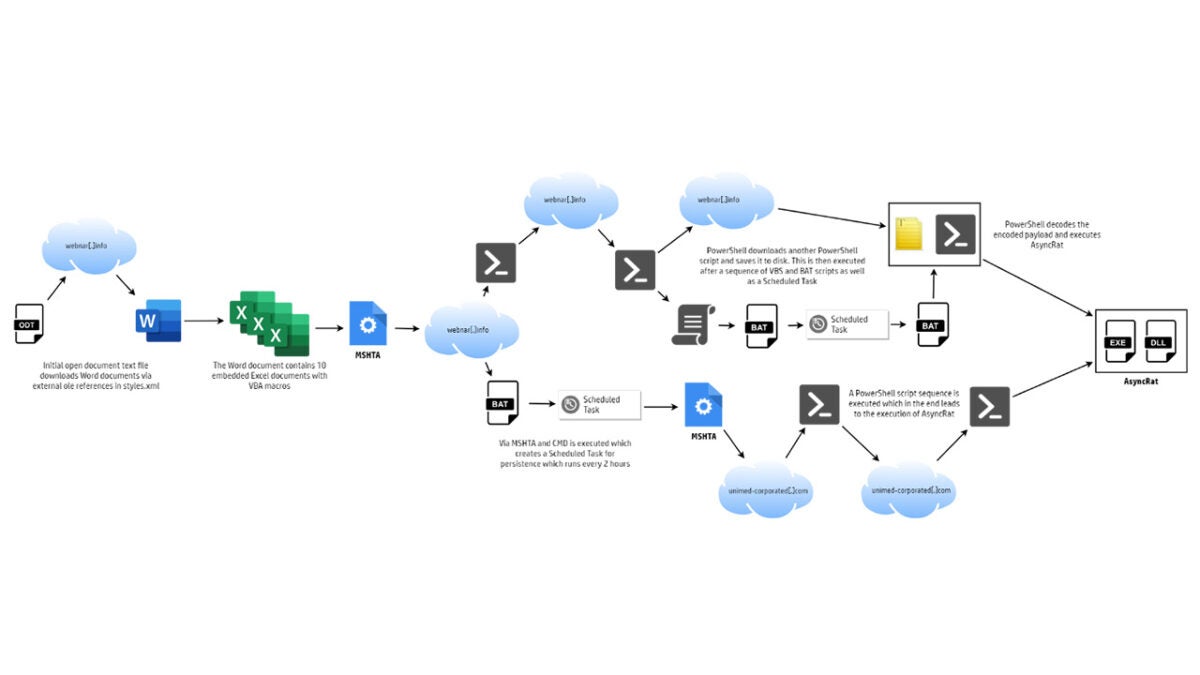
The scammers have been distributing these infected files, disguised guest registration documents, to a series of hotels in Latin America. According to HP Wolf Security, when the victims open these files, they are prompted with a message to update fields from other files and clicking to confirm this cryptic message opens up an Excel file.

From there, the user is asked to activate macros, and when they do that, the trouble really starts. Macros have long been a security vulnerability in Excel, so much so that Microsoft has moved to disable them recently in a bid to close it off. Antivirus programs usually catch infected Macros, but this isn’t the case inside of OpenDocuments. HP Wolf Security says:

“Unlike many malicious documents, analyzing the OpenDocument file reveals no hidden macros. However, the document references Object Linking and Embedding (OLE) objects hosted remotely, as shown in the styles.xml file. The document references 20 documents hosted on the same domain, webnar[.]info.”

It is unusual for hackers to use OpenDocuments in this way, but it does seemingly offer clear advantages to their cause. Once the victim as activated the Macros, they get infected with AsyncRAT, a remote access trojan malware. The analysts go to say:

“Documents that arrive from outside an organization should always be treated with suspicion, especially if they try to load external content from the web – but in practice this isn’t always straightforward advice to follow, especially in industries that rely on exchanging electronic documents between suppliers and clients.”

This may be difficult in practice for hoteliers or other public-facing companies to follow, but if you are running a hotel reservations department, you could do worse than printing off a copy of our anti-phishing infographic and putting it up in your office.

Image via: HP Threat Research
6 reasons OpenOffice is great for business

OpenOffice helps you get the job done. It’s a complete set of productivity tools designed to give you all you need in one handy package.

From spreadsheets to presentations, composition to graphic design – OpenOffice does it all. Better yet, it’s absolutely free, and is a compelling alternative to Microsoft Office for businesses, large and small.

Here are 6 reasons why OpenOffice is great for business.

Download OpenOffice

1. You can install it on all your computers for free

OpenOffice uses Apache’s 2.0 license. That means you can download as many copies as you like, on as many machines, or share and distribute the software however you want. Whether you’re running a small office of 15 staff, or an international conglomerate, you can install it on all of your business computers free of charge.

2. All upgrades are free

The same goes for upgrades. When a new version is released, just ask your staff to download and install it. You can specify which version to use, what tools, plugins, and languages to install, making it a highly flexible tool for businesses wanting to cut back on expensive software licenses.

3. You own the software

Microsoft is pushing Office 365 – a subscription-based service – for its business customers. You never own the software, and you have to pay a monthly or annual fee to use it. I don’t know about you, but never owning the software doesn’t seem fair. With OpenOffice, you can own the software for nothing. Forever.

3. It works with other vendors’ file types

And because OpenOffice supports other vendors’ file types, you don’t need to do any tricky conversion to work with non-native documents. (Minor warning: for heavily formatted .docx files, you might find some discrepancies when importing them into OpenOffice.)

4. You can add your own improvements and features

Perhaps the most useful aspect for businesses is that you (or your IT department) can shape OpenOffice into whatever you want it to be. It’s open-source software, meaning you can change it, add new features, or improve on existing ones. You don’t even have to do it yourself – post on the forums and perhaps a kind techie will implement said features for you (or at least explain how to do it).

5. It supports more languages

Hundreds of volunteers from all over the world are involved in developing OpenOffice. That means it’s available in over 40 languages – more than double that of Microsoft Office. And that’s just the interface. There are over 70 custom dictionaries, too, so you can check spelling and grammar of your native tongue. Perfect for your offices at home and abroad.

6. For older (or less powerful) machines, it performs better than Microsoft Office

OpenOffice can run on just 256MB of RAM and 650MB available disk space. Microsoft Office, for example, needs 1GB RAM and 3GB available disk space. OpenOffice also runs on older operating systems, such as Windows XP and Windows 2003, and more niche systems like Linux and Ubuntu. Combined, this makes OpenOffice the perfect choice for older computers running less flashy operating systems. It won’t hog your processor, either.

OpenOffice makes working on computers fun again. You can access all your productivity tools in one place, and enhance anything you like through its open-source codebase. No subscriptions, no fees, just free software for life. You can’t say fairer than that.

5 key differences between Excel and OpenOffice Calc

As a free alternative to Microsoft’s popular Excel, OpenOffice Calc is a tough one to beat. But while the two spreadsheet tools share many qualities, they’re not totally alike. So before deciding to splash out on Microsoft’s version, or to save your pennies with Calc, have a read through these 5 key differences to pick the right one for you.

1. Drag and drop is easier with Calc

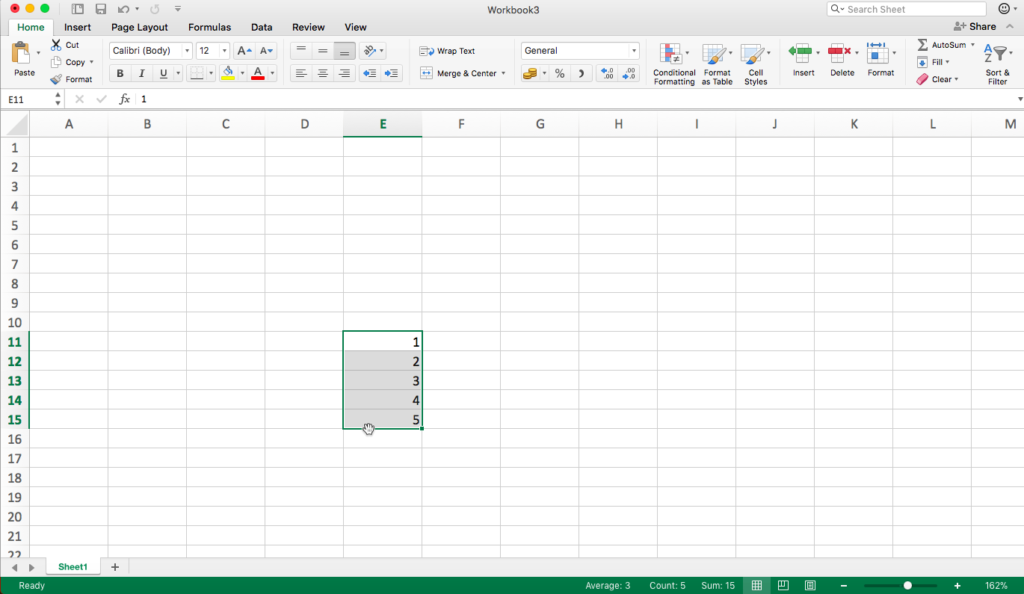
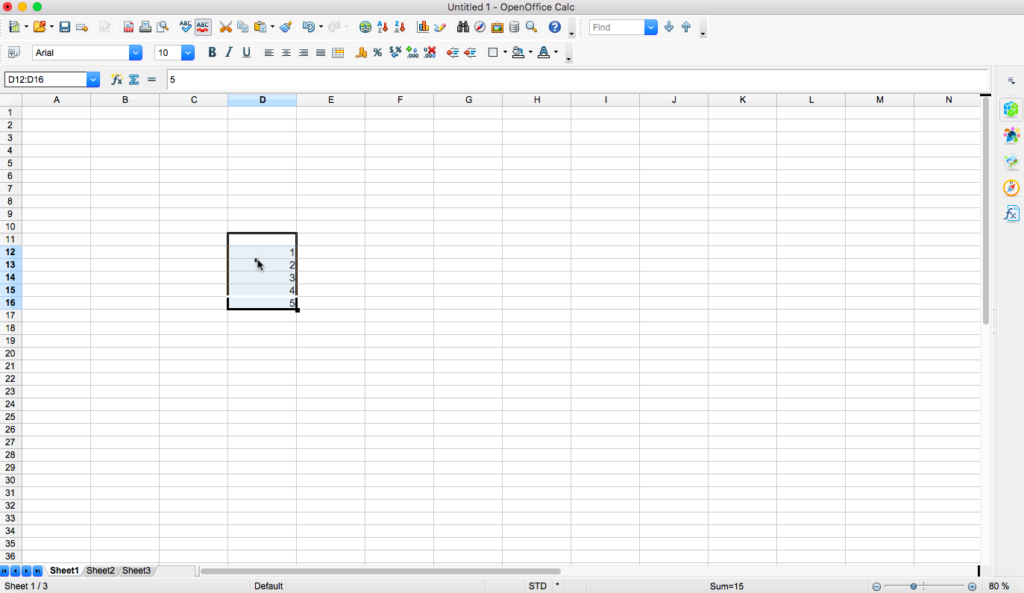
If you want to move cells to another column or area of your spreadsheet, first click and drag your cursor over the cells you want to move. This step is the same for both Excel and Calc.

Then, in Excel, click the border of the selected cells (when your cursor changes to the hand icon) to move them. If you click within your selected cells, you’ll deselect the group and select that single cell. But in Calc, you simply move your cursor anywhere within the selected cells.

This might not sound like a big difference, but if you’re moving cells frequently, it’s a real time saver. If you miss that narrow border in Excel, you have to re-select your cells and try again. Not exactly hard work, but it could be tedious if you’re in a rush.

In Excel, you can only move your selection by clicking its border when you see the hand cursor.

In Calc, one you’ve highlighted your selection, you can click anywhere inside to move it to another part of your spreadsheet.

2. In Calc, you must always use semicolons to separate parameters in a function

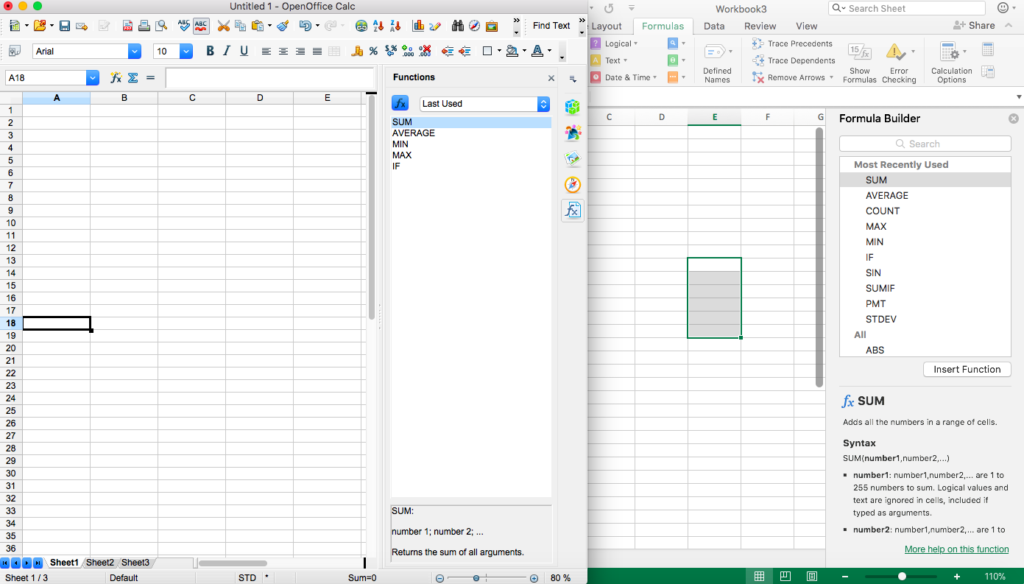
When writing formulae in Calc, you have to separate parameters using semicolons. In Excel, you can use both semicolons and commas. Not a big issue, just something you might have to get used to if you’re moving from Excel to Calc.

With Calc (on the left), you must always use semicolons to separate parameters (unlike Excel on the right, where you can use commas)

3. Calc uses a different macro programming language to Excel

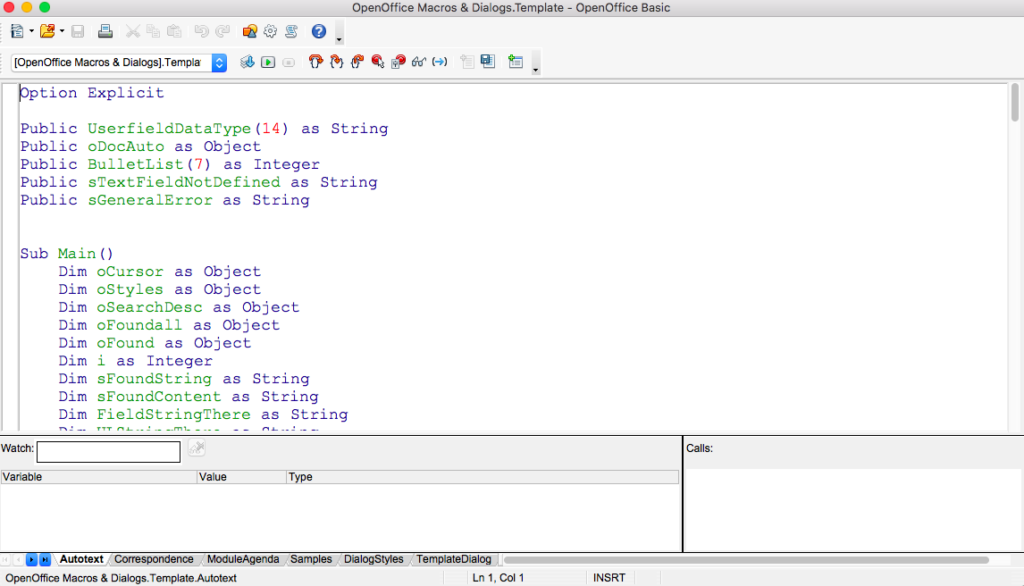
Excel uses Microsoft’s Visual Basic for Applications (VBA) programming language. Calc uses its own OpenOffice BASIC language. As both languages are part of the BASIC family, you shouldn’t have too much trouble familiarising yourself with one if you’re used to working with the other.

However, there are some differences. Rather than listing them here, I suggest reading Apache’s BASIC guide, which points out where VBA and OpenOffice BASIC differ. (Calc also lets you program your macros in Python, BeanShell, or JavaScript.)

4. Excel has more charting options than Calc

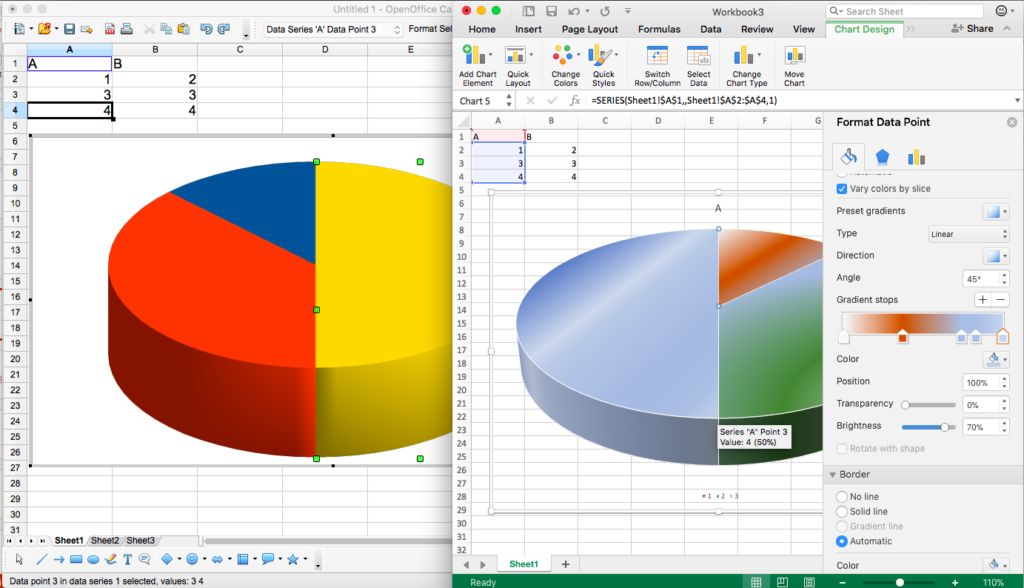
Calc has enough charts to display your data in a meaningful way, but if you’re after additional flourishes, your best bet is Excel. For example, Calc can’t create fill gradients, and has fewer chart types. It won’t recommend charts for your specific data, either (which Excel does).

Calc won’t be as pretty, but it usually gets the job done

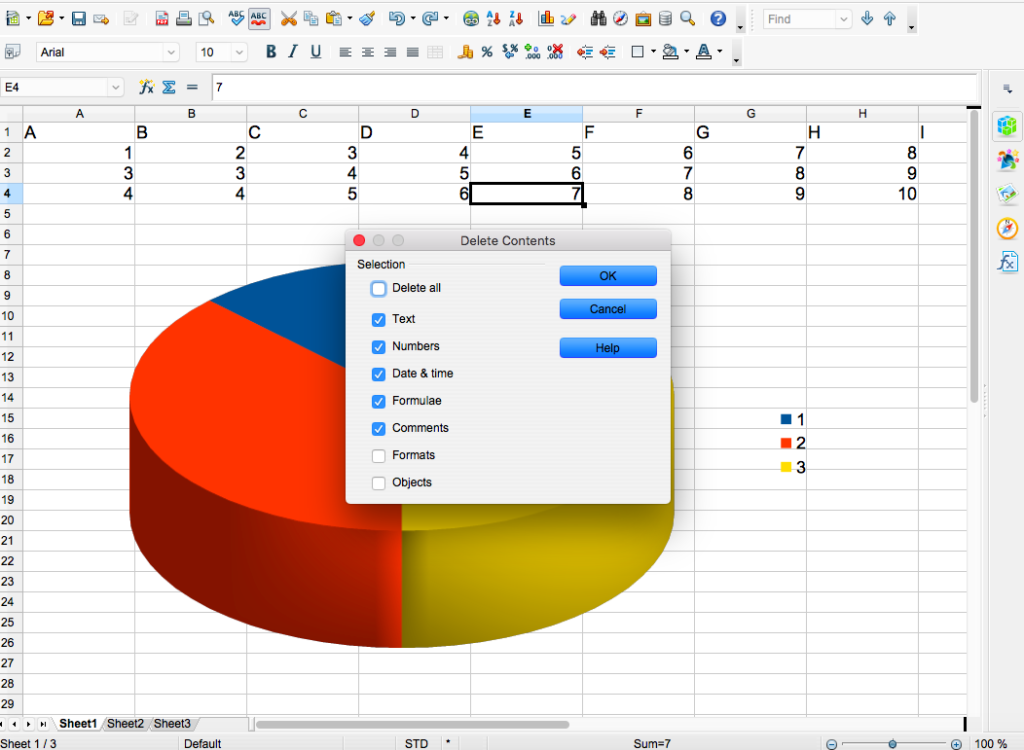
5. If you hit the delete key in Calc, you get to choose what to delete

New Calc users expecting to remove cell contents with a single stab of the “delete” key are in for a surprise. Calc has incorporated a handy (or not, depending on your point of view) dialogue box that lets you choose what you want to delete – whether it’s text, numbers, dates, or formulae. Excel, on the other hand, just erases the content. If you want to skip this dialogue, hit the backspace key instead.

As expected, Calc and Excel are fairly evenly-matched – especially when it comes to basic functions. What small differences exist are easily overcome or tolerated, and as Calc is free, there’s not much to cry over. But if you’re keen on fancy graphs and extreme flexibility, Excel comes out on top. I’ll let you decide if they’re worth paying for.

3 tips for using OpenOffice Impress

Presentations are tough to get right. Either there’s too much talking and not enough slides, or vice versa. Nailing that sweet spot between words and visuals will not only help your audience stay awake, but ensure your message sinks in.

All the best presenters use the right tools for the job and OpenOffice Impress is a great alternative to paid presenting software. To help you get the most out of it, we’ve assembled 3 tips to get you started.

Download OpenOffice

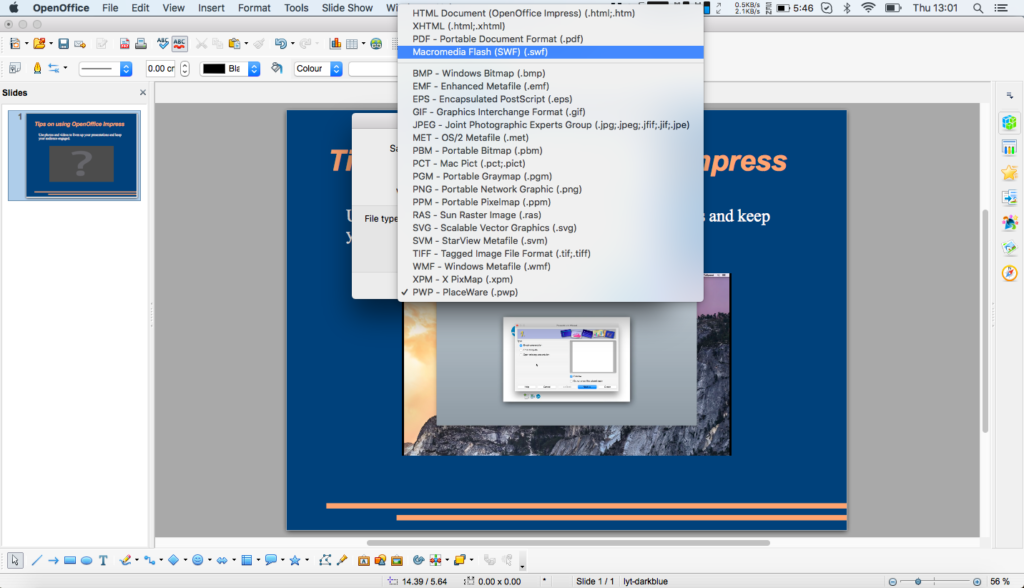
1. Convert your presentation to flash so your audience can watch it again

Flash… Flash?! Have we warped back to the early 2000s? No-one uses Flash anymore, right? Wrong. It’s actually a pretty common staple of the internet – for a few more years, at least (it

dies officially in 2020). Despite Mr Jobs’s best efforts, Flash has persisted, and although it has its problems, it gives your presentations a second life online.

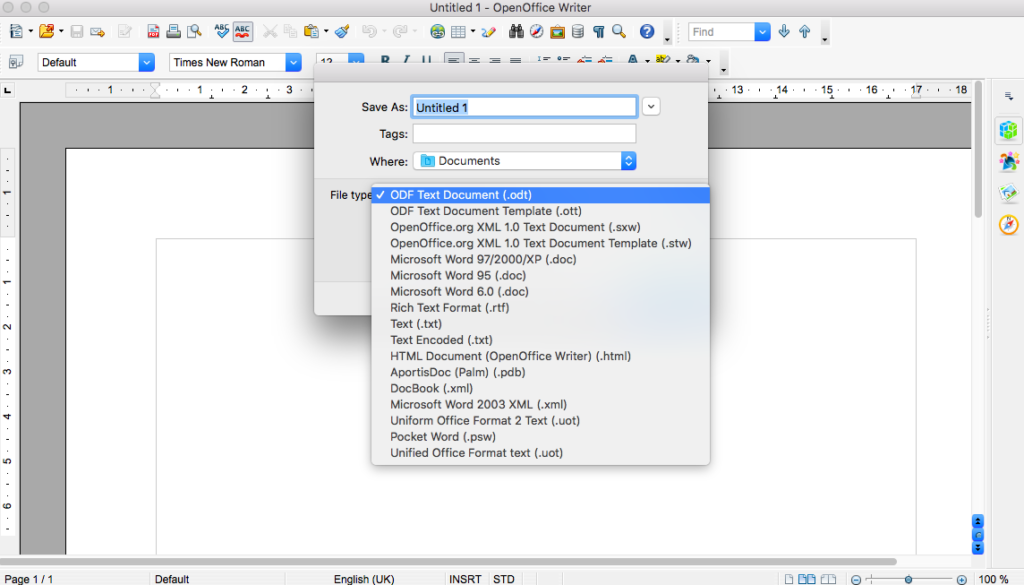
By saving your presentation as an .swf file, you give your audience a compressed, streamable version of your presentation which you can host on your blog, company website, or on social media. It also means your audience won’t need to install special software just to rewatch your presentation.

To convert your presentation to flash, follow these instructions:

  • Click on “File” at the top
  • Select “Export”
  • Name your file – John’s Physics Presentation, for example
  • Choose where to save the exported presentation
  • In the “File type” dropdown box, select Macromedia Flash
  • Click “Save”

A flash in the pan? Perhaps, but a useful one nonetheless

2. Relieve tired brains with photos and videos

For long presentations, it’s unlikely your audience will want to listen to you speak the whole time. Break up your presentation with photos and videos to offer new perspectives on your topic, examples of it in action, or to provide others’ opinions. Incorporating different media doesn’t just engage your audience, but helps cater to the many ways in which people learn.

Important: Impress can only embed photos and videos already stored on your computer.

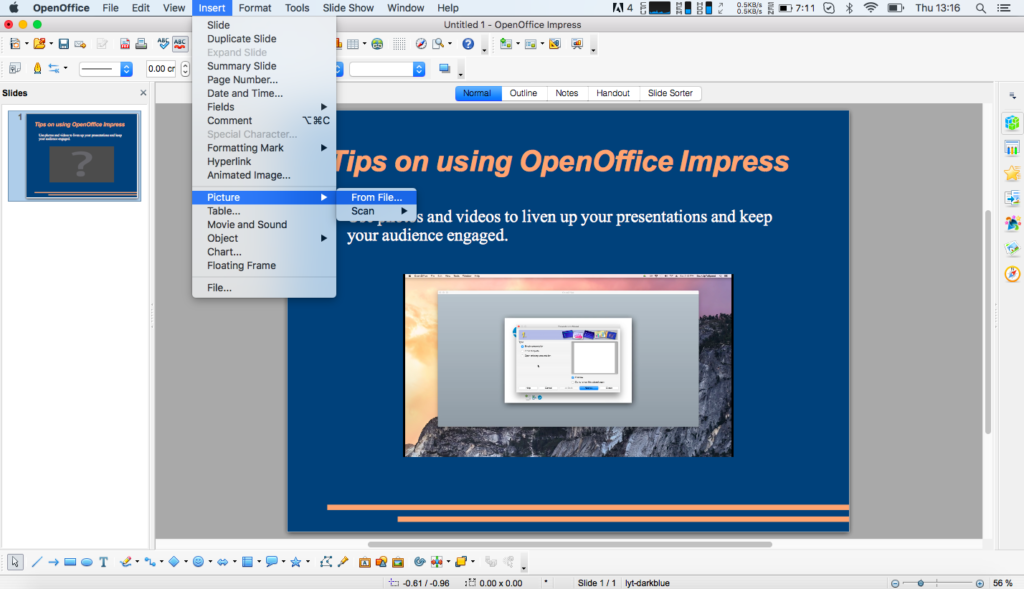
To add a photo, follow these instructions:

  • Choose “Insert” from the top menu
  • Select “Picture”
  • Select “From File…”
  • Choose the picture you’d like to add

To add a video:

  • Choose “Insert” from the top menu
  • Select “Movie and sound”
  • Choose the movie you’d like to add
  • You can preview the movie once it’s in Impress by double-clicking, or using the media menu bar at the bottom of the screen

If a picture is worth a thousand words, what about a video?

3. Avoid technical hitches by downloading OpenOffice Portable

We’ve all been there. Your presentation officially started 5 minutes ago but you’re stalling for time – your colleague’s computer is missing specific software to run your slideshow and you don’t know what to do. It’s a nightmare scenario, but thankfully there’s a solution for Impress.

Since Impress is part of Apache’s OpenOffice, you have access to approved add-ons made by third parties. One of the most useful is OpenOffice Portable. Although Impress supports many file types – including Microsoft’s .ppt – you never know when you might experience technical problems. Especially when using someone else’s computer.

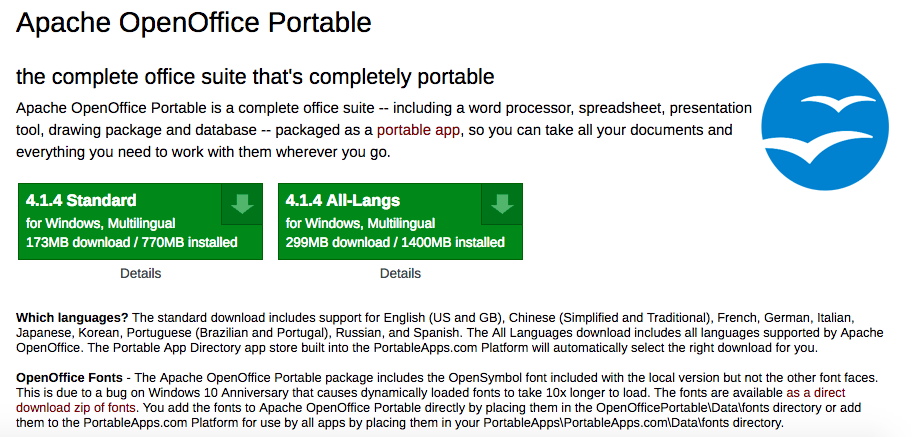
That’s where OpenOffice Portable comes in. This is a fully-executable version of OpenOffice you can store on a USB drive, load up on any Windows machine (no native OS X support at the moment, sadly), and run your presentation. Simply visit Portable Apps and download the app to your USB or portable hard drive. All you need to run the software is on that USB drive, and you can enter the conference room with confidence.

Don’t let others’ computers ruin your day – take Impress with you

Public speaking is daunting enough without worrying about your presentation software. Get the most out of Impress by following these tips and that standing ovation could be yours.

3 reasons why you should be using OpenOffice

Still paying for Microsoft Office? It might be time to stop.

Apache’s OpenOffice isn’t just powerful, it’s free. You can use it much the same way you do Microsoft Office – without forking out a few hundred bucks for the pleasure – and is much easier to use offline than Google’s free productivity apps.

Whether you’re writing blogs, doing your accounts, or preparing that important presentation for Monday morning, you can do it all with OpenOffice. Even governments and companies are using it.

But is it really better than paid software? Let’s take a look.

Download OpenOffice

3 reasons why you should be using OpenOffice

1. You can do almost anything with OpenOffice

OpenOffice comes with these applications:

  • Writer (word processor – similar to Word)
  • Calc (spreadsheet engine – similar to Excel)
  • Impress (presentations – similar to PowerPoint)
  • Draw (vector graphics editor)
  • Math (equations and formulae editor)
  • Base (databases)

This gives you ultimate flexibility, all in one handy program.

All OpenOffice apps read Microsoft file types – even those from ten to fifteen years ago (some of which Microsoft Office 2016 can’t!). This is particularly useful if you own or work with organizations that might possess older file types than Microsoft Office can support. You might get the occasional formatting issue, but for most users, this won’t be a problem – especially if you’re only working with single files.

2. It’s very easy to use

OpenOffice has a simple user interface that is similar to Office 2003, and it is constantly improved with user feedback. If you’re familiar with Microsoft Office applications, you’ll recognize similar buttons and toolbars, making it very easy to use. And if you hated the ribbon toolbar Microsoft introduced in 2007, you’ll be glad to know it doesn’t exist in OpenOffice.

There’s also a large, helpful community behind OpenOffice – as is typical for open-source projects like this one. So if you get stuck, there’s usually some kind person available to help. They might even have worked on some of the code behind OpenOffice, too, which makes them far more useful.

3. You get upgrades faster

OpenOffice is open-source software, meaning anyone can review and upgrade the code it’s written in. This means bugs are found quicker, and you don’t have to wait too long for upgrades.

Better yet, upgrades are free, and because development is collaborative and democratic, you have a say in which features you’d like to see. You can even develop OpenOffice code yourself if you have the skills, and introduce your own features into the community.

And have I said this is free software? I don’t mean to harp on about it, but as most paid software is going down the subscription route – such as Adobe’s Creative Suite and Microsoft’s Office 365 – this is a pretty big deal.

Of course, OpenOffice won’t be for everyone. It lacks some of the more advanced features of its paid competitors, and if you’re used to working in the cloud, there are better options. But with 231.9 million downloads so far, it’s a serious contender – especially if you’re on a budget.

Download OpenOffice.

LibreOffice 4.1 arrives, borrows OpenOffice features

Not to be outdone by the recent update to Apache OpenOffice, rival LibreOffice has updated to version 4.1 , which borrows some of OpenOffice’s features. There are over 3,000 bugfixes in this version so updating will provide a more stable experience, even if you don’t care about all of the new features.

OpenOffice debuted its new sidebar in yesterday’s announcement and LibreOffice has included that in version 4.1 as an experimental feature. While it may seem odd for one office suite to take a feature of another, it actually makes sense as many Apache developers could be developing for LibreOffice as well.

Beyond the new sidebar, version 4.1 of LibreOffice brings the ability to rotate pictures in Writer, create slideshows in Impress, embed fonts in documents, and improved compatibility with Microsoft Office files. Microsoft Office is still the de facto office suite that most users use so it’s nice to see that LibreOffice will play well with Microsoft’s proprietary file types.

“Numerous improvements have been made to Microsoft OOXML import and export filters, as well as to legacy Microsoft Office and RTF file filters. Most of these improvements derive from the fundamental activity of certified developers backing migration projects, based on a professional support agreement,” writes Italo Vignoli in the LibreOffice announcement.

For the full changelog, see the source link below.

Source: The Document Foundation Blog

Download: LibreOffice

How to speed up and optimize OpenOffice

open-office-logo.jpgIf there’s one thing that’s really annoying about OpenOffice, it’s the fact that it’s so darn slow at starting and occasionally just simply freezes due to the large amount of system memory its Java code requires. If this single issue could be fixed, I’d definitely use it a lot more although there still remains plenty of work to do on the usability side of things too. The good news however is that it’s not hard to tweak and optimize OpenOffice to achieve some significantly better performance results. Here’s three simple steps for starters:

1. Disable Java and Increase Memory Use – If you’ve got more than at least 1GB of RAM, then this is the simplest and easiest way to ensure OpenOffice opens and operates quicker. Simply go to “Tools” and then “Options”. In the “Java” tab make sure that you’ve disabled the Java Runtime Environment option. Then in the “Memory” tab change the values to “Number of steps: 20, Use for OpenOffice: 128, Memory per Object 20, Number of Objects 20”.

2. Use the OOo2 Optimiser – This simple script compresses the XML code in OpenOffice for much quicker start-up times. If you’re having any problems installing the script, check out the Zenwalk forum

3. Enable QuickStarter – On Windows, you have to double click on the quickstarter.exe file in the OpenOffice program folder. On all other platforms, just go to “Tools” and then “Options” and “Enable systray Quickstarter”. Quickstarter loads OpenOffice.org code and data into memory ahead of time, so that when you are ready to open a document, some of the work is already done.

Other than these steps, there’s not much more you can do but you should experience noticeably better startup times. Hopefully the OpenOffice developers will one day recognize that this is a major issue for most users and implement these tweaks by default.