7 tricks to use Microsoft Office free, without paying a cent

Ever wondered how to use Microsoft Office for free? Get instant access to several Microsoft Office versions without paying a cent. Learn how to do it here!

Microsoft office apps

Office for free? You want it, right? Microsoft Office remains the top dog of office apps. As good as the apps are, however, we understand that not everybody can afford to pay for them. We’ve covered here the best free Office alternatives, like Google Docs and LibreOffice, but we also know that some of you might want the real version of Office. Don’t worry though, Softonic has your back: put that credit card away (except for number 5) because here are 7 ways to get free access to the Microsoft Office suite on Windows and Mac.

6

7 tricks to get access to free Microsoft Office

1. Use Microsoft Office Online

Little by little, Microsoft has been growing the number of Office apps that you can use for free online. You’ve got Microsoft Word, Excel, PowerPoint, OneNote, Sway, Email, Contacts, Calendar, OneDrive and Docs.com all without the need to install Office on your hard drive. If you have a Microsoft account and a reliable internet connection, you can use these free office programs on a Windows PC, Apple Mac, or Linux using web browsers like Google Chrome and Microsoft Edge. Microsoft Office Online programs even offer some cool and unique features like real-time Skype chats while collaborating on documents with friends or colleagues.

Try out Microsoft Office online here, choose the app you want to use, and log into your Microsoft account. You’ll also find Office Online in the Products menu over at office.com.

You won’t get all the Office 365 features with Microsoft Office Online, but you will at least be able to edit documents

Office Online Download now
7

2. Use mobile apps

The Mobile office apps work just like the online versions we’ve already mentioned. The difference is that they’ve been optimized for mobile devices.

Here we’ve listed the available Microsoft Office mobile apps, which are available for free on Android:

Word

Microsoft Word for Android Download Now
8

Excel

Microsoft Excel for Android Download now
8

PowerPoint

Microsoft PowerPoint for Android Download now
8

OneDrive Cloud Storage

OneDrive for Android Download now
8

Outlook

Microsoft Outlook for Android Download now
7

OneNote

OneNote for Android Download now
7

SharePoint

For iPhone and iPad, it’s more difficult to list the mobile Office applications as there are different versions for both Apple devices. You can find the list of all Office apps for Apple devices, including those for the new iPad Pro, on Microsoft’s iTunes listing.

Again though, don’t expect the full Office 365 experience, but this free version of Office will allow you to do basic editing.

If you want to get Office 365, you’ll have to try one of the following methods.

3. Get Office from your school

If you’re a student or teacher, you may be entitled to an Office 365 education subscription. Enter your school email address hereYou’ll get Office software including Word, Excel, PowerPoint, Microsoft Teams, and OneDrive storage among other tools, totally free. If your school isn’t registered, let them know what they’re entitled to ASAP!

4. Persuade your boss

Huh? What kind of company doesn’t have Microsoft Office 365? If yours doesn’t, it could be time for you to step up. You’ll have to sell it though, and go through the numerous Office 365 options available and the benefits they’ll bring to the business. The important thing is that your company will foot the bill!

Microsoft Office for companies

5. Sign up for a free month trial of Office 365

Try out the Office 365 Home version. You’ll have a 1 month trial to experiment with the Office 365 personal package that includes Word, Excel, PowerPoint, Outlook… Also, the trial gives you access to 1TB of cloud storage on OneDrive.

Office 365 trial

Keep in mind, however, that to download the trial, you’ll have to enter a current debit or credit card number. When your one-month trial ends, you’ll automatically be charged for an Office 365 subscription so make sure you don’t forget to deactivate your account before the trial ends.

6. Sign up for a free trial of Office 365 ProPlus

Have you already finished your one-month free Office 365 personal trial? What about 30 MORE days? Well, here you go. Sign up here for Office 365 ProPlus. You’ll have to sign up for the Evaluation Center, but in our final trick, we’ll go into this in a little more detail.

Office 365 ProPlus

7. Try your luck with the TechNet Evaluation Center

Microsoft likes having users try out their products’ new features before officially launching them and this includes everything from DocX Word documents to Microsoft’s latest and greatest software innovations. This allows the software giant to resolve any software issues and problems, before they’re rolled out to all users.

Microsoft Office online - TechNet Evaluation Center

This is where Microsoft’s TechNet Evaluation Center comes into play. If you sign up, you can get free access to the products Microsoft needs testing. This usually means you’ll get to try them for 30-60 days. Sometimes, you might even cross paths with Office, like with the trial for the ProPlus version we just told you about.

Remember though, that the versions you’ll find in the Evaluation Center are still rough around the edges. You should expect all sorts of surprises!

What if you’ve used up all these options?

What happens if you’ve already used up all your free trials? Then you’ve got no choice but to buy Office (unless you’re satisfied with the online and mobile versions). Our personal recommendation is Office 365 Personal, which costs $69.99 a year or $6.99 a month.

If you don’t want to invest in the office package, don’t worry because there are other options out there! Try out these free alternatives to Microsoft Office and you won’t be disappointed.
Best Apps to Unblur Pictures on iPhone & Android

Smartphone cameras keep getting better, which is causing the change that analysts have been predicting: traditional cameras are becoming less important to consumers, and nowadays, anyone can be a photographer because we always have a camera on us.

But that’s not to say that all our photos come out well, and people often take pictures that fail to impress. If this happens to you frequently, keep reading for some tips on how to fix blurry photos on iPhone and Android, and for recommendations on the best photo editing software available for each platform.

Why are my photos blurry?

Before we get down to business and explain how to fix a blurry photo, there’s an important question we must answer, one that might keep us from having to fix our pictures in the first place: why are my photos blurry?

There are many factors that can make a photo blurry, so it’s best to address them before you tap the shoot button. The first and perhaps most common issue is a dirty smartphone lens. Yes, you read that correctly. Having your camera lens covered in dust, dirt, etc. is enough to make a photo come out blurry. It’s that simple. To fix it, just clean the lens of your Android device or iPhone before you take a picture. But be careful: make sure to use a chamois cloth (like the kind you use to clean glasses) or a microfiber towel. Camera lenses can also be cleaned with other materials, but take care not to scratch the surface!

Another frequent mistake that leads to blurry photos is shaking the camera. The shakier your hands, the blurrier your images will be. It’s an equation that never fails. To remedy this, use a tripod when taking pictures. If you don’t have one, here’s an easy tip: hold your breath just before you snap your pic.

Finally, there is a series of other photography-related parameters to keep in mind. For example, when objects are in motion (a bird, a car, etc.), it’s harder to capture a still image of them (unless you adjust the camera settings). Likewise, lighting plays an important role: the dimmer the lighting, the likelier that your photo will come out fuzzy. So consider all these factors to determine if there’s a chance you might take blurry photos!

5 Basic Mobile Phone Photography Tips For Beginners | favbulous

How to sharpen photos

To fix a blurry photo, you don’t need a magic class at Hogwarts School of Witchcraft and Wizardry, but a good image editor. These tools, available on PCs for years, didn’t become popular on phones until recently, amid the rise of social media platforms like Instagram and Tik Tok.

Before trying to fix a blurry photo, there’s one truth to keep in mind: if a photo is extremely out of focus, no program in the world can sharpen it. There’s a saying in the audiovisual world that “you can’t polish a turd,” meaning that something inherently bad can’t be fixed. Therefore, if your photo is really blurry… it’s going to be hard to solve the problem. Now that we’ve explained this, let’s get down to brass tacks!

How to Make a Blurry Picture Clear on iPhone and iPad

While you can use iOS’s native photo correctors, the best way to make the picture clear is to use an image editing tool. These have been around for a long time on PC, for example, if you think about Photoshop. However, sometimes you need a quick and easy way to fix blurry photos on your iPhone or iPad. Enter image editing mobile apps. Although these may not be as full-featured as their PC counterparts, they are ideal for those quick fixes and touch-ups. 

Before we get into the apps and how to fix blurry pictures, it is good to remember that the less there is to fix, the easier it will be. Try to keep this in mind while taking photos and take photos that don’t need any fixing.

Best Apps That Make Pictures Clear for iOS

If you want to learn how to unblur a photo on iPhone, this section is for you. We will be looking at a few of the best apps to unblur photos on your iPhone. We will also be sharing how to use these apps step by step so that you can start to fix blurry photos.

Adobe Lightroom

If you like Photoshop, be sure to check out Adobe Lightroom. This “first cousin” of the Adobe suite can also be used to retouch and edit photos. What makes it unique is the fact that it’s oriented towards photography and newbies in the field.

In terms of sharpening photos, Lightroom gets the job done, but we prefer Photoshop. Again, it’s an incredibly competent photo editor, especially since you can apply “filter” packs that make everything easier.

Adobe Photoshop Android DOWNLOAD
8

Step 1: Launch Lightroom and Open Your Image

Launch Adobe Lightroom on your iPhone and choose the image you want to sharpen/unblur from the Library Module.

Step 2: Go to the Develop Module

Next, click on ‘Develop’ in the module picker to start editing your photo.

Step 3: Adjust the Amount/Intensity Slider

With the first available slider, you will be adjusting the intensity of the sharpening. Moving the slider to the left makes it less intense, whereas adjusting to the right increases the sharpness. The easiest way to adjust this is by keeping one finger on the photo and using another finger to adjust the slider. By doing this, you can see a black and white version of your photo that will clearly show the changes made as you drag the slider. The app will also warn you if you over-sharpen your photo by displaying red in the slider. A value around 30 is usually sufficient here, but adjust it to what works best for you. You can always come back and re-adjust if needed.

Step 4: Adjust the Radius Slider

By adjusting the second slider, known as the radius slider, you will be defining how strong (in terms of pixels) the sharpness is applied to the edges. A high value will show thicker edges, whereas a lower value will show finer, more subtle lines. Again, keep one finger on the image while the other toggles the slider to see the details of the changes in black and white. 

Step 5: Adjust the Detail Slider

With the details slider, as the name suggests, you control how many details are sharpened. Keep one finger on the screen and drag the slider left and right until you get the needed detail.

Step 6: Adjust the Masking Slider

The masking slider determines if sharpness will be added to your entire photo or just the subject. The lower the sharpness mask, the more of your image will be sharpened. The higher you go, the more specific the program will get and focus more on the subject of your photo instead of the background. Hold your one finger on the image and use another finger to drag the slider left and right. 

Canva

If you’ve been on social media for a while, the name Canva will surely ring a bell. This app –or web service– stands out for its easy photo editing features. You can also create graphics, prints, presentations, layouts, backgrounds, and a long list of features. 

One of the main characteristics of Canva is that it’s designed for infographics. So, if you want to create a spectacular design without using a more complicated photo editing tool (recommendable if you want a more professional result), this application will surely get you out of a pinch.

Canvas (Android) Download now
8

Step 1: Open Canva

Open the Canva app on your iPhone

Step 2: Upload Image

Upload your image to Canva by tapping on the ‘Uploads’ tab and choosing the photo from your device. Once the image has been uploaded, drag it into the blank canvas.

Step 3: Adjust Image

Now, tap on the image and in the top menu, tap on ‘Adjust’. Once you do this, you will see a ‘Blur’ slider appear. By dragging this slider to the left, you will increase the sharpness of your image and lessen the blur.

How to Make a Blurry Picture Clear on Android

Android also has a native photo corrector that can often be enough to fix minor issues with photos. Most newer Android devices have AI-based editing features in the form of skins and features that can make minor corrections. You might have to use another third-party app with more robust features for photos that cannot be fixed with the native editing tools.

Best Apps That Make Pictures Clear for Android

This section will cover how to fix a blurry picture on Android devices using third-party apps. 

Enhance Photo Quality

Enhance Photo Quality is beneficial if you’re looking for a decent free image editing app that works well on fixing blurry photos. 

Step 1: Open the App

Open the app on your Android phone by tapping on the app icon.

Step 2: Open the Image You Want to Edit

Import the image you want to correct into the app.

Step 3: Tap on ‘Sharpness’

Tap on the ‘Sharpness’ tab at the bottom of the screen.

Step 4: Adjust the Dial

This app doesn’t have the traditional slider. Instead, it has a dial complete with sound effects and vibrations to imitate a real camera. To increase the sharpness, you turn the dial towards the ‘+’. However, we recommend you do this very slowly as this app has a powerful sharpening effect, and if you move too fast, you may miss the perfect spot.

PIXLR

PIXLR is another excellent free photo editing tool that enables users to make various editing changes to their photos. This app comes complete with effects, overlays, filters, collages and even double exposure.

Step 1: Open the App

Open the PIXLR app by tapping on the app icon in your menu.

Step 2: Open Your Photo

On the app’s main menu, choose ‘Photo’ and upload the photo you want to edit from the gallery.

Step 3: Select the Editing Tools

Now, click on the ‘Editing Tools’ represented by a bag icon at the bottom left of your screen.

Step 4: Tap on ‘Sharpen Tool’

With the editing tools open, look for ‘Sharpen’ and tap on it.

Step 5: Adjust the Amount

The first adjustment you can make is the amount of sharpness. Adjust the slider until you reach the ideal sharpness for your image.

Get more clarity!!

Now that you know the best apps to unblur pictures on iPhone & Android, you can make your images clearer. Your followers on Facebook and Instagram will appreciate the effort! We hope these techniques have helped you.

The Best Apps for Improving your Photos this Summer

After a strange start to the year due to COVID-19, we can finally say that summer is here. The sun, the beach, the mountains, seeing the world… It doesn’t matter where you’ve decided to spend your vacation this year, the important thing is for you to relax, take a break from your routine, and of course, snap lots of photos to make all your friends green with envy on social media!

Pareja sacándose una selfie

It’s probably happened to you more than once: you take a ton of photos on your phone, but you never do anything with them because you’re too lazy to edit them on your PC. But did you know that you can improve them right on your phone? Google Play has hundreds of great apps that you can use to edit any image in a matter of seconds, and many of them are free!

To help you find the best app, in today’s article, we’re going to share a roundup of the best photo-editing apps for Android phones. We hope you find it helpful!

Adobe Photoshop Express

Imagen de Adobe Photoshop Express

When we think of photo-editing software, for many of us, Photoshop immediately comes to mind. This program has literally everything you need to turn an ordinary photo into a work of art. That said, the software is expensive, you have to use it on a desktop, and there’s a learning curve if you want to get the best results. But did you know that Photoshop has a completely free version for your phone?

Photoshop Express, a simplified version of this photo editor, maintains the basic tools of Photoshop so you can use it on your Android phone. You can do all the essential tasks to modify your photo however you want. For example, you can crop images, adjust the exposure, and even create predetermined settings to edit your photos much faster.

Photoshop Express is a useful app that achieves optimal results, and  it’s completely free, so… what are you waiting for? Download it today!

Adobe Photoshop Express DOWNLOAD
8

Snapseed

Imagen de Snapseed

Snapseed is a revolutionary photo-editing tool for your phone. This app, designed by Google, has a wide range of options, tools and filters that will make your summer photos the envy of all your friends on social media.

One of Snapseed’s main advantages is the fact that it was developed by Google. This guarantees not only quality, but also great performance on any Android device. It’s so easy to use: just select a photo to improve, crop it, transform it, draw on it, or use the sliding controls to make all kinds of edits. For instance, you can sharpen or blur the image, change the temperature, etc. Another cool feature lets you repair sections of your images, and there’s an interesting selection of filters to put the finishing touches on your photo.

Snapseed is an easy app to use, and the results are truly amazing. What’s more, it’s completely free, and it barely uses any of your phone’s resources. What more could you want? Download Snapseed quickly and safely below.

Snapseed DOWNLOAD
9

VSCO

Imagen de VSCO

VSCO is a professional app that will make your summer photos look magazine-worthy. Although it has integrated purchases, they are completely optional, and the app works perfectly without them.

If you check out Google Play, you’ll see that VSCO is one of the highest-rated photo-editing apps on the platform. This is because the app is user-friendly, comprehensive, and capable of achieving professional results. It has a wide range of filters to improve your photo, and you can compare them easily by using its menus.

What’s more, VSCO’s active community of users includes professional photographers who, in addition to sharing their work, will give you all kinds of tips to improve your technique. If you’re interested, you can download VSCO for free below.

VSCO DOWNLOAD
7

Adobe Lightroom

Adobe Lightroom

Lightroom is, along with Photoshop, one of today’s most popular photo-editing programs. You can use it to edit photos in RAW format en masse, adjust the exposure, add watermarks, and use a number of interesting features to achieve the perfect photo. You’re probably familiar with the desktop version of Lightroom, but not everyone is aware that it has a version for phones. What’s more, it’s free!

Adobe Lightroom for Android lets you do the same tasks as the PC version. So get ready to improve your beach photos or that cute selfie from your hiking trip. Lightroom for Android is completely free, but to use some of the features (for example, synchronize your photos), you’ll need a subscription to Adobe Creative Cloud.

Adobe Lightroom is an excellent complementary tool if you regularly use Adobe Photoshop Express. If you’re interested, you can download Adobe Lightroom below. It’s completely free.

Adobe Lightroom DOWNLOAD
9

Lens Distortions

Lens distortions

Lens Distortions is an app for anyone who wants to improve their photos by adding filters or special effects. In fact, many of these effects are used regularly by top advertising agencies and in the film industry. So, this simple yet powerful and free app is an excellent option if you want to wow your friends with the best photos.

In the mobile version of Lens Distortion, all of the program’s features have been adapted to be intuitive and easy to use on a touch screen. You’ll find a variety of overlays, shimmers and light hits to give any photo the focus or mood that you desire.

Lens Distortion is completely free to download. This version comes with five filters that you can use as much as you wish. If you want more, you can purchase the premium version, which has a total of 250. Download the free version of Lens Distortion below.

Lens Distortions DOWNLOAD
8

PicsArt

Imagen de Picsart

If you’re looking to do more than just improve image quality or add filters, check out PicsArt. It’s not only an excellent photo editor, similar to Photoshop, but also a tool that lets you paint, decorate, and add all kinds of cute details to your picture. And it’s completely free!

PicsArt is an easy app to use: just open your photo and make all the changes you desire. You can crop it, adjust the color, make it brighter, or add a glossy effect. Also, the app has tools such as a pencil for drawing on the photo, adding text, or adding drawings and stickers.

This app is comprehensive and fun, and it’s ideal for anyone who wants to make their summer photos light and colorful. You can download PicsArt quickly and safely below.

PicsArt DOWNLOAD
8

Hypocam

Hypocam is the perfect app for anyone who enjoys taking black and white photos. Instead of taking a photo and removing the color, you can use it to take black and white photos directly.

Hypocam adds a monochrome filter to your phone’s camera and has a good selection of photo-editing tools. They range from classics like crop and rotate image to a range of textures you can use to enhance your photo. Another interesting thing is that the app regularly shares news about the world of black and white photography so you can stay on top of the latest trends.

Hypocam is a free app that offers built-in purchases. If you find the free version too limited, you can purchase new tools to improve your photos. Download this app quickly and safely below.

Hypocam DOWNLOAD
9

I don’t like any of the above apps… Do I really need one to edit my photos? 

All Android phones have a built-in photo editor that you can use to make simple edits to your photo. Just open “Gallery” in your phone, select the photo you want to edit, and tap the pencil icon.

When you open your phone’s photo editor, you can crop the image, adjust the brightness, draw, add text, or rotate the photo. Don’t expect special effects or magazine-worthy results, but it’s a useful tool if, for example, you just want to crop your photo a bit. Then simply save the image, and you’ll find both the edited photo and the original in the Gallery on your phone. It’s that easy!

We hope you liked our roundup of apps to improve your vacation photos. Where are you going on vacation this year? Tell us about it in the comments section!

The Best Websites for Planning your Vacation

Now that summer and the hot weather are here, many of us have decided to take a well-deserved vacation. This has been a strange year due to the COVID-19 crisis, but who wants to miss the chance to get away and disconnect from work for a few days?

Playa con palmera

Whether you’re planning to vacation close to home or far away, you’ll have to spend some time organizing your trip. Accommodations, insurance, sightseeing, activities… there’s a lot to do! And nowadays, if you want to really relax on your vacation, you can’t leave anything to chance.

If you’re the kind of person who spends more time online searching for websites to plan your trip than actually enjoying your getaway, you’re in the right place. In today’s article, we’re going to share our roundup of the best vacation-planning websites. We hope you enjoy them!

If I live in Spain, what countries can I visit?

Due to the COVID-19 pandemic, not all countries are admitting travelers from Spain. That’s why before planning any trip, it’s important to check the list of countries that remain open to Spaniards.

Today, they include:

  • Europe: The entire Schengen area.
  • America: Mexico, the Dominican Republic, and Antigua and Barbuda.
  • Asia: Turkmenistan, Laos, Cambodia, and the Maldives Islands.
  • Africa: Tanzania, Egypt, Ethiopia, Mozambique, Tunisia, and the Seychelles Islands.

Be sure to check this information frequently, because these restrictions will be reviewed and modified every two weeks.

Can I travel throughout the European Union without restrictions?

After these hard months of confinement, the countries in Europe have reopened their borders and airspace. However, not all countries are receiving tourism in the same way, nor do they have the same entry conditions and requirements. Some require travelers to be quarantined before or after traveling to their destination, some require masks, and others have simply banned access to certain tourists.

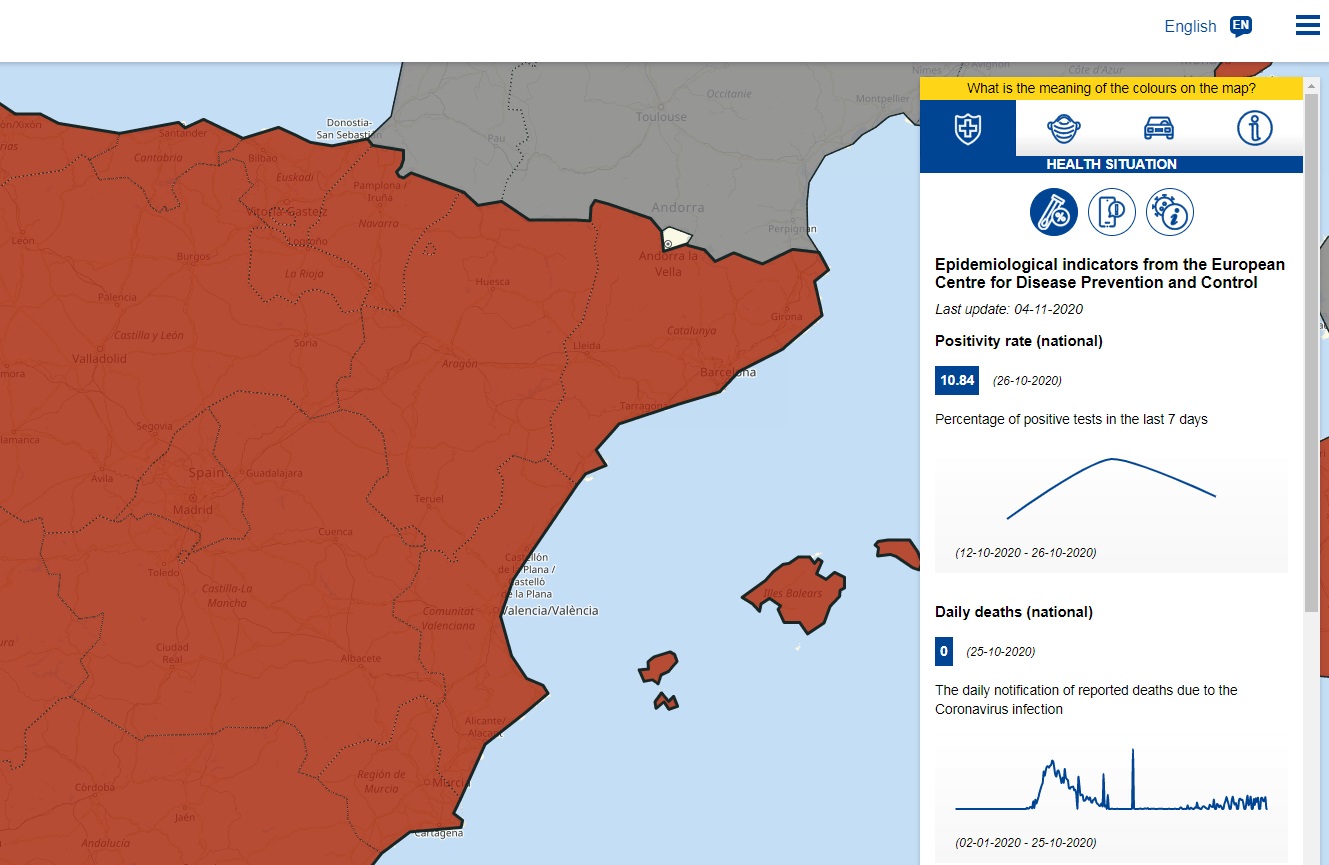
If you’re thinking of traveling somewhere in Europe this summer but are unsure of the requirements in your destination country, don’t worry. The European Union’s official website (click here to access it) has all the information you need. Just click the dropdown menu labeled “Select your destination” and pick the country you want to visit. Then click the yellow “Go!” button and you’ll be redirected to that country’s page.

On the next screen, you’ll see a map of Europe with your chosen area. Beside it, you’ll find all of the information you need about the situation with COVID-19 in that country. The most important details include how to travel to your destination, health and safety information, potential areas at risk of confinement, social distancing, the use of masks, etc.

El Viajero Fisgón

Web de El Viajero Fisgón

Useful for:

  • Booking flights and hotels
  • Reading travel guides

El Viajero Fisgón is an incredibly useful website where you’ll find all the necessary information for your trip. You can use it to find cheap flights and to book hotels and accommodations. It’s also convenient for travelers who want to plan activities at their destination in advance. You’ll find travel guides, routes, and tips on the most interesting attractions at each destination.

Go to the El Viajero Fisgón website

Muchoviaje

Web de Muchoviaje

Useful for:

  • Booking flights and hotels
  • Buying tickets
  • Buying all-inclusive travel packages

Backed by several years of experience, Muchoviaje is one of the best websites to plan your getaways fast. Its user-friendly, streamlined design makes it easy to buy plane tickets, book hotels and cruises, or purchase travel packages that include tours and tickets to all points of interest. What’s more, Muchoviaje offers interesting deals and very competitive prices, making it one of the most popular travel websites in Spain.

Go to the Muchoviaje website

Kayak

Useful for:

  • Comparing prices

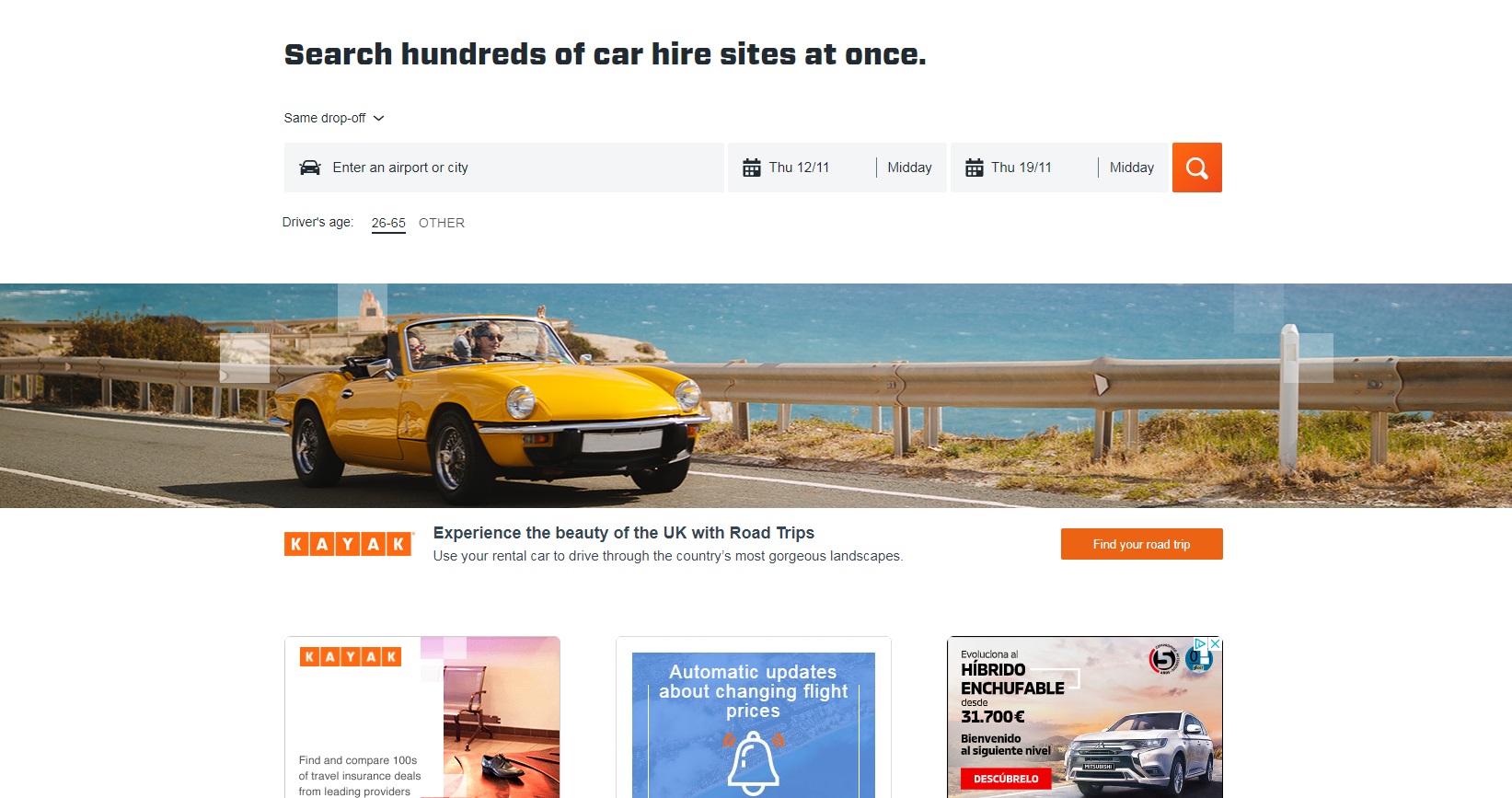
With the boom in online sales, Kayak is one of the best websites for finding the lowest prices when you want to book a trip. Unlike similar websites, Kayak only displays verified prices, so you won’t have any unpleasant surprises when you click on the recommended page. Besides comparing the prices of flights and hotels, Kayak can compare organized trips and all-inclusive travel packages. It’s a great option if you have a limited budget but don’t want to forgo a well-deserved vacation!

Download the Kayak app quickly and safely below, or visit the website here.

Kayak DOWNLOAD
8

Tripadvisor

Useful for:

  • Booking flights
  • Booking accommodations
  • Booking activities
  • Reading reviews by other travelers

Tripadvisor is a giant in the tourism and booking sector. It is best-known as a website for reviews of restaurants, bars, stores, etc. However, Tripadvisor can also be used to book accommodations, flights, and even activities at your destination (all managed by Viator). Tripadvisor is an excellent tool to help you decide what to do on vacation. You can read other travelers’ reviews and even contact the organizer of the activity before booking the service. Since Tripadvisor is present all over the world, it’s the website with the largest number of options and verified reviews, so you can use it to organize a fun vacation.

Download the Tripadvisor app quickly and safely below, or visit the website here.

Tripadvisor DOWNLOAD
7

Civitatis

Useful for:

  • Booking tours and activities

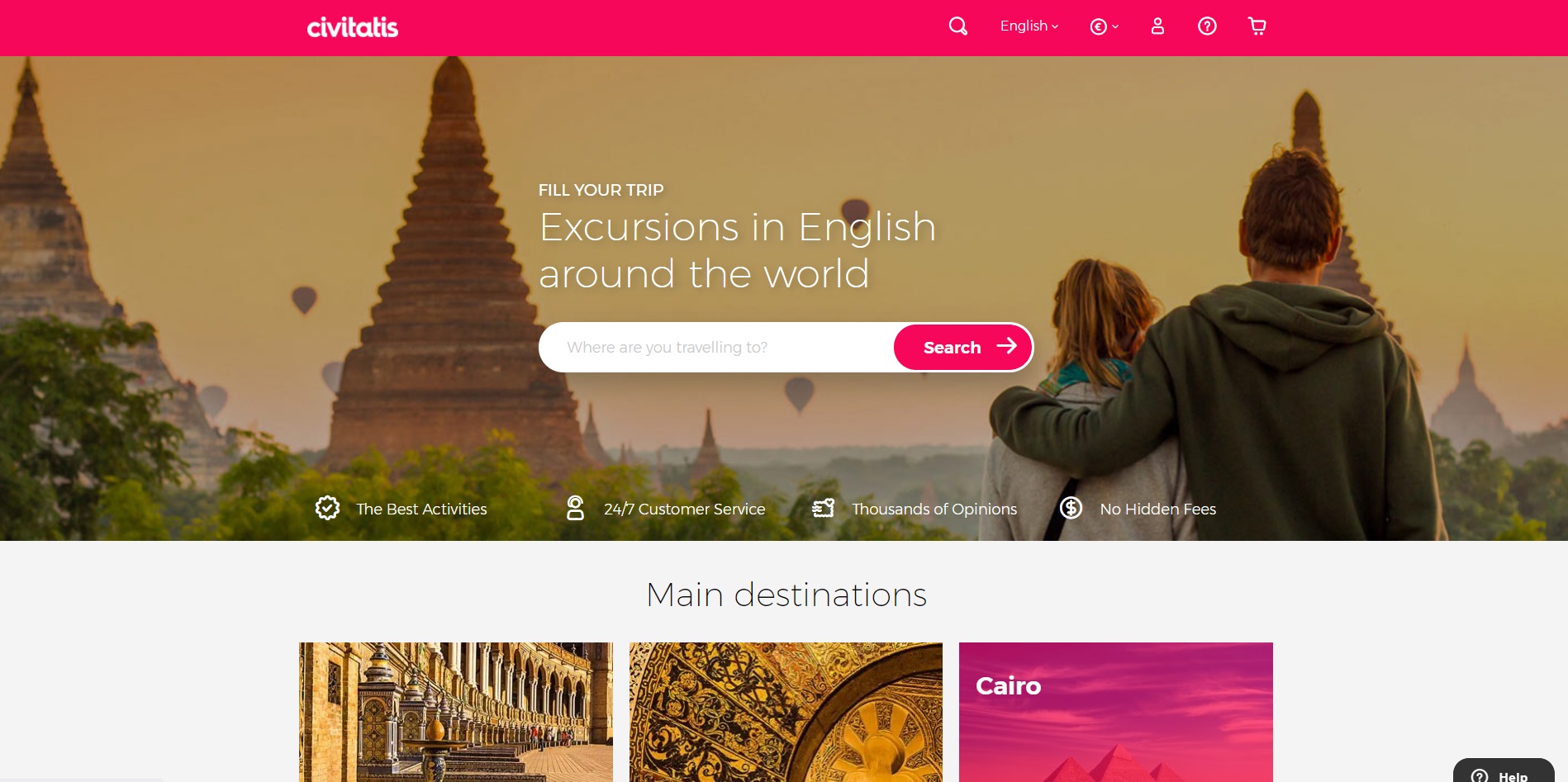
It’s probably happened to you more than once: you book a flight and hotel somewhere, but you have no idea what to do when you reach your destination. If you’re in this situation, you have several options: buy a heavy travel guide and carry it around with you, improvise and miss half of the sights you could see, or go to Civitatis and book the best tours for your trip. There, you’ll find a large number of activities and experiences that you can reserve on the website or by using the convenient app. With its huge catalog (+150 destinations and +1,500 experiences), we promise you’ll have an unforgettable vacation this year.

Download the Civitatis app quickly and safely below, or go to the website here.

Civitatis DOWNLOAD
9

GetYourGuide

Useful for:

  • Booking tours and activities

GetYourGuide is one of the best websites for booking tours, tickets and guided tours online. It stands out for its wide range of options, offering thousands of trips all over the world, even to destinations that can be hard to find (Uganda, Ukraine, Oman, etc.). Another strong point of GetYourGuide is the fact that it’s present all over the world, so the website has lots of reviews for every activity. That way you can figure out whether it’s a good choice for you. Finally, GetYourGuide offers not only free cancellation, but also a multilingual customer support team.

Download the GetYourGuide app quickly and safely below, or visit the website here.

GetYourGuide DOWNLOAD
9

Viator

Useful for:

  • Booking tours and activities

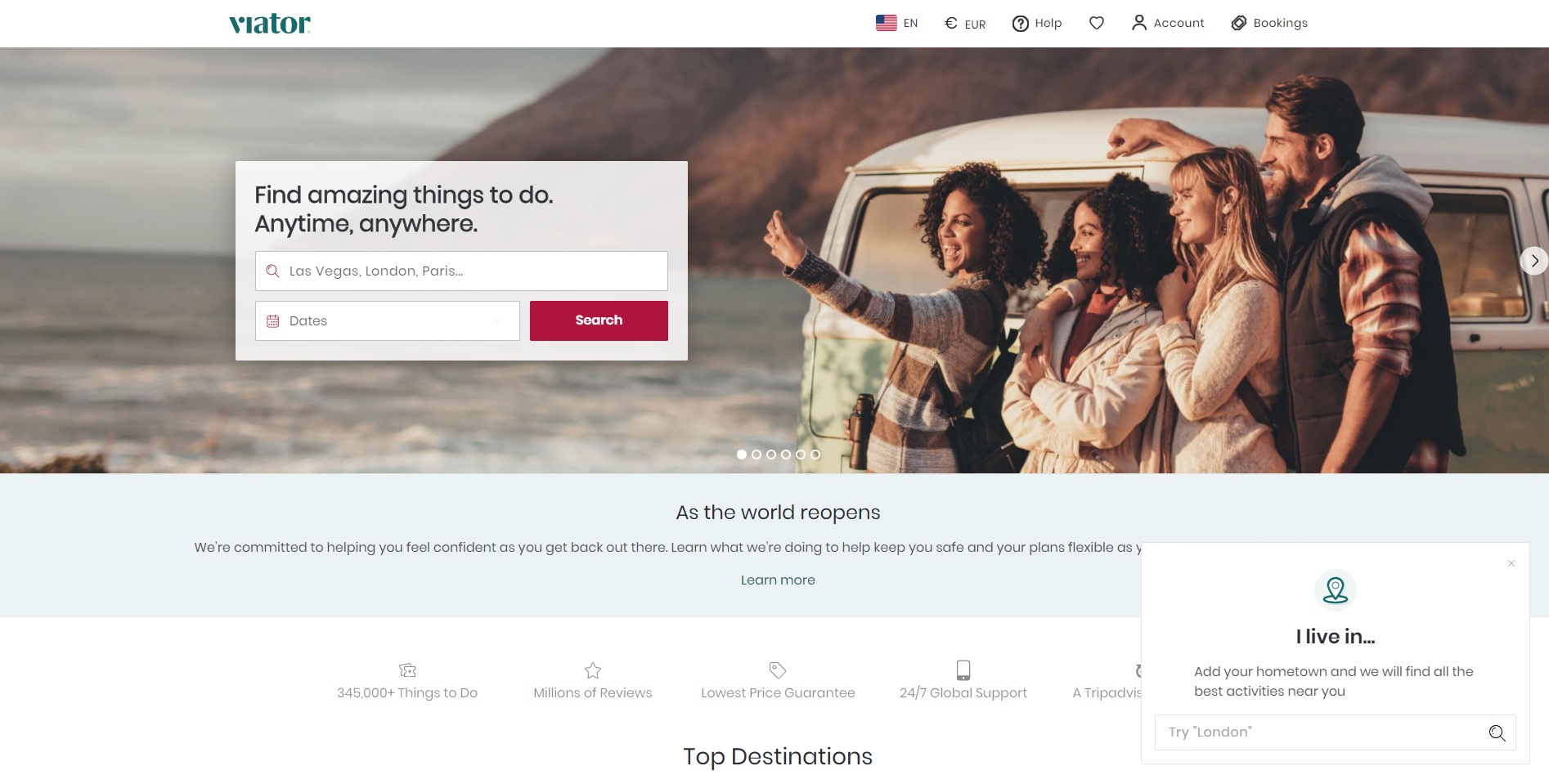
Owned by Tripadvisor, Viator is one of the best websites for booking tours, excursions, and activities around the globe. Its amazing catalog features more than 60,000 activities all over the world. Viator stands out for being a trusted website with lots of variety, and you’ll find guided tours, dinners, tickets, tours with local guides, etc. The website even offers online experiences you can enjoy from home without having to worry about COVID-19. Somewhat similar to GetYourGuide, Viator has millions of users, so you’ll find a variety of reviews for every experience on the website. What’s more, it offers lots of support for tourists who don’t speak the local language, indicating which activities are available in Spanish or if there is an audio guide in the language. This website is inarguably one of the best for booking activities at your destination.

You may download the Viator app quickly and safely below or visit the website here.

Viator DOWNLOAD
7

WePlann

Web de WePlann

Useful for:

  • Latin American tourists in Europe or the United States

WePlann is a small company geared towards Latin American users who are planning a vacation in Europe or the United States, although Spaniards can also use it. With WePlann, you can plan and book activities in more than 18 cities, although the main focus of the website’s trips and tours is New York. While it’s not very useful right now due to the COVID-19 crisis, it’s a good option to keep in mind once air traffic gets back to normal.

Go to the WePlann website

We hope that you found our selection of trip-planning websites useful. Where are you planning to go this summer? Tell us about it in the comments section.

Softonic Picks: The Best Apps for Videocalls

Video calls have gone from being a sporadic source of fun to completely essential since the arrival of coronavirus. They have helped us feel closer to our loved ones while in confinement, adding much-needed social interaction to make our daily lives more bearable. Although we’ve moved into the “new normal,” video calls are here to stay, having become the most popular way to call our family and friends.

Joven haciendo una videollamada

Whether you want to have a face-to-face meeting with a distant colleague or tell your parents how much you love them, you’ll need a good video calling app. You’ve probably seen tons of video calling apps in the Google Play Store, but they don’t all work the same way. Some are designed for work meetings, while others are for two-person calls, group calls, etc. Which one should you choose?

In today’s article, we’ll look at a selection of what we consider to be the best video calling apps of 2020. We hope you find it helpful!

Zoom

Logo de Zoom

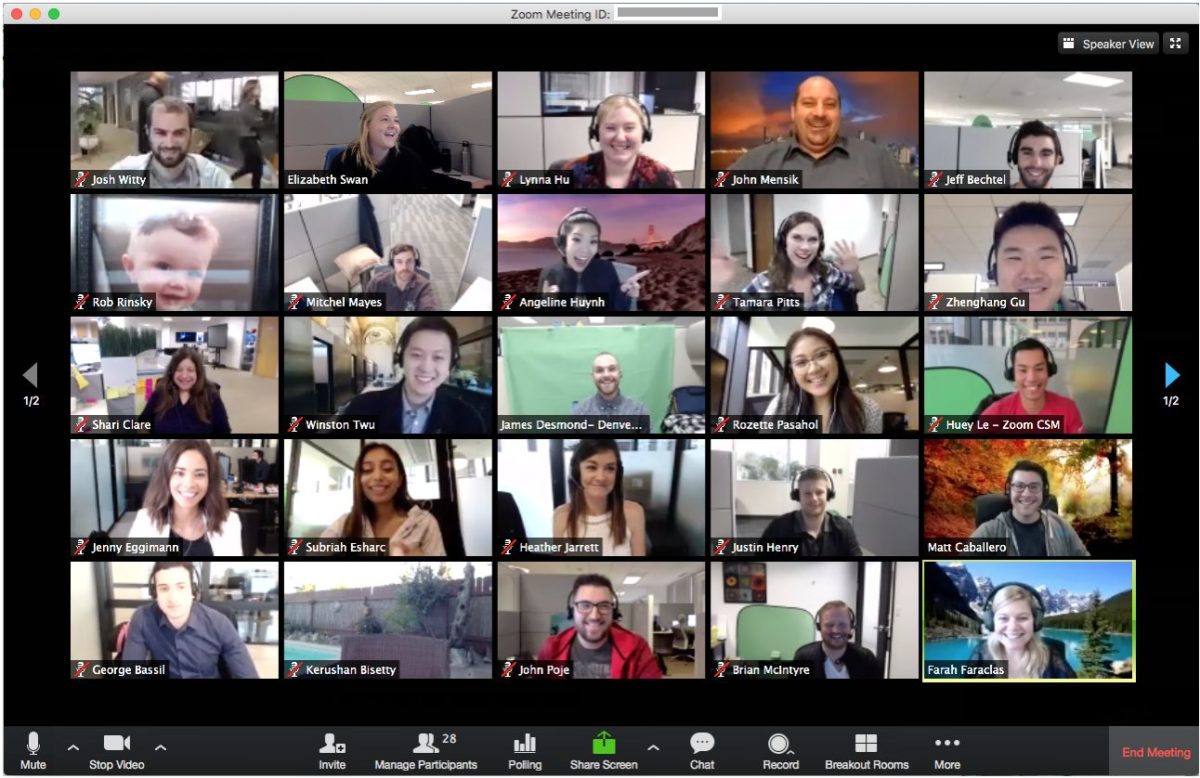
Zoom has been a revolutionary app during the coronavirus pandemic. It can be used for video calls between two people, but if desired, you can host group meetings with up to 100 participants in the free version. This makes it perfect for online classes or meetings with a large number of attendees. Zoom has a user-friendly interface, and as the chat host, you’ll receive an ID number to be shared with the rest of the participants.

During chats, you can adjust your display to see only the speaker, or a mosaic view with all of the participants’ faces. Zoom is an easy app and it’s free to use. Also, it has versions for PC, Android, and iOS. Want to try it?

  • Zoom for PC

Zoom Meetings DOWNLOAD
9

  • Zoom for Android

Zoom Meetings (Android) DOWNLOAD
8

  • Zoom for iOS

Zoom Meetings (iOS) DOWNLOAD
8

WhatsApp

Logotipo de WhatsApp

These days, it would be hard to find anyone who doesn’t have WhatsApp installed on their phone. So it is understandably one of the most popular apps for video calling. As you probably know, this messaging app is perfect for sending texts, photos, and voice notes. What many people don’t realize is that WhatsApp is also an excellent app for making audio and video calls. Just open WhatsApp like you usually would, tap on your contact, and tap the video camera icon in the upper right corner.

Once your video chat begins, up to eight contacts can participate in it. WhatsApp is a convenient way to make video calls without bugging your contacts to install a new app, because, let’s be realistic, who doesn’t have WhatsApp on their phone?

  • WhatsApp for Android

WhatsApp (Android) DOWNLOAD
8

  • WhatsApp for iOS

WhatsApp (iOS) DOWNLOAD
8

Messenger

Facebook Messenger logo

If you’re a Facebook user and you chat with family and friends through its messaging app, you’ll be interested to know that you can also use it to make video calls. Messenger lets you make voice or video calls with one or more contacts on your Friends list. In fact, you can host video calls for up to 50 people via its new service: Messenger Rooms.

Messenger’ video calling system is really easy to use. Just tap the camera icon in the upper right corner. Also, these video chats have fun filters and special effects that are updated every week. What are you waiting for? Download it today!

  • Messenger for PC

Messenger (PC) DOWNLOAD
7

  • Messenger for Android

Messenger (Android) DOWNLOAD
8

  • Messenger for iOS

Messenger (iOS) DOWNLOAD
8

Google Meet

Google Meet logo

Google Meet is Google’s latest foray into the world of video calling. It’s perfect for users of the Google suite, that is, Gmall, Drive, and Calendar. To access it, you only need a Gmail account, which is completely free. Get yours by clicking here. Google Meet offers video chats for up to 250 participants at the touch of a button. You can access them from the Gmail desktop version and through its convenient app for Android devices.

The way it works is very similar to Zoom. Create a meeting and share the link with the participants, all from Gmail’s convenient interface and without having to install any sort of plugin. Google Meet is especially good for work meetings and group video conferencing. To try it, click “Start a Meeting” in the lower left corner of your Gmail, or download the version for Android and iOS phones and tablets.

  • Google Meet for Android

Google Meet (Android) DOWNLOAD
8

  • Google Meet for iOS

Google Meet (iOS) DOWNLOAD
8

Skype

Logo de Skype

Skype was a true pioneer in the field of online voice calls and video conferencing. It is therefore one of the most stable services with the best performance in the market today. Although there are tons of ways to make video calls nowadays, Skype has the great advantage of being a multiplatform program. In other words, whether you use Windows, Mac, iOS or Android, you can make calls over Skype.

As for usability, Skype is especially convenient for group and work-related calls. This video calling service can be integrated into the Office 365 environment. We highly recommend it for job interviews.

  • Skype for PC

Skype (PC) DOWNLOAD
8

  • Skype for Android

Skype (Android) DOWNLOAD
8

  • Skype for iOS

Skype (iOS) DOWNLOAD
8

Google Duo

Logo de Google Duo

If you’re not entirely sold on Google Meet and would prefer a program for phone-to-phone video calling, try Google Duo. This app is very similar to FaceTime, the only difference being you don’t need an iPhone to use it… and it’s available for both iOS and Android devices!

Google Duo uses your phone number and lets you make free voice and video calls to anyone on your contacts list. The app has a feature called Knock-Knock that you can use to find out who’s on the other side of the camera before accepting the call. Another thing to keep in mind is that Google Duo lets you host group video calls for up to 12 people. Interested in trying it?

  • Google Duo for Android

Google Duo (Android) DOWNLOAD
8

  • Google Duo for iOS

Google Duo (iOS) DOWNLOAD
8

Houseparty

Logo de Houseparty

Houseparty is a fun app you can use to throw virtual parties without leaving your house. Every Houseparty user has a “house,” that is, a video-chat channel that users can visit, coming and going as they please.

Every channel allows up to eight visitors simultaneously, and it’s fun and easy to have little get-togethers with friends. What’s more, Houseparty features fun games you can play as a group, such as trivia or one where you have to finish the song lyric. It’s fantastic for hosting fun video chats with your friends.

  • Houseparty for PC

Houseparty (PC) DOWNLOAD
8

  • Houseparty for Android

Houseparty (Android) DOWNLOAD
9

  • Houseparty for iOS

Houseparty (iOS) DOWNLOAD
8

Snapchat

Logo de Snapchat

Snapchat is especially popular with young people. Besides being an excellent video calling app, it’s a social media platform where you can share photos and all kinds of multimedia content. Among Snapchat’s unique features are the funny filters you can use on your video calls. But that’s not all: Snapchat lets you make video calls with up to 16 people. It’s perfect for young people.

  • Snapchat for Android

Snapchat DOWNLOAD
6

  • Snapchat for iOS

Snapchat DOWNLOAD
6

FaceTime

Logo de FaceTime

FaceTime is an excellent app for making both video and voice calls. You can make one-on-one or group calls with a total of 32 people at the touch of a button. Although it’s a great app, it has a big problem: FaceTime is only available for Mac and iOS users. So if you’re a Windows person or you use the Android operating system, you won’t be able to download it.

  • FaceTime for Mac

FaceTime (Mac) DOWNLOAD
6

  • FaceTime for iOS

FaceTime (iOS) DOWNLOAD
8

Slack

Logo de Slack

Slack is a communication platform that has really taken off in recent years, especially in professional environments. Besides having chats with your coworkers and sending files, Slack lets you make two-person video calls. We should point out that if you use the app’s free version, you can’t make group video calls. Still, it’s a highly versatile app that you can use on both Android and iOS devices.

  • Slack for PC

Slack (PC) DOWNLOAD
6

  • Slack for Android

Slack (Android) DOWNLOAD
10

  • Slack for iOS

Slack (iOS) DOWNLOAD
10

WeChat

Logo de WeChat

Our final pick is WeChat, a versatile app that offers hundreds of options for users. One of its strong points is that it can be linked to your social media accounts, so you can upload photos or videos directly to your account without leaving the app.

Moreover, it has interesting features like Shake, which lets you find users in your area who want to chat and make video calls. WeChat lets you make voice and video calls to individuals and groups. And it’s free! Interested in trying it?

  • WeChat for PC

WeChat (PC) DOWNLOAD
8

  • WeChat for Android

WeChat (Android) DOWNLOAD
8

  • WeChat for iOS

WeChat (iOS) DOWNLOAD
7

We hope you found our selection of video calling apps useful. Do you have a recommendation that isn’t on our list? Tell us about it in the comments section!

LibreOffice: All the best extensions for the free Word alternative

These are the best LibreOffice extensions and templates you can download now to make your life easier.

Lbre Office

LibreOffice is a wonderful thing. A completely open-source, and therefore free, fully functional productivity suite. If you need something like the Microsoft Office suite, yet can’t afford a license or subscription, LibreOffice is what you are after. Like Microsoft Office, LibreOffice has a lot of cool new features and apps designed to help make your life easier. There are lots of programs that fall under the LibreOffice umbrella including LibreOffice Calc, LibreOffice Draw, and LibreOffice Impress.

As well as just built-in features, however, LibreOffice also offers access to an extensive library of useful extensions, add-ons, and plugins that offer even more functionality to LibreOffice users. That is what we are here for today. In this article, we are going to walk you through the best extensions for LibreOffice that will help you be more productive and how you manage them using the extension manager. Whether you’re working from home or heading into the office, this guide will help make your life easier.

LibreOffice Download LibreOffice
7

Best LibreOffice extensions

These LibreOffice extensions will make your life easier and help you get your work done quicker and more efficiently. Check yourself here, if you’re using OpenOffice and not LibreOffice. Although similar, these are different programs and you should head to openoffice.org for information on how to use OpenOffice.

The extension manager

The Document Foundation that set up LibreOffice has also set up a library of extensions for the software that you can find over at extensions.libreoffice.org. You can also download the extensions we’ve listed below using the links we’ve provided. You can then manage your LibreOffice extensions inside the LibreOffice apps by heading to the Tools menu and selecting the Extensions Manager.

AltSearch (Alternative Dialog Find & Replace)

altsearch libreoffice

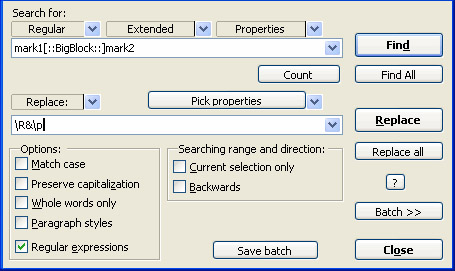
LibreOffice Writer does have a decent Find & Replace feature already, but it can prove frustrating at times. The AltSearch extension goes a long way towards remedying this situation by augmenting the native Fin & Replace feature with some added tools. The extension facilitates multiple searches at once and opens up the possibility to search for text in specialized elements of your documents such as bookmarks, notes, tables, footnotes, and endnotes.

Stop Begging

There is no doubt that LibreOffice couldn’t be what it is without support from a dedicated global following built up of developers and financial supporters. To maintain these levels of support, LibreOffice needs to constantly campaign for new supporters and one of the ways it does is by asking every user for support every 90 days. It is not much to have to deal with these requests but if it is too much for you, the Stop Begging extension will stop these requests from ever showing up again. We recommend you only download this extension after you’ve supported the Open Document Foundation and the LibreOffice project somehow.

Calendar Creator Template

calendar creator

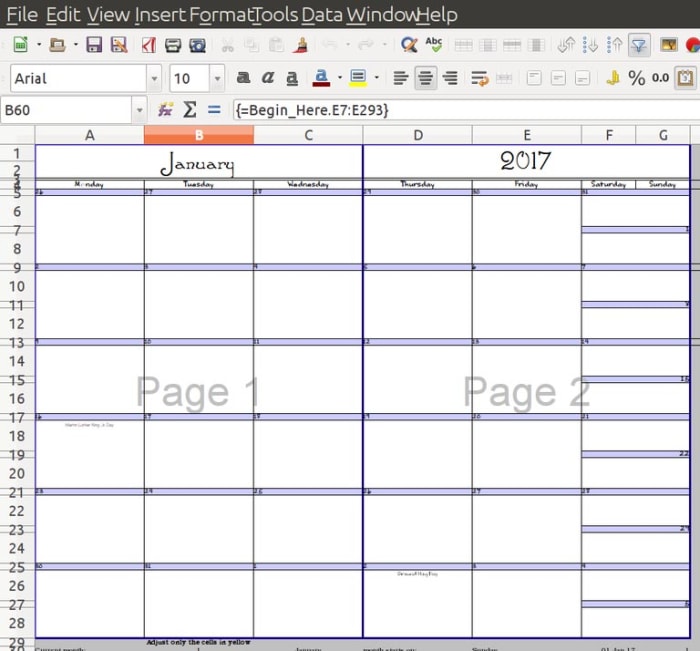
It’s not just extensions that you can download to augment your LibreOffice experience. There’s also an extensive library of LibreOffice templates that you can download for free and use on whatever projects you’re working on. This calendar Creator template is one such tool that makes it very easy for you to create weekly, monthly, and yearly calendars on printable sheets. You can also create single day calendars and automatically add events to your printable sheets when you add them to your document.

MultiSave

One of the frustrating aspects of working with LibreOffice is the Open Document Format that Writer saves your documents in. The open-source nature of the file does mean it can be used across multiple formats and programs but that isn’t the case straight off the bat. This is where the MultiSave extension comes in. With the extension installed you can easily save a document in different file formats at the same time including the Open Document Format, Microsoft Office format, and other useful file types like PDF.

Language Tool

Language Tool

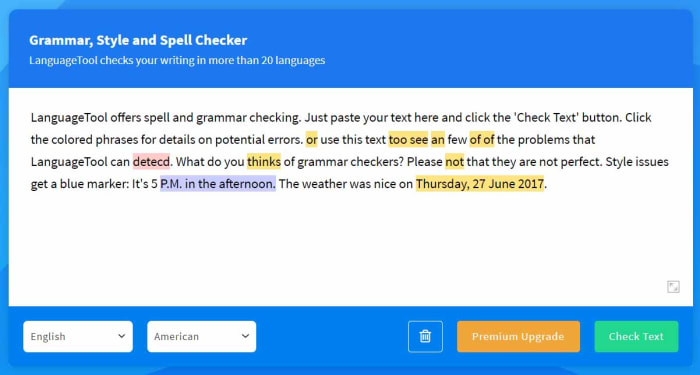
The Language Tool extension for LibreOffice offers grammar and proofreading support to LibreOffice users across a whole host of different languages. These languages include English, French, German, Italian, Spanish, and Russian. You can see all the different languages the extension supports on its homepage here. Please note, though, that the level of support the extension offers depends on the language.

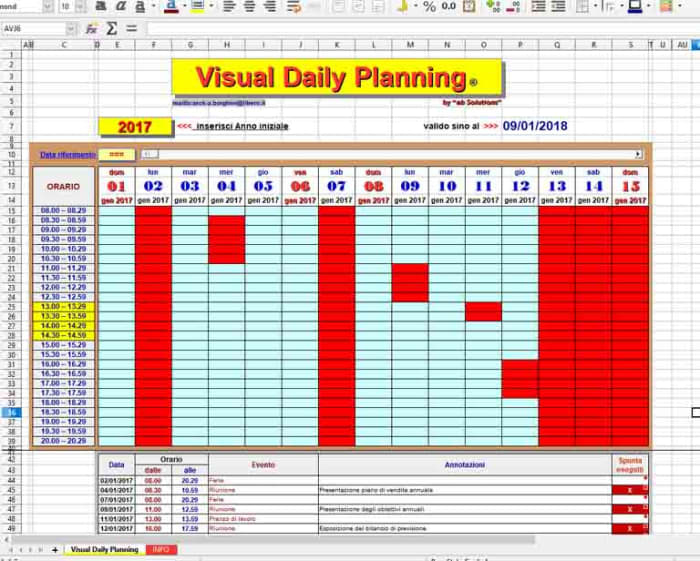
Daily Planning Template

Daily planner

This Daily Planning Template makes it very easy for you to organize your time more efficiently. It compartmentalizes your day, breaking it up into individual timeslots that you can then allot to certain activities. You can easily add events to your calendar and control regular activities and appointments too.

Transcriber

The Transcriber extension for LibreOffice Writer is a great tool for anybody who has to interview people for the articles they write. Anybody who’s ever had to transcribe an interview will know how slow and frustrating the experience can be as you flip from one app to another or fiddle around with recording equipment. The Transcriber extension puts the playback buttons right there in the Writer app giving you quick access to the basic controls you need to control the audio as you write down everything that’s being said. It even offers keyboard shortcut controls too for quicker control.

How to clean your Gmail inbox

These tips and tricks will help you organize your Gmail inbox and stay on top of spam and unwanted messages.

Gmail wallpaper

There is a digital movement out there called Inbox Zero. These crusaders, spurred on by a book by Merlin Mann, fight against the endless crap that bombards our Outlook, Yahoo Mail, and Google Mail inboxes on a daily basis. As our email inboxes fill up with spam, marketing, surveys, deals, and a million and one other emails that have been sent out en masse, the Inbox Zero movement tries to fight back with a mantra. That mantra is simple; keep your inbox at zero unread emails. This mantra sounds simple enough but in practice, it requires constant vigilance.

With so much nonsense coming our way every day you must work hard to keep on top of it. You can, however, make life easier for yourself by putting a few systems and processes in place that will do most of the work for you. Now, we are not high priests of the Inbox Zero movement but we do know a thing or two about Gmail so we can help you out. These are the best tips you need to clean up your Gmail inbox.

Tips to clean up your inbox

These tips and tricks for Gmail will help you keep your inbox clean and clear, making life so much easier. Read on to learn more.

Categories

Gmail categories

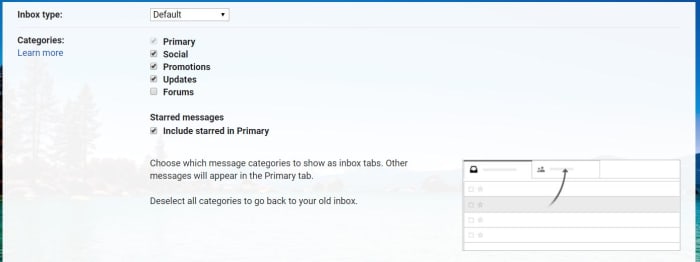
This is the easiest of the lot and will make the biggest difference straight away. Categories in Gmail are like tabs that sit at the top of your inbox. They automatically sort incoming emails into certain categories and then siphon them off to the correct tab. The Updates tab is by far the most useful tab, but it is not active by default. To activate it hit the Settings icon, click the Inbox tab, and then check the box next to Updates. You will immediately see the number of emails in your inbox slashed. You could also activate your Forums category too if you participate in a lot of online discussions.

The big sweep

To sweep your inbox refers to taking lots of emails and organizing them very quickly in a sweeping manner. The basics of sweeping your inbox involve creating folders for different years, months, quarters, etc. and then going through your inbox and putting all the emails you received from the subsequent time periods into their folders. This way, all your emails are still there, they are just hidden away nicely and immediately your inbox has a lot less clutter. The only thing you need to remember here though is that you should not create a folder for the current period of time you’re organizing by. That is because it is still active and so you want that to be your primary inbox.

Folders and filters

Unsubscribing to emails you do not want is a great way to massively reduce the amount of crap that will end up in your inbox. Unfortunately, however, there are plenty of spammers out there who do not care if you want to receive your emails or not. All thee spammers care about is whether or not you use your email account or not. They normally figure this out when you click any link on any email, they’ve ever sent you. This means you need to be extra careful what you click but it also means you will be receiving email you want no matter what.

Gmail filters

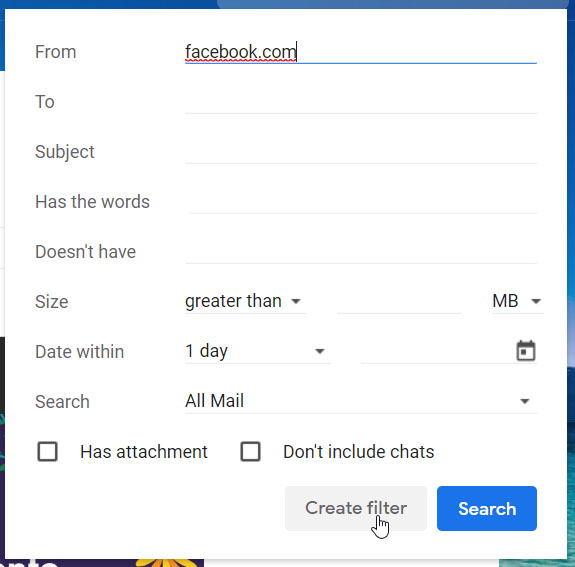
To fight against unwanted emails, you can set up filters that will automatically block emails from dodgy domains. To do this you need to click the arrow next to the search bar and then type the domain you want to block into the From text box. Once you have done this, hit the Create Filter button that is next to the search button. Once you have done this, you will then be given options for all the emails you’ve received from that domain. You will also be able to create the filter so that you don’t receive any more emails from the domain.

Delete emails from companies you are not interested in

This little trick will help you quickly get rid of all the emails you have received from Facebook or any other apps that constantly send you updates from their platform. What you need to do is use the * symbol alongside the domain. To delete all Facebook emails, for example, you search for *@facebook.com , and then Gmail will show you every email you have received from any email account attached to that URL. All you have to do then is select them all and hit delete.

The easy way to unsubscribe

unsubscribe

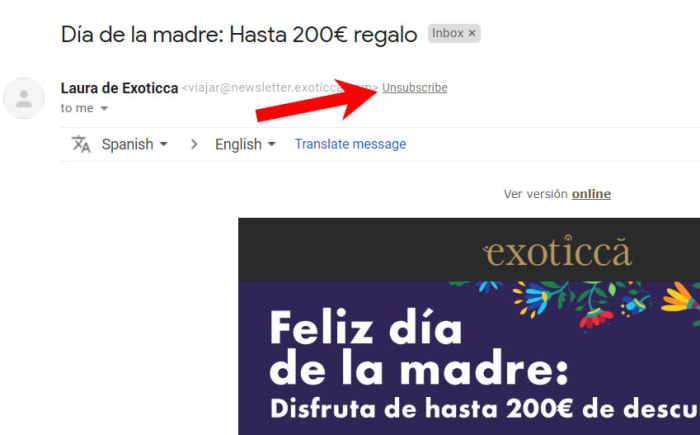
Another fantastic built-in feature that Gmail has is the Unsubscribe button. You may recall that promotional emails need to include an unsubscribe button that you can press should you ever decide you no longer want to receive them. Obviously, however, the companies sending you their emails don’t want you to unsubscribe so they make it difficult for you to find these buttons by hiding them away in the small print at the bottom of the email. Gmail fixes this, however, by taking any unsubscribe link and displaying it prominently at the top of the email next to the sender’s email address.

Set aside time each week

The last of our tips is not about an easy fix or clearing everything out with the click of a button. This is about discipline, which is what you will need if you want to maintain your zen-like clear inbox for more than a few days. Each week you need to give yourself some time to go through any unopened emails you have received during the week and action them accordingly. If it is an important email and you need to respond urgently, do it; if the email is unimportant, delete it. Whatever it is you need to do for each of the active emails in your inbox, do it. This may sound like a chore but over time you will develop a ruthlessness that will make this step easier and dare I say it, satisfying.

Secret Google Docs tips and tricks

This introduction to Google Docs will tell you all the top tips that make it a game-changer in the world of word processing.

Everybody has used a word-processing package at some point in their lives, the most established and well-known being Microsoft Word. However, Google now offers an attractive alternative for creating professional-looking documents in the office or at home. Google Docs is a complete online-based word processing app that can be accessed easily by creating a new document from your Google Drive (drive.google.com ) or going to docs.google.com.

Not only is Google Docs an effective package for creating documents, but it also includes a smorgasbord of features. These valuable features will help you save time and produce more visually pleasing documents.

So here are some handy Google Docs Tips to help you on your way to becoming a pro user.

Google Docs download free ►
8

Tips to help you use Google Docs

The Google apps are more powerful than ever and give anybody with a Google account access to powerful tools that rival those you’ll find in Microsoft Office. Google Docs work best on the Google Chrome browser but they do also work on other browsers such as Mozilla Firefox and Microsoft Edge. These are our top tips for Google Docs.

1.  Keyboard Shortcuts

As with most applications, Google Docs has a wide range of keyboard shortcuts to help you write and format your work without the use of your mouse. This will help you edit documents more efficiently and also help prevent the type of wrist pain associated with overusing your mouse.

The most common action shortcuts that people should know are copy, paste, and cut (Ctrl + C/V/X). Useful text formatting shortcuts include bold, italicize, and underline (Ctrl + B/I/U), and you can increase and decrease the font size on the fly by holding Ctrl and Shift and pressing the< > keys.

There are also controls for paragraph formatting, image formatting, comments and footnotes, menu navigation, and many more. A full list of shortcuts can be found here and you can pick the ones you frequently use and

2.  Voice Typing

voice typing google docs

Most computers now come with built-in microphones and you can easily pick up a decent one for the price of a coffee or two. So, why not make use of your voice, when creating important documents and relax your precious digits for a while.

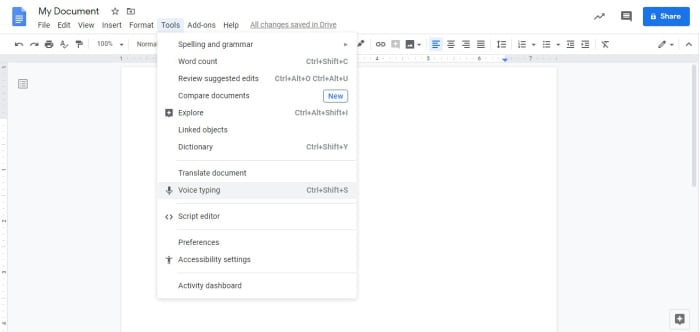
Google Docs has a built-in voice typing feature that listens to your voice and can quickly put your ideas into text.  It can understand voices in 48 languages and even recognize some regional variants.  You can also instruct the use of basic punctuation and use commands to edit and format your document. A list of these commands can be found here.

It’s a helpful tool for people who need a break from typing but also a huge advantage for those people who have disabilities or injuries.  You can activate it in the ‘tools’ drop-down menu or by the shortcut CTRL+SHIFT+S (Windows) and CMD+SHIFT+S (Mac).

3.  Document Templates

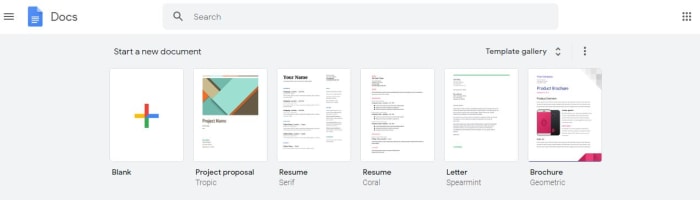
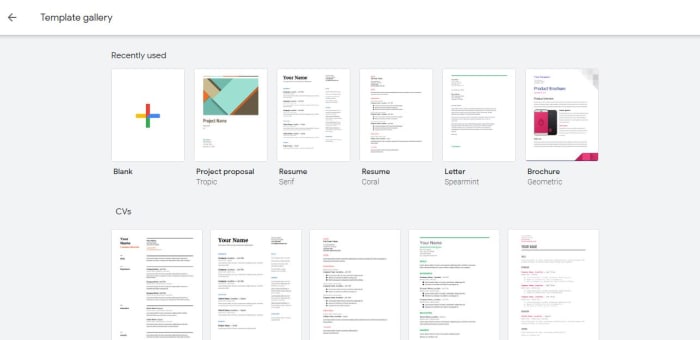
An awesome design feature of Google Docs is the ability to create a document using one of the many pre-designed templates available.  These templates offer easy to edit layouts for a wide range of documents including school reports, resumes, and legal documents.

The templates are accessed when creating a new document. When you open Docs you’ll see the opening gallery with templates grouped into different themes.  You can also view the templates by going to docs.google.com and clicking on the template gallery.

4.  Custom Templates

Google already provides you with some beautiful templates to choose from, but maybe they are not exactly what you are looking for.  So, how about saving a massive amount of time by uploading your own custom templates for the documents you use the most.  This can be done by going to docs.google.com, clicking on the template gallery, and then summit template. A window then appears where you can select your own custom template document that you have saved to your Google Drive.

5.  Collaboration in real-time

Collaboration is a huge feature within Google’s suite of apps.  It allows you to quickly share your documents with friends and colleagues and edit them together in real-time. Once a document has been shared, the collaborators have the option to highlight text in the document and add their own comments for the other users to read.  In addition, if you are all logged into the document there is a chat option that enables you to share your ideas with group members instantly.

6. Version History

Ever gone back to a document and realized that you have accidentally deleted a chunk of text by mistake.   Well, this life-saving feature lets you get a full list of different versions of your documents dating back to its creation.  All you have to do is click file-version history-see version history and a list of versions of past versions of your document will appear.  If you are collaborating on a document, it will conveniently show you the person who was editing the document at that time so you can give them a good telling off for their mistakes.

7.  Custom Fonts

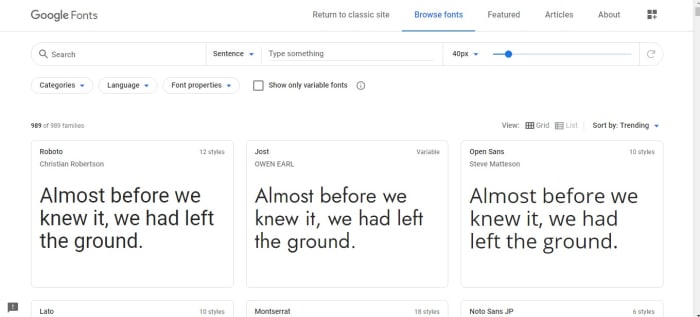
Google Docs has a range of attractive fonts already built into its drop-down menu, and helpfully lists the fonts you use the most at the top.  If you get bored of these fonts or you are simply looking for a new look for a document, you can click ‘more fonts’ at the top of this menu you will be greeted by an extensive list of fonts to customize your font menu with.   There are literally hundreds to choose from so it might take some time to get through all of them.  However, Google has made it easier to choose a suitable font by showing its use in sentences on the Google Fonts page, so take a look.

8.  The Explore Research Tool

Explore research

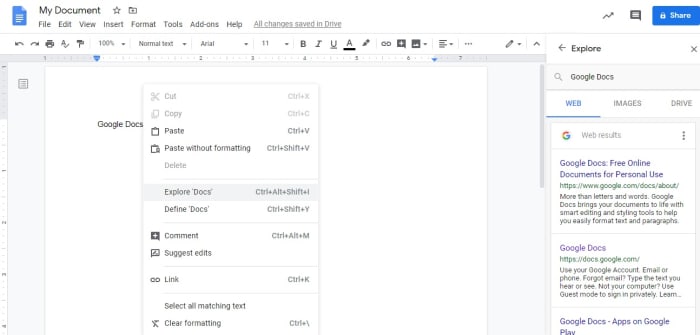
Have you ever gotten sick of switching between your word processor and internet browser when researching for an important project?  Well, You should take a look at the explore tool in Google Docs, as it helps you get some research without having to leave your document.  All you have to do is simply click the explore button located at the bottom right of the document screen.  As if by magic, a side screen slides in showing related research, topics, and images for you to review.

If you want to research specific words in your document you can type them into the search or highlight them and right click and go to explore.  The search function will display pages from the web, images and will even search your google drive.  As you can imagine the search function is second to none with Google being the biggest search engine on the planet.

Best online tools for freelancers

Got a side-hustle? Here are some tools to make life easier.

freelancing types of tools to invest in

Whether you’re contemplating a move to the remote working world or hoping to turn your solo venture into more of a “real business,” there comes a time when you need to invest in some tools of the trade.

At a certain point, you’ll realize that doing everything manually is eating into your working hours and your bottom line.

There’s a lot to juggle when you’re on your own. What about taxes, invoicing, time tracking and time management, billable hours, and productivity tools for example? How do you find clients and get them to pay you money? Can you just use PayPal or do you need something more specialized like Stripe for credit card payments and a dedicated freelance business bank account? How do you streamline your boring admin tasks so you can get back to work, already?

The list goes on.

Stressed Lady

You don’t need to worry though, because below, we’ve compiled a list of some of the best tools for helping you maximize your time, understand your books, and ideally, earn more money.

We’ll look at a few different categories — spanning apps and websites to keep your finances in order, keep clients moving through the pipeline, and more.

Must-have resources for freelancers

Proposal software

Proposals are one of those necessary evils for a lot of solo-preneurs. If you depend on using proposals to win new business, it’s high time you stop relying on Google Drive and the copy-and-paste method to land those big fish clients.

What’s the point of a proposal, you ask?

Well, the proposal first establishes your role and the goals of the project. Meaning, this document gives the prospective client a rundown on what it’s like to work with you, and how the project is expected to go. On your terms.

But writing a customized proposal for each potential client can be a real grind, and it will certainly cut into the time you’re spending earning money.

Instead, look toward proposal project management tools like ProposifyBidSketch, or Purposeful.

These tools allow you to customize your proposals with minimal effort and professional design, so you can turn these babies out faster than ever so you’re applying for new jobs in real-time.

What’s more — incorporating a proposal software into your strategy allows clients to sign them electronically — turning your document into a binding contract — so you’d just killed two birds with one stone.

We found that most proposal software costs between $20 and $30 per user per month, so more than Spotify and Netflix combined.

However, many freelancers swear by this investment, and they come with some sweet features. BidSketch, for example, gives you a report of which team members viewed each proposal, so you can tailor your follow-up message accordingly. Effective communication tools are vital to your success too.

Another option is PandaDoc, a proposal software that comes with some cool built-in features and plugins like e-signature software and an analytics dashboard that provides a look at bids won and contracts signed.

Financial tools

freelance worker

One of the biggest challenges for freelancers is financial matters. As such, it’s easy to feel out of one’s depth when presented with that first tax bill or waiting around for a critical invoice when you’ve bills to pay. You need tracking tools for your finances as well as for your time.

But there’s a lot to keep track of when it comes to freelance finance. For one, you need to get really good at budgeting — setting money aside for tax season is no joke.

Second, you’ll need a better way to keep tabs on expenses — whether that’s your monthly co-working membership or all of those receipts from your digital subscriptions.

These days, it’s crazy to rely on spreadsheets and calculators to keep track of this stuff.

Cloud-based apps offer free plans, flexible pricing, automatic updating, and access from anywhere. Plus, many of these options come with automatic bank feeds and invoice collection, so you don’t have to add data entry to your mile-long to-do list.

Using a tool like XeroQuickBooks OnlineFreeAgent, or Zoho Books can help you learn some basic accounting skills—and they’re all pretty cheap. Any of these options are a good choice, but you may want to take the free trials for a spin before making a commitment.

A decent CRM

Most people think of CRMs (customer relationship management systems) as a sales tool built for companies closing major deals and across multiple reps. However, that’s not necessarily the case. There are CRMs built for companies of all sizes — including teams of only one.

Pipedrive, Base, and Agile, among countless others, all work to help freelancers and small businesses manage their relationships — giving you more visibility than you’d find in your Gmail inbox. The benefit is, you can track your client prospecting efforts, view current client communication, and keep tabs on pending milestones.

ThriveSolo might be a good choice if you’re well, running a solo operation. Pricing is $19 a month — or $190 for the whole year. Or, there’s Insightly, which starts at $29 per month.

Or, try Hubspot, a massively popular marketing platform/CRM offered for free. Zoho’s CRM is offered on a freemium model, as well.

The point is, a CRM doesn’t need to be wildly expensive, so you should just bite the bullet and take one (or three) for a spin. It doesn’t matter whether you’re a web designer, a freelance writer, work in email marketing, develop Android mobile apps, or simply work freelance for a big company like Apple; a CRM will help you in the long-term.

Project Management

If you’re a freelance writer or have some marketing experience, you probably have some experience with a project management platform. Likely, you’ve tried them all in the context of working with a client.

But we’d like to make the case for adopting the practice yourself.

These collaboration tools make it easy to break big projects down into tasks and assign items to others.

It’s also a great way for freelancers to communicate with their clients. Use a tool like BasecampAsana, or Trello (Softonic’s in-house choice) to onboard new clients and communicate about specific projects.

Trello Donwload
8

We should add a disclaimer here, though. You’ll always want to check in with a client before thrusting a new tool on them.

There’s always the chance that they might not be all that excited about adopting a new tool in addition to whatever they’re doing day-to-day

Where to invest first?

When you’re freelancing, it’s hard to pick and choose which business tools and expenses are worth the splurge and which ones feel more like a want than a need.

However, you’ll need to do some soul searching to determine which areas need some extra assistance. If you’re spending a lot of time on proposals, then it might be worth getting proposal software. If accounting is a challenge, same thing.

Other tools like social media monitoring software or a CRM depends on your individual operation. As such, consider the cost of the software with how much time it will save or how it will potentially help you collect more income.

Finally, most of these options come with 30-day free trials. So, you’ll get a chance to see where that ROI might come in before you’re on the hook.

Just be sure you set a reminder to cancel your account before you get charged, as many SaaS companies choose to collect CC#s before letting you in.

Productivity tips for lazy people

These productivity tips will help you get more work done when you need to do it.

productivity plan

Getting things done can be such a chore. It is not just the finishing of jobs that is hard neither. Starting them can be bad enough too. Whatever the reason or distraction that is standing in the way of the work that needs doing does not matter. The only thing that counts is that it is there, and the work is not getting done.

Fortunately, however, there are a number of coping techniques and tips that you can utilize to break through these difficult times when distraction reigns supreme. You are not lazy, you just like to occupy your mind with other pursuits when there is work to be done. Well, these tips are here for you to help you regain control of your consciousness and start getting stuff done. These are the top productivity hacks to help you improve productivity in your daily life.

Tips for productivity

These tips aren’t necessarily related to apps or software, they’re simply good practices to have at hand any time you feel distracted or struggle to start a task. The truth is we do a lot of jobs on our computers these days, and they bring with them a whole new world of electronic distractions such as social media and online procrastination. These tips are here to help you fight them.

The 2-minute rule

2 min rule

The two-minute rule is a simple yet brilliant way to increase productivity. It offers a way to instantly deal with the small tasks that end up in your in-tray and forces you into taking action on similar tasks that would eat up a larger amount of time. The two-minute rule states that:

If a job can be done in under two minutes, you should just do it there and then.

If a job is clearly going to take longer than two minutes, then you should start it right there and then.

This rule is brilliant because it instantly activates your brain to the task at hand. It declutters your to-do list by making sure none of those little tasks clog it up when they’re so easy to complete. On top of that, the rule also ensures that those bigger tasks are already underway when you move not the next item. It is always easier to come back to a task you’ve already started than it is to start a new one.

Chew gum

OK, this one sounds a little strange. Let’s all be honest though; you’re not looking for productivity tips here that are going to take a lot of effort. Really, you’re after the easiest tips that will have the biggest results. Well, that’s what we have here. Scientific studies have found that chewing gum can make you more productive. Amazingly, chewing gum can make you work 10% faster, can stop you feeling sleepy, and can even make you more charismatic. Start chewing gum now!

Break lists

This is a cool little tip that will make so much sense once you read through it. It is imperative that we take breaks during the day if we’re to work as effectively as we can. In fact, be should be taking 15-20-minute breaks roughly every 90 minutes. Shutting down one program on your computer and opening another one, say Twitter or Facebook, for example, is not going to have the regenerative effect a proper break will. This is why you should create break lists; write down all the short pleasurable activities you can think of that help make you feel better. Now, this could be something like “check Twitter” but only add activities to your list that help you feel like you’ve had a break. Mine would be something like read from a book or magazine, take a walk, make a coffee, call a friend, etc.

Microsoft To-Do Download
8

The Pomodoro method

Image via: Flickr

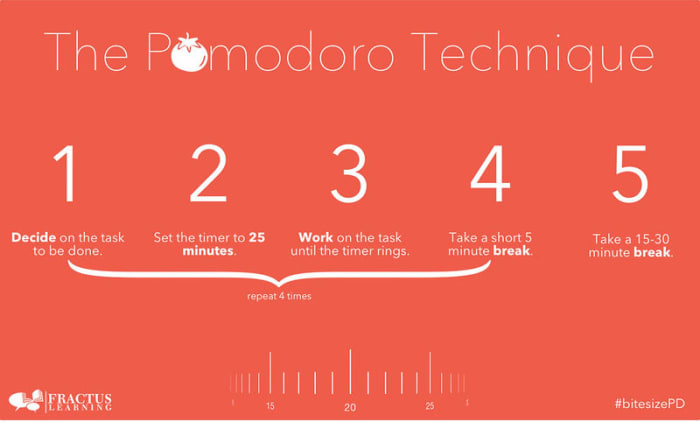
If you really want to take your breaks to the next level, you should look into the Pomodoro technique. Pomodoro works off the idea that your brain can only remain truly active for around 25 minutes. You set a timer for 25 minutes and then every time it rings you take a short five-minute break. This could be when you go make a coffee or check your phone. Then, when you’ve done this work-break cycle four times, you take a longer 15-30-minute break and then start the process all over again. This way you get to go through all the different items on your break list while training your brain to focus for shorter periods.

Pomodoro Timer Donwload
8

Don’t break the chain

We’re not talking about a Fleetwood Mac song here; we’re actually talking about a Seinfeld hack. Yep, Jerry Seinfeld actually shared one of the productivity tips he used to help him develop as a comic by trying to write better jokes every day. To do the same you need to get yourself a huge calendar poster that covers an entire year. Then every day you work on the task you want to work on you get to put a giant red x in the square for that day. Pretty soon, you’ll have a chain of red x’s and you’ll be a hell of a lot more motivated to work on your task because you won’t want to break the chain!

Do the hardest thing first

The final tip of the day is about what you should work on first. It is no secret that the most productive time of day is first thing in the morning just after we wake up. This means that it is first thing in the morning when we begin working that we should tackle our hardest tasks. This way you will take care of the most challenging and pressing issues when you’re at your best, but it also helps build momentum for the rest of the day. Once that first big task is out the way, everything else will feel smaller and less daunting.