OS X 10.9 Mavericks: improve your battery life

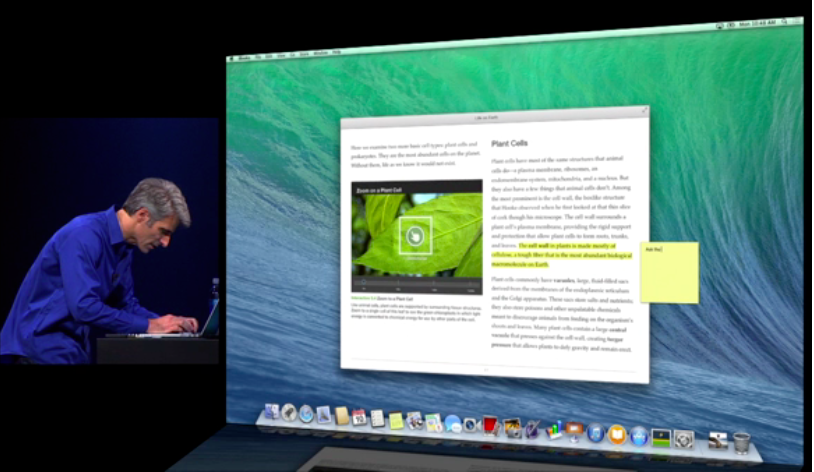
Does the battery on your Macbook run down too quickly? Here are some tricks to make it last that little bit longer. When Mavericks stepped into the spotlight during WWDC 2013, we saw an operating system capable of managing energy a little bit differently. The new low consumption universe presented by Apple was based on a suite of technologies called Advanced Technologies, which included tools to optimize the use of the CPU (Timer Coalescing), multitasking (App Nap) and Safari and, consequently, improve the battery performance of Macbooks. Here’s what you need to know to help your laptop battery last a bit longer.

Activity Monitor, your new best friend

In Mavericks, the app to control resource usage on your Mac (Applications> Utilities> Activity Monitor) has a very useful, and practical tab: Energy.
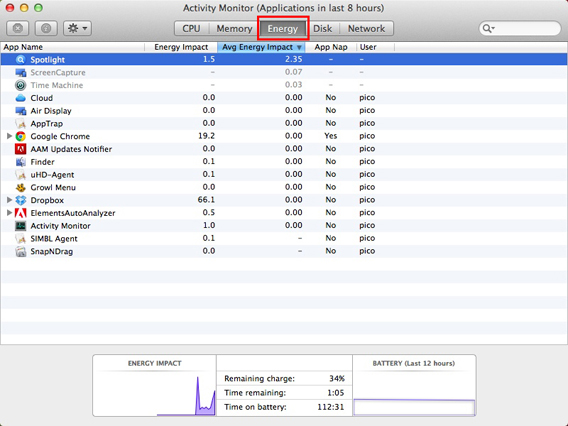
Energy panel 01

This gives you a very clear idea of which programs are using the most battery. If you need your battery to last as long as possible, for example, because you’re traveling and won’t be able to recharge your Mac, this tab will let you find and close all applications that might reduce your computer’s battery performance: just select them and, with the first option on the top left, force them to shut down. To check which programs are consuming the most battery at a glance, you can also just click the battery icon in the menu bar, and see what the Apps Using Significant Energy report says.
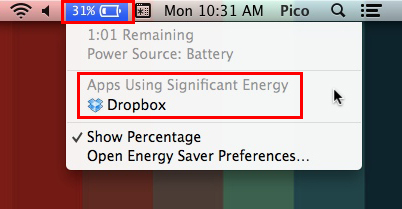
Apps using significant energy

Dual video card? Choose automatic switching

Some Mac models are equipped with a dual video card. One is less powerful and consumes less energy, and the other is very powerful and demanding in terms of battery consumption. In OS X 10.9 Mavericks you can choose which to use, or, you can switch on the automatic switch between the two. In this case, the operating system will decide which video card to assign to each application, so as to best balance needs in terms of performance and energy saving. If you want to save your battery, check the box for Automatic graphics switching. If it’s not a priority, leave this option unchecked.
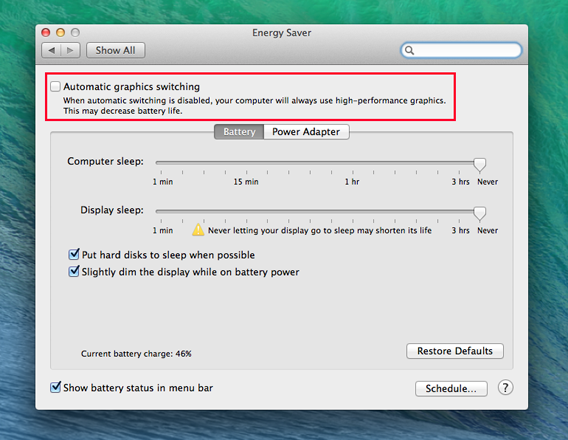
Mac graphic card auto switchIf you don’t tick the automatic switch box, as in this case, your Mac will always use the highest performing video card (i.e. the one that consumes more)

App Nap: you manage it

Mavericks has implemented technology that allows significant energy savings while minimizing the resource allocation for Mac applications not in use. It’s called App Nap. When the window of a program is completely hidden and you’re not doing a particular task (for example, playing music), App Nap will reduce consumption to a minimum, slowing it down. When that window becomes visible again, the necessary resources are reassigned. The process is quick and accurate, and doesn’t cause any delays. It also saves you a lot of battery life. If you’d prefer not to “suspend” some apps in terms of resources, maybe because you always want to work at full capacity (perhaps for sequencer music, or video editing programs if you’re working on large projects), select them, press the Command + I (info), and in the General tab, tick the box Prevent App Nap.
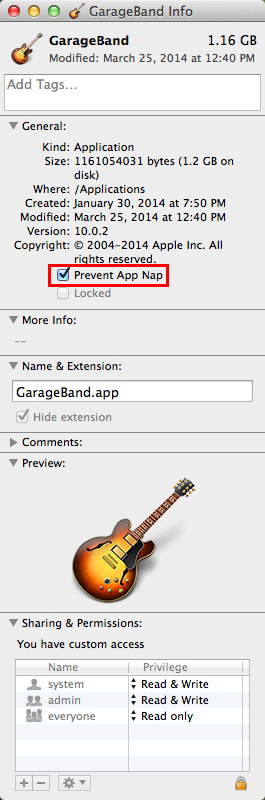
Block App Nap

Safari…always popular

safari The browser is probably the one of the apps that we use the most. It’s usually constantly open. So it’s easy to see how the way it handles resources can make a difference to the battery life of a laptop. Safari 7 was equipped with everything you could wish for – excellent performance flanked by energy saving. As has been happening in Chrome for some time, each tab is a separate process, but in resource allocation the tab in the foreground is favored most of the time, and just the bare essentials are assigned to the others.

Apple’s browser now includes a tool called Safari Power Saver, which prevents plugins loading automatically. Its surveillance weapons are Flash and Silverlight. How many times has a video (usually an ad) started straight away when you open a web page? With Safari, it’ll be blocked by default. If you decide you do want to start it, just click on it. With these two measures, you’ll definitely notice an increase in battery life on your Mac. Moral of the story: changing Chrome or Firefox to Safari could prolong the battery life on your Mac.

If you don’t need it, turn it off

We often forget that we’ve left something active. Everything you leave enabled, however, will consume valuable energy. A classic example is the Bluetooth connection, which isn’t always needed. Of course, if you want to be findable on AirDrop, then you’ll need to keep it active, but otherwise just turn it on and off as and when you need it. Occasionally, you might also leave your wi-fi connection on. If you don’t need the internet, or if you’re in a place where there’s no connection, turn it off. Your battery will be grateful.
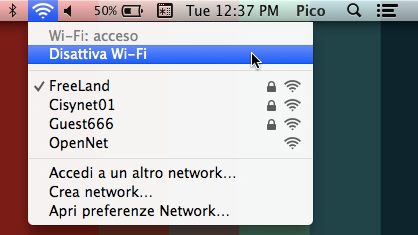
Deactivate wi-fi

Another good idea is to adjust the brightness of the screen according to your actual needs (no need to always have it at maximum), and also set up your Mac so the screen and the hard drive are put to sleep automatically (go to System Preferences> saving energy).
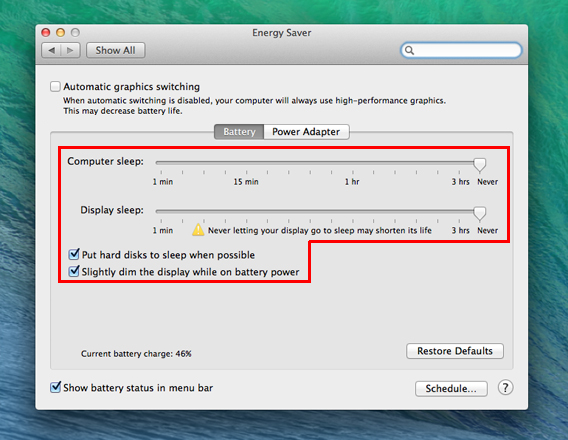
Schermo e hd in pausa quando possibile

These are a few changes you can make to save energy

To preserve battery power as much as possible, move the Computer Sleep and Display Sleep as far to the left as possible, thus shortening the time between you stop using the Mac screen and when it goes to sleep. Also check the boxes for putting the hard disks to sleep and dimming the display while on battery power. If you want to check the status of your battery, you can use Coconut Battery, which will show you the total capacity in milliamps, the number of charge cycles performed, the temperature of the battery and other information so you can keep a check on your battery’s health.
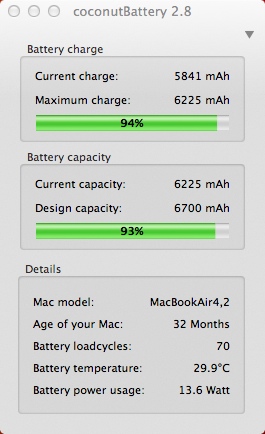
CoconutBattery

Pamper your battery

With Mavericks, Apple has done great job with intelligent use of the battery. Considering how small laptops are now, this is essential, because the physical size of the batteries are clearly decreasing, and to obtain reasonable battery life you need to make the most efficient use of them as possible. If you use the technology and add a little ingenuity, your life as an on-the-go Mac user will be better and, more importantly, easier. As an added benefit, there’s the fact that saving energy is eco-friendly. That can’t hurt either.

RELATED ARTICLES

OS X 10.9 Mavericks: iBooks, Maps and more, now available for Mac

OS X 10.9 Mavericks has finally seen the light of day. The biggest new features are Maps & iBooks, both borrowed from iOS.

After getting my hands on Mavericks, I tried to remember the last time Apple released a truly revolutionary version of OS X. Probably in 2007, for the transition from Tiger to Leopard. Since then, each new release of the operating system has been more of a big service pack, containing fixes for the previous version, and adding a few new features. The transition from Mountain Lion to Mavericks is in much the same vein. Besides the introduction of tag functionality to help organize content on your Mac and within Finder, there are just two new apps: iBooks and Maps, two iOS applications that have been transported to Mac, bringing the two worlds even closer. Let’s take a look.

iBooks

ebooks have arrived on the Mac. iBooks isn’t the first Mac app that can read and organize your ebooks – Calibre and Kindle, for example, have been around for a while. But now iBooks, the experience we’re used to on iOS, is available on the Mac, which also means access to the iBook Store and multimedia books created using iBooks Authors.

iBooks - Overview store blurred

This is a smart move, considering how easy it is to transport devices like the MacBook Air or MacBook Pro 13-inch, which are small and lightweight and as portable as ebook readers. If you use the same Apple ID for iBooks as you use for the iTunes Store for your iPhone and iPad, the books you’ve already purchased for your mobile devices will be immediately available on your Mac.

This kind of synchronization (which happens via iCloud) now exists across the Apple product line, and is virtually instantaneous. The synchronization works in both directions: buy a book on the Mac and you can access it on your iPad and iPhone too. In this case however, the download isn’t automatic. You’ll see the eBook cover right away in your virtual library, but you’ll need to click on the cover to download it to your iOS device. This is done as a way to save space on tablets and smartphones, avoiding the automatic download of books that you may not even want to read on your iPhone or iPad.

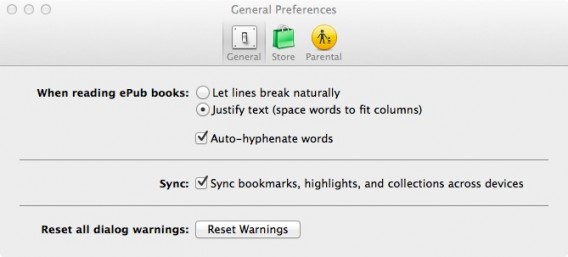
To try it out, we downloaded the free Steve Jobs: Agenda eBook using the iPad, and it appeared on the MacBook Air after only a couple of seconds. You can also synchronize bookmarks and annotations between different devices. To enable this feature, go to iBooks preferences on the Mac and check the option “Sync bookmarks, highlights, and collections across devices”.

Sync bookmarks highlights and collections across devices

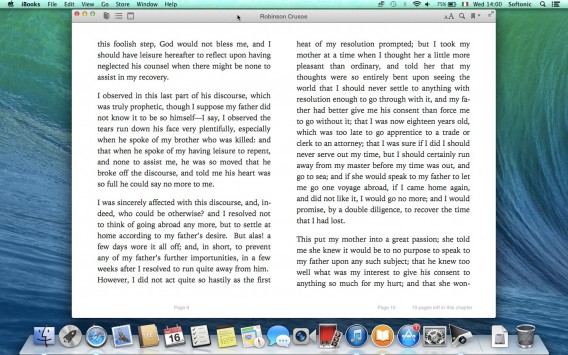
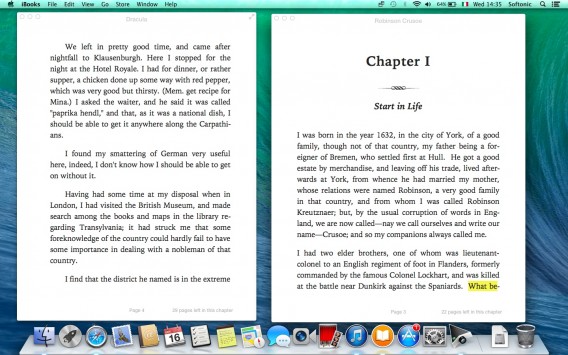
The iBooks for Mac interface is almost identical to that of the mobile version, in line with the gradual, consistent approach between OS X and iOS.

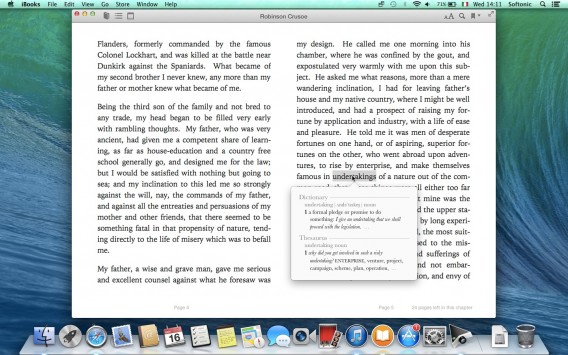
To turn pages, tap the trackpad with two fingers, as you would with a book. To look up the definition of a word, just highlight it.

iBooks - definizione del dizionario

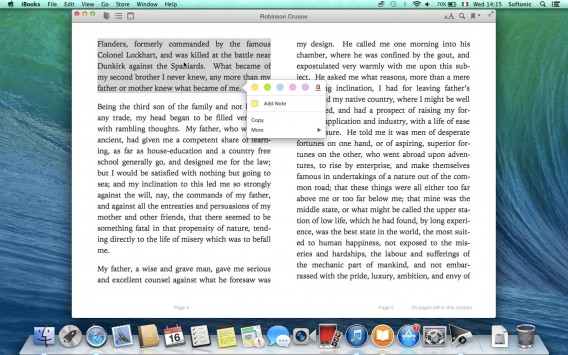
When text is underlined, a series of tools will appear: a highlighter (with five colors plus the underscore option), a sticky note, and a “More” menu, which allows you to search the book, the web or Wikipedia for the highlighted text, or share it on Facebook and Twitter, and via SMS or email. There’s also the “Start Speaking” option, to let the Mac read the text out loud.

iBooks - evidenziatori e note

You can also keep several books open at the same time, a feature designed specifically for students preparing for exams or writing term papers.

iBooks - 2 libri aperti contemporaneamente

Maps

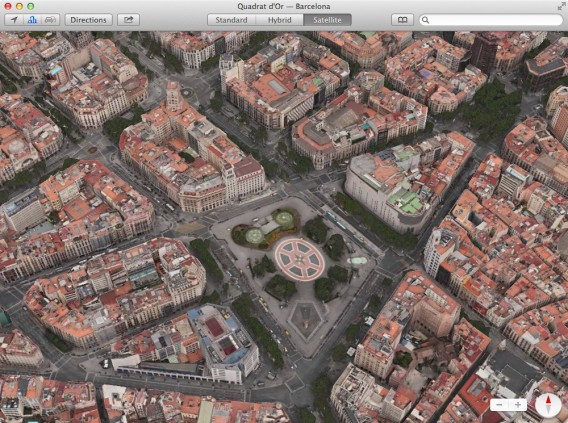
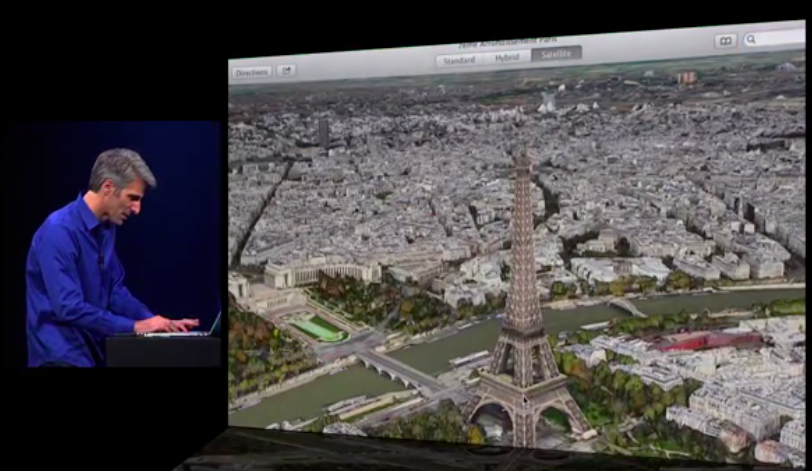
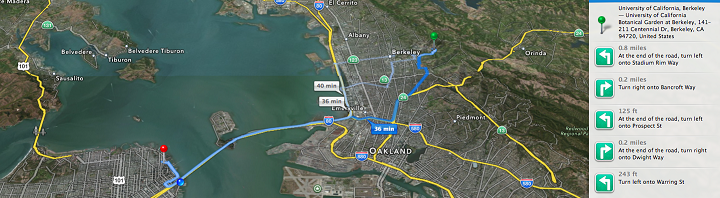
Maps on Mac is easy to use and aesthetically pleasing. Flyover mode is awesome – you activate it by clicking the second icon in the top left of the Maps interface. Then activate the Satellite view and zoom in on an area of the map (it works best with big cities). You’ll have the impression you’re doing a flyover in a helicopter, and the level of detail is impressive.

Maps - Flyover view

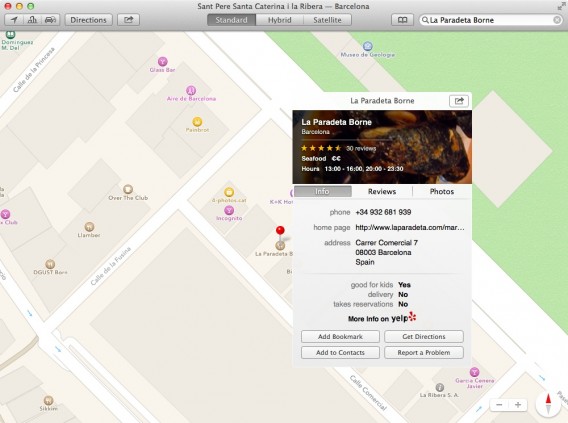
Placeholders, which indicate places of cultural or commercial interest, are inexhaustible sources of information. Click on one of them, for example a restaurant, and you’ll see general information, customer reviews, pictures, price ranges, opening hours, and much more.

Maps - Info locali commerciali

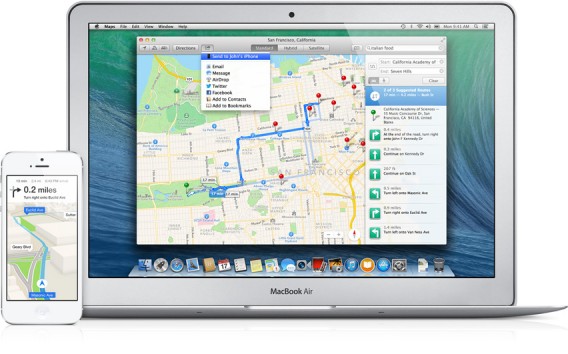
Click “Get Directions” to get directions to the location in question. You can also find a place on your Mac and send it to your iPhone: just click on the share button (next to Directions) and choose “Send to… iPhone”.

Maps - Send to your iPhone As with Google Maps, Maps also gives you traffic information in real time via dashed yellow or red lines, depending on the extent and severity of the situation, and recommends the best detours to avoid traffic jams.
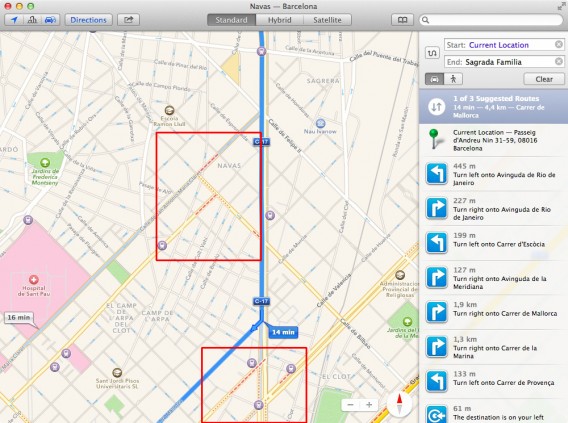
Maps - Indicazioni traffico 03

You can share directions via email, the Messages app, AirDrop, Twitter, and Facebook.

Baby steps

The thing we like the most about Maps for OS X is its usability. The interface is streamlined and easy to understand, and browsing maps is extremely intuitive. Compared to Google Maps, it offers fewer options (for example in the area of travel planning), but it makes up for it in ease of use.

It’s also interesting to note that Google Maps and Apple Maps both include support and tight integration via their relevant app ecosystems. Cupertino is clearly attempting to bridge the gap between the iOS and OS X worlds, and their respective hardware families (Mac, iPhone, iPad, and iPod touch). Mountain View deploys its Android OS across the Chromebook, Chrome Apps and a whole world of services that are becoming increasingly unified.

This is a clue as to what we can expect from the future of consumer technology: integration of services and increasingly massive penetration of hardware and software. The future means more and more “firepower” in the hands of fewer and fewer individuals. An increasing gap between the two major technology families is probably not in the best interest of the user, but this kind of competition is inherent in western economies, during this time of historic technological change.

[Original article by Pier Francesco Piccolomini from Softonic IT]

Hands on with OS X 10.9 Mavericks

Apple is saying goodbye to the big cats with OS X 10.9 Mavericks. First revealed at WWDC 2013, OS X 10.9 Mavericks brings changes in the form of Finder, Safari, Maps, Calendar, iBooks and more. Mavericks includes increased security in the form of iCloud, Keychain and boosts energy-saving features. OS X 10.9 Mavericks supersedes OS X 10.8 Mountain Lion and although it doesn’t introduce any revolutionary changes to OS X, includes some nice features, especially for fans of iOS. Here are some of the highlights:

Finder Tabs

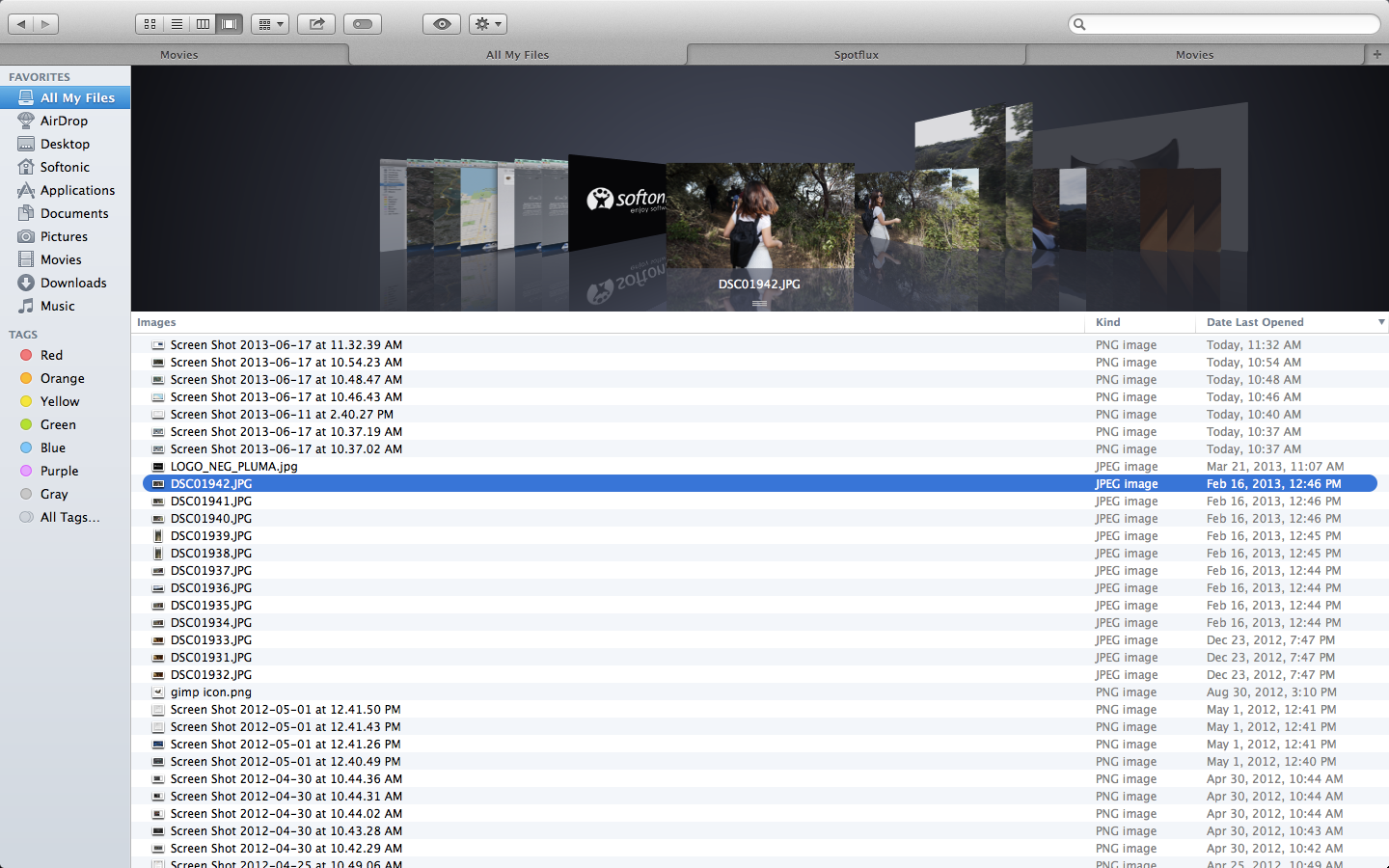
Finder now has tabs to help reduce clutter as you browse through categories. Previously, you’d have to open up multiple windows for the same effect. You can set up tabs for folders such as Applications, Desktop, Movies, and Pictures. Similar to web browser tabs, Finder tabs will change category when you select any of the options on the sidebar. This can be a little confusing at first, but quickly becomes intuitive.

Finder Tabs

You can also use tabs to easily move files between locations – simply drag and drop a file between tabs. The Finder window can also be set to full screen, making it even easier to move files. We thought that one of the most convenient features is the ability to turn several Finder windows into tabs via the window menu.

Tags

A new feature you’ll spot in Finder are tags, which can help organize files. The tag button at the top of the window will allow you to create new tags and rename the ones you already have. All tags will display on the left sidebar, allowing fast access to tagged files. Lastly, you can search for tags in the Finder search field.

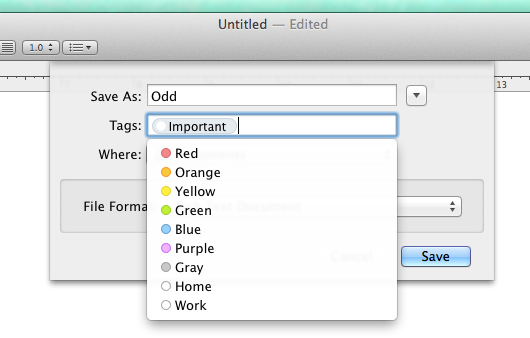
tags while saving

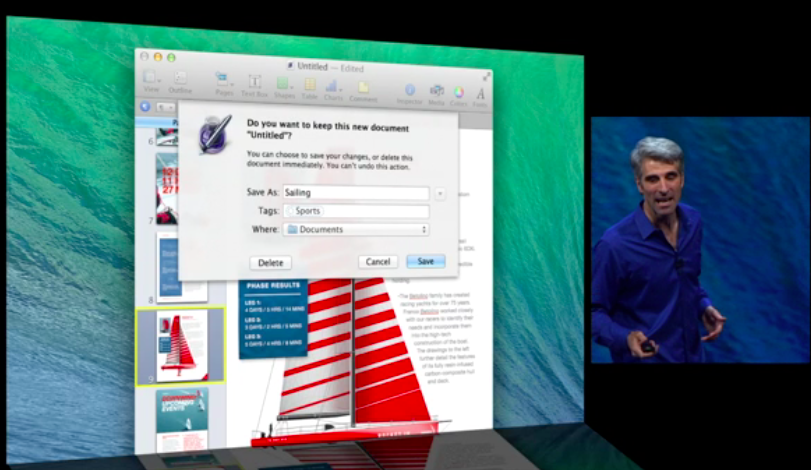
The best part is that tags go beyond just the Finder. When you save a document, even simple ones such as text documents or pictures, you can assign tags right in the save confirmation window. You can even quickly add tags to files within iCloud, allowing a fast universal search for both local and cloud stored files. Using tags in conjunction with Finder is very easy to understand – it’s fluid and makes it very simple to track documents.

Safari

Safari has several new technical upgrades, among them Fast Start and Nitro Tiered JIT. Apple claims these make the web browser faster and more responsive, and improves power saving. We didn’t notice drastic changes during our testing, which could mean the changes are subtle, working quietly in the background, or it could mean they’re just not that great!

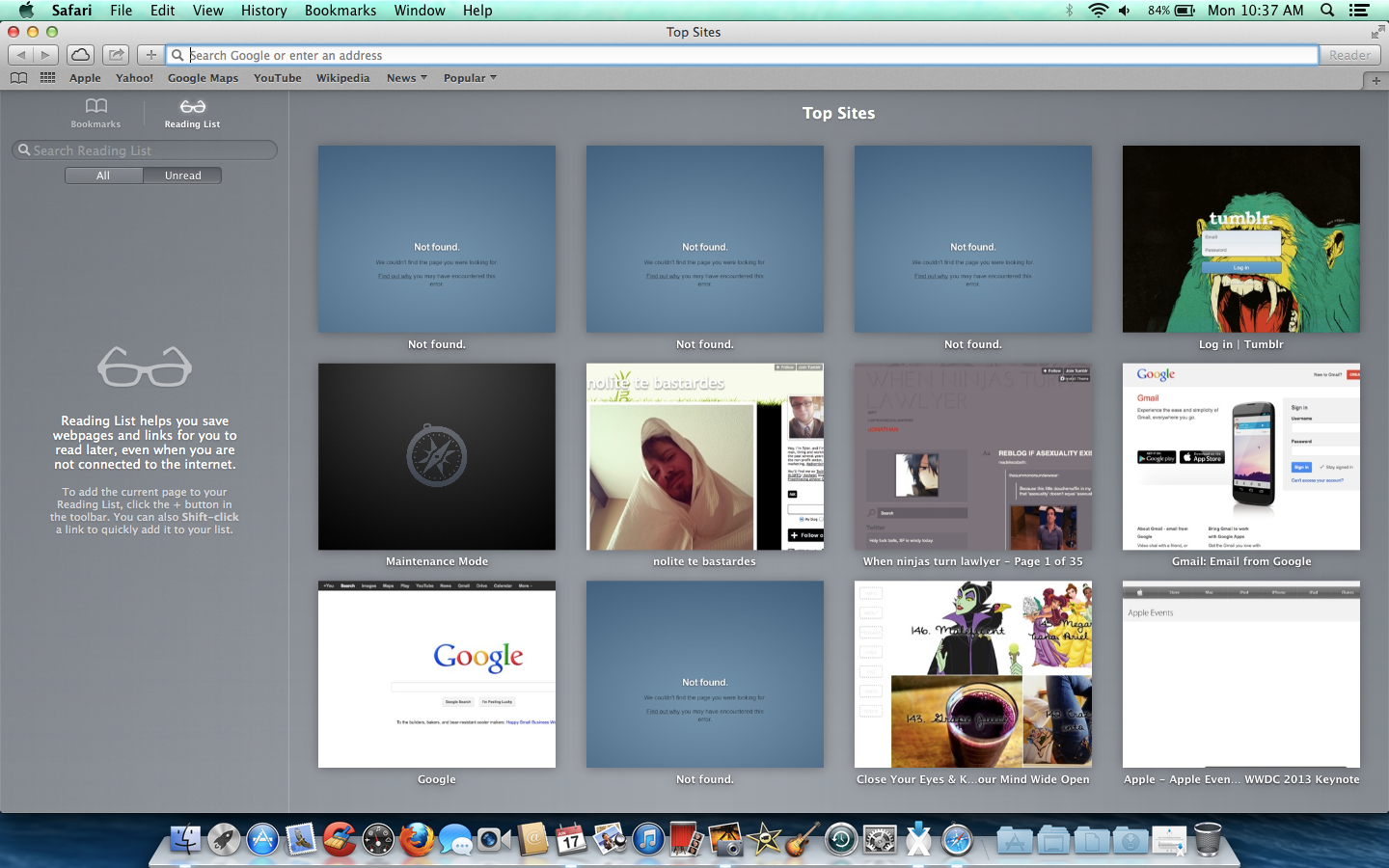
Safari changes

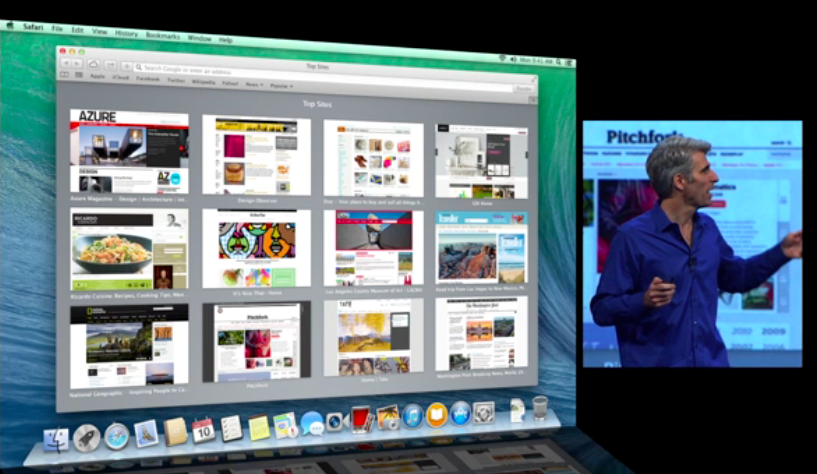
There are also many cool new frontend features that will come in handy. First, when you open Safari or a blank new tab you will see Top Sites, which includes sites you frequent, and favorites. While this isn’t new on its own, it’s now much faster to organize and delete any of the sites that show here. The sidebar has been upgraded to list bookmarks, reading list, and shared links.

The shared links is impressive, providing links posted by people you follow on social networks such as LinkedIn and Twitter. It even includes their corresponding message/tweet, giving you context for what site these people want you to see. While Safari’s other features are mostly bonuses, shared links has the potential to easily connect people’s interests without the need of external apps or sites, making it a truly noteworthy feature.

iCloud Keychain

Improvements to Safari might mean you’ll use the internet more often, which in turn might make it hard to remember all of your passwords. Thankfully, Mavericks includes iCloud Keychain to help remedy this issue. Similar to other password security apps such as PasswordBox, iCoud Keychain stores your usernames and passwords and encrypts them. You can even use iCloud Keychain on other compatible devices, like iPhones running iOS 7.

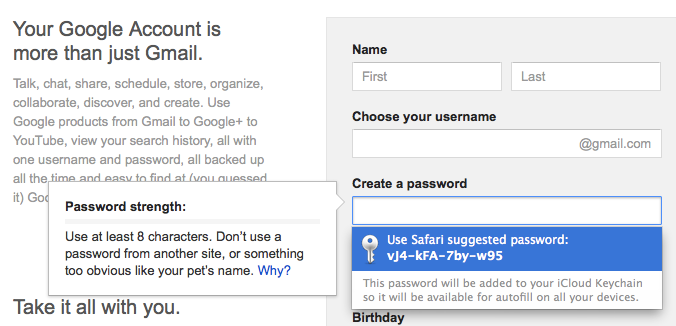
keychain suggestion

Besides storing passwords, iCloud Keychain can suggest new passwords when you create online accounts and store credit card information. With 256-bit encryption, it sounds like it will be a very secure feature, although it’s always possible that dedicated hackers will attempt to breach security. iCloud already requires an Apple ID and enabling two-step verification might be a good way to further strengthen iCloud Keychain. For now, though, the sheer convenience of having a first party service that stores and suggests passwords is very useful.

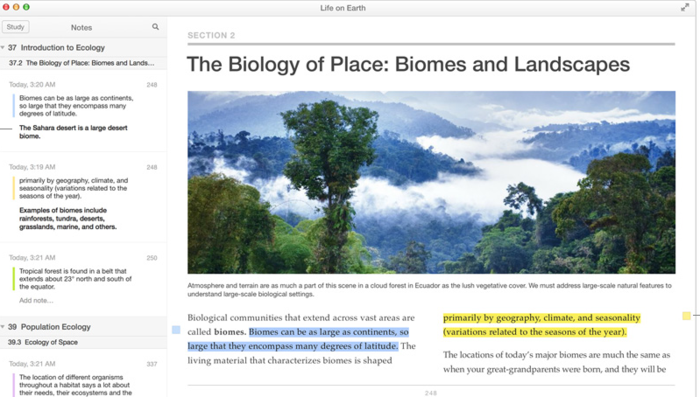
Read iBooks on your Mac

Another iOS feature that’s arrived on Mac is iBooks. Now you can read anything that you’ve downloaded with iBooks on your iPhone or iPad on your Mac. Again, reading books on a Mac isn’t exactly the most popular pursuit for many users but for students and academics, it can be a useful took when it comes to writing essays and quoting textbooks. And with iCloud, iBooks always remembers which page you were on no matter which device you are using.

Notifications

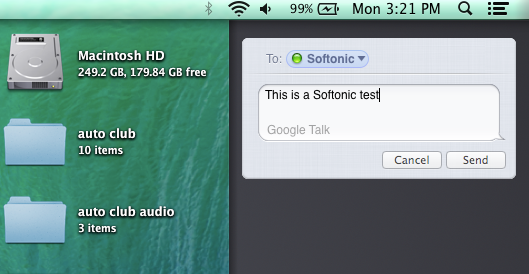
Mavericks has improved notifications, allowing you to see updates outside of the app you’re using, or even while your computer is locked. You can use notifications to get updates on email, FaceTime, and websites you frequent. By default, the notifications appear in the top right hand corner and feature a simple headline, summary/message, and an icon to identify the source. You can also check a summary of all recent notifications, and use this space to quickly send messages or respond to linked services. During our testing we were never bombarded with too many notifications, but it will be interesting to see how notifications evolve once in the hands of the public.
notifications

Maps

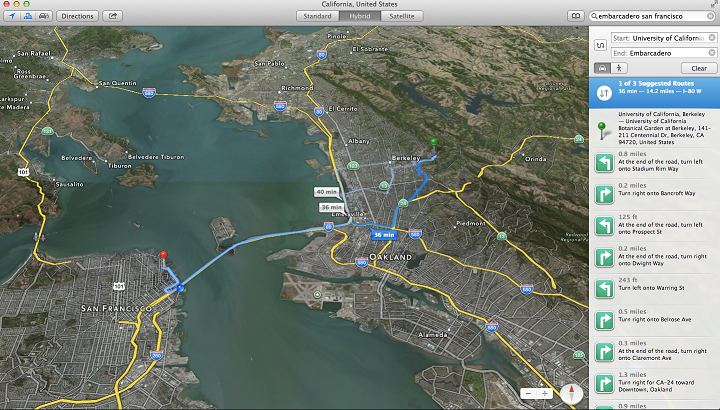
Originally on iOS, Apple Maps leaps to Mavericks and retains much of the same functions. You can view maps in standard, satellite, and a hybrid view. The latter two are more graphically intensive, which for us made the maps load slowly. There are of course standard tilt and zoom controls, and also the ability to bookmark locations and get real-time traffic updates.

apple maps

While it’s nice to have a map app packed right in the OS, Apple Maps still pales in comparison to the great updates within Google Maps. The latter also still has clearer and easier to find directions, especially when you’re on the go, and provides accurate routes quickly. What is nice is that the Apple Maps on Mavericks can quickly sync to iOS 7 maps, which in turn can provide voice navigation. Still, at the moment that isn’t really enough to compete with Google.

Calendar

calendar

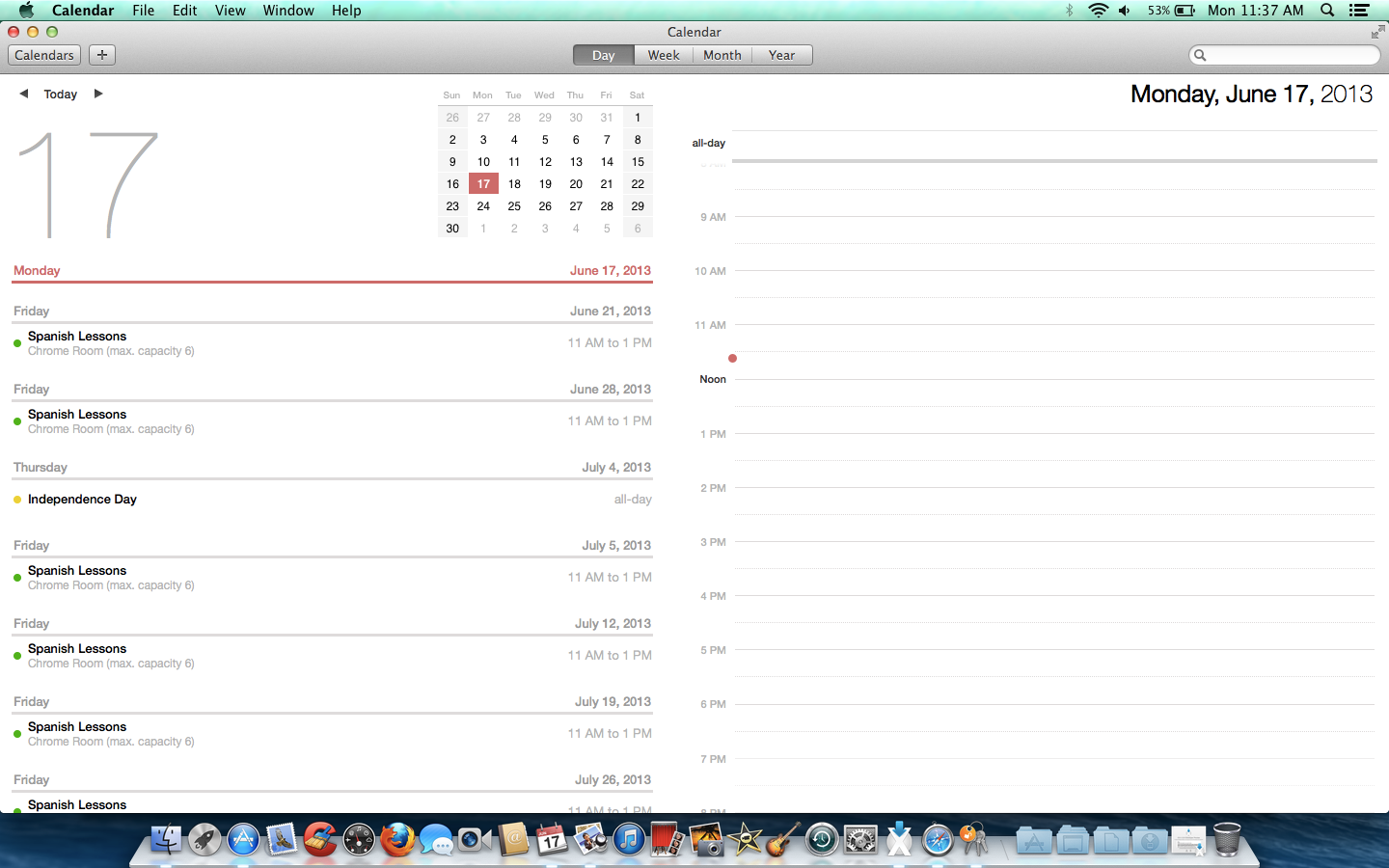
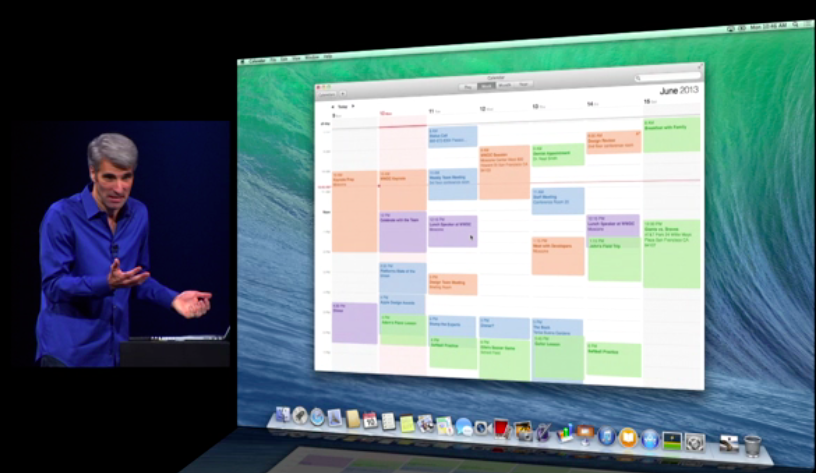
The calendar app has a new redesign that adds new views and features. First you can continuously scroll between dates, allowing you to view partway through one month and into the start of the next. Calendar syncs to other apps, showing events provided by services such as Facebook, and adds travel times to events. When hovering over an event, an improved inspector popup will show details including driving directions and weather reports. This view can even suggest related and nearby locations simply by typing an address. These improvements are very nice if your meetings require a lot of travel to new and distant locations, but will be less useful for nearby appointments.

Just a taste

These are some of the highlights in OS X 10.9 Mavericks. There are also a few more complex and hardware-focused features in the OS, such as network servers, multiple screen display improvements, and battery conservation, but these aren’t that interesting for most standard users. Let us know what you think of the latest incarnation of OS X.

WWDC 2013: Apple reveals Mac OS X 10.9 Mavericks

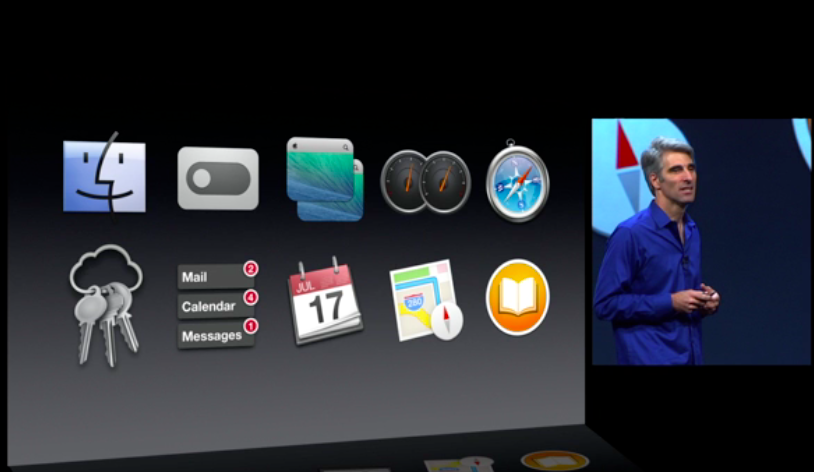
OS X 10.9 mavericks improvementsThe newest version of Mac OS X is here and it’s got a brand new name: Mavericks. Apple has given up on the traditional cat-themed naming for its desktop operating system. While there was no major interface changes in OS X, there are a ton of advanced features and tweaks that will make Mac users excited.

Finder Tabs

OS X Mavericks tagging finder

Finder now has a tabbed interface. This feature has been much requested from Mac loyalists. Previously, there were third party apps like TotalFinder that featured tabs. Users can drag and drop content between the tabs. Another new feature of Finder is tags. Tagging allows users to mark documents and files with different tags to make searching and finding things much faster.

Multiple Displays

Apple finally fixes the multiple display issue that began in OS X Lion. Previously, putting and app into full screen put a shade over all other monitors. Now full screen apps will run without restricting the use of other monitors. You can even run multiple full screen apps at once. To simplify everything, Apple has added the menu bar and dock to all monitors, instead of just the primary monitor. This makes the interface easier to use and understand. If you have an AppleTV, you can even AirPlay to the device to use your TV as a monitor.

Safari

OS X Mavericks Safari

Safari gets a few tweaks that make it a more useful browser. Besides the run-of-the-mill performance improvements, Safari gets a new home page with bookmarks and reading list integration. Stories in your reading list can be scrolled from one to the next, without having to click on anything.

iCloud Keychain

If you have trouble remembering your passwords, iCloud Keychain has you covered. Not only will it remember your passwords, Wi-Fi network credentials, and credit cards, iCloud Keychain can also generate random passwords for you so your accounts are more secure. Of of your passwords will be synced to all of your Macs and iOS devices.

Notifications

Notifications get a little more useful, allowing users to interact inside the notification instead of just opening up that app. Mobile notifications can now also be pushed to your desktop, so you won’t miss a thing (for better or worse). Apps will also update in the background, without having to prompt you to update them.

Calendar

OS X mavericks calendar

Apple showed off the new Calendar and it’s clear the company is waging war on skeuomorphism in OS X. They joked that “no virtual cows were harmed” making the new Calendar app. This is also an area where Apple is playing catch-up with Google Now. The app now integrates with Maps, giving users the ability to look up locations and get traffic info, right from within the app. There’s even weather data to let you know if you need to bring an umbrella.

Maps

OS X mavericks maps

Maps comes to OS X Mavericks and it works just like its iOS counterpart. The best feature of Maps for OS X is the ability to send your trip to your iPhone with a click of a button. Google Now similarly does this by linking your Google account and Android phone, showing recently searched for directions.

iBooks

OS X mavericks ibooks

iBooks also comes to OS X, giving Mac users access to 1.8 million books. It works much like the Kindle App for Mac, letting users annotate, highlight, and bookmark pages. iBooks also supports interactive text books and study cards.

Wrap up

While OS X 10.9 Mavericks doesn’t have anything groundbreaking, it has enough tweaks and polish to make it one of the most compelling desktop operating systems out there. Of course, you’ll have to live within Apple’s universe to get the most out of OS X Mavericks.

OS X 10.9 Mavericks will be released some time in the Fall, but developers can get their hands on a preview build today.