How to: create LINE Snap Movies

Love Vine and Instagram Video style clips, but want them right in your chat app? The newest update for LINE on iOS (3.9.0) introduces Snap Movie, which allows you to create short videos, add background music, and send it to your contacts. While this feature is only on iOS at the moment, it will be released later for Android and other platforms. I’ll show you how to access and use Snap Movie, which will let you share your creations with all your friends.

Starting a Snap Movie

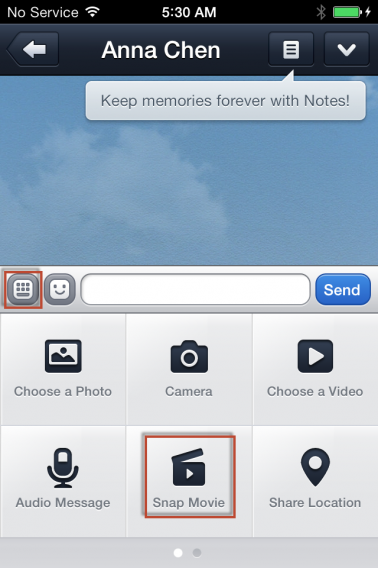
Snap Movies can be created in the chat menu. Tap the plus icon at the bottom, which will bring up a list of attachment options, and select “Snap Movie”.

Snap Movies can be up to ten seconds long. Tapping the screen will record a single second, or you can long press to record all ten seconds. If you don’t like what’s been recorded, you can cancel the video by tapping the “X” at the top right.

By default, Snap Movie uses the device’s back camera, but you can hit the camera flip icon on the upper left to switch to the front camera. If your video is less than 10 seconds, hit the “Next” button to move to the next step. Full length clips will automatically complete and move on.

Music and Preview

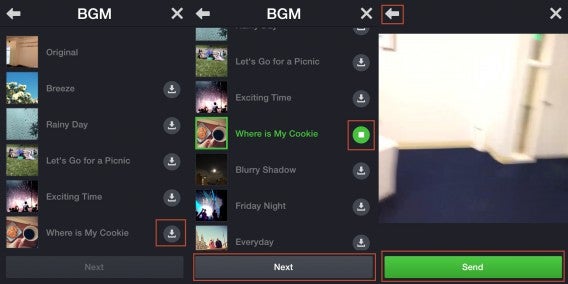
You’ll be taken to the BGM menu where you can choose to use the original audio, or add a background track. You will first need to download the song by tapping the corresponding button on the right. This should be fairly quick, though it does depend on the speed of your data connection. Take a listen to the audio and once you’ve found a track you like, hit “Next”.

You’ll be able to preview the full creation of your Snap Movie along with the music. If want to go back and change something, hit the back button in the upper left. If you like what’s been produced, hit “Send”.

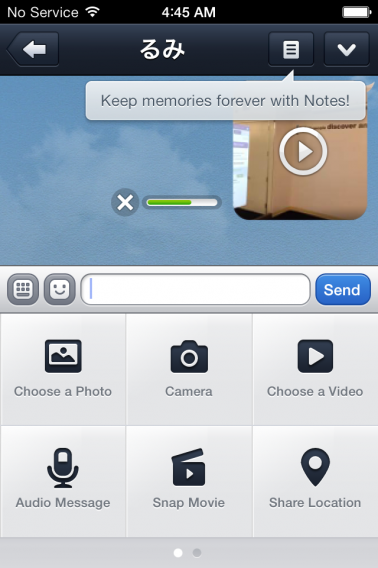
The video will be sent to your friend, and will also be saved onto your device. This means you can send your Snap Movie to others by using the normal “Choose a Video” option. You can also watch, move, or upload the video file via other apps on your iOS device.

Being able to make short self-created movies and send them to your LINE contacts is fun and convenient. However, Snap Movie lacks the more sophisticated features of Vine and Instagram Video. LINE Snap Movies can’t be as easily edited, lacks filters, and doesn’t allow direct sharing to social networks.

For a comparison of more flexible video apps, you might want to check out Vine vs. Instagram Video and also how import and share your own videos on Instagram. If you need a refresher on other LINE features, check out how to register LINE on devices and add in your various contacts.

10 fantastic Google Easter Eggs

Google loves hiding secrets in their services and products. The company has had 15 years to fill the internet with memes, references to pop culture, and humorous oddities. To coincide with Google’s birthday, I’ve compiled a list of the ten best Easter Eggs, and how you can access them. This list extends to many Google services and software, including Search, YouTube, Android, Maps, and more.

Search Easter Egg: Zerg Rush

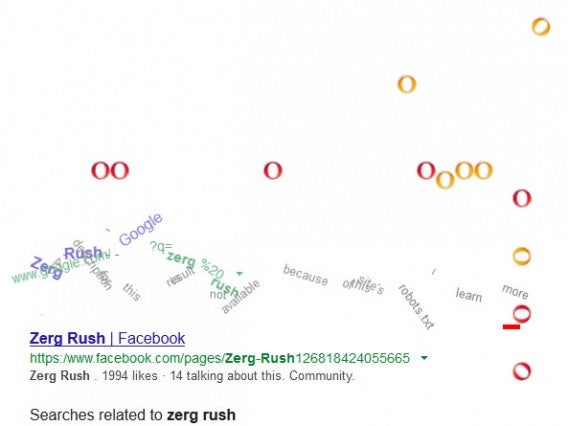
If you’ve ever played the Blizzard game Starcraft you might be aware of the Zerg, an alien hive mind race that attacks in ravenous swarms. One of the main strategies is the Zerg Rush, with prioritizes releasing an army of cheap units to overwhelm the enemy with sheer numbers. Typing in Zerg Rush into Google web search recreates this tactic.

“O’s” will descend on the search results and destroy each link. Each O can be destroyed by clicking on it three times, but the amount on screen makes it a hard job. Upon destroying all link the O’s form into a large “GG”, a common Starcraft term for “good game”.

Translate Easter Egg: Beatbox

Google Translate is a means of understanding other languages, but what about the universal language of music? Alright, beatboxing might not be a traditional, but it’s a really neat way of turning your voice into a percussion instrument. Entering certain phrases into the Google translate dialog box will turn the normal “Listen” icon into “Beatbox” mode. You have to include several lines to turn on this feature, though it’s hard to find the actual minimum. The following are some of the text sounds that roughly translate to Beatbox rudiments.

pv = brushing
bk = bass
vk = roll tap
zk = symbol
krp = hig hat
pv = short roll
ds = rimshot
bsch = snare
tk, kt = flam

YouTube Easter Egg: VHS button

For the 57th anniversary of the VHS, YouTube added a “Tape Mode” button. This gave videos a degraded, VHS look, complete with a blurry pause and lots of visual noise. While the button is off by default, it can be accessed by including “&vhs=1” at the end of any YouTube link.

Android Easter Egg: Secret images

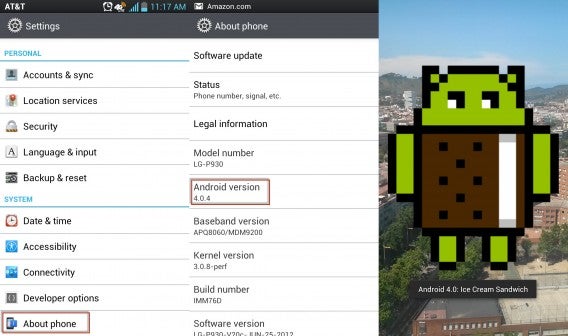
Since Android 2.3 (Gingerbread), Android has included secret images that can be accessed in the “About phone” menu. Enter “Settings”, “About phone” and quickly tap “Android version”. With enough speed a secret graphic will appear based on the OS.

  • 2.3 (Gingerbread) – an Android Robot in a zombie apocalypse.
  • 3.0 (Honeycomb) – an Android Bee.
  • 4.0 (Ice Cream Sandwich) – Android Robots flying like Nyan Cat.
  • 4.1 and 4.2 (Jelly Bean) – Lots of jelly beans fill the screen and can be flung with swipes.
  • 4.3 (Jelly Bean) – Similar to the above, but it starts with a single large jelly bean that generates more beans when tapped.

Images Easter Egg: Atari Breakout

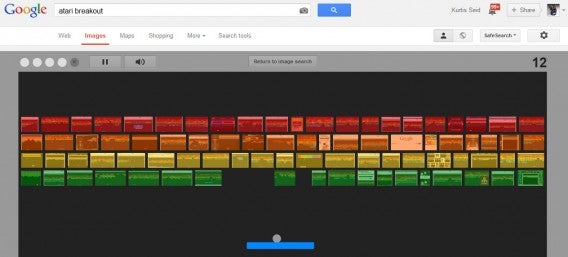
Doing an image search for “Atari Breakout” will turn the search results into a colorful grid similar to the game Breakout. A paddle can be controlled with the mouse to bounce a ball and destroy the images. When a level is completed, a new random image search will be done and the corresponding images will be used for that level.

Multiple Services Easter Egg: Klingon, Pirate, and other languages

Google services are available in common languages such as English, Spanish, and German. What might surprise you is that in some of these services, such as search, you can expand the list to include more uncommon languages. Most of these are real languages, but among them are also settings to languages to Pirate, Kilingon, Elmur Fudd, Hacker, and more. These extra humorous ones typically only change the initial main page, while leaving more important sections in American English.

Maps Easter Egg: Google Staff in Street View across the world

Google has multiple headquarters around the world, and there are plenty of employees who enjoy their work. By searching some of these locations, you can view see groups of Google staff on Street View!

This includes Barrow St. in Dublin, Ireland and 1600-1632 Charleston Road Mountain View, CA, USA. It also used to include the Wroclaw, Poland office, but this seems to have been removed.

Maps Easter Egg: Half Moon Island Antarctica

If you switch to classic maps view (or never upgraded in the first place), you can explore the entirety of Half Moon Island. Drag the man icon onto the island and he will transform into a penguin. You will be able to “Street View” the island, just like a road. As mentioned before this Easter Egg doesn’t function in the updated version of Maps.

Maps Easter Egg: Other Maps secrets

There are many assorted secrets within Google Maps, mostly scattered around random locations. Searching 44 14’39.77″N 7°46’10.71″E and zooming in will show a large rabbit. Searching 47.110579, 9.227568 and entering street view will give you a glimpse of heaven in the clouds.

You can also get a peek into the Tardis from Doctor Who by searching for “Police Telephone Box London”.

Logo Easter Egg: Two player Pac-Man

Google celebrated Pac-Man’s birthday by changing the search homepage logo into a working version of Pac-Man. By hitting “Insert Coin” two times Ms. Pac-Man appears, allowing two players simultaneously. While the game has been removed from the homepage, it can still be accessed through Google Doodles which display past logos.

Google loves Easter Eggs and these are just a few of the crazy ones still around. Unfortunately, they’ve removed some other cool ones, such as playing Snake in YouTube videos. We’re looking forward to the new Easter Eggs Google hides in KitKat, Google Glass, and other future products.

Have you found other amazing Google Easter Eggs?

How to: use remote lock in Android Device Manager

Android Device Manager already allowed you to locate your lost Android device when it launched last month. Now you can feel extra secure with the ability to lock your Android remotely, which is a great means of keeping potential thieves from accessing your personal data. Android Device Manager is a part of Google Play Services, supported on Android 2.2 and higher. The feature now enables you to change the lock screen to a passcode for extra security if you lose your device.

Allow remote lock

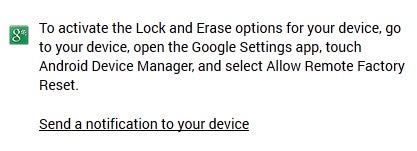
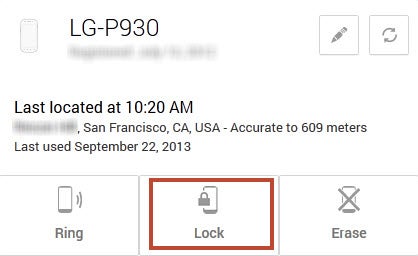
First head over to the Android Device Manager website and sign into your Google account. The new “Lock” and “Erase” functions will be inaccessible. You will see a message stating they can be enabled through your Android device. You can also send a notification to your device.

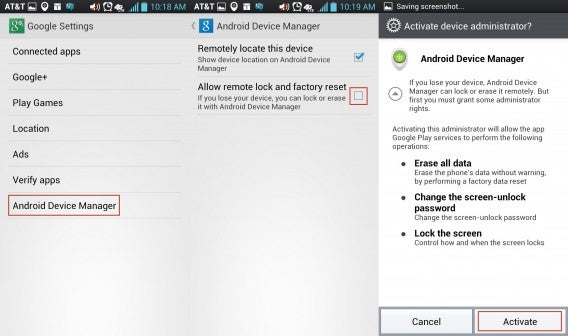
On your Android access the “Google Settings” app. At the bottom select “Android Device Manager,” and on the next menu toggle on “Allow remote lock and factory reset.” Read over what this functionality allows and if you’re satisfied select “Activate”.

remote device on Android

Remote lock

Back on the web you now have the ability to lock your device. There is also the option to erase the device, though that is only for extreme measures like if your device is stolen. This is a full factory reset that erases all data.

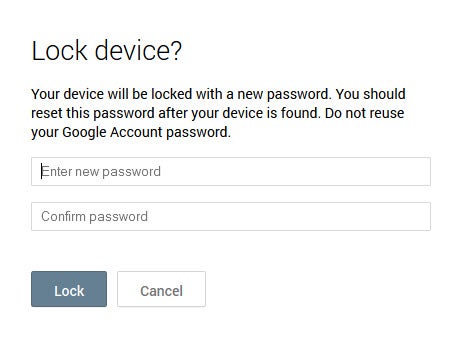
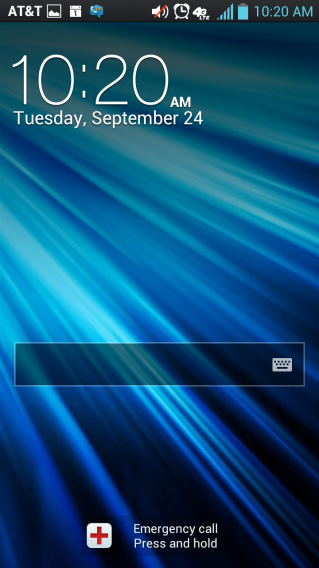
Selecting “Lock” will let you enter in a new password for your device. It’s recommended to reset your password after locating your device. What’s convenient is that this password will override your current lock method, such as pattern, PIN, or Face unlock. The override is an excellent feature so that previous methods to unlock the device will not work anymore.

Unlocking your device

When you’ve found your device enter the password and you’ll regain full access. Remember to either reset your password or change the type of lock screen through the “Settings” menu.

Android Device Manager is an extra means of keeping your Android device secured, but it isn’t without some pratfalls.  It can’t communicate with a device that is off, out of coverage area, or has already been factory reset. It’s much more important to be as secure as possible prior to losing your device. Consider setting up two-step verification for your Google account and other services. It’s also a good idea to control app data, set up Google security alerts on your phone, or know why encryption is so important.

Seven “hidden” iOS 7 features you may have missed

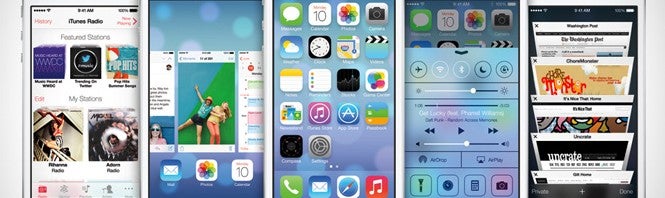
I’ve previously shown you five of iOS 7’s best new features, but now it’s time to highlight seven more hidden details that might be easily overlooked. While the following aren’t ground breaking, they are a great way to customize your device or improve performance. If you want to make the most of iOS 7, you might also want to take a look at our video series on the subject.

Control background app refresh

background_refresh

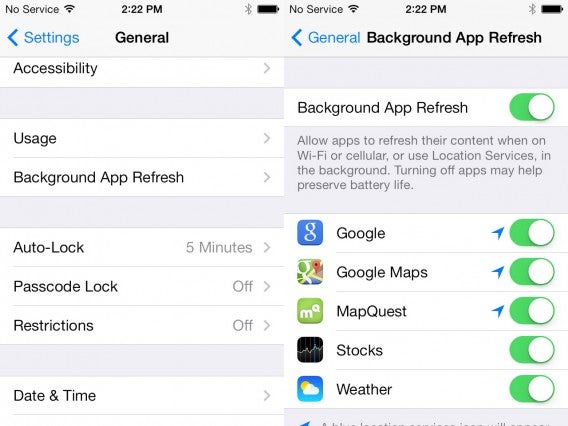
By default, iOS 7 can update apps in the background. While it’s very convenient, it’s not particularly friendly on your battery life or data limit. Thankfully, you can use the “Background App Refresh” menu within general settings to disable background data for certain apps or even turn it off completely.

iOS 6 style bold text

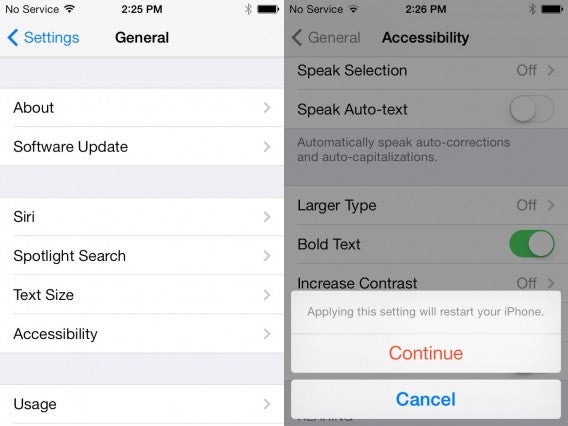
iOS 7 contains a new style of font that is much more elegant, but can be harder to read. If you find yourself squinting at the text or just miss the bigger font of iOS 6, you can turn on “Bold Text” from accessibility menu in general settings. Keep in mind that turning on bold text will require a restart of your device.

Teach Siri some names

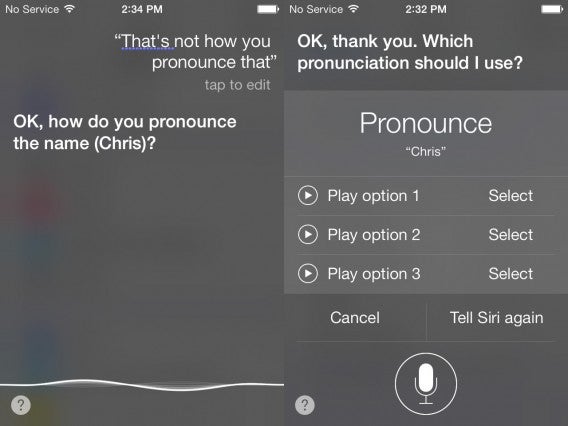
Siri’s tone and humanistic speech has improved, but the personal assistant doesn’t always get every word right. When you use Siri you can now teach it more accurate pronunciation of names simply by saying “That’s now how you pronounce that”. This will then be followed by a menu containing several pronunciations you can select, or attempt again to inform Siri of what to say.

Vibration ringtones

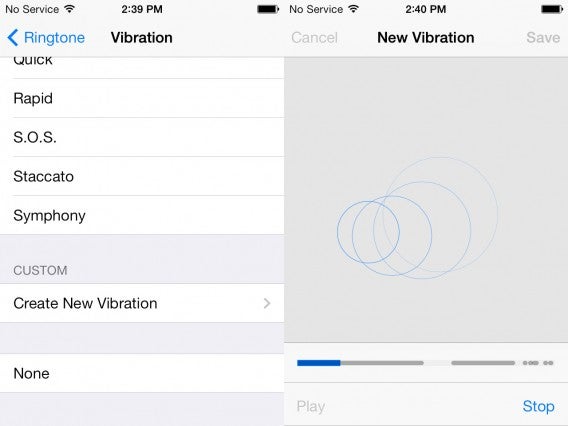
While custom vibration ringtones aren’t new, iOS 7 includes a new interface to create them. This can be accessed through “Ringtones” in the “Sounds” settings menu and selecting “Custom” under “Vibration”. To create a new vibration tap or hold the screen to control when your device shakes and moves. You can store several vibration creations and switch them at later.

Limit Ad Tracking moved

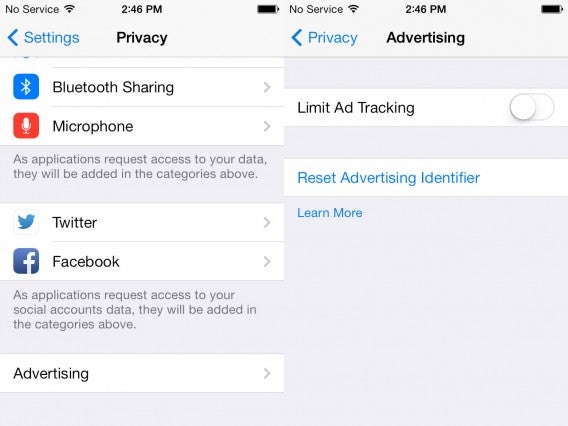
iOS 7 sends data of your browsing activity to help tailor your device with personal advertisements. Don’t worry, it’s not sending any vital information and is completely anonymous. Still if you want to conserve data or simply don’t want custom ads you can turn off this feature. Back in iOS 6 this was slightly annoying and well hidden, but in iOS 7 the option can be easily found in the “Privacy” settings. Select “Advertising” and toggle on “Limit Ad Tracking”.

Spotlight search changes

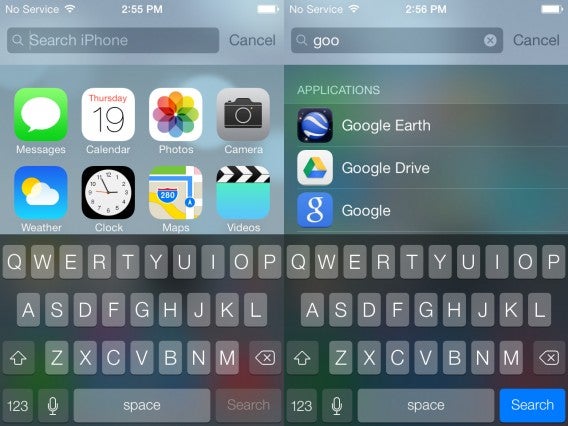
Accessing Spotlight search has changed slightly in iOS 7. Unlike iOS 6, you simply need to drag down on your screen (although not high enough that you swipe open the Notification Center by mistake). You can now use Spotlight to find apps, emails, contacts, and nearly everything on your device. Oddly enough, you can no longer use this feature to search the web or sites such as Wikipedia. This is probably to emphasize the use of Safari for general web searches.

Turn off parallax

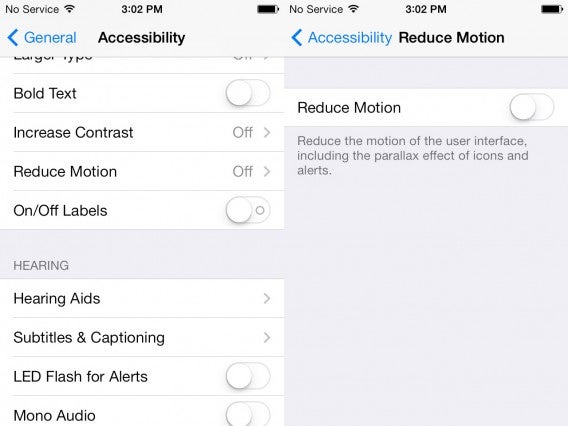
The most graphically noticeable change of iOS 7 is parallax icons and wallpapers that shift as you move your phone or tablet. If you don’t like the way this looks, or if it is somehow affecting your performance, it can be disabled. Within the “Accessibility” menu is the option to “Reduce Motion”. This will turn of parallaxing, including motion from icons and alerts.

These are just a few neat ways of sprucing up iOS 7 and truly making the operating system your own. Have you discovered other cool hidden aspects of iOS 7?

Should you upgrade to iOS 7 right away?

iOS 7 is here and many people will be clamoring to update right away. We’ve been testing out the new operating system from the early betas to the gold master. There is a lot to love about iOS 7 and great reasons to upgrade, but rushing in might not be for everyone. We’ve complied a few reasons why you might upgrade immediately, or whether it might be a better idea to hold off.

Great new features

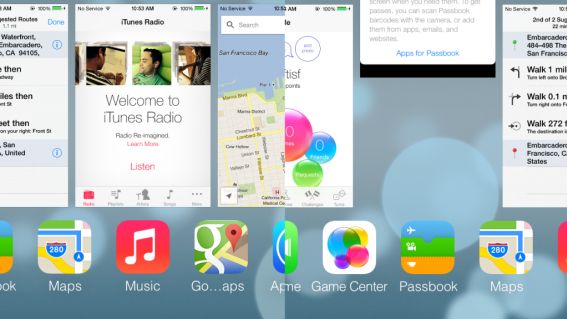
The most obvious reason to upgrade is that iOS 7 is very feature-rich. The update includes clean and useful changes to apps such as Safari, the weather app, App Store, Maps app, and the ability to make voice calls via FaceTime.
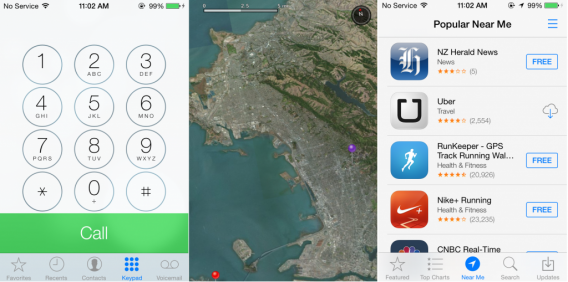
Siri has a brand new interface, and includes voice overs in English, French and German. It’s more fluid and human-sounding, and has the power to aid in changing phone settings, recite message, and even conduct search in other apps.
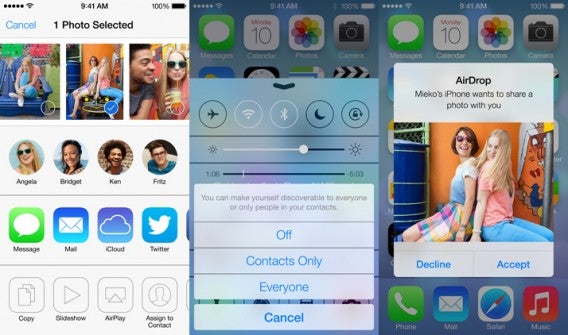
Among the great new features is AirDrop, which allows you to exchange files across mobile devices and Macs running OS X 10.7 and above. It doesn’t work on all devices, but for the ones that do, the ease of transferring files to others is very useful.

Convenient menus and multitasking

The design of iOS 7 flows better than older versions, and a key place to see this is the new layout of menus such as Control Center and Notification Center. These centers can be accessed by swiping up or down, respectively, even while in the lock screen. The Notification Center clearly displays notifications and separates them into lists such as notifications from today, all notifications, or only the ones you have missed.
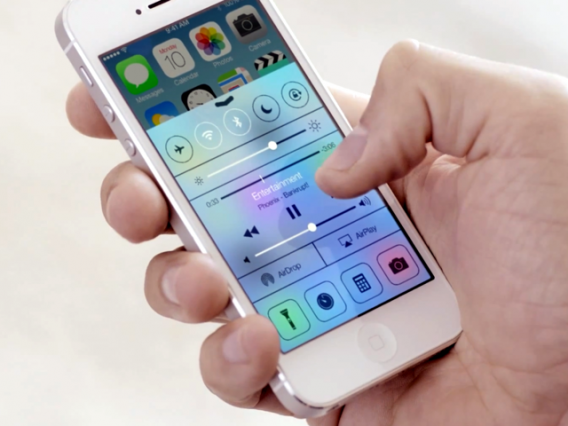
The Control Center has options to switch into airplane mode, toggle Wi-Fi, control media, brightness, and access apps such as the camera, calculator, and the new flashlight app. All of these options packed into one place is very convenient.

Along with spruced-up menus, iOS 7 also offers improved multitasking to quickly hop between apps. All active apps are displayed in a row of icons, along with card previews. You can quickly switch to an app by tapping on it or shut them off with a swipe up.

More secure and private

While iCloud Keychain is currently delayed, once it’s rolled out the potential for convenience and security is great. This feature stores and encrypts passwords and can even generate new ones on demand. You no longer have to worry about memorizing a whole list of complicated passwords. The best part is the password will be accessible on other iCloud devices such as Macs, iPads, and iPod Touches.
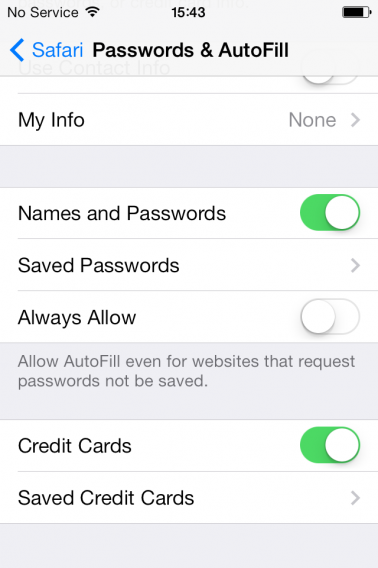
If you want more local privacy iOS 7 now offers the option of blocking calls. Being able to avoid spam, stalkers, or just people you don’t like is a great way to put your mind at ease.

Media-rich

The camera and music gets revitalized with iOS 7. Opening the camera app allows options for photo, square, panoramic, and video captures. The camera’s editing mode allows you to select filters, remove flaws, crop, and even an option to auto-enhance. This allows the native photo editing app to keep up with apps and services such as Instagram and Google+.
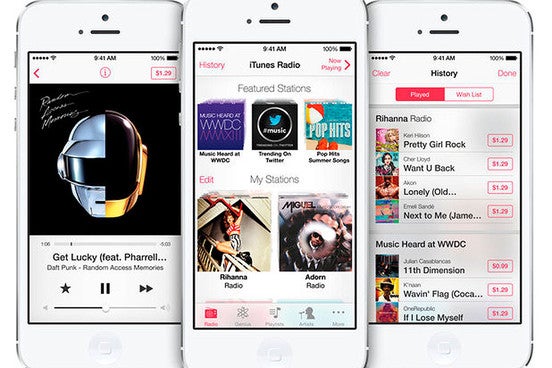
The big new service in iOs 7 is iTunes Radio. On the basic free level the music app allows the creation of radio stations filled with different artists. This makes it a great alternative to Pandora, although some users of Spotify might find it annoying not being able to select specific songs. While Apple hasn’t released the current number of songs available, the current library has over 200 stations from labels such as Sony and Universal records, so it should be good.

While we’ve mentioned some of the great new aspects of iOS 7, there are still a few things that you should be cautious about upgrading.

A new OS can be overwhelming and buggy

iOS 7 is a big change to the look and feel of the operating system. Some people could compare it to Android’s leap from Gingerbread (2.3) to Ice Cream Sandwich (4.0) several years ago. Icons are re-designed, and many features have been moved around. This can make iOS 7 a bit confusing when you first use it. The only real solution is to test out the OS or prepare by viewing tutorials and previews. Many people who seem accustomed with iOS 7 have actually been prepared by using the many betas that have been released over the previous months. Jumping straight in from iOS 6 (or later) can be daunting, epically if you aren’t an advanced user.
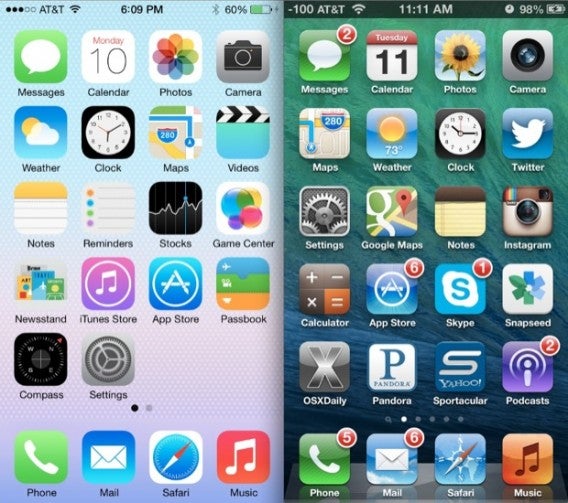
Another issue is that iOS 7 might have unexpected bugs lurking around. The release of iOS 6 had a slew of problems, which were hammered out in time. The chances of problems like lower battery life aren’t super high, but they’re still something you need to be aware of.

Devices and apps perform differently

iOS 7 isn’t created equal on all devices – there’s a clear emphasis on the new iPhone 5S and iPhone 5C. OSXDaily has compiled reports from users experiencing bugs and slow down on older 2nd and 3rd generation iPads, and smaller optimization problems on iPad 4, iPad Mini, and iPhone 4. These devices experienced a higher rate of crashes, freezes, and the need to hard reboot.

Apps themselves might not function correctly or simply look strange. While apps are mostly compatible with phones, as mentioned before, issues are more likely to arise when iOS 7 is on a tablet. It’s up to to individual developers to streamline and update their apps to all devices running iOS 7. While major companies such as Facebook and Twitter will likely take care of this within a few days, smaller companies might take weeks or months to roll out apps with smoother functionality or designs that fit Apple’s guidelines.

Are you using a business phone?

Maybe your Apple device belongs to your company or you use your personal phone to conduct business. It can be a major problem if the software you rely on to work no longer functions correctly. Any of the above problems are a headache for basic users, but if you depend on iOS for critical apps and info, compatibility problems will be crippling.

If you’re considering upgrading to iOS 7 for professional reasons you may be the most likely to hold off for several weeks.

Make sure to back up

Regardless of whether you decide to move forward to iOS 7 or stay put, it’s very important to back up all of your current data and upgrade your apps. It’s a good idea to sync any wanted files with iTunes or iCloud and delete any extra clutter. On older iOS devices, Apple is even making it easier to quickly download the latest compatible version of apps.
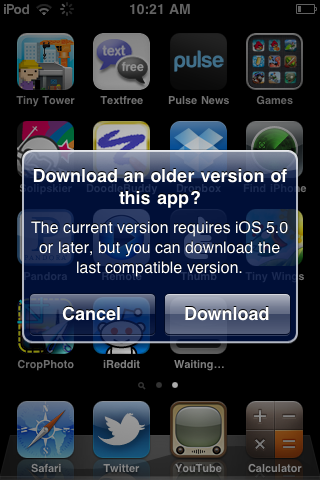
While there is no official announcement yet, iOS 7.0.1 and 7.0.2 (along with 7.1) are already showing up in various web logs, mainly tests by Apple employees. The first update is speculated to roll out within a few weeks after iOS 7.0, and could take care of most or all of the mentioned issues. If you have any apprehensions about updating now, wait a week or two for the next version.

For those already aiming for a day one upgrade, we hope you’re enjoying all the new features iOS 7 has to offer!

Have you upgraded to iOS 7?

iOS 7 features on different iPhones, iPads, and iPods

iOS 7 will officially roll out on the 18th of September and will be compatible with a number of Apple mobile devices. While it’s still a little bit early to know how the OS will work on iPhone 5C, details have surfaced about older models. Among past devices iOS 7 will work with iPhone 5, iPhone 4S, iPhone 4, iPad 4, iPad 3, iPad 2, iPad mini, and iPod Touch 5. All other devices will remain at iOS 6 (or older in some cases). Just because iOS 7 works on the mentioned hardware, that doesn’t mean that all features work.

We’ve broken down what is included in each iteration of iOS 7 for different hardware.

<!–

https://articles-images.sftcdn.net/wp-content/uploads/sites/2/2013/09/iPh5.pngiPhone 5C

–>

<!–

–>

<!–

–>

<!–

–>

<!–

–>

<!–

–>

<!–

–>

<!–

–>

<!–

–>

<!–

–>

<!–

–>

<!–

–>

<!–

–>

<!–

–>

<!–

–>

https://articles-images.sftcdn.net/wp-content/uploads/sites/2/2013/09/iPh4.pngiPhone 4 https://articles-images.sftcdn.net/wp-content/uploads/sites/2/2013/09/iPh4S.pngiPhone 4S https://articles-images.sftcdn.net/wp-content/uploads/sites/2/2013/09/iPh5.pngiPhone 5 https://articles-images.sftcdn.net/wp-content/uploads/sites/2/2013/09/iPh5.pngiPhone 5S https://articles-images.sftcdn.net/wp-content/uploads/sites/2/2013/09/iT5.pngiPod Touch
AirDrop
Siri
App Store
Camera
Control Center
Dynamic Parallax Wallpapers
iTunes Radio
Facetime Audio
Notification Center
Activation Lock throught FMI
Panoramic Photos
Filters in Photos
Filters in Camera
Square Photos

<!–

https://articles-images.sftcdn.net/wp-content/uploads/sites/2/2013/09/iPad.png
iPad 5

–>

<!–

https://articles-images.sftcdn.net/wp-content/uploads/sites/2/2013/09/iPadM.pngiPad Mini 2

<!–

–>

<!–

–>

<!–

–>

<!–

–>

<!–

–>

<!–

–>

<!–

–>

<!–

–>

<!–

–>

<!–

–>

<!–

–>

<!–

–>

<!–

–>

<!–

–>

<!–

–>

<!–

–>

<!–

–>

<!–

–>

<!–

–>

<!–

–>

<!–

–>

<!–

–>

<!–

–>

<!–

–>

<!–

–>

<!–

–>

<!–

–>

<!–

–>

https://articles-images.sftcdn.net/wp-content/uploads/sites/2/2013/09/iPad.png
iPad 2
https://articles-images.sftcdn.net/wp-content/uploads/sites/2/2013/09/iPad.png
iPad 3
https://articles-images.sftcdn.net/wp-content/uploads/sites/2/2013/09/iPad.png
iPad 4
https://articles-images.sftcdn.net/wp-content/uploads/sites/2/2013/09/iPadM.pngiPad Mini
AirDrop
Siri
App Store
Camera
Control Center
Dynamic Parallax Wallpapers
iTunes Radio
Facetime Audio
Notification Center
Activation Lock throught FMI
Panoramic Photos
Filters in Photos
Filters in Camera
Square Photos

https://articles-images.sftcdn.net/wp-content/uploads/sites/2/2013/09/AirDrop.png

AirDrop

AirDrop is a Wi-Fi service to share files among both iOS mobile phones and Macs running OS X 10.7 or higher. This feature works on most devices, but not iPhone 4, iPhone 4S, or iPads of 3rd and 2nd generation.

https://articles-images.sftcdn.net/wp-content/uploads/sites/2/2013/09/Siri.png

Siri

Apple’s navigator and personal assistant. Siri’s voice interface allows users to request web searches, find directions, and adapts to user behavior. This feature works on many iOS 7 running devices with the exception of iPhone 4 or 2nd generation iPads.

https://articles-images.sftcdn.net/wp-content/uploads/sites/2/2013/09/AppStore.png

App Store

The App Store is of course the place to download new apps. It’s included in all forms of iOS 7, considering it would be rather inconvenient to not be able to add in new apps.

https://articles-images.sftcdn.net/wp-content/uploads/sites/2/2013/09/Camera.png

Camera and Camera app filters

You’ll need your device’s camera to take and store new pictures. Once you’re done taking new photos you might to touch them up with filters right in the camera app. This is available in all devices with the exception of iPhone 4S and iPad generation 3. You can instead use filters in the Photo app, though this isn’t allowed on 2nd generation iPads.

https://articles-images.sftcdn.net/wp-content/uploads/sites/2/2013/09/Photos.png

Photos and Video

One of the cool aspects of iOS 7 is taking panoramic photos and turn them into dynamically moving wallpapers. Unfortunately this doesn’t work on iPhone 4, or 2nd and 3rd generation iPads. Another thing to note is that the new square capture for photos and videos does not function on 2nd generation iPads.

https://articles-images.sftcdn.net/wp-content/uploads/sites/2/2013/09/CCenter.png

Control and notification centers

The control and notification centers can be found by swiping up and down on your device’s main menu. It’s one of the main ways of configuring your device and and getting import updates from your services. Because it is so necessary the features are on all devices running iOS 7.

https://articles-images.sftcdn.net/wp-content/uploads/sites/2/2013/09/RadioiTunes.png

iTunes Radio and other apps

Some of the new (or just interesting) apps on iOS 7 function no matter your device. This includes the new iTunes Radio for streaming music, as well as FaceTime Audio to make calls without using video. Additionally you can lock activation via Find My iPhone.

Improvements on the way?

The biggest features some devices miss out on are AirDrop and Siri, both of which are incredibly helpful and make it easier to connect with other Apple devices. If you have older devices that can’t support these it might be a good idea to upgrade. The other missing features aren’t nearly as important, making them less of an issue if you’re considering a new device.

As mentioned before this is the functionality of iOS 7 on different devices at the moment and it’s very likely that Apple may patch in some of these missing features later. It’s also interesting to know if the cost effective iPhone 5C will retain all of the same features of the iPhone 5 or 5S.

Are you excited for iOS 7?

Five new things you can do with iOS 7

iOS 7 not only looks different than iOS 6, but it also contains many new features that the previous iteration didn’t do. We’ve picked out five great new features in iOS 7, which will be released September 18th, for you to check out!

Block phone numbers

Everyone has a list of numbers they never want to pick up. It might contain annoying relatives, ex-lovers, or random spam. Being able to block people is convenient and indispensable, allowing you to forget that those people ever existed.

To add a blocked number to the list, simply go to “Phone Settings” and select “Blocked”. Then,  just add the numbers you want to remain hidden.
Blocca contatto ENG
If you have a change of heart, you can always remove blocked numbers from the list. Just hit the “Unblock” button to receive calls from those numbers.

New flashlight

Apple has added an official flashlight button right to the Control Center. In iOS 6 and earlier versions, you would have to use a third party app to do the same. With one simple tap of the icon in the lower left hand corner, you can illuminate dark locations.  The flashlight will remain on until the button is pressed again to turn it off.
Torcia

Balancing act

The iPhone accelerometer is a neat feature you could previously use to operate your device (such as shaking your device to undo previous actions) and to see if a surface is level.

In iOS 7, there is a new visual indicator. Just swipe left and see two white circles against a black background. The number in the center will indicate your device’s degree of inclination.
Livella

When the two circles overlap completely, it means that the surface is completely flat. The circles will then turn green and the number will be a perfect zero.

Save password to all Apple devices

Most everyone has tons of passwords, making it hard to remember them all (if you can really remember them all, it could also be that you have too few passwords that are too short and simple).

With iOS 7 you can make use of iCloud Keychain. Activate this feature by entering Safari, selecting “Passwords and Autofill” and selecting “Always Allow”.

Once this feature is running, all passwords will be stored and encrypted into iCloud. The nice thing is that iCloud will allow you to use the pass on your other Apple devices such as Mac, iPad, and iPod Touch.

Further, the “Suggest Password” function will allow your device to generate a safe and secure password for those times when you can’t think of one secure enough. Now you won’t have to remember all of those complex passwords!

Update: Apple decided to postpone the iCloud Keychain feature, so it won’t be available in the final version of iOS 7.

AirDrop: exchange everything

Now you no longer have to rely on emails to share photos and other documents. You can now quickly share files between devices via AirDrop. The people you send files to need to be within range, but it’s still a great way to send something hilarious or useful.
Airdrop official
All you need to do is make yourself visible to share documents. What’s great is that you can decide if you’re visible to all your contacts, or just a select few friends. You can use AirDrop to quickly send lots of files to many people simultaneously. There is also no clutter, as everything gets saved to the correct location: addresses to the address book, photos into the camera roll, and so on.

If you enjoyed these features, check out the rest of iOs 7’s features in our Complete guide to iOS 7.

Your complete guide to iOS 7

iOS 7 is here, and it’s set to forever change the way you use your Apple device. The revolutionary new operating system was announced in June, and has finally been made available to iPhone and iPad users.

You might be wondering what you can do with iOS 7, how it works on your specific device, or just want to find out why the new operating system is such a big deal. The Softonic editors have been exploring iOS 7 inside and out to help you get your head around the intricacies of the new OS.

Check out our iOS 7 guides, articles and video walk-throughs and you’ll be an expert user in no time!

Discovering iOS 7: Video series

Want to see how the new iOS 7 works? This series of videos will take you through the newest features of the operating system.

Read more…

How to upgrade to iOS 7

iOS 7, the new mobile operating system from Apple, is now available for download. Here, we explain how to update your iPhone, iPad or iPod touch with iOS 7. To begin with, make sure that your device is compatible with iOS 7.

Read more…

How to manually install iOS 7

While the over-the-air (OTA) update is available to download from your device, you may encounter unstable downloads when trying to update. iTunes is another way to update the device, but since updates download from the same servers, you could still experience problems downloading the update.

Read more…

Should you upgrade to iOS 7 right away?

What to expect from the Apple event

iOS 7 is here and many people will be clamoring to update right away. We’ve been testing out the new operating system from the early betas to the gold master. There is a lot to love about iOS 7 and great reasons to upgrade, but rushing in might not be for everyone. We’ve complied a few reasons why you might upgrade immediately, or whether it might be a better idea to hold off.

Read more…

How to set up a new iOS 7 iPhone or iPad

A brand new iOS device has unlimited options. From the App Store to libraries of music, movies, books, and magazines in iTunes; there is something to catch your interest. But before you can get to exploring the operating system, you have to set up your personal account. If you need help installing iOS 7, read our guide on automatic or manual installation.

Read more…

Five new things you can do with iOS 7

iOS 7 not only looks different than iOS 6, but it also contains many new features that the previous iteration didn’t do. We’ve picked out five great new features in iOS 7, which will be released September 18th, for you to check out!

Read more…

iOS 7 features on different iPhones, iPads, and iPods

iOS 7 will officially roll out on the 18th of September and will be compatible with a number of Apple mobile devices. While it’s still a little bit early to know how the OS will work on iPhone 5C, details have surfaced about older models. Among past devices iOS 7 will work with iPhone 5, iPhone 4S, iPhone 4, iPad 4, iPad 3, iPad 2, iPad mini, and iPod Touch 5. All other devices will remain at iOS 6 (or older in some cases). Just because iOS 7 works on the mentioned hardware, that doesn’t mean that all features work.

Read more…

iOS 7: What can we expect from Apple’s September 10th keynote?

What to expect from the Apple eventIt’s (almost) iOS 7 time! The Apple keynote is September 10th (that’s tomorrow!) and it’s one of the most highly anticipated Apple events yet. Naturally, everyone is making assumptions about what will be revealed.

Read more…

iOS 7: Everything you need to know

Apple’s iOS has undergone a huge visual overhaul, the biggest change the platform has seen since the iPhone’s launch in 2007. iOS 7 has a cleaner interface that extends across iPhone, iPad, and iPod Touch. These new standards aim to make iOS 7 into a stronger competitor against Android and Windows Phone. We’ll showcase the main innovations in the new iOS.

Read more…

Hands on with iOS 7 beta

Following WWDC 2013, Apple released a beta version of iOS 7 for developers. We’ve gotten access to the beta and have tested out a number of its new, interesting and improved features. As expected with a beta, some of the changes aren’t completely polished or bug free, but we can already see the great potential of the redesign. We’ll share what we found to be the best features in the iOS 7 beta. Note that our tests were on an iPhone 4S, which lacks a few features available to iPhone 5 users. For instance, AirDrop was not available.

Read more…

Final Fantasy XIV: A Realm Reborn Video Overview

Final Fantasy XIV: A Realm Reborn launched last week, but was plagued with server problems that prevented many from logging into the game. This last Tuesday improved the server capacity by 50%, allowing additional users to log in and experience the world of Eorzea.

FFXIV reaction

As mentioned in our hands on preview, Final Fantasy XIV: A Realm Reborn is the relaunch of FFXIV, a MMO that debuted in 2010 but was met with harsh criticism. Thankfully many of the problems were fixed in version 2.0 of the game.

If you want to know about the game’s early details, such as classes, leveling, and story missions check out our gameplay video below.

Default player

brightcove.createExperiences();

Are you playing Final Fantasy XIV: a Realm Reborn?

How to: post animated GIFs to Facebook

Until recently there was no way of embedding animated GIFs on Facebook pages. Thankfully, Giphy is a site that uses a workaround to help you put GIF animations directly on a Facebook wall, group, or message.

Search for a GIF to Publish

giphy search

Giphy uses a database filled with GIFs from around the web. It sources images from Tumblr, Reddit, and various user submissions. Just search for what you’re looking for, or browse through the categories.

share to facebook

Once you’ve found the image you like, hit the share to Facebook button.

Posting to Facebook

A new window will open where you can place the GIF on your own timeline, a friend’s timeline, to a group, or as a private message. You can also write a description for the GIF.

Get it animating

on facebook

Hit the Share Link button and the GIF will be posted to Facebook. It will show up as a preview.

animating

Hit the play button and Giphy will turn the image into a looping Flash animation, similar to Youtube. Yes, it’s just a wrapper, but it fully simulates a real animated GIF.

What animations are you thinking about posting to Facebook?