How to e-mail photos from Picasa

You don’t have to upload photos from Picasa to Picasaweb in order to share them. If you just want to send a photo by good old e-mail to someone from within Picasa, it’s very easy to do.  Picasa is integrated with Gmail so it is recommended that you setup a Gmail account but you can also send photos using any mail client installed on your computer.

Here’s how to e-mail a photo from Picasa in 5 easy steps:

Continue reading “How to e-mail photos from Picasa”

How to delete photos in Picasa

Picasa is a great free program for organizing and editing your photos.The addition of sharing photos to Google+ and tagging Google+ friends is a great way to connect memories with others.

While Picasa may not be a comprehensive editing suite when compared to paid software like Adobe Photoshop, it contains more than enough options to edit and create collages and presentations.

Picasa doesn’t have a dedicated delete button, so how do you delete images?

It’s easier than you think!

Continue reading “How to delete photos in Picasa”

Quick photo fixes with Picasa

Quick photo fixes with PicasaIf you want to quickly retouch your pictures or maybe fix some minor visual flaws, there’s no need to turn to complicated applications like Photoshop. Simply grab hold of Picasa and you’ll have access to a wide array of tools to fix light, color, perspective and other elements in your images to make them look just perfect.

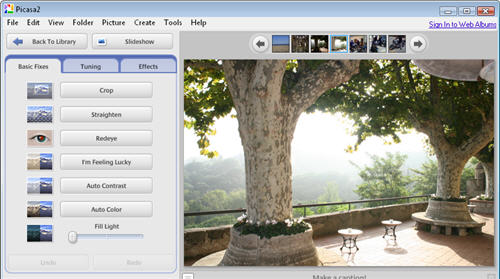
To edit any photo in Picasa, double click on its thumbnail in the library to open up the editing tools. You’ll get a full screen preview of your photo with a tool panel to the left side featuring all the fixes and effects you can apply to your photo. Don’t be afraid to try them all, because you can see results in real time and also undo any changes.

The quickest way to apply an overall improvement to your photo in Picasa is using the I’m feeling lucky button. This function adjusts the image’s lightning and color, which generally results in a more visually appealing photo. But if you prefer to fix those two parameters separately, simply use the Auto Contrast or Auto Color buttons, with which you can work only on light or color without affecting the other one.
Quick photo fixes with Picasa

Also, if you click on the Tuning tab you’ll access a bunch of sliders to fine tune light and color in your image, perfect for the pickiest users. Again, these changes can be undone at any time. Continue reading “Quick photo fixes with Picasa”

Add customized buttons to Picasa

Picasa customized buttonsThe more I use Picasa, the more I like this great photo viewer and editor from Google. And now I just learned that you can make it even more yours by adding customized buttons to its interface. With these buttons you can open your photos in another graphic tool for further editing or upload them straight away to your blog or your favorite online photo manager.

This customization however requires certain programming abilities, as it works with the so called Google APIs. There are currently two different APIs available for Picasa: Picasa Button API and Picasa Web Uploader API. Provided you have the necessary coding knowledge – or just feel like testing them by yourself – these APIs enable you to create personalized buttons for Picasa’s interface that let you make use of third party apps, both offline and online.

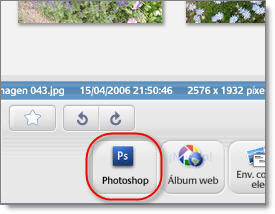
If you’re ready to take the challenge, here’s all the information you need, including tutorials, example files and videos. Those of you who aren’t convinced yet, have a look at this Photoshop customized button (this link requires Picasa to open) created by Michael Herf with the Picasa APIs. It’ll add a new button to the Picasa interface from which you’ll be able to open the selected images right in Photoshop CS3.

How to manage your photos in Picasa

Google PicasaWhen Google created Picasa, just like for everything else they’ve built, they focused on making it simple to use, from organizing your pictures, to editing them or exporting to another medium. That’s why you can add labels to them, star your favorites, organize them by date and quickly edit them. Picasa also is very good at searching for and integrating new pictures. No more digging around in your folders to find where you’ve left those birthday pics. The only step that’s really missing is for Google to launch Picasa on Mac. But that’s another story.

Anyway, even though Picasa is a highly intuitive application, like with any Google tool, there are ways to improve your workflow with it. Makeuseof list up 10 very good tips on how to manage your photos in Picasa. These go from geotagging to batch editing, publishing to your blog, making a gift CD or, and this goes for any Google user, learning and using hotkeys (for which Google have a full list available).

Google launch Picasa for mobiles

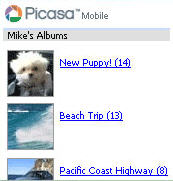
Picasa Mobile screenshotGood news for Picasa fans – Google have launched the first version of the photo software for mobile devices. Like the desktop version, it conveniently groups together all your images – including wallpapers – into easy to navigate groups. You can also click ‘My Favorites’ from the main screen to connect to the internet and see the latest photo albums that your contacts have posted to Picasa Web Albums and leave comments.

Google say there’s no messing around with resizing either – all images are automatically re-sized for your device’s screen so that they download quickly. There’s also a built-in search that lets you retrieve any photo you’ve posted online, find photos posted by your friends or simply just have fun exploring other people’s photos. Note that you’ll need a phone with a web browser and WAP plan to access the service.

Initial impressions seem very good and LetsGoDigital have an interesting review highlighting the convenient blogging function that allows those using Blogger to post photos directly from their phone. Google Blogoscoped meanwhile takes a more in-depth look at the mapping functions it offers allowing you to link photos to locations.

Labeling your photos in Picasa

Picasa is our favorite photo album manager, because it’s free and incredibly intuitive.The first time you launch it, it’ll scan your PC for all available pictures and organize them by folders. When you connect a digital camera it’ll recognize it and allow you to create a new album inserting date, location and adding a small description. The chronological structure in Picasa is a good way to keep your collection organized, but better yet, we encourage using labels. Just right click on one photo or a selection and choose “create new label”.

They work like tags so you can add an infinite number of labels, like “camping”, “school”, “friends”, “party” and create specific albums. And if you’re registered on Hello, you can send an album to friends in just a few clicks. Take the time to label all those photos, it’ll give you all sorts of original photo albums.