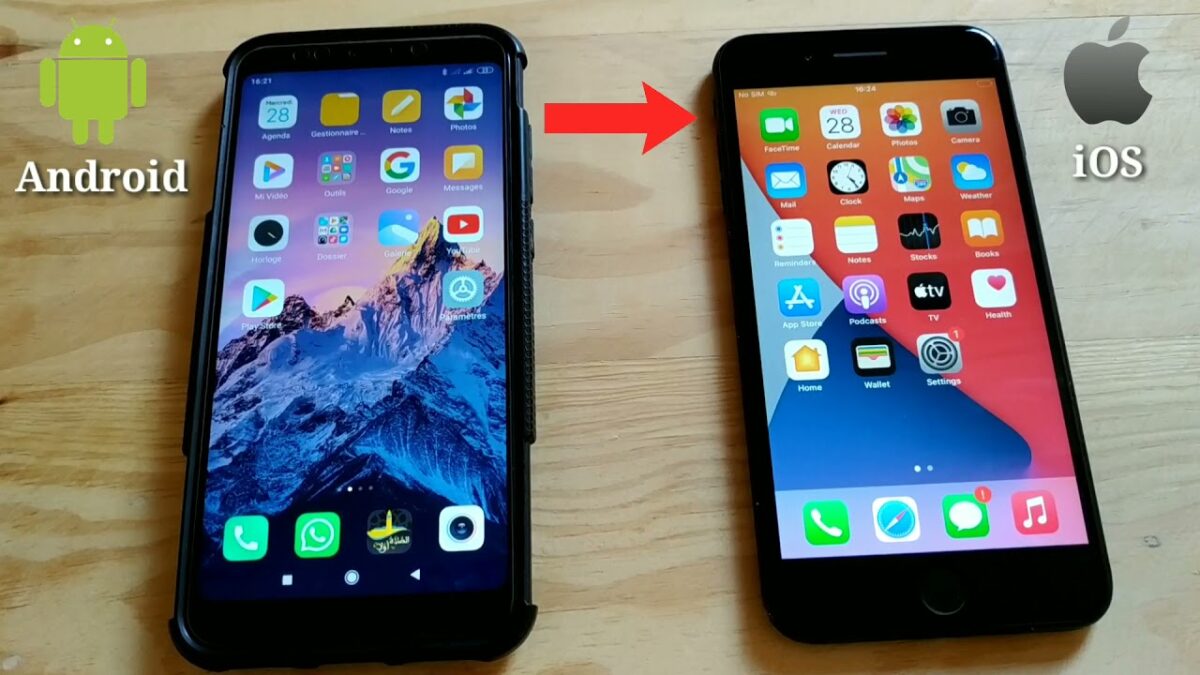
How to Transfer Files From Android to iPhone Using SHAREit in 5 Fast Steps

The technological age has given so much in the way of connecting with people and sharing data. Yet, even when we share music, photos, and files, it can still be a pain to transfer files between various operating systems due to differences in privacy policies, security settings, or user interface. Lenovo aimed to resolve that concern with its SHAREit app.

SHAREit DOWNLOAD

Released for Windows, Mac, Android, and IOS,  SHAREit app offers easy and secure data transfer. But, can you transfer data between, say, an Android device and an iPhone? We’ll provide the answer to that question in this guide.

Bringing Devices Together

Android and iPhone have long been at odds with each other. If you’ve ever tried sharing photos, music, or other files between these two operating systems, you’ll understand just how frustrating this process can be. Their inability to strongly connect with one another reiterates the point.

Apple is known for its Fort Knox-like security, which makes it rather difficult to receive files from a non-Apple device or install software from anywhere other than the App Store. 

On the flip side, Android boasts a highly customizable platform. It’s much easier to install outside software or to load files from other sources. While both approaches have their merits and frustrations, all we want is to send photos or music to our friends regardless of the phone they have, and now you can. 

Why is it difficult to share files between different OS?

Aside from the petty competition between these two leading tech giants, Google and Apple, there are also other incompatibilities that make it difficult to share files between these two systems. One of the reasons comes down to privacy. Apple takes a very serious stance on user privacy and, as such, has stringent security measures in place to avoid any breaches. While this is a good thing for many users, it does make sharing files a real headache – even between different Apple devices.

Another contributing factor is how the files are structured. Android has a file system that resembles that of a desktop Windows or Mac. This makes sharing files from Android to these types of devices much more manageable. However, iOS doesn’t have the same file system.

While some of the reasons for this are that it makes it impossible for the user to ‘do the wrong thing,’ some believe that the developers just don’t want to go down this route. Instead, users need to use third-party apps, like SHAREit, to be able to share files between different OS easily.

Apple is also notorious for using its own file format, which isn’t accepted by other OS. For example, since Apple released iOS 11, it started using the HEIC image format on all images. Android devices or Windows computers don’t widely support this format.

This means that iOS users would first need to convert the file format to a more widely accepted format such as JPEG, PNG, or similar before sharing with devices with another OS.

How to Transfer Files From Android to iPhone Using SHAREit

  1. Start SHAREit

    Transfer Files From Android to iPhone Using SHAREit

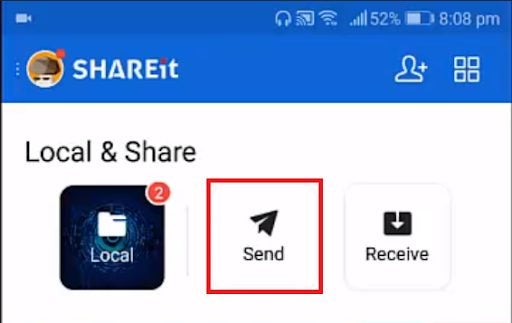
    First, you’ll need to install SHAREit and start it up. Then, tap on the Send button and allow it to turn your Location settings on when prompted. It’s important to note that the SHAREit app must be installed on both devices to effectively share files

  2. Select Files

    Transfer Files From Android to iPhone Using SHAREit

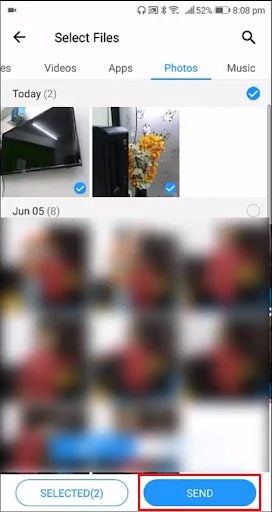
    Select the files that you want to transfer and tap on Send.

  3. Connect to IOS/WP

    Transfer Files From Android to iPhone Using SHAREit

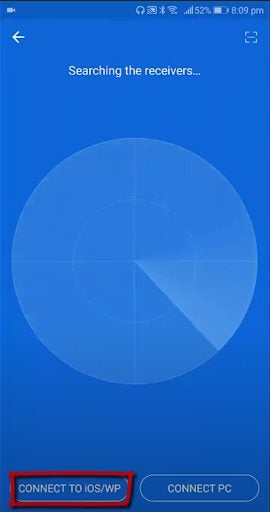
    You’ll be given a blue screen; tap on the Connect to IOS/WP button at the bottom of the screen. You are able to select multiple files, audio clips, or videos to send simultaneously. Once you’ve selected your files, click on ‘Next’ to proceed.

  4. Open Hotspot details

    Transfer Files From Android to iPhone Using SHAREit

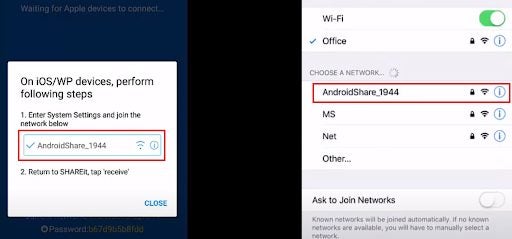
    You’ll be given a screen that shows a mobile hotspot name and password. Keep this open while navigating to your Wifi Settings on the iPhone and connecting to the hotspot.

  5. Send files

    Transfer Files From Android to iPhone Using SHAREit

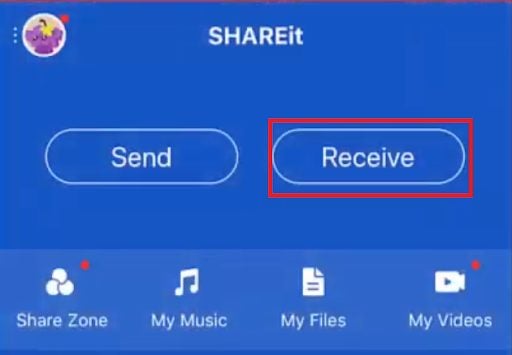
    Now, open the SHAREit app on your iPhone and press Receive. You should receive the files from the Android phone.
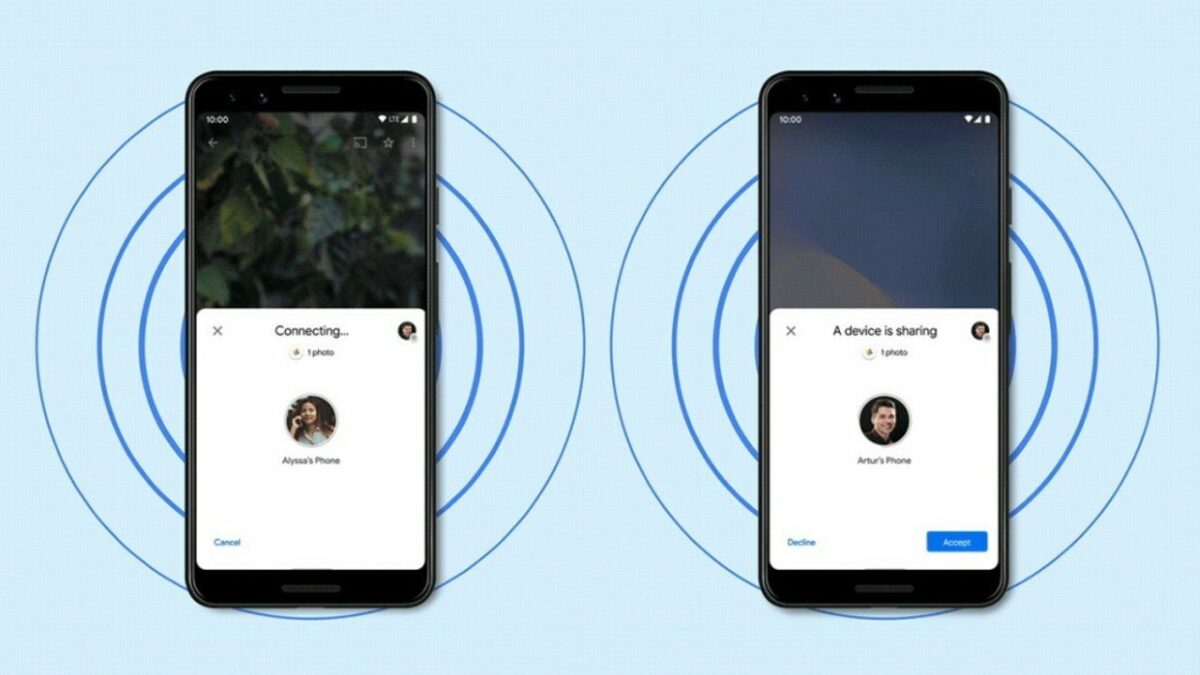
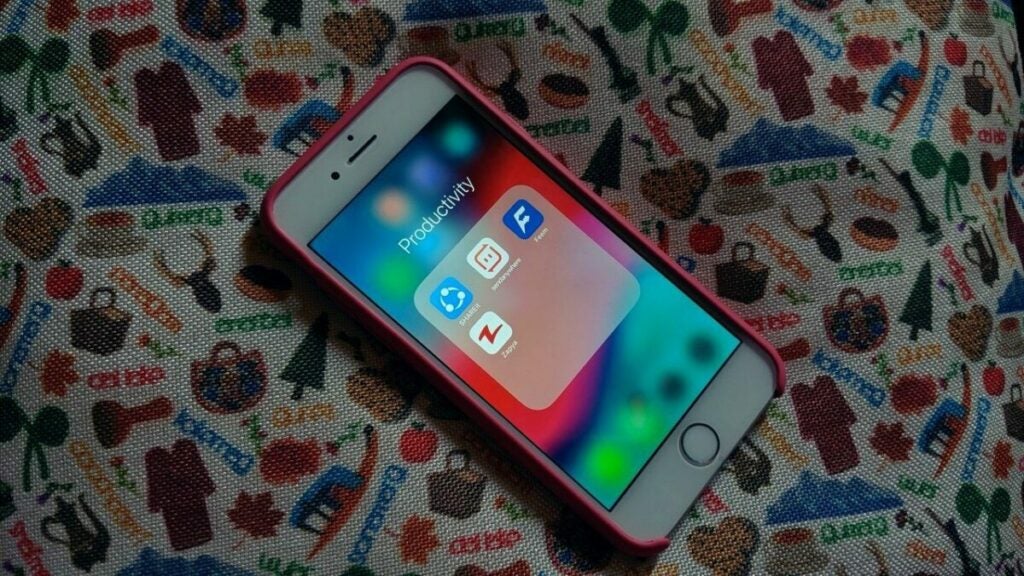
How to use ShareIt App on PC with Bluetooth in 5 Steps

SHAREit is an incredibly useful app to share files between devices and all leading operating systems, namely Windows, Android, Mac, and IOS. However, if you want to share the app with others without the need for the App Store, then you’ll want to take a look below.

SHAREit DOWNLOAD

You’ll learn how to send the SHAREit app to someone else via Bluetooth. Ready to see how? Let’s check it out!

What are the benefits of using SHAREit for file sharing?

The SHAREit app makes it easy and convenient to share apps even without using Bluetooth or an active internet connection. This is one of the features that sets it apart from many other file-sharing apps that require an internet connection or active Bluetooth to share files.

Another benefit is that there is no file size limit. This is incredibly useful as those who frequently share files rarely share small ones. Many creative and digital industries share files frequently, such as graphic design, animation, and more.

Not only do they share files with the clients, but co-workers also share files to work on different parts of the project or check the final copies before sending them to the client. These files can be pretty image-heavy, which in turn makes the file size big. Therefore, having an app that allows sharing files no matter the size is very useful.

Another helpful feature is that you can share files with up to five different devices simultaneously. Again, in a professional setting, this is extremely important. Transferring the same file to each user needing it one by one takes up a lot of valuable time. Being able to send to multiple users simultaneously speeds up the process, leaving more time to actually work with the files.

How to send the SHAREit app to someone Else using Bluetooth

How to Send the SHAREit App To Someone Else Using Bluetooth

This method is very effective, because of how quick it is. Sometimes, with the Google and Apple App Stores, loading times can be long and tiring. Some workplaces have also banned access to the app stores through their networks, so being able to share this useful app via Bluetooth is an easy solution.

This sure method completely works around that, so both you and your friends can enjoy the app freely. However, in order to use this method, at least one person already needs the app installed on their device

  1. Start and Invite

    Send the SHAREit App To Someone Else Using Bluetooth

    Start up your SHAREit app and tap on the Invite button at the top of the screen.

  2. Turn on Bluetooth

    Send the SHAREit App To Someone Else Using Bluetooth

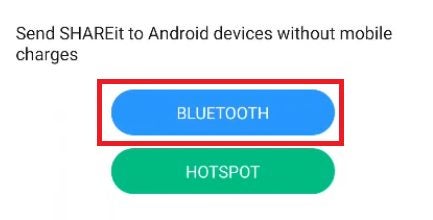
    Now tap on the Bluetooth sharing option and allow SHAREit to switch on your Bluetooth (if it’s not already on).

  3. Pair devices

    Send the SHAREit App To Someone Else Using Bluetooth

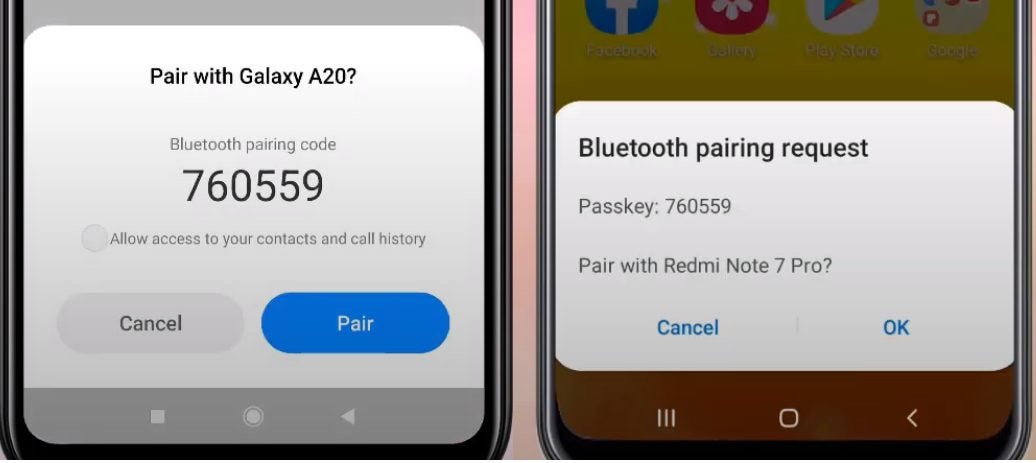
    Now, make sure that the receiving phone (where you want to send the app) has its Bluetooth switched on.

    Pair the two phones by selecting the sender’s phone from the list of available devices.

  4. Accept file transfer

    Send the SHAREit App To Someone Else Using Bluetooth

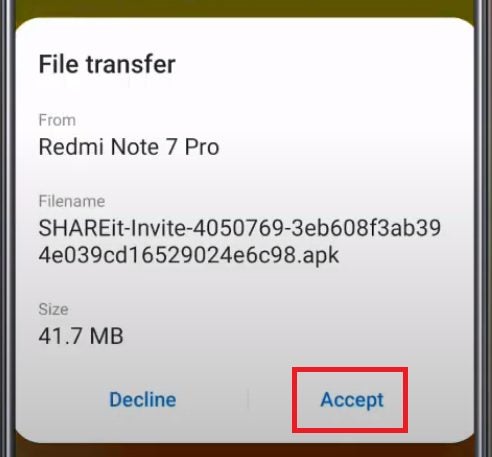
    Select the receiver’s phone in the SHAREit app on the sender’s phone. A window will pop up on the receiver’s phone.

    Tap on Approve. Once you do that, the file will begin to send.

  5. Send file and run installation

    Send the SHAREit App To Someone Else Using Bluetooth

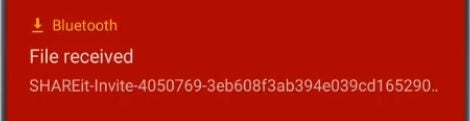
    Once the transfer is complete, simply tap on the notification and run the installation.

FAQs

Let’s take a quick look at some of the frequently asked questions about the SHAREit app.

Is the SHAREit app free?

The SHAREit app is entirely free to use. Also, if you share files using wireless tethering, there are no mobile costs involved in using the app. Bear in mind, though, that other ways of sharing might incur costs.

Can I install SHAREit on a PC?

The app is available on Android, iOS, Windows, and Mac. This means you can install it on PCs and mobile devices for easy cross-platform file sharing.

What other features does the app have?

This app is very much a jack-of-all-trades. Although its main feature is file sharing, there are also others that make the app quite useful. For example, the app has a file manager you can use to keep organized. You can also listen to music or stream videos directly from the app.

There’s even a feature that allows you to play games directly from the app. The music and video players work offline, meaning you can watch videos or listen to music while transferring files – without needing the internet!

What are the downsides of the SHAREIT app?

One thing that we should mention is that there are quite a lot of ads. While this is often to be expected in a free app, this does feel a bit excessive. However, for the number of features you get as well as the unlimited transfer size, it could be worthwhile if you can bear the advertisements.

Complete guide to SHAREit

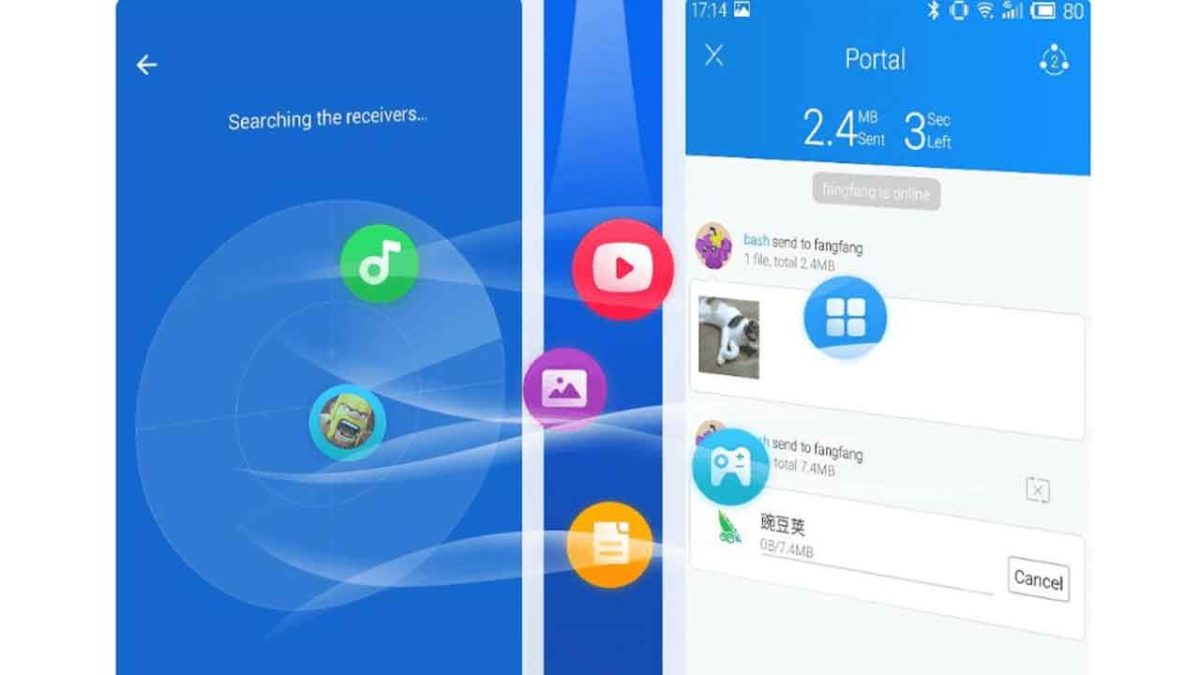
Data sharing apps like SHAREit have transformed the file transfer game, allowing users to transfer files through WiFi without a network connection.

The app’s key benefit is that it allows users to transfer large files to each other quickly–no cords, cables, or USBs required. Today, there are more features in the mix, a music discovery app, a place for finding video content, the list goes on.

Below, we’ll take a look at where the file-sharing app stands in 2019, and whether it’s still a good choice for those looking for a quick way to move files around.

So, what is SHAREit?

SHAREit runs on a technology known as WiFi Direct to support its file-sharing system. How it works is, it sets up a local WiFi network that allows people to share files back and forth—though there are some limits when it comes to range and how many users can access that network.

Users can control who can send and receive files over the signal.

There are some risks associated with transferring files in a public space over questionable WiFi connections, and it’s worth pointing out that the platform was found to have some significant security issues earlier this year.

One notable issue was, hackers could gain access to auto-fill data, Amazon web-service user key and the victim’s hotspot info in plain-text by with a simple curl command.

Still, the app boasts 500 million users globally, and the app is a convenient tool for users to share data, particularly in areas where mobile data transfers are both slow and expensive.

SHAREit Download Free
5

How to send files on SHAREit

To send files to another user, make sure you indicate that your device is the sender, then add the files you plan on sending by dragging and dropping them into the app.

Once sent, the receiver accepts files, and they’re saved in the device’s Downloads folder and My Files inside SHAREit. Photos typically save inside your Photos folder.

Both devices must have SHAREit installed and running during the transfer and be connected to WiFi.

Group Share

SHAREit group share setup

SHAREit’s group feature allows you to receive files from multiple users at a time.

Users can join groups created by any user and receive files from members of your groups.

Here’s how you can get in on the action:

  • Launch the SHAREit app on your device.
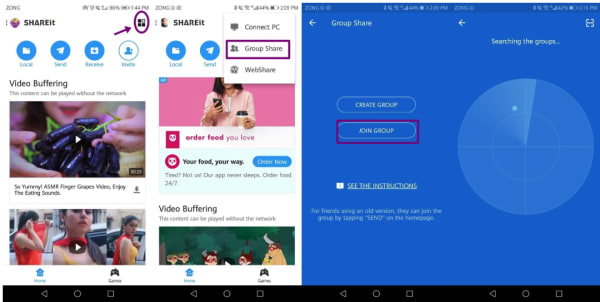
  • Select the four boxes icon from the upper right corner and select Group Share from the dropdown.
  • Next, hit the Join Group button to search for nearby groups.
  • Click the avatar of the group you’d like to join to connect-the group creator will provide the hotspot password.

If you’d like to create a group of your own, you’ll press the Create Group button instead and wait for other users to join. Group creators can kick people out of the group, though it seems that there aren’t any limits on who can join.

Web Share

Web Share allows users to send files to someone who doesn’t have the app downloaded to their device.

The receiver gets a link that provides access to the file and can save them however they see fit.

Share Zone

Share Zone is a mobile feature offered on both Android and iPhone. It allows you to select files that anyone can see when they connect to the platform and works as this community library of sorts.

Add and remove files from the Share Zone by tapping on your avatar and navigating to Share Zone.

SHAREit goes beyond file-sharing

Even if you don’t need to send files back and forth regularly, SHAREit can still bring some value to the table. Recent updates have opened up more features like streaming, a media player, and a multimedia app.

Utility apps

SHAREit offers a handful of utility apps inside the main account. Here, you’ll find tools like CLONEit, a tool made for transferring your files, apps, and contacts from your old phone to a new one, without using up your mobile data.

SHAREit is part media discovery engine, too.

Okay, this is a bit weird, but there’s not a lot of information out there about how the media player works or whether or not people like this aspect of the platform or would rather see SHAREit stay in its lane.

Per Google Play, the app comes with “infinite” online watching and select offline watching. It also comes with a built-in music recommendation engine, plus GIFs, stickers, and wallpapers.

Content preferences

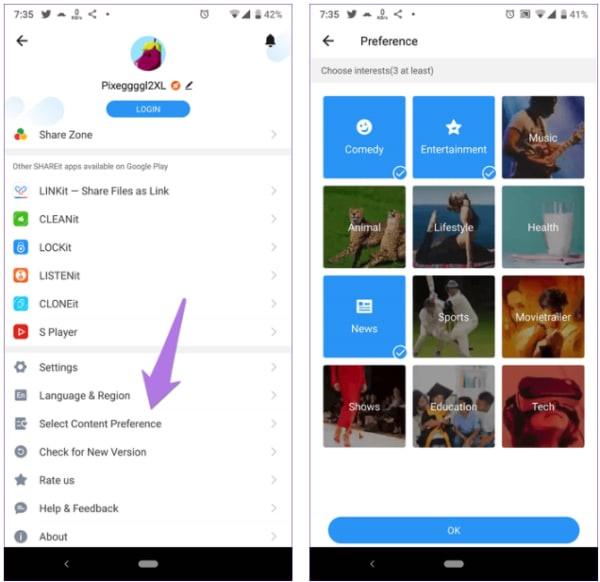
Even though SHAREit was designed for file transfer, the app is angling to become something of a streaming platform.  Inside the content preferences tab, you’ll have the ability to customize the content suggested by the app.

To set your preferences, simply tap your avatar and choose Change Content Preference. From there, you can pick from these rather broad categories and save your changes.

SHAREit content categories

Is SHAREit still worth a shot?

It’s honestly hard to say. It could simply come down to the fact that the app isn’t as popular in the US as it is in other countries, but there’s little information out there about how to make the most out of the platform–half of the developer blog posts amount to a brief mention of a new update or something equally useless.

What’s more, review sites from all over the web mention dip in quality in recent years. Android Police, Reddit, and the Play Store all have reviews that mention that the platform is too bloated and contains too many ads.

SHAREit Download Free
5

What File Formats Work With SHAREit?

Want to share your vacation pics with the family, but you’re using your work Android device and all of them have the iPhone? Maybe you found a cool new app you want your best friend to enjoy, but you got a great deal on that Windows tablet and they’re using a MacBook. It’s okay! Because you can share your photos, videos, apps, and more across platforms using the SHAREit app by Lenovo.

How SHAREit Works

SHAREit works across platforms by allowing you to transfer a wide variety of files and apps. It works because it uses the device’s built-in wi-fi radio and the devices’ pre-installed media players. Usually, file sharing has to take place over the Internet or over the device’s cellular connection. But Internet and cell service can be slow depending on location. Or, there are compatibility issues when you share across device platforms, like Android to Apple. There are also security issues in sharing with these methods. SHAREit works directly from device to device, meaning you don’t have to depend on Internet speed or security to share.

The Devices SHAREit Works With

SHAREit works with all of the major device platforms, including tablets, smartphones, and even desktop PCs, notebooks, and laptops. It also works with Android, iOS, Apple OS X, Windows, and Mac. Basically, whatever device you have, you can share with most any other device or user. SHAREit is also useful for work files, allowing colleagues and partners to share things like Word documents and Excel files.

The File Types SHAREit Works With

SHAREit works with all types of files, including videos you take on your own device or those you download from the Internet. It can also be used to share images you create or those that you download or get from someone else. SHAREit can transfer and clone your contact list so that you can transfer it to your other computers and devices or send it to a friend or coworker. It can also be used to transfer documents and files you create in Office, like Word or Excel. Additionally, SHAREit can transfer SMS (text messages), MMS (multimedia messages, like videos or photos you get via text), apps, call logs, documents, music files, video files, and even items that you have stored on your device’s SD card.

The File Formats SHAREit Works With

SHAREit works with most any file format, including:

  • PDF
  • DOC
  • XLS
  • MP3
  • WAV (for Windows)
  • AIFF (for the Mac)
  • AVI
  • MKV
  • MOV
  • MP4
  • DivX
  • FLV
  • OGG
  • OGV
  • PNG
  • EPS
  • JPEG
  • TIFF
  • GIF
  • BMP
  • Vector image formats like CGM and SVG
  • Too many others to name!

Check out this video to learn more: How to Use SHAREit