
7 of the best selfie apps available for iOS and Android

Like it or not, we’re selfie-obsessed these days. Where taking a selfie was once an awkward game of angles documented on MySpace, the dedicated smartphone selfie camera now means Instagram feeds are filled to the brim with next-level self-portraiture.

That said, if you’re still leaning on basic Instagram filters to capture the best version of your pout, you’re stuck in an amateur hour. Some selfie-apps help you create a better picture, and that’s that. While others can move around your features to create a whole new face.

Whether you’re into turning yourself into an avatar, channeling your favorite animal, or just want to look better online, there are plenty of apps to choose from. And, many of them are free.

If you want to take the perfect selfie, read on for our roundup of best selfie apps.

Retrica
retrica app

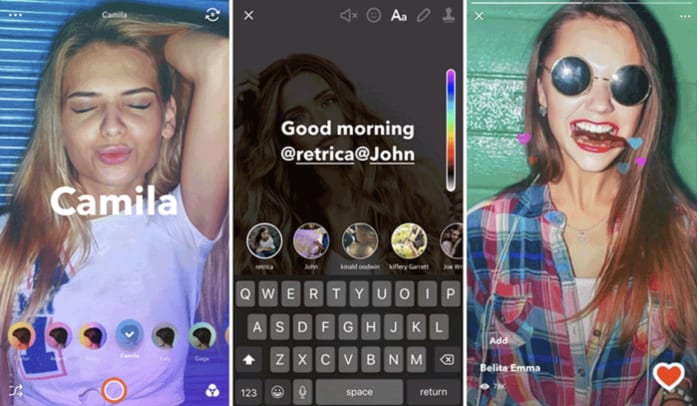
Retrica is a photo editing app that comes with a range of filters, doodle and text options, plus several stickers. For selfies lovers, this is one of the best apps.

You can record longer videos or custom GIFs, and there’s a social media component built right in. The app is free and has pretty good reviews across the board.

You can save your Retrica pics directly to your camera roll, turn them into collages, and add overlays to your selfies with minimal effort. Some users have reported that the videos can be a bit clunky at times, but for pics, you shouldn’t have any trouble.

Retrica Download now
7

Pixlr

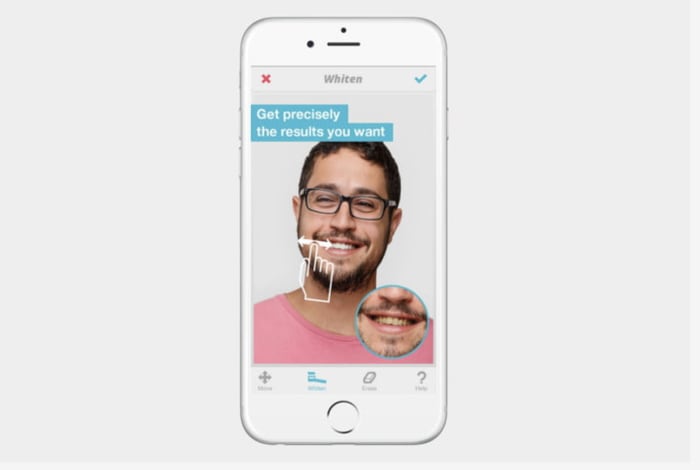
Okay, Pixlr is the app best suited for giving your portraits and selfies a professional touch. The app brings some serious facial detection tech to the table, allowing you to hone in on specific facial features – whiten your teeth, smooth out your skin, delete a few pimples, and just add some all-around definition to your face(s).

This isn’t the app to turn yourself into a dog or a cheetah or add any whimsical flower crowns to your look—but this is a solid app for your own digital transformation.

PIXLR Download now
8

Visage Lab

visage lab effects

A free app, with in-app purchases, of course, Visage Lab is a quick fix for the selfies you hate but plan on posting just so you’ll have something to put up.

The app automatically analyzes a photo and corrects things like blemishes, wrinkles, or discolored teeth, and red eyes. Beyond the auto-enhancement features, you can manually add effects and filters to spruce up your edited selfies.

The extra filters allow you to play with lighting and color, change up the background, and add in some playful effects.

Visage Lab Download now
10

Facetune 2

Facetune 2 selfie app

We’d be remiss to talk about the best selfie apps without giving Facetune a proper shout out. The app is all about beautifying faces and can perform subtle skin improvements, as well as full-blown plastic surgery. Augment lips, shave off a portion of your jawline, make your eyes a bit bigger and brighter.

Tread carefully with the special effects, as it’s easy to get carried away with the changes—and people you meet online might be surprised during your IRL encounter.

Facetune 2 Download now
8

YouCam Perfect

youcam makeup selfie app

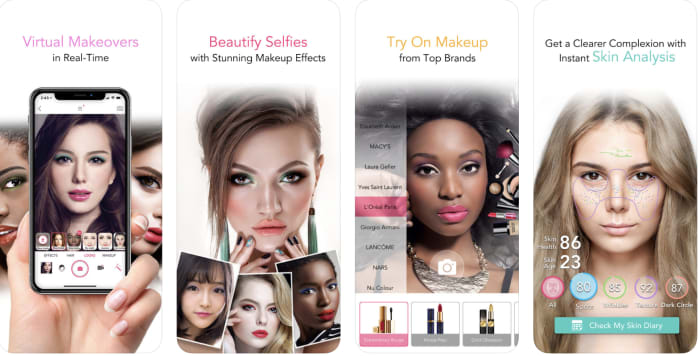
If you’re into playing with makeup, but don’t want the mess, YouCam Perfect is the selfie app for you. The selfie app is more makeover game than practical app, allowing you to try on different looks—specific lipsticks, blushes, and eyeshadows, as well as holiday-themed faces.

The app also lets you adjust your skin tone—for a healthy glow, smooth wrinkles, and pores, and whitens teeth. Additionally, the app comes with a tutorial element, with live demos and chat.

YouCam Perfect Download now
8

Snapchat

It didn’t take long for Snapchat to become one of the most popular camera apps on the Apple App Store and the Google Play Store. Fun to use and with a share first, consume later philosophy, Snapchat’s irreverent AR filters and cool, whacky stickers have helped millions of users around the world take fantastic selfies. This app isn’t just about selfies but it knows how to do them well.

8

Beauty Camera

Beauty Camera is a great photo editor and selfie camera app that will help you take even your best photos and make them better. Editing features include removing imperfections, photo filters, and more. The app is free to download and is definitely worth checking out, if you want to up your selfie game and share better photos with your friends.

Beauty Camera Download now
9

Putting your best face forward has never been easier

Selfies certainly aren’t going anywhere anytime soon. And at least with these apps, you can join the fun with some top-notch snaps of your own. Whether it’s a digital glamour shot, a rearranged face, or some touchups and a new filter–this app lineup promises a camera roll full of Insta-ready pics.

Best online tools for freelancers

Got a side-hustle? Here are some tools to make life easier.

freelancing types of tools to invest in

Whether you’re contemplating a move to the remote working world or hoping to turn your solo venture into more of a “real business,” there comes a time when you need to invest in some tools of the trade.

At a certain point, you’ll realize that doing everything manually is eating into your working hours and your bottom line.

There’s a lot to juggle when you’re on your own. What about taxes, invoicing, time tracking and time management, billable hours, and productivity tools for example? How do you find clients and get them to pay you money? Can you just use PayPal or do you need something more specialized like Stripe for credit card payments and a dedicated freelance business bank account? How do you streamline your boring admin tasks so you can get back to work, already?

The list goes on.

Stressed Lady

You don’t need to worry though, because below, we’ve compiled a list of some of the best tools for helping you maximize your time, understand your books, and ideally, earn more money.

We’ll look at a few different categories — spanning apps and websites to keep your finances in order, keep clients moving through the pipeline, and more.

Must-have resources for freelancers

Proposal software

Proposals are one of those necessary evils for a lot of solo-preneurs. If you depend on using proposals to win new business, it’s high time you stop relying on Google Drive and the copy-and-paste method to land those big fish clients.

What’s the point of a proposal, you ask?

Well, the proposal first establishes your role and the goals of the project. Meaning, this document gives the prospective client a rundown on what it’s like to work with you, and how the project is expected to go. On your terms.

But writing a customized proposal for each potential client can be a real grind, and it will certainly cut into the time you’re spending earning money.

Instead, look toward proposal project management tools like ProposifyBidSketch, or Purposeful.

These tools allow you to customize your proposals with minimal effort and professional design, so you can turn these babies out faster than ever so you’re applying for new jobs in real-time.

What’s more — incorporating a proposal software into your strategy allows clients to sign them electronically — turning your document into a binding contract — so you’d just killed two birds with one stone.

We found that most proposal software costs between $20 and $30 per user per month, so more than Spotify and Netflix combined.

However, many freelancers swear by this investment, and they come with some sweet features. BidSketch, for example, gives you a report of which team members viewed each proposal, so you can tailor your follow-up message accordingly. Effective communication tools are vital to your success too.

Another option is PandaDoc, a proposal software that comes with some cool built-in features and plugins like e-signature software and an analytics dashboard that provides a look at bids won and contracts signed.

Financial tools

freelance worker

One of the biggest challenges for freelancers is financial matters. As such, it’s easy to feel out of one’s depth when presented with that first tax bill or waiting around for a critical invoice when you’ve bills to pay. You need tracking tools for your finances as well as for your time.

But there’s a lot to keep track of when it comes to freelance finance. For one, you need to get really good at budgeting — setting money aside for tax season is no joke.

Second, you’ll need a better way to keep tabs on expenses — whether that’s your monthly co-working membership or all of those receipts from your digital subscriptions.

These days, it’s crazy to rely on spreadsheets and calculators to keep track of this stuff.

Cloud-based apps offer free plans, flexible pricing, automatic updating, and access from anywhere. Plus, many of these options come with automatic bank feeds and invoice collection, so you don’t have to add data entry to your mile-long to-do list.

Using a tool like XeroQuickBooks OnlineFreeAgent, or Zoho Books can help you learn some basic accounting skills—and they’re all pretty cheap. Any of these options are a good choice, but you may want to take the free trials for a spin before making a commitment.

A decent CRM

Most people think of CRMs (customer relationship management systems) as a sales tool built for companies closing major deals and across multiple reps. However, that’s not necessarily the case. There are CRMs built for companies of all sizes — including teams of only one.

Pipedrive, Base, and Agile, among countless others, all work to help freelancers and small businesses manage their relationships — giving you more visibility than you’d find in your Gmail inbox. The benefit is, you can track your client prospecting efforts, view current client communication, and keep tabs on pending milestones.

ThriveSolo might be a good choice if you’re well, running a solo operation. Pricing is $19 a month — or $190 for the whole year. Or, there’s Insightly, which starts at $29 per month.

Or, try Hubspot, a massively popular marketing platform/CRM offered for free. Zoho’s CRM is offered on a freemium model, as well.

The point is, a CRM doesn’t need to be wildly expensive, so you should just bite the bullet and take one (or three) for a spin. It doesn’t matter whether you’re a web designer, a freelance writer, work in email marketing, develop Android mobile apps, or simply work freelance for a big company like Apple; a CRM will help you in the long-term.

Project Management

If you’re a freelance writer or have some marketing experience, you probably have some experience with a project management platform. Likely, you’ve tried them all in the context of working with a client.

But we’d like to make the case for adopting the practice yourself.

These collaboration tools make it easy to break big projects down into tasks and assign items to others.

It’s also a great way for freelancers to communicate with their clients. Use a tool like BasecampAsana, or Trello (Softonic’s in-house choice) to onboard new clients and communicate about specific projects.

Trello Donwload
8

We should add a disclaimer here, though. You’ll always want to check in with a client before thrusting a new tool on them.

There’s always the chance that they might not be all that excited about adopting a new tool in addition to whatever they’re doing day-to-day

Where to invest first?

When you’re freelancing, it’s hard to pick and choose which business tools and expenses are worth the splurge and which ones feel more like a want than a need.

However, you’ll need to do some soul searching to determine which areas need some extra assistance. If you’re spending a lot of time on proposals, then it might be worth getting proposal software. If accounting is a challenge, same thing.

Other tools like social media monitoring software or a CRM depends on your individual operation. As such, consider the cost of the software with how much time it will save or how it will potentially help you collect more income.

Finally, most of these options come with 30-day free trials. So, you’ll get a chance to see where that ROI might come in before you’re on the hook.

Just be sure you set a reminder to cancel your account before you get charged, as many SaaS companies choose to collect CC#s before letting you in.

7 best word game apps

Tired of flinging birds and slicing fruit? These word games can be a breath of fresh air.

Word Game

Blindly searching for word games in the App Store or Google Play will turn up a bunch of junk results. You’ll see a bunch of scammy apps or those geared toward an audience that sees a low-stakes word search as some challenge.

And weirdly enough, if you Google the generic phrase, “best word games” hangman comes up as an actual option…

Hangman
Not kidding

In any case, we’ve compiled a list of favorites challenging enough for word nerds, but entry-level enough for those newer to the game.

Best online word games

Words with Friends 2 – iOS, Android

Words with Friends 2 screenshots

We know, the Words with Friends heyday has come and gone. However, several years after the Scrabble-inspired fad flamed out, Zynga put out a “sequel.”

Rather than update the original game, the company opted to start from scratch, so those players who wanted to keep playing the old version could do so without interruption.

And we have to say, there have been some significant improvements. Words with Friends 2 boasts several different modes. You can play on a team or challenge a bot, and now, access 50,000 new words.

The original one-on-one mode still exists, allowing you to challenge a friend, or honestly, some stranger that has a cat as their profile pic. However, now you can play Lightning Rounds, so you don’t have to commit to something you don’t have time for.

Words With Friends 2 Download Free ►
8

New York Times Crossword Puzzle – iOS, Android

new york times crossword

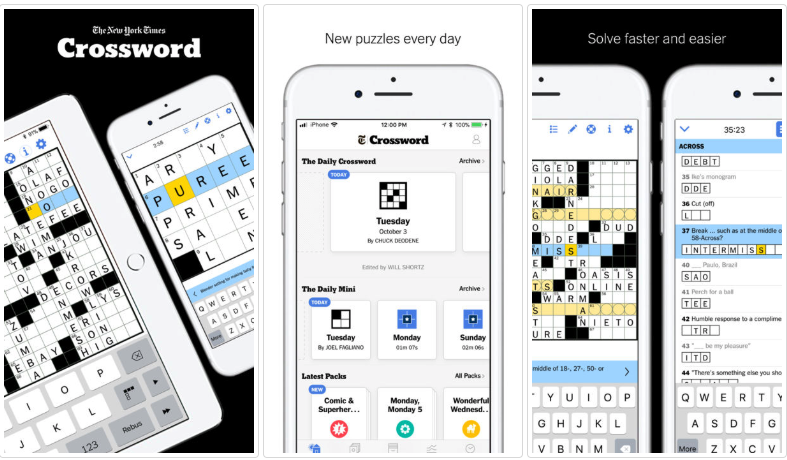
The New York Times Crossword Puzzle boasts an impressive 4.9-star score with more than 47.8k reviewers who love the game as much as we do.

The app is free, and you’ll get a few puzzle collections, plus the daily mini puzzle to get you started. That said, it’s worth subscribing if you’re an avid puzzler. For $6.99 a month, you’ll gain access to 20 years worth of iconic puzzles to your smartphone. You’ll even get a new puzzle coming out each day.

What’s great about the app is that you can start by working your way through Monday puzzles and leveling up until you can get through a Sunday without cheating.

What’s more, you don’t have to wait until the answers are released the next day. The app will track your time and let you know when you’ve successfully completed each square.

NYTimes Crossword Download now ►
9

Letterpress – iOS

Letterpress game

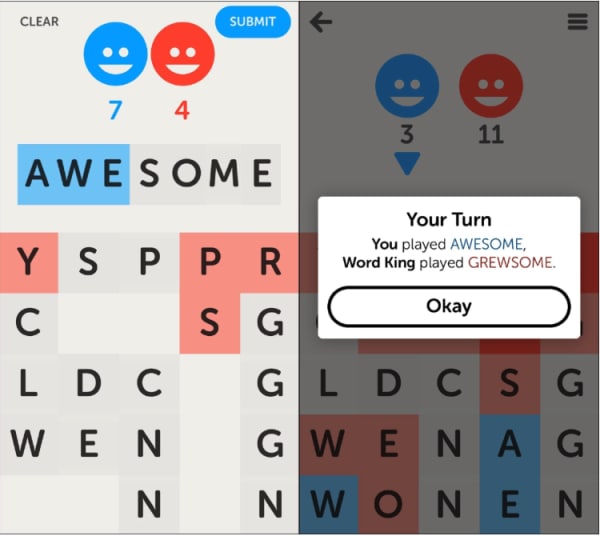
Letterpress is another Scrabble-style word game, but it’s perfect for people who can’t deal with the chaotic interface of the Words with Friends world — especially with ads enabled.

Like WWF, Letterpress players go head-to-head, taking turns spelling words on a point-based system, but your goal here is a little bit different. Players take turns spelling words to capture the board; plus you can pull up a dictionary as you play.

Letterpress Download now ►

8

Wordscapes – iOS, Android

wordscape puzzle game

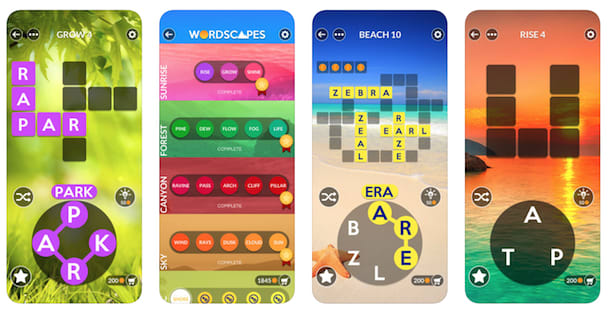
Wordscapes is an addictive word game featuring more than 6,000 puzzles that follow this sort of crossword puzzle/jumble mashup. What’s great about this game is that the levels get progressively more challenging, as you go. However, it’s still mindless enough that you can listen to a podcast and try to solve yourself to sleep.

Wordscapes Download now ►
9

Spellspire – Windows, Android, iOS

spellspire word rpg

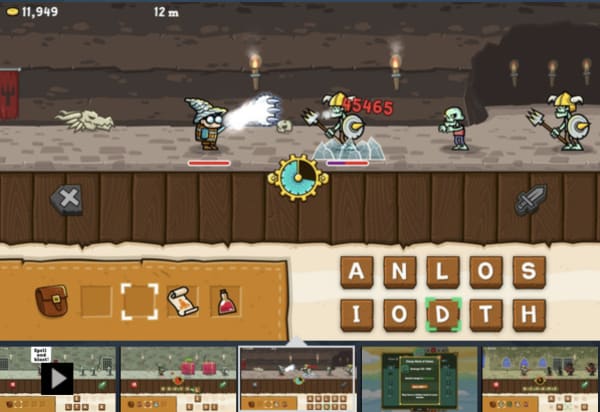
Spellspire reminds us of learning games from the past like Math Blaster, where you’ll need to solve problems to combat the enemy quickly. With Spellspire, your ability to form words fast is the key to your power — the longer the word, the bigger the blast.

Part RPG, part word game, Spellspire is a run romp through a cartoon fantasy world. As you spell your way to the top, you’ll collect gold you can exchange for magical items and new gear.

Spellspire Download now ►
10

Blackbar – iOS, Android

blackbar word game

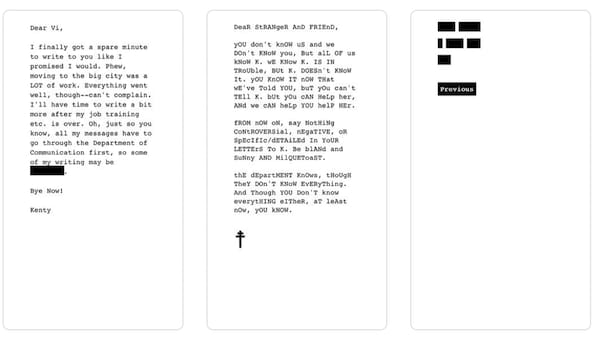
This is the game for you if you’re looking for something word-centric, but want something a bit different than the average Scrabble-inspired game. Blackbar ventures outside of the grid and into a story about censorship.

It’s something of a puzzle. Words are blacked out, and you’ll need to use your common sense and linguistic know-how to solve it.

What’s more, Blackbar is more than a game. You’re reading a story that takes place between two young women corresponding to one another. However, parts of their letters have been blacked out by The Department, a fictional authoritarian regime that censors its people.

Blackbar Download now ►
8

Typeshift – iOS

Typeshift word puzzle

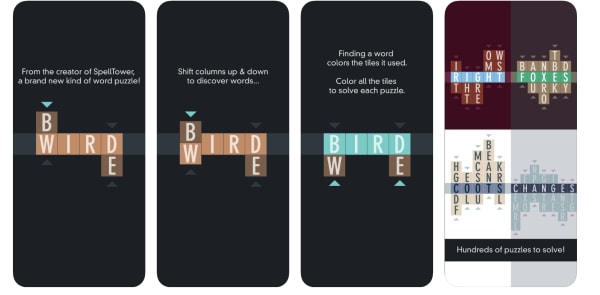
We like Typeshift. It has got an attractive minimalist interface, and it’s all about rearranging words. How it works is, you’ll get about three to five columns stacked one on top of the other. Your goal is to move those columns around spelling words in the middle column until every letter turns green.

The game is free to download, but eventually, you’ll need to pay to unlock more puzzle packs.

Typeshift Download now ►

7

Armed with these games, we expect you’ll flex your vocabulary and maybe challenge your buddies to a grown-up spelling bee. Have fun!

Best ways to record a call

Whether you’re attending a lecture, recording a client meeting, or want to remember this moment forever, there are a whole host of reasons you might want to record a phone call. It’s one of the best ways to capture a conversation, allowing you to focus on what the other person is saying without trying to take notes and ask questions at the same time.

In the old days, recording a call meant purchasing an external device to listen in. These days, devices have gotten better—but they’re not your only option. From conference-calling apps to iPhone and Android downloads, here are the best ways to capture a call:

Learn the rules

Before you choose an app and start recording, make sure you let the other person know that you’re recording the conversation. The FCC has no formal rules in place governing telephone recordings between individuals.

However, several states have laws on the books about obtaining consent. 38 states have what’s called one-party consent laws, which so long as you’re one of the parties involved, there’s no need to get consent from your conversation partner. 11 states require both parties to consent to the recording.

Zoom

Zoom record a call

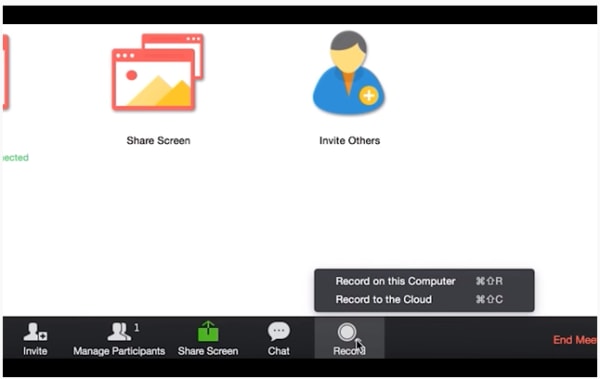
Zoom calls produce some of the better quality recordings compared to some of the “record a call” iPhone apps or external devices.

You can sign up for either a paid or a free account, which will allow you to record calls by switching on a toggle. In a conference call setting, dial-in participants will hear a message letting them know that a meeting is being recorded.

So, while this might not be the best option for all the amateur spies out there—it’s certainly our top pick for those who need a reliable solution for recording important calls like client interviews with minimal set-up.

As per the Zoom help section, if you’d like to record a call for your own use, navigate to My Meeting Settings and then the Recording tab, then Local recording and verify that the setting is enabled. If it’s disabled, click “turn on” and you’re good to go.

10

Skype

skype record video calls

Skype rolled out call recording late last year, offering users the ability to record calls on both desktop and mobile. Like Zoom, when you start recording a call, all participants are notified so that they can opt out before it’s too late.

After the call is complete—all parties receive a copy of the recording inside the chat box, where it will remain for up to 30 days.

To save the download on mobile, simply tap and hold the recording file inside the chat—which will bring up a menu. Select save and the recording will automatically save to your camera roll.

Google Voice

Have you looked at Google Voice lately? It’s actually a pretty handy service, though we get why it might not be the first thing you think of when you’re hoping to record a call.

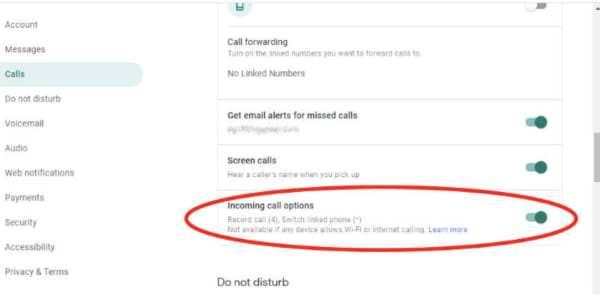
The free account allows you to record calls from your iPhone, your computer, or Android device, though it’s worth pointing out that you can’t record outbound, so you’ll have to ask the other person to call you to use this option and make sure you enable incoming call options, as seen below.

how to enable call recording Google Voice


There is no shortage of recording apps in the Google Play store, but the quality varies pretty dramatically, here.

Most of the apps you can download work by accessing your microphone to record both sides of the conversation. This means that calls can be a bit on the quiet side if you’re not using the speakerphone setting.

Here are a couple of options with solid reviews:

Automatic Call Recorder Pro

android call app

One of the better options out there is Automatic Call Recorder Pro, due to its simple, straightforward interface and custom recording rules.

Unlike Google Voice, you can record both incoming and outgoing calls and it integrates with Google Drive and Dropbox, making it easy to store your recordings in the cloud for flexible access when you really need it.

Beyond the basics, Automatic Call Recorder Pro offers some pretty cool features. There’s “shake to record,” which, as you might guess allows you to start recording by giving your phone a good shake. Save calls, add notes, and search for recordings by keyword, phone number, or contact name.

Automatic Call Recorder Pro Free download
7

TapeACall Pro

tapeacall recording app iphone

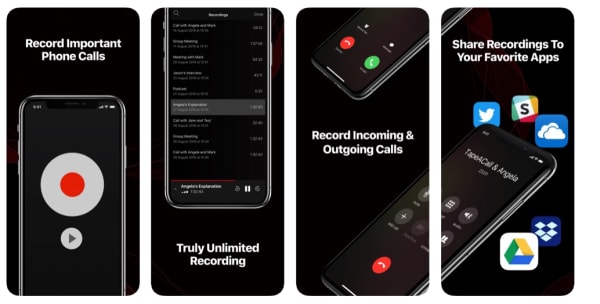
 TapeACall is one of the easiest ways to record calls to your iPhone—incoming and outgoing alike. How it works is, the app sets up a three-way call between you, the person on the other line, and the service. When you want to record, simply open the app, press the record button and the app will connect to the service. When you’re done, your recording will be stored in the app—and from there, you can choose to share them via social media, email, or text or upload them to a cloud storage tool like Google Drive or Dropbox.

External recorders

Why use an external recorder, anyway? Instead of downloading an app, you can pick up an external device that allows you to record calls by connecting to your phone jack.

Here are a few options:

Waytronic Call Recorder Headphones

Waytronic’s call recording headphones offer users a simple, plug-and-play solution for recording a call directly from their device by simply swapping out your usual earbuds for these bad boys.

The headphones allow users to record both incoming and outgoing phone calls and are compatible with iPhones (comes with a 3.5mm lightning jack adapter) and Android phones.

Headphones hold up to 16 hours of audio or 512 MB, and automatically deletes your oldest files if there’s no room left on the built-in device. If you’d like to keep call records, the device comes with a micro USB cable which allows you to transfer files to your computer.

RecorderGear Bluetooth Cell Phone Call Recorder

recorder gear bluetooth recording

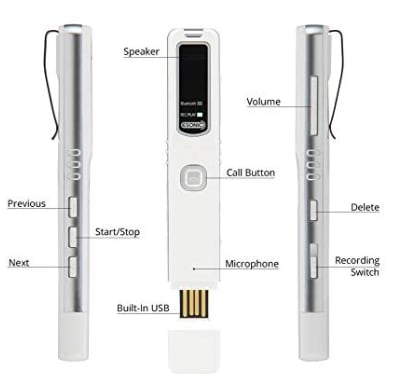
If cords aren’t really your thing, RecorderGear’s Bluetooth Cell Phone Call Recorder presents a different solution—a wireless recording device that records both sides of your conversation—no cords or bulky plug-ins needed.

The device comes with 4GB internal memory and supports Bluetooth file transfers to your Mac or PC for storage.

You can also use the recorder for voice memos, meetings, or lectures and listen to recordings directly from the devices. While the tool is a bit more expensive than, well, most of the options on this list, it’s multi-functionality and convenience may make it a worthwhile purchase for regular users.

DeciVibe Cellphone & Landline Call Recorder

The DeciVibe Cellphone & Landline Call Recorder is an external device that works with iPhones and Androids alike. And, as suggested by its wordy name, it works with landlines, too.

The device comes with 16GB internal memory, plus an external micro SD card for additional storage, making this a solid portable option for in-person recording (lectures or interviews) just as much as phone calls.

Audio is recording as a MP3 format at 1536 kbps up to 192kBPS and comes with additional features that beef up the offering a bit more like audio gain and a noise cancellation setting.

Dual monitor productivity tips – 5 ways to make the most out of multiple monitors

Some swear that two screens are better than one, while others say that the extra screen is a distraction in and of itself.

If your mind starts to wander during the average workday, you’re certainly not alone. Staying on task, especially in today’s productivity minefield definitely isn’t easy.

But, maybe getting on task

In reality, you’re just switching between tabs over and over, searching for that one link you need to paste into another document.

The dual-screen approach, though nothing new, is a productivity method that some say, could increase your output by up to 50%. There’s no need to toggle back and forth between tabs and it might even lead to fewer errors.

multiple monitors productivity benefits

Why use multiple monitors anyway?

Well, multiple monitors mean more room, without having to commit to a big-screen solution.

And, for those who keep a million tabs going at any given moment, the set up can bring a sense of digital clarity that you just won’t get from your single laptop screen.

Below, we’ve included some suggestions that will help you make the most out of your dual-screen approach.

1. Streamline your screenshotting game

If you’re a content creator of any kind, chances are you’ll need to do some light editing here and some screen-shotting there.

We know what a pain this stuff can be on a laptop, where you’re dragging, clicking and losing your place over and over.

2. Reduce errors with a side-by-side comparison

If you’re pulling numbers from one documents, you’re switching back and forth, over and over. Did you forget what you just looked at? Well, that just means you’re clicking between tabs—wasting time and increasing the likelihood of an error.

Whether you’re trying to put together a spreadsheet on your laptop or testing code, a separate screen can help you spot errors as you work.

3. Improve your workflow

Researchers at the Princeton University Neuroscience Institute found that a cluttered work environment makes it more difficult to focus.

Use the multi-screen system to set up a workflow that works for you. Part of this means keeping one screen available for organizing your thoughts and to-dos on a clutter-free backdrop.

Set your screens up so that your eyes go from left to right—think reference materials and to-dos on the left side, and one task at a time on the right.

A couple of options here— one is pretty informal. Plan out your day’s worth of to-dos and organize your tabs accordingly.

Or, if you’re trying to work out a top-level view of a big project, you can use dual screens to create a Kanban (or Trello-style) board that maps out your process.

4. Use one screen for source material

Whether you’re writing a research paper or drafting a blog post, you’re probably looking up information as you get your work done.

Whatever you’re trying to accomplish, any task that requires you to look up source material has a whole bunch of clicking around between tabs built into the process.

It doesn’t sound like a big deal, but that separation between your workspace and its associated source material is a huge game changer.

This New York Times article from 2006 states that working off two screens can increase your productivity by up to 30%. In it, the writer mentions they wrote the article by writing on one screen, with the outline and source material on the other.

5. Segment your work tasks

Make like Bill Gates and use one screen to collect incoming information and the other (or other two, in Gates’ case) to work on tasks. Use one screen to keep an eye on information, emails, alerts, and so on.

You need to commit to productivity

James A. Anderson, the professor from the University of Utah who led the 2008 productivity study says that whether multiple monitors will make you more productive depends on the type of work you do.

So, if you don’t really need more than one screen, an extra monitor won’t help much. This set up is ideal for people who need to toggle between two sets of information—coders, designers, writers, etc.

Dual monitors present an effective way to increase your productivity, by giving you a little more breathing room for spreading out your work.

Still, that means there’s twice the amount of space for distractions.

11 hidden Google Chrome features and extensions to know

If you’re like us, your Chrome browser is more than a portal to the rest of the web—it’s a picture of your online life.

Stores your settings, knows your habits more than your friends, family, or significant other. Scary, sure. But, convenient nonetheless.

Sure, the debate between which browser is best wages on—with the loudest voices being the Brave/Tor private browsing crowd—and the Chrome die-hards.

7
Chrome is a young, fast browser that can browse any web page. It supports all major technologies and standards such as HTML5 and Flash.

While Google’s security practices are, well, sometimes questionable, there’s no doubt that Chrome reigns supreme for a reason.

One of those reasons is its deep library of extensions, loaded up with everything from the silly to the practical, to the ultra-convenient.

Here, let’s have a look at the top picks:

1. Ghostery

Ghostery is a Chrome extension that reveals the invisible trackers, pixels, and bugs sites like Google, Facebook and more use to track your activity across the web.

2. Honey

Honey isn’t exactly secret-secret, but it’s a practical Chrome extension that isn’t yet on everyone’s radar.

3. Single-Click Autofill

Chrome’s autofill feature has gotten an upgrade in honor of Google Chrome’s 10th birthday. Autofill has always been convenient, but it hasn’t always been the most accurate. Now, you can enable a single-click

To fix your autofill settings to make them more relevant, you can head over to chrome://flags: enable Show Autofill predictions. This lets you turn autofill predictions into placeholder text based on the field type.

4. Grammarly

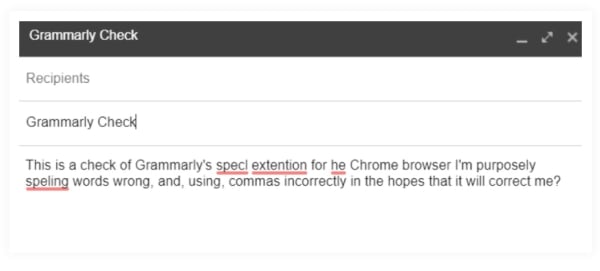
grammarly editsIf you do any writing for the web or on the web, Grammarly is a go-to tool, a lifesaver for helping you avoid the perils of sending error-laden emails, form submissions, and general red, underlined forms of text-based shame.

5. Omnibox Search

The Omnibox is a lifesaver if you’re the type of person who reliably has like 50 tabs open at any given moment. You can now use it to find a specific tab when you’ve got so many pages pulled up at a time by

Another cool way you can use Omnibox is to search through websites without having to navigate to them. Set this up by navigating to Settings > Search engine > manage search engines.

6. Omnibox search phrases

Omnibox has something called “Search Shortcuts” where you can set up personalized search phrases that allow you to pull up websites fast.

Here’s how you can set this up:

  • Open a new browser tab in Google Chrome
  • Right-click in the Omnibox and select “Edit Search Engines”
  • Next, a window will appear with 3 columns: Name of Site, Keyword for Site, and Web Address

7. HTTPS Everywhere

HTTPS Everywhere is an extension that encrypts your communications with many major websites, making your browsing more secure.

8. OneTab

Speaking of tabs, how many do you have open right now? We all like to think we’re that rare bird that is actually really good at multitasking, but the truth is, most of us are dead wrong.

The Stanford Researchers found that multitasking can even lead to permanent brain damage—which, of course is frightening. And, neuroscientist, Daniel Levitin says that multitasking drains our energy—fast, opening us to the risk of burnout.

In any case, bouncing around from tab to tab, losing track of information might be slowing you down. This handy guy promises to save up to 95% of your computer’s memory and even better, reduce tab clutter.

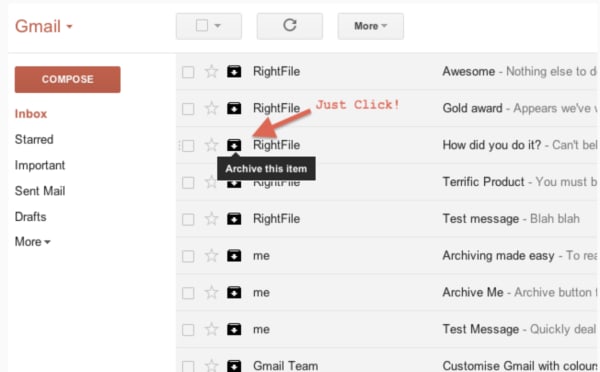
9. Actions for Gmail

actions for gmail

Actions for Gmail is a simple tool that stands to make life inside the inbox a little easier, one click at a time. Actions were just added to Gmail earlier this year,

Archive, delete, and mark unwanted messages as spam without opening an email or choosing from a drop down menu. Beyond the one-click actions, users can also manage calendar events, add notes to your to-do list, and track your looming deadlines.

10. Sales Navigator

Sales Navigator (formerly Rapportive) is a free tool that automatically digs up the essential intel anytime a new contact sends you an email. LinkedIn makes the extension and offers a free Lite version to people with a free account, or you can pay extra for the Premium version.

How it works is, after installing the extension, Sales Navigator presents a contact’s LinkedIn stats on the right-hand side of your Gmail.

This gives you the chance to add some context to your reply—which can be especially handy as a salesperson, freelancer, or heck, just someone who wants to know more about who is emailing them.

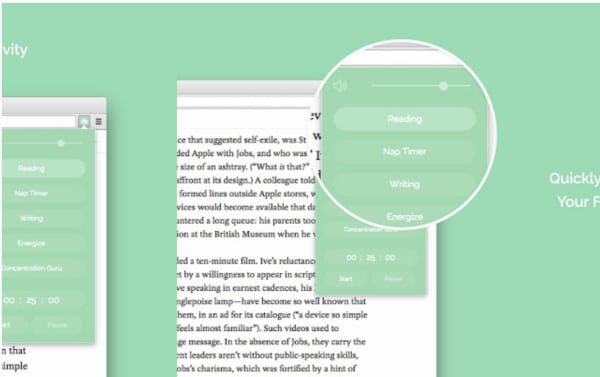
11. Noisli

noisli google chrome

Noisli is a white noise app we’ve looked at in the past. It’s a super simple noise generator that allows you to create custom mixes so you can drown out your desk mates on your own terms. The extension makes it easier to access the tool, and you can set productivity timers, play your favorite mixes, and control the volume directly from the top bar.

Noisli Download Free
10

Wrapping up

Whether you’re trying to block out the sound of your coworker eating their lunch or make sure that all of your emails are spell-checked, there’s no doubt that Chrome is loaded with features and extensions designed to make your life easier.

Wunderlist vs. Todoist: which one is the best to-do list app?

If you’re overwhelmed with choices Wunderlist and Todoist are the two favorite apps in the space— a good place to start looking for the right tool to whip your work-life balance into place.

What should you look for in a productivity app?

That is the million dollar question. Organization is a personal and often sensitive topic. Some prefer something simple (a la Mac’s built-in task list or Gmail’s inbox-based option).

Others treat organizing like a complex multi-step process—think personal Trello cards that you drag from start to finish, checking off milestones as you cross them.

  • Do you like the calendar layout?
  • Does it integrate with your email, other apps?
  • How do you feel about the interface?
  • Does the “filing system” work for you?
  • Do you need habit tracking?
  • What about collaboration tools?

Here, we’ll compare the two rival to-do apps and see how they stack up.

Todoist

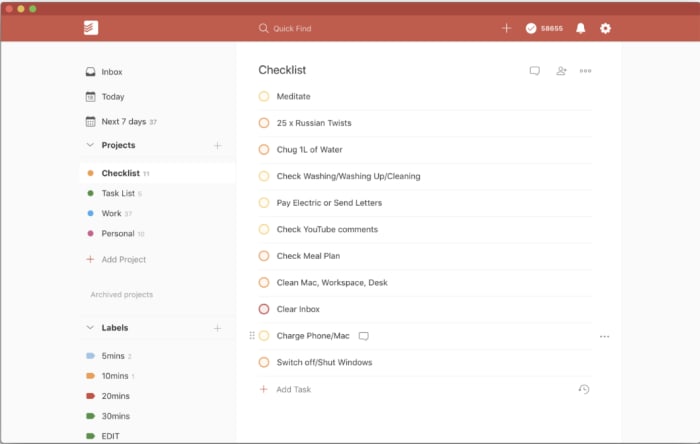
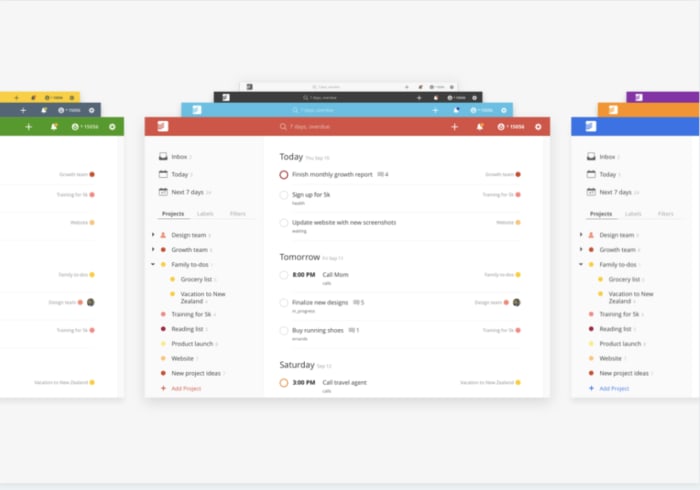
todoist home screen

Todoist leads the 17 million or so to-do apps (yes, really) you have to choose from. The reason being, it’s a dedicated to-do app with years of positive reviews backing its effectiveness.

Signing up is as simple as connecting by way of Facebook or Google and from there, you can start filling up your list. Set deadlines, assign priorities to tasks, and delegate work to others. Completing tasks is a matter of checking off a box.

If you want every feature, you’ll need to pay about $4 a month, or $29 for the full year. Which, if you like the lite gamification vibe, then it’s not a huge expense. Initially, it looks the app just presets a Gmail-esque task list.

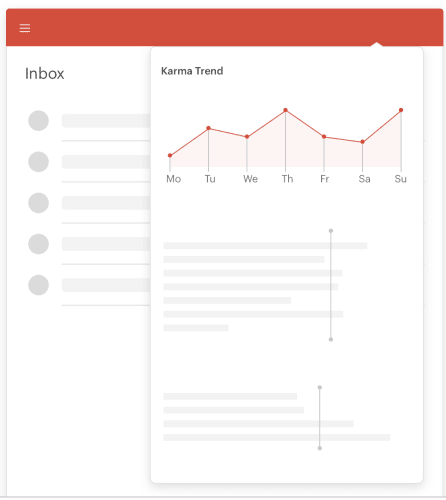
But, it gets better—for one, you can create projects and divide them up by task—checking off each small step on the road to completion. It also aims to build a habit-tracking element into the mix by offering “Karma Points” each time you complete a to-do.

todoist karma

The free version comes with the basic lineup of tools, but if you’re into it, we recommend springing for the Premium features.

The paid plan allows for more customization—you can filter based on criteria such as due date, project, label, assignee, or a combination. Search by using the @ symbol— to locate tasks within seconds— @pending, @email, etc.

The paid plan includes things like color-coded progress reports you can sort by week or month—this may or may not be relevant to you.

The benefit is, you’ll get an overhead view of how you spend your time, and you can feel good about yourself for sticking with an obligation for x days in a row.

Unfortunately, Todoist lacks a few basics. For example, there’s no traditional calendar view, which makes it a bit hard to plan ahead.

It does integrate with Google Calendar and iCal, so this might not be a huge issue.

todoist upcoming tasks

It would also be nice to see a Pomodoro timer integrated with the Karma Points system, but again, it’s not the end of the world.

Todoist Download Free
9

Wunderlist

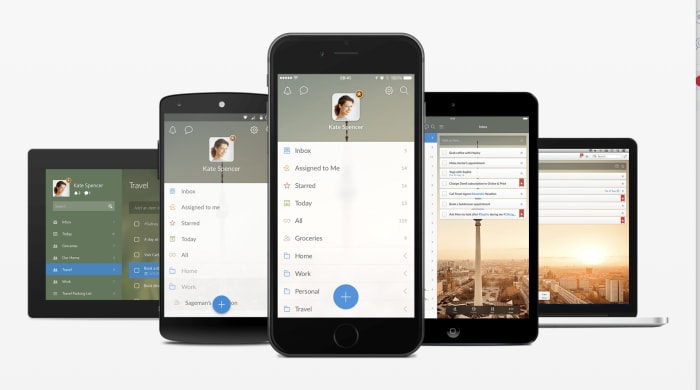
Wunderlist multiple devices

Wunderlist is similar to Todoist, another productivity app that’s been around the block a few times.

The app was acquired by Microsoft back in 2015, and merged with the company’s branded list-maker, Microsoft To-Do—but it seems that due to complaints from the fanbase, Wunderlist and Microsoft To-Do are separate apps these days.

If you’re looking for something free, Wunderlist might be the better option of the two. The platform no longer offers a premium option.

Each time you add a to-do list, you can label it—then access your lists in the app’s inbox.

This way household reminders won’t intermingle with follow-up reminders and tasks linked to larger projects.

Wunderlist keeps track of a lot of details, which is great. But, visually it’s pretty overwhelming. Some users might have trouble sorting through the lists and actually doing the tasks.

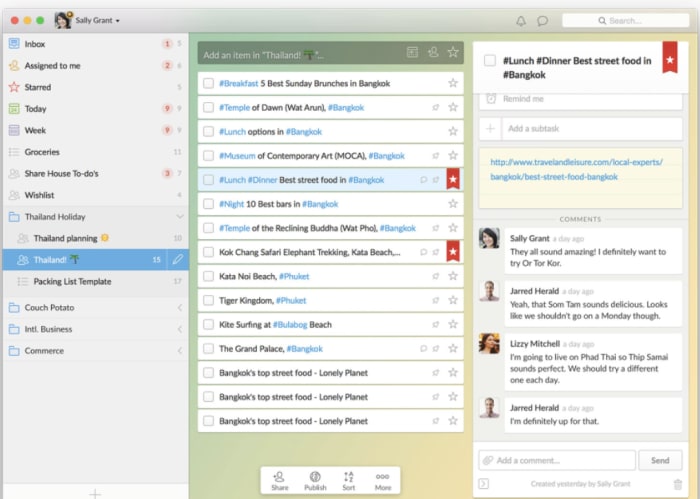
wunderlist list view

Wunderlist is a useful tool for those who do a lot of collaborating. Sure, Todoist has a delegation tool, but it’s part of the premium package. As you can see in the above image, users can select a task and review related communications or comment.

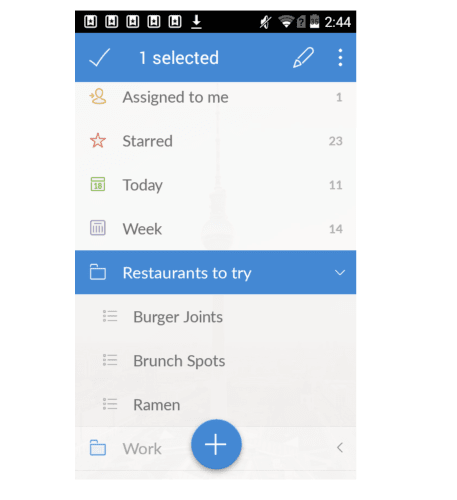
wunderlist to-do

Wunderlist is 100% free, so the built-in collaboration option makes it easy to share tasks with your spouse or roommates, or even coworkers if you’d prefer to keep a particular to-do outside of a more formal project management tool.

Wunderlist Download Free
7

What is the best to-do list app?

If it’s a question of Todoist vs. Wunderlist, it’s nearly a tie. The interfaces are slightly different, but in either case, you’re getting a simple to-do list app that works on web and mobile.

However, Todoist, in our opinion, may have a slight edge. At a glance, it didn’t seem that there were very many features, but after a little digging, we found Todoist can get as complex as you like.

Complete guide to SHAREit

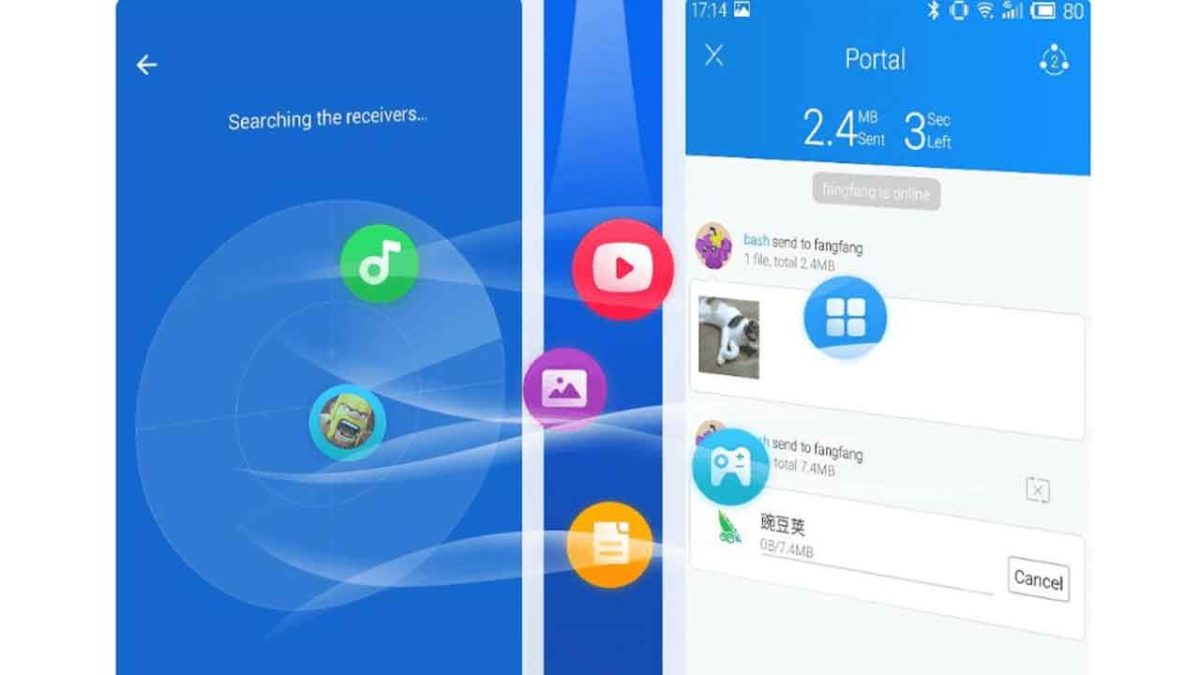
Data sharing apps like SHAREit have transformed the file transfer game, allowing users to transfer files through WiFi without a network connection.

The app’s key benefit is that it allows users to transfer large files to each other quickly–no cords, cables, or USBs required. Today, there are more features in the mix, a music discovery app, a place for finding video content, the list goes on.

Below, we’ll take a look at where the file-sharing app stands in 2019, and whether it’s still a good choice for those looking for a quick way to move files around.

So, what is SHAREit?

SHAREit runs on a technology known as WiFi Direct to support its file-sharing system. How it works is, it sets up a local WiFi network that allows people to share files back and forth—though there are some limits when it comes to range and how many users can access that network.

Users can control who can send and receive files over the signal.

There are some risks associated with transferring files in a public space over questionable WiFi connections, and it’s worth pointing out that the platform was found to have some significant security issues earlier this year.

One notable issue was, hackers could gain access to auto-fill data, Amazon web-service user key and the victim’s hotspot info in plain-text by with a simple curl command.

Still, the app boasts 500 million users globally, and the app is a convenient tool for users to share data, particularly in areas where mobile data transfers are both slow and expensive.

SHAREit Download Free
5

How to send files on SHAREit

To send files to another user, make sure you indicate that your device is the sender, then add the files you plan on sending by dragging and dropping them into the app.

Once sent, the receiver accepts files, and they’re saved in the device’s Downloads folder and My Files inside SHAREit. Photos typically save inside your Photos folder.

Both devices must have SHAREit installed and running during the transfer and be connected to WiFi.

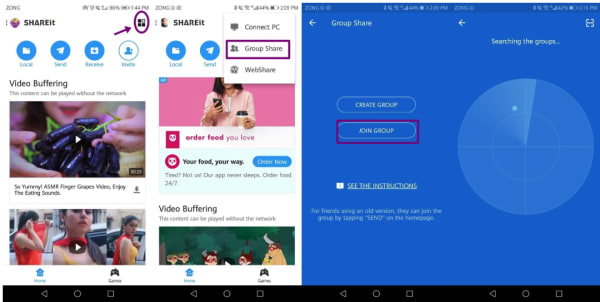
Group Share

SHAREit group share setup

SHAREit’s group feature allows you to receive files from multiple users at a time.

Users can join groups created by any user and receive files from members of your groups.

Here’s how you can get in on the action:

  • Launch the SHAREit app on your device.
  • Select the four boxes icon from the upper right corner and select Group Share from the dropdown.
  • Next, hit the Join Group button to search for nearby groups.
  • Click the avatar of the group you’d like to join to connect-the group creator will provide the hotspot password.

If you’d like to create a group of your own, you’ll press the Create Group button instead and wait for other users to join. Group creators can kick people out of the group, though it seems that there aren’t any limits on who can join.

Web Share

Web Share allows users to send files to someone who doesn’t have the app downloaded to their device.

The receiver gets a link that provides access to the file and can save them however they see fit.

Share Zone

Share Zone is a mobile feature offered on both Android and iPhone. It allows you to select files that anyone can see when they connect to the platform and works as this community library of sorts.

Add and remove files from the Share Zone by tapping on your avatar and navigating to Share Zone.

SHAREit goes beyond file-sharing

Even if you don’t need to send files back and forth regularly, SHAREit can still bring some value to the table. Recent updates have opened up more features like streaming, a media player, and a multimedia app.

Utility apps

SHAREit offers a handful of utility apps inside the main account. Here, you’ll find tools like CLONEit, a tool made for transferring your files, apps, and contacts from your old phone to a new one, without using up your mobile data.

SHAREit is part media discovery engine, too.

Okay, this is a bit weird, but there’s not a lot of information out there about how the media player works or whether or not people like this aspect of the platform or would rather see SHAREit stay in its lane.

Per Google Play, the app comes with “infinite” online watching and select offline watching. It also comes with a built-in music recommendation engine, plus GIFs, stickers, and wallpapers.

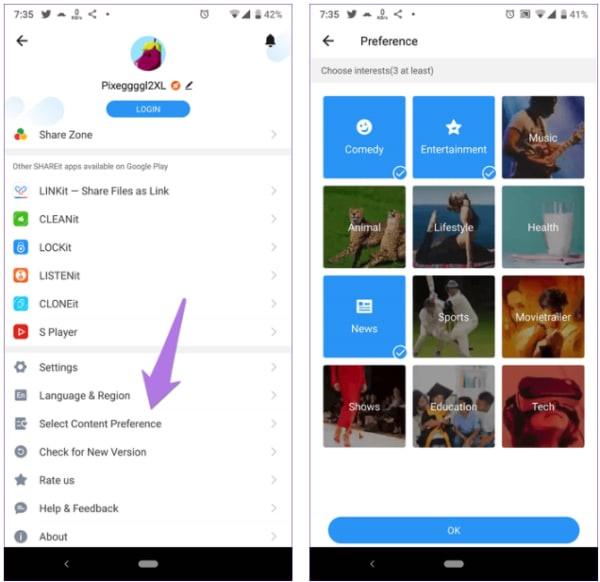
Content preferences

Even though SHAREit was designed for file transfer, the app is angling to become something of a streaming platform.  Inside the content preferences tab, you’ll have the ability to customize the content suggested by the app.

To set your preferences, simply tap your avatar and choose Change Content Preference. From there, you can pick from these rather broad categories and save your changes.

SHAREit content categories

Is SHAREit still worth a shot?

It’s honestly hard to say. It could simply come down to the fact that the app isn’t as popular in the US as it is in other countries, but there’s little information out there about how to make the most out of the platform–half of the developer blog posts amount to a brief mention of a new update or something equally useless.

What’s more, review sites from all over the web mention dip in quality in recent years. Android Police, Reddit, and the Play Store all have reviews that mention that the platform is too bloated and contains too many ads.

SHAREit Download Free
5

Best VR Apps for 2019

Virtual reality isn’t all video games. Sure, there are some rad games out there—but were you aware that the New York Times has been making VR content for the past few years? Or, that you even though there’s no iOS compatible headset, iPhone users can still visit another version of reality?

The current crop of VR apps on today’s market let you explore other worlds, get an art history lesson, watch someone jump out of a plane—or get a different take on your favorite YouTube clips.

Here, we’ll look at some of the top VR apps for Android and iPhone.

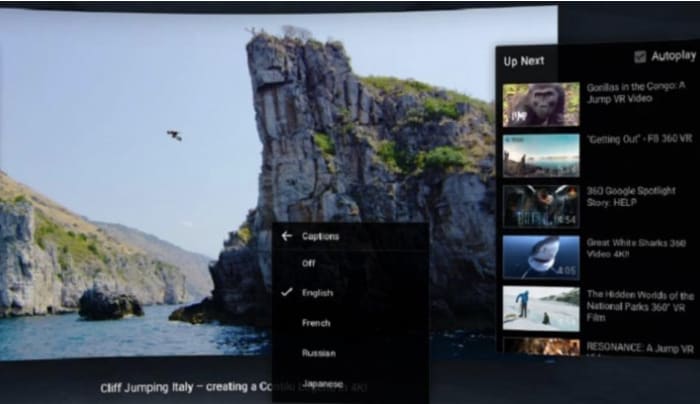
YouTube VR

YouTube VR App

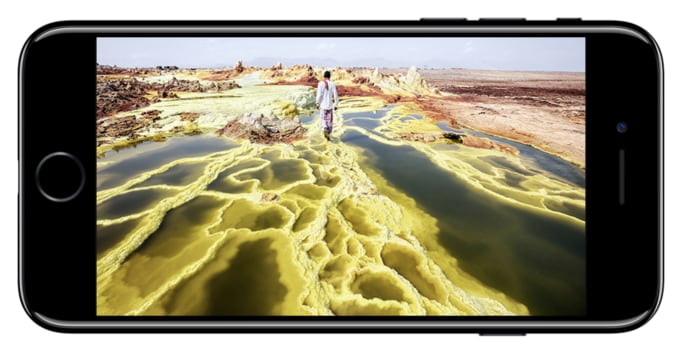
YouTube VR is only available on Android, and you’ll need a Cardboard or a Samsung Gear to access the app by way of the Daydream app. But, it’s a pretty rad experience once all of the moving parts are in place.

The app brings a different perspective to the YouTube universe—you can explore all video content—from regular music videos to 3D 360 videos. The draw isn’t so much watching your favorite YouTubers perform up close and in 3D, that will get old fast.

Stick with the Virtual Reality Channel where you can experience skydiving, cliff jumping, and other thrill-seeking behaviors from the safety of your phone.

YouTube VR Download Free
9

NYT VR

New York Times VR App

Yes, the New York Times has a virtual reality app. It’s been around since 2015, and since then, they’ve created hundreds of immersive news reports that allow a glimpse into the lives of Syrian refugees or Iraqi forces or see what Pluto looks like.

NYT’s VR isn’t your standard news fare. Instead, the Times focuses on places you can’t usually go—tapping into VR’s explorative and empathetic potential.

NYT VR Download Free
8

Virtual Speech

Virtual speech app crowd example

Ever wondered what it was like to give a speech in front of a full auditorium? Need to conquer a fear of public speaking or prepare for an upcoming speech?

Virtual Speech aims to take your public speaking skills to the next level, presenting you with a virtual audience that mimics the sounds, yawns, and mannerisms of an actual crowd.

It doesn’t stop there. You can gradually increase the judgment level of the crowd, add in distractions, and amplify the sounds of rude audience members. At the end of your speeches, you’ll receive a score—for both verbal and nonverbal communication.

Google Arts and Culture

Google VR Art and Culture

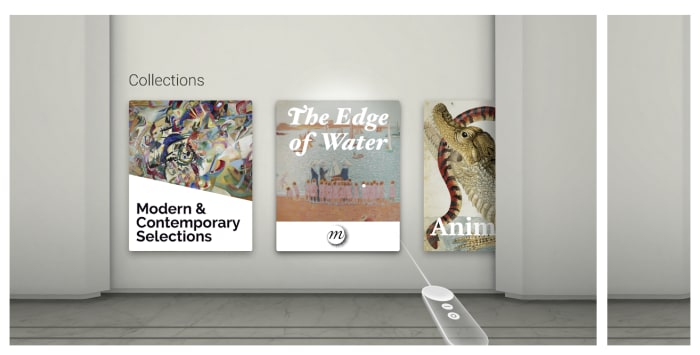
Google Arts and Culture is the next phase in Google Art. They’ve revamped the educational resource and turned it into a VR experience where you can tour the museums of the world without having to shell out for plane tickets and museum admission.

Google has partnered with 1200+ international galleries, museums, and cultural institutions from 70+ countries. You’ll have the ability to take a guided tour of some of the world’s most famous museums and exhibitions, allowing the curious to get an art history lesson at any given moment.

There’s also the option to add works to your “personal collection.” Meaning, you can save favorite pieces and share them with family and friends.

Google Arts and Culture Download Free
8

Inception

Inception VR app

This isn’t the Inception film that inexplicably came with certain Android phones a few years back, no Leo, no confusing dream sequences.

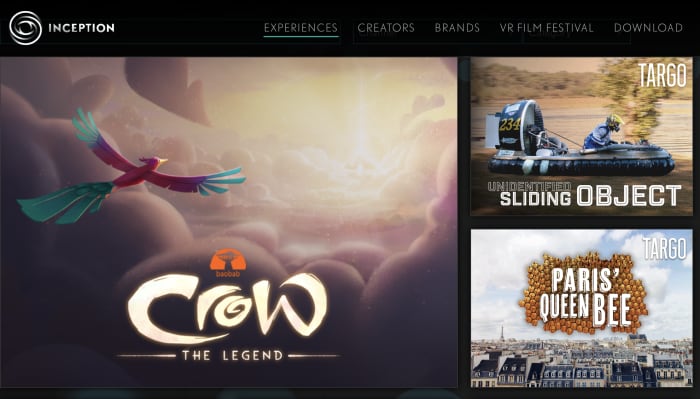
This Inception is an app that delivers a small collection of “experiences” which span a wide range of artists and aesthetics.

There’s a Dali experience (which, if you’re going to pick an artist cut out for the VR landscape, Dali’s your guy), a Mac Demarco video, and a Playboy Mansion tour.

In all—it’s an eclectic mix of art and entertainment that at the very least, should give you something to talk about.

Hidden Temple VR

Hidden Temple app

This immersive adventure game is pretty solid for a $3.99 cardboard download. Hidden Temple VR is a treasure hunting quest that takes place in the jungle—you’ll solve puzzles and riddles, and point and click your way through various temple corridors.

The game can be played with or without a VR headset, but the makers of the game say Google Cardboard delivers the best gameplay experience.

Hidden Temple VR Download Free
8

Fulldive VR

Fulldive VR

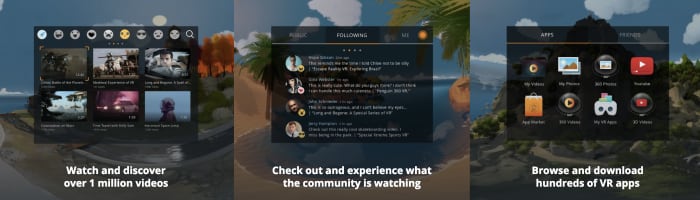
FullDive VR is a social-ish platform for Cardboard users and other VR headset owners. The app includes a whole mashup of different apps—from a VR web browser to YouTube content, a camera, and a marketplace where you can buy more apps.

The creators of this app have imported our favorite pieces of the web into a virtual universe. Additionally, FullDive also includes a social thread so you and your friends can bond over your experiences or just catch up on life.

Fulldive VR Download Free
7

Spring clean your computer with these digital tidying tools

Working on a messy desktop can hurt your productivity and slow down your computer, too.

Spring is on the horizon and perhaps it’s time to freshen up the old desktop. Spring cleaning isn’t just for clearing out the closets and airing out the house. Consider it a fresh start for your digital life, too.

We recommend starting with a deep clean–purging files, malware, and download remnants dragging down the system. From there, you’ve got a clean slate and can organize files whichever way best suits your workflow.

A few apps for freshening up:

CleanMyMac/CleanMyPC

CleanMyPC app

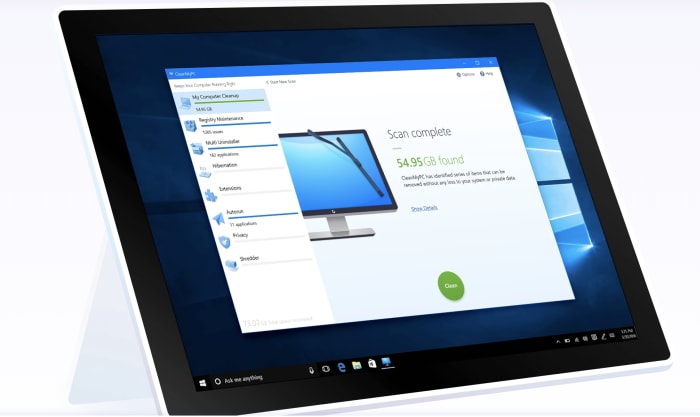
CleanMyMac and CleanMyPC are MacPaw’s solution to cleaning out the cobwebs lurking in the corners of your computer. The tool removes malware, protects your privacy, and uninstalls file remnants and unwanted apps that slow down your system.

If that were all this app did, we’d already be impressed, but there’s more. CleanMyMac/CleanMyPC automatically updates all of your apps and makes sure the items you put in the trash don’t leave any bits and pieces behind.

CleanMyMac Download Free
7

App Cleaner and Uninstaller

Nektony Cleaner Uninstaller

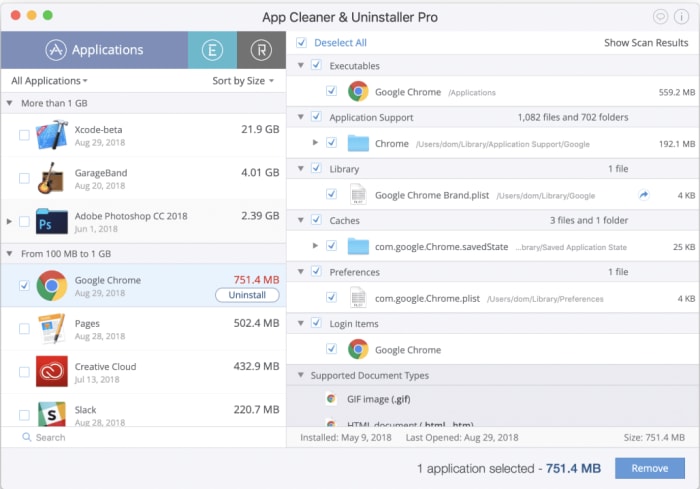
Nektony’s app is as straightforward as the name—the app cleans out any broken links, files, and anything left behind after you uninstall an app.

The cleaning tool gets rid of all unwanted apps, caches, support files, and wipes up the leftovers in a simple three-step process. Launch the app, select unneeded apps, and remove. Simple as that. From there, you’re ready to start fresh—and organize your files and folders better this time.

Razer Cortex Game Booster

Razer Cortex booster file cleaner

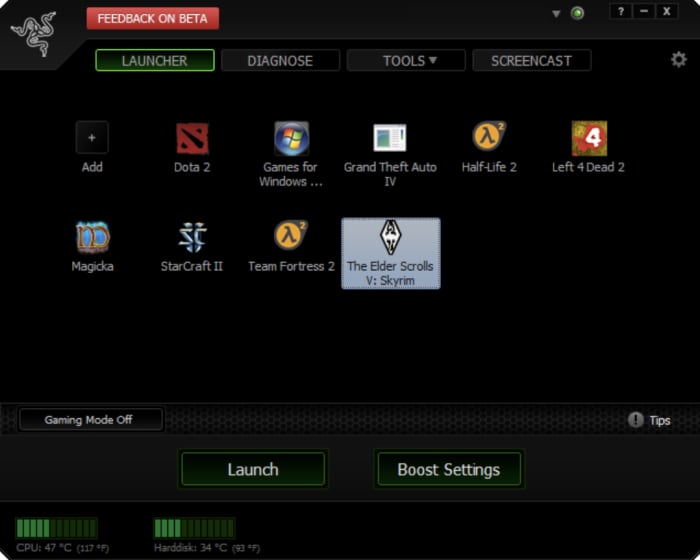
This one’s for all you gamers out there. Razer Cortex: Game Booster cleans up your PC for faster performance, no more lags, or slow load times. Razer is a bit different than say CleanMyMac. The program allows you to choose a game, then launch it through the game booster. The program then closes any nonessential background programs, allocating more computing power to your game.

While the whole “optimized game boost” functionality is something we’re not 100% sure about, the system also cleans up the junk files associated with your Steam Downloads. With Razer, you no longer need to manually find and delete the support files that come with every game; it automatically trashes these files for you–kind of like your desktop equivalent of going paperless.

Razer Cortex Download Free
10

Apple Files

Apple Files file organizer

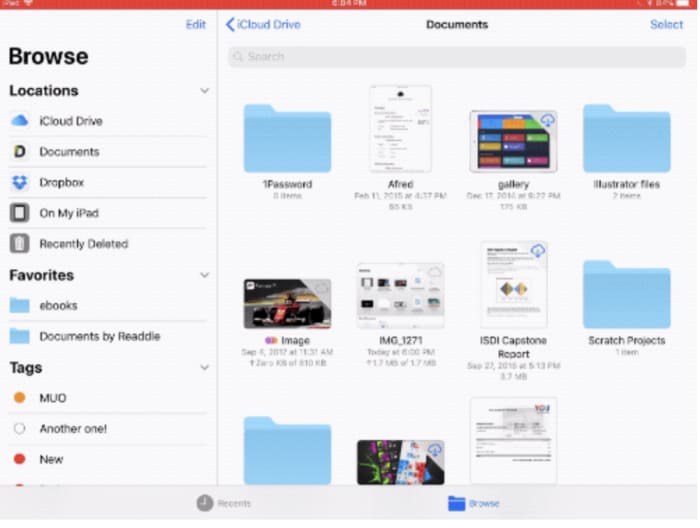
Apple Files is an app that replaces the older iCloud app with something that looks a lot like Finder. Files brings together all of your files into one place—not only on the device you’re using but all other Apple devices. While PC users can sit this one out, Apple Files is an easy way to keep your files in order and access them no matter where you are.
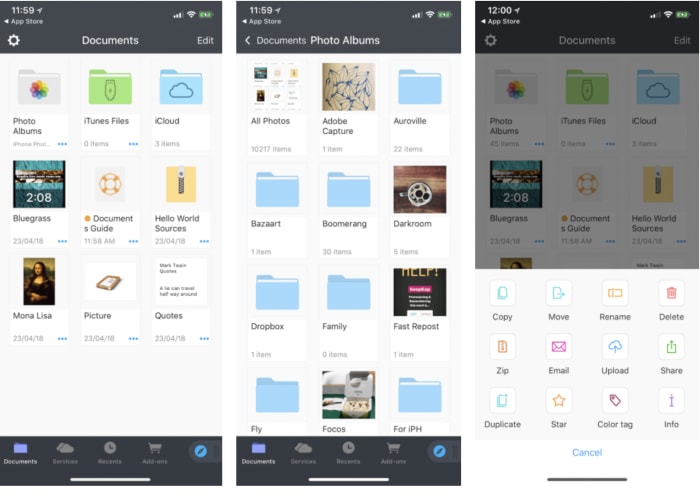
Beyond syncing up your photos and notes, the Files app connects to third-party accounts like Adobe Creative Cloud, Google Drive, and others.
Documents 6

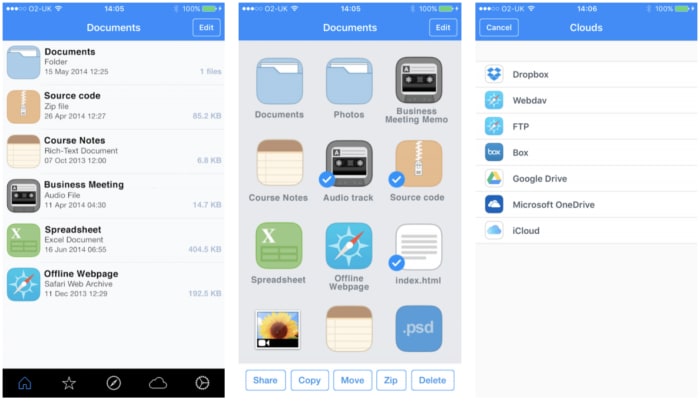
Documents 6 organizer

Documents 6 is a mobile hub for all of your files. Its main functionality is the ability to download files from the web and view them on your phone or tablet. It’s also an excellent way to keep your files organized so that you’re not left trying to figure out what’s essential and what can go this time next year.

Documents 6 works with all types of files formats from text and audio to videos, PdFs, and more. The app stores data locally on devices and syncs to the cloud when you’re connected online. This means you’ll have the best of both worlds—cloud-based convenience without the risk of losing data if you’re suddenly out of range.

And, it wouldn’t be a spring cleaning article if we didn’t mention organization tools. Documents 6 comes with a handful of labeling methods—color tags, stars, and more.

File Manager and Browser

file manager desktop clean

File Manager and Browser is less complicated than Documents 6, and it’s free. The app comes with a range of tools that make spring cleaning feel less like the chore that it is. It supports the Microsoft Office Suite, multiple clouds (i.e., DropBox, OneDrive), and functions as a sort of virtual USB drive.

This tool allows you to move, copy, and zip all kinds of files using WiFi, Bluetooth, or Facebook. It also comes with an integrated PDF Reader and a built-in search. In all, it’s a convenient way to manage your files with a minimal learning curve.

Browser and File Manager for Documents Download Free
9