How to Fix UC Browser Certificate Error in 3 Methods

On most browsers, you can simply choose to validate a certificate or ignore an error related to it. With UC Browser, all it’ll do is present you with a message that states “ERROR: NET::ERR_CERT_INVALID.” Strangely, it even shows you this error with some trusted sites, sometimes after a new browser update.

If you’re sitting with a UC Browser certificate error, there are a few things you can try.

  1. Reload the Page

    How to Fix UC Browser Certificate Error

    The easiest solution may be to just reload the page you’re wanting to visit. The error might just be a momentary glitch, resolved when you refresh the page. Of course, if you have our luck, the chances are that this won’t work at all.

  2. Don’t Use Public Wi-Fi

    How to Fix UC Browser Certificate Error

    Public Wi-Fi usually runs on HTTP instead of HTTPS. If you’re visiting a site that holds private information, it won’t be secure on an HTTP connection. Therefore, you’ll receive a certificate error message if it conflicts with the page settings. When you connect to a private connection, the chances are that the error won’t appear.

  3. Clear Browsing Data

    How to Fix UC Browser Certificate Error

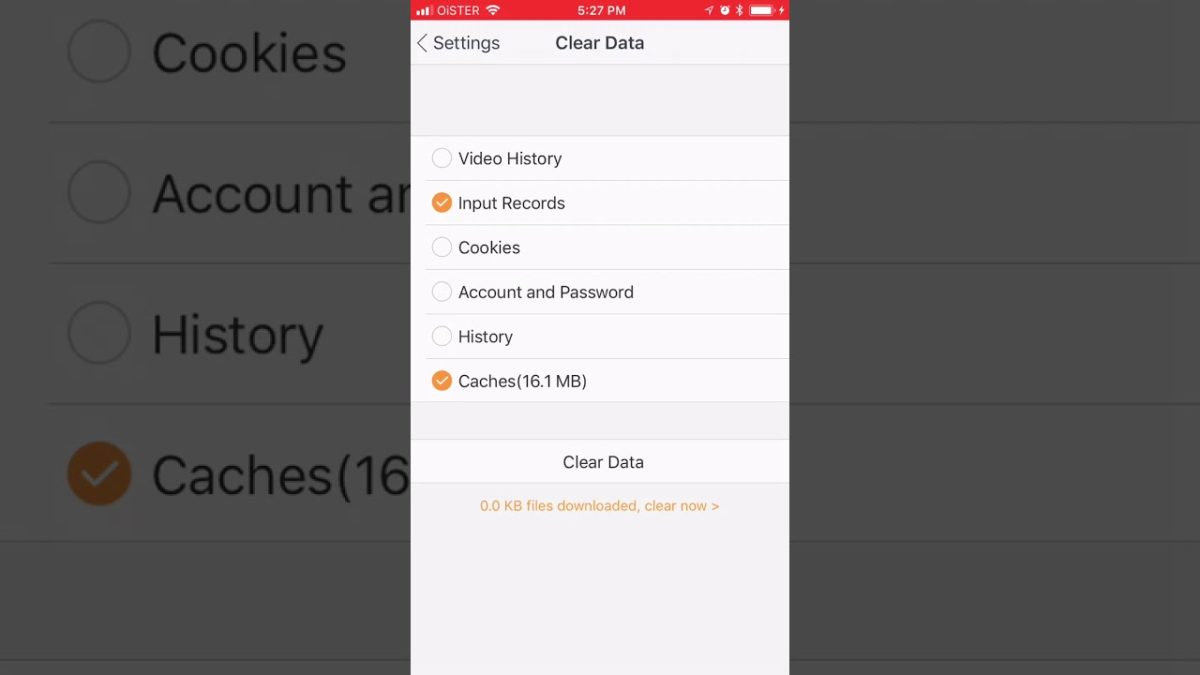
    Another solution you can try is clearing UC Browser’s cache and browsing data. You can also clear the browsing history, which might remove the error if there’s some conflicting glitch in the browser. Once the data and cookies are refreshed, you’ll have a better chance of entering the site.

Life without errors

While we’ve provided you with some solutions, there’s no guarantee that they will work. UC Browser may choose to not allow you to visit specific sites for your data’s security, and there won’t be any way around it.

If you’re desperate to get into the page, you might want to try a different browser where you can choose to accept certificates.

How to Set UC Browser Wallpaper in 2 Easy Ways

UC Browser is a great browser to use as it is lightweight, low resource drain and has many customizable features. With this browser, you can share your personality by personalizing the background of your browser to an image that you love.

This may sound complex, but you can change your background on Windows, iPhone, and Android devices with this browser. Let’s take a look at the steps to set your wallpaper in the UC browser.

  1. On Mobile

    How to Set UC Browser Wallpaper in 5 Simple Steps

    – Launch the browser on your mobile device.

    – Click on the three horizontal lines (hamburger). On your mobile device, this icon will be located in the bottom menu of your screen.

    – In the menu that appears, click on the ‘Themes’ option.

    – Click on the ‘Local Pictures’ option to choose a picture that has already been downloaded to your device.

    – Click the ‘Find More Wallpapers’ option to search for a wallpaper to use.

    – Once you’ve chosen an image for your browser backgrounds, you can click on ‘Save’ to set them permanently.

  2. On Computer

    How to Set UC Browser Wallpaper in 5 Simple Steps

    – Launch the browser on your computer.

    – On the browser’s home screen, click on the ‘Themes’ option represented by a paint palette in the top right of your screen. 

    – Once the themes window opens, you can choose any of the wallpapers already uploaded. If you want to use your own image, click on ‘Custom Wallpaper’.

    – Click on ‘Browse’ to upload the wallpaper from your computer.

    – Once you’ve chosen your image from your computer, click on ‘Ok’ to upload and set it. It will automatically become your background.

Customize Your Theme and Personalize Your Experience

UC browser makes it easy to completely personalize your browser and make it fun and exciting to browse the internet. Why not try customizing your UC browser with a unique wallpaper?

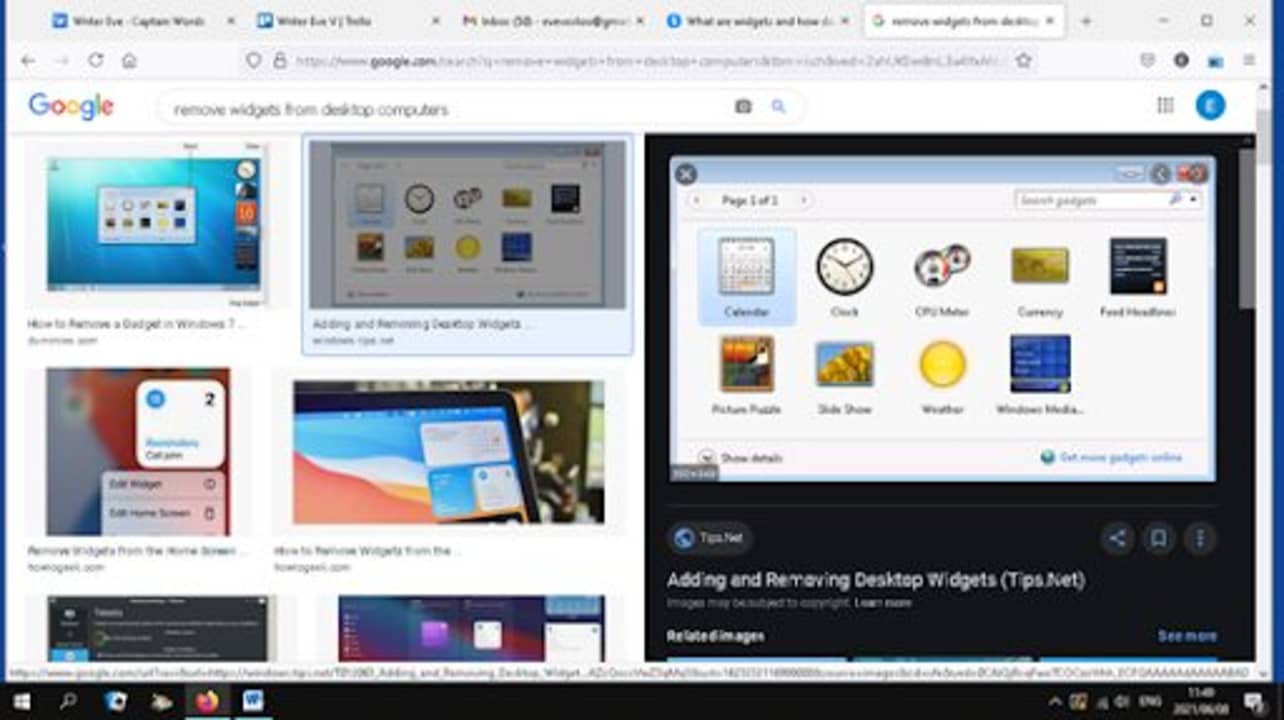
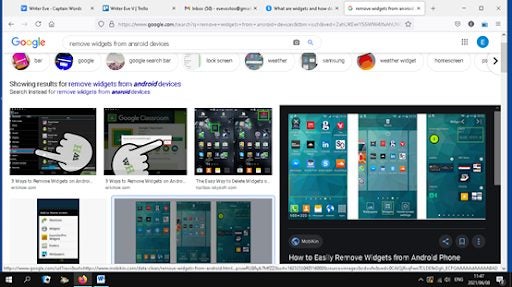
How to Remove Widgets from your UC Browser Windows in 4 Easy Ways

A widget on your phone’s home screen or your computer desktop using UC Browser is a useful little piece of code. It gets information from an app or lets you use part of an app without opening it.

But too many widgets clutter your desktop or eat into your phone’s battery life. So how do you get rid of them? We’ll show you for Windows and other platforms.

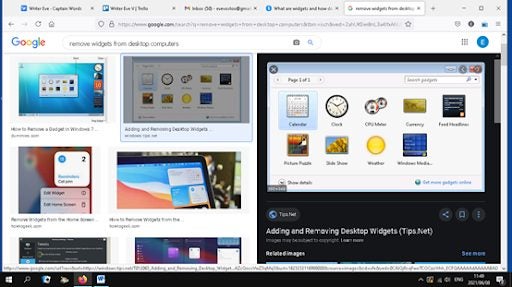
  1. Removing a widget from a Windows desktop

    How to Remove Widgets from UC Browser

    Right-click the widget and choose Close Gadget on the menu. Or hover your mouse cursor over the widget. When you see its Option Menu appear, click the x at the top.

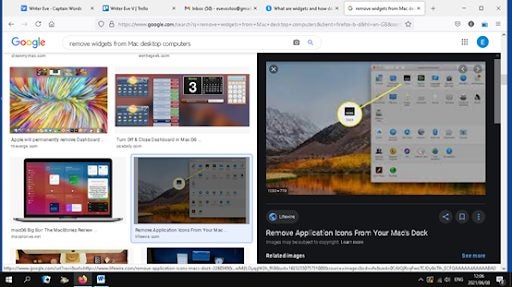
  2. Removing a widget from a Mac desktop

    How to Remove Widgets from UC Browser

    Hover your mouse on Dock at the bottom of your screen. Click Applications. Select Dashboard. Click the + icon on the bottom left of the screen.

    Click on the widget you want to remove and hold. Click on the x in the circle at the top of the widget icon.

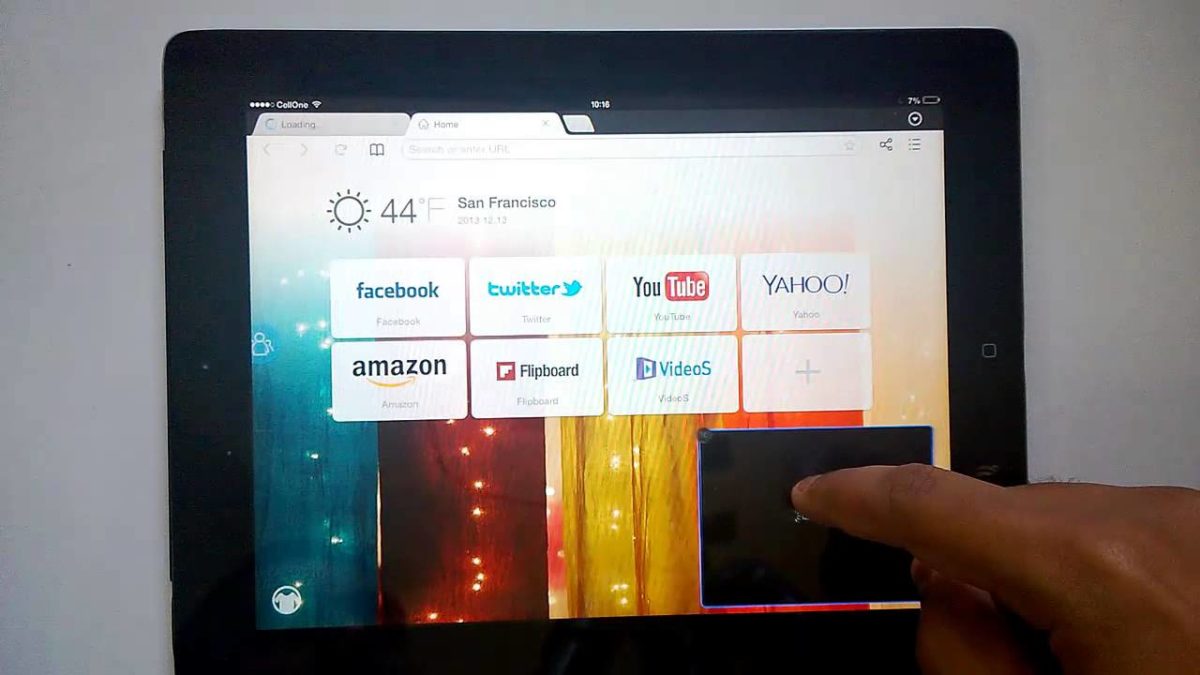
  3. Removing a Widget From an Android Home Screen

    How to Remove Widgets from UC Browser

    On your phone’s home screen, press the widget you don’t want until a Remove notification appears. Drag the widget up to the top of the screen until it turns red, and then release it.

    On some Android devices, you might have to drag the widget to the bottom of your home screen.

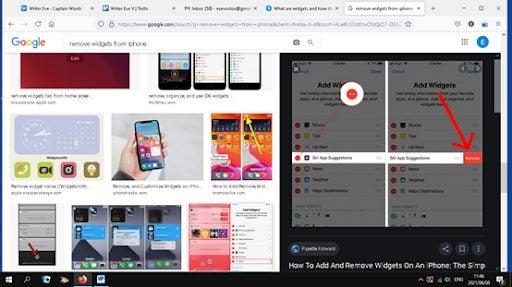
  4. Removing a widget from an iPhone home screen

    How to Remove Widgets from UC Browser

    Tap and hold onto the widget you want to remove to show your options. Choose Remove Widget. If you’re in home screen editing mode, tap the top left corner of the widget. Select Remove to delete it.

Why You Should Not Use Too Many Widgets

Widgets are useful when you want information or want to use some features of an app without opening it. A calendar widget is a good example. But you can have too many.

They can clutter your desktop and shorten your phone’s battery life as they update often. Removing a widget does not remove the app. If you don’t want it, you must uninstall it.

How to Download Videos With UC Browser in 3 Steps

Despite UC browser’s lightweight build, it is still feature-packed. Some of the valuable features include customization options, a file manager, and the opportunity to download videos directly to your device. We will be exploring the latter of these features in this article.

Let’s take a look at how you can download videos with UC browser.

  1. Go to the Video You Want to Download

    How to Download Videos With UC Browser

    Launch the browser on your chosen device. Navigate to the video or videos you want to download.

  2. Copy the Video URL

    How to Download Videos With UC Browser

    Copy the video’s URL from the address bar.

    – Left-click once on the URL in the address bar to highlight it.

    • Right-click and choose ‘Copy Link’ or just ‘Copy’ from the menu.
  3. Insert URL and Download Video

    How to Download Videos With UC Browser

    Choose your favorite online video converter and go to that website. A few that you can consider are Keepvid, Freemake, and Pastedownload. Insert the URL of the video you want to download in the video downloader and follow their instructions. 

    When asked to choose a file format, if you are unsure of the different options, go for MP4 for video files. Make sure that you select the option that downloads with audio if you need it, as some video downloaders have options to download without sound. Once you have followed all the steps, your video will start downloading to your device.

Start Enjoying Videos Anywhere, Anytime

Being able to download videos is a handy feature. It allows you to save videos easily for reference or keep them to watch later when you know you might not have an internet connection.

Downloading your videos also saves you from the hassles of continued buffering if your internet connection is slow or unreliable. Why not try downloading a video now, and see how easy it can be in the UC browser.

How to Download YouTube Videos on UC Browser for Android in 6 Steps

Don’t you often wonder if you could download that funny or how-to video that you are watching on YouTube so that you can take it elsewhere and show it to a friend? We all struggle with data and using Wi-Fi to download things we want to share and then show them from our phones makes so much sense.

Well, if you use UC Browser you can download those vids and share them without having to use your precious data.  Please note that it is no longer possible to download in UC Browser directly, you will need to have some form of download software loaded on your phone.

  1. Open UC Browser on your phone

    How to Download YouTube Videos on UC Browser

    Once you have UC Browser open on your phone, touch the YouTube icon to go directly to YouTube.

  2. Choose the YouTube Video you want to watch

    How to Download YouTube Videos on UC Browser

    Choose the video that you want to watch. Open it and start it playing. Once the video starts playing, touch the title at the top of the screen.

  3. Tell UC Browser to use Savefrom.Net to download the video

    How to Download YouTube Videos on UC Browser

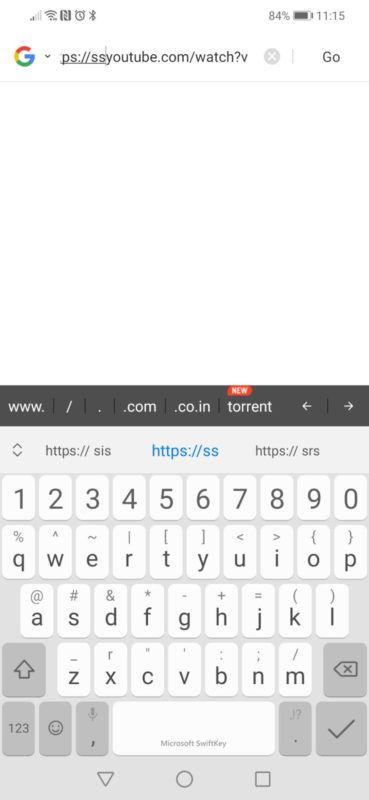
    You want to replace the letters “m.” before youtube in the URL for the video with the letters “ss”.

    As you can see in this screenshot the URL has been changed from https://m.youtube…………………… to https://ssyoutube………………..

    The very first time you do this, UC Browser will ask you to load the Savefrom.Net software.

    Tip: If you didn’t already know, to find a place in a long line of characters quickly, touch anywhere in the line and hold down the space key on your keyboard. Move your finger up, down, left or right and the cursor will follow. This is much easier than trying to touch in exactly the right place!

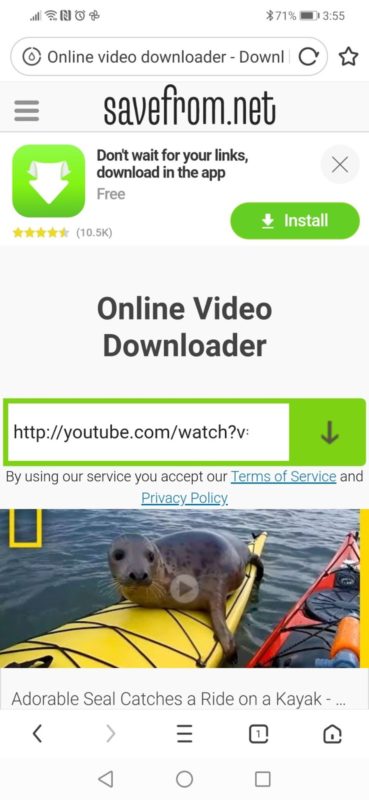
  4. Start Download Process

    How to Download YouTube Videos on UC Browser

    The URL from your video has been transferred to Savefrom.Net.

    The frame that was showing when you left YouTube is shown in the window, so you can confirm this is the correct video.

    Touch the down arrow.

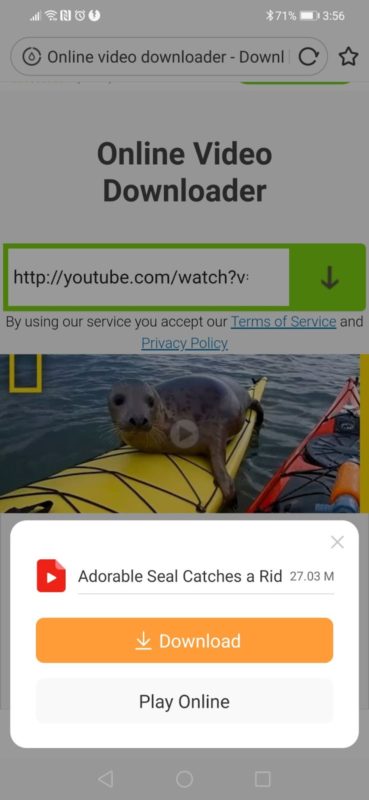
  5. Confirm the Video and Start Download

    How to Download YouTube Videos on UC Browser

    Once Savefrom.Net has linked to the video and is ready to begin downloading to the phone, this screen will come up.

    Touch Download to download the video

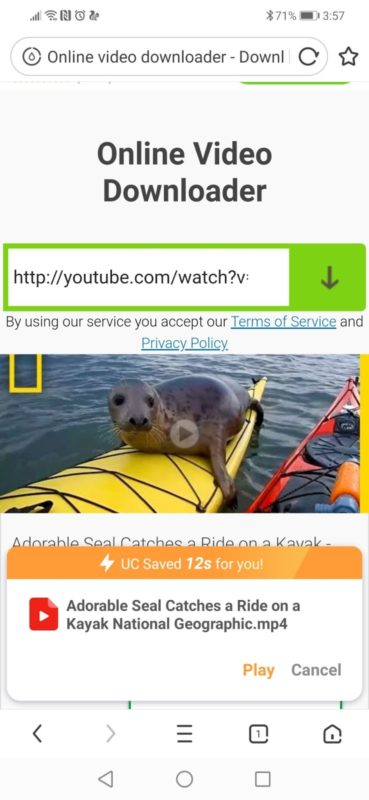
  6. Video has Downloaded

    How to Download YouTube Videos on UC Browser

    Be patient! Once the video is downloaded to your phone, Savefrom.Net will advise you. 

    You can play it immediately, or use your phone’s software to find the video and play it at a later stage.

Enjoy your new videos!

This is the process that you will have to follow to download videos from YouTube onto your phone. If you choose to use software other than Savefrom.Net as your interface between UC Browser and YouTube, you will have to adjust how you tell the software to commence downloading.

Please remember that you will not be able to download any video that is copyright protected. This will include films and some music videos.

How to Disable Adblock in UC Browser on the PC

Often websites will create a fake advertisement and check to see if it has loaded when to go to a specific web page. If the phone advert is loaded successfully, the fake will be substituted with an actual advert before the page is displayed to you. If the fake advert does not load, then it means that your AdBlocker settings are stopping it. 

If you are using UC Browser on your PC and you want to disable the AdBlocker, you can do so with a few simple clicks.

  1. Click on the Hamburger Menu

    How to Disable Adblock in UC Browser on the PC

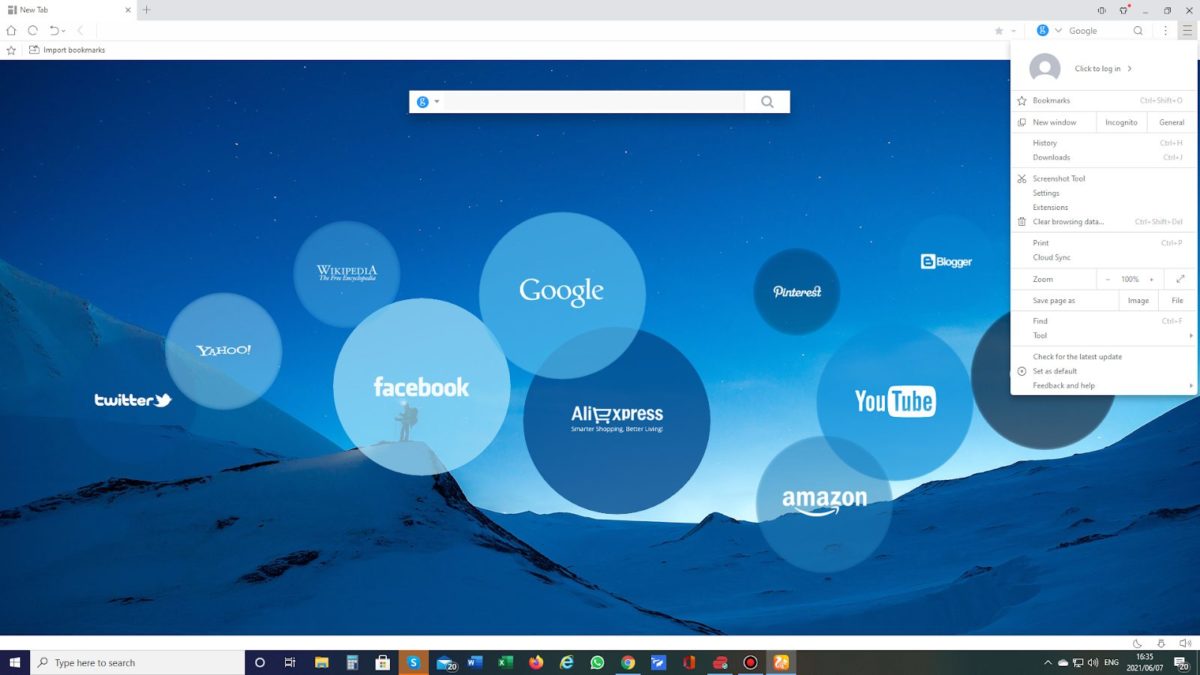
    The first thing to do is click on the three horizontal lines (called a Hamburger Menu) in the top right-hand corner of the screen.

  2. Click on Settings

    How to Disable Adblock in UC Browser on the PC

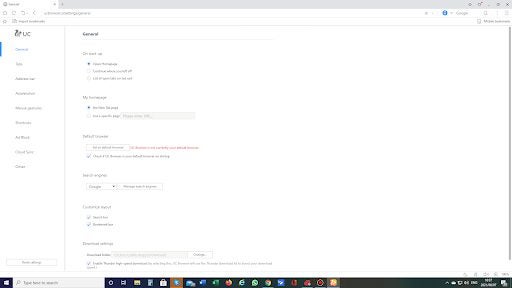
    From the drop-down menu that appears, click on Settings.

  3. Click on AdBlock

    How to Disable Adblock in UC Browser on the PC

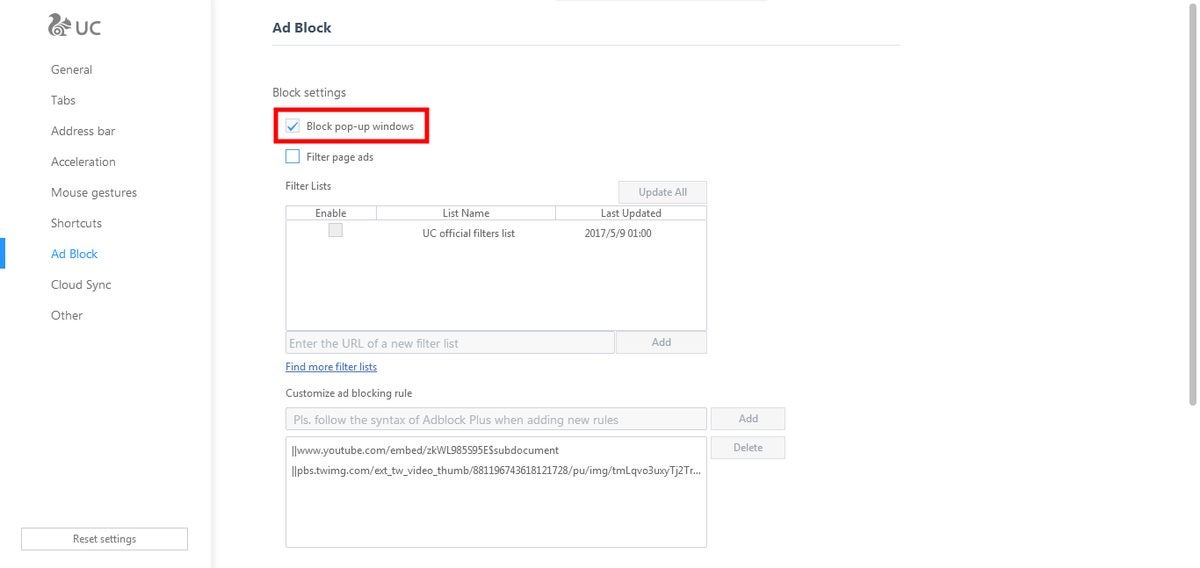
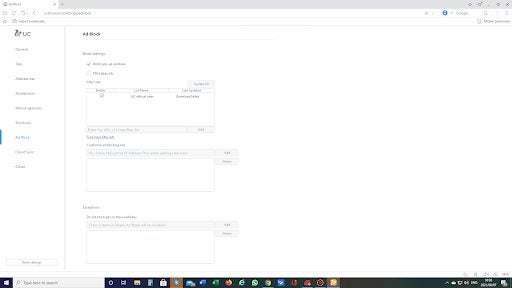
    As we are trying to allow pop-up windows, we need to go to Ad-Block to adjust the default setting, so click on the menu item Ad Block.

  4. Click on AdBlock

    How to Disable Adblock in UC Browser on the PC

    Click in the box to the left of “Block pop-up windows.” This will allow pop-up windows to appear in your browser.

Set your ads free

Unfortunately, disabling the Adblock in UC Browser means you need to contend with adverts again, but you can always enable it again when you’re done with the site you want to visit. Ensure that you have antivirus program running to protect your PC from malware.

UC Browser Tips and Tricks: 3 Special Features

Most people think web browsers are all the same. They expect their browser to navigate the internet and do basic things like visit websites and download information, music, or videos.

UC Browser, although relatively new, offers many great tricks and special features other browsers don’t have. Here are three of them.

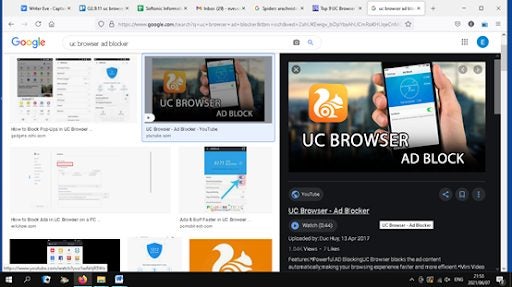
  1. UC Browser Ad Blocker

    Top 3 UC Browser Tips and Tricks

    Ads that cover most of the screen on a website or webpage are very irritating. If you can only find the information you need on a site with too many of those ads, the UC Browser can shield you from them. You can implement the Ad Blocker in the Settings menu.

    Publishers and website owners might object to blocking ads on web browsers, but the website you want loads 60% better when you use Ad Blockers to counter them.

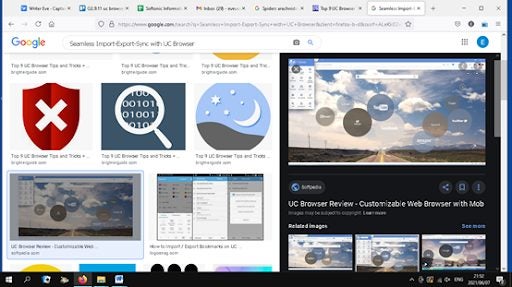
  2. Perfect Import-Export sync

    Top 3 UC Browser Tips and Tricks

    UC Browser perfectly synchronizes your data in the cloud. It enables you to sync data between different devices just by signing in to the browser. This also applies when you import and export bookmarks from other browsers.

     Not only UC Browser can do this, but it uses less memory and not as many of your device’s other resources. That’s why this browser is ideal for slower, older computers. And it makes powerful modern machines perform even better.

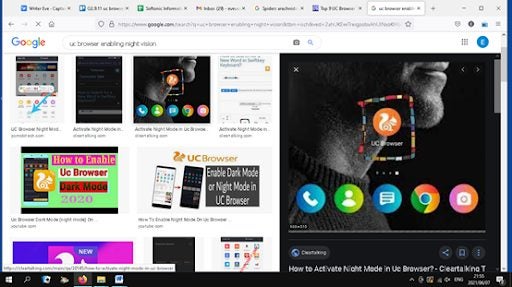
  3. Enabling night vision

    Top 3 UC Browser Tips and Tricks

    Although this feature is new to another older and more established browser, UC Browser has offered it for quite a long time.

    Enabling night mode from the menu helps keep your eyes healthy. It reduces the amount of blue light entering your eyes which allows you to sleep better.

Why UC Browser Should be Your Choice

UC Browser is gaining in popularity, especially with people who use it on their mobile devices. It has many excellent features, including that it’s speedy. The developers work hard to improve it because they want to provide the best browsing experience possible.

How to Enable Incognito Mode in UC Browser in 3 Steps

One benefit of UC browser is the incognito mode, which you can enable for private browsing. During incognito mode, your history and cookies will be disposed of and not saved anywhere.

Let’s look at how you can allow incognito browsing in the UC browser.

  1. On Desktop Computer

    How to Enable Incognito Mode in UC Browser

    – Launch the browser on your computer.

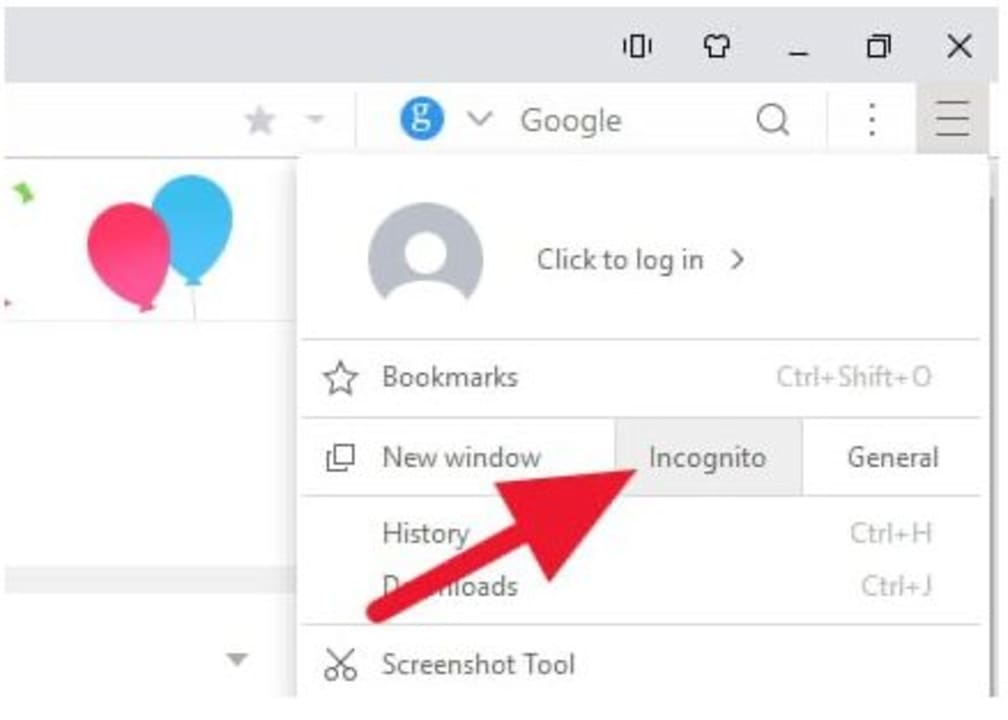
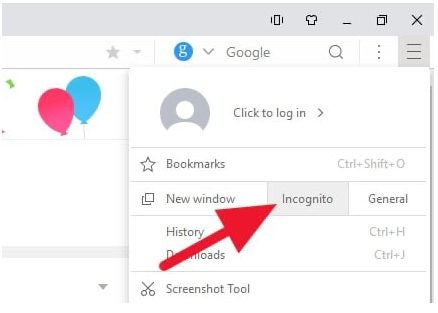
    – Click on the three horizontal lines (hamburger icon) in the top right of the screen.

    • In the menu that opens up, click on the incognito option that is near the top. By clicking on this, you’ve now enabled private browsing. Alternatively, you can also use the keyboard shortcut Ctrl+Shift+N while in the browser to activate the incognito mode.
  2. On Mobile Device

    How to Enable Incognito Mode in UC Browser

    – Launch the browser on your mobile device.

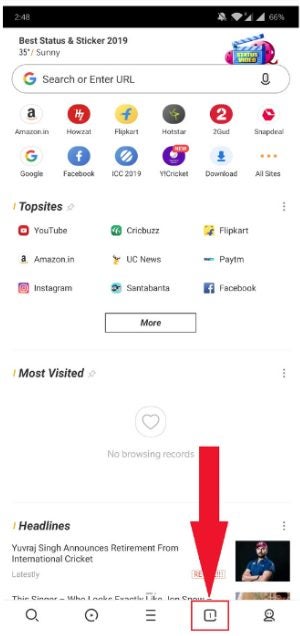
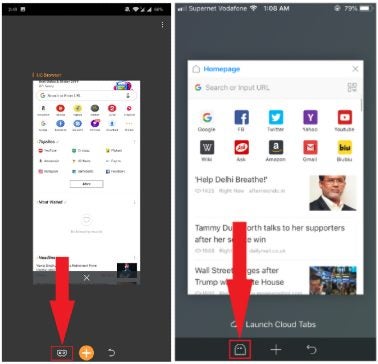
    • At the bottom of the screen are four buttons, tap on the fourth button from the left, which is the Tab button.
  3. Active Incognito Mode

    How to Enable Incognito Mode in UC Browser

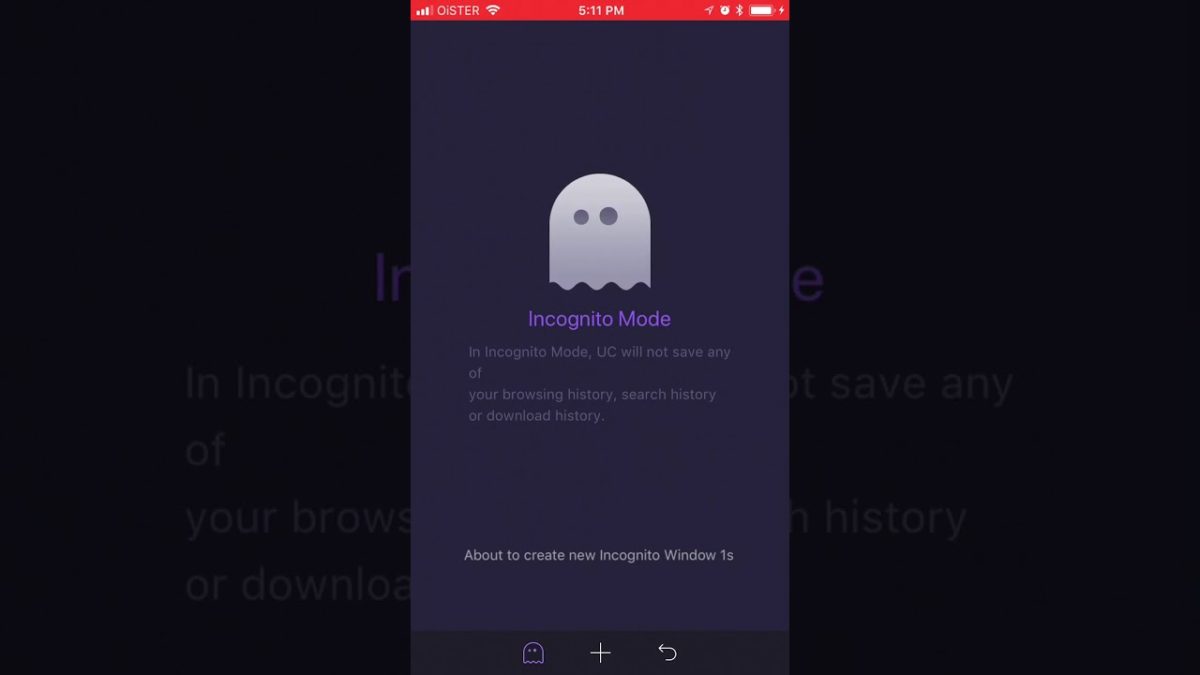
    Now, three new icons will appear on the bottom of your screen. On Android devices, tap the mask icon to activate incognito mode. On iOS devices, the icon will look like a ghost; tap on it to enable private browsing. You will know that incognito mode has been enabled as the background and address bar will turn purple.

Browse the Internet Privately and Securely

Now that you’ve enabled incognito mode in the UC browser, you can enjoy private browsing, safe in the knowledge that no record of your history will be kept. As you can see, it is a straightforward process to ensure that your browsing is kept private and secure.

How to Download In UC Browser in 4 Easy Ways

UC Browser is becoming increasingly popular, and is now top of the browser pops in China, Indonesia, and India. You can use it to stream, play online games, or download torrents and files.

If you’re keen on using it, here’s how to download different things.

  1. Download free Music

    How to Download In UC Browser

    UCWeb has partnered with Hungama Music to allow free downloads of thousands of songs on UC Browser.  On the browser, click on Hungama under top sites. This will take you to a page dedicated to this service. You can then either download or stream them.
  2. How to Download movies

    How to Download In UC Browser

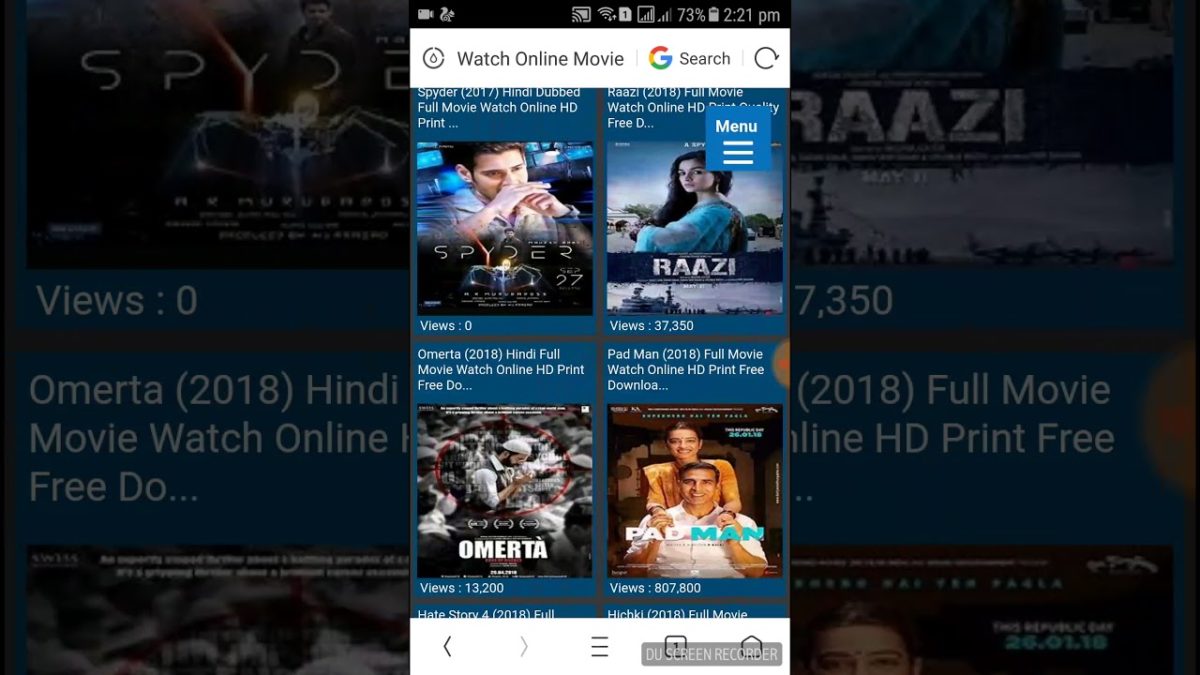
    Go to any website for downloading movies through a download link. If the link takes you to an ad page, close it and try again.

    On the link, a download bar will pop up showing Download for movies. Choose your movie, download and watch it.

  3. Download WhatsApp

    How to Download In UC Browser

    Make sure you have the latest WhatsApp version on your phone before you start. To open WhatsApp on your UC Browser, type web.whatsapp.com in the address bar and go to the site, where you will see a QR code. On your phone, open WhatsApp Web and scan the QR Code.

    You’ll then be able to see and use WhatsApp on your PC screen. You will have to keep your phone connected to the Internet for it to work.

  4. Download games

    How to Download In UC Browser

    Using any reliable apk source on UC Browser, you can access one of the most extensive galleries available for Apps and downloading games using UC Browser on your Android device.

 Why Use UC Browser as Your default?

UC Browser is gaining market share, especially in Asia, because it has some attractive additional features. Among them are cloud acceleration and syncing and a fast option that downloads files in multiple parts simultaneously.

UC Browser Turbo 2020 offers a safe, secure, and clean browsing experience that is attracting more and more users, not only in Asia but around the world.

How to get the most from UC Browser: hotkeys and keyboard shortcuts

Originally launching on mobile devices (Android|iOS|Windows Phone), UC Browser is a powerful browser with a dedicated and growing user base. The PC version is just as solid and (because based on the open-source browser Chromium) incredibly versatile due to it being able to use Extensions from Google’s Chrome Web Store.

UC Browser is thus a fantastic choice for all of your devices. But, if you want to get the most from the Windows version, then you need to learn all of the keyboard shortcuts it offers.

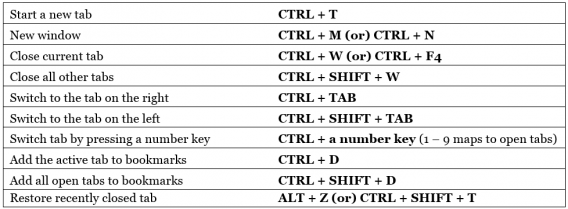
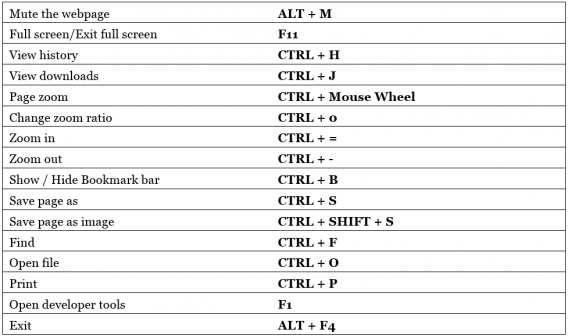
With over 30 of these hotkeys available, it can be difficult to memorize them all. Do not worry though, because we have the full list right here to show you how to be more efficient in UC Browser:

Navigation controls

address bar, forward, back, homepage, stop loading, refresh, reload, restore

Tab controls

open, close, restore, switch, add to bookmarks, tab

General controls

mute, full screen, exit, open, zoom, find, save, print

There you go, a comprehensive list of every UC Browser hotkey to speed up your web surfing.

Related Stories

3 Productivity Hacks for Office 2007

How to clear the cache on Safari for Windows

Windows 10: The 45 most useful keyboard shortcuts

How to delete your browsing history and protect privacy in UC Browser