 VLC media player has long been the de-facto media player for just about every audio and video format under the sun. If you downloaded a video file with an odd extension, there’s a good chance that VLC can play it without a problem. While VLC is a great media player, which got even better with its 2.0 update, there are other media players that can play as many formats as VLC but with some more improvements. Enter UMPlayer.
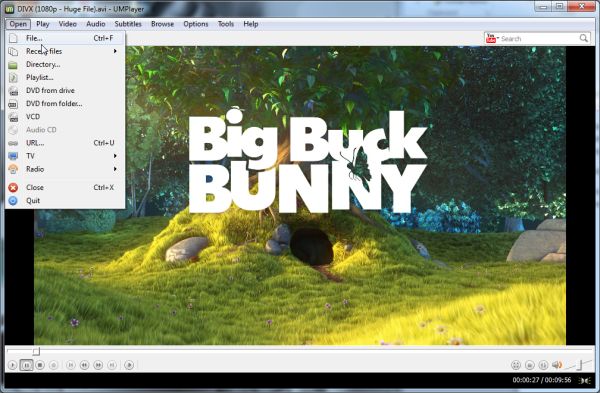
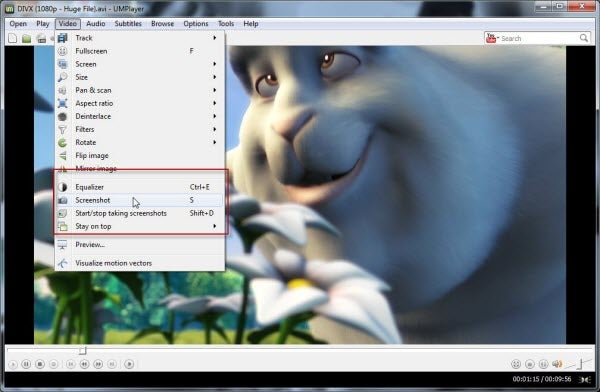
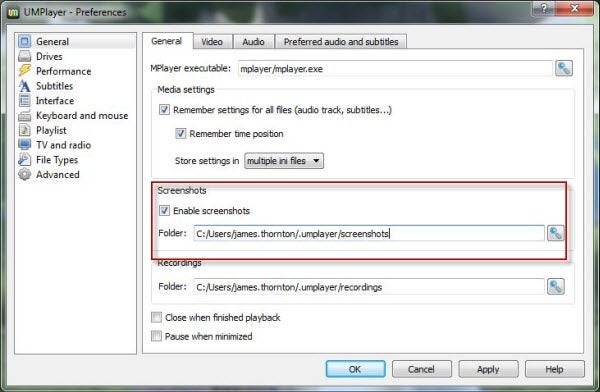
UMPlayer stands for Universal Media Player, which is an appropriate name as it is available on Windows, Mac, and Linux. It can also play back every format that VLC can but how does it differentiate itself from the renowned VLC? It’s all down to the interface:
Continue reading “Head to Head: Can UMPlayer overthrow VLC media player?”