Auditing changes in a CAD project is one of those tasks we tend to postpone until we really have to do it, usually to answer a simple yet crucial question: what changed, who changed it, and when? With AutoCAD 2026 and the new “What’s Changed” feature in Activity Insights, we can answer those three questions in just seconds and enjoy a level of traceability that—from small studios to organizations with multiple locations and multidisciplinary teams—can become a genuine competitive advantage.
Project audits have evolved from being an administrative requirement to becoming a simple way to ensure quality, reduce risks, and significantly accelerate deliverables. The faster we can understand how a drawing has evolved and the decisions that have shaped it, the easier collaboration becomes and the higher the quality of the results, because making informed decisions requires having the data in front of us.
In a project environment involving designers, drafters, site managers, and project directors, every DWG iteration impacts both time and budget. Aware of this, AutoCAD 2026 puts in our hands the tools to have a complete picture between one save and the next, with enough context to keep moving forward with ease.
What Activity Insights is and what’s new in AutoCAD 2026
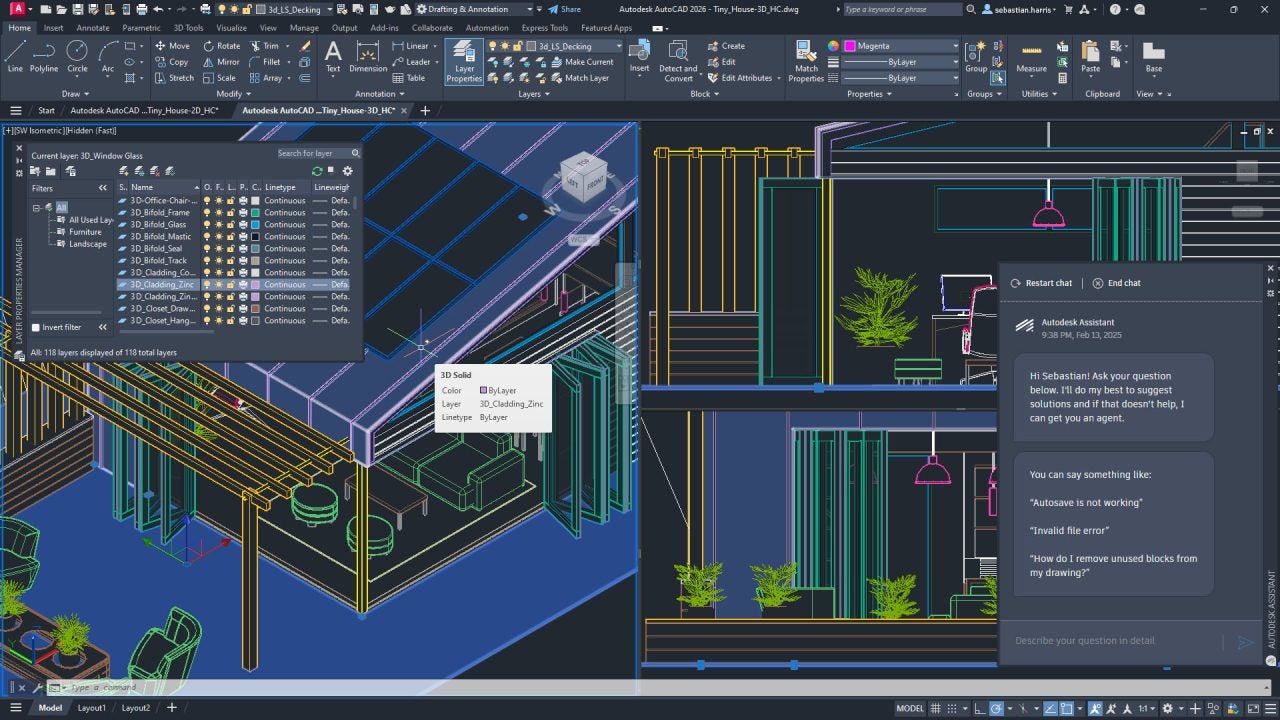
Activity Insights is the palette that records all activities within a drawing and, since its introduction, has allowed us to review in detail everything that has happened throughout the file’s life cycle. In AutoCAD 2026, this palette takes a huge leap forward with the “What’s Changed” insight, which summarizes in a simple way the changes that occurred between two save events. This summary includes details of modified objects, commands used, editing time elapsed, and file size variation. Thanks to this, we no longer need to open a full comparison for every review.
Operationally, checking the information is very straightforward: we open the palette, select a time block from the history, and see what happened since our last session. This change, though seemingly simple, transforms Activity Insights from a mere chronological log into a management and auditing tool that lets us instantly understand the team’s work, both in local environments—including files hosted on our network—and in projects managed within Autodesk Docs.
For deeper audits that we sometimes need to perform between distant versions or even between different files, AutoCAD retains the DWG Compare function as a high-detail visual comparator. The combination of “What’s Changed” for agile, efficient reviews and DWG Compare for detailed inspection gives us a flexibility we didn’t have before—the flexibility to devote exactly the right amount of time and resources to each audit.
The magic of What’s Changed
The power of “What’s Changed” becomes immediately evident the first time we open a DWG after a period of activity from our colleagues and can instantly see how it has evolved. The palette presents us with an editing summary showing the affected objects, relevant commands, and total times, putting us back in design context within seconds.
Verifying whether the goals from a previous briefing have been met or whether the latest revision’s corrections were implemented used to mean opening comparisons, filtering layers, and checking changes one by one. Now, the audit can be completed with a quick read, and only when a detailed check is needed do we move on to a formal comparison.
The log identifies, of course, the author and the exact moment of each editing block, then breaks down the actions and time spent on them. Beyond accountability, that level of detail allows us to detect work patterns, quickly spot bottlenecks, and prioritize and organize reviews.
Some of the most powerful functions of this seemingly simple palette are the following three:
- Filters by time and user: Before opening revision clouds or comparisons, we can apply time and author filters. With just a couple of clicks, we get an excellent shortcut to the relevant editing block, skipping over events that don’t matter to us.
- Review of used commands: The breakdown of commands in “What’s Changed” eliminates guesswork, since understanding that a modification involved, for example, OFFSET, STRETCH, and TRIM already suggests the intent and helps us verify consistency with our internal standards.
- Editing time and file size: An editing block with a long time span and then a significant file size increase signals impactful operations, so prioritizing its review prevents loops and guides our mini-investigation much better.
When we need maximum graphical granularity, we can launch version comparisons directly from the palette, or, if we need to check two different files, use DWG Compare. Before reaching that stage, however, the progressive approach—first a quick summary, then a version comparison, and if needed a file comparison—creates an efficient method that we can easily deploy across the team to achieve reliable traceability.
A real-world case: 7 clicks for a key audit
Let’s see how a quick change audit would work. Assuming we’ve centralized the location of Activity Insights events in a shared path and are working with Autodesk Docs, the panel gathers all team activities and “What’s Changed” reveals its full potential from the project’s first week.
Imagine a common scenario: an urban development plan includes a change in the alignment of a road, altering gradients and affecting the utilities network. The project management team wants to confirm who made the adjustment, at what point in the editing cycle, and through which operations, to validate its impact and document it properly, without blocking anyone or requiring a broader review.
We open the site DWG and activate the Activity Insights palette from the View ribbon. In the panel, we filter by date range and by user or team, then locate the editing block right before the last save of the day, which gives us the “What’s Changed” summary for that session.
We now have the list of affected objects, the sequence of involved commands, and the total editing time. If the change needs to be verified visually, we launch a version comparison with the Version Compare bar directly from the palette. Instantly, we have a full visual verification within the same environment, with colours and revision clouds isolating the area.
The result is immediate: we identify who made the adjustment, the exact time, the set of operations, and the affected area with just seven clicks, and the project maintains complete traceability for any internal or external audit—all without disrupting the team’s workflow.
Autodesk Flex: the best alternative to AutoCAD subscriptions
The visibility we gain with “What’s Changed” and Activity Insights goes hand in hand with a flexible use of AutoCAD. For teams that use AutoCAD and other Autodesk products occasionally or seasonally, the Flex Token system offers on-demand access with a predictable cost per day of use, allowing us to align spending with the reality of each project.
Its operation is simple. We purchase a token pack, assign several users to Flex, and each day a product is opened, tokens are deducted according to its daily rate. For AutoCAD, for example, it’s 7 tokens per day, equivalent to around 21 dollars daily when the token price is 3. Once opened, we can close and reopen the product freely within those 24 hours without any extra cost.
The minimum purchase is 100 tokens, which enables an occasional user to work for several weeks. For organizations with higher consumption, Autodesk offers volume discounts that reduce the token unit price. As a result, the daily cost of AutoCAD can range roughly between 16.80 and 21 dollars.
Product rates and flexibility that simplify access
In addition to AutoCAD, Flex covers nearly all Autodesk products. The practical difference will depend on each person, but if someone uses AutoCAD 6 days a month, that’s 42 tokens or about 126 dollars, instead of paying for a full subscription cycle.
For mixed teams, we can maintain subscriptions for those who work daily and adopt Flex for those who join projects occasionally—for example, to carry out audits that the new What’s Changed system enables. Examples include:
- Project with monthly peaks: Three designers with subscriptions and two drafters who, using Flex, open AutoCAD 8 days a month, consuming 112 tokens or about 336 dollars. They complete reviews within deadlines and spend the rest of the month without generating costs from those profiles.
- Building services consultancy: An engineer specialising in Revit who works 5 days mid and end of month uses 10 tokens a week or about 60 dollars, remaining available without requiring a dedicated subscription.
- Occasional architectural visualisation: Using 3DS Max for 10 days to render a proposal consumes 60 tokens—around 180 dollars—and allows us to align costs with business opportunities, avoiding frozen budgets during low production periods.
In all scenarios, the key lies in measuring and adjusting. The Autodesk usage panel, combined with the discipline of closing the product at the end of the day, fine-tunes our consumption and avoids surprises, since each day of use has a clear price and every profile knows how this reflects in the budget.

Frequently asked questions
Let’s quickly go over some questions that might still be open.
Is “What’s Changed” useful for large teams?
Yes, because the summary is designed to show collaboration among multiple editors and provides authorship data we can filter by time, team, and actions. This simplifies tracking across disciplines and locations, whether locally or through Autodesk Docs.
Does DWG Compare still make sense?
Yes, because “What’s Changed” supports and simplifies daily reviews, but DWG Compare remains the exhaustive comparison tool that provides complete change sets or even allows us to compare different files. Both approaches complement each other to give us the flexibility we need.
Does Flex complicate license management?
If anything, it simplifies it. The Autodesk console for Flex centralizes all assignments and monitoring, and the per-day model allows precise budgeting and cost explanation.
How much does it cost to use AutoCAD for one day with Flex?
AutoCAD consumes 7 tokens per day, and with a token price of 3 dollars, that’s 21 dollars per day of use. It includes unlimited openings and closings within those 24 hours.
Are there volume discounts in Flex?
Yes, from 5 000 tokens upwards, token prices decrease. We pay 2.93 USD per token for between 5 000 and 10 000, and from 250 000 tokens onwards the price drops to 2.40 dollars.
What other new features does AutoCAD 2026 bring?
- Improved performance, with file openings up to 11 times faster and startup 4 times quicker on LAN.
- Autodesk AI to optimise repetitive tasks and provide contextual design intelligence.
- Smart Blocks to search, detect, and convert geometry into blocks with interactive review.
- Connected Support Files to unify standards and project support files.
- Integration with Markup Import and Markup Assist for managing annotations in PDFs.
- Multiuser real-time markup through SHARE and synchronised TRACE layers.
- AutoCAD on the web for 2D and 3D viewing directly in the browser.
- ArcGIS Basemaps for direct cartographic context in projects.
- AutoLISP and API for automation and custom app development.

What’s Changed in AutoCAD 2026 transforms how we review our projects
Change traceability in a project is completely redefined in scope, flexibility, and availability thanks to the “What’s Changed” system in AutoCAD 2026’s Activity Insights. In just a few clicks, we gain a clear, actionable view of every editing block—the what, who, when, and how of a DWG, instantly.
At the same time, Autodesk Flex Tokens give us direct access to AutoCAD and the rest of the portfolio, adapting to our real demand. The per-day usage model and volume discounts greatly simplify license planning and adjust perfectly to project dynamics, whether we work with intensive users or occasional specialists.Project auditing becomes simpler and more flexible when the right information reaches us at the right moment.
By integrating “What’s Changed” into our analysis and scaling access with Flex, we give our teams the ability to move forward with confidence, justify every decision, and achieve deliverables with maximum reliability, because oversight stops being a manual task and becomes a natural part of the process.