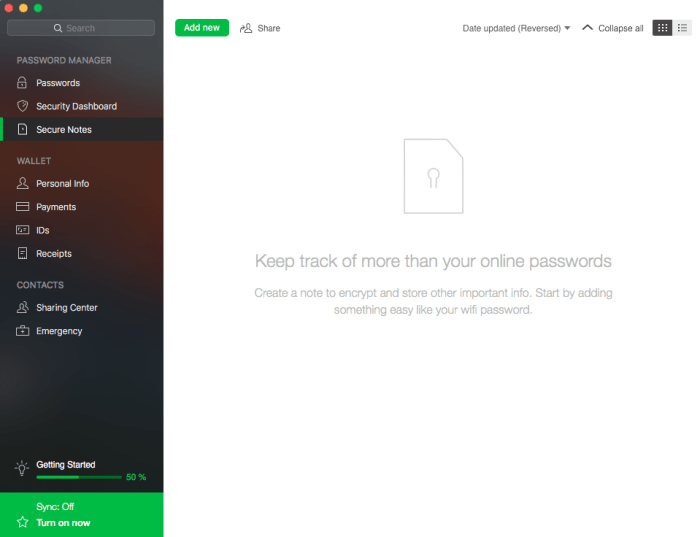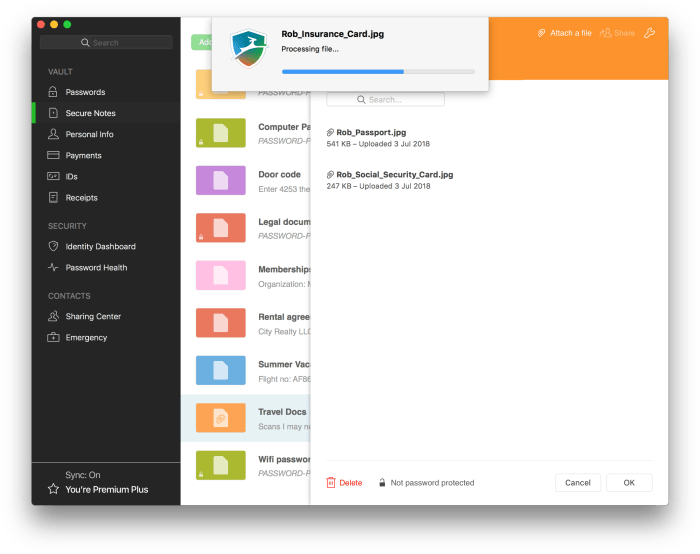
As the recent spate of data breaches at major companies including Equifax, The Dow Jones, Citrix, Facebook and Canva show, the internet is anything but secure these days. That’s why it’s more important now than ever before to ensure that you use strong passwords for your online accounts and change them often. Except, that can be a huge hassle. Keeping a list of all your passwords and visiting site after site on a regular basis to change them is tedious and time consuming. Fortunately, the free application Dashlane can handle it all for you. Here’s how.
Installation
After you install the desktop utility on your computer, you’ll want to also install the extension for the browser you use to access the Internet. Dashlane has extensions for Chrome, Firefox, Safari, Edge, Brave and Internet Explorer. You’ll also want to install Dashlane on your mobile devices or other computers so that your data can automatically sync across platforms.
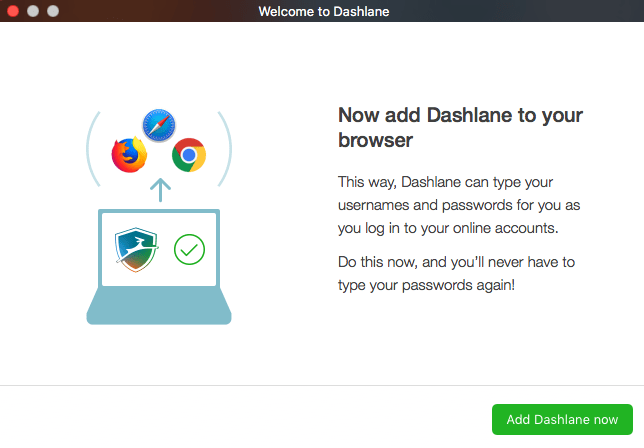 The software will walk you through the creation of an account and a strong master password.
For security purposes, Dashlane does not store this password on their servers, nor does it offer you password hints or any way for you to access it, so make sure it is something you can remember. Additionally, the company does not sell or reuse your data in any way.
Import
Once you’ve got Dashlane installed, you’ll want to import your password data that has been saved by your current browser. If you don’t save passwords, then the Dashlane extension will start collecting them for your automatically through the browser extension – and will ask for your permission to save the information on each site requiring a log in. All data saved by Dashlane is encrypted and linked your master password.
To import your existing passwords, click File/Import and choose the browser from which you’d like to grab your data – or choose them all. In a few minutes, the system will have imported all the passwords stored in that browser and added them to an alphabetical list. It will also give you a password “Health Score” so that you’ll know which of your passwords are strong and which are weak and should be updated.
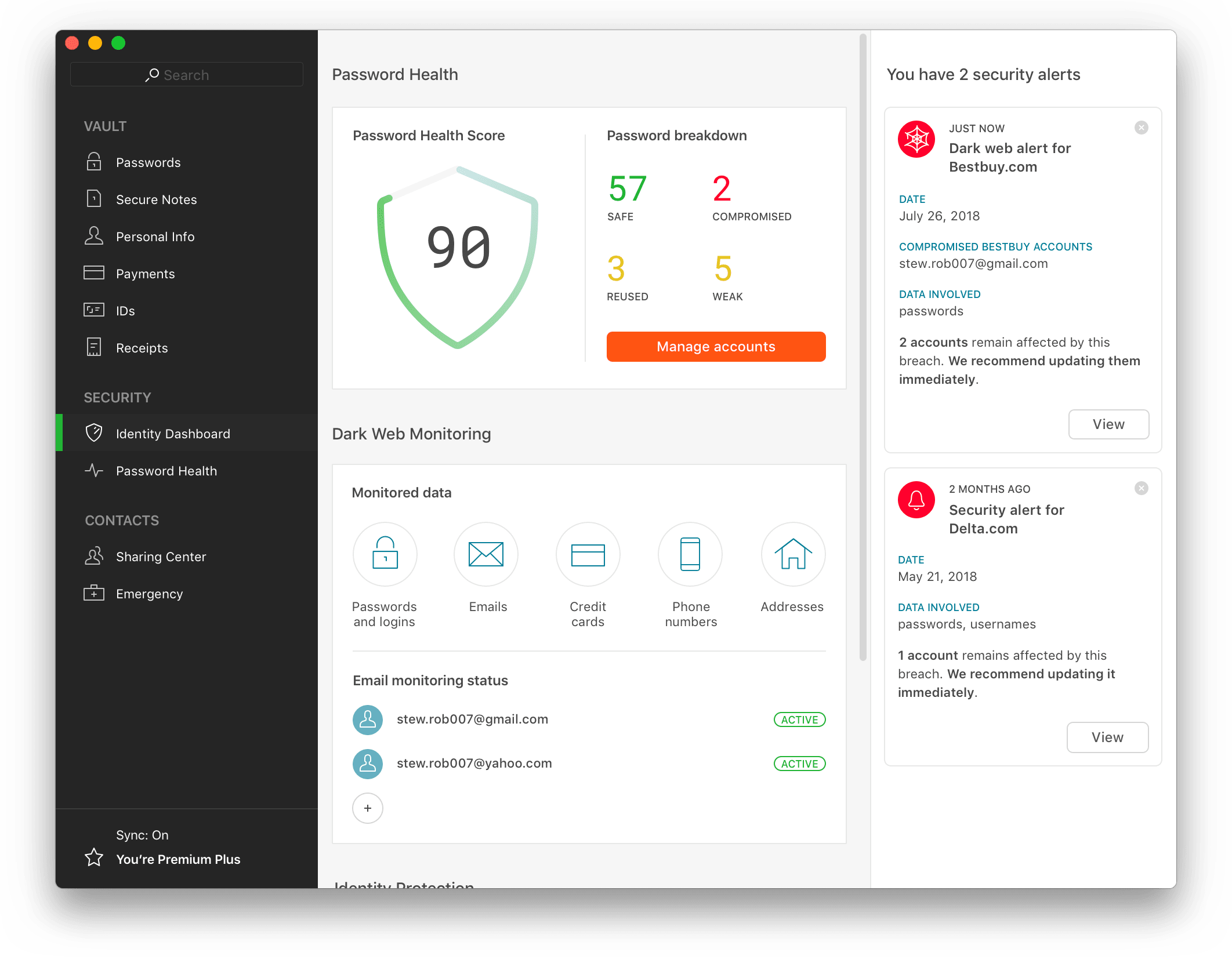
Change your passwords
With the software and browser extension installed, and your passwords imported, Dashlane will now autofill your passwords on any sites you’ve imported and/or set up. However, for maximum security, you’ll want to use Dashlane to change all of your existing passwords. You can do this with one click by choosing “Password Changer” from the top of the desktop utility window and selecting the sites for which you’d like Dashlane to update your passwords. You can also set the software to auto update your passwords for set-and-forget convenience and randomized passwords that further protect your accounts.
Data Auto Fill
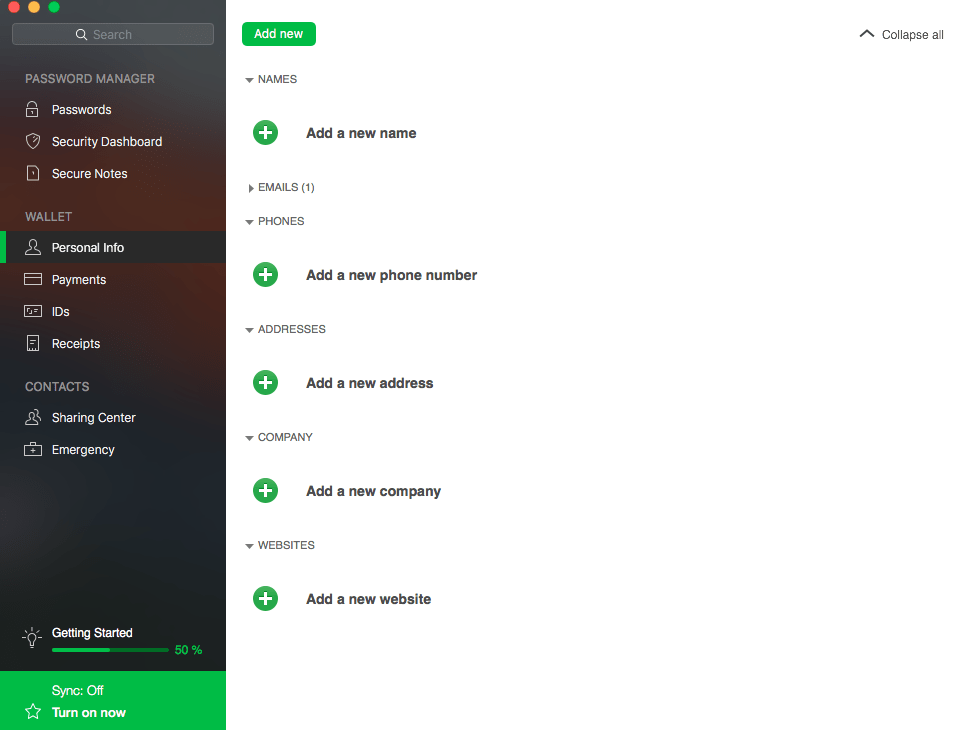
Beyond managing your passwords, Dashlane can also help you quickly fill in data on web forms including name, address and credit card information. You can set this feature up in the main dashboard under “Wallet” by choosing either “Personal Info” or “Payments.” Complete the requested information, then when you are on a site with a form, a blue impala symbol will appear in any field that Dashlane can autofill – a feature you can activate with a click.