NordPass: A great password manager gets even better

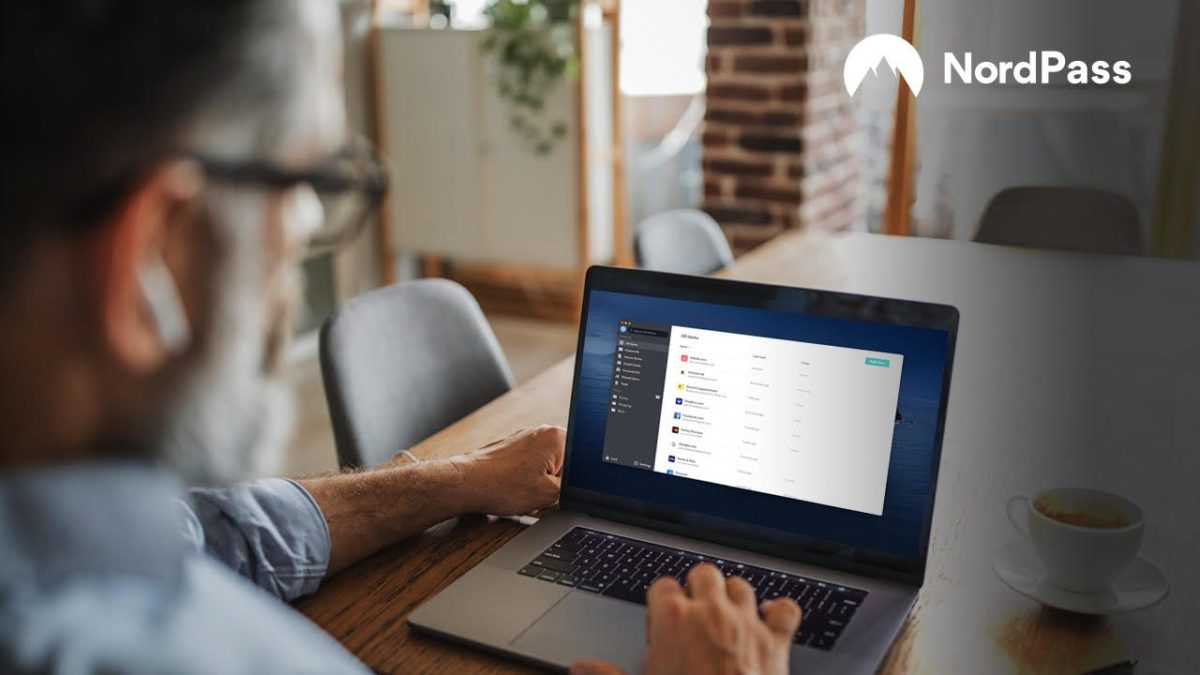
When we first reviewed NordPass, we mentioned that compared to other password managers, it was pretty barebones, lacking a few of the bells and whistles that set other such programs apart. Thanks to a refresh that loaded the app with useful, powerful features, NordPass is now the one to beat in the password-storage space.

Why NordPass?

Well, for starters, it’s free. You can download a full-featured version of the app on pretty much any device you want across Android, iOS, Mac, PC, and Linux platforms. The only limitation with the free service is that you’ll have to choose only one device, as multiple devices require an upgrade to the Premium Plan, which currently costs a reasonable $2.50 per month based on a two-year plan. 

But starting with one device is a great way to try out the service without spending a penny. 

It’s also super secure

You might have heard of NordVPN, which is our top pick for a VPN (virtual private network) provider. One of the reasons we like the company so much is that it has the best suite of online protections out of all competitors. The same holds true for its password manager. Your data is encrypted by the cutting-edge XChaCha20 encryption algorithm. This encryption protocol is used by tech giants like Google to protect its data and it has yet to be cracked by a hacker – and likely never will be. Additionally, NordPass has just completed a comprehensive security assessment from an outside agency and got top marks. 

So what’s new? 

NordPass has incorporated some winning features in the most recent release of the app.
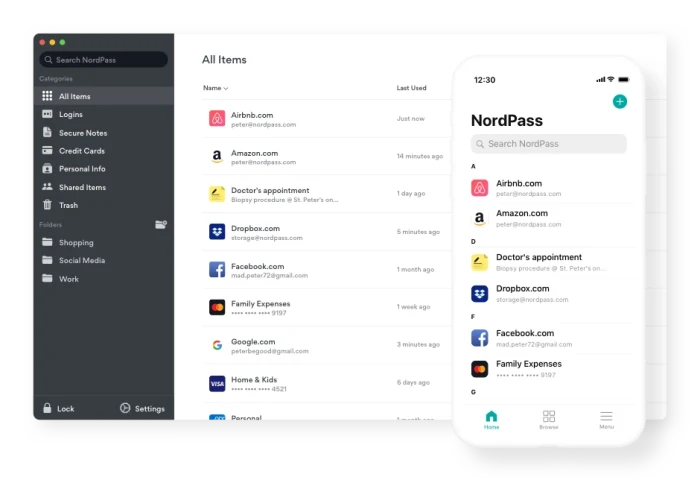
ScreenshotYou can now store your personal data in the app and then use it to easily autofill any forms that you come upon while surfing. It also allows you to securely store your credit card details so that if you find yourself without your wallet, you can still get at your digits. The password manager itself now incorporates a biometric scanner so that you can access your data using physical details like your fingerprint (or you can still use a master password); an OCR scanner to allow the easy import of credit card information; an autosave feature; and a vault in which you can save secure notes.

Perhaps most impressively of all, the app can now import all your password details from your browser, so there’s no need to start from scratch. And speaking of browsers, a new Safari extension joins those for Chrome, Firefox, Opera, and Edge.

Still to come

Those improvements to NordPass are impressive enough, but the company is not stopping there. In the coming months, users will get 3GB of free cloud storage for keeping important documents, photos, and other files safe and shareable across devices. A password health checker will also be released that scans your current passwords and lets you know where there is room for improvement. And finally, a data-breach scanner will let you know if a site on which your data is stored has been hacked. 

How to use Dashlane to manage your passwords

How to use Dashlane to manage your passwords.

As the recent spate of data breaches at major companies including Equifax, The Dow Jones, Citrix, Facebook and Canva show, the internet is anything but secure these days. That’s why it’s more important now than ever before to ensure that you use strong passwords for your online accounts and change them often. Except, that can be a huge hassle. Keeping a list of all your passwords and visiting site after site on a regular basis to change them is tedious and time consuming. Fortunately, the free application Dashlane can handle it all for you. Here’s how.

Installation

After you install the desktop utility on your computer, you’ll want to also install the extension for the browser you use to access the Internet. Dashlane has extensions for Chrome, Firefox, Safari, Edge, Brave and Internet Explorer. You’ll also want to install Dashlane on your mobile devices or other computers so that your data can automatically sync across platforms.

DashlaneThe software will walk you through the creation of an account and a strong master password.
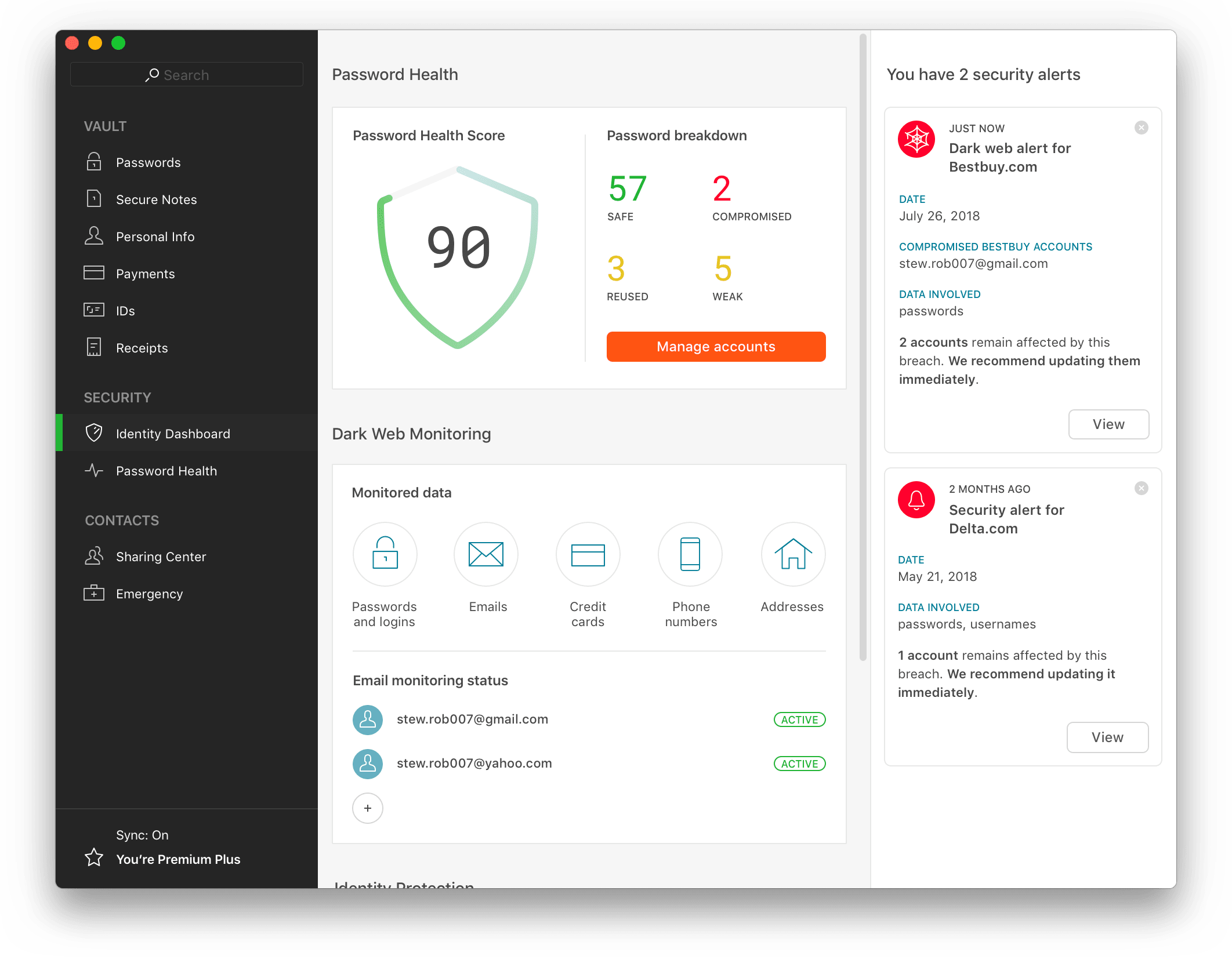
For security purposes, Dashlane does not store this password on their servers, nor does it offer you password hints or any way for you to access it, so make sure it is something you can remember.  Additionally, the company does not sell or reuse your data in any way.

Import

Once you’ve got Dashlane installed, you’ll want to import your password data that has been saved by your current browser. If you don’t save passwords, then the Dashlane extension will start collecting them for your automatically through the browser extension – and will ask for your permission to save the information on each site requiring a log in. All data saved by Dashlane is encrypted and linked your master password.

To import your existing passwords, click File/Import and choose the browser from which you’d like to grab your data – or choose them all. In a few minutes, the system will have imported all the passwords stored in that browser and added them to an alphabetical list. It will also give you a password “Health Score” so that you’ll know which of your passwords are strong and which are weak and should be updated.

Dashlane

Change your passwords

With the software and browser extension installed, and your passwords imported, Dashlane will now autofill your passwords on any sites you’ve imported and/or set up. However, for maximum security, you’ll want to use Dashlane to change all of your existing passwords. You can do this with one click by choosing “Password Changer” from the top of the desktop utility window and selecting the sites for which you’d like Dashlane to update your passwords. You can also set the software to auto update your passwords for set-and-forget convenience and randomized passwords that further protect your accounts.

Data Auto Fill

Dashlane

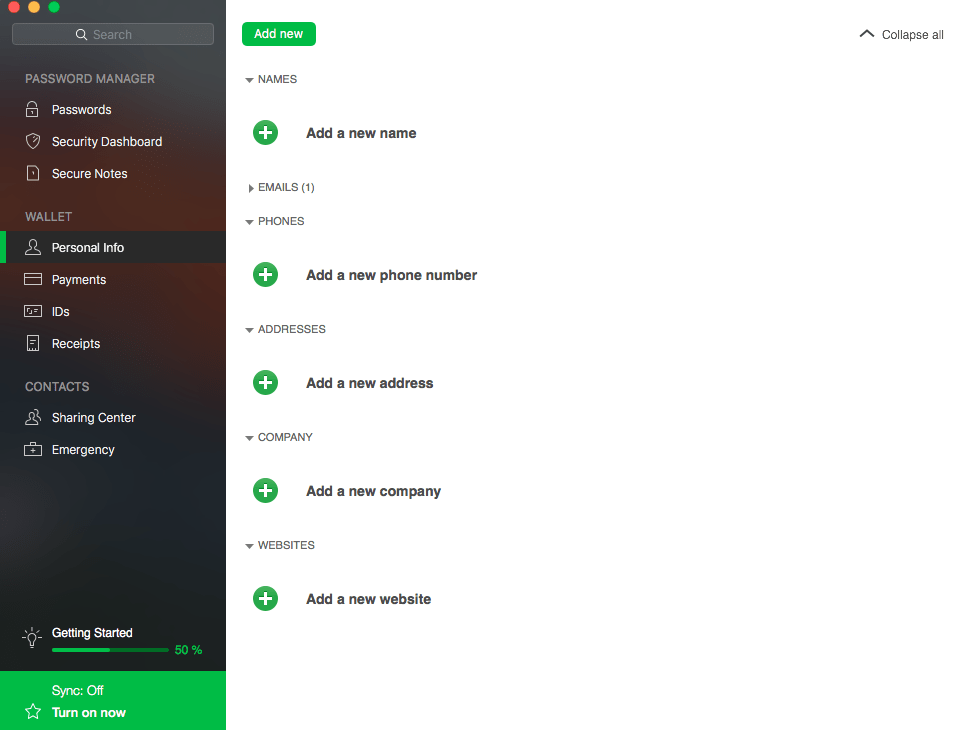
Beyond managing your passwords, Dashlane can also help you quickly fill in data on web forms including name, address and credit card information. You can set this feature up in the main dashboard under “Wallet” by choosing either “Personal Info” or “Payments.” Complete the requested information, then when you are on a site with a form, a blue impala symbol will appear in any field that Dashlane can autofill – a feature you can activate with a click.  

Dashlane: Much more than a password manager

Beyond being a safe and secure way to store and even auto-update your passwords, Dashlane also has a few other unique features both in its free and premium services that are worth noting.

You might already have heard of Dashlane as one of the most robust password managers on the market today. The free desktop and mobile apps store your passwords so that they can be auto filled on any site you visit. All the data stored by Dashlane is encrypted under a master password that you set. This master password is stored locally and Dashlane has no knowledge of it, making their service doubly secure. Furthermore, Dashlane will not sell or reuse your data for any purpose, so it offers an additional level of security not found in browsers or other password managers.

Beyond being a safe and secure way to store and even auto-update your passwords, Dashlane also has a few other unique features both in its free and premium services that are worth noting.

Disclosure: Softonic may receive a referral fee if you click or buy any of the products featured here.

Personal Data

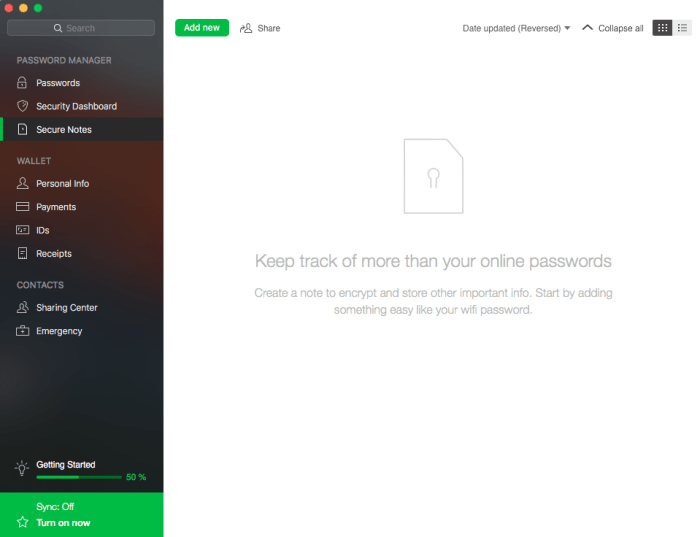
Dashlane can be used as a secure vault in which to store a host of information. From the main dashboard screen, you’ll see a section titled WALLET. Beneath this header, there are options for “Personal Info,” “Payments,” “IDs” and receipts. By clicking on the relevant category and inputting the requested data, you can start to build a digital version of your most important documents including passports, drivers licenses or tax information. Not only will Dashlane store all of this information in its double-blind encryption system, but you can also set it to update you six months before many of the documents expire. 

Dashlane also offers a “Secure Notes” option where you can input freeform items such as your WiFi password, home alarm code, PIN numbers, license plate numbers and more. 

Dashlane

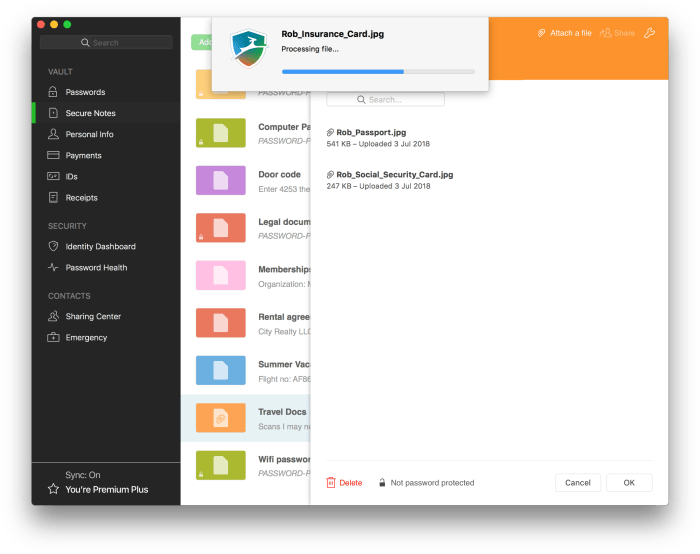
If you choose to upgrade to the Premium version of Dashlane, you will also be able to use the software to securely store documents and images. How handy would it be to always have your driver’s license or passport images in your phone – protected by a password only you know? This means in the event that you lose important papers from damage or theft, you’ll always have a secure copy to fall back on.

DashlaneReceipts and more  

Under the “Receipts” category, you’ll find a collection of your receipts from your online purchases. You can also use this section of the software to add in receipts you’d like to store. 

The final category in Dashlane’s main window is entitled CONTACTS. Here’s where you can input your emergency contact, someone who would be able to access your password data in case something happens to you. You can also use the “Sharing Center” to send encrypted  information such as passwords or documents to individuals you choose via email. Your recipient will receive a link in the email that leads them to the Dashlane site. After setting up their own free account, he will be able to access the data you’ve chosen to share.