LastPass user password vault and information obtained by hacker

When LastPass disclosed a security breach in August 2022, it sounded harmless enough at first. The attacker managed to obtain proprietary information and source code, but no customer data.

When the same threat actor used the obtained data to attack the company again, things still did not look too bad. The attack on storage volumes within the company’s cloud-based storage service gave the attacker access to user information, but not the password vaults of customers. At least, that is what LastPass concluded after its initial investigation.

LastPass Download Now

Today, LastPass confirmed that the second hack was more serious than initially thought. A security notice on the company’s official blog confirms that the attacker obtained customer information and password vault data.

The following user data was copied by the attacker:

  • Company and end-user names.
  • Billing addresses.
  • Email addresses.
  • Telephone numbers.
  • IP addresses.

Next to that, the attacker managed to obtain a copy of a “backup of customer vault data from the encrypted storage container”. The information includes unencrypted data, such as website addresses, but also “fully encrypted sensitive fields”. These fields include website usernames and passwords, secure notes, and form-fill data.

LastPass found no evidence that unencrypted credit card data was accessed by the attacker. The company does not store “complete credit card numbers” according to the announcement.

The master password, which unlocks all customer data, is known only to the customer. LastPass does not store it and sensitive vault data is encrypted with 256-bit AES encryption.

Worst Case Scenario
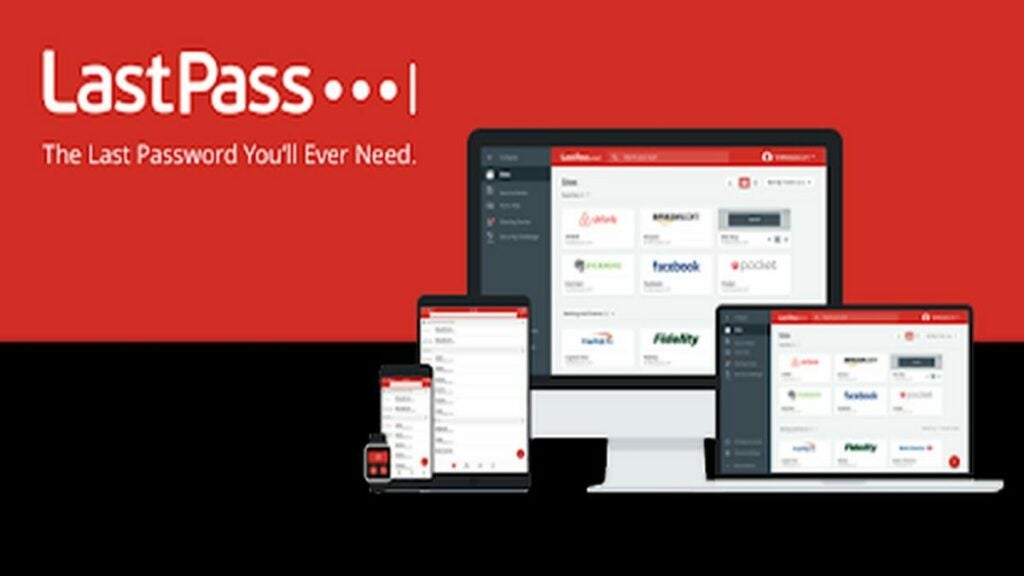
LastPass is available on multiple devices

This is the worst case scenario for LastPass customers. The plain text data includes means of communication, and the vault data all stored passwords and sensitive information.

The threat actor may attempt to brute force vault data, which would unlock usernames and passwords for all stored services. Successful attacks may also reveal information stored in secure notes. This may lead to compromised user accounts on the Web or company intranets.

Brute forcing attacks of this scale require vast resources, especially if carried out on such a large number of protected vaults. The attack was sophisticated, and it is not out of the question that the attacker has the required resources to run brute force attacks on the encrypted data obtained during the attack.

A strong master password may prevent successful brute force attacks. LastPass recommends master passwords with at least 12 mixed characters, but customers are free to select theirs during setup.

Next to brute force attacks, customers may also be attacked using phishing or social engineering attacks. The attacker may use these attacks to obtain the master password. Attacks may happen via email, telephone, chat messages, or even letters.

The attacker may impersonate LastPass in these attacks to get users to click on links or part with information directly.

What LastPass customers need to do right now

LastPass customers should assume that their information and vault data has been compromised. The following steps are recommended to secure the data:

  1. Change the LastPass master password. Make it unique and strong, e.g., with 16 or more random characters that include upper-case and lower-case letters, numbers and special characters.
  2. Change the number of password iterations from the default 100100 to 310000 or even more.
  3. Go through each saved login and change all passwords. Make each password strong and unique as well.
  4. Monitor emails, phone calls, chat messages and other forms of communication, and avoid clicking on links.

The process may take a while, especially if dozens or even hundreds of logins are stored in the LastPass vault.

Customers may also consider switching services. Password manager alternatives such as the open source Bitwarden service have not suffered data breaches up to this point. It is still necessary to change passwords.

Tip: check out our top 25 alternatives to LastPass.

Regardless of that, some information is in the attacker’s hands and there is nothing that customers may do about it.
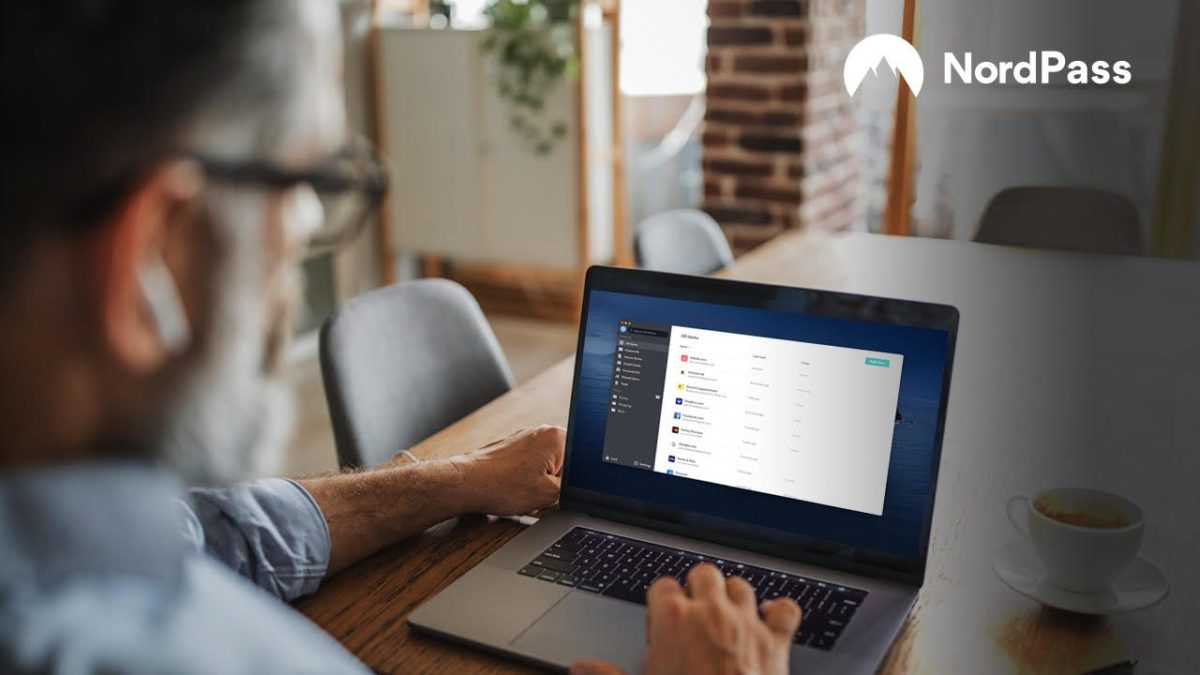

NordPass: A great password manager gets even better

When we first reviewed NordPass, we mentioned that compared to other password managers, it was pretty barebones, lacking a few of the bells and whistles that set other such programs apart. Thanks to a refresh that loaded the app with useful, powerful features, NordPass is now the one to beat in the password-storage space.

Why NordPass?

Well, for starters, it’s free. You can download a full-featured version of the app on pretty much any device you want across Android, iOS, Mac, PC, and Linux platforms. The only limitation with the free service is that you’ll have to choose only one device, as multiple devices require an upgrade to the Premium Plan, which currently costs a reasonable $2.50 per month based on a two-year plan. 

But starting with one device is a great way to try out the service without spending a penny. 

It’s also super secure

You might have heard of NordVPN, which is our top pick for a VPN (virtual private network) provider. One of the reasons we like the company so much is that it has the best suite of online protections out of all competitors. The same holds true for its password manager. Your data is encrypted by the cutting-edge XChaCha20 encryption algorithm. This encryption protocol is used by tech giants like Google to protect its data and it has yet to be cracked by a hacker – and likely never will be. Additionally, NordPass has just completed a comprehensive security assessment from an outside agency and got top marks. 

So what’s new? 

NordPass has incorporated some winning features in the most recent release of the app.

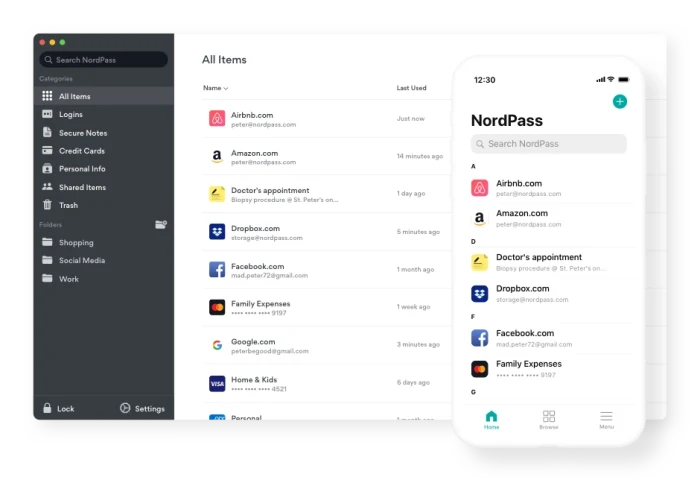
ScreenshotYou can now store your personal data in the app and then use it to easily autofill any forms that you come upon while surfing. It also allows you to securely store your credit card details so that if you find yourself without your wallet, you can still get at your digits. The password manager itself now incorporates a biometric scanner so that you can access your data using physical details like your fingerprint (or you can still use a master password); an OCR scanner to allow the easy import of credit card information; an autosave feature; and a vault in which you can save secure notes.

Perhaps most impressively of all, the app can now import all your password details from your browser, so there’s no need to start from scratch. And speaking of browsers, a new Safari extension joins those for Chrome, Firefox, Opera, and Edge.

Still to come

Those improvements to NordPass are impressive enough, but the company is not stopping there. In the coming months, users will get 3GB of free cloud storage for keeping important documents, photos, and other files safe and shareable across devices. A password health checker will also be released that scans your current passwords and lets you know where there is room for improvement. And finally, a data-breach scanner will let you know if a site on which your data is stored has been hacked. 

How to use Dashlane to manage your passwords

How to use Dashlane to manage your passwords.

As the recent spate of data breaches at major companies including Equifax, The Dow Jones, Citrix, Facebook and Canva show, the internet is anything but secure these days. That’s why it’s more important now than ever before to ensure that you use strong passwords for your online accounts and change them often. Except, that can be a huge hassle. Keeping a list of all your passwords and visiting site after site on a regular basis to change them is tedious and time consuming. Fortunately, the free application Dashlane can handle it all for you. Here’s how.

Installation

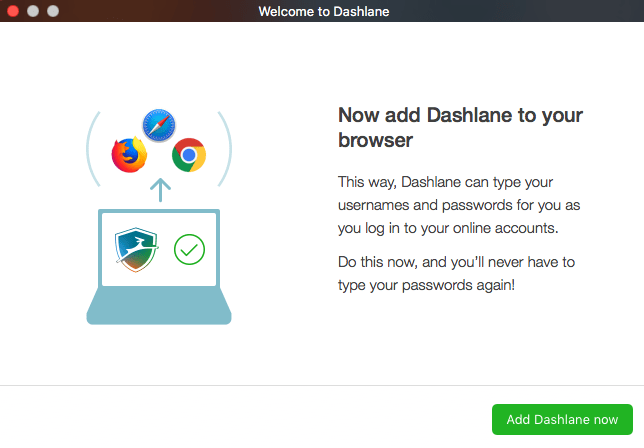
After you install the desktop utility on your computer, you’ll want to also install the extension for the browser you use to access the Internet. Dashlane has extensions for Chrome, Firefox, Safari, Edge, Brave and Internet Explorer. You’ll also want to install Dashlane on your mobile devices or other computers so that your data can automatically sync across platforms.

DashlaneThe software will walk you through the creation of an account and a strong master password.
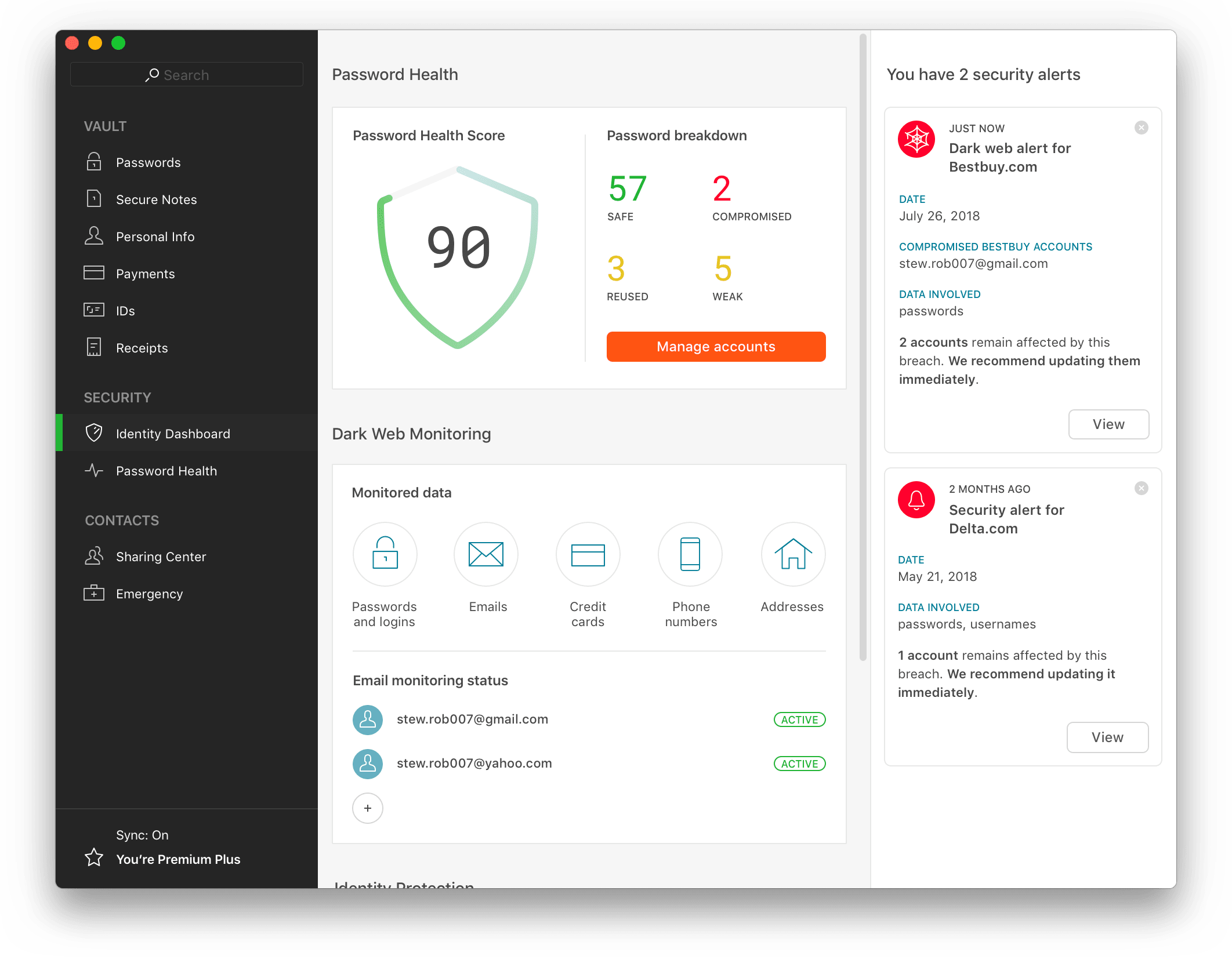
For security purposes, Dashlane does not store this password on their servers, nor does it offer you password hints or any way for you to access it, so make sure it is something you can remember.  Additionally, the company does not sell or reuse your data in any way.

Import

Once you’ve got Dashlane installed, you’ll want to import your password data that has been saved by your current browser. If you don’t save passwords, then the Dashlane extension will start collecting them for your automatically through the browser extension – and will ask for your permission to save the information on each site requiring a log in. All data saved by Dashlane is encrypted and linked your master password.

To import your existing passwords, click File/Import and choose the browser from which you’d like to grab your data – or choose them all. In a few minutes, the system will have imported all the passwords stored in that browser and added them to an alphabetical list. It will also give you a password “Health Score” so that you’ll know which of your passwords are strong and which are weak and should be updated.

Dashlane

Change your passwords

With the software and browser extension installed, and your passwords imported, Dashlane will now autofill your passwords on any sites you’ve imported and/or set up. However, for maximum security, you’ll want to use Dashlane to change all of your existing passwords. You can do this with one click by choosing “Password Changer” from the top of the desktop utility window and selecting the sites for which you’d like Dashlane to update your passwords. You can also set the software to auto update your passwords for set-and-forget convenience and randomized passwords that further protect your accounts.

Data Auto Fill

Dashlane

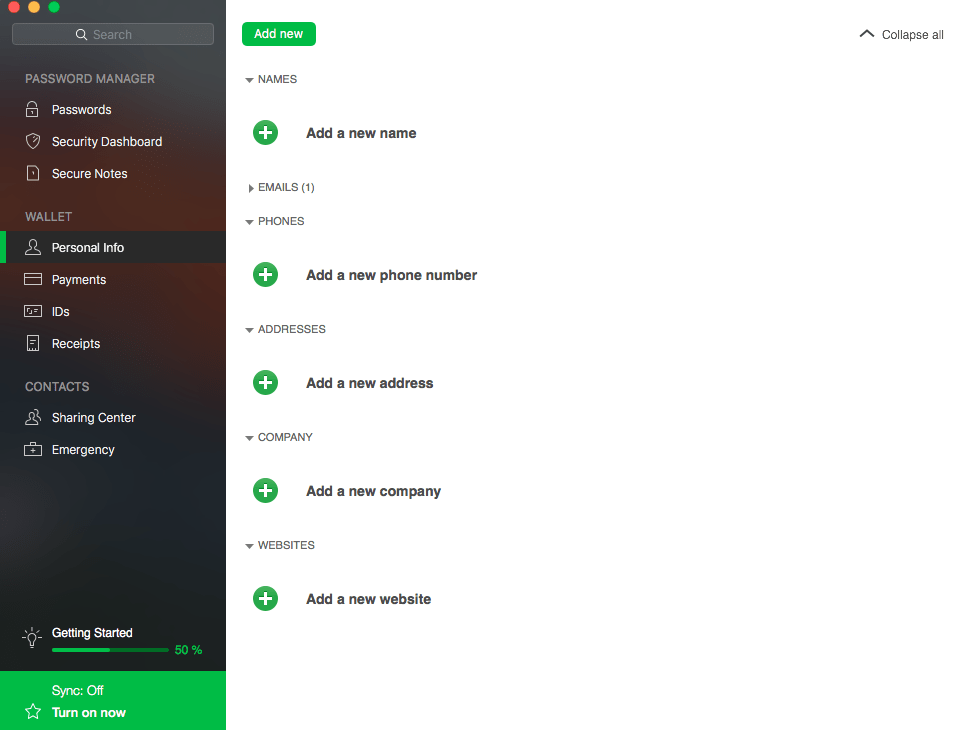
Beyond managing your passwords, Dashlane can also help you quickly fill in data on web forms including name, address and credit card information. You can set this feature up in the main dashboard under “Wallet” by choosing either “Personal Info” or “Payments.” Complete the requested information, then when you are on a site with a form, a blue impala symbol will appear in any field that Dashlane can autofill – a feature you can activate with a click.  

Dashlane: Much more than a password manager

Beyond being a safe and secure way to store and even auto-update your passwords, Dashlane also has a few other unique features both in its free and premium services that are worth noting.

You might already have heard of Dashlane as one of the most robust password managers on the market today. The free desktop and mobile apps store your passwords so that they can be auto filled on any site you visit. All the data stored by Dashlane is encrypted under a master password that you set. This master password is stored locally and Dashlane has no knowledge of it, making their service doubly secure. Furthermore, Dashlane will not sell or reuse your data for any purpose, so it offers an additional level of security not found in browsers or other password managers.

Beyond being a safe and secure way to store and even auto-update your passwords, Dashlane also has a few other unique features both in its free and premium services that are worth noting.

Disclosure: Softonic may receive a referral fee if you click or buy any of the products featured here.

Personal Data

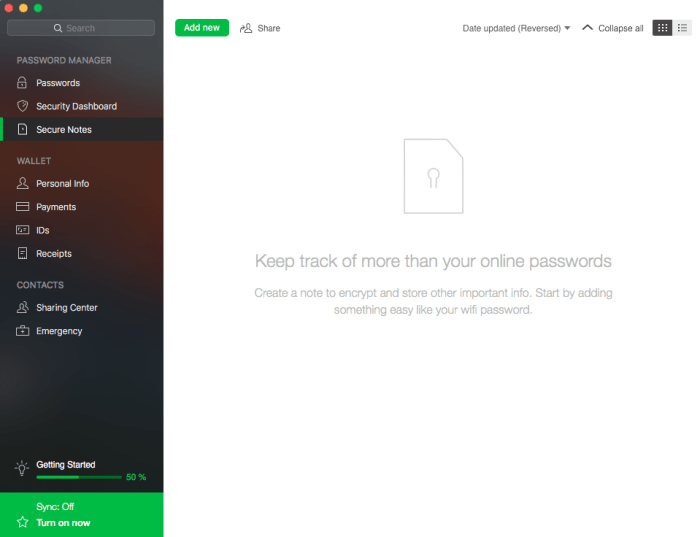
Dashlane can be used as a secure vault in which to store a host of information. From the main dashboard screen, you’ll see a section titled WALLET. Beneath this header, there are options for “Personal Info,” “Payments,” “IDs” and receipts. By clicking on the relevant category and inputting the requested data, you can start to build a digital version of your most important documents including passports, drivers licenses or tax information. Not only will Dashlane store all of this information in its double-blind encryption system, but you can also set it to update you six months before many of the documents expire. 

Dashlane also offers a “Secure Notes” option where you can input freeform items such as your WiFi password, home alarm code, PIN numbers, license plate numbers and more. 

Dashlane

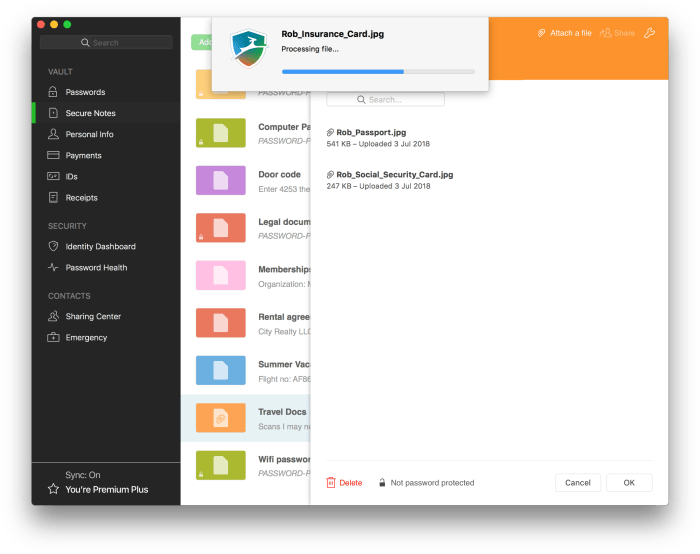
If you choose to upgrade to the Premium version of Dashlane, you will also be able to use the software to securely store documents and images. How handy would it be to always have your driver’s license or passport images in your phone – protected by a password only you know? This means in the event that you lose important papers from damage or theft, you’ll always have a secure copy to fall back on.

DashlaneReceipts and more  

Under the “Receipts” category, you’ll find a collection of your receipts from your online purchases. You can also use this section of the software to add in receipts you’d like to store. 

The final category in Dashlane’s main window is entitled CONTACTS. Here’s where you can input your emergency contact, someone who would be able to access your password data in case something happens to you. You can also use the “Sharing Center” to send encrypted  information such as passwords or documents to individuals you choose via email. Your recipient will receive a link in the email that leads them to the Dashlane site. After setting up their own free account, he will be able to access the data you’ve chosen to share. 

Google left a number of user passwords unprotected for 14 years

Due to an error from 2005, your password might have been left exposed.

Google password

Google announced in a blog post that they had stored a number of users’ passwords in plain text for about 14 years. The good news is that Google found no signs of a breach or misuse. 

When Google stores passwords, they go through a process called “hashing.” Hashing scrambles a password so that if someone were to get the scrambled version, they would have no idea what your actual password might be. The passwords in question were not hashed and were instead left in plain text. 

Google did not clarify how many user passwords were unprotected.

“We take the security of our enterprise customers extremely seriously, and pride ourselves in advancing the industry’s best practices for account security,” wrote Suzanne Frey, vice president of engineering at Google. “Here we did not live up to our own standards, nor those of our customers. We apologize to our users and will do better.”

7

How did this happen?

Back in 2005, Google made an error when creating their new password system. Google ended up fine-tuning their hashing system, and those passwords ended up making it to their hashing system. However, the error persisted.

While troubleshooting G Suite customer sign-up flows, Google discovered that the error was still there. A subset of some unhashed passwords remained in Google’s system for a maximum of two weeks at a time. Google has removed the error.

Google Docs Download free ►
8

Should I be worried?

Short answer: not really.

Google did not suffer a breach that led to your password getting stolen by a hacker. The company was careless in how it protected some of the passwords, but they have rectified the problem.

PC Security: Microsoft changes its mind on certain password protocols

Microsoft now believes password expiration and renewal policies are useless.

a password combination lock

Your password is one of the most important tools you have in your digital security toolbox. Without a strong and secret password, our online accounts, memberships, and subscriptions could end up wide open to cyber-criminals and hackers. As more and more of our lives move online this becomes increasingly more important.

A good password should be long, complex, and not include any recognizable data from your life. For a long time, however, there has been another recognized security requirement that we’ve been forced to adhere to when it comes to our passwords; expiration and renewal. At regular intervals, we’re reminded that our current password will expire soon, and we need to choose a new one.

Without too much thinking, it is easy to see why this might seem like the most secure course of action. If you keep mixing it up, your account will stay secure even if your password falls into the wrong hands. When you add expiration and renewal to password length, complexity, and independence from any past passwords, however, it proves to be a regular annoyance to everyday users. Having to come up with a unique password that contains a lot of different characters of all types every six months is more difficult than it sounds. It often leads to the wrong password being entered time and again in the first few weeks following the renewal or, even worse, passwords being written down.

The good news is that this regular pain may soon be about to change thanks to a new security blog post from Microsoft. The better news is that Microsoft deciding to remove expiration and renewal from all its password security protocols won’t compromise your digital security.

Microsoft now believes password expiration and renewal policies are useless

According to the Microsoft blog, recent scientific research has been shedding new light onto password policies and, in particular, expiration and renewal. There is little value in constantly forcing users to change their passwords as, “When humans are forced to change their passwords, too often they’ll make a small and predictable alteration to their existing passwords, and/or forget their new passwords.”

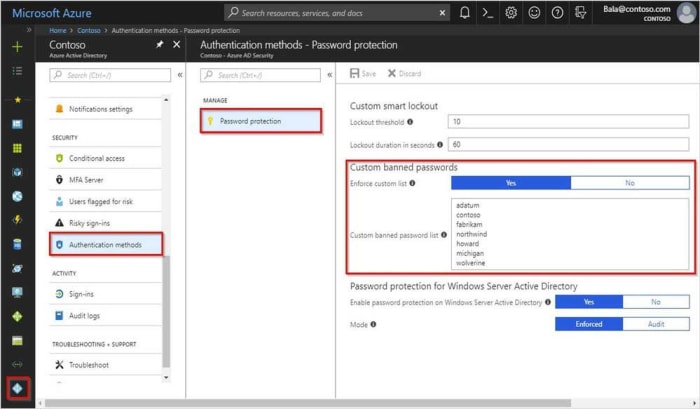
Azure password protection
Image via: Microsoft – Microsoft now believes security protocols like banned password lists are much more secure than expiration and renewal

Microsoft goes even further in its dissection of expiration protocols because when you look at the practice in greater detail, it really does begin to fall apart. “If a password is never stolen, there’s no need to expire it. And if you have evidence that a password has been stolen, you would presumably act immediately rather than wait for expiration to fix the problem.” Simply put, why change a password if it hasn’t been breached, and if it has, why would you wait until the expiration period is up to change it, and not just do it immediately?

So, Microsoft has laid out its new ideas on password expiration. The blog post goes further, however, and states that the software giant has removed the practice from its security baseline for Windows 10 v1903 and Windows Server v1903. This means, in practice, the change won’t affect too many people, but it gives network administrators the ability to remove password expiration from their office systems. If you have to update your expired passwords in work, you might already be on your last ever password.

773 million emails and 21 million passwords exposed: how to tell if you’re affected

There’s never been a bigger data breach.

massive password and email leak

This is why we can’t have nice things. The internet just got hit with the biggest private data leak we’ve ever seen. So congrats, all you 772,904,991 email addresses and 21,222,975 different passwords. You’re now out in the open.

According to security expert Troy Hunt, a data dump nicknamed “Collection #1” was uploaded to the popular file-sharing site MEGA. (It’s since been taken down, but that doesn’t mean it doesn’t exist elsewhere.)

So how do you know if you’re affected? You can click here to visit Have I Been Pwned to see if your email has been compromised. And if you want to know if your password is out in general circulation, this site will let you know.

For more tips on creating a rock solid password, check out this video:

And be sure to stay with Softonic for any more news about further data breaches!