Although Face ID is really accurate and makes it much easier for us to use our devices, there are very specific occasions when it can be less reliable, especially in the dark. It has an easy solution.
Face ID is one of the most useful and innovative features of modern iPhones. Thanks to this technology, there is no need to remember a password or enter a pattern to unlock our device. Instead, we simply look at the screen and Face ID recognizes us and allows us to access the phone or use Apple Pay.
Protecting all our personal information is really easy. And unlocking our iPhone in less than a second is even easier.
In recent years, we have become accustomed to using our iPhones for just about everything: communicating, working, entertainment, etc. For this reason, and considering the enormous amount of information they contain, it is essential that we make sure our device is properly protected and accessible only to us. This is where Face ID comes into play, Apple’s facial unlocking system that ensures security as well as convenience.
Face ID is a facial recognition system that allows us to unlock our iPhone, authenticate our identity to make purchases and access compatible applications, all in a fast and secure way. A technology that is available on the iPhone X and later.
How to set up Face ID
Before we start, we must verify that our iPhone is compatible with Face ID. As mentioned above, this feature is available on the iPhone X and later models. Beyond this, and to ensure that Face ID works properly, we need to make sure that our iPhone is updated with the latest version of iOS available. To do this, we go to Settings > General > Software Update and check if there are any updates available. If so, let’s install it.
Once we have checked the compatibility of our device and updated it, we can proceed to set up Face ID. To do this, follow these steps:
We open the Settings app on our iPhone or iPad.
Go to Face ID and passcode.
We enter the code of our iPhone, if we have not configured any we will be offered to create it.
Tap on Set up Face ID.
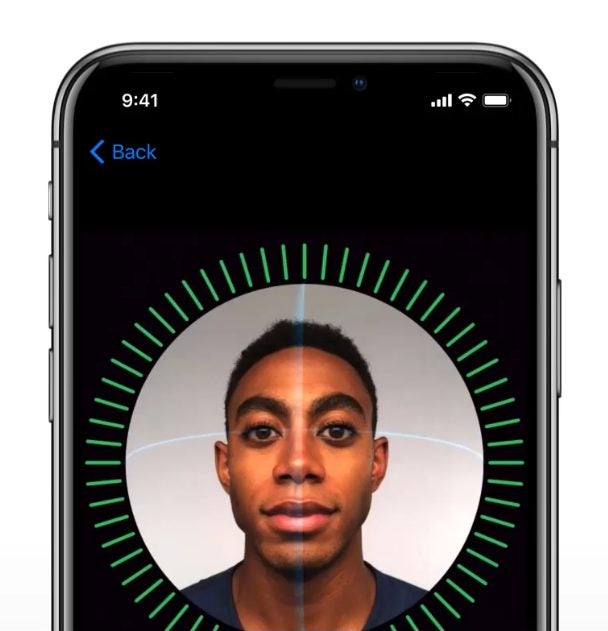
Now, when prompted, we place the device in front of the face and tap Start.
We place our face inside the frame and slowly move our head to complete the circle. We should look right and left and up and down.
After completing the circle we tap Continue.
We complete the second circle.
Touch OK.
How to customize Face ID functions
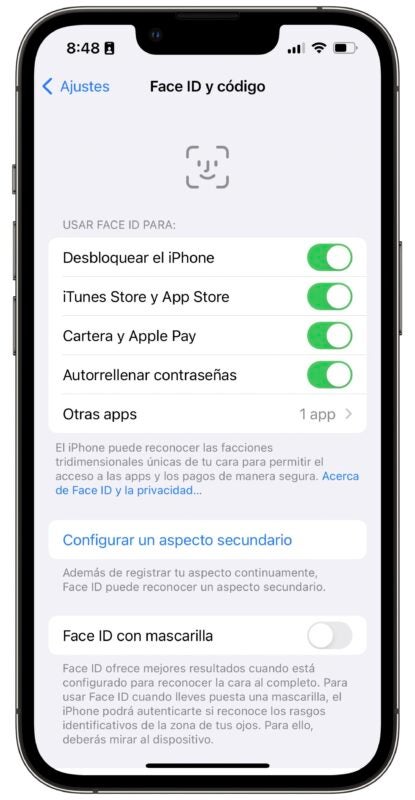
Once configured, we can customize Face ID functions according to our needs. Some of the options available include the ability to use Face ID to Unlock the iPhone, but also to make purchases in the iTunes Store and App Store, use it for the Wallet appand Apple Pay, to Autofill passwords and for Other apps.
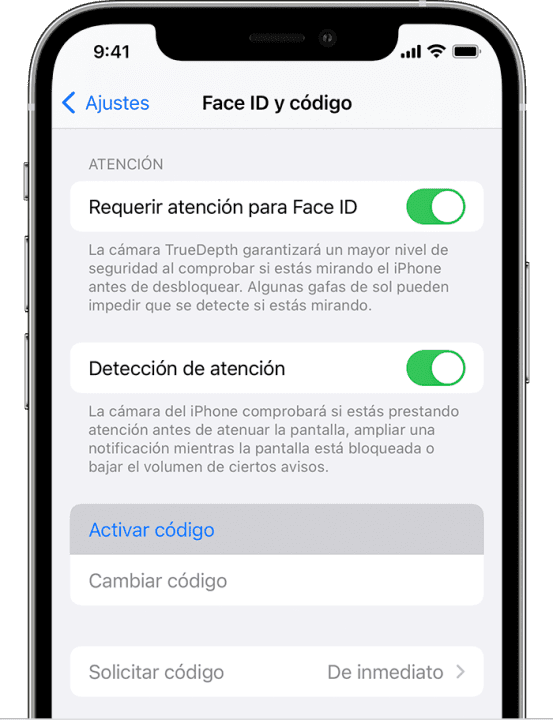
In addition, we can Configure a secondary appearance, which will take us to the same process that we have just followed and where we can register a very different appearance to the one we usually have. The system also offers us to be able to use Face ID with mask, Require attention for Face ID with what is guaranteed not to unlock without us looking at the screen.
To finish, we can configure what we have access to with the iPhone or iPad locked. Options such as Today View and Search, Notification Center, Control Center, Widgets, Live Activities, Siri and others are available for us to enable or disable at will. All with the aim of being able to decide what will require us to unlock our iPhone or iPad with a glance before consulting.
Some tips for using Face ID
Face ID works really well. It is fast and recognizes us in almost any circumstance. However, a few tips are always useful to make it work even better. The most important thing is to make sure the cameras see us. Especially on the iPad, we may be covering the camera with our hand.
A case or considerable dirt can also affect its performance. It is also important that the angle at which our iPhone sees us is sufficient for it to recognize us. A distance of between two and three palms between the phone and our face is ideal.
If we still notice that the performance is not what it should, we can reset Face ID and configure it again. To do this, we go to Settings > Face ID and code > Reset Face ID and follow the steps we explained above to configure it again. Something, it must be said, that we should not do often, because the system is re-starting once configured, thus gaining in reliability and speed with use.
And by the way, Face ID does not depend on light, we can use it in absolute darkness.
Face ID is undoubtedly one of the most outstanding advantages offered by the iPhone. A feature that allows us to enjoy a much more secure and, above all, comfortable experience. Configuring and customizing Face ID on our device is really easy. Protecting all our personal information is really easy. And unlocking our iPhone in less than a second is even easier.
Our iPhone offers us all the facilities to be safe and comfortable in equal measure.
There is a lot of information that we store on our iPhone. From the photos and videos we can take to notes, passwords or credit cards with Apple Pay, to name just a few examples. Therefore, it is essential that we can protect the contents of the phone, something we will do, simply by locking and applying a code to access the information.
We lock the iPhone constantly. We do this by pressing the side button, so the screen is off and the information is safe. Safe if you have an unlock code, of course, otherwise anyone with physical access to the phone can unlock it.
How to set up an access code
The passcode is a combination of numbers or characters that we must enter to unlock the iPhone. Setting it is as easy as following these steps:
We open the Settings app on our iPhone or iPad.
Go to Face ID and passcode or Touch ID and passcode, depending on your iPhone model.
Click on Activate passcode or Change passcode if you already have one.
Enter a 6-digit passcode or select Passcode Options to choose a custom alphanumeric passcode or a 4-digit passcode.
After repeating it and tapping OK the code will be ready. Every time we need to unlock the iPhone we will have to enter it or use Face ID or Touch ID to enter an equivalent.
When choosing the code, keep in mind that an alphanumeric code will always be more secure than one with digits only. In addition, a longer length is always recommended. In any case, it is important that we write it down or remember it to be able to continue using our iPhone.
How to enable automatic iPhone lock
With the code set, when our iPhone is locked, our information will be encrypted and protected. But what if we forget to lock it? Just to avoid this, we can configure the automatic lock. Here’s how to do it:
We open the Settings app on our iPhone or iPad.
Go to Display and brightness.
Tap on Auto Lock.
We choose the option that most interests us.
Keep in mind that a shorter time will always be safer, so the recommendation will always be to choose the 30-second option.
How to set up Face ID or Touch ID
To avoid having to enter the code, which is much more convenient, and to avoid anyone seeing us enter it, which is also more secure, we can set up Face ID or Touch ID. The steps to do this are as follows:
We open the Settings app on our iPhone or iPad.
We enter Face ID and code or Touch ID and code.
Enter your iPhone passcode.
Tap on Set up Face/Touch ID.
Follow the on-screen steps to scan your fingerprint or face.
How to unlock our iPhone
Once we have set up the automatic lock, passcode and biometric features, unlocking the iPhone is as simple as can be. Here’s how to do it:
If we use Face ID, we raise the iPhone and look directly at it. The device will automatically unlock if you recognize our face. We slide up from the bottom of the screen to access the home screen.
If we use Touch ID, we place our registered finger on the home button or on the fingerprint recognition area, depending on the iPhone model. The device will automatically unlock if it recognizes our fingerprint.
If we do not have Face ID or Touch ID, or if we prefer to use the passcode, we simply press the home button or swipe up from the bottom of the screen. Then, we enter the lock code on the screen.
Securing our iPhone is essential to keep personal information safe from unauthorized access. Let’s make sure to enable the automatic lock, set a passcode and use biometric features such as Face ID or Touch ID to make everything easier. As we can see, our iPhone offers us all the facilities to be secure and convenient in equal parts.