Urgent Security Update Released for iOS 16 and Other Apple Systems: How to Install it

An update, let’s remember, that is only available for devices that already run the latest versions of iOS, iPadOS and macOS and that we can install in just a few seconds.

Apple has announced the availability of Rapid Security Response (RSR) updates for iPhones and iPads running iOS 16.4.1 and its iPadOS counterpart, as well as for Macs running macOS 13.3.1. These updates, as the name suggests, are intended to improve the security of our devices and are being distributed in this way for the first time outside of beta.

Freeform DOWNLOAD

The RSR 16.4.1 (a) updates for iOS and 13.3.1 (a) for macOS aim to deliver security solutions to all our devices without the need to install a full software update. A system that Apple already tested during the beta of iOS 16.4 and that now takes care of the security of operating systems.

A new way to update our devices

Unlike a conventional update, where it is much of the system that has to be reinstalled, even if it is to make relatively small changes, in this update what Apple uses is what is called Delta Update. A reference to the highly specialized Delta combat forces with a single objective that they accomplish without drawing attention to themselves.

Similarly, these updates only modify some components of the system to improve its security without the need for a complete installation. And this is critical, because in addition to the download being minimal both in terms of weight and time, the update is as fast as a reboot.

This can be read in two ways. The first is that we will be able to install the update with little or no interruption to our use of the devices. The second is that if we restart the iPhone, iPad or Mac, the update is installed, which is a great advantage for keeping them secure, even for those users who are not in the habit of manually installing updates.

How to install new security updates

To install the Security Response updates on our iPhone, iPad or Mac, the steps to follow are the same as for any other update. Specifically we will do it like this:

  1. We open the Settings app on our iPhone, iPad or Mac.
  2. Go to General.
  3. Tap on Software Update.
  4. Once the update appears, tap on Download and install.
  5. Our iPhone, iPad or Mac will restart as it would normally do.
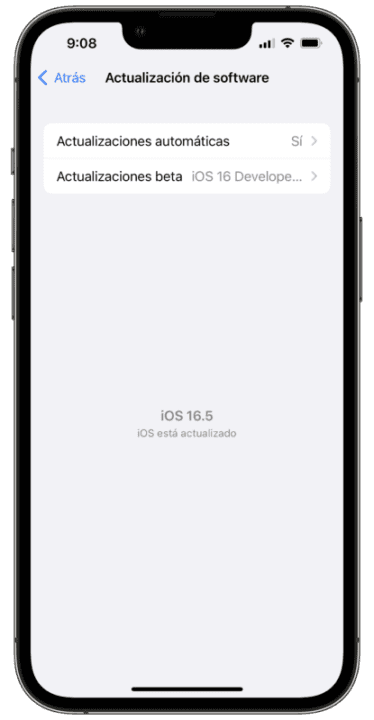
Meanwhile, if we want to know if the update has already been installed without us noticing it, the best thing to do is to check the version of the operating system that we have installed on our devices. On our iPhone or iPad we will do it like this:

  1. We open the Settings app on our iPhone, iPad or Mac.
  2. Go to General.
  3. Tap on Information.
  4. Check that the iOS/iPadOS version shows the number 16.4.1 (a).

On the Mac we will do something similar. In the Apple menu, we will choose About this Mac. Then, at the bottom, next to macOS, we make sure that “13.3.1 (a)” appears, which indicates that we already have the update.

Right now, we do not know exactly what security improvements Apple has implemented in this quick update. Hopefully in the next few hours the company will update its support document with a list of the changes.

In any case, if we see it appear on our device, since Apple is deploying it progressively and the process will take up to 48 hours, it is best that we install it as soon as possible. An update, remember, that is only available for devices already running the latest versions of iOS, iPadOS and macOS and that, as we have just seen, we can install in just a few seconds. While we wait for iPadOS 17 and its leaks, clearly good news for our security.

Freeform DOWNLOAD

Some of the links added in the article are part of affiliate campaigns and may represent benefits for Softonic.
What’s New in iOS 16.4 RC? Enhanced Call Quality, Photo Detection, and More Features Revealed

The Release Candidate of iOS 16.4 is already here and, like all the other betas of this version, it brings several new features.

Apple released yesterday the Release Candidate version of iOS 16.4, watchOS 9.4 macOS 13.3 and the rest of the systems. The last beta version before the release of the final version probably next week. A version that, as has been happening with all of this cycle of betas, especially iOS 16.4 beta 1 and iOS 16.4 beta 2, brings new features.

Continue reading “What’s New in iOS 16.4 RC? Enhanced Call Quality, Photo Detection, and More Features Revealed”

The Future of iOS: Betaprofiles.com Goes Down, but iOS 16 Beta Download Still Available

betaprofiles.com is a go-to place for downloading beta versions of iOS 16.

The beta season is coming. WWDC 2023 is just around the corner and this means that in a few weeks we will have among us the new beta versions of all Apple operating systems. Operating systems that, most likely, we will want to test before anyone else. And this is where what happened with betaprofiles.com comes into play.

Continue reading “The Future of iOS: Betaprofiles.com Goes Down, but iOS 16 Beta Download Still Available”

A New Era of Mobile Technology: The Game-Changing Features of Apple’s iOS 16

iOS 16 gives us a ton of options to do just about anything. Let's go through the 10 most amazing features ready to discover on our iPhone.

The iPhone operating system, iOS, has a lot of amazing features. Some more familiar, some less so, but all very useful in day-to-day life. It’s been this way for many years now, as new features are added version by version. And iOS 16, not to mention what’s new in iOS 16.4 beta 2, brings several very, very interesting ones.

From translating text through the camera to setting a random background, these features are designed to enhance the user experience and make using the iPhone easier and more versatile. Let’s pick up the ten most useful and surprising features of iOS 16.

10 points where iOS 16 shines above the rest

  1. Translate texts using the camera app: simply point the camera at any text you want to translate and the app will recognize the text, even if it is handwritten. Then, tap the three dashes button at the bottom right, tap Translate and you will instantly see the text. A particularly useful feature if we travel abroad or even if you are studying a new language, because we no longer have to manually write the text, we simply focus on it with the camera app.
  2. Copy and paste photo edits: if we have made edits to a photo and want to apply the same edits to another photo or hundreds of other photos, we can now do it very easily. We simply select the edited photo, tap the button in the shape of three little dots and choose Copy edits. Then we select the photo or photos to which we want to apply the same adjustments, tap the three-dot button again and choose Paste edits.
  3. Set a random wallpaper: we can ask the iPhone to randomly change our background based on images we select from the Photos app. To do this, we simply press and hold the lock screen, tap the “+” and then select Random photos. Then we tap on Select photos manually, select the ones we are interested in and tap Add. In the three-dotted button we can choose how often to change the photo.

4. Remove the background of a photo: something we will do by simply opening the photo we are interested in and holding down gently on the subject of the photo. Then a simple tap on Copy or Share will allow us to take the cropped photo wherever we want.
5. View and copy the password of a Wi-Fi network: within the Settings app > Wi-Fi and touching “i” next to the network we are on, we can find the Password section. A tap on it and a Face ID identification will allow us to see it and offer us the option to copy it.
6. Haptic feedback on the keyboard: by activating haptic feedback on the keyboard, when we type, we will be able to feel a tactile response instead of simply listening to the sound of the keys. We just have to open the Settings app, enter Sound & Vibration, tap on Keyboard Feedback and activate Vibration.
7. Use the iPhone password for the Notes app: instead of having to store multiple passwords, the one we use for locked notes can now be the same one we use to access the iPhone. An option that we can activate in Settings > Notes under Password. We just need to choose Use device passcode.

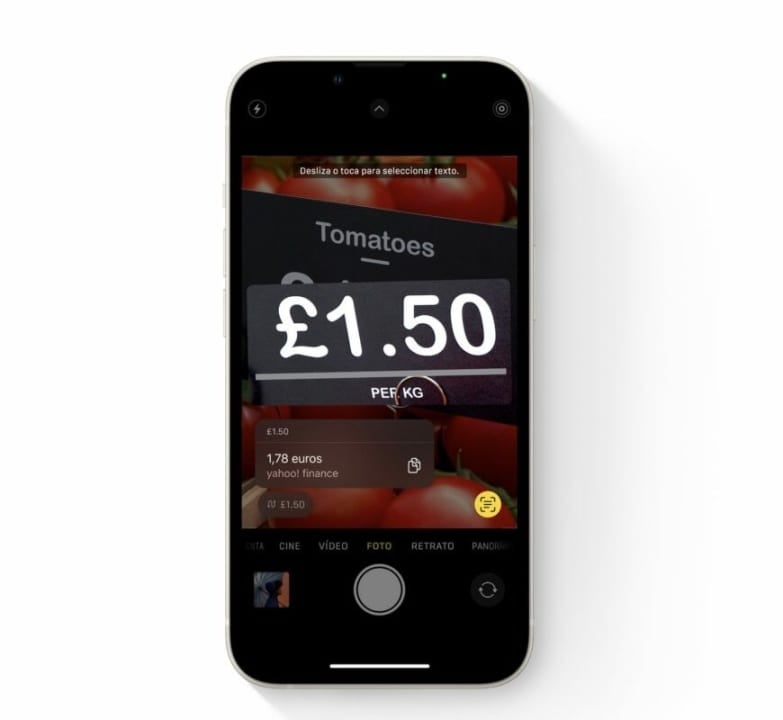
8. Convert measurements and currencies using the camera app: as with the text we can translate, by pointing the camera at a measurement or a foreign currency we can get a conversion. A very useful resource that will recognize the handwritten text as well and that will speed up that we can have a clear idea of the figure we are handling.
9. Prevent the side button from hanging up the call: to avoid unintentionally hanging up a call in progress, we can now disable the side button to end it. A simple change that we will make from Settings > Accessibility > Touch by activating Prevent end calls when blocking.
10. Search photos, even by the text that appears on them: last but not least, the tenth feature that we must highlight is the ability to search and filter photos. We can now search for photos by the text that appears inside them, great for finding what we are looking for quickly.

All in all, it’s clear that iOS 16 brings a host of new features and improvements that make the iPhone even more useful and easier to use. Just as if we talk about these 9 must-have iPhone Shortcuts, in functionalities, from the ability to translate text through the camera to the ability to search and filter photos, set a random background or remove the background of any photo, we have a lot to discover, at least while we wait for the arrival of the iPhone 15 and all its new features.