How To Add A Signature To PDF

If you’ve ever had to sign contracts or documents in the ‘90s, you’re sure to remember the burden of having to wait for a fax-line to open up, printing out docs, signing and re-faxing it back to the recipient. It was a paper-trail nightmare, and the wait was rather frustrating. 

It was soon replaced with scanners, a considerable step up from faxing, but you still needed a printer and paper. Fortunately, PDF documents with e-signatures are now widely accepted and deemed legal and binding. All it takes is a few quick clicks of a button, and your contract or document is legit.

What is a PDF document?

Portable Document Format files, or in short PDF, is a file format used to send printable documents on the web securely. Once you’ve formatted a document into a PDF file, only the file creator can make changes to it, making it a secure method of sending confidential information via email. You’ll recognize it by the .pdf at the end of a file name. 

How to add a signature to PDF

If you need to place a signature on a PDF document, here’s the process:

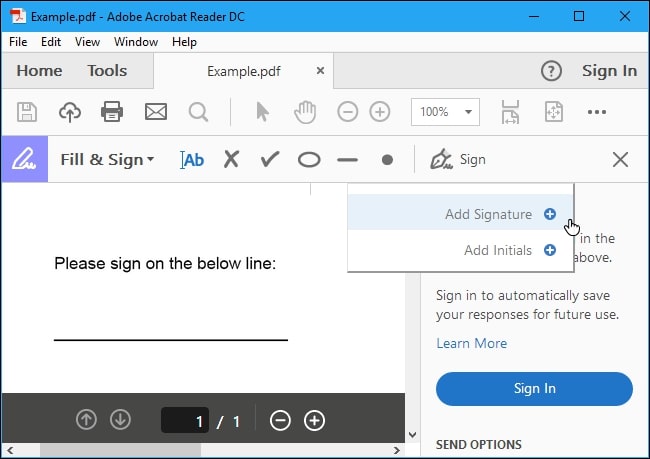
  1. Go to Adobe Acrobat Reader on your device and open it.
  2. From the ‘Tools’ option, choose the ‘Fill and Sign’ icon. 
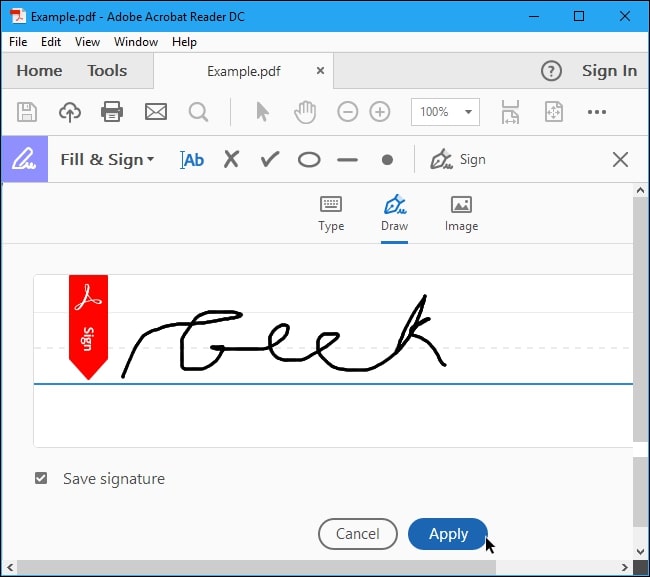
  3. Click on the ‘Sign’ icon and then choose ‘Add Signature.’
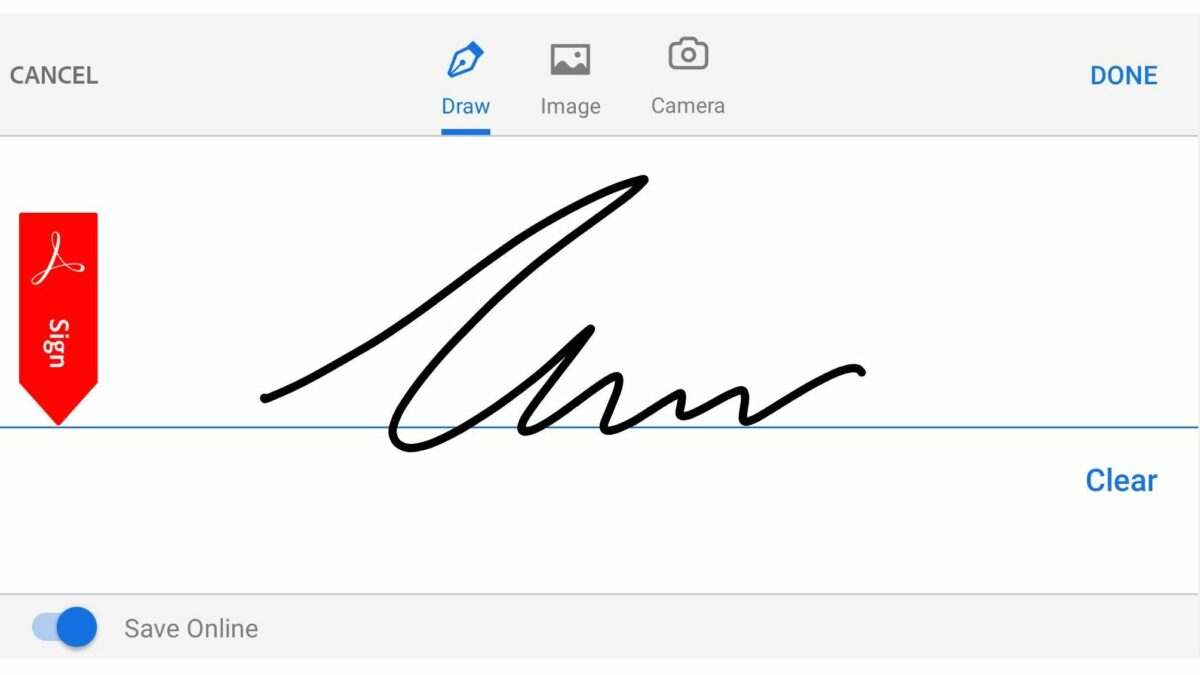
  4. You’ll see a popup on your screen with three options: ‘Type,’ ‘Draw,’ and ‘Image.’ Choose a method and add your signature. Then press the ‘Apply’ icon.
  5. You can drag, position, and resize the signature on your PDF file.

Adobe Reader DOWNLOAD
8

Why can’t I open any PDF files?

If your PC or laptop is running on Windows 7 or earlier programs, you’ll need to manually download a PDF reader program such as Adobe Reader to access PDF files. You can also try Foxit PDF or Javelin PDF. Using PDF is free, fast, and safe.

Foxit PDF DOWNLOAD
7

The million-dollar signature

Signing documents electronically makes life and work so much easier for everyone involved. It has the most extensive benefit when team members work together across the world, or you’re unable to attend a significant meeting. Do you often add a signature to PDFs for your projects? Feel free to let us know.

PDF Reader is packed with every PDF editing, creating, and converting tool you could wish for

Even though PDFs were first created by Adobe in 1992, many other software companies have since built programs that work with the file type. So while you were once forced to use only Adobe’s software to work with PDFs, now you can choose from among dozens of both free and paid programs to do the same thing. This allows you to find just the right solution for your needs and budget. 

Chances are pretty good though that the software you choose will be PDF Reader by Kdan Mobile Software. With more than 60 million downloads worldwide, it is one of the leading PDF manipulation tools on the market, and for good reason. 

Every PDF tool you could possibly need

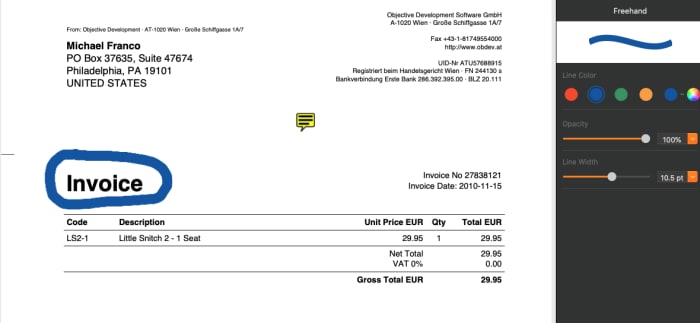
Want to move text around in a PDF? Increase the font size of a particular line? Change the spelling of a word? Use a freehand drawing tool to mark it up? Sign it using your finger, your trackpad or your mouse? PDF Reader has you covered. It does all of this and much, much more

One of the ways in which PDF Reader distinguishes itself from the competition, is just how intuitive it is to use. Colorful icons at the top of the screen help you find the right tool for nearly any task, and then drag-and-drop functionality makes it a breeze to move things wherever you want them. 

PDF ReaderYou can add images, tables, form fields, buttons, stamps and shapes with ease. What’s more, the formatting toolbar that appears at the side of the screen lets you adjust the size, color and opacity of many items you drop into your document like lines and highlights. And, as you’d expect with any PDF processing software, you can also add sticky note comments, as well as cross out, underline and highlight text. A hideable thumbnail panel on the left lets you easily navigate and rearrange pages. 

A nice additional feature of PDF Reader is the inclusion of a “night mode,” which makes the software easier on the eyes when using it in dimly lit conditions.

PDF Reader

Robust file management

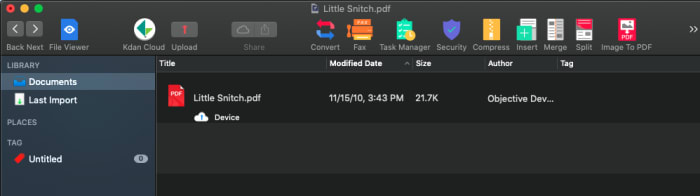
Another way in which PDF Reader stands apart from the competition is with its impressive file-management system. By hitting a toggle button at the top of the screen, you enter the file-management area where you can tag and organize any files you add.

PDF ReaderHere is where you can also import practically any other file type to create a PDF; compress your files; add or delete pages; merge different files into one PDF; adjust security settings; and even fax or email your document right from the program. When you want to save a document, you can do so with easy conversion tools that turn your PDF into a Microsoft Office, iWorks, ePub or text or image files with a click. 

Free vs Paid

The free version of PDF Reader might be satisfactory for many users. You can mark up any PDF, add comments and notes, insert form elements, password protect documents; and use the freehand signing tool. It’s a much more robust software package than what is offered in Adobe’s free PDF software. 

However, if you want even more functionality, upgrading to the paid version might be a good bet. Upgrading moves you to Kdan’s Document 365 subscription for $5/month billed annually, which works across all operating systems including iOS, Android, Mac and Windows 10. 

Upgrading also adds in all of the really fun features including: converting PDFs to ePub, Microsoft Office, HTML, JPEG and PNG files; using OCR scanning to allow text to be edited, moved and deleted; adding backgrounds and watermarks; splitting and saving PDFs; encrypt and decrypt PDF files; sending files as faxes; and converting your PDFs to a wide range of other file types. 

Fortunately, you can download a free, fully-functioning 7-day trial of the software to see just how many features you’ll use before choosing the version that’s right for you.

New PDFelement 7: An easy, affordable way to unlock the power of the PDF

PDFelement 7: Create, edit and manipulate PDFs the easy, affordable way. Free for iOS and Android!

As the world continues to go paperless, it’s more crucial than ever that you have access to a software program that can handle the most common file type used to share statements, contracts, and other documents: PDF. While you can always use Adobe Acrobat from the company that created PDFs, you might find that the price tag is a little too high or that the software is a little too complicated.

Enter PDFelement, now in its seventh release, which provides you with every PDF tool you could possibly want at a much more reasonable price, and with an interface that will have even novices creating, changing, and marking up PDFs like pros in no time.

Edit all aspects of a PDF

One of the most frustrating parts of working with PDFs has been the inability to edit them; PDFelement 7 eliminates this concern. The software basically turns a PDF into a word processing document. You’re able to move text around and alter its font, color and more; permanently hide text or images using the “redact” feature; add text and images; add signatures; and, turn any part of the document into a hyperlink.
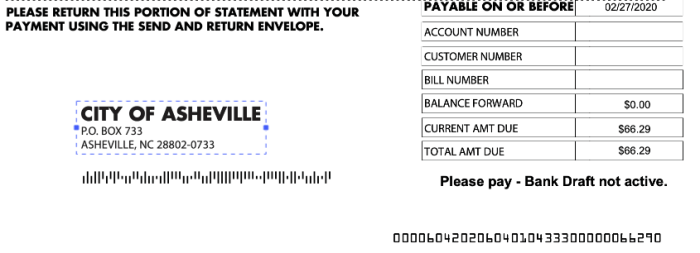
PDFelement

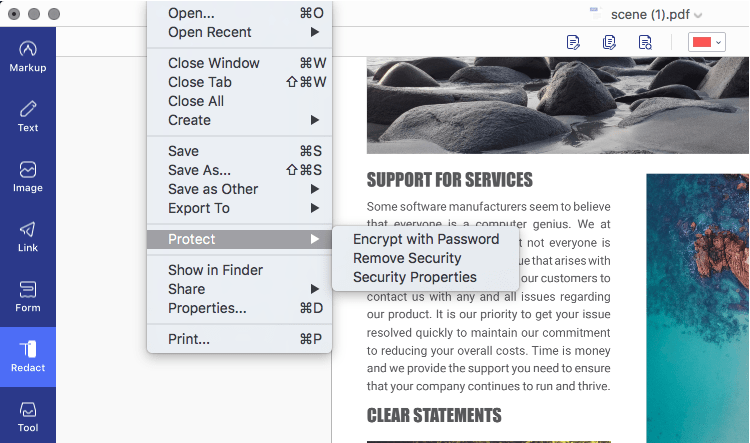
Once your document is edited, you can use the extensive PDF protection tools to secure it. Applying password encryption, redacting confidential data, restricting print, edit, and other permissions are quite simple and have its own section in the File menu (Mac version) or in the top toolbar in the Protect tab (Windows version).

Create PDF from or Convert PDF to a range of sources

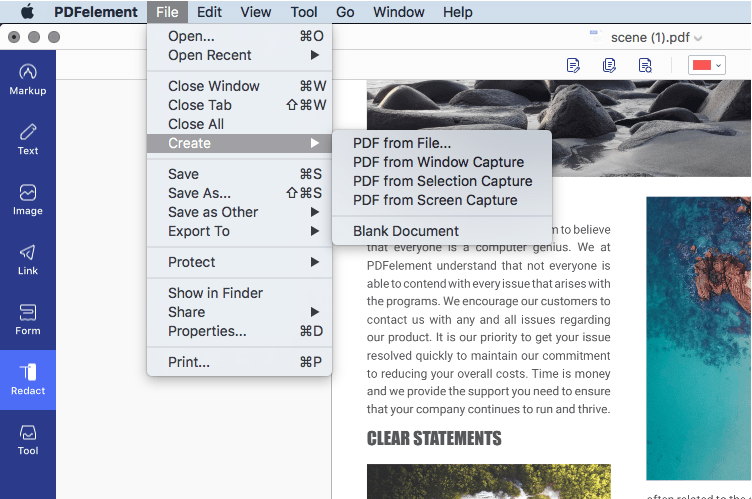
PDFelement 7 not only lets you fully manipulate existing PDFs, but it allows you to convert other document types to create PDFs, as well as letting you start completely from scratch. To do this, you can start with a blank document, or the software can create a PDF from a screen capture, a window capture, or a selection capture, as well as from any image file, Microsoft Office file, scans, a connected scanner (scan to PDF) or HTML code.

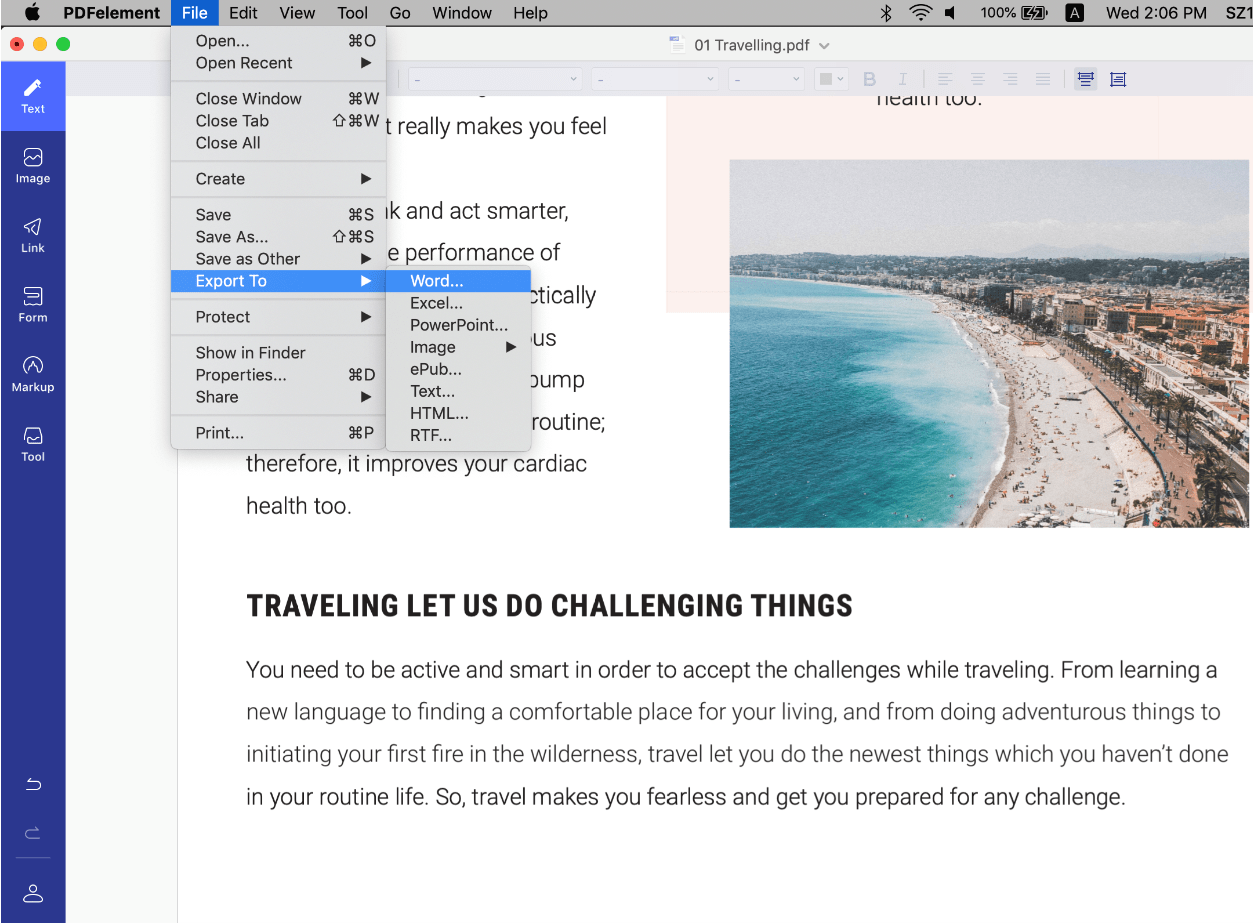
The Convert PDF function in PDFelement 7 is a powerful tool for communication because not everyone has a premium PDF editor. Some stakeholders in a particular process may require the information in a different format, such as Excel or a plain text file. In such cases, the improved conversion engine makes sure that the output file preserves the integrity of the source PDF. The output and input file options are extensive in PDFelement 7, including Excel, Word, PPT, HTML, EPUB, Text, and other file formats, making it a holistic document management software.

Simplified, intuitive navigation

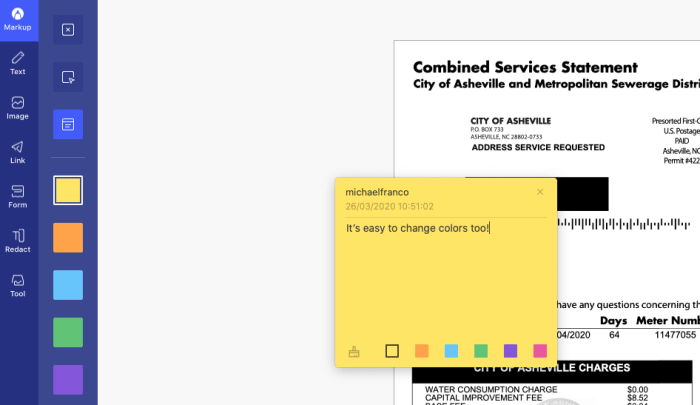
Working with PDFelement 7 is impressively easy. When you begin moving around images, altering text and marking up the file using a range of tools including sticky notes, text callouts, highlights and much more, you’ll view PDF files in an entirely new light. And the software is also quite intuitive.
PDFelement

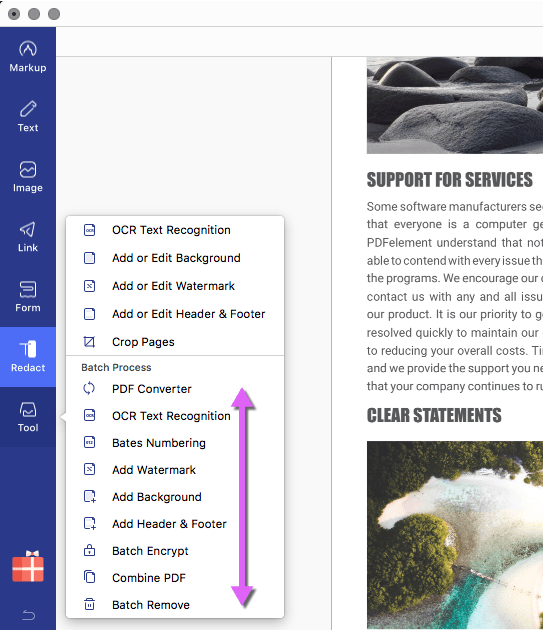
A toolbar on the left lets you decide how you want to annotate PDFs: Markup, Text, Image, Link, Form, Redact, and Tool. Once you select the appropriate one, an additional formatting toolbar on the top of the screen lets you fine-tune your work. Down the right side, you’ll find simple document-navigation tools.

Create forms, change backgrounds and more 

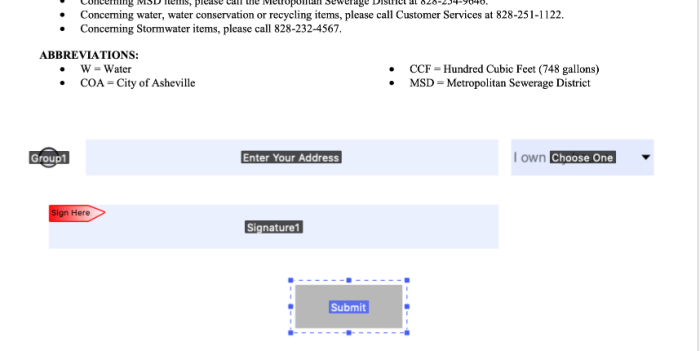
As if all of those features weren’t enough, PDFelement 7 has a few other tricks up its sleeve that allow you to truly transform PDFs from being one of the most clunky file types to work with to one of the easiest. First among those is the ability to create or add forms to any document. The software allows you to insert fillable text fields, selectable drop-down windows and radio buttons, and a field requesting a digital signature that is legally binding.

You can also convert non-interactive content into fillable PDFs, have the software automatically recognize form fields, extract data and images, and a lot more.
PDFelements
Additionally, under the “Tools” section, you’ll find a range of extra goodies, including the ability to add a watermark or change the background, add a header or footer, and combine multiple PDFs into one file. But the standout feature in this section is the OCR scan function, which makes all the text in a PDF searchable or editable, per the conversion setting you choose. The OCR functionality works across 29 languages.

In PDFelement 7 Pro, you also have several Batch Process options for conversion, encryption, watermarking, OCR, merging PDFs, and so on. These allow you to handle large workflows containing hundreds of documents and process them in an automated queue instead of doing it manually, one by one.

Besides the macOS system, PDFelement is also available on these OS platforms: Windows, Android, and iOS. Plus, you can get the PDFelement for iOS and Android for free.

Extensive Product Support

Wondershare, the creator of PDFelement, offers full backup for its key PDF productivity product. This includes video tutorials, online help tools, an extensive knowledge base, user guides, and a live chat service in case you need immediate help, it will be more helpful to find the solutions.

Save up to $60 on PDFelement Pro

PDFelement allows you to download a free version of the software that lets you use nearly all of the program’s functionality. The only caveats are that files are saved with a watermark and there are some conversion caps/limits. Nevertheless, every basic PDF function is free to use.

For $79 per year (a savings of $40), you can upgrade to a Pro version, which includes complete functionality – or for $69 per year, you can snag the Standard version, which eliminates the OCR function, the ability to turn scanned PDFs into editable PDFs, the ability to add and edit form fields and digital signatures, and several other features. In our opinion, the upgrade to Pro is well worth the extra $10. Furthermore, you can also opt for a lifetime license so you don’t have to remember to renew your subscription every year or every month.